
Preview problems
Fix blank, stale or stuck previews, busy preview ports, sign-in prompts, apps that don't start on this computer, and a blocked rayfin-local.
Use this page when the preview doesn't show the app you expect. The preview shows your app running on this computer, on rayfin-local, the local backend that comes with Fabricator, or once the app is published, your published app. For a published app that this computer can't run, it shows a live preview: your app's pages from this computer, with your published app's backend. While Publish after each chat turn is on, the live preview runs only while Copilot works, and the preview shows the published app the rest of the time.
The preview is blank or stuck
You see an empty preview, Loading… for a long time, a local browser error, or chat appears to hang while opening a preview.
Fabricator shows your app as it runs on this computer or, in Published, your published app. For a published app that this computer can't run, it shows the live preview: the project's Vite dev server on this computer, with the published app's backend. When the live preview isn't running, such as between turns while Publish after each chat turn is on, it shows the published app. Dependency installs, port conflicts, an app that can't start, or a dev server that stops answering can interrupt the preview.
- Select Reload in the preview toolbar.
- Select Focus to hide chat, then Exit focus to return. This forces the preview bounds to be recalculated.
- Check Output in the preview toolbar. A red dot on it means your app couldn't start on this computer: see Your app doesn't start on this computer. Select Output to see your app's output.
- If the preview is live and the turn is still running, wait for the turn to finish. The published app returns after the turn and its publish. With Publish after each chat turn off, the live preview stays while the app is open.
- If the published app is blank, select Publish in the app bar to publish it again.
- If you see "Local preview didn't become ready in time." or "Timed out waiting for Vite to start.", retry the chat turn after dependencies finish installing.
- If the same project repeatedly hangs while opening preview, restart Fabricator.
If the preview still hangs, Report a problem.
The preview shows an old version
The preview works, but it doesn't include the changes Copilot just made.
Your app on this computer shows Copilot's changes as it saves them. Published, in the preview toolbar, shows the published app, which changes only when you publish, and Local shows your latest changes. For a published app that this computer can't run, the live preview shows frontend edits from Vite during a turn. After a successful turn, Fabricator checks for changes and publishes them, while Publish after each chat turn is on. Failed or cancelled turns, failed publishes, and change-check errors can leave the preview on the previous version. With Publish after each chat turn off, nothing publishes after a turn: the live preview shows your changes while the app is open, and the published app stays on the previous version until you publish it, for example with Publish 3 changes.
- Select Reload in the preview toolbar.
- Check whether the preview's address starts with
localhost. If it does and a turn is running, the preview is live: wait for the turn to finish. - If the publish control in the app bar says "Failed" next to the published app's name, select Find out why above the preview and fix the publish first. See A deploy failed.
- In the app bar, select the publish button, such as Publish 3 changes or Publish, to publish the current project files.
- If History says "Your published app doesn’t match your current code.", select Publish current version.
- If the preview toolbar has Local and Published, select Local to see the app on this computer.
If the preview remains stale after a successful publish, Report a problem.
The preview asks you to sign in
The app inside the preview opens a Microsoft sign-in prompt, asks again after Fabricator is signed in, or a semantic-model dialog offers Sign in & retry.
The published app's browser session is separate from Fabricator's Rayfin CLI session. Fabricator can be signed in to Fabric for publishing while the app in the preview still needs an interactive browser token. On Windows, Fabricator's WebView2 preview supports compliant-device Conditional Access through the OS primary account. Your app on this computer signs you in by itself, as the account that Preview as shows. A Universal App's live preview of a published app signs you in automatically too; if that fails, see The local preview says automatic sign-in failed.
- Complete the sign-in inside the preview when the app asks.
- If a semantic-model dialog shows Sign in & retry, select it and complete the browser flow.
- If your organization requires a compliant or managed Windows device, make sure Microsoft Edge can sign in to the same app on this computer.
- On macOS, passwordless SSO for some tenants may still require opening the app externally or using a Windows compliant device.
- If publishing fails too, use Refresh Fabric authentication separately. That does not clear the preview browser session.
If the preview sign-in loops, Report a problem.
The local preview says automatic sign-in failed
The live preview shows the app's sign-in page with a message that starts with "Automatic local sign-in failed."
A Universal App's live preview, which runs on this computer with your published app's backend, signs in with the Fabric account Fabricator publishes with. Fabric has to accept that account for this app, and the rest of the message says why it didn't.
- If the message says "External Entra exchange is not enabled.", check that
rayfin/rayfin.ymlsetsexternalEntraExchange: trueunderservices.auth.fabric. Then select Publish in the app bar so the setting reaches Fabric. - If it says "Could not sign you in automatically for local development." or "Entra authentication failed.", open the account menu and select Refresh Fabric authentication. Then select Reload in the preview.
- If it says "Item Execute permission is required.", your Fabric account can't open this app. Use an account that has access to the app's workspace.
- To keep working in the meantime, select the app's sign-in button and complete the sign-in popup.
If automatic sign-in still fails, Report a problem with the full message.
All preview ports are busy
You see a dialog titled "Your live preview needs localhost:5173", or another localhost address. Under the title, it says what is using the address, such as "A preview of Contoso Expenses is using it."
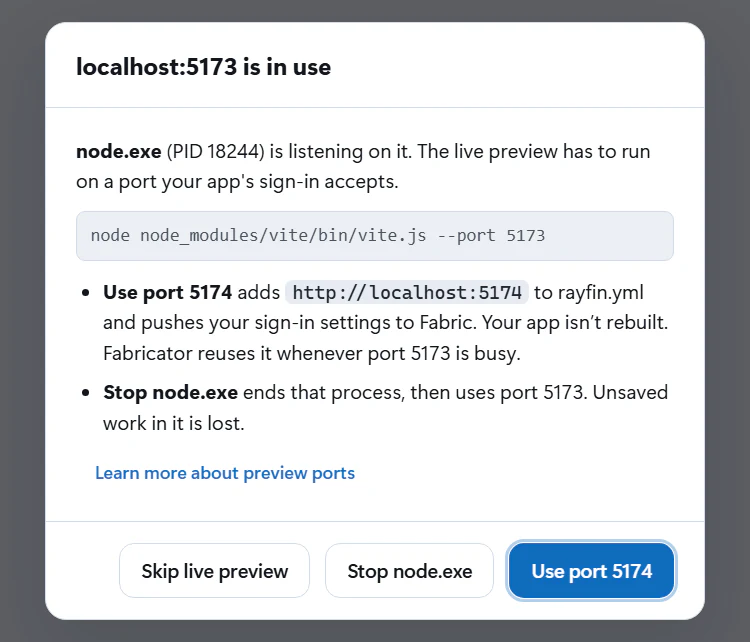
The live preview of a published app or a team app that this computer can't run has to use a localhost address that the app's sign-in accepts. If all of them are busy, Fabricator asks what to do instead of closing something without your permission. An app that runs on this computer doesn't need this: the local backend picks free ports itself.
When the address is held by the local backend of another app in Fabricator, and Copilot isn't working on that app, Fabricator stops that backend without asking. It starts again when you open that app.
- If you aren't sure what to choose, select the choice marked Recommended. Fabricator only recommends a choice that loses nothing.
- Stop that preview, Stop the earlier preview and Stop the dev server close a preview or a Vite dev server. Nothing is lost.
- A Stop choice named for one of your apps stops that app's local backend. It starts again when you open the app. If the dialog says Copilot is working on that app, choose another address or wait for the turn to finish.
- A Stop choice named for a program, such as Stop node.exe, closes that program. When Fabricator can't tell which program it is, the choice is Stop that program. Select it only if you're sure, because anything unsaved in it is lost.
- Use localhost:5174 instead, or another address, adds
http://localhost:<port>torayfin/rayfin.yml. If the app is published, Fabricator updates its sign-in settings in Fabric without rebuilding the app. Otherwise, sign-in accepts the address once you publish. - Select Skip live preview to keep the chat turn moving without a live preview. The preview shows your published app after the turn.
- If the dialog says the new address "can't happen while Copilot is working", select Skip live preview. You can choose the address with your next message.
To see the process that holds the address, open Technical details. It shows the program's name, its process ID and its command line.
If Fabricator can't identify or stop the process, Report a problem with the address and the dialog's text.
The preview covers other Fabricator controls
The native preview appears on top of chat, settings, menus, or other UI after zooming, moving windows, or switching monitors.
This was fixed in Fabricator 1.3.2. Current versions position the native preview using the renderer's actual display scale and browser zoom.
- Update to the latest Fabricator version.
- Restart Fabricator.
- If it happens again on the latest version, note your display scale, browser zoom, and monitor arrangement.
Then Report a problem.
The live preview restarts
The live preview of a published app or a team app that this computer can't run briefly disconnects and comes back while Copilot edits files or dependencies install.
The live preview's pages come from the app's Vite dev server, which restarts its server when the app's .env file or its configuration changes. Fabricator checks that the live preview answers, and starts Vite again when it stops answering. If it keeps stopping, Fabricator stops it and shows Local preview stopped: "It kept stopping. Send your message again to start a new one."
- Wait for the preview to come back.
- If the live preview stopped, send your message again.
- If it keeps restarting, Report a problem.
Your app doesn't start on this computer
The preview shows a card instead of your app, such as "Your app couldn’t start on this computer", and Output in the preview toolbar shows a red dot. The card says what went wrong and offers Try again, View output and Find out why, plus a button for the fix when there is one. If the preview says "<name> isn’t running on this computer." instead, the app was stopped: select Start.
Fabricator runs your app on this computer with rayfin-local, the local backend that comes with Fabricator. When the backend can't start the app, or the app keeps stopping, the preview says why. When the problem is in the app, such as an error in its code, Fabricator tries to start the app again after each chat turn.
- Find the card's title in the table below, and do what it says.
- If the card doesn't tell you enough, select Find out why. Help opens, asks "Why didn’t my app start on this computer?" for you, reads your app's output, and explains what went wrong. To read the output yourself, select View output.
- Once you've fixed the cause, select Try again.
| The card says | What to do |
|---|---|
| "Your app’s packages aren’t installed" | Select Install dependencies. Fabricator installs the app's packages and starts it again. When npm left the Rayfin packages where your app can't load them, as can happen after the app moves to another Rayfin version, Fabricator also runs npm dedupe to move them. When the message is Vite's "Cannot find native binding", an earlier install stopped part way and left a package's compiled part incomplete: Fabricator 1.63.1 and later install every package again from scratch. If npm can't install them, npm's messages in the output say why, such as no network connection. |
| "This app is already running" | Another program runs this app on this computer, such as rayfin-local in a terminal. Select Stop the other one: Fabricator checks that it's rayfin-local, stops it and starts your app here. Or close the program that started it, then select Try again. |
| "Node.js isn’t installed" or "Node.js needs an update" | Your app needs Node.js 20 or later. Select Set up Node.js to install or update it in setup, then select Try again. If your app still can't find it, restart Fabricator. |
| "This change would delete local data" | A change to the data model is waiting for you. Select Review the change, and see A data model change would delete local data. |
| "Your app keeps stopping" | It stopped several times in a row, so Fabricator stopped starting it again. Select Find out why or View output to find the cause, fix it, then select Try again. |
| "Your app couldn’t start on this computer" | The message under the title says why. For an error in the app's code, send the prompt below in chat. If Windows blocked the local backend, see Windows blocked rayfin-local. If the local backend didn't answer in time, wait a minute and select Try again. If it's missing or the wrong version, reinstall Fabricator from the latest release. |
My app doesn't start on this computer. Find the error that stops it, fix it, and check that the app runs.If your app still doesn't start, Report a problem.
A data model change would delete local data
A dialog says "This change would delete local data", then "The data model of <name> changed. Applying the change deletes this data, stored on this computer:", with a list of what it would delete. While the app runs, a note above the preview says "A data model change is waiting." with Review the change. If the app was starting, the preview shows "This change would delete local data" with Review the change instead of the app.
As Copilot changes your app's data model, the local backend updates the app's database on this computer. A change that would delete data stored there waits for you: nothing is deleted until you choose, and the app keeps its previous data model meanwhile. Your published app and its data aren't affected.
- Read the list of what the change would delete.
- Choose what to do:
- Delete this data and apply deletes only what's listed, then applies the change.
- Reset local data deletes all of the app's local data, its test users and files, then applies the change.
- Keep the current version keeps your data and the data model you have now. If the app was starting, it doesn't start until you choose.
- To decide later, select Keep the current version. When you're ready, select Review the change above the preview to open the dialog again.
If the change still can't be applied, Report a problem.
Your functions' types are out of date
A check in your app, such as its type check or build, says "Generated AppFunctionsSchema is stale", or the app's Output says "could not regenerate the functions' generated types".
Your app's pages call its functions with types generated from the functions' code, in the functions package's types.ts. When a function changes, the local backend generates them again with the project's own Rayfin CLI, as rayfin dev does. When it can't, the types still describe the functions as they were, and the Output says why, usually that the project's packages aren't installed or don't match.
- In the preview toolbar, select Output, and look for "could not regenerate the functions' generated types".
- If it's there, send this prompt:
The local backend couldn't generate my functions' types again. Find out why from its status, fix it, and check that the functions' generated types match the functions.- If it isn't, select Restart app in Output: the local backend generates the types again when it starts.
If the check still says the types are stale, Report a problem.
The preview uses your published app's backend
A note above the preview of a published app says why it doesn't run on this computer, such as "The <name> connector runs only on Fabric, so the preview uses your published app’s backend." or "This app uses Rayfin <version>, which Fabricator can’t run on this computer, so the preview uses your published app’s backend."
The local backend runs some lines of Rayfin releases, such as 1.36.x and 2.0.x, and some connectors, such as Kusto connectors, run only on Fabric. When a published app needs something the local backend can't run, such as one of those connectors or a Rayfin release older than those lines, Fabricator previews it against its published backend instead: the app's pages run on this computer with the published app's backend, and changes to the data model, permissions and functions reach that backend when you publish. An app on a newer Rayfin release runs on this computer anyway, with a warning: see The preview says some things might not work. If it can't start on this computer, its preview uses the published app's backend too, and the note says "This app uses Rayfin <version>, which is newer than the Rayfin versions Fabricator runs on this computer and couldn’t start here, so the preview uses your published app’s backend." An app that was never published has no published backend to use, so it keeps running on this computer, and what needs Fabric fails there until you publish it.
A team app uses the team's deployment of it instead, and its note ends "so the preview uses the team’s deployment of it in Fabric.": your preview when it's deployed, otherwise the published app. See Work on a team app.
- Keep building in chat as usual. To put your changes in the published app, select Publish in the app bar, or turn on Publish after each chat turn in the publish control's panel.
- For an app on an older Rayfin release, update it to run it on this computer: select the Rayfin version in the status bar, then Update with Copilot. See Keep Rayfin up to date.
- When a chat turn changes the app's packages or
rayfin/rayfin.yml, or the app's Rayfin version changes, for example after Update with Copilot or an update you run in the terminal, Fabricator checks again whether it can run the app on this computer. Once it can, the preview shows the app on this computer again.
If the note names a connector or Rayfin version that you expect to run on this computer, Report a problem.
The preview says some things might not work
A note above your app on this computer says "This app uses Rayfin <version>, which is newer than the Rayfin versions Fabricator runs on this computer, so some things might not work as expected." For an app that was never published, it can also say "This app uses Rayfin <version>, which isn’t one of the Rayfin versions Fabricator runs on this computer, so some things might not work as expected."
The local backend implements some lines of Rayfin releases, such as 1.36.x and 2.0.x. It still runs an app on another release, but what that release changed may not work on this computer. Your published app runs on Fabric's backend, so it isn't affected.
- Keep building in chat as usual. If something doesn't work on this computer, publish the app and try it in Published, in the preview toolbar.
- To run the app on a release the local backend supports, send this prompt:
Move every @microsoft/rayfin-* package in this app to the newest Rayfin release that Fabricator's local backend supports, all on the same version. Run npm install, then update the app so it still builds and runs on this computer.For an app on an older release, select the Rayfin version in the status bar, then Update with Copilot, instead.
If the note names a Rayfin version that you expect Fabricator to run, Report a problem.
Power BI turned down your sign-in
Data from a semantic model doesn't load in your app on this computer. Your app's Output says "Power BI refused the query: it turned down the developer's sign-in.", or Copilot tells you Power BI turned down your sign-in. Copilot can also report that npx rayfin connector invoke failed with "Not signed in, or no Power BI token could be acquired without an interactive prompt."
On this computer, your app queries semantic models as you. When Power BI turns down your Azure sign-in, the local backend uses your Rayfin CLI sign-in instead. The Rayfin CLI can query Power BI for you only after you consent to it once, and signing in to Fabric doesn't ask for that. Usually, your access to the model is fine.
If the message is "Power BI returned HTTP 401 with an empty body.", consent doesn't help: see Power BI returns HTTP 401 with an empty body.
- If a browser window opened asking you to sign in, or to let the Rayfin CLI access Power BI for you, finish signing in and accept. Then reload the preview.
- If no window opened, or you closed it, consent from a terminal:
-
Open a terminal, such as PowerShell, in the app's project folder. New apps are in
RayfinProjectsin your home folder unless you changed it in Settings → Workspace folder. -
Save a file named
query.jsonin that folder, with this content:query.json {"query": "EVALUATE {1}"} -
Run this command, with your connector's name from
rayfin/rayfin.ymlinstead of<connector>, and finish signing in in the browser window it opens:npx rayfin connector invoke <connector> executeQuery --file query.json -
Delete
query.json, then reload the preview.
-
- Instead, a tenant administrator can consent for everyone in your organization: they grant admin consent to the Rayfin CLI app,
2f844663-8e82-4a34-8b65-09d9d14b0fb6, for Power BI Service. - If it still fails, check that your account can query the semantic model. You need Build permission on it, with an account in the model's tenant.
If Power BI still turns down your sign-in, Report a problem.
Power BI returns HTTP 401 with an empty body
Copilot reports that npx rayfin connector invoke failed with "Power BI returned HTTP 401 with an empty body.", or, in Fabricator 1.59.0 or earlier, your app shows it on this computer and the data from a semantic model doesn't load. You have Read and Build permission on the model, and coworkers can query it.
Power BI turns down queries sent through a semantic model's workspace from anyone who has no role in that workspace, even with Read and Build permission on the model. Consent to the Rayfin CLI, yours or a tenant administrator's, doesn't change that.
- Update Fabricator to the latest release. From Fabricator 1.59.1, your app on this computer queries the model directly, so its data loads. See Updates.
- Update the app to Rayfin 2.0. Apps on Rayfin 1.x send
npx rayfin connector invoke, which Copilot uses to read query values, through the model's workspace; Rayfin 2.0 queries the model directly. Select the Rayfin version in the status bar, then Update with Copilot. See Rayfin versions. - If you can't update the app yet, ask an admin of the model's workspace to give you a role in it.
If it still fails, Report a problem.
Windows blocked rayfin-local
You see "Windows blocked the local backend (rayfin-local):" followed by the reason Windows gave, such as "Access is denied.", and then "Your antivirus or your organization's app control policy may not allow it." In the preview, it's under "Your app couldn’t start on this computer", with Learn how to allow it. In setup, it's in the Local backend row.
rayfin-local is the local backend that runs your apps on this computer, and it comes with Fabricator. On a PC your organization manages, Microsoft Defender's attack surface reduction rules, another antivirus or an app control policy can stop a program that's new to them from running, even when it's signed.
- Open Windows Security, select Virus & threat protection, then Protection history. Look for an entry that blocked
rayfin-local.exe, and note what it says, such as the rule that blocked it. - If your organization manages this PC, ask your IT department to allow rayfin-local. Tell them:
- Where it is:
%LOCALAPPDATA%\Rayfin Fabricator\rayfin-local.exe, orrayfin-local.exein the folder you installed Fabricator to. - That it's signed by the same publisher as Fabricator's installer, Sachin Patney.
- What blocked it, from step 1. They can add an exclusion for the file to the attack surface reduction rule that blocked it, or allow the file or its publisher in their app control policy.
- Where it is:
- Once it's allowed, select Try again in the preview, or Re-check in setup.
- If setup then says the local backend is missing, your antivirus removed the file. Reinstall Fabricator from the latest release.
If the message says "The local backend (rayfin-local) didn't answer within 20 seconds." instead, an antivirus scan can hold it up the first time it runs. Wait a minute, then select Try again or Re-check.
Until rayfin-local is allowed, your apps can't run on this computer. For an app you've published, select Published in the preview toolbar to see your published app, and publish your changes to try them there. See Publish to Microsoft Fabric.
If Windows still blocks rayfin-local, Report a problem.
Chat and Copilot problems
Fix Copilot chat errors, stuck turns, new engine sessions, Copilot credit use, errors from models on your own API key, and Rayfin dependency failures.
Publishing and Fabric problems
Fix failed publishes, publishing after each chat turn, Fabric authentication, semantic model reads, Rayfin CLI errors, and sharing access.