
Blueprint: architecture and data models
Use Blueprint to see what your app is made of, what it connects to and which identity each connection uses, plus its Rayfin data model and Fabric semantic models.
Use Blueprint to see how your app is put together. The Architecture view shows what the app is made of, what it connects to, and which identity each connection uses. The Data model view shows the Rayfin data model, and the Semantic model view shows the Fabric semantic models the app uses.
Open Blueprint
- Open a project.
- Select Blueprint in the project tabs.
- Choose Architecture, Data model or Semantic model. Semantic model appears when the app uses a semantic model.
Fabricator remembers the view you chose for the project.
Read the architecture
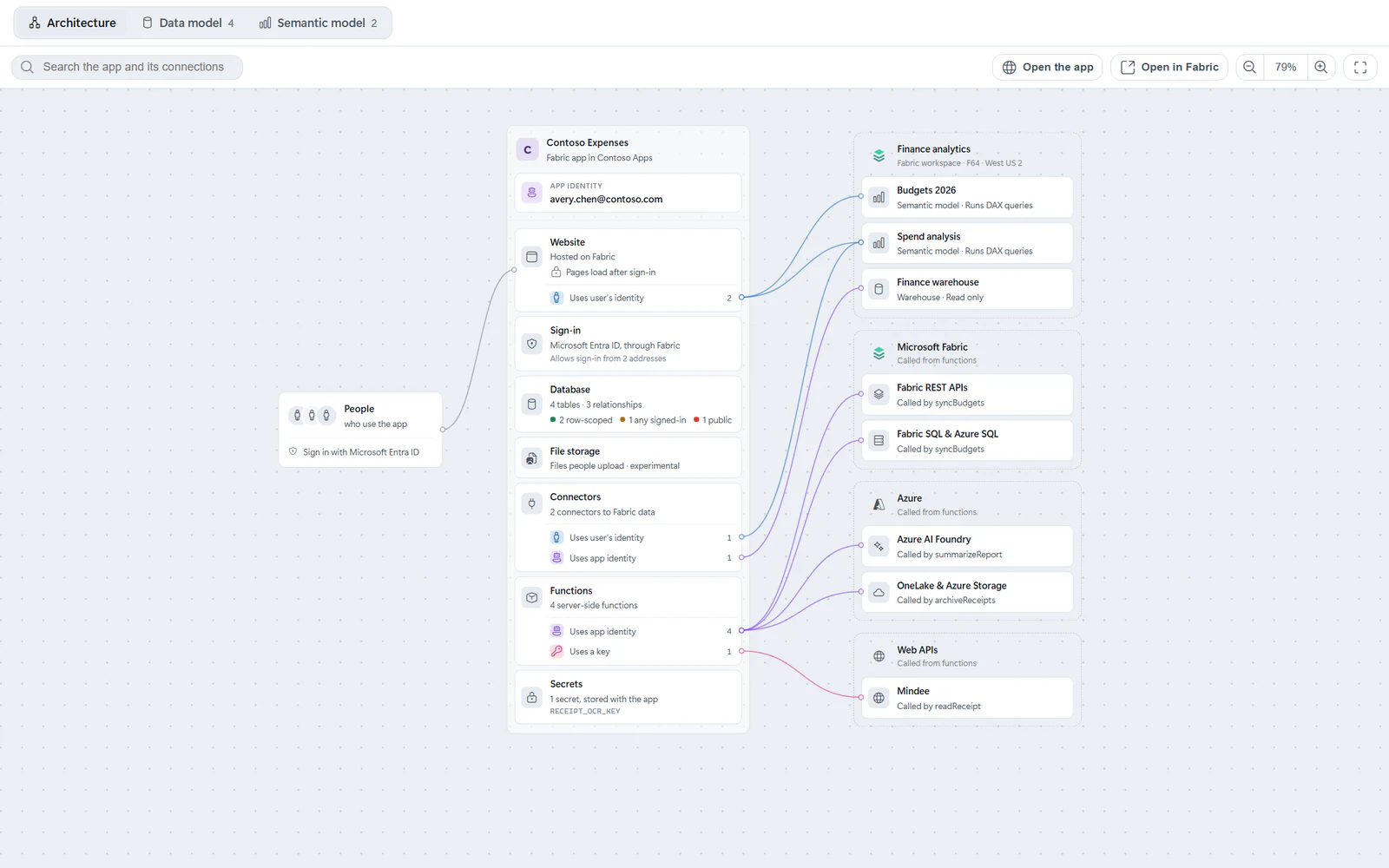
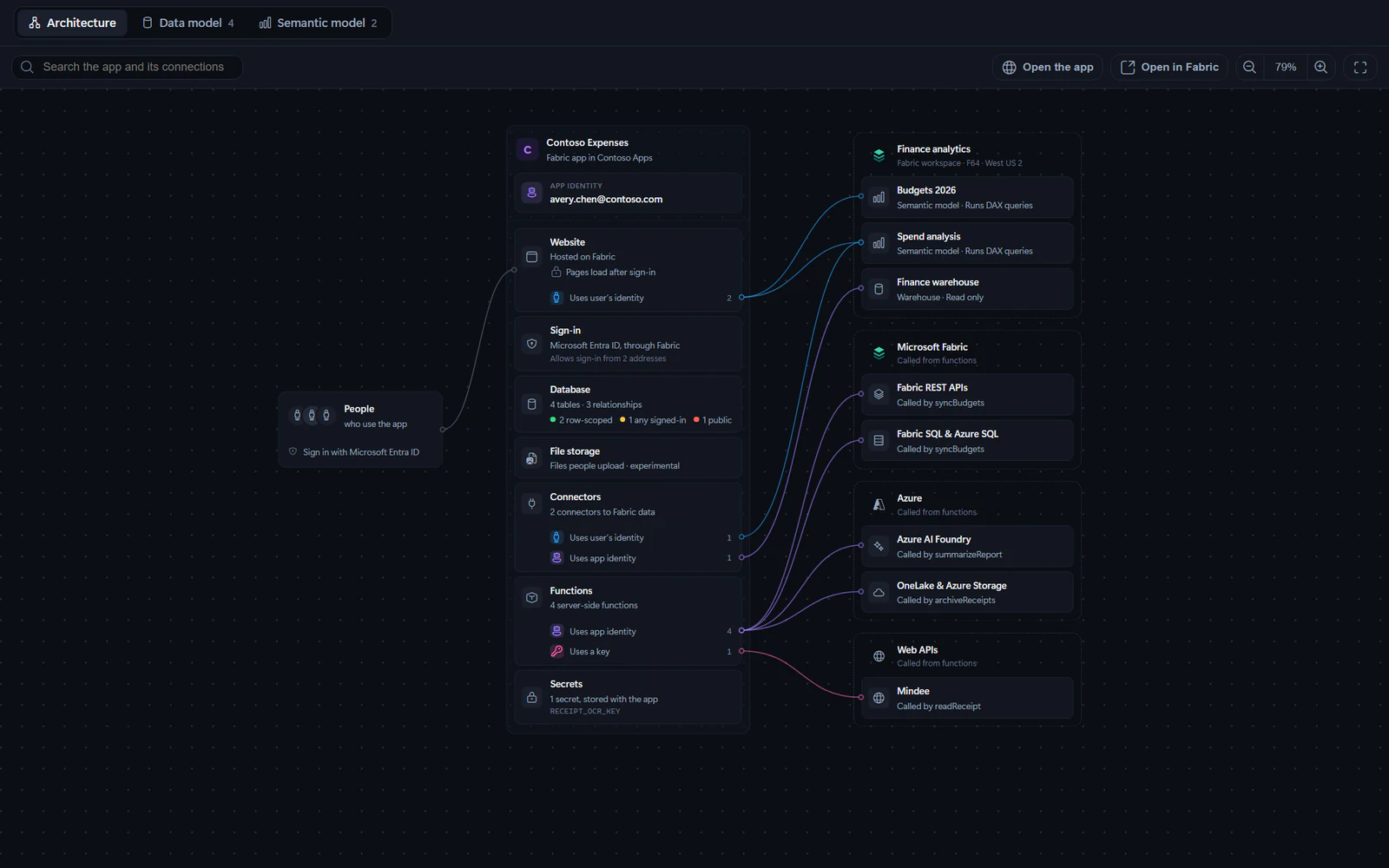
The Architecture view reads the app's rayfin/rayfin.yml, fabric.yaml, data model and function code. From left to right it shows:
- People, the people who use the app, and how they sign in.
- The app, named with the workspace it's in. When any connection uses the app identity, App identity names whose credentials it uses. Below are the app's pieces: Website, Sign-in, Database, File storage, Connectors, Functions and Secrets, as the app has them.
- What the app connects to, grouped by where it lives: each Fabric workspace by name, with its capacity and region when Fabric returns them, then Microsoft Fabric, Azure and Web APIs.
A piece that connects to something outside the app lists how those connections sign in, with a count. Lines run from there to each source. Hover or select a piece, a source or one of those rows to highlight the connections it's part of.
Use Search the app and its connections to highlight matching pieces and sources. The toolbar also has Open the app and Open in Fabric once the app is deployed, plus zoom and fit-to-view.
If the app connects to nothing outside, the view says No outside data yet and offers Connect data with Copilot. If rayfin/rayfin.yml can't be read, it says "Couldn’t draw the app" and offers Open rayfin.yml.
Which identity a connection uses
| Label | What it means | Used by |
|---|---|---|
| Uses user’s identity | Delegated access. The connection runs as the signed-in person, so Fabric checks their own permissions and each person sees only what they can access. | Connectors with auth.type: delegated, and semantic models in fabric.yaml |
| Uses app identity | Application access. The connection runs as the app identity, so everyone sees the same data. | Connectors with auth.type: application, and function connections through ctx.Tokens |
| Uses a key | The function sends its own key or token. Anyone who has the key has the same access. | Web APIs that functions call directly |
The app's own database always uses the user's identity, and each table's access rules decide which rows a person can see. Learn more in the Rayfin delegated access docs.
Whose credentials the app identity uses
The app identity is the owner of the app's Fabric item:
- For your own apps, it's the Fabric account that first deployed the app. Fabricator shows the account it deploys with. Before the first deploy, it shows "Whoever deploys it first".
- For a team app, it's the team workspace's deploy identity. Previews are owned by the preview identity when the team has a separate one.
Select App identity to see which sources the app identity needs access to, and select Ask Copilot what to grant to ask which role to give it on each one.
When the website's pages load
The Website piece shows when people can load the app's pages, set by assetAccess in rayfin/rayfin.yml:
- Pages load after sign-in (
protected): the page files load only for people signed in to Fabric. - Pages load before sign-in (
public): anyone with the link can download the page files, the app's HTML, JavaScript and CSS. The app's data still needs sign-in, and its access rules still apply. - Page access not set: choose
protectedorpublicbefore deploying.
How people sign in
The Sign-in piece shows how people sign in to the app. Microsoft Entra ID, through Fabric means the app uses Fabric brokered auth, which Rayfin's docs also call Fabric SSO:
- People sign in with the Microsoft Entra account they already use for Fabric.
- Sign-in is part of the app, so there's no identity provider to run.
- The app needs no app registration of its own in Microsoft Entra ID, so there's nothing for a tenant admin to approve.
Select Sign-in to see its Provider, whether it accepts Entra tokens from other apps, and its Sign-in addresses. If the piece says Off, the app can't tell people apart. Learn more in the Rayfin auth docs.
Secrets
The Secrets piece lists the secrets the app's functions use: the ones declared in rayfin/rayfin.yml and the ones its code reads. Select it to see what each secret is for, which functions read it, and whether the deployed app has a value for it: Set, No value or Not in rayfin.yml. Values are never shown.
Fabricator flags a secret that functions read with ctx.Secrets but that rayfin/rayfin.yml doesn't declare, which is a TypeScript error, and reads that use the deprecated ctx.getSecret().
Select Manage secrets to add or change values in Code → Secrets. If keys are written into the functions' code, select Move keys into secrets to ask Copilot to move them. See Secrets.
Details and actions
Select any card to open its details: what it is, the settings it comes from, its IDs, and what it connects to. Press Esc or select the empty canvas to close them.
Depending on what you select, the details can include:
- Use user’s identity or Use app identity, to ask Copilot to change a connector's
auth.type. - Fix with Copilot, when a connector's
auth.typeor the functions'services.functions.auth.typewould stop the app from deploying. - Use app identity on a web API that Rayfin can also reach with the app identity, so the functions don't need a key for it.
- View the model, which opens a semantic model in the Semantic model view.
- Open in Fabric, which opens a source or its workspace in the Fabric portal.
- Harden access and Open the data model on Database.
These actions send a prompt to the Build chat. Fabricator doesn't deploy from them directly; the normal chat turn and redeploy apply.
Read the data model diagram
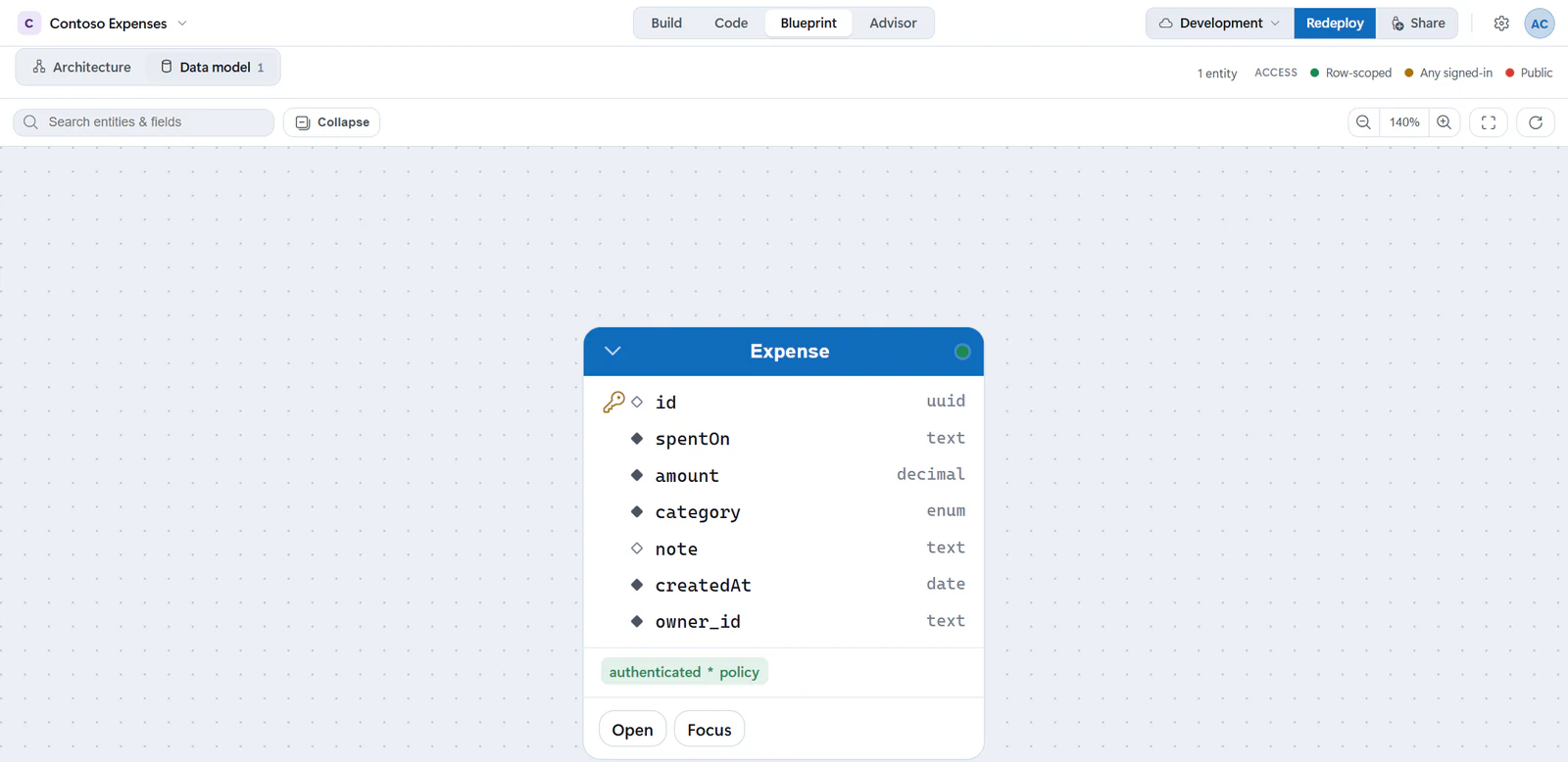
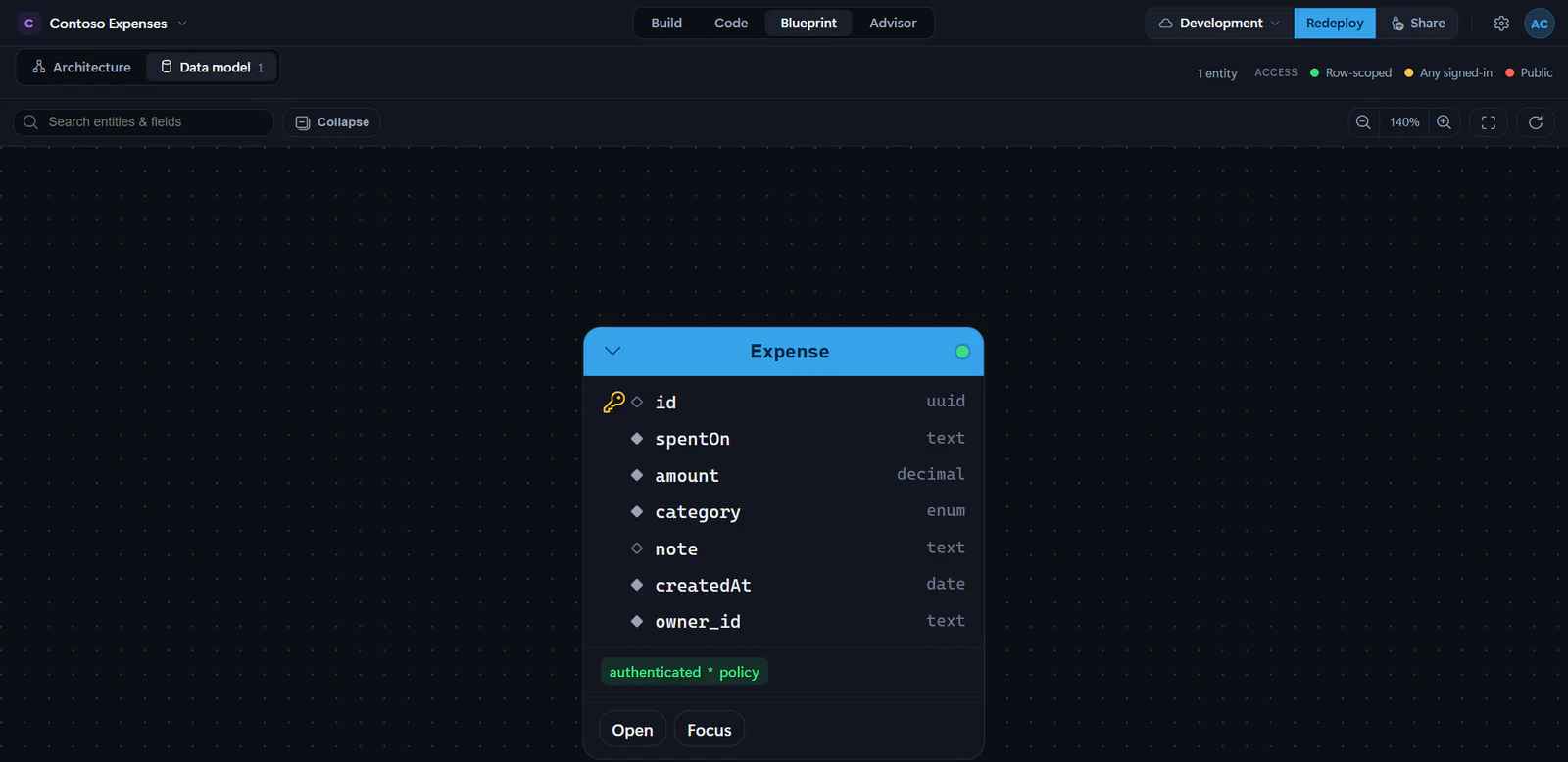
The Data model view parses the Rayfin schema and draws an entity-relationship diagram. Each entity card shows:
- The entity name.
- Each field and its type:
uuid,text,email,int,decimal,bool,date, orenumfor a@set()field. A relationship field shows the entity it points to, such asCategory, with[]after it when it holds many, such asTask[]. - A key on the primary key, and a link on a field that references another entity.
- A diamond before each field name: filled for a required field, hollow for an optional field and for the primary key, and in the accent color for a unique field. Hover over it to see Required or Optional.
- Access grants, including role names and whether a grant has a row-level policy.
- An access dot. The legend labels access as Row-scoped, Any signed-in or Public.
Relationships appear as lines between entity cards, and the header counts the entities and relationships, such as 4 entities · 3 relationships. Hover an entity to highlight its related entities.
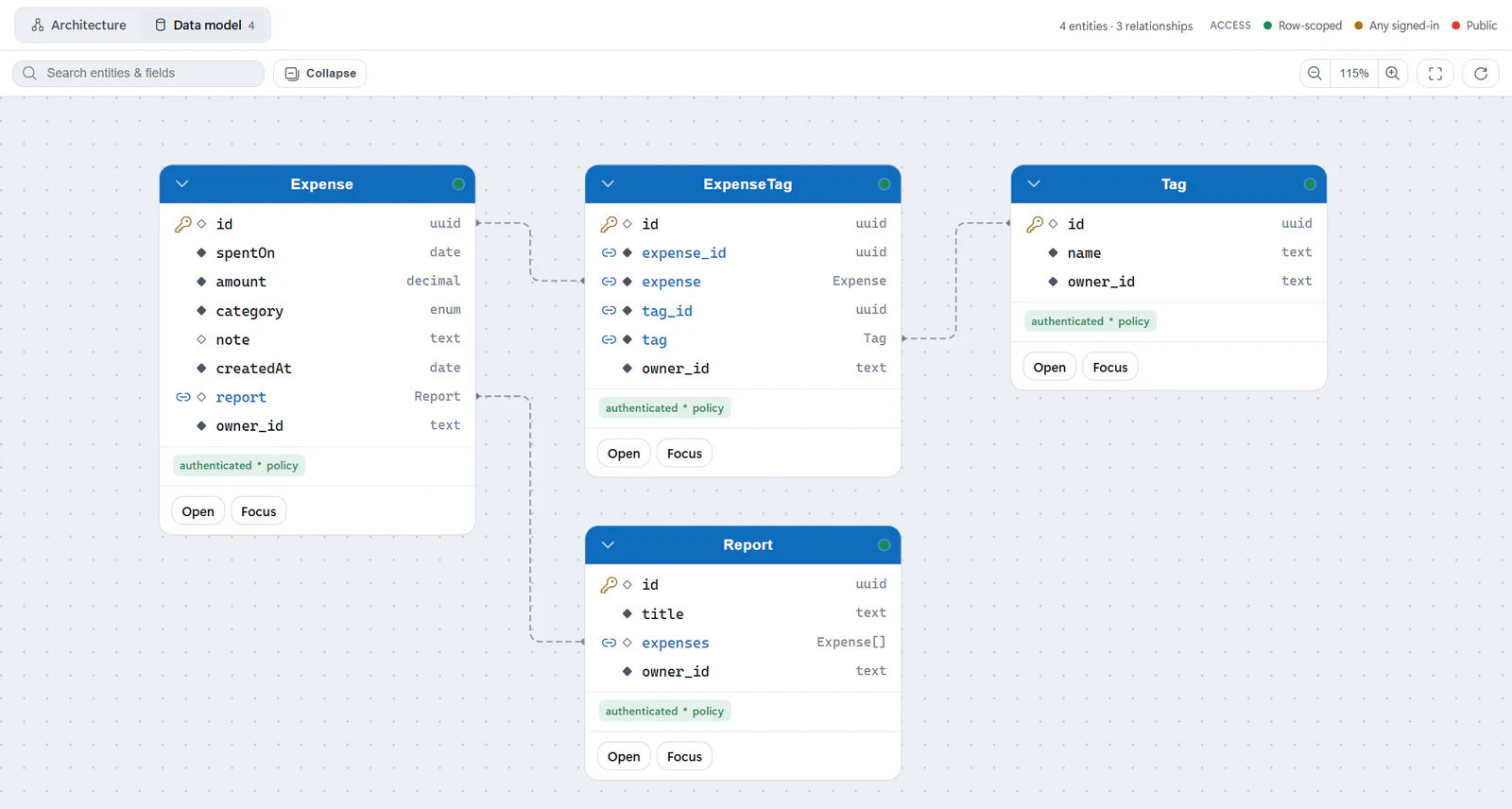
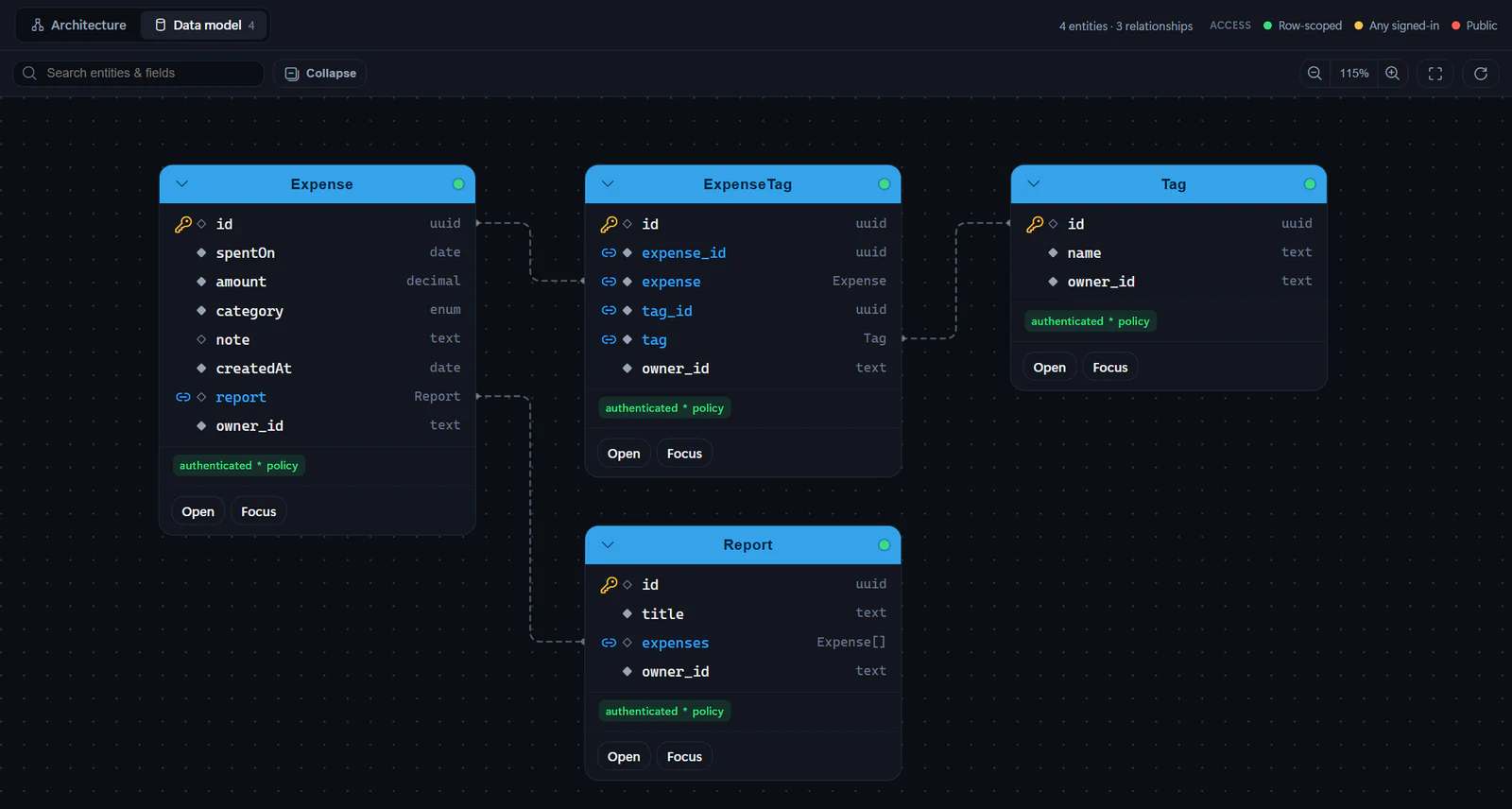
Learn the Rayfin modeling concepts in the Rayfin data modeling docs.
Navigate and search the diagram
Use the toolbar to:
- Search with Search entities & fields.
- Collapse or Expand all entities.
- Zoom in or out.
- Fit the diagram to view.
- Reset the layout.
You can drag entity cards to rearrange the diagram. Fabricator stores the layout in the app for that project.
Each entity card also has:
- Open, which opens the entity source file in Code.
- Focus, which shows that entity and its neighbors. Use Unfocus to return to the full diagram.
Harden loose access
Fabricator flags loose access on entities that are public, authenticated-only, default or mixed. Those cards show Harden.
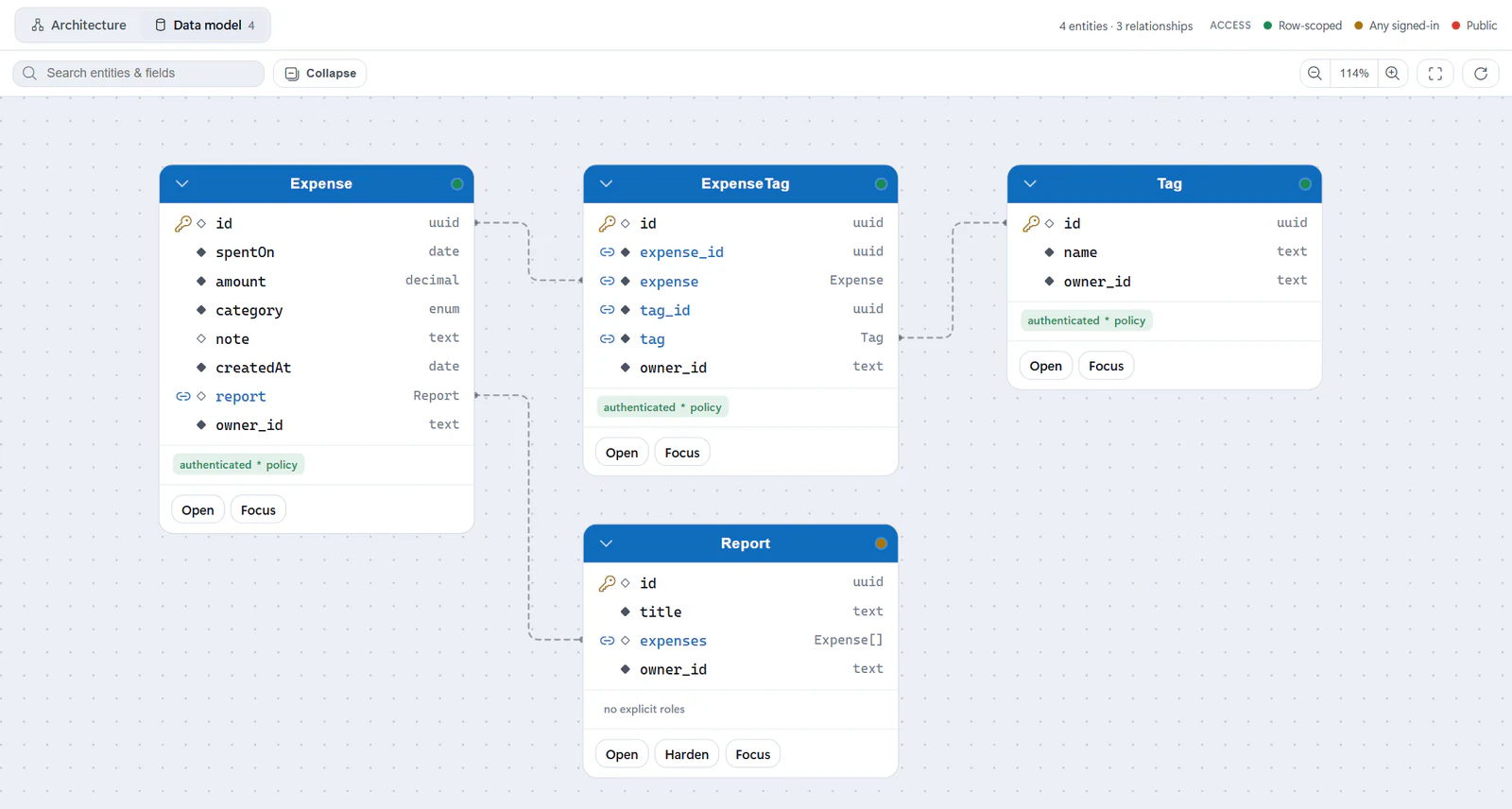
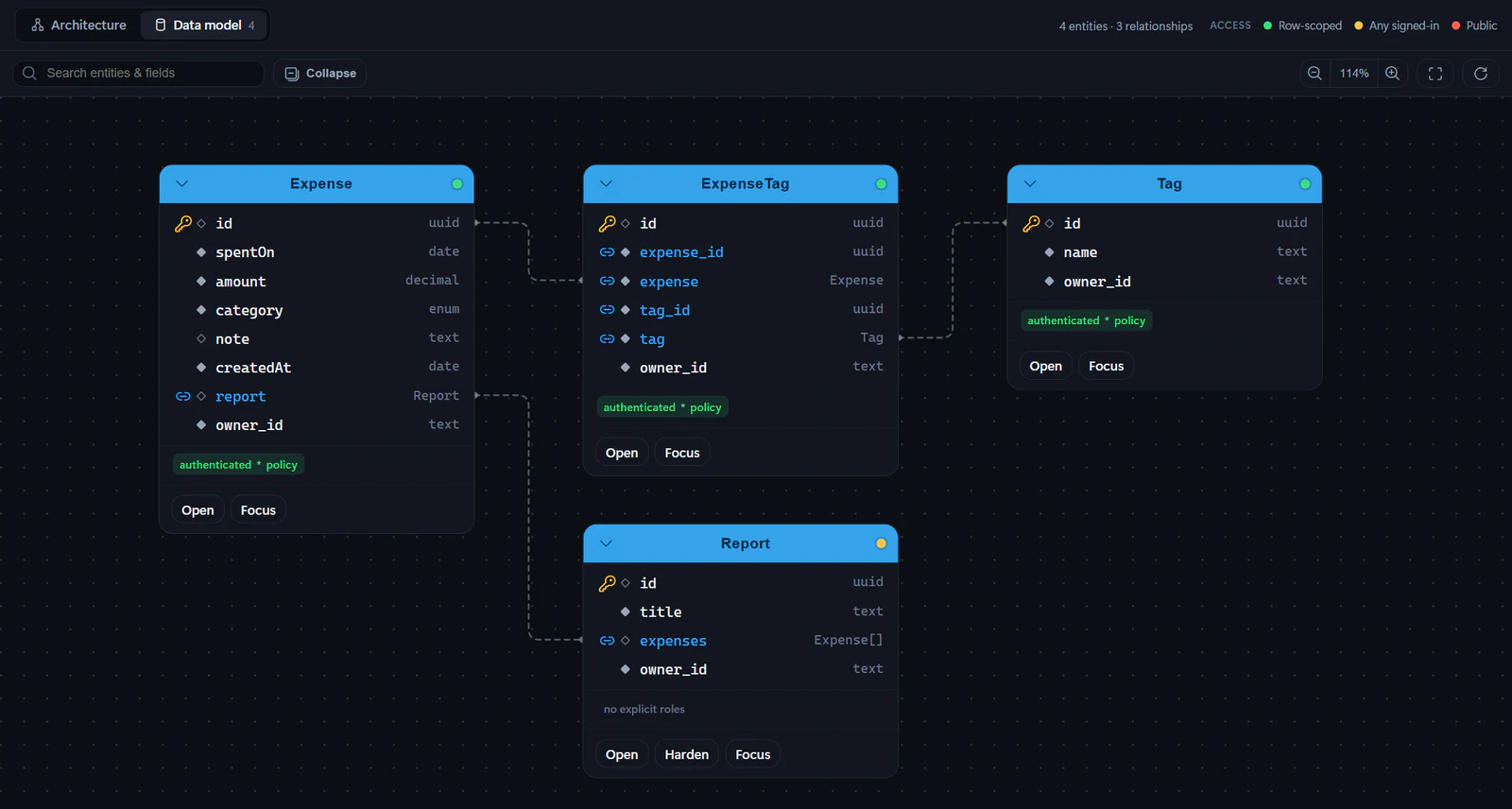
Select Harden to send a ready prompt to Copilot asking it to tighten the entity's access control with Rayfin decorators and row-level policy. Fabricator does not deploy from that prompt directly; the normal chat turn and redeploy flow applies.
Restrict the Customer and Order entities so each signed-in user only sees rows they own. Use Rayfin role or authenticated decorators with row-level policies, and keep the app building.Learn more in the Rayfin permissions docs.
Add a data model
The data model is where the app keeps its entities. New projects keep it in packages/data/src/, registered in packages/data/src/index.ts. Apps that keep everything in one package use rayfin/data/, registered in rayfin/data/schema.ts. Fabricator reads rayfin/rayfin.yml to find it.
If the app has no schema file yet, the Data model view says No data model yet and offers Add a data model with Copilot. If the schema file exists but lists no entities, as in a new project, it says Your schema has no entities and offers Add an entity with Copilot.
Those actions stage a prompt in the Build chat composer. New projects start without a database, so the prompt also asks Copilot to turn on the data service.
Add Project and Task entities. A project has many tasks. Tasks have a title, due date, status and owner. Restrict access so users only see their own projects and tasks.View a semantic model
When the app uses semantic models, from fabric.yaml or a semantic model connector, the Semantic model view reads them live from Fabric and draws a diagram of:
- Tables.
- Columns and data types.
- Measures. Select a measure to show its DAX.
- Relationships, including one-to-many markers, inactive relationships and cross-filter direction.
- Hidden tables or columns.
- Storage mode and descriptions when Fabric returns them.
Use Search tables, columns & measures, Collapse or Expand, focus controls, zoom, fit-to-view and Refresh from Fabric to work with the diagram.
Learn about Rayfin semantic model connectors in the Rayfin semantic models docs.
Connect a Fabric semantic model
You can start connecting a semantic model from the chat composer menu.
- In the Build chat composer, open the add menu.
- Select Connect a semantic model.
- In Connect a semantic model, choose a model from the workspace this app deploys to.
- Select Add to chat.
- Send the prepared request to Copilot.
The dialog lists models in the app's deployment workspace. Models already declared in the project are marked Connected.
If the app is not deployed yet, the dialog says: "Deploy this app to a Fabric workspace first — then you can connect the semantic models in that workspace."
Sign in and retry
Listing workspace models uses Fabric authentication. If Fabricator cannot list them silently, the dialog says: "Sign in to Fabric to list this workspace's models. The preview uses a separate sign-in." Select Sign in & retry.
Reading a semantic model schema can also require sign-in:
- Sign in to Fabric appears when the Fabric session is missing.
- Sign in to Azure appears when the schema query needs an Azure CLI session.
If the schema cannot be read, the Semantic model view shows "Couldn’t read the semantic model" and offers Try again. For Fabric deployment and authentication recovery, see Deploy troubleshooting.