
Settings
Every option in Fabricator's Settings: accounts, setup, workspace folder, theme, text size, diagnostics, experiments and the About section.
Open Settings to manage your accounts, change how Fabricator looks, where new projects are created, how diagnostics are captured, and whether experimental features are visible.
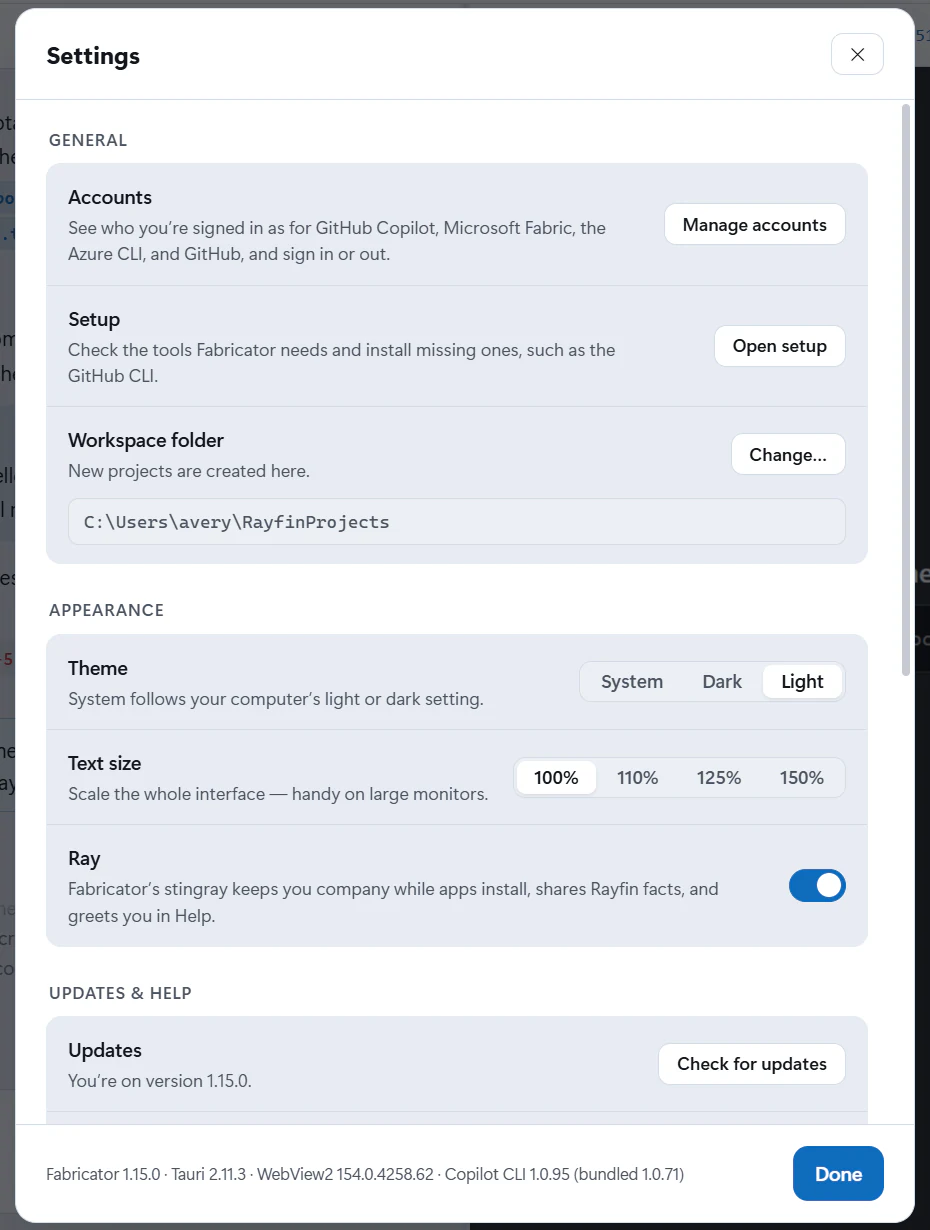
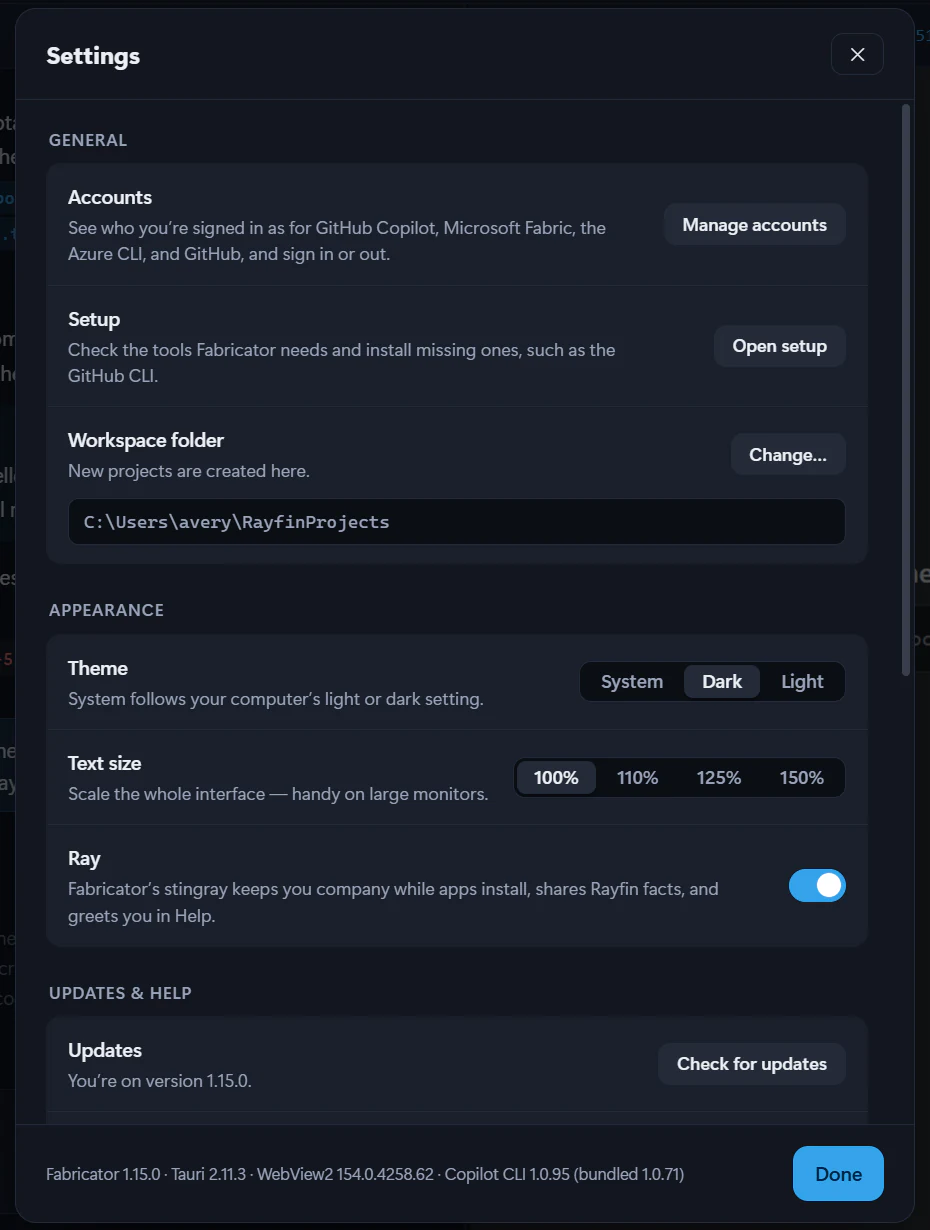
Settings groups its options into General, Appearance, Diagnostics, Experiments, and About. Each option shows its name and what it does, with its control on the right.
Accounts
Accounts lists the services Fabricator signs in to: GitHub Copilot, Microsoft Fabric, the Azure CLI, and GitHub. Select Manage accounts to see who you're signed in as, sign in or out, and add or switch between Fabric, Azure CLI and GitHub accounts. See Manage your accounts.
Theme
Theme controls the app's color theme.
| Option | What it does |
|---|---|
| System | Follows your operating system light or dark setting. This is the default. |
| Dark | Uses Fabricator's dark theme. |
| Light | Uses Fabricator's light theme. |
Text size
Text size scales the whole interface. The choices are 100%, 110%, 125%, and 150%. The default is 100%.
Use this when Fabricator is hard to read on a large or high-DPI monitor. The setting is saved as the UI scale and is clamped by the app between 80% and 200% when stored.
Interface zoom in the status bar
The status bar has an Interface zoom menu with the same values as Text size. Changing it updates the same setting and also scales the design tools.
Workspace folder
Workspace folder shows where Fabricator creates new projects. The default is a RayfinProjects folder in your home directory.
Select Change… to pick a different folder. This changes where new projects are created; it does not move existing project folders.
Usage stats
Usage stats is an informational note under Diagnostics. In the app, it says:
We send your sign-in domain and a hashed email so we can see how the product is used. Your email, code, and apps stay on this device.
Telemetry is only active when a build includes a telemetry connection string. See Privacy and telemetry.
Setup
Setup reopens the setup screen, which checks the tools Fabricator needs and can install missing ones, such as the optional GitHub CLI. Select Open setup. Until every check passes, setup offers Back to Fabricator. See Set up and sign in.
Diagnostics
Diagnostics are saved on this device under the logs folder. Diagnostics also holds Usage stats, and its Logs row has Export diagnostics and Open logs folder.
Full diagnostics
Full diagnostics is off by default. When it is off, Fabricator records lightweight chat-turn metadata such as timing, model, mode, tool names, outcomes, errors, attachment count, files modified, and whether deploy ran.
When Full diagnostics is on, Fabricator also captures prompts, responses, and tool output for each chat turn. Text fields are truncated before they are saved. Turn this on only when you need a more detailed bug report.
Export diagnostics
Export diagnostics creates a Markdown diagnostics bundle in the logs folder and opens that folder. The bundle includes environment details, recent chat-turn diagnostics, and recent crash or hang log entries. You decide whether to attach it to a bug report.
Open logs folder
Open logs folder opens the local logs folder without creating a new export.
Experiments
Experiments is collapsed by default. It includes features that are off by default and may change or be removed.
Team workspaces
Team workspaces lets you build apps with a team in a private GitHub repository. Everyone works on their own copy, and a pipeline publishes to Fabric with a deploy identity that Fabricator sets up. Team apps never deploy from this computer. This experiment needs the GitHub CLI.
Warning
Team workspaces are an experiment. Turn them on in Settings → Experiments. They may change or be removed in a future update.
Deploy manually
Deploy manually stops chat turns from deploying your app. Your changes stay on this computer until you select Redeploy, and the preview shows them from a local Vite server whenever the app is open. While it's on, the status bar switches between Manual deploy and Auto deploy. Team apps aren't affected: they still save after each turn. See Deploy manually.
Warning
Deploy manually is an experiment. Turn it on in Settings → Experiments. It may change or be removed in a future update.
About
About is the last section in Settings. It shows the installed Fabricator version and the Tauri, WebView2, and Copilot CLI versions it runs with. When the Copilot CLI has updated itself past the version that came with Fabricator, both are shown, for example 1.0.98 (bundled 1.0.96).
Select Copy to copy the versions for a bug report, one per line:
Fabricator <version>
Tauri <version>
WebView2 <version>
Copilot CLI <version>
The exact Tauri, WebView2, and Copilot CLI values depend on the build and your computer.
Help has Documentation and Troubleshooting, which open these docs in your browser.
You don't need to check for updates yourself. Fabricator checks when it starts, every 4 hours while it's open, and as soon as your connection comes back after a check failed. See Updates.