
Deploy and Fabric problems
Fix failed deploys, stopped automatic redeploys, Fabric authentication, semantic model reads, Rayfin CLI errors, and sharing access.
Use this page when Fabricator cannot publish your app to Microsoft Fabric or the deployed app is not the version you expect.
A deploy failed
You see Deploy failed in the preview status or a deploy toast, and Ray swims in above the preview to say "That deploy didn’t make it to Fabric. Want me to find out why?" If you've sent Ray away, the notice says "The deploy didn’t finish. Help can find out why." A build failure's log can say "❌ Deployment failed: Static build command failed. Fix the build errors and re-run, or use 'rayfin up staticapp deploy --skip-build' to deploy existing content."


Fabricator runs the project's pinned Rayfin CLI with rayfin up -y --force. The log is the source of truth: it includes Rayfin CLI output, dependency recovery, build errors, Fabric authentication failures, workspace targeting errors, and Fabric API failures.
- Select Find out why, or select Ray. Help opens and asks "Why did my last deploy fail?" for you. It reads the end of the deploy's log, explains the cause in plain language, and offers the fix as a button when there is one.
- To read the log yourself, select View logs. Read the first real error near the end. Ignore a final generic "Deploy failed" line if a more specific line appears above it. The
Details:line under the error usually says why, such as "Details: The PostgreSQLDatabase feature is not enabled." - If the log says the project has no workspace or asks for a workspace, choose a deployment workspace and deploy again.
- If the log mentions authentication, expired credentials, a token-cache lock,
HTTP 401, orunauthorized, use Refresh Fabric authentication, then select Redeploy. - If the log mentions a build or TypeScript error, ask Copilot to fix that error, then deploy again.
- If the log says "Environment variable '…' referenced in rayfin.yml (…) is not defined.", your app's
rayfin/rayfin.ymluses a setting that isn't set on this computer. Add that variable to the project'srayfin/.env, then select Redeploy. - If the log mentions Fabric capacity, permissions, a workspace conflict, or a Fabric API failure, fix that Fabric workspace issue and select Redeploy.
- If the log mentions destructive data-model changes, note that Fabricator already runs deploy with
--force; the failure is coming from the CLI or Fabric after that forced deploy attempt.
To put the notice away, select the × beside it. It comes back if the next deploy fails.
If the log is unclear, Report a problem and attach diagnostics.
Automatic redeploy stopped
After a successful chat turn, the app no longer redeploys automatically and you have to select Redeploy.
Fabricator auto-deploys only after a successful, non-team chat turn when it can confirm there are changes since the last deployed revision. It does not auto-deploy failed or cancelled turns. If the last deployed revision is unknown, the next successful turn deploys once to establish a baseline. If the change check fails, Fabricator shows "Auto-deploy check failed" and tells you to use Redeploy.
- Confirm the chat turn finished successfully. Failed, stopped, or cancelled turns do not auto-deploy.
- Look for a toast saying "Auto-deploy check failed" or "Could not check for undeployed changes." If you see it, select Redeploy.
- If you switched deployments or workspaces, select Redeploy once to establish the deployed revision for that target.
- If a deploy is already running, wait for it to finish before sending another turn.
- If manual Redeploy works but automatic redeploy keeps stopping, keep using Redeploy as a workaround and Report a problem.
This is an open reliability issue for some long sessions.
Fabric authentication blocks deploy
A deploy repeatedly fails even though setup shows you signed in, or the notice above the preview says Fabric wants you to sign in again and offers Refresh Fabric authentication.
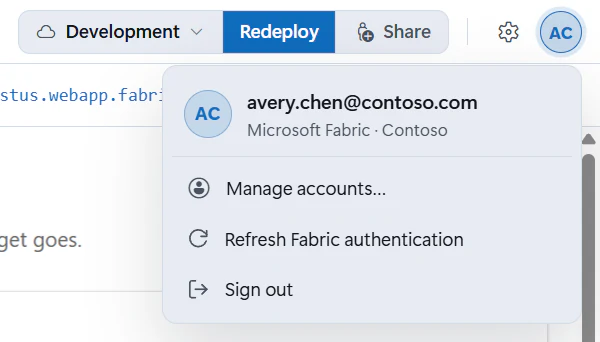
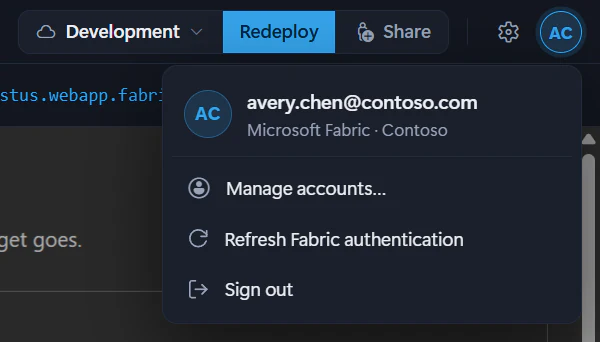
Fabricator deploys with the Rayfin CLI credentials for the project. Refresh Fabric authentication runs the selected project's rayfin logout, then rayfin login, and verifies the refreshed credential against Fabric. It does not clear Copilot, Azure CLI, or preview-browser sessions.
- Select Refresh Fabric authentication in the notice above the preview, or open the account menu in the app bar and select it there.
- In the dialog, select Clear credentials and sign in.
- Complete the browser sign-in.
- Wait for Fabricator to show that authentication is verified.
- Select Redeploy. Authentication refresh does not redeploy automatically.
If refresh fails, update the app's Rayfin packages to Rayfin 1.35.1 or newer from the Rayfin version control, then try again. If it still fails, Report a problem.
Couldn't read the semantic model
In the Model view or semantic-model connection flow, you see "Couldn’t read the semantic model" or "The API returned a URL outside the authenticated service."
Fabricator reads semantic model metadata live from Fabric and Power BI APIs. The URL validation error was fixed after earlier releases by allowing Fabric, Power BI, and regional analysis.windows.net continuation hosts while still rejecting unrelated URLs.
- Update to the latest Fabricator version.
- Use Refresh Fabric authentication for the project.
- If the dialog offers Sign in & retry, select it and complete sign-in.
- Confirm you have access to the workspace and edit or write access when the semantic model definition requires it.
- Retry the Model view or semantic-model connection.
If the same exact message appears on the latest version, Report a problem.
The workspace or capacity blocks deploy
The workspace picker or deploy log indicates that a workspace has no eligible Fabric capacity, the capacity is unavailable, or you do not have permission.
Rayfin apps deploy to a Fabric workspace backed by an eligible Fabric capacity. Fabricator can list workspaces and capacity metadata, but the deploy still depends on your tenant permissions and Fabric capacity state.
- Choose a workspace backed by an active Fabric capacity.
- If the capacity is paused or unavailable, resume it in Fabric or choose another workspace.
- Confirm your account can deploy to the workspace.
- If you are in a client tenant, make sure you completed Fabric sign-in for that tenant.
- Select Redeploy.
If you cannot see the right workspace or capacity, contact your Fabric administrator or Report a problem with the deploy log.
Rayfin CLI or npm package resolution failed
The deploy log says the Rayfin CLI could not be found, npm reports ETARGET, or project dependency installation fails before rayfin up starts.
Current Fabricator versions use the Rayfin CLI pinned in each project, and refresh npm's package information when they create a project. Older releases had global Rayfin CLI checks and a stale npm metadata problem that could produce ETARGET even when the package existed.
- Update to the latest Fabricator version.
- Open the project and let dependency installation finish.
- Select Redeploy.
- If npm still reports missing or unresolved packages, repair project dependencies with
npm ciwhenpackage-lock.jsonexists, ornpm installotherwise. - Do not install a global Rayfin CLI as the primary fix; Fabricator deploys through the project-pinned CLI.
If package resolution keeps failing, Report a problem and include the npm error.
Recipients can't open the shared app
You shared a deployed app, but another person cannot open it.
Deploying and sharing are separate. Fabricator's share flow grants app access in the target tenant, and for semantic models in other workspaces it grants Build access to those models.
- Confirm the app is deployed and live.
- Use the share flow again for the recipient's work email.
- Confirm the recipient belongs to the same Microsoft Entra tenant or has the required guest access.
- For semantic-model apps, confirm they also have access to the model's workspace or Build permission on the model.
- See Share a deployed app for the normal flow.
If sharing still fails, Report a problem.