
Check app health with the Advisor
Use the Advisor's grade, quick checks and read-only Copilot deep review to find security, data and quality issues, then fix, verify, dismiss or mute them.
The Advisor is a health dashboard for the current app. It combines automatic quick checks with an optional read-only Copilot review, then helps you fix and verify findings.
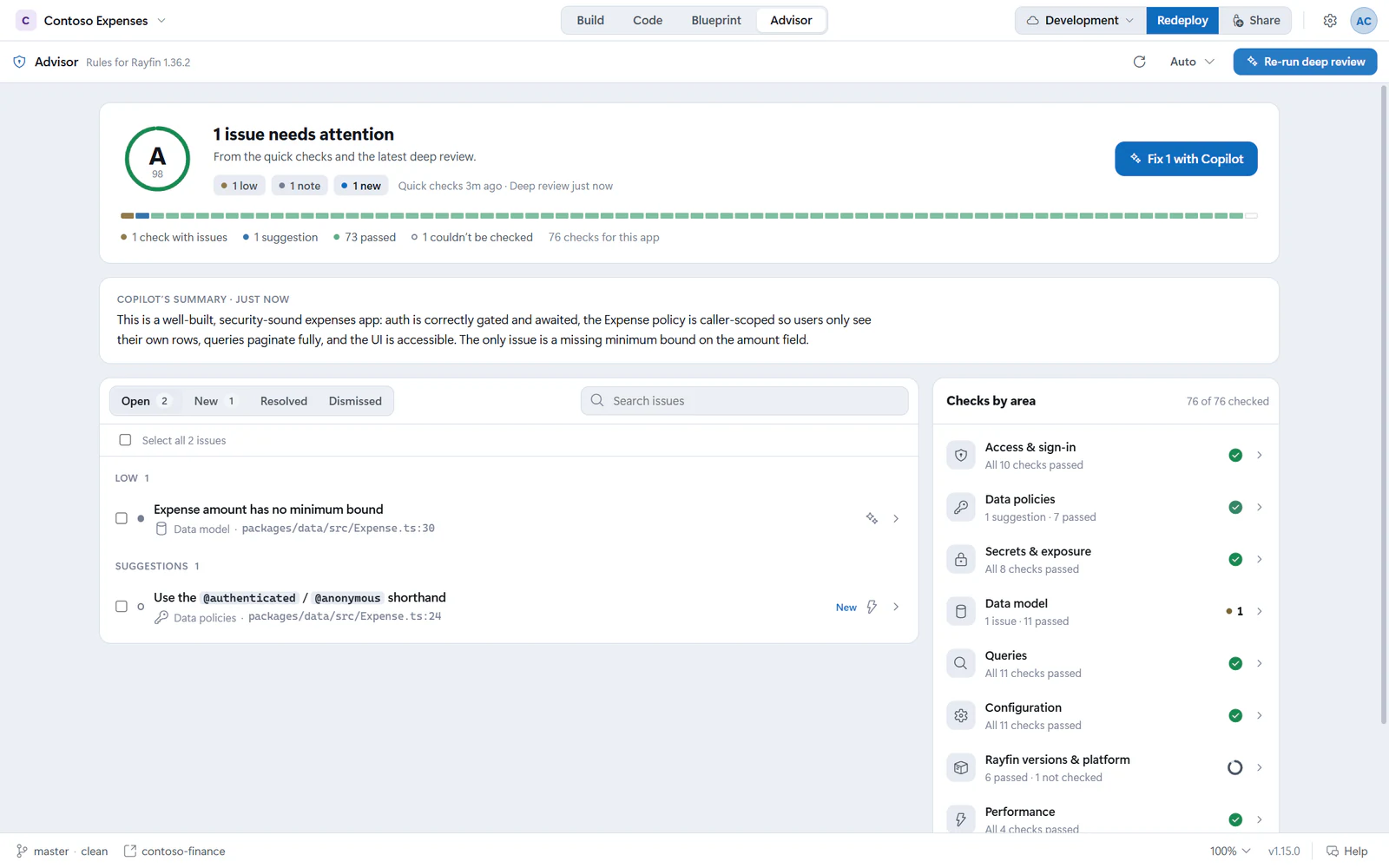
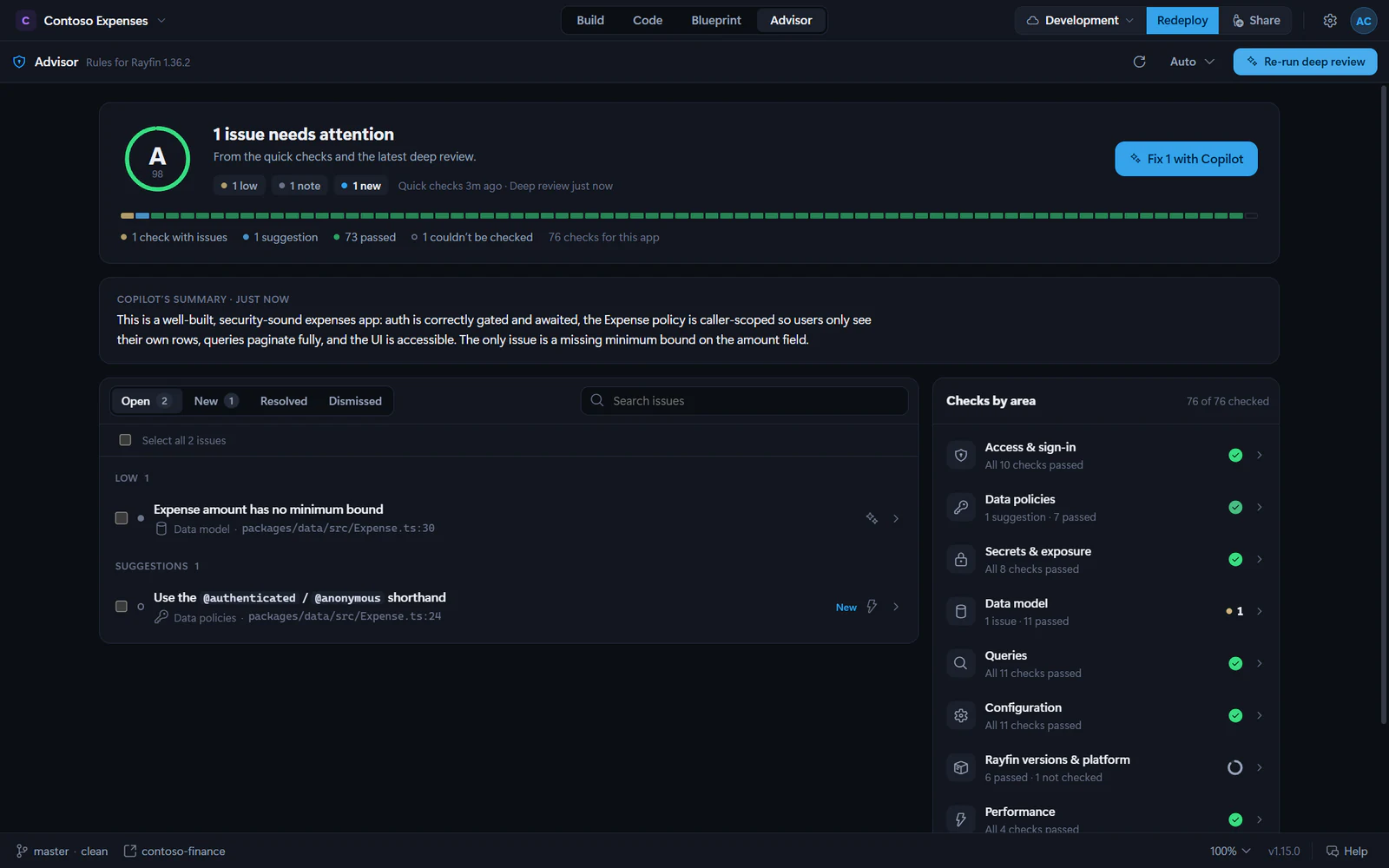
Read the summary
Open the Advisor tab. The top summary shows:
- a letter grade and score,
- counts for high, medium, low and note-level findings,
- whether the grade is provisional,
- when quick checks and the deep review last ran,
- a strip with one block for every check.
The grade is provisional until a current deep review exists. If a high-severity access, policy or secrets issue is open, the grade is capped at C or below.
The Advisor tab badge counts open high and medium issues. It does not count low issues, notes, dismissed findings or resolved findings.
Review the areas
The right-side areas checklist uses the Advisor rule catalog. The areas are:
- Access & sign-in
- Data policies
- Secrets & exposure
- Data model
- Queries
- Configuration
- Rayfin versions & platform
- Performance
- Accessibility
Open an area to see its rules, status, and linked guidance from rayfin.ai or related docs.
Quick checks
Quick checks run automatically when the project changes. They do not use Copilot. They inspect the project snapshot for deterministic issues such as missing permission decorators, outdated Rayfin packages, unsupported query methods, and configuration problems.
Use the refresh icon in the Advisor bar to re-run quick checks.
Run a deep review
Select Run deep review to have Copilot review the app against rules that need judgment. If a review already exists, the button becomes Re-run deep review.
Deep reviews use Copilot requests. They run in a separate read-only session: Copilot can read the project and fetch rayfin.ai documentation, but Fabricator denies file edits, shell commands, deployment commands, non-read-only tools, and .env file reads.
While the review runs, the summary shows live progress such as what Copilot is reading. Findings appear as soon as Copilot confirms them.
Note
A deep review can become outdated. If your code changes after the review, Fabricator says "Your code changed since the deep review" and asks you to re-run it.
Open a finding
Select a row in Open or New to expand it.
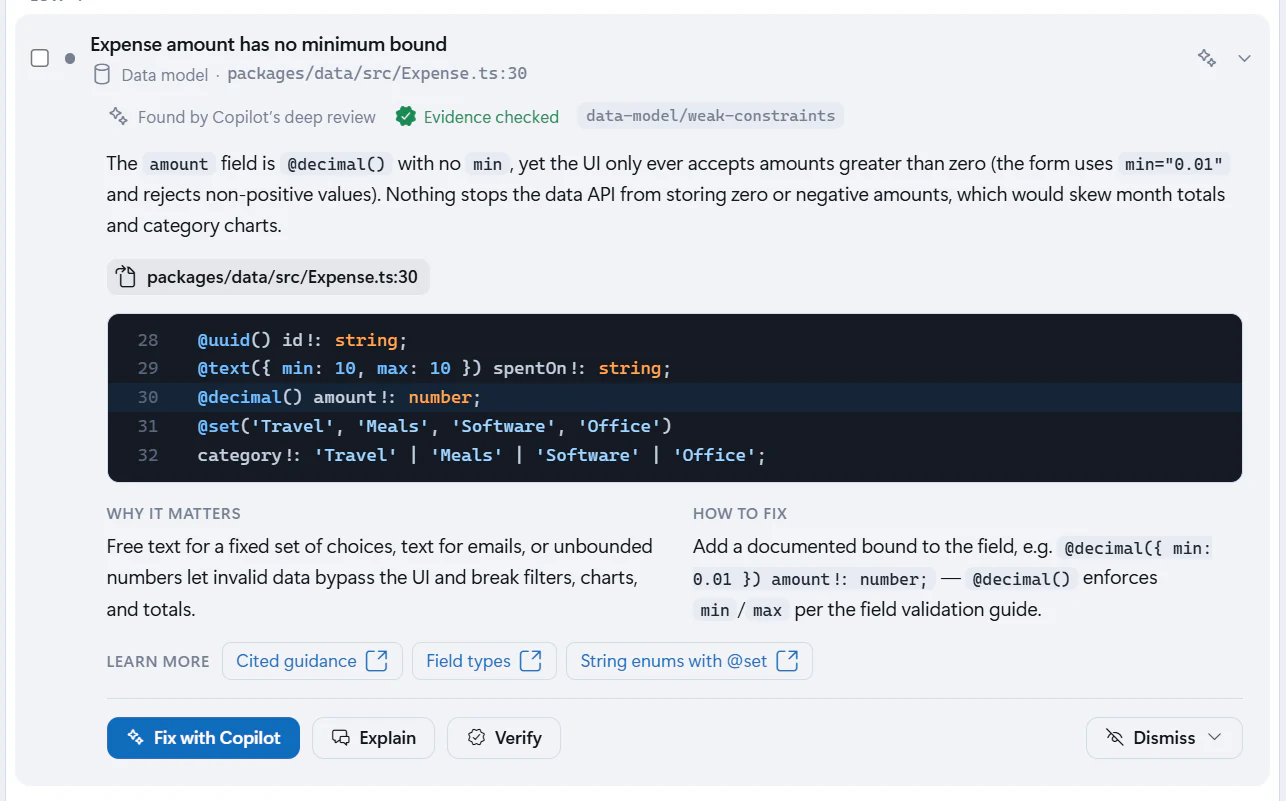
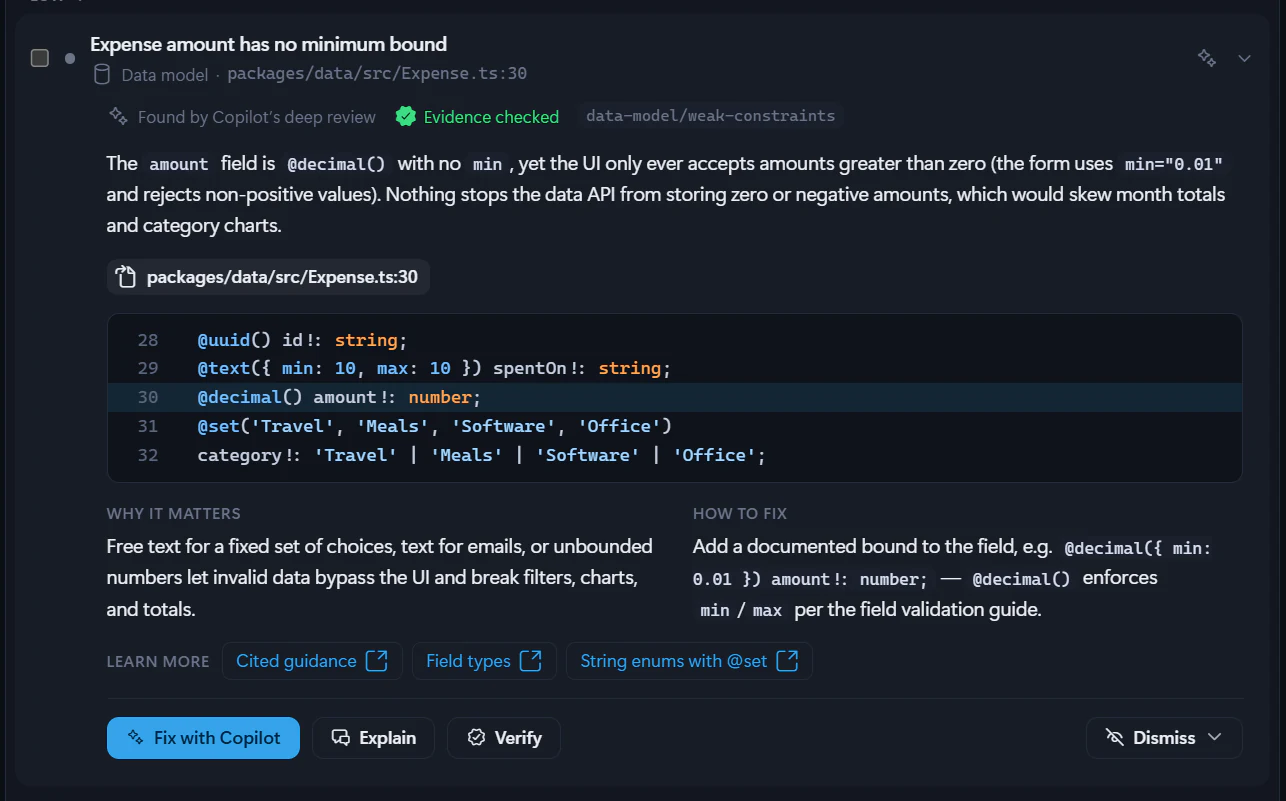
A finding can include:
- the source, either Found by a quick check or Found by Copilot’s deep review,
- a rule id,
- flagged file and line links,
- an evidence excerpt,
- Why it matters,
- How to fix,
- links to guidance.
Use file chips to open the flagged code in the Code tab.
Fix findings with Copilot
Select Fix with Copilot on one finding, or use a summary action such as Fix selected (1) or Fix 2 with Copilot. Fabricator sends the finding details to the Build chat as an Advisor fix card.
These actions also apply to note-level findings under Suggestions. Suggestions do not lower your health score.
Copilot receives the issue, location, suggested fix, relevant code excerpt, and Rayfin guidance links. It is instructed not to run rayfin up; Fabricator handles redeploys.
Fix the Advisor findings shown in the chat. Keep the app building, use the installed Rayfin docs before changing Rayfin APIs, and explain any finding you cannot safely fix.Verify deep-review fixes
Quick-check findings re-run when the code changes. For Copilot deep-review findings, select Verify after a fix. Advisor asks Copilot to re-check that specific finding against the current code.
If Copilot applied a fix, the finding can show Fix applied until you verify it. If the issue remains, it can show Still detected.
Dismiss or mute
Use Dismiss on a finding when it should not block you:
- False positive means the finding is not actually a problem here.
- Accepted risk means the finding is real, but intentional for this app.
- Mute this rule stops reporting that rule for this app.
Dismissed findings and muted rules appear under Dismissed. You can restore a dismissed finding or unmute a muted rule from its detail view.
Track changes over time
Use the issue tabs:
- Open shows current findings.
- New shows findings that are new since the last review baseline.
- Resolved shows findings that disappeared or were verified fixed.
- Dismissed shows dismissed findings and muted rules.
If the Advisor's rules changed since the saved deep review, Fabricator asks you to re-run the review so the current rule catalog is applied.
Share your app
Give people in your Microsoft Entra tenant access to a deployed app by email, including Build access to semantic models the app reads from other workspaces.
Keep Rayfin up to date
Know when a project's Rayfin CLI and SDK are out of date, and let Copilot upgrade them together while keeping the app building.