
Publish changes
Publish a team app by saving work, checking the preview, waiting for review when required, merging, and deploying the published app.
Warning
Team workspaces are an experiment. Turn them on in Settings → Experiments. They may change or be removed in a future update.
Use Publish when your preview is ready for everyone. Publishing merges your working branch and lets the team pipeline deploy the published app.
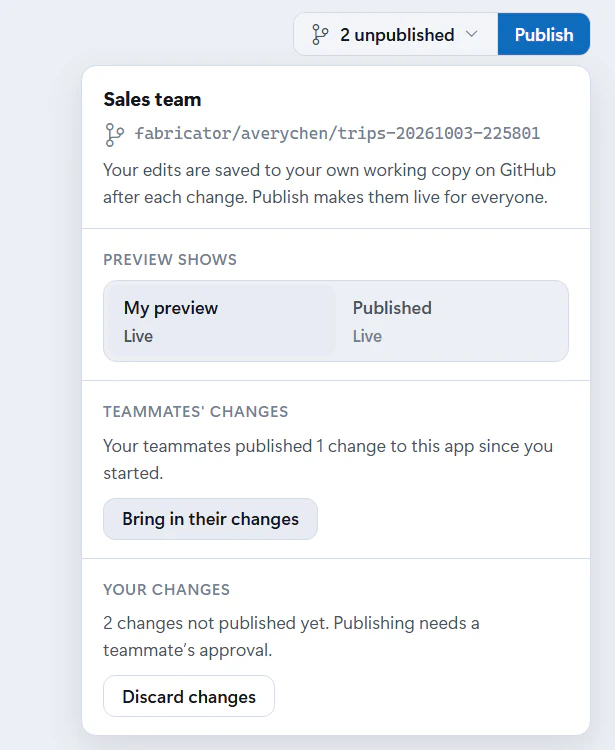
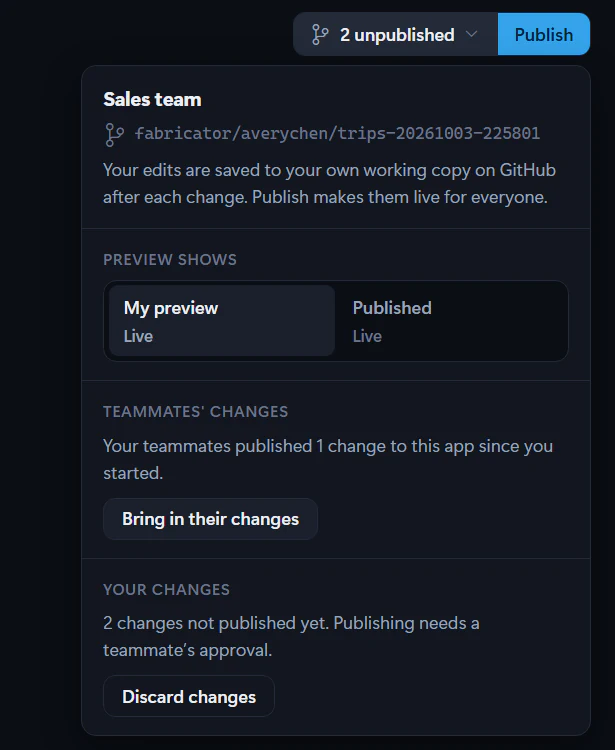
Publish your changes
- Open the team app.
- Make sure your latest preview is working.
- Select Publish in the app bar.
- Keep the Publish window open while Fabricator works, or select Stop waiting if you only want to stop watching.
Fabricator runs these steps:
- Save your latest changes.
- Bring in your teammates' changes.
- Check that your preview deploys.
- Get a teammate's approval, when the workspace requires reviews.
- Publish your changes.
- Deploy the published app.
If review is required, Fabricator shows "Waiting for a teammate to approve your changes. They see your request on Fabricator's Home. Publish again once they've approved." Teammates approve from Home with View changes and Approve.
If publishing would delete data
The pipeline stops when the Rayfin CLI reports a destructive data or storage change. The GitHub workflow emits this message:
"This change would delete data in the published app. Publish it again from Fabricator and confirm to allow it."
Fabricator then shows:
"Your changes are published, but the pipeline stopped before deploying because they would delete data in the published app. Confirm to deploy anyway."
If you understand the impact, select Deploy anyway (deletes data). Fabricator dispatches the workflow again with the force input for that app.
If publish stops
Open the team menu in the header. Under Last publish, use View on GitHub when it is available. In the Publish window, use View logs on GitHub when shown.
If your preview did not deploy, Fabricator shows "Your preview didn't deploy, so Fabricator didn't publish. Open the preview's logs, fix the problem with Copilot, then publish again."
If teammates changed the same files, Fabricator shows "Your teammates changed some of the same files as you. Bring in their changes and resolve the conflicts first." Use Let Copilot combine them when it appears.
Work on a team app
Open a team app, work on your own branch, preview changes locally and in Fabric, and bring in teammates' published changes.
Use the workspace overview
Use the app-centered workspace overview to inspect apps, working copies, previews, published deployments, data, connections, and pipeline health.