
Tour the workbench
Find Home, project tabs, chat, preview, code, model, Advisor, accounts, settings, the status bar and Ray.
Fabricator has two main places: Home, where you choose a project, and the project workbench, where you build, inspect, preview, and deploy one app.
Home
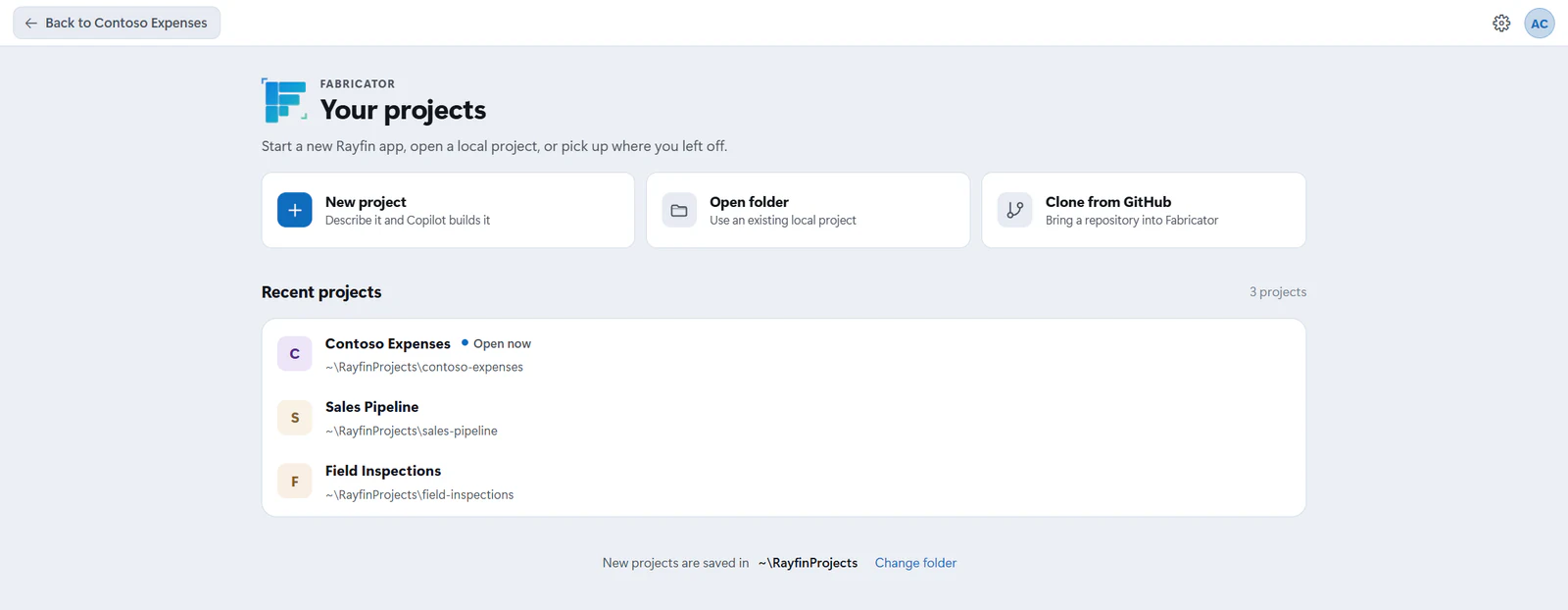
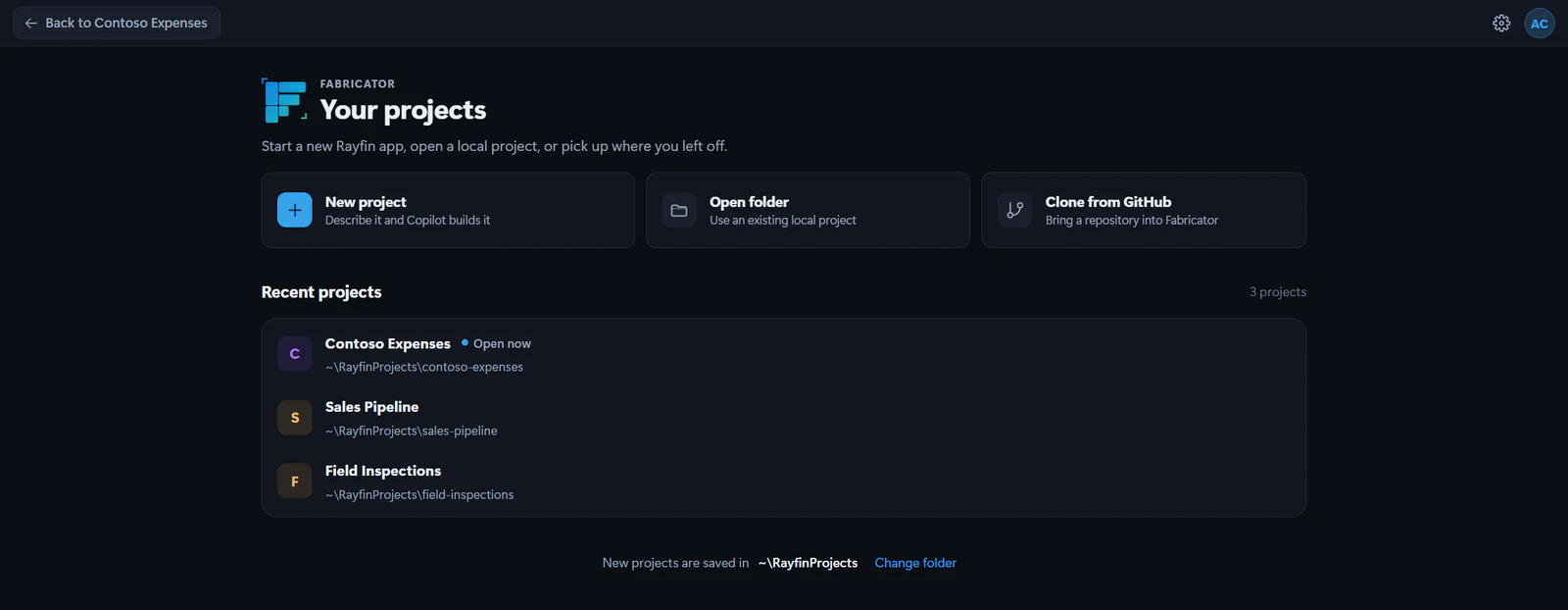
Home is titled Your projects. Use it to start or open work:
- New project creates a Rayfin app and starts the deploy flow.
- Open folder opens an existing local project.
- Clone from GitHub brings a repository into Fabricator.
- Recent projects lists projects you have opened before. A project can show Open now or Missing.
- Change folder changes where new local projects are saved.
If Team workspaces is turned on in Settings → Experiments, Home also shows the team workspace section.
Project app bar
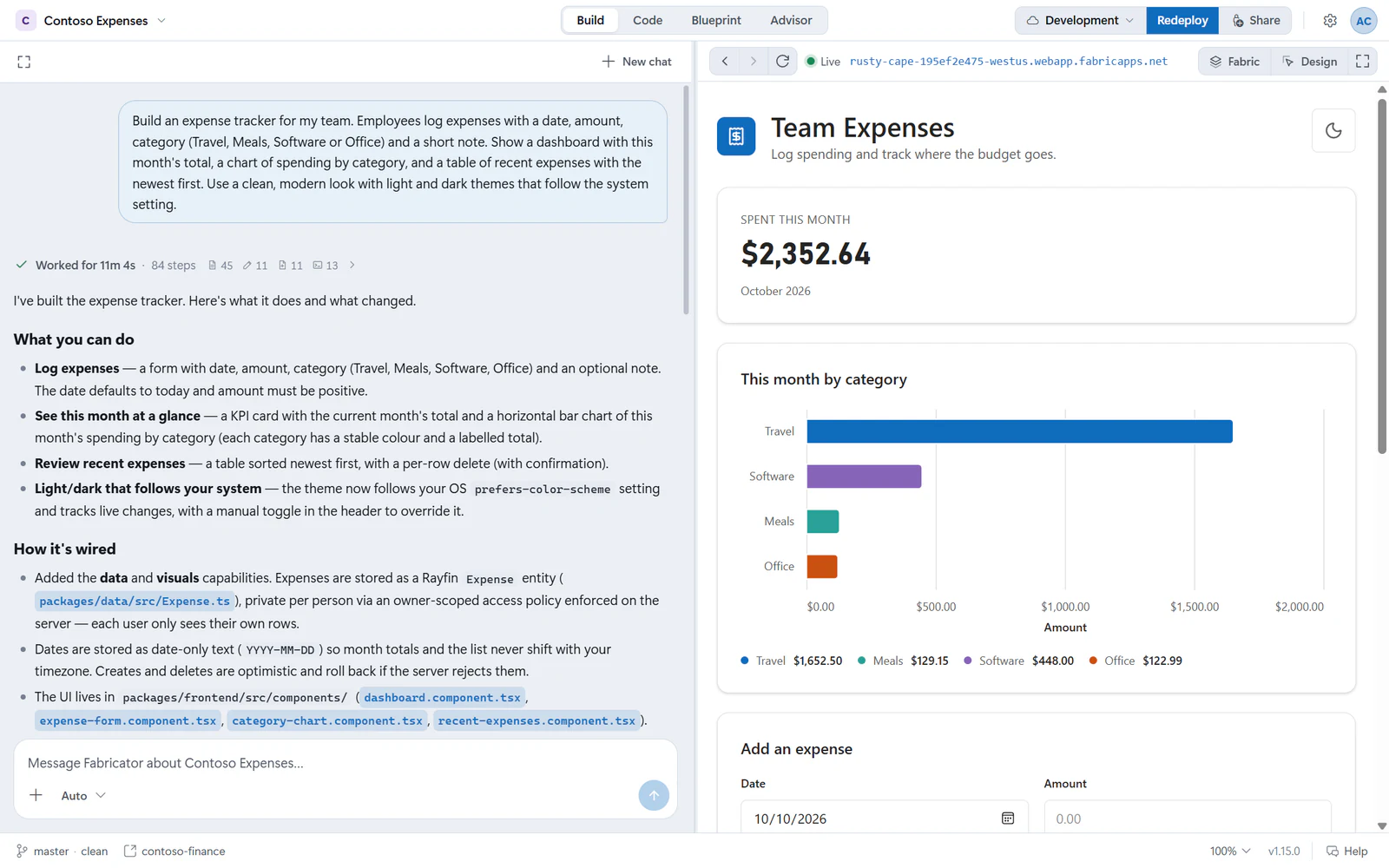
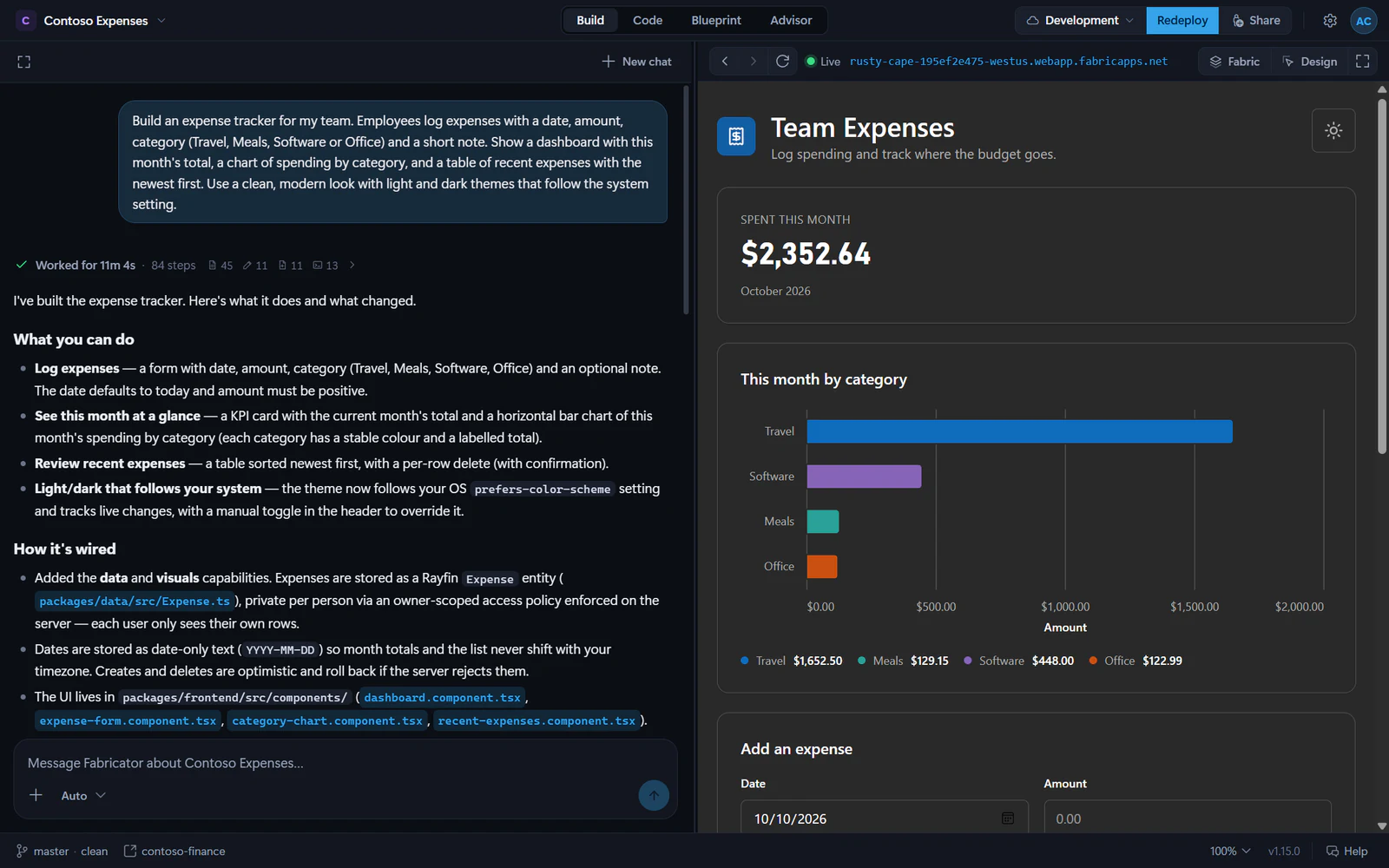
When a project is open, the app bar starts with the project switcher. Choose the project name to open a menu of your recent projects, then choose one to switch to it. Choose All projects to see every project on Home while the current project keeps running, and choose the Back to <project name> button to return to it.
The center of the app bar has project tabs:
- Build: chat and live preview.
- Code: files, history, and skills.
- Blueprint: how the app is put together: its architecture, data model and semantic models.
- Advisor: app health checks and fixes.
The right side can include deployment controls:
- The deployment control, marked with a cloud icon, shows the active deployment's name or Not deployed.
- Deploy creates the first deployment.
- Redeploy publishes to the active deployment again.
- Share opens sharing for the active deployment.
The app bar also has Settings and the account menu, set apart from the project's controls.
Build view
Build is where you spend most of your time. Chat is on the left. The preview is on the right. During a turn, the chat work log shows what Copilot is doing. The preview can show a live local app while Copilot edits, then return to the deployed app after the turn.
The preview toolbar includes Reload, a URL button, Fabric, Design, and Focus. Design lets you click your app, queue visual changes, and send them to Copilot. See Live preview and Design mode.
Code, Blueprint, and Advisor
Code has three sub-tabs: Files, History, and Skills. Files opens a read-only code viewer. History shows a timeline of changes. Skills manages reusable Copilot instructions. See Code and history and Skills.
Blueprint shows what the app is made of, what it connects to and which identity each connection uses, along with its Rayfin data model and semantic models. See Blueprint.
Advisor checks app health. The tab can show a badge for open high or medium issues. See Check app health with the Advisor.
Account menu and Settings
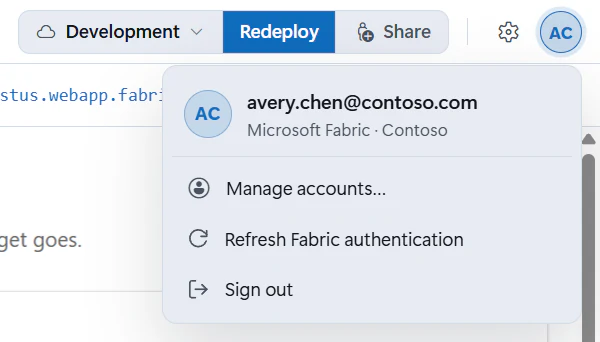
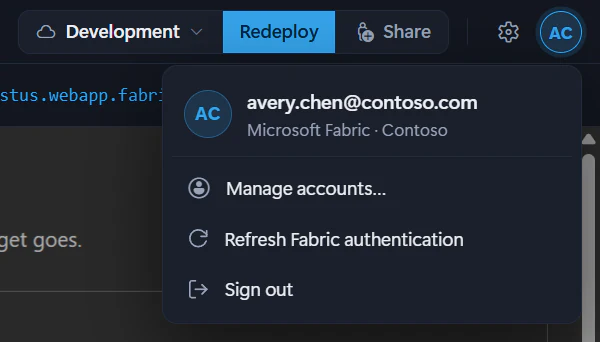
When you are signed in to Fabric, the account menu shows your account initials, and opening it shows your account and its organization. It has Manage accounts…, which opens Accounts for every account Fabricator uses, plus Refresh Fabric authentication and Sign out. When you are not signed in, it shows Sign in to Fabric, with Manage accounts… behind the arrow next to it. See Manage your accounts.
Open Settings from the gear button. Settings groups its options into General (Accounts, Setup, and Workspace folder), Appearance (Theme and Text size), Diagnostics (including Usage stats), experiments such as Team workspaces, and About (the versions Fabricator runs on, and links to these docs).
Status bar
The footer shows project and app status:
- Git status for local projects, or team workspace and branch for team apps.
- The project's Rayfin version, when a newer Rayfin release is available. See Keep Rayfin up to date.
- The active Fabric workspace, when known.
- Manual deploy or Auto deploy for local projects, while the Deploy manually experiment is on. See Deploy manually.
- Interface zoom.
- Fabricator app version, such as
v1.7.2. - Help, which opens the Help assistant. It answers questions about what went wrong, and writes up a bug report when the problem is Fabricator's fault.
Ray
Ray is Fabricator's stingray. He keeps you company while an app installs its packages: when you create a project, clone one, or open one whose packages are missing. He shares facts about Rayfin and tips for Fabricator, and greets you in Help. The first time Fabricator starts on a computer, he's on the loading screen too, telling you in his own words how it's going. After that, he welcomes you back each time Fabricator opens, and he talks you through every deploy.
While Ray is on screen, you can:
- Select him to pet him.
- Drag him somewhere else.
- Select a speech bubble to hear the next fact.
- Point at him and select the × next to him to send him away. Until you restart Fabricator, he only appears in Help.
If your computer is set to reduce motion, Ray stays in one place and his speech appears without animation.