
Chat with Copilot
Use Fabricator's built-in GitHub Copilot agent to change your app, review its work log and diffs, steer a turn, and recover sign-in.
Chat is where you describe what you want Fabricator to build. The built-in GitHub Copilot agent edits the project, Fabricator shows the work as it happens, and a successful turn is saved to history.
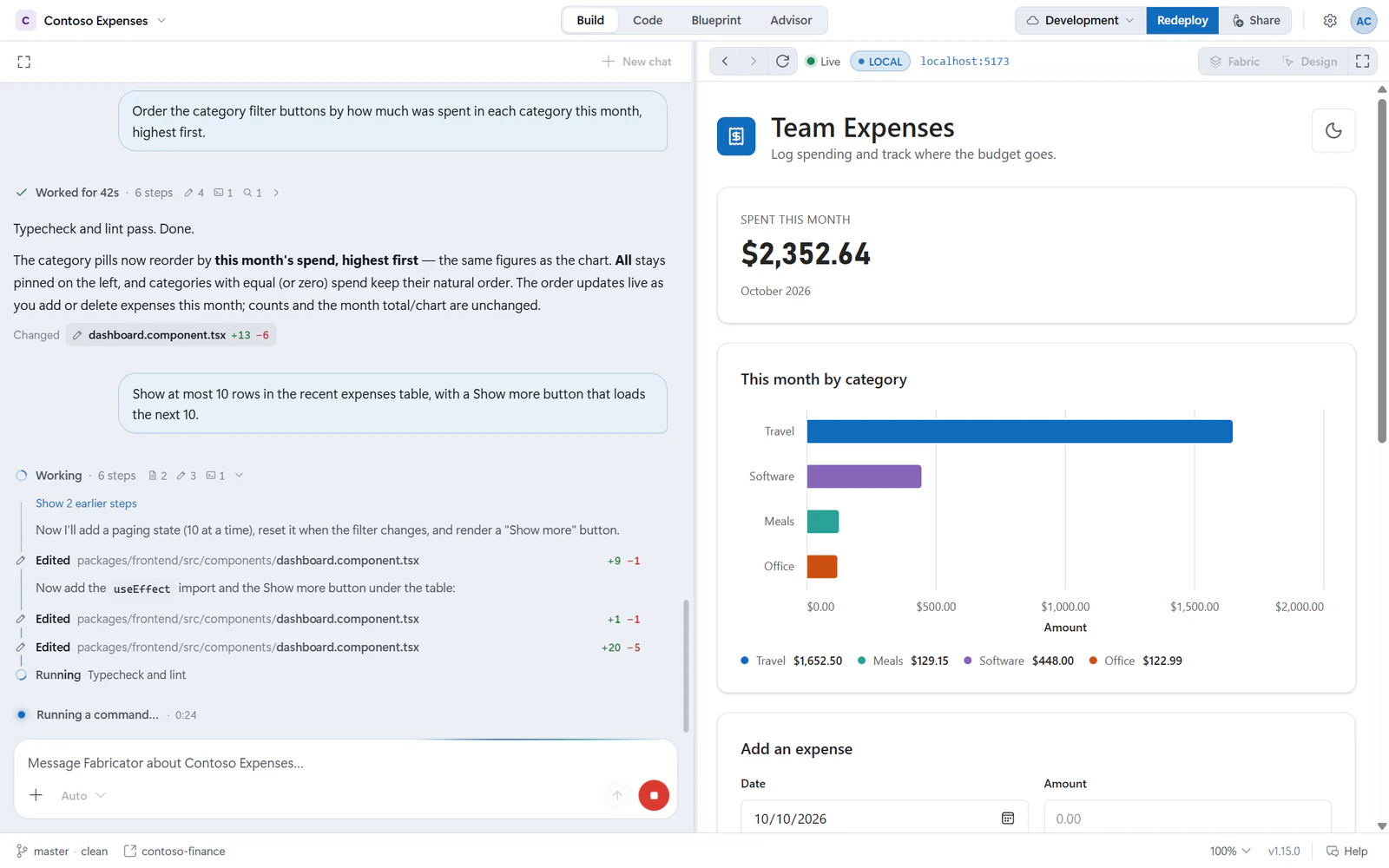
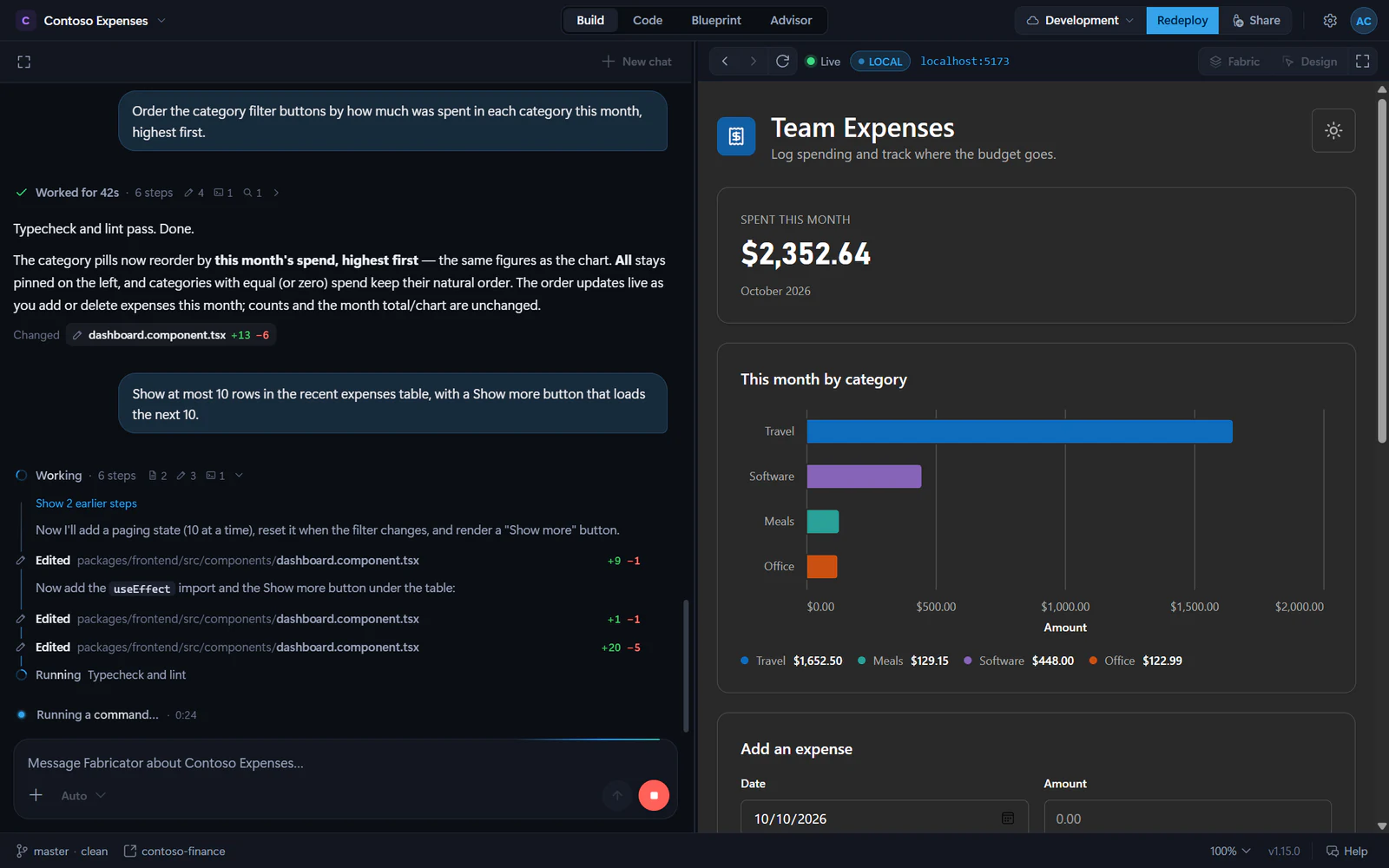
Send a message
- Open a project and stay on the Build tab.
- Type in the message box, whose placeholder is
Message Fabricator about <project name>…. - Press Enter or select Send.
Use Shift+Enter for a new line. If you type @, Fabricator opens Reference a file so you can point Copilot at a project file. You can also use Add images, data, or files to:
- Add an image. You can also paste or drop a screenshot into the box.
- Connect a semantic model. This adds Fabric semantic model details to the prompt. See Blueprint.
- Reference a file.
Choose a model and reasoning effort
Open the model pill in the composer to choose the AI model and Reasoning effort.
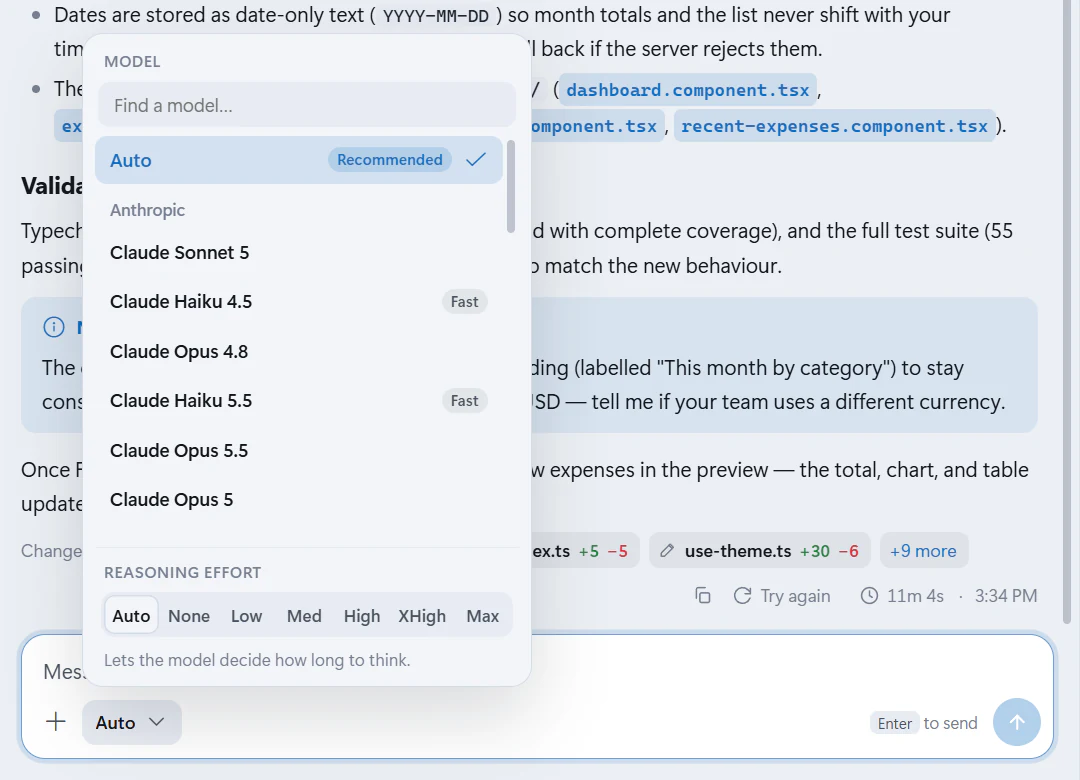
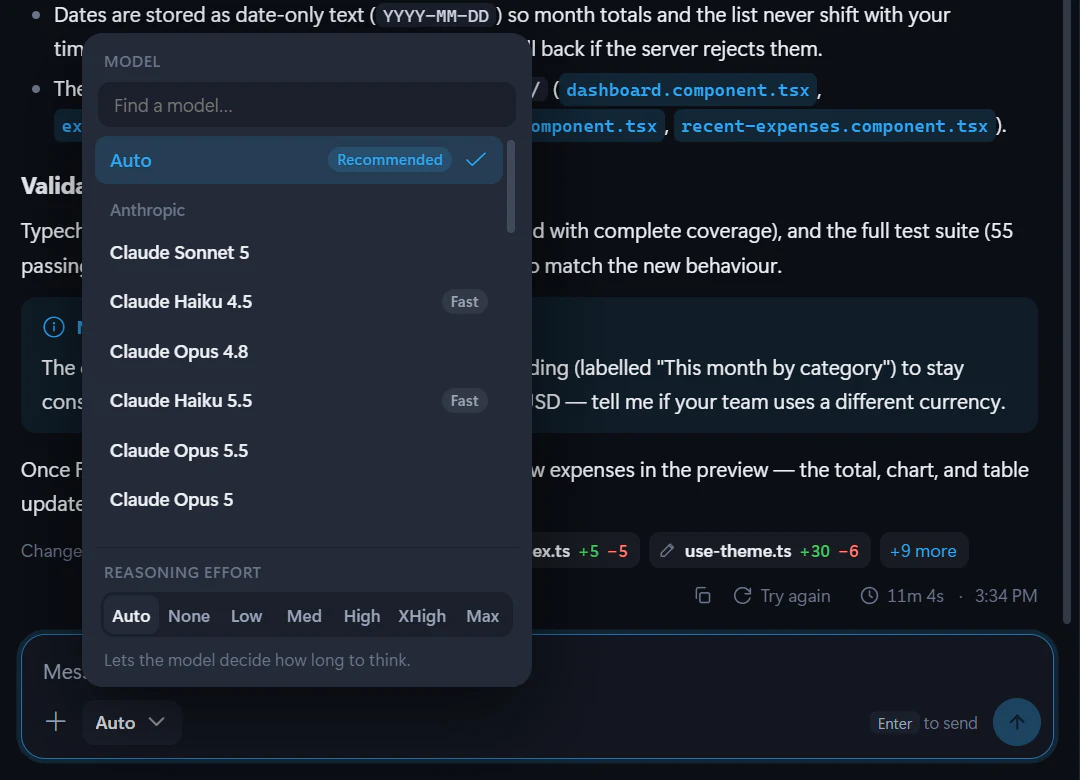
The model menu includes Auto as the recommended default. Reasoning effort can be Auto, None, Low, Med, High, XHigh, or Max, depending on the selected model. Higher effort can think longer, so use it for harder changes.
Fabricator uses the GitHub Copilot account you signed in with. The models shown come from that account's available Copilot models.
What happens during a turn
When a turn starts, Fabricator shows a live work log. It can include notes, reasoning when the model shares it, file reads, searches, commands, command output, and edits.
You may also see a status line such as Thinking…, Working…, or Writing the answer… with an elapsed timer.
While Copilot is working, the composer changes:
- Select Interject this message to send an extra instruction without waiting for the turn to finish.
- Select Stop generating to stop the current turn.
If Copilot asks a question, answer it in the card. The status changes to Waiting for your answer or Waiting for your decision.
Review the work log
When the turn finishes, the live log folds into a summary such as Worked for 2m · 23 steps.
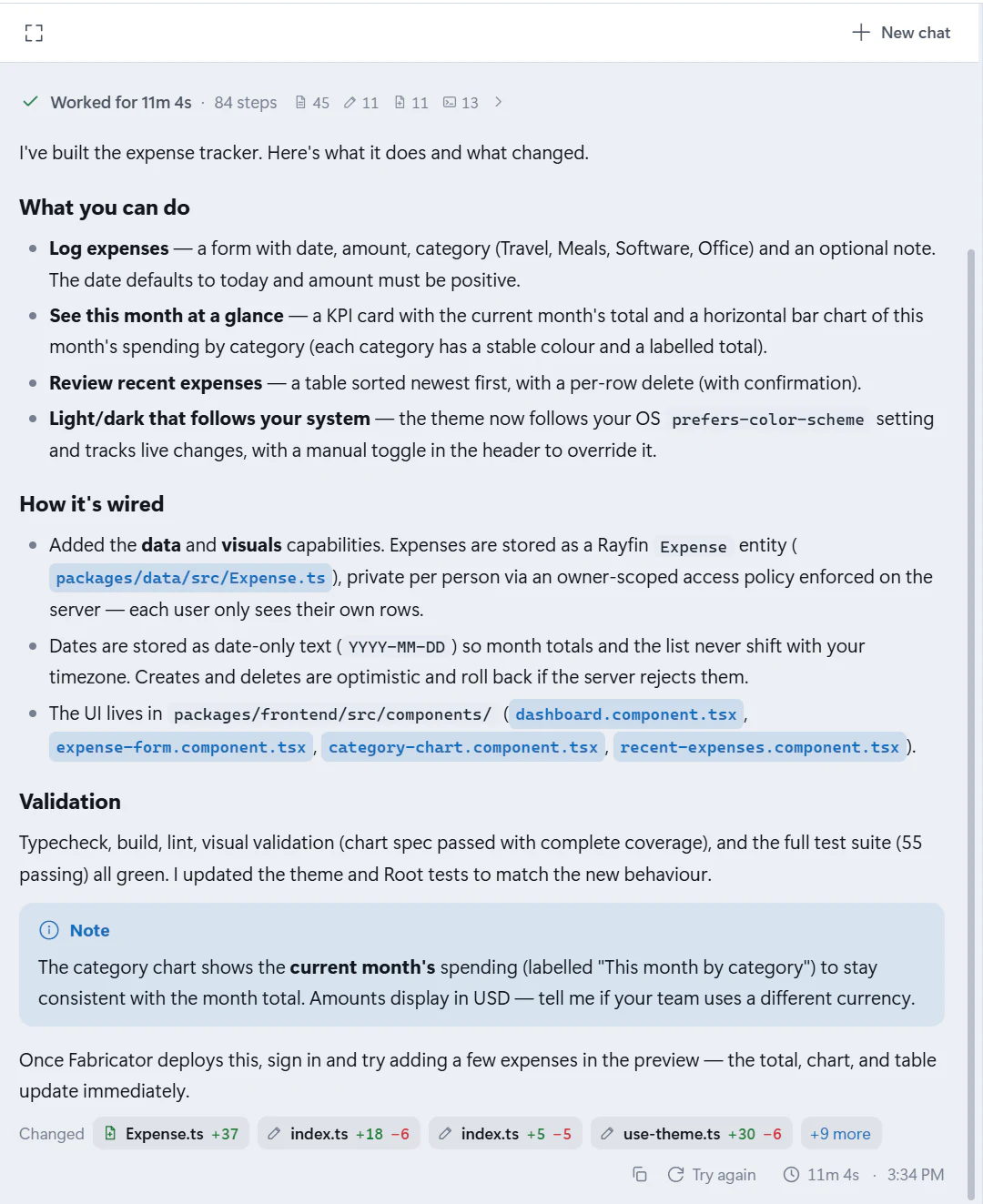
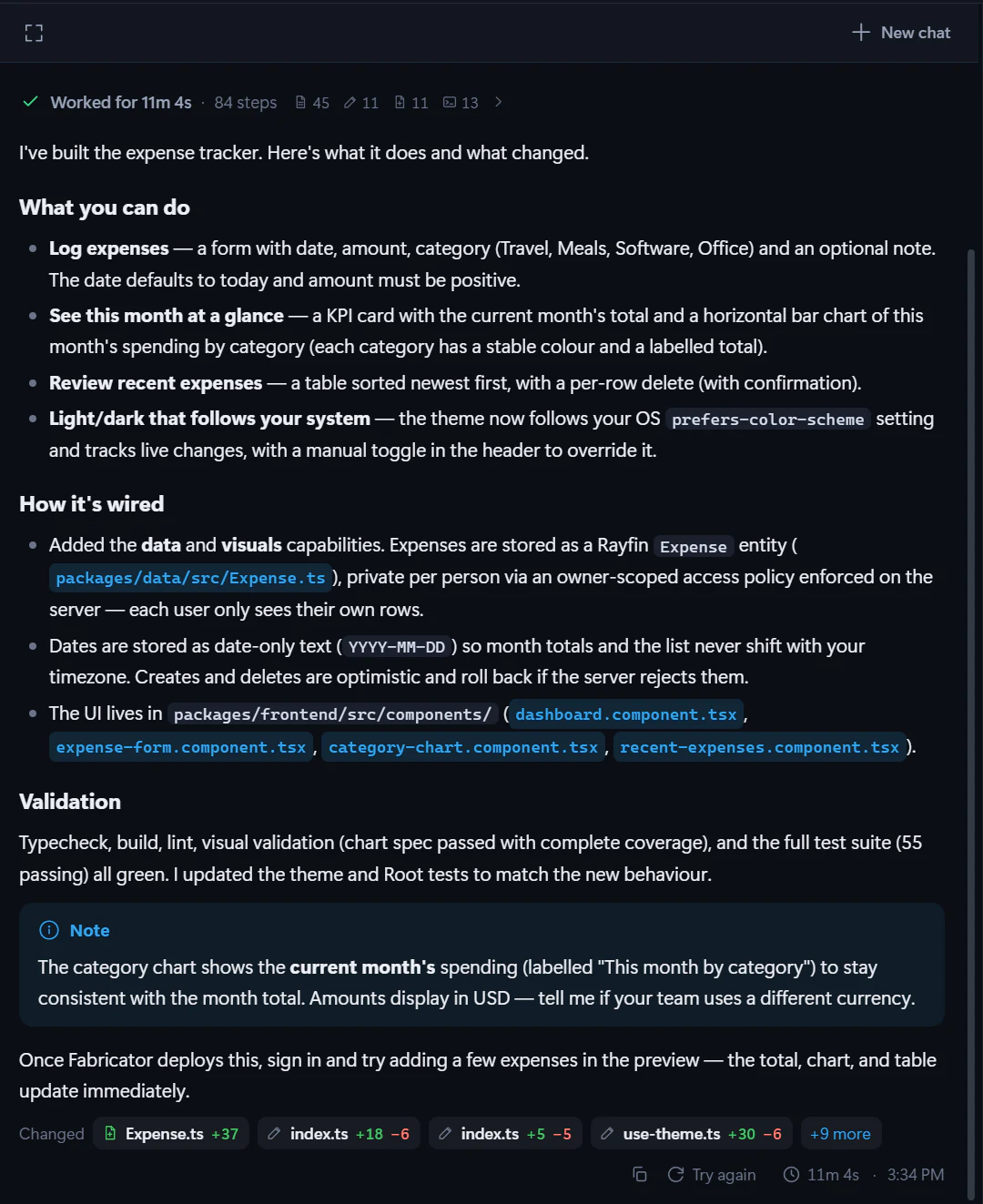
Expand it to review the steps. A step can show:
- the command Copilot ran, with Copy command;
- the latest output from a command;
- a diff for an edit;
- an Open action for a file.
Reasoning folds into a Thought for … row when it is available.
Review changed files
Finished assistant turns end with Changed file chips. Select a chip to see what that turn changed in that file.
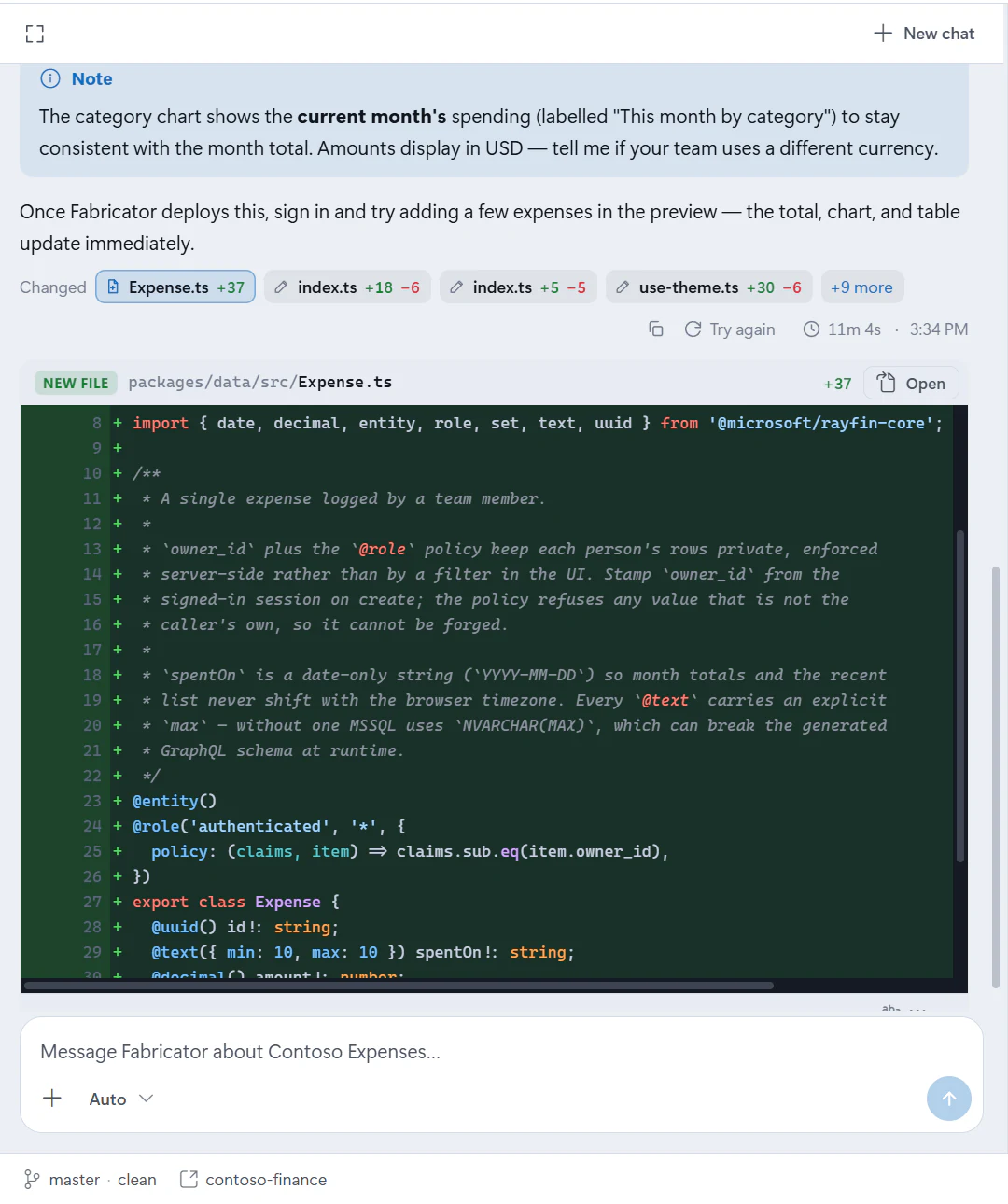
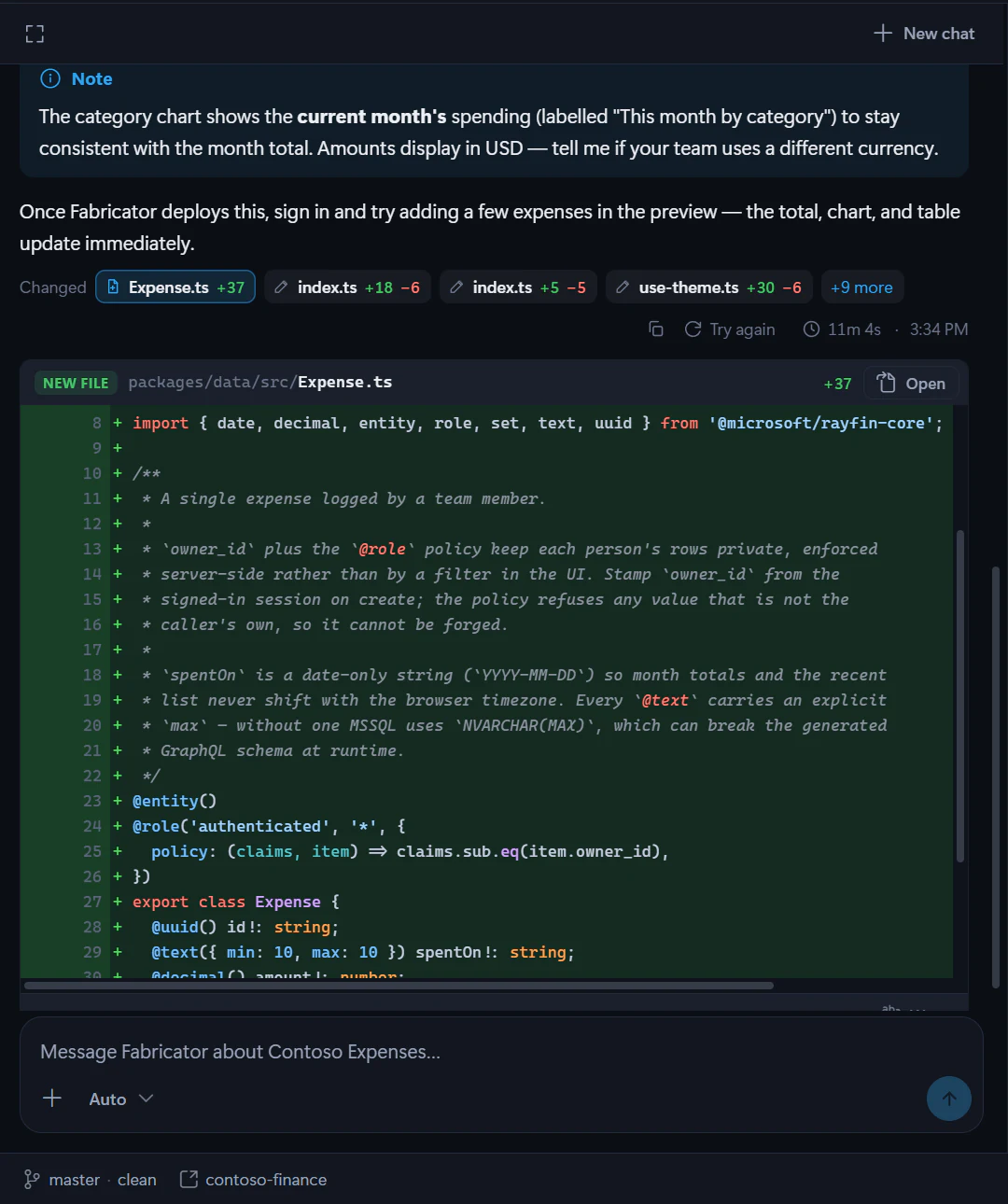
If a file was edited more than once in the same turn, Fabricator combines the turn's changes into one view when it can. Select Open to jump to the file in the Code tab. File paths in Copilot's answer are also clickable when they refer to project files.
Copy, retry, or start over
Hover a message to see its time and copy action. On the latest successful assistant answer, use Try again to run your last message again as a fresh attempt.
Use New chat to clear the conversation. Fabricator asks Start a new chat? and explains: "This clears the conversation and starts Fabricator fresh. Your app and its files stay exactly as they are." Starting a new chat does not delete files.
If a turn failed, use Retry. If Fabricator closed during a response, use Resume when it appears.
Plans and Autopilot
Plans can appear when Copilot proposes one. A plan card can show structured steps, progress, clarifying questions, and actions such as Build plan, Run in Autopilot, Run with fleet, or Approve plan when Copilot offers them.
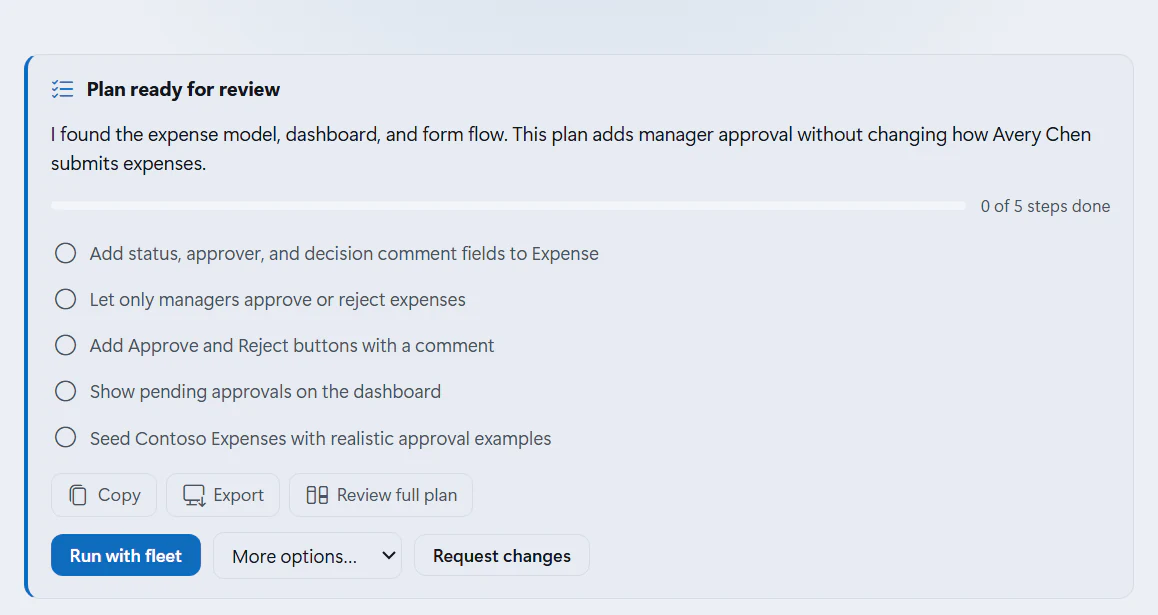
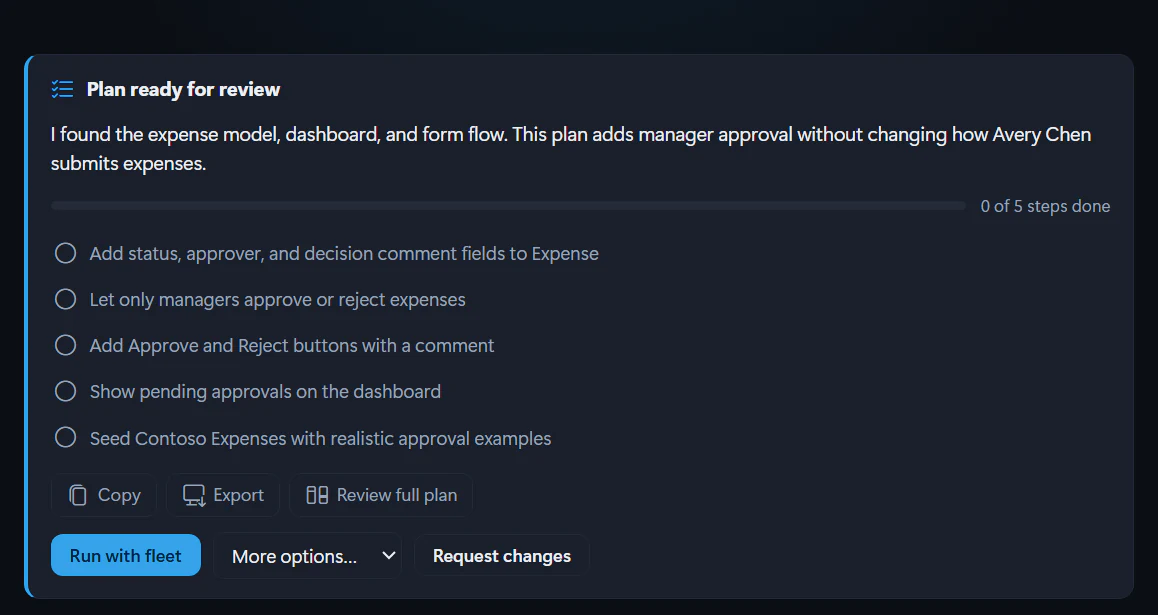
Use Review full plan to open the full plan. You can Request changes, edit the plan when editing is available, or approve one of the offered actions. Autopilot means Copilot continues through the approved plan more autonomously.
Design and Advisor cards in chat
Design changes queued from the preview appear as a Design card instead of raw instructions. See Design mode.
Advisor fixes appear as a card when you send findings to Copilot. See Check app health with the Advisor.
After a successful turn
After a successful turn, Fabricator saves the chat history and checks whether Copilot changed files that are not deployed yet. If there are changes, Fabricator starts the normal automatic redeploy. See Deploy to Microsoft Fabric.
For team apps, Fabricator saves the change to the working branch and the team pipeline deploys the preview. See Work on an app.
If Copilot asks you to sign in again
If credentials expire, chat shows Copilot needs your attention and Sign in to Copilot. Complete the browser or device-code sign-in, then retry your message. For recovery steps, see Copilot asks you to sign in again.
Create and manage projects
Start a new Rayfin app, open an existing project, clone from GitHub, switch between projects, and rename or remove projects from Fabricator.
Prompt ideas
Copy prompts for starting Rayfin apps, adding data and access rules, building semantic-model dashboards, improving visuals, and fixing issues.