
Skills
Choose the skills Copilot follows while it builds your Rayfin app, see what each one teaches, and add custom skills for your own guidance.
Skills are SKILL.md instructions GitHub Copilot can read while it builds your Rayfin app. They teach the agent app-building patterns, design preferences, data-model rules, analytics workflows, and your own team conventions.
Rayfin keeps its core skills always on. New Universal App projects also include app-building skills in the project. You can turn on Fabricator's built-in skills and your own custom skills from the Skills tab.
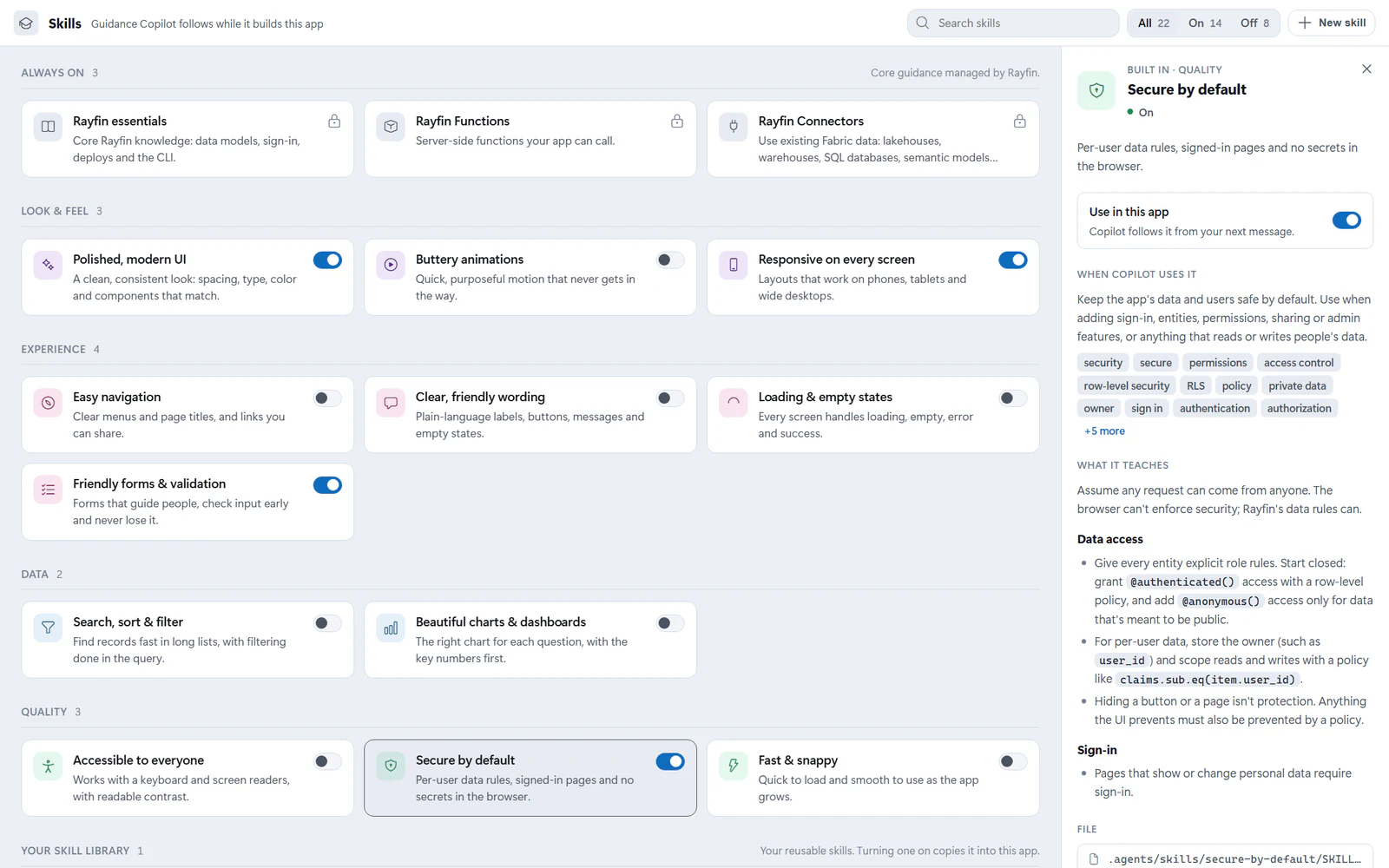
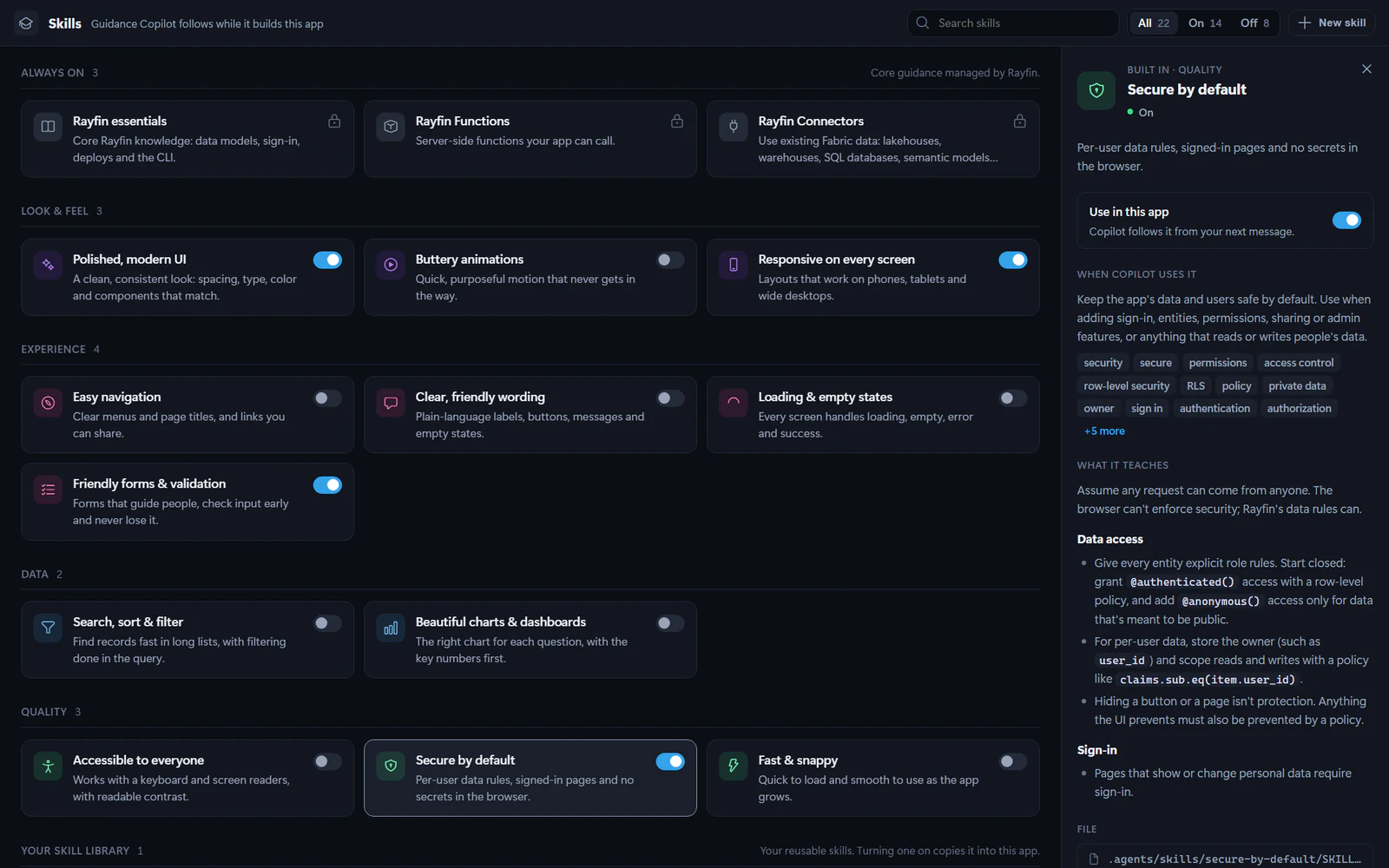
Open the Skills tab
- Open a project.
- In the app bar, select Code.
- In the code view's segmented control, select Skills.
Skills are grouped into sections:
| Section | What's in it |
|---|---|
| Always on | Core guidance managed by Rayfin. The Rayfin CLI installs and updates these skills, and you can't turn them off. |
| Look & feel, Experience, Data, Quality | Fabricator's built-in skills. Turn on the ones you want for this app. |
| Your skill library | Custom skills you saved to reuse in any app. |
| Added in this app | Skills that live only in this app, such as the ones its template came with. |
To find a skill, type in Search skills. To see only the skills this app uses, or only the ones it doesn't, select On or Off.
Turn a skill on or off
On a skill's card, select its switch. Fabricator adds the skill's SKILL.md to the app's .agents/skills/<skill id>/ folder, or removes it, and saves the change to git history. Copilot follows the skill from your next message.
Skills in Added in this app don't have a switch, because removing one deletes it from the app. Select the skill, then select Remove. If you want to keep using it in other apps, select Save to library first, when the skill offers it.
See what a skill teaches
Select a skill's card to open its details next to the grid:
- When Copilot uses it describes the requests the skill is meant for, and lists its trigger words.
- What it teaches shows the skill's guidance.
- File shows where the skill lives in the app.
- View SKILL.md opens the raw file, including its frontmatter.
When nothing is selected, the side panel explains How skills work and counts the skills in this app. To close a skill's details, press Esc or select the close button.
Built-in skills
| Skill | What it helps Copilot do |
|---|---|
| Polished, modern UI | Keep spacing, type, color and components consistent, in light and dark themes. |
| Buttery animations | Add short, purposeful motion that respects reduced-motion settings. |
| Responsive on every screen | Build layouts that work from phones to wide desktops. |
| Easy navigation | Give the app clear menus, page titles and URLs you can share. |
| Clear, friendly wording | Write plain, consistent labels, buttons, messages and empty states. |
| Loading & empty states | Handle loading, empty, error and success states for every view that loads or saves data. |
| Friendly forms & validation | Build forms that check input early, explain how to fix it and never lose what people typed. |
| Solid data modeling | Shape Rayfin entities, relationships and queries, and page through long lists. |
| Search, sort & filter | Help people find records in long lists, with filtering done in the query. |
| Beautiful charts & dashboards | Pick the right chart for each question and lead with the key numbers. |
| Accessible to everyone | Make the app work with a keyboard and screen readers, with readable contrast. |
| Secure by default | Protect data with row-level rules, require sign-in for personal data and keep secrets out of the browser. |
| Fast & snappy | Keep the app quick to load and smooth to use as data grows. |
If the app or your skill library already has its own skill with the same name as a built-in skill, such as the Universal App's data-modeling, the Skills tab shows that skill instead of the built-in one. A skill in Added in this app that shares a built-in skill's name can't be saved to your library.
Update a built-in skill
When a newer version of a built-in skill is available, its card shows Update available. To update it, select the skill, then select Update. To update every built-in skill that has a newer version, clear the selection and use the Updates section of the side panel.
Updating replaces the app's copy of the skill and saves the change to git history.
Built-in project skills at a glance
New projects use the Rayfin CLI's Universal App template, which ships with skills that route common Rayfin app requests. The exact set depends on the Rayfin CLI version that created the app. Current versions include:
| Skill | What it helps Copilot do |
|---|---|
capability-router | Start every build request here: settle the data source, then turn on only the capabilities the app needs. |
data-modeling | Turn on the app's database and declare Rayfin entities, with row-level security for per-user data. |
crud-ui | Build the list, form and edit screens for the app's own records, with loading and error states. |
connectors | Connect existing Fabric data: a Warehouse, SQL database, Lakehouse SQL analytics endpoint or Power BI semantic model. |
analytics | Build dashboards and reports over an existing Power BI semantic model. |
schema-discovery | Explore a semantic model's tables, columns, measures and relationships. |
dax-authoring | Write and test DAX queries against a semantic model. |
query-design | Decide what to compute in DAX and what to compute in the app. |
fabric-sdk | Query Fabric data from the running app through the Rayfin connectors client. |
visuals | Add charts and data grids with Vega-Lite visuals and the data grid component. |
app-design | Keep the layout and components consistent, accessible and polished. |
functions-capability | Add server-side functions for secrets, external APIs and other trusted logic. |
external-api-workflows | Call a third-party API or custom model endpoint through a server-side function. |
fabric-data-agent | Call a published Fabric data agent from the app through a function. |
app-validation | Check the app before calling it done. In Fabricator, Copilot runs the static checks and you try the deployed app in the preview. |
app-deployment | Deploy from a terminal with the Rayfin CLI. In Fabricator, Copilot skips it because Fabricator deploys the app. |
Projects created by earlier Fabricator versions keep the skills their starter came with.
These skills are project files, so they travel with the app. They appear in Added in this app. Fabricator also injects Fabricator-specific operating instructions during chat. For example, Copilot doesn't run rayfin up or follow a template's own deployment steps, because Fabricator deploys after a turn.
Add a custom skill
Use a custom skill for guidance that is specific to your organization, brand, data vocabulary, or review checklist.
- Open Skills.
- Select New skill.
- Choose Write to author one in Fabricator, or Upload to bring in an existing skill.
- Give it a Title, optional Icon, and Short description.
- Write the Skill instructions (SKILL.md). The file must start with YAML frontmatter that includes
nameanddescription. - Decide whether to turn on Save to my skill library.
- Select Add skill.
A skill's frontmatter description tells Copilot when to use it. The body tells Copilot what to do.
Upload a custom skill
The Upload tab accepts a folder, a Markdown file, or a .zip that contains SKILL.md. If the skill has references/*.md files, Fabricator brings those along too.
Fabricator previews the skill before adding it. Review the preview, then select Add skill.
Project skills and the skill library
Custom skills have two scopes:
- The app copy lives in the project under
.agents/skills/<id>/. Apps that already use a skill keep their copy. - Reusable skills are listed under Your skill library and stored once in Fabricator's app data under
custom-skills/<id>/. Turn a library skill on to copy it into the current app.
To make a skill from Added in this app reusable in other apps, select it, then select Save to library.
Edit or delete a library skill
Select a library skill to see Edit and Delete in its details.
- Edit opens Edit custom skill, where you can change the card details and
SKILL.md. - Delete removes the skill from your reusable library.
Deleting a library skill does not remove copies that are already active in apps. Turn the skill off in each app's Skills tab if you no longer want Copilot to use it there.
Blueprint: architecture and data models
Use Blueprint to see what your app is made of, what it connects to and which identity each connection uses, plus its Rayfin data model and Fabric semantic models.
Secrets
Add API keys, passwords and connection strings that your app's Rayfin functions read on the server, without putting their values in your code.