
Code and history
Browse project files, open the folder in VS Code, inspect diffs, and restore earlier git snapshots from Fabricator's Code view.
Use Code when you want to inspect the files behind your app or understand what changed over time. The current Code view is a viewer: it opens project files in a read-only Monaco editor and can open the project folder in VS Code for editing.
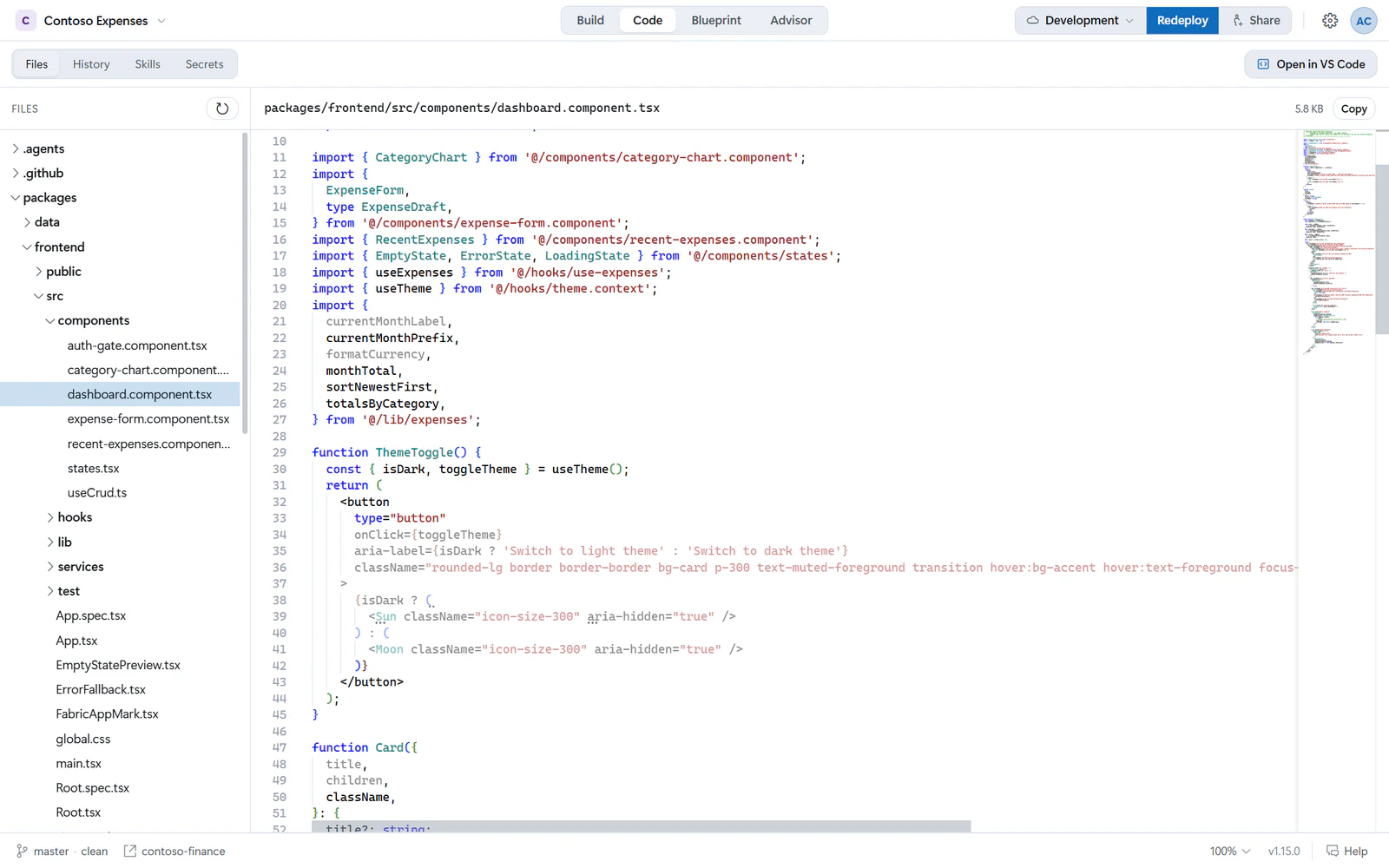
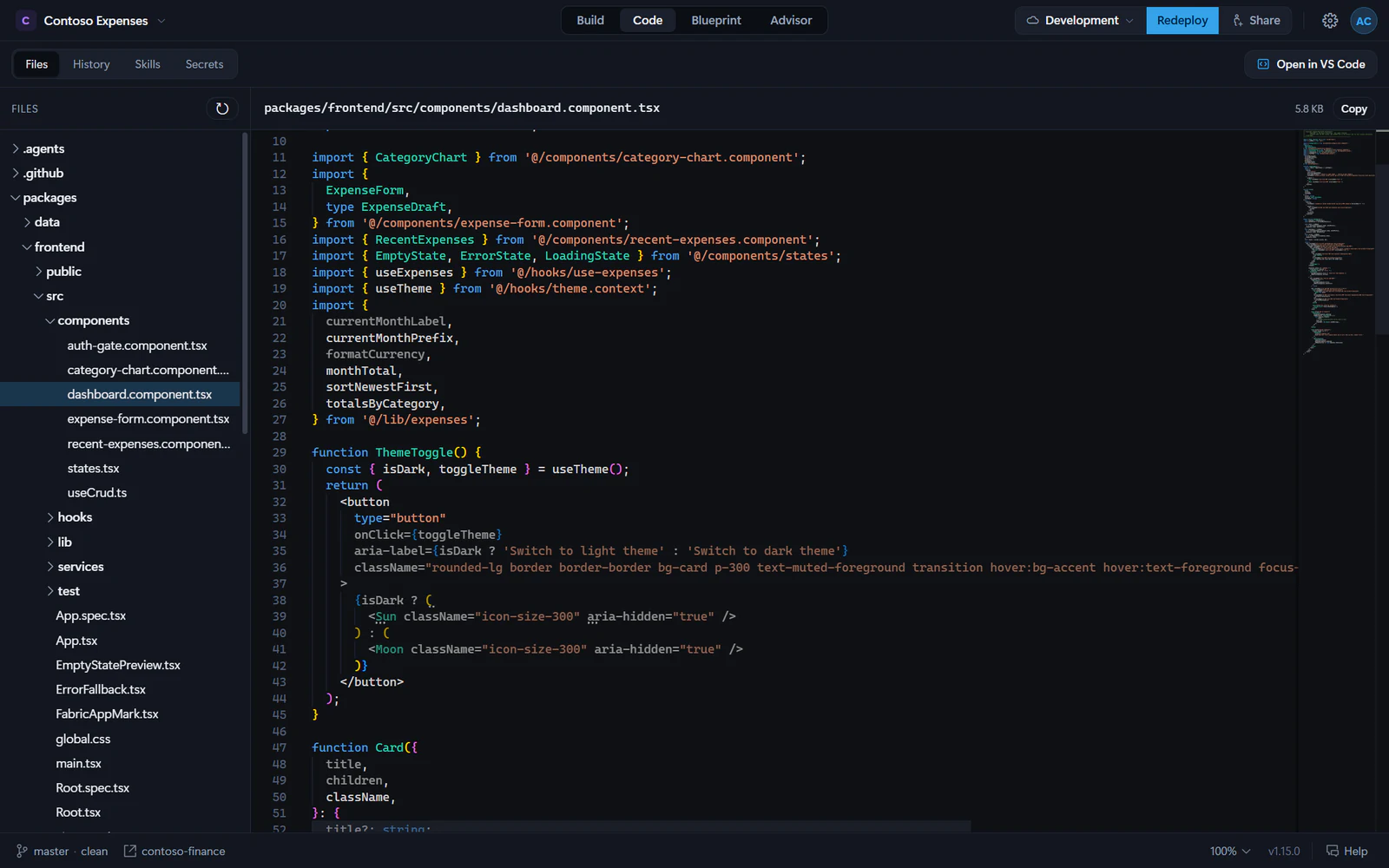
Browse files
- Select Code in the project tabs.
- Select Files.
- Choose a file in the tree.
Fabricator shows project files in a tree and opens text files in the editor. It skips large generated folders such as node_modules, .git, dist, build, .next, .vite and coverage.
The editor shows line numbers, syntax highlighting and a minimap. It does not save edits in the current app source. Use Open in VS Code when you need to edit a file by hand.
The file header can show:
- The project-relative path.
- The file size.
- Copy, which copies the displayed file contents.
If a file is binary, empty, missing or too large to preview, Fabricator shows that message instead of the editor.
Open files from chat or other views
File chips and file references in chat can open the file in Code. The Blueprint and Advisor views also use the same behavior when they link to source files.
When a line number is provided, Fabricator opens the file and reveals that line in the editor.
Open the project in VS Code
Select Open in VS Code in the Code toolbar. Fabricator runs code <project-folder>.
If the code command is not available, Fabricator opens the project folder in the operating system file manager instead and shows: "VS Code isn’t installed, so we opened the project folder instead." Use Get VS Code from that message if you want to install it.
Use the git status pill
The project header can show a git pill with the branch and the number of uncommitted changes. When the repository has a remote, it can also show changes to get or push.
Open the pill to use:
- Get latest for remote changes waiting to be pulled.
- Push for local commits ready to push.
- Commit all after entering a Commit message.
For team apps, Fabricator saves changes through the team workflow instead of using these local push and pull actions.
Review history
Select History inside Code to open the timeline.
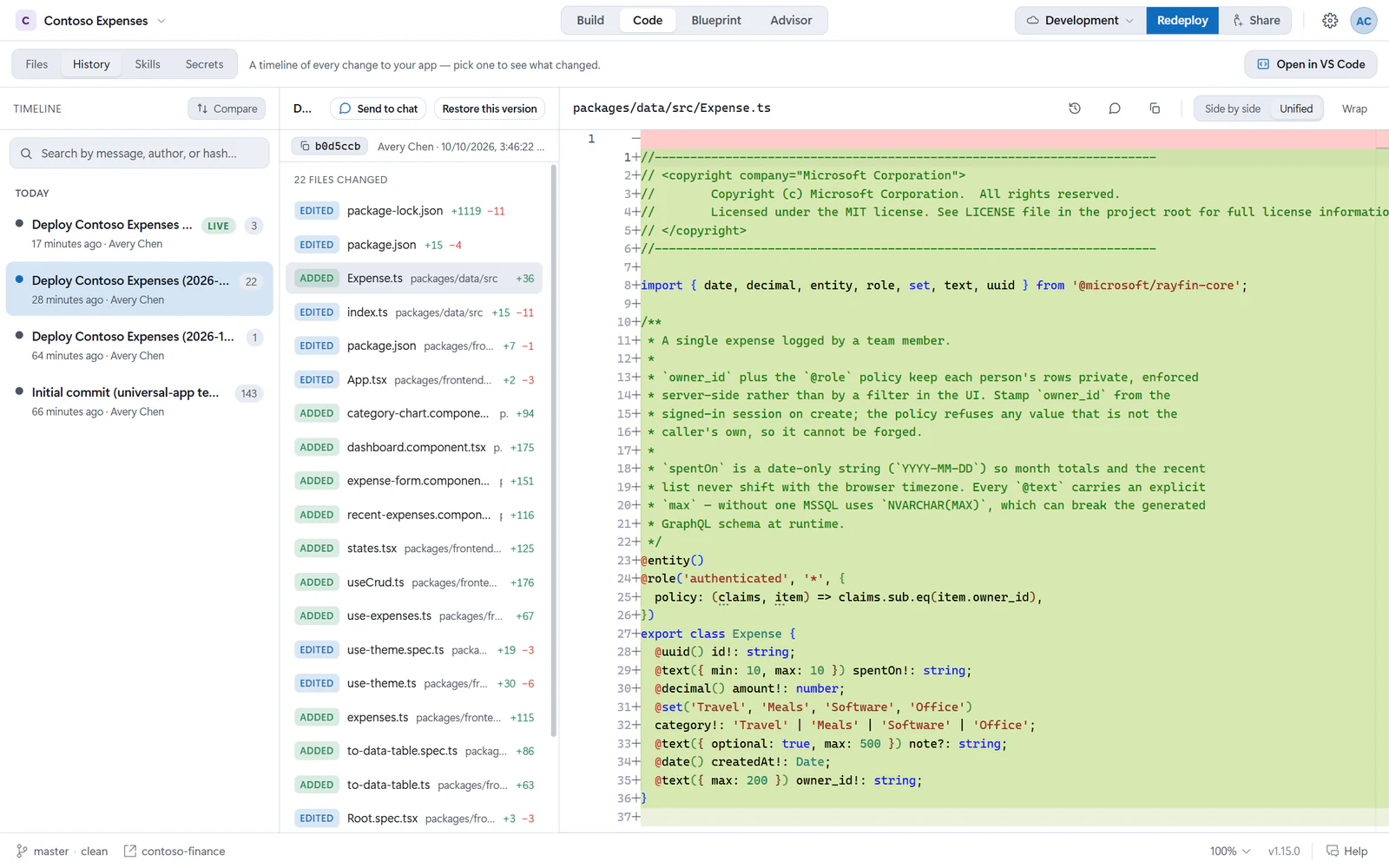
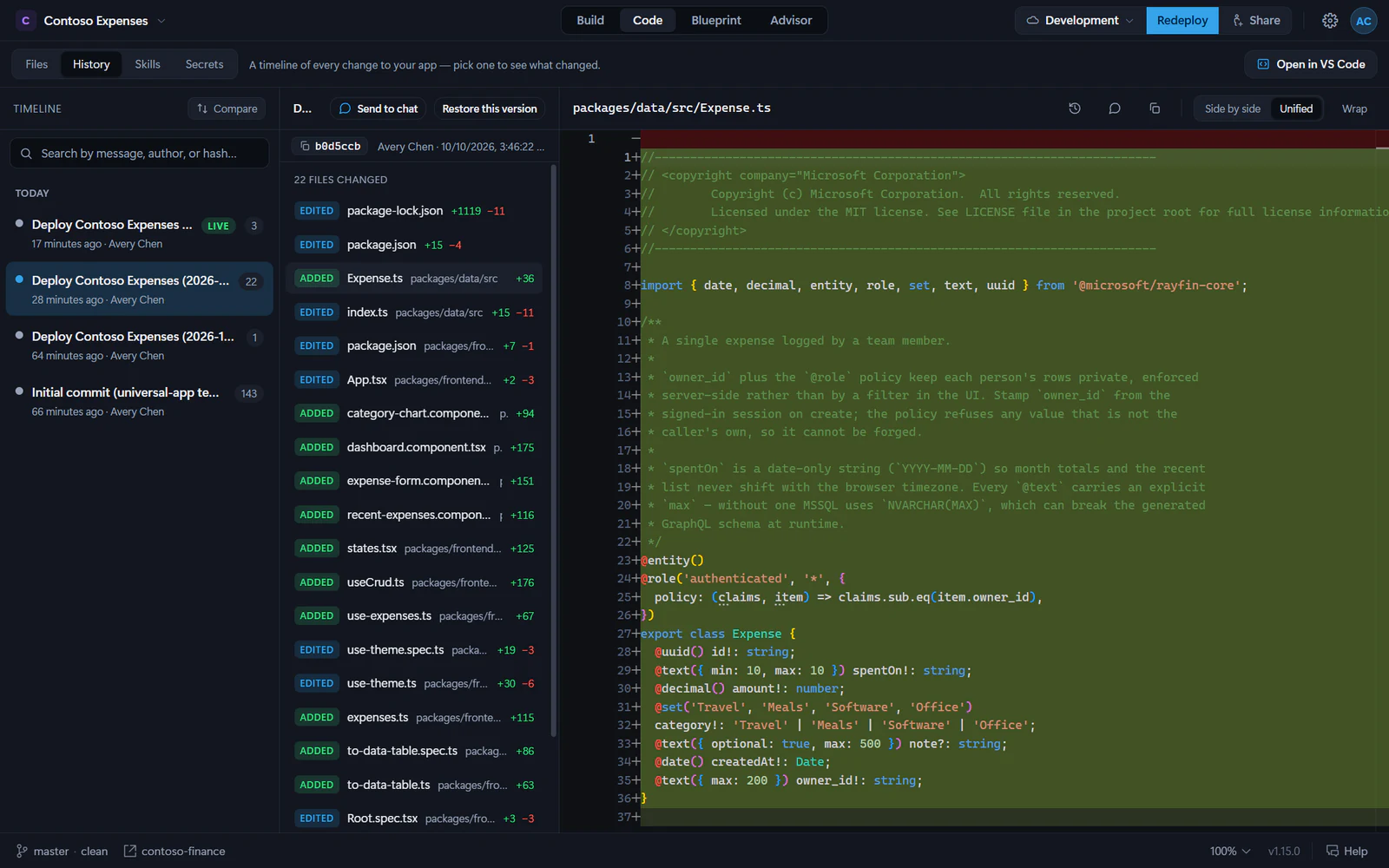
The timeline shows saved git snapshots. It also shows Uncommitted changes when the working tree has files changed since the last snapshot. Fabricator records snapshots as it works, so this view is the safest way to see what changed without using a terminal.
A project you open from a folder that git doesn't track yet gets a repository when it opens. Its timeline starts with a Start version history snapshot. See Open an existing local project.
Select a timeline entry to see:
- The changed files.
- Added, modified, deleted or renamed status.
- Insertions and deletions.
- A text diff for the selected file.
Use Side by side or Unified to change the diff layout. Use Wrap for long lines.
Compare snapshots
Use Compare in the timeline to pick a Base snapshot and a Target snapshot. Fabricator lists the differences between them.
You can also use History of this file from the diff header to jump through the commits that touched the selected file.
Send history to chat
The History view can stage context in the Build chat:
- Send to chat sends the selected snapshot or uncommitted changes.
- Send comparison sends the selected base-to-target comparison.
- The chat icon in the diff header sends the selected file's change.
Fabricator switches back to Build and places the context in the composer so you can add your own request before sending.
Restore an earlier version
- Select an older timeline entry.
- Select Restore this version.
- Confirm Restore & redeploy.
Fabricator saves your current work first if there are uncommitted changes, restores the project to the selected snapshot, records the restore as a new git commit, and then redeploys so the live app matches.
Your current version stays in the timeline, so you can restore it again later. For team apps, restore is scoped to that app's folder; other apps and shared files in the team workspace repository are not restored.
Design mode
Use Design mode to select elements in the preview, queue visual changes, preview themes, and send the changes to Copilot as one request.
Blueprint: architecture and data models
Use Blueprint to see what your app is made of, what it connects to and which identity each connection uses, plus its Rayfin data model and Fabric semantic models.