
Ask Help
Open the built-in Help assistant to find out why something failed, using your own activity history, the documentation, and the version of Fabricator you are running.
Use Help when something went wrong and you want to know why. Help reads what Fabricator recorded on your computer, checks it against the documentation, and tells you what to do next in plain language.
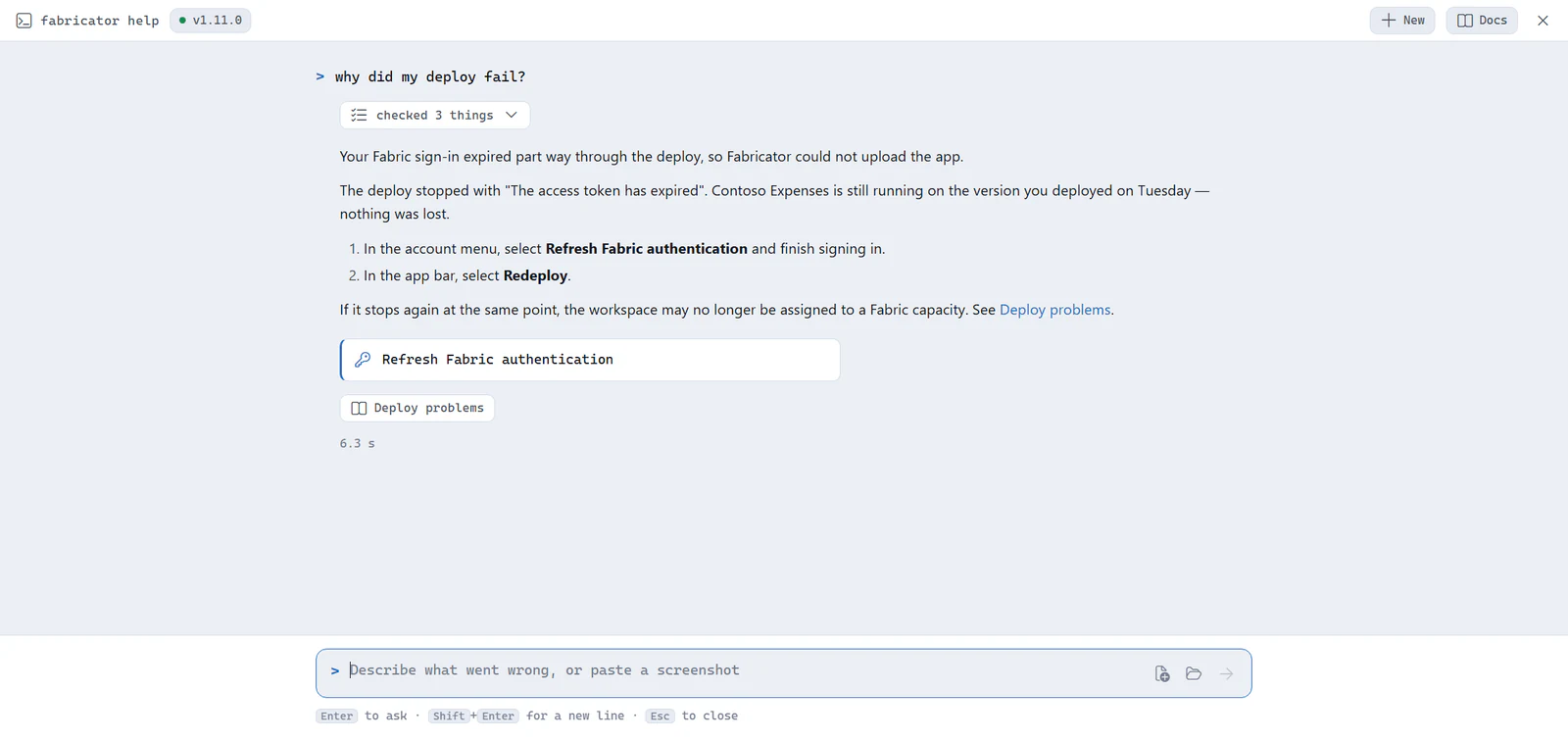
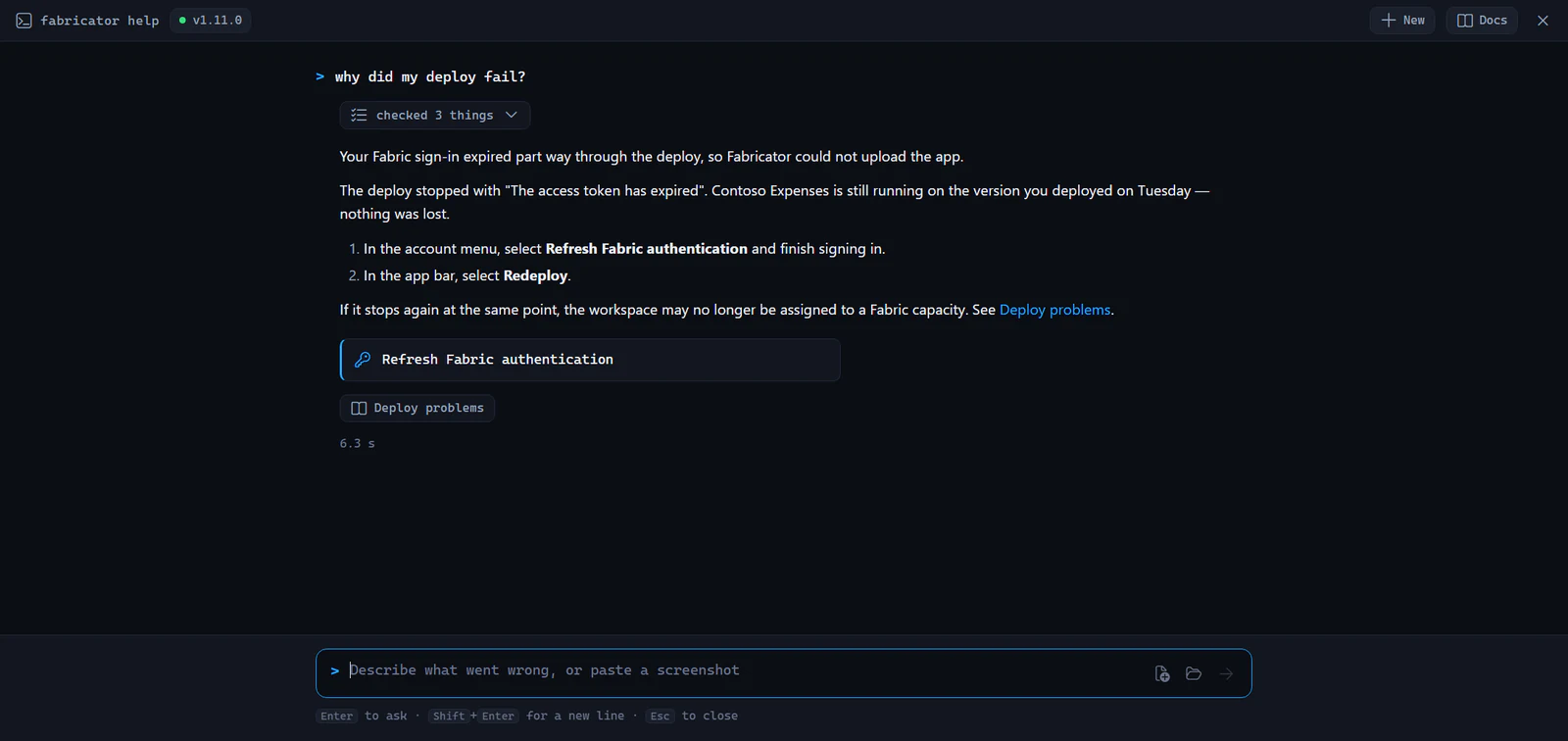
Open Help
- In the status bar, select Help. You can also press
Ctrl+J(Cmd+Jon macOS). - Type what went wrong and press
Enter. - Press
Escto close Help, or to stop an answer that is still being written.
Help opens full screen over the app. Your project and chat stay exactly as you left them. Ray, Fabricator's stingray, greets you and offers a few questions to start with. He reads along while Help works on an answer.
Help is also available during setup: connect GitHub Copilot in step 1 and a Help button appears at the bottom of the setup screen. It answers the same way, but only offers the actions setup can actually carry out — re-checking your tools, signing in to Copilot, opening the logs or the documentation — because the rest of the app isn't running yet.
When a deploy fails, you don't have to open Help yourself. Ray swims in above the preview and offers Find out why. Select it, or select Ray, and Help opens and asks "Why did my last deploy fail?" for you. It reads the end of the deploy's log, so it can quote the line that explains the failure.
Describe the problem the way you would to a colleague. These all work:
- "Why did my last deploy fail?"
- "What went wrong most recently?"
- "The preview won't start"
- "Find me my expenses app"
- "Share my app with someone"
Find out what's new
Ask "What's new in this release?" to hear what changed in the version of Fabricator you're running, in plain language, with a link to its release notes. It is one of the questions Help offers when you open it. You can also ask about an earlier version, or about everything that changed since the version you used before, such as "What changed since 1.12?"
Your conversation is kept
Help remembers the thread, so you can try a fix and come back. Closing Help, taking one of its buttons, and restarting Fabricator all leave the conversation intact — which matters, because restarting is itself a common fix.
When you reopen Help, it shows "Picking up where you left off" above the earlier part, so a resumed thread never looks like a mistake. Follow up with "that didn't work" and Help answers with the earlier turns in mind.
A conversation you haven't touched for a day is dropped, so an unrelated problem next week starts clean. To start over sooner, select New in the top-right.
What Help can see
Help reads five things, and nothing else:
| Source | What it is used for |
|---|---|
| Your activity history | What Fabricator has done recently, and how each of those went |
| The documentation | How a feature is meant to work, and the steps to fix it |
| The release notes | What changed in each version of Fabricator |
| Your open project | Your app's files, when the question is about your app |
| Fabricator's own code | Tracing an error message back to the condition that caused it |
Fabricator keeps a record of what happens as you work: setup finishing, signing in, installing a tool, creating or opening an app, starting a preview, deploying, and every message it shows you. Successes are recorded as well as failures, which is what lets Help tell the difference between a problem you are having now and one you already got past. That history is kept for seven days and never leaves your computer unless you attach it to a bug report yourself.
Help is also told what is true at the moment you ask: which accounts are connected, whether your tools are ready, and which app is open. So "how did setup go?" is answered from how setup actually stands, not from the last thing that went wrong on the way there.
The badge next to fabricator help at the top shows what Help has available. When it shows a version such as v1.9.5, Help is reading the exact code your copy of Fabricator is built from, so its answers match the app in front of you. Select the badge to download a fresh copy.
Note
Help downloads the documentation, the release notes and Fabricator's code once, then works offline. The first question after an update takes a few seconds longer while it refreshes.
What Help can and can't do
Help is read-only. It can't change your project, your settings, or your app, and it won't write code for you. Use the Build chat for that.
What it does instead is explain and take you places. When something is a step you could take yourself, Help offers it as a button under its answer rather than describing where to click. Selecting the button does exactly what finding that control yourself would do. It can:
- Open one of your projects by name, or show you all of them when you're not sure.
- Open the dialog for sharing your deployed app. For a team app it opens the workspace overview instead, because a team app's access is granted there by an owner.
- Open the Advisor, your project's files, Settings, the Accounts dialog, or the logs folder.
- Re-check your setup, or refresh a Fabric or GitHub Copilot sign-in.
- Open the documentation page the answer came from.
Let Help write the bug report
When a problem turns out to be a fault in Fabricator rather than something you can fix, Help writes the bug report for you.
- Ask Help about the problem, or say "report this for me".
- Help shows Bug report ready with a one-line title.
- Select Review it first to read the whole report before anything leaves your machine.
- Select Report this on GitHub to open it, prefilled, in your browser.
Help fills in what happened, the steps that led to it, and what you already tried, using the history it found on your computer, so you don't have to remember any of it. Your Fabricator version and system details are added automatically, and a diagnostics file is saved for you to attach. Nothing is submitted until you select the submit button on GitHub yourself.
Ask for something that doesn't exist yet — "it should let me rename a deployment" — and Help writes it up as a feature request instead. It shows Feature request ready and Suggest this on GitHub, with no diagnostics file, because a suggestion isn't a fault to investigate.
Note
Review the report before submitting. It quotes your own error messages, which can include workspace or file names. Secret-looking values are masked, but the rest is yours to check.
Show Help a file, folder or screenshot
Some problems are easier to show than to describe.
- Select the file icon to attach files, or the folder icon to attach a folder.
- Or paste a screenshot straight into the box. Copy an image, select the box, and press
Ctrl+V. - Ask your question. Remove anything you attached by mistake with the × on its chip.
Help can only read what you attach for that question. It can't browse the rest of your computer.
See what Help checked
Above each answer, Help shows a line such as "checked 3 things". Select it to see exactly which logs and pages it read. Use it when you want to confirm an answer came from what actually happened on your computer rather than a guess.
When the assistant isn't available
Help needs you to be signed in to GitHub Copilot, the same as the Build chat. If you are signed out, selecting Help opens a short dialog instead of the assistant, offering to sign you in, open the documentation, or start a bug report with your version details and a diagnostics file attached.
When Help can't answer
If Help doesn't know, it says so rather than guessing, and offers to write the problem up so a human can look at it.
Help uses your Copilot allowance in the same way chat does. See Copilot credits run out quickly.