
Build your first app
Create a project, deploy it to Fabric, prompt Copilot, preview the result, and iterate.
This quickstart takes you from an empty Fabricator install to a deployed Rayfin app that you can refine in chat.
Create a project
- On Home, choose New project.
- In Project name, enter a name for the app.
- Keep the default start option. New projects use the Rayfin CLI's default Universal App template; there is no template picker for the normal flow.
- Choose Create project.
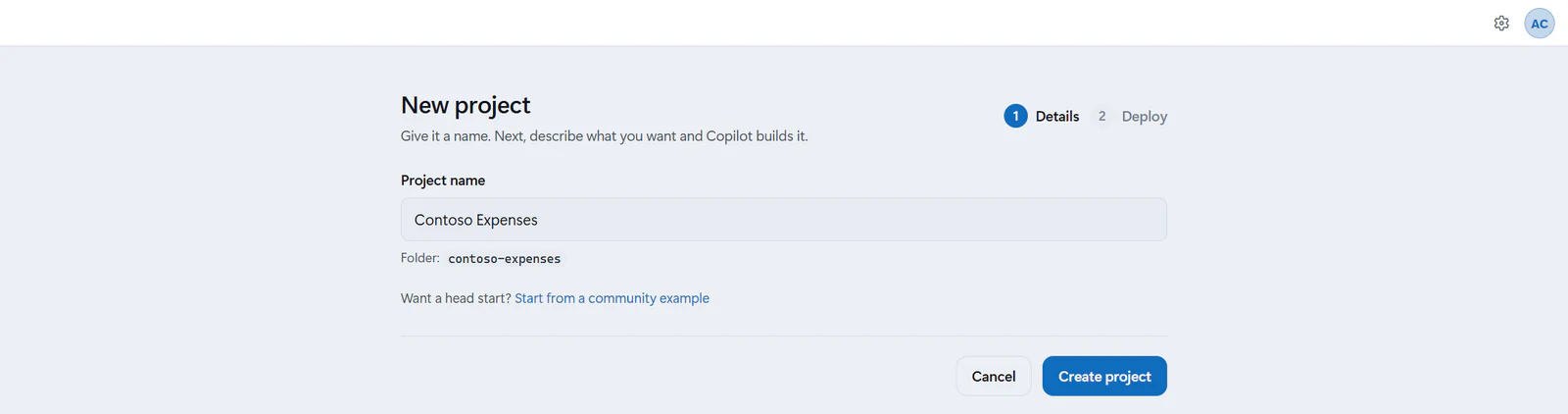
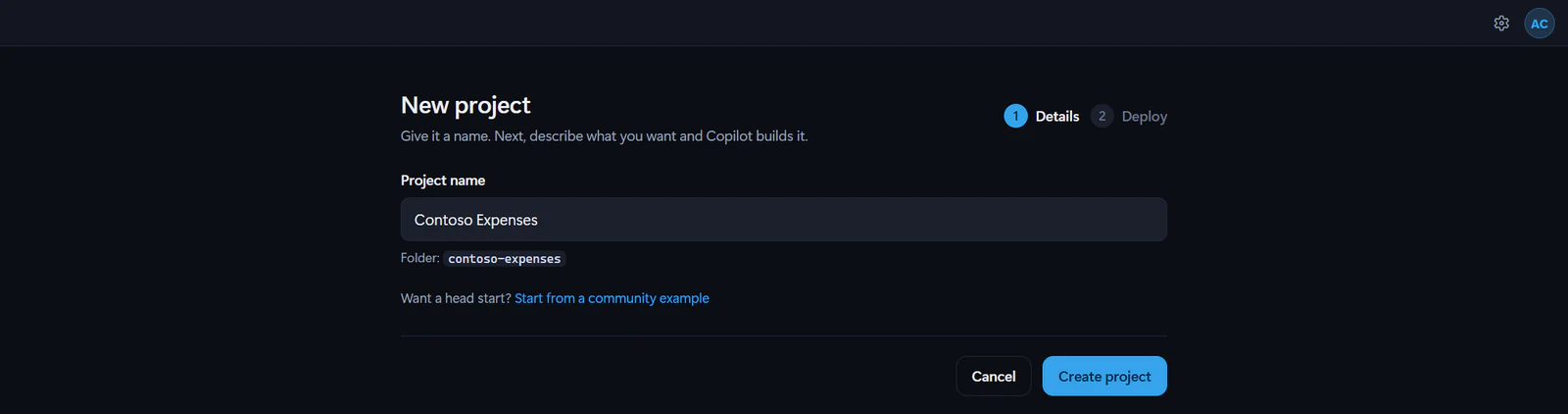
Fabricator creates the project, installs dependencies, initializes Git, and moves to Deploy your app.
Create the first deployment
A normal local project needs a first Fabric deployment before chat can build against it.
- If prompted, choose Sign in to Fabric and complete the browser sign-in.
- In Name, enter a friendly deployment name such as
Development, or leave it blank. - Under Deploy to workspace, pick an eligible workspace. Rayfin apps need a workspace on a Fabric F-SKU or Power BI Premium P-SKU capacity.
- If you need a new workspace, choose + New workspace, enter New workspace name, pick a capacity, and choose Create workspace.
- Choose Deploy app.
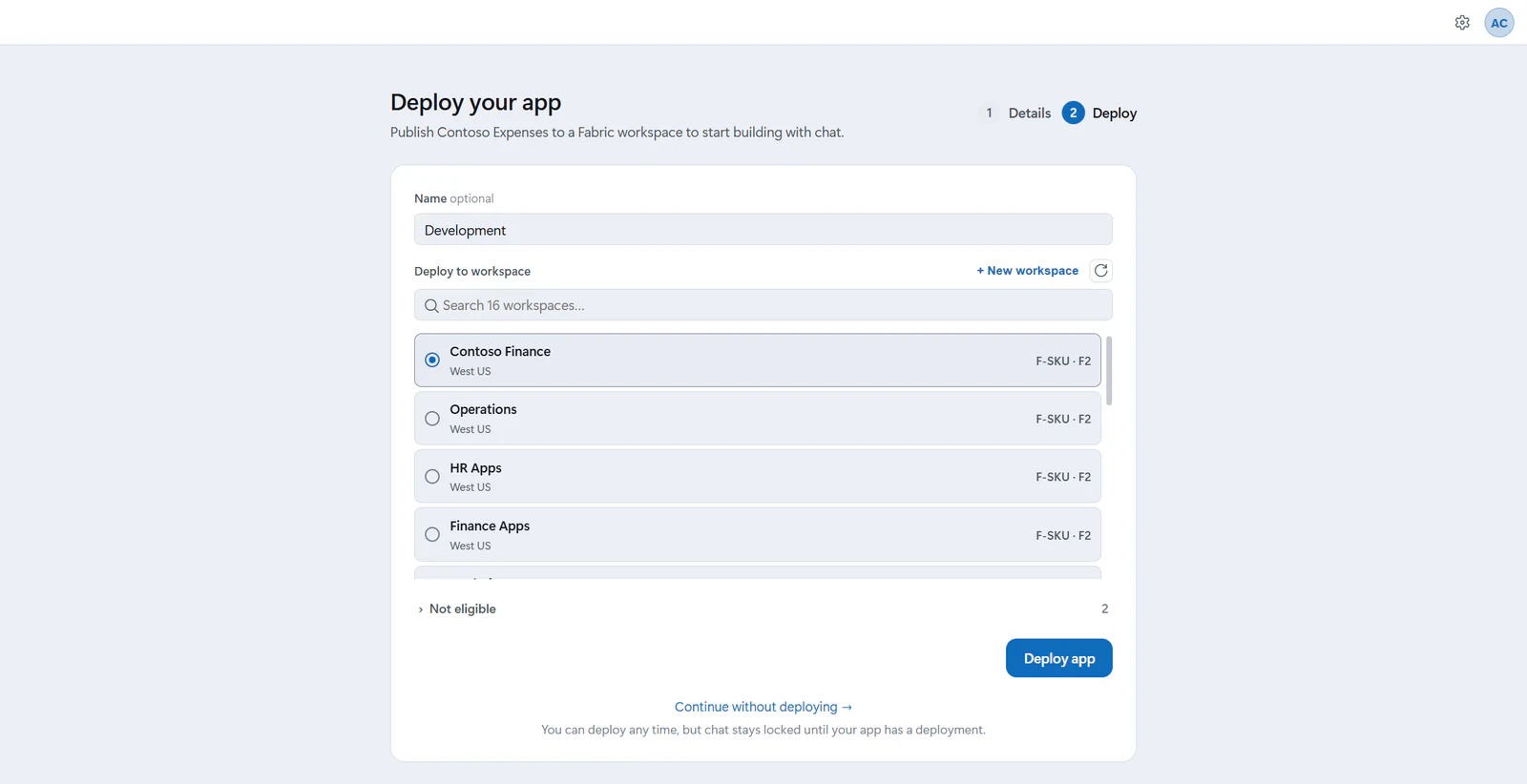
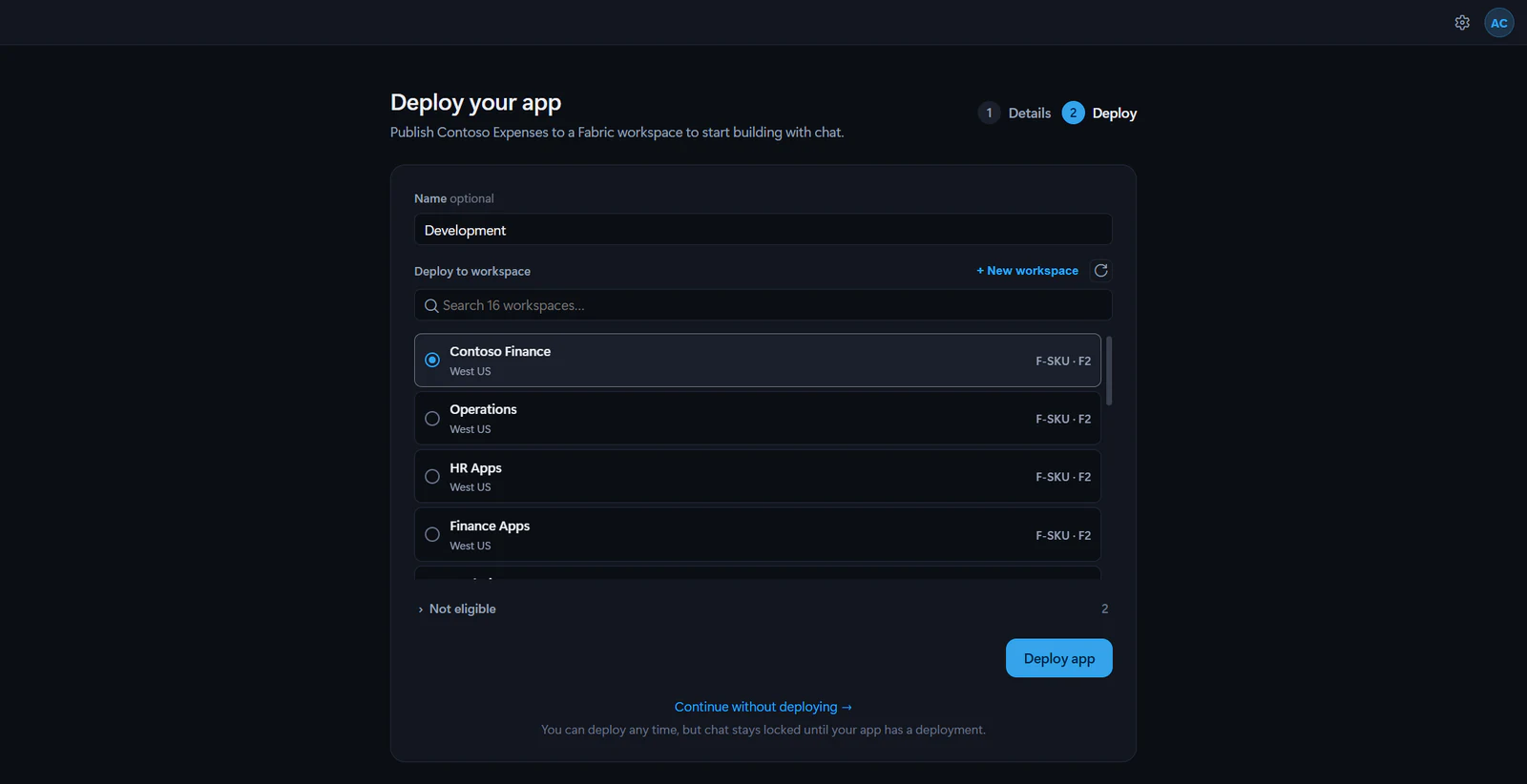
You can choose Continue without deploying → and deploy later with Deploy in the app bar, but chat stays locked until the app has a deployment.
If no eligible workspaces are listed, Fabricator can show Start a free trial and Buy a capacity links. If the selected workspace already has an app with the same name, choose another workspace or explicitly choose Replace it anyway.
Describe the app
When the Build view opens, type a prompt in chat. Start with the outcome, the people using the app, and the data they need to track.
Build an equipment request app for an operations team. Employees request a laptop, monitor, phone, or accessory with a reason and needed-by date. Managers review requests, approve or reject them with a comment, and see a dashboard of open requests by type and priority.For a smaller first pass, try:
Build a simple team task tracker. Each task has a title, owner, due date, status, and notes. Show a board grouped by status and a summary of overdue tasks.Watch Copilot work
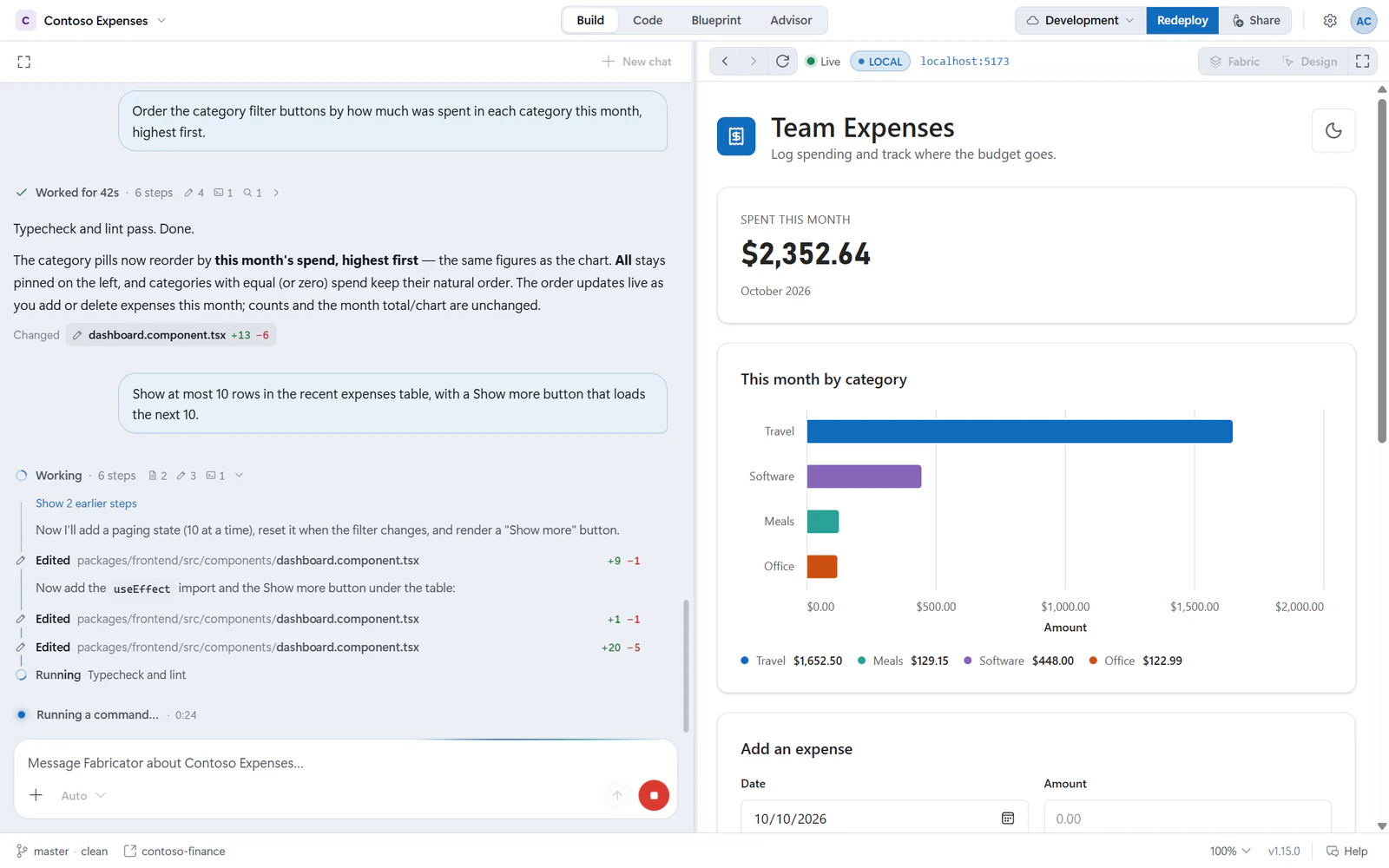
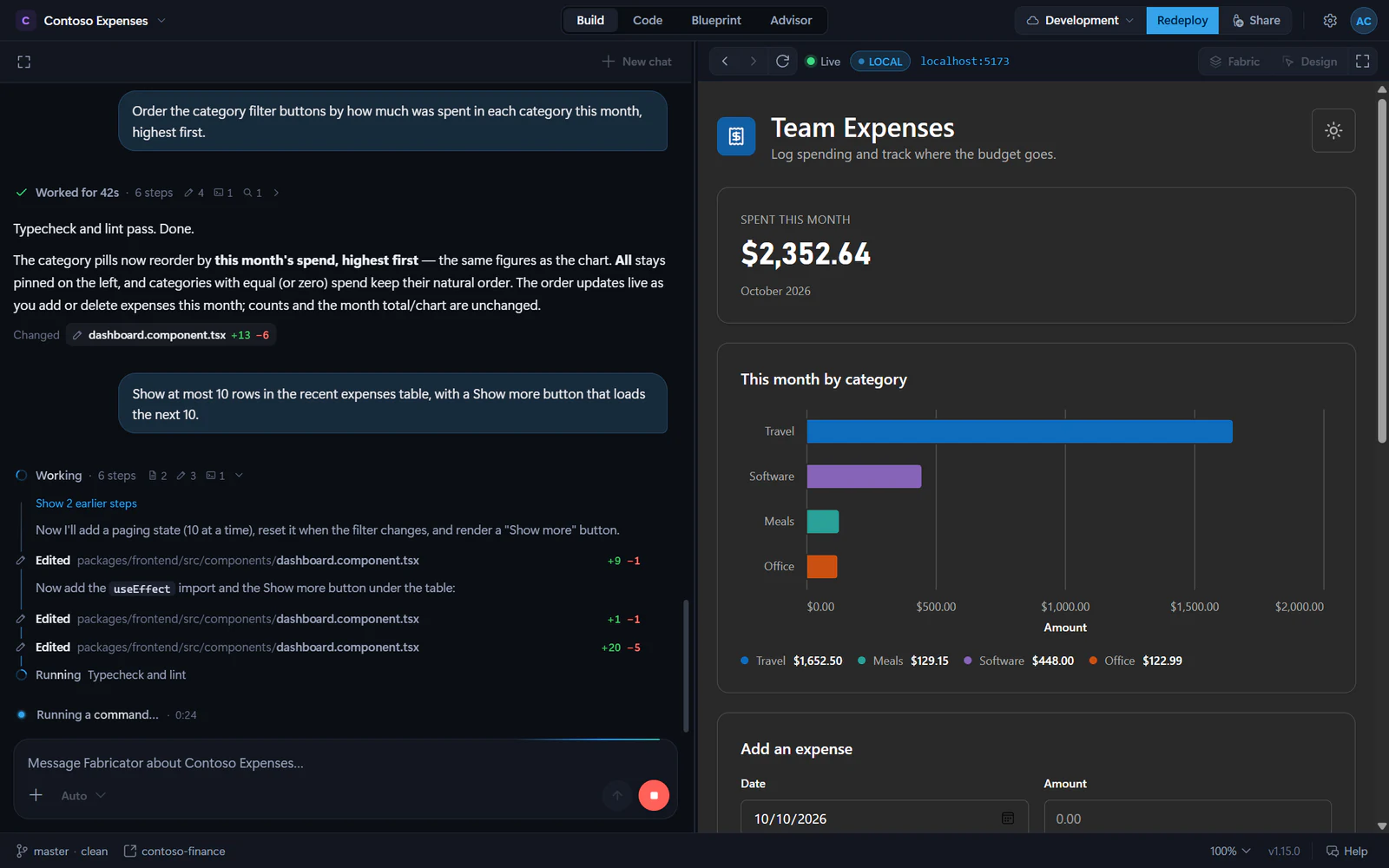
While a turn runs, the chat shows a live work log with steps such as file reads, searches, commands, and edits. The preview pane can switch to a local preview during the turn so frontend changes appear as Copilot makes them.
When the turn finishes, Fabricator saves chat history, refreshes project state, checks the Rayfin version, and deploys changed local projects automatically when there are undeployed changes. Failed or cancelled turns do not auto-deploy. If the automatic check fails, use Redeploy.
Preview, open, and share
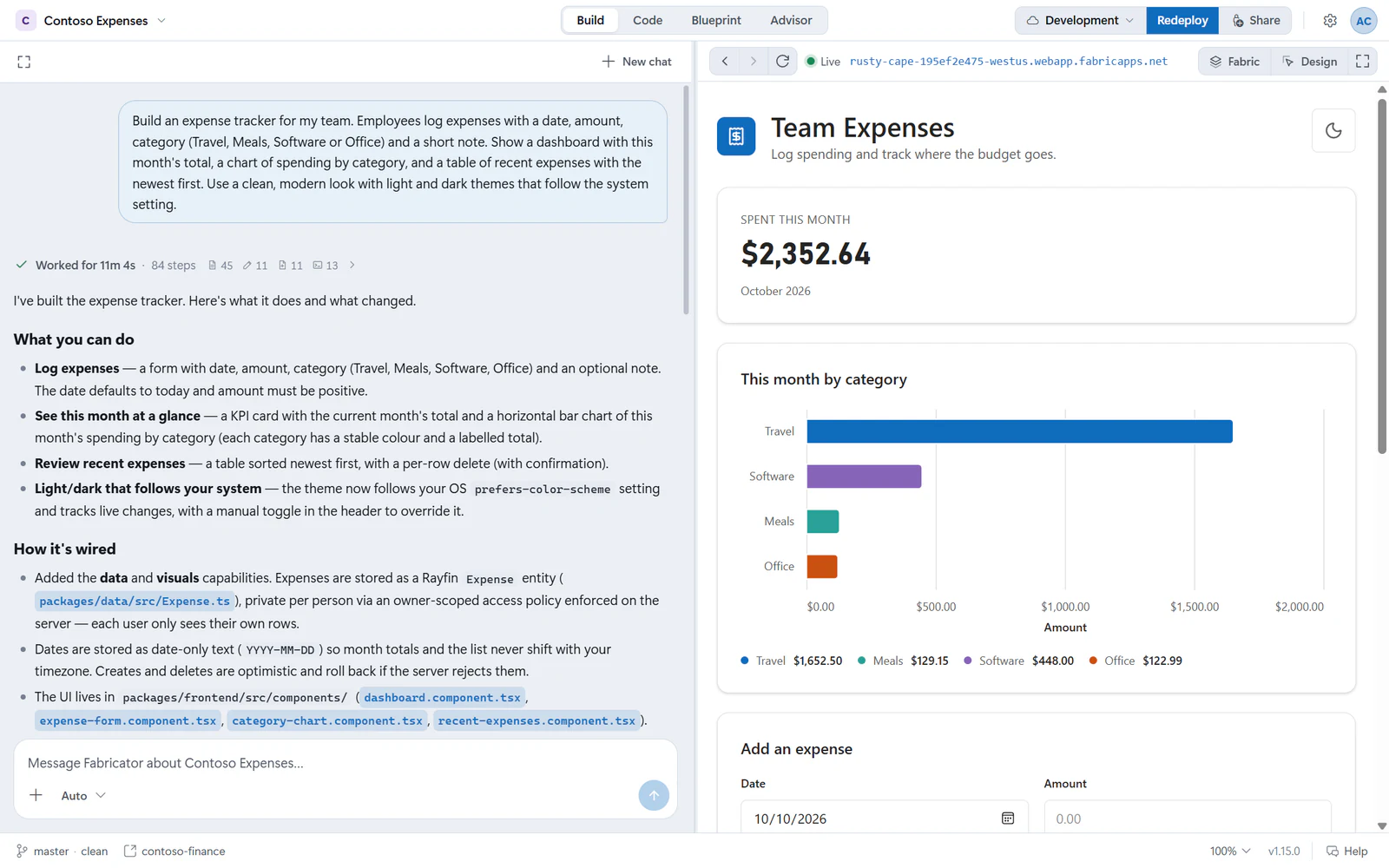
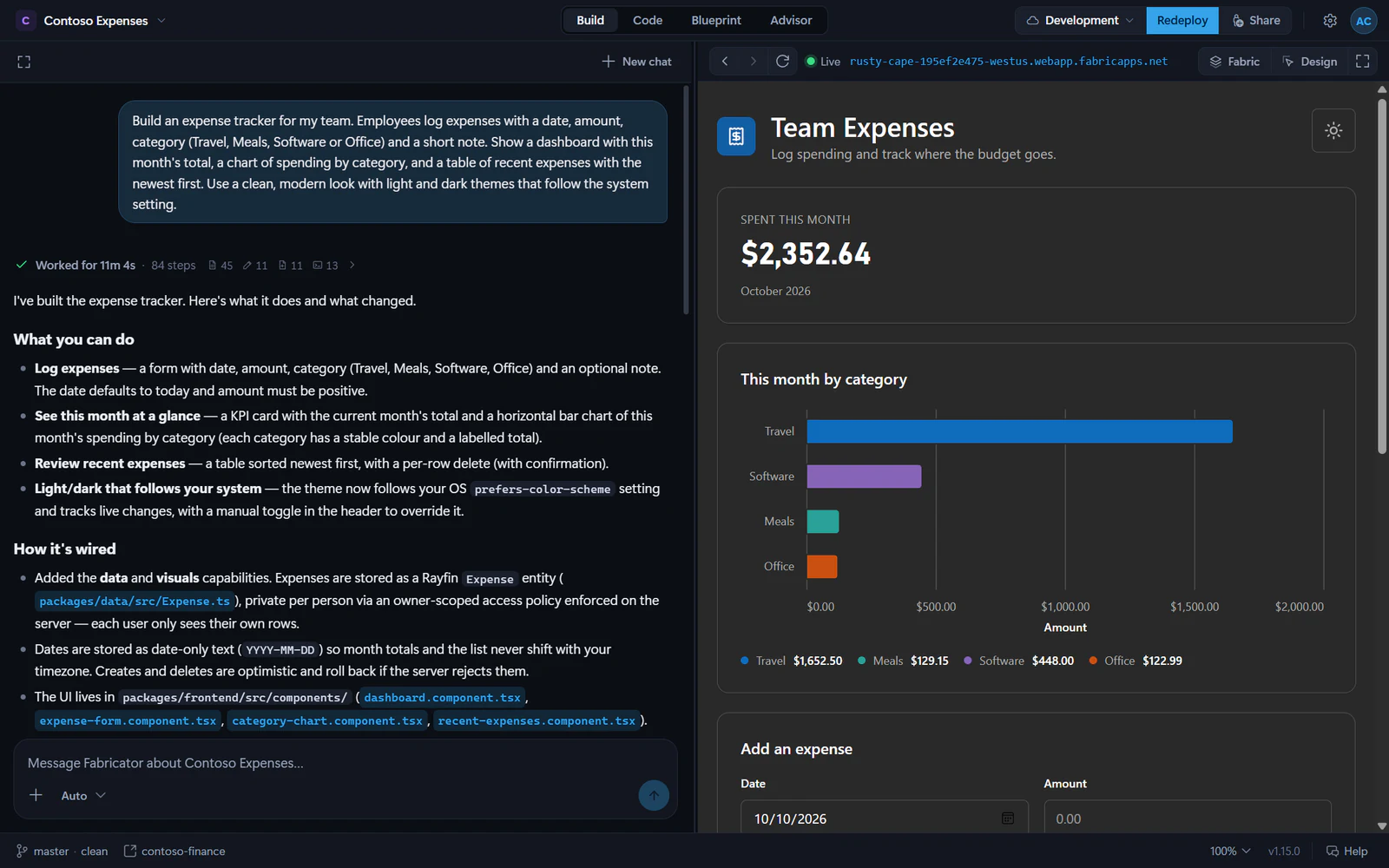
The right side of the Build view shows your app preview. Use Reload to refresh it, the URL button to open it in your browser, Fabric to switch between the direct app and Fabric portal shell when available, and Design to make visual changes by clicking the running app.
After a successful deploy, use Share in the deployment control to share with people in your tenant. See Share your app.
Iterate
Continue with another prompt. You can ask for a feature, attach a screenshot, mention files with @, or use Design to queue visual changes and send them to Copilot.
Good next prompts are specific:
Add a reporting page that shows requests by status, requests by equipment type, and average approval time. Keep the dashboard readable on a laptop screen.Next steps
- Learn the layout in Tour the workbench.
- Learn more about Chat with Copilot.
- Use Design mode for visual changes.
- Check app health with Advisor.