
Create and manage projects
Start a new Rayfin app, open or clone an existing one, export a project for someone else or import one, switch between projects, and rename or remove them.
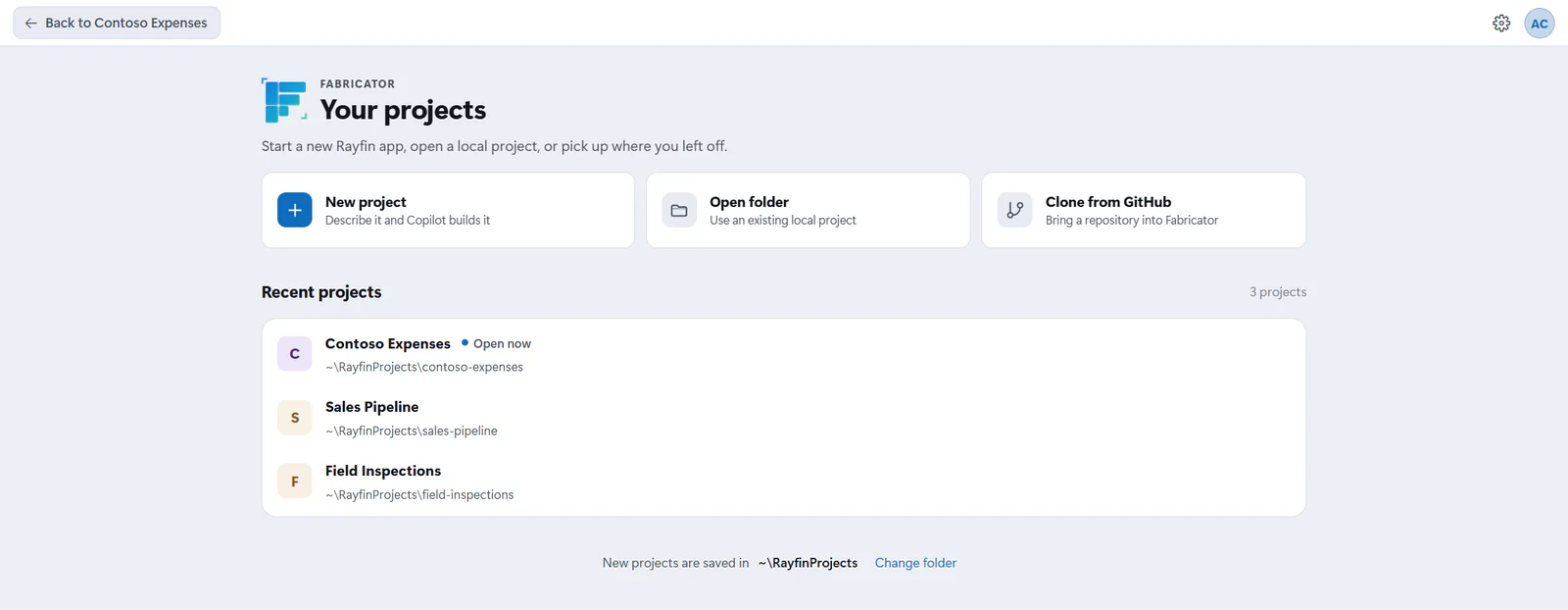
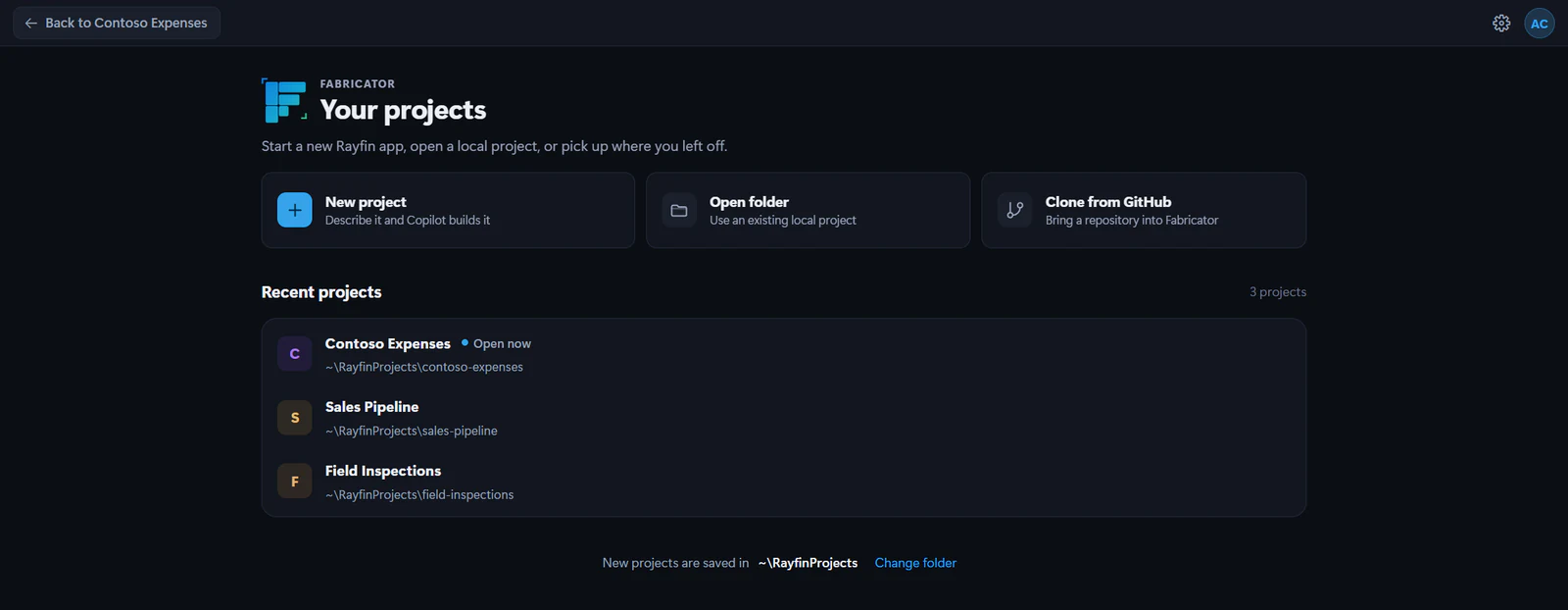
Projects are the Rayfin apps Fabricator can open. From Your projects, you can start a new app, open a local folder, clone a GitHub repository, import a project someone exported, or return to a recent project. Fabricator opens on Your projects when it starts, with the project you worked on last at the top. Each recent project shows a picture of its app, its folder, how its publish stands, and when you last opened it.
Create a new project
A new Fabricator project starts from the Universal App, the default template that comes with the Rayfin CLI. You do not choose a template type up front. The app begins small, with Fabric sign-in and no database, and Copilot grows it into the app you describe in chat. It turns on a database only when the app needs to store its own records.
- On Your projects, select New project.
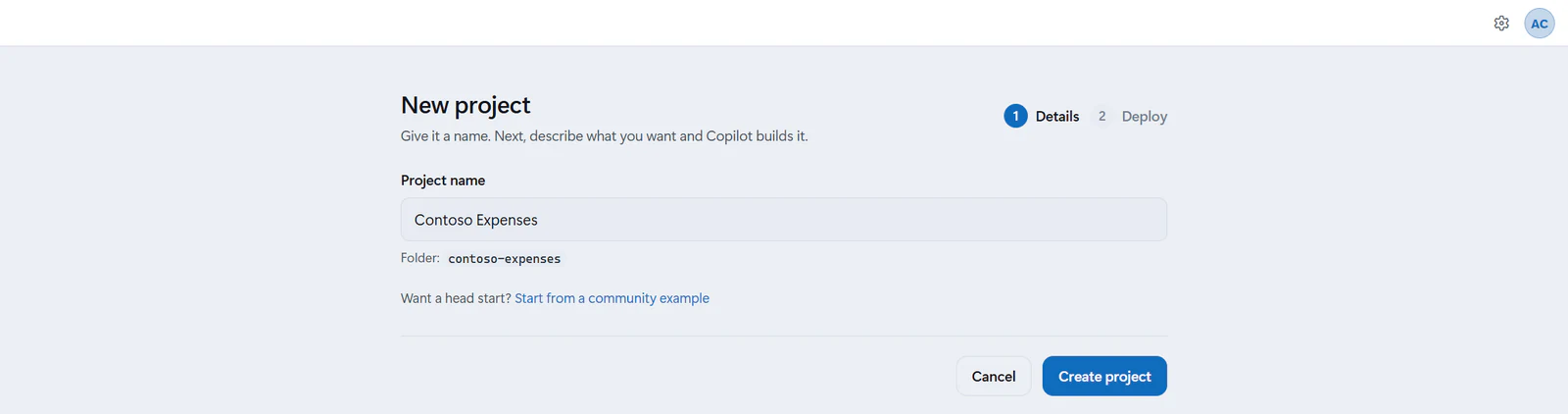
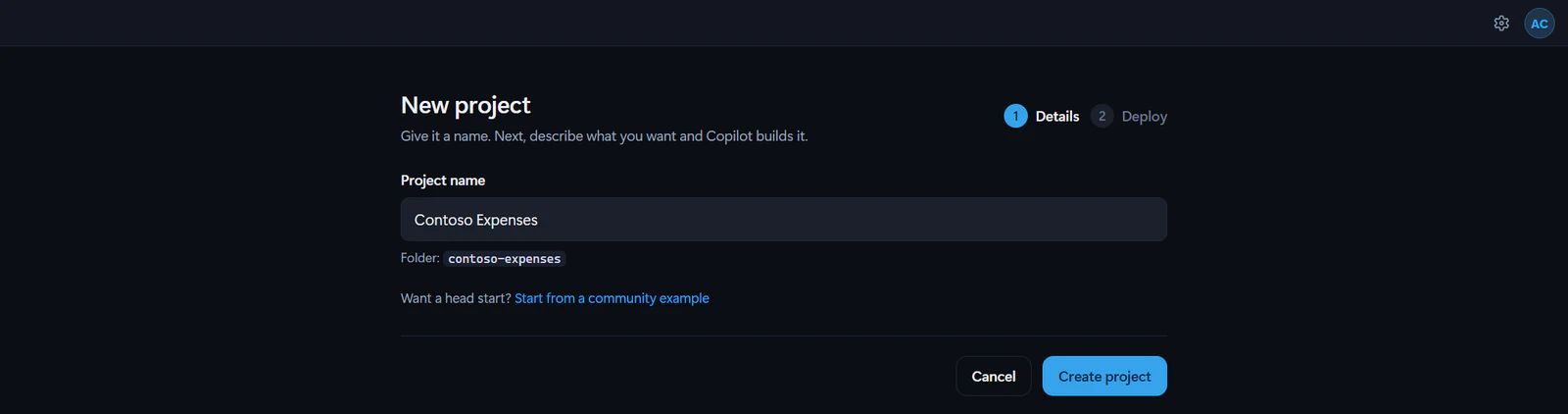
- Keep the suggested Project name, or type your own. Fabricator suggests a random name, such as "Caffeinated Narwhal", that's free where the project goes; typing replaces it. Use letters, numbers, spaces, hyphens and underscores; Fabricator says so under the name when it has other characters, and Create project stays off until you change it.
- Check the folder hint. Fabricator turns the name into a folder name and checks whether that folder already exists where the project goes.
- If team workspaces are enabled, under Where, choose Just me, on this computer unless you are creating a team app. Its hint says "It runs on this computer. Publish it to a Fabric workspace whenever you’re ready." With a team workspace chosen, it says "It runs on this computer while you build it. Your team sees it once you publish it."
- Under Location, keep your projects folder, or put this project in another folder: type the folder's full path, select Browse…, or select one of the folders under Recent. If the folder doesn't exist yet, Fabricator says "This folder doesn’t exist yet." Select Create folder to create it.
- Optionally, select Create a GitHub repository to keep the app's versions on GitHub. Choose the GitHub account that creates it, the Owner (that account, or one of its organizations), and Private or Public. The repository is named after the project's folder, as shown under the fields, and Fabricator says so when GitHub already has one with that name. See Put an app on GitHub.
- Under Rayfin version, keep the newest version, such as Rayfin 2.0 (recommended). If your npm registry doesn't have the newest Rayfin packages yet, for example because it's a company proxy that adds new packages later, choose an earlier version that Fabricator runs on this computer, such as Rayfin 1.36.
- Select Create project.
Fabricator creates the project on the Rayfin release line you chose, such as 2.0.x, with the newest release of that line your npm registry lists, and keeps the project's Rayfin packages on it, such as ~2.0.0 in package.json, so the app keeps running here. If your registry lists no release of that line, Fabricator starts the project on the newest line it lists that runs on this computer, and Show details says "Your npm registry doesn't list any Rayfin <version> release, so the project starts on Rayfin <release> instead, the newest release it lists that Fabricator runs on this computer." You can move the app to a newer Rayfin release later: see Keep Rayfin up to date. It installs the packages, starts the project's version history, and opens the project in the workbench with chat ready. The app runs on this computer from the start, and its data starts empty and stays here. Publish it to a Fabric workspace whenever you're ready. See Develop on this computer and Publish to Microsoft Fabric.
With Create a GitHub repository selected, Fabricator then creates the repository, pushes the app's first version to it, and says "The app’s first version is at github.com/<owner>/<name>." If it can't, the project opens anyway, and a Not on GitHub yet notice says why. Create the repository later from the git item in the status bar.
The first project you create on a Rayfin release takes the longest, because npm works out which versions of the app's packages to install and downloads them. Fabricator records those versions. A minute after you create a project, it also installs the packages for your next new project in the background, so that project's packages are ready in a few seconds. After a week, Fabricator works the versions out again, so new projects still get package updates. Community examples reuse recorded versions, but nothing is installed ahead of time for them. See Packages for new projects.
While the project installs its packages, Ray, Fabricator's stingray, keeps you company with facts about Rayfin and tips for Fabricator. When the app is ready, he says "Your app is ready! It runs right here on your computer. Let’s build." He also turns up when a cloned or opened project takes a while to install. To find out what else he does, and how to send him away, see Ray.
Note
New local projects are saved under the Workspace folder in Settings, unless you choose another Location. You can also use Change folder on Your projects.
Recent lists the last five folders, other than your projects folder, that you created projects in. A project created in a folder that's already in a git repository, such as the apps folder of a repository that holds several apps, keeps its version history in that repository instead of starting its own, so it can't have a GitHub repository of its own.
Start from a community example
Community examples are Rayfin templates, such as the awesome-rayfin gallery. Use one when you want a working sample as your starting point.
- Select New project.
- Enter a Project name.
- Select Start from a community example.
- Choose an example from the gallery, or select Use a custom URL.
- For a custom URL, paste an
https,git, orgit+template URL. If the repository has more than one template, enter the optional template name. - Select Create project.
Use Start from scratch instead to return to the Universal App template.
Fabricator keeps the example's Rayfin packages on the release line it can run on this computer, as it does for a new project, and opens it with chat ready. If the example asks for a Rayfin release outside that line, Fabricator keeps the example's own versions, and the app may not run correctly on this computer. While the project is created, Show details then shows "The template asks for <package> <version>, outside the Rayfin releases Fabricator runs locally (<range>), so it keeps its versions."
Migrate a Power BI report
With the Migrate Power BI reports experiment turned on in Settings → Experiments, Home also has Migrate a Power BI report. It creates a new app from a Power BI report: the app reads the report's semantic model live, and Copilot rebuilds the report's pages one at a time. Fabricator reads reports with your Azure sign-in, and asks you to sign in to Azure if you haven't. See Migrate a Power BI report.
Browse every app you can open in Fabric
On Your projects, select App gallery to see every Rayfin app you can open in Fabric, including apps that aren't on this computer. It opens them in your browser, in Fabric, or in Fabricator when a project here publishes them. It finds them with your Azure sign-in. See App gallery.
Open an existing local project
Use Open folder for a Rayfin project that is already on your computer.
- On Your projects, select Open existing, then Open folder.
- Pick the project folder.
- Fabricator opens the folder only if it contains
rayfin/rayfin.yml.
When a project opens, Fabricator makes sure the project's dependencies are installed before it enables the preview, publishing, Blueprint and chat. That includes the packages of the app's functions when they have their own package.json.
If the folder isn't in a git repository yet, Fabricator starts one when the project opens, so History, Restore this version and publishing after each chat turn work. It keeps dependencies, build output, Python environments, local settings and secrets out of the history, and leaves your .gitignore as it is. The first snapshot in History is Start version history.
A project you open doesn't wait for a publish: chat is ready once its dependencies are, and Fabricator starts the app on this computer. To share it, select Publish in the app bar to publish it to a Fabric workspace.
An app that's already published runs on this computer too: its data here starts empty, and the published app and its data don't change. If the app needs something that runs only on Fabric, such as a Kusto connector, or is on a Rayfin version older than Fabricator runs on this computer, the preview uses the published app's backend instead. See Develop on this computer.
Clone from GitHub
Clone from GitHub uses the GitHub CLI, gh. It is separate from the bundled Copilot engine.
- On Your projects, select Open existing, then Clone from GitHub.
- If
ghis missing, install it from the prompt or choose Install manually. - If you are not signed in to GitHub, select Sign in with GitHub. A terminal runs
gh auth login --web. - Choose a repository from Your repositories, or paste
owner/nameor ahttps://github.com/owner/namelink. - Select Clone and open.
Fabricator clones the repository into your workspace folder, verifies that it has rayfin/rayfin.yml, runs npm install, and opens it. If the repository is not a Rayfin project, Fabricator removes the fresh clone and reports the problem.
Import a project
When someone exports a project for you, they send you a .fabricator file. Import it to carry on where they left off.
- Double-click the
.fabricatorfile. Or, on Your projects, select Open existing, then Import a project, and pick the file. - In Import project, check what the file brings in: who exported it, the app's files, its version history if it came with it, where it's published, and the secrets its functions use.
- To have the file checked for security risks first, under Check for security risks, select Check, then wait for the result. See Check a project or app for security risks.
- Select Import.
Fabricator unpacks the project into a new folder in your workspace folder, named after the project, and opens it. As with any project you open, it installs the project's packages and runs the app on this computer, so import projects only from people you trust.
If the file says where the app is published, publishing updates that same app. To publish, you need to be a Contributor, Member or Admin of its Fabric workspace, so ask the person who exported it to add you. The app also runs on this computer, with its own empty data. Secret values never come with an export: to run the app's functions here, set your own in Code → Secrets. See Secrets.
The Fabricator installer has your computer open .fabricator files with Fabricator. If Fabricator is already running, the file opens in it. If you've just installed Fabricator, it imports the file once you finish setup.
Import a project also imports a .zip of a Rayfin project, as long as the project is at the top of the .zip or in the one folder at its top.
Find your way around recent projects
Recent projects lists your projects, the ones you opened most recently first, grouped under Today, This week and Earlier. Projects you pin come first, under Pinned. The list shows six projects besides the pinned ones; select Show all to see the rest.
Each project shows:
- A picture of its app. Fabricator draws it from the preview once the app's page has loaded, then again when it's more than half an hour old, and after each publish. Until there's one, the project shows its first letters on its own color, the same as in the app bar.
- Its folder, or for a team app, its team workspace.
- How its publish stands, as a small dot and a word: Published 2 days ago, Changes not published when the folder changed since the last publish, Publish failed (point at it to see why), Publishing… or Not published.
- Open now, Running locally or Missing beside its name, when the project is open, its app runs on this computer, or its folder is gone.
- Its Rayfin version, with Update, only when an update is out for it, such as
Rayfin 1.35.1 · Update: Rayfin's latest release that Fabricator runs on this computer. Select Update to open the project and have Copilot update its Rayfin packages, as Update with Copilot does. Releases newer than Rayfin's latest, such as previews, are offered only in the status bar. See Keep Rayfin up to date. - When you last opened it, such as "Opened 3 hours ago", on the right.
Point at a project to see its actions in place of when you opened it: Open app and Open in Fabric once it's published, Show in Explorer (Show in Finder on macOS), Pin to the top or Unpin, and Manage. Right-click a project for the same actions, and also Copy folder path and Update Rayfin when there's an update.
To find a project when you have more than six, type in Filter projects above the list, or press / to get there. It matches project names, folders and team workspace names.
With the keyboard, press ↑ and ↓ to move between projects and Enter to open one. Press → and ← to move between a project and its actions. Press the menu key or Shift+F10 for the right-click menu.
Switch between projects
While a project is open, you can switch to another one from the app bar.
- In the app bar, select the arrow beside the project name.
- Under Recent projects, select the project you want to open.
The menu lists up to six of your most recently opened projects. A project whose folder is missing isn't listed there; it appears on Your projects marked Missing.
To see every project, select the project name itself, or All projects in the menu. The project you had open keeps running behind Your projects, and the Back to <project name> button returns you to it.
Fabricator runs at most two apps on this computer at once: the project you have open and the one you had open before it. When you open a third, it stops the app you used longest ago, and starts it again when you go back to it.
Manage recent projects
Each recent project has a Manage button.
Rename a project
- Select Manage on the project card.
- Edit Project name.
- Select Save.
Renaming updates Fabricator's project list and the name: field in rayfin/rayfin.yml.
Export a project
When someone else is taking a project over, export it: Fabricator saves it as a .fabricator file they import into their own Fabricator, with what they need to carry on. If they only want to use the app, you can export it as an app instead; see Share an app as a file.
- Select Manage on the project card.
- Next to Export project, select Export.
- Select Project.
- Choose what goes in besides App code, which is always included:
- Version history: every saved version, so History and Restore this version work for them too.
- Published app: where the app is published, so their publishes update the same app. Clear it to have them publish it as a new app.
- Select Export…, then choose where to save the file.
- Send them the file, for example by email, chat or a shared folder.
The file holds what the project's version history keeps, so installed packages and build output stay out: Fabricator installs them again when the project is imported. It never includes your chat, secret values, files that may hold them such as .env files, the app's data on this computer, or your sign-ins, and the dialog names any file it left out because it may hold a secret. The version history still names who saved each version, but leaves your git settings and sign-ins behind, so their changes aren't saved under your name.
When the file is saved, What happens next says how they import it. If they don't have Fabricator yet, select Copy the install link and send them the link too. When the app is published, it also reminds you to give them access to its Fabric workspace: to publish, they need to be a Contributor, Member or Admin. Select Open the workspace to open it in Fabric, then add them in its Manage access.
While Copilot is working on the project or it's publishing, the dialog waits, so the file never holds a half-finished change. To stop an export while it's being written, select Stop. A team app doesn't offer Export project: invite people to its team workspace instead.
Remove a project from the list
To make Fabricator forget a project without changing its files, published apps, or data, select Manage, then select Remove next to Recent projects. If the app is running on this computer, Fabricator stops it. You can open the folder again later.
Move a local project to trash
- Select Manage.
- Next to Remove project, select Review options.
- Local project folder is always selected. If the project has a published app, Published Fabric app is selected too; clear it to keep the app.
- If Fabricator created supporting items for the app, such as a semantic model or a lakehouse, Supporting items in Fabric lists them. Select it to delete them too.
- Select Move folder to trash, Trash folder & delete app, or Trash folder & delete in Fabric.
Moving the folder uses your system trash, so you can restore it there. An app that ran on this computer keeps its local data in the folder, so that goes to the trash too. If you also delete the published app, Fabricator removes it and its data from its Fabric workspace, and that can't be undone. The Fabric workspace itself is kept. Supporting items stay in Fabric unless you select them, because reports and other apps may read them. Deleting a lakehouse deletes its files and tables too.
The removal runs in the background, so you can keep working and remove other projects at the same time. If the project is open, it closes first. Until the removal finishes, the project's row on Your projects shows Removing and what's happening, such as how many files are moving to the trash. When it's done, the project leaves the list, and a notification says its folder is in your system trash.
If a removal can't finish, the project stays, and its row shows Not removed with the reason. Fabricator first stops what it runs in the folder: the project's chat, the MCP servers and commands Copilot started there, its terminals and its local backend. So the reason is usually another program, such as an editor or a terminal, that has one of the folder's files open or runs in the folder. Close that program, then select Try again. To stop trying, select Keep.
Change where new projects are saved
The current projects folder appears at the bottom of Your projects and in Settings as Workspace folder.
- Open Settings.
- Find Workspace folder.
- Select Change….
- Pick a folder.
Existing projects stay where they are. New projects and cloned repositories use the new folder. To put one new project somewhere else, use Location when you create it.
Search Fabricator
Press Ctrl+K to find a project, an action, a docs page or a file in the open project, or to ask Help a question and read the answer right where you typed it.
Check a project or app for security risks
Before you import a project or install an app someone sent you, have Fabricator and GitHub Copilot check its file for code that could harm your computer, accounts or data.