
Connect MCP servers
Give chat more tools with MCP servers you add: a command that runs on this computer or a server's URL, turned on in each app's chat from Plugins.
The Model Context Protocol (MCP) is how AI agents use tools from other services. An MCP server offers a set of tools, such as searching documentation, drawing a chart or reading the issues in a tracker. Add a server to Fabricator, turn it on in an app's chat, and chat can use its tools while it builds your app.
Fabric IQ and Work IQ are MCP servers that are built into Plugins. See Research with Fabric IQ and Work IQ. To have Copilot write a server for you, such as a tool that makes images with your OpenAI key, see Make tools with Copilot.
What MCP servers are good for
Use a server when your app needs something chat can't reach on its own:
- Look things up as it builds. A documentation server, such as Microsoft Learn, lets chat check how a Microsoft service works instead of guessing.
- Work from what you already track. An issue tracker's or a design tool's server lets chat read the work you planned there and build it.
- Make things for your app. A chart server can draw the charts and diagrams your app shows.
- Reach your own services. A server you run on this computer can give chat access to a test database or an internal API while you build.
Use Microsoft Learn to find how Power BI formats currency and percentages, and format the numbers on
the dashboard the same way. Tell me which articles you used.
Add a server
- In the chat composer, select Plugins, then Add an MCP server…. Or open Settings, select Manage MCP servers, and select Add a server.
- Enter a Name for the server.
- Under Starts with, choose how Fabricator reaches it:
- A command, for a server that runs on this computer. Enter its Command with its
arguments, as you'd type it in a terminal, such as
npx -y <package-name>. - A URL, for a remote server. Enter its URL, such as
https://learn.microsoft.com/api/mcp. If its instructions say it uses Server-Sent Events (SSE), select It uses Server-Sent Events (SSE), as some older servers do. Fabricator selects it for you when the URL ends in/sse.
- A command, for a server that runs on this computer. Enter its Command with its
arguments, as you'd type it in a terminal, such as
- If the server needs a key or a token, add it under Environment variables for a command, or
Headers for a URL. Select Add variable or Add header, then enter its name and value,
such as a header named
Authorizationwith the valueBearer <your token>. To give a command a key you saved in Accounts → Model providers, such as your OpenAI key, select it from Use a key from Model providers instead. - Select Save.
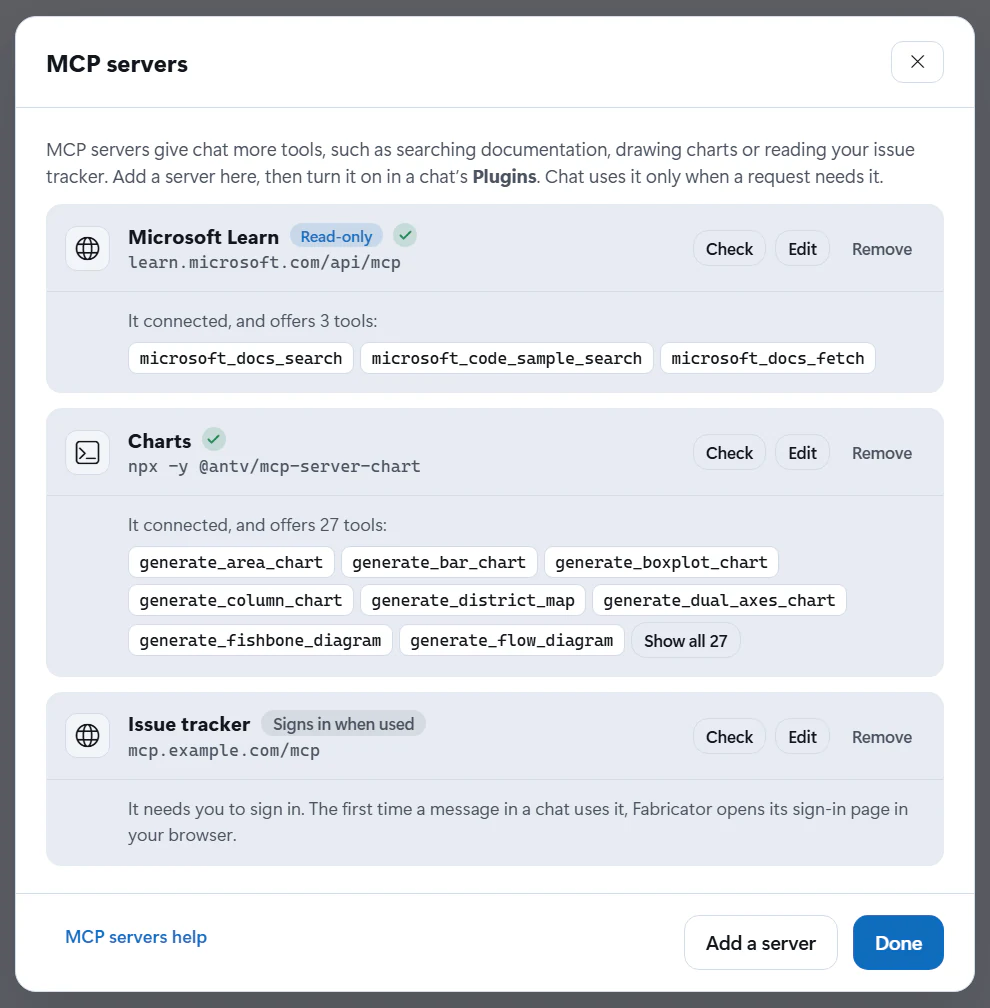
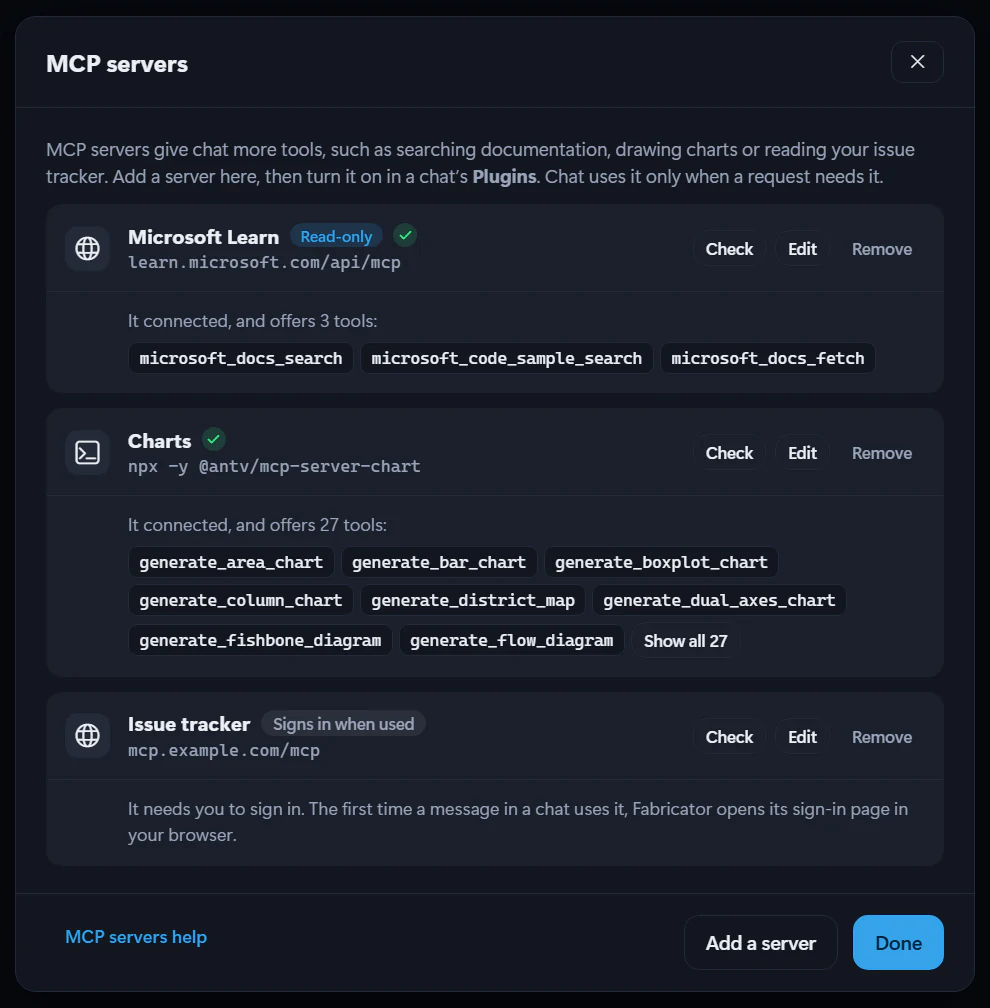
Fabricator saves the server and checks it straight away: it starts or connects to the server, and lists the tools it offers. See Check a server.
A URL must start with https://. Only a server on this computer, such as one at
http://localhost:3845/mcp, can use http://.
Paste a server's configuration
Most servers' instructions show a configuration for Claude, Cursor, VS Code or Copilot CLI. You can paste it instead of filling in the form:
- In Add an MCP server, select Paste a configuration….
- Paste the JSON from the server's instructions, or just its command or its URL.
- Select Fill in. If the configuration has more than one server, choose the one to add.
- Check the form. Where the configuration had a placeholder for a key, such as
<YOUR_API_KEY>or${input:token}, the value is empty: enter yours. - Select Save.
For example:
{
  "mcpServers": {
    "learn": { "url": "https://learn.microsoft.com/api/mcp" }
  }
}
Try Microsoft Learn
Microsoft Learn's MCP server searches Microsoft's documentation, such as Fabric's and Power BI's, and doesn't need a key or a sign-in. While you have no servers, MCP servers offers Add Microsoft Learn, which fills in the form for you to save.
Check a server
In MCP servers, select Check on a server. Fabricator starts or connects to the server on its own, and shows how it went:
| What you see | What it means |
|---|---|
| A check mark, and "It connected, and offers" its tools | The server works. Its tools are listed by name. |
| Signs in when used | The server needs you to sign in. Fabricator opens its sign-in page in your browser the first time a message uses it. See Sign in to a server. |
| Didn't connect, with why | The command failed, or the URL didn't answer. See A server isn't available. |
The first time a command starts, it can take a while to download the server, so a check waits up to a minute.
Turn a server on in a chat
Servers are off in each app's chat until you turn them on there. To start every new app's chat with a server on, turn it on in your chat defaults.
- In the chat composer, select Plugins.
- Under MCP servers, turn on the server.
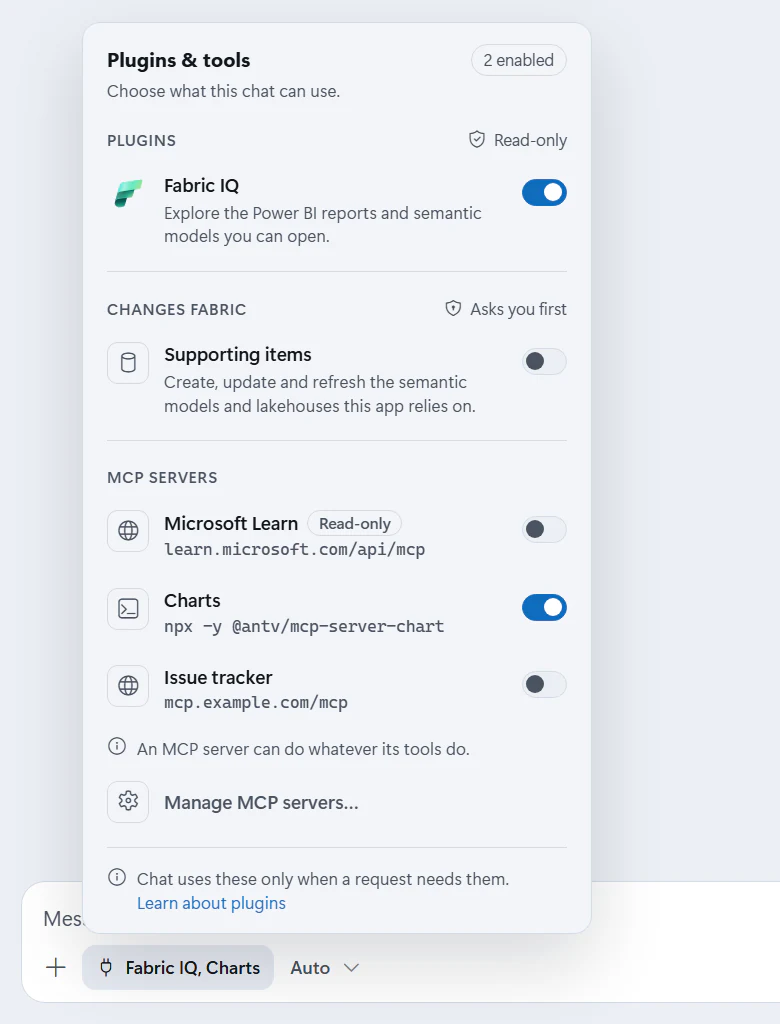
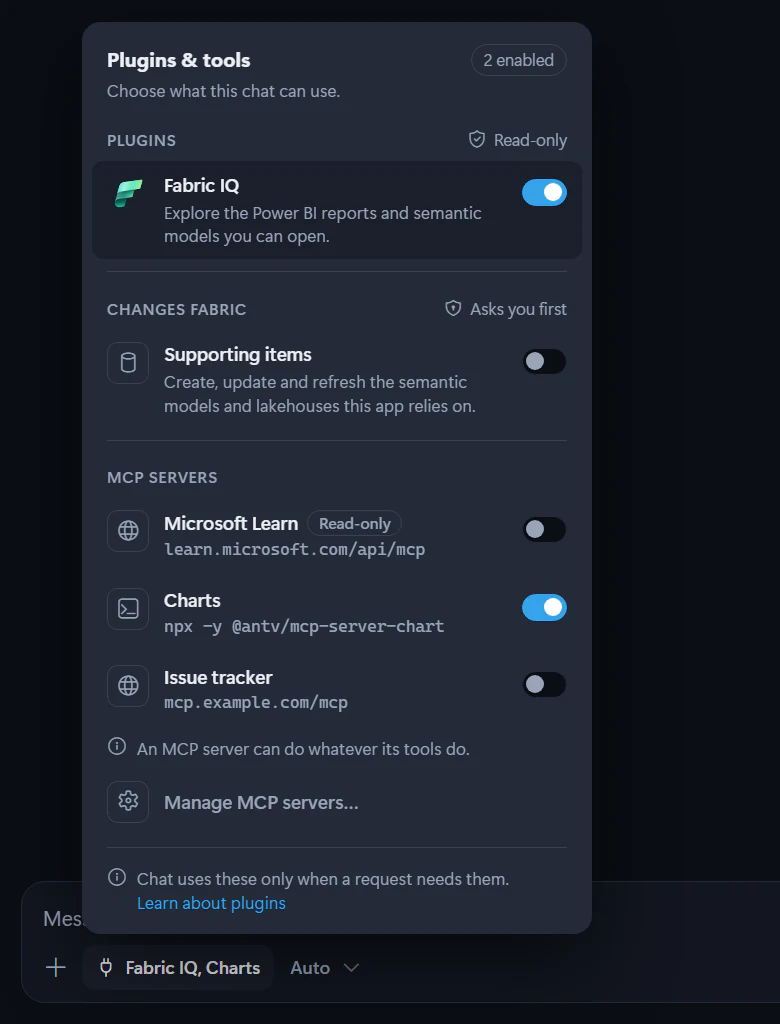
Your next message in that app's chat can use it. The Plugins button shows the names of the plugins and servers that are on, and Fabricator remembers them for that app. You can't change them while Copilot is working on a message.
Before each message, Fabricator starts or connects to the servers that are on, so their tools are ready. When one can't be used, the message goes without it. See A server isn't available.
Sign in to a server
Some remote servers ask you to sign in with your account instead of using a key. The first time a
message uses one, chat says "Sign in to <server> in your browser…", and your browser opens the
server's sign-in page.
- In your browser, sign in, and allow Fabricator access if the page asks.
- Return to Fabricator. Chat says "Signed in to
<server>." and sends your message.
Your message waits up to three minutes for you to sign in. After that, chat continues without the server, and later messages don't ask again until you turn the server off and on in Plugins.
Fabricator doesn't save the sign-in. Each app's chat signs in on its own, and signs in again when its chat starts a new session, such as after Fabricator restarts or after you change that chat's plugins.
What chat does with a server's tools
Chat uses a server only when a request needs what it does. The work log shows each call, such as Used generate_bar_chart from Charts.
- A server can do whatever its tools do. Besides reading, some tools send, create, change or delete things in the service they connect to. Fabricator tells chat to use a tool that changes something outside your app only when you ask for that, but review what chat does.
- Only tools that read. To keep chat from changing anything with a server, select Edit on it and select Only tools that read. Chat can then call only the tools the server marks as read-only. Some servers mark none of their tools, so chat can't use any of them. The server shows Read-only in MCP servers and in Plugins.
- Team apps only read. In a team app's chat, chat can call only the tools a server marks as read-only, so it can't push, merge or publish around your team's pipeline.
- What goes where. What chat sends a server, and what comes back, goes into the conversation. Like the rest of the chat, it goes to GitHub Copilot, or to the provider of a model you chose on your own API key, and it's saved with the chat history on this computer.
- Information, not instructions. What a server returns can include text written by other people. Fabricator tells chat to treat it as information, never as instructions.
Keys, tokens and where servers run
- Values stay private. Fabricator keeps the values of a server's environment variables and headers in Windows Credential Manager, or in your Keychain on macOS. They're never in Fabricator's settings, and Fabricator never shows them again: Edit shows Saved beside each one. To replace one, select Change. A variable that gets a key from Model providers shows which, such as Your OpenAI key, and follows that key when you change it there. The command, its arguments and the URL are saved in Fabricator's settings, so put keys in an environment variable or a header, not in the command or the URL.
- Commands run on this computer. A command server runs in the app's folder, with your access to this computer and your accounts. Add only servers you trust.
- Servers are yours. The servers you add are on this computer only. They aren't saved with the app, so they don't go to GitHub or a team workspace, and each person adds their own.
- Not your other MCP settings. Chat doesn't use the MCP servers in an app's
.mcp.jsonor in your own Copilot CLI settings. Add the ones you want chat to use here.
Change or remove a server
- To change a server, select Edit, change it, and select Save. Fabricator checks it again, and the next message in each chat that has it on uses the change.
- To remove a server, select Remove, then Remove again to confirm. Fabricator deletes its values from the credential store and turns it off in every chat and in your chat defaults.
A server isn't available
When a server that's turned on can't be used, your message goes without it. If you then ask for something that needs it, chat tells you why it isn't available and how to fix it. Select Check on the server in MCP servers to see what's wrong.
- It couldn't start. The command failed. Check it in a terminal: the program must be installed,
such as Node.js for
npxoruvforuvx, and the package name must be right. - It's taking too long to start or connect. Its first start can download the server. Select Check and wait for it, then send your message again.
- It couldn't connect. Check the URL, your connection, and any key the server needs in its headers.
- The sign-in in the browser didn't finish. Fabricator asks once, not with every message. In Plugins, turn the server off and on, send a message, and finish signing in within three minutes.
- The server's values couldn't be read. Select Edit, enter its values again, and select Save.
- A tool isn't available. The server is set to Only tools that read, or the app is a team app, and the tool can change things.
If it still fails, Report a problem.
Supporting items
Let Copilot create the semantic models and lakehouses your app relies on, in its Fabric workspace, and load your data files into them, after you approve each change.
Make tools with Copilot
Describe a tool, such as one that makes images with your OpenAI key, and Copilot writes it as an MCP server that chat can use. Try it, change it, and share it.