
Migrate a Power BI report
Turn a Power BI report into a Rayfin app that reads its semantic model live, while Copilot rebuilds its pages, visuals and filters one page at a time. Experimental.
Warning
Migrating Power BI reports is an experiment. Turn it on in Settings → Experiments. It may change or be removed in a future update.
Fabricator can turn a Power BI report into a new Rayfin app. The app reads the report's semantic model live, so its numbers come from the same measures and the same data. GitHub Copilot rebuilds the report one page at a time, with Graphein charts: every page, visual, filter and slicer, in the same arrangement and colors.
You end up with a deployed app that follows the report, and a MIGRATION.md file in the project
that lists what each report visual became and what Copilot couldn't rebuild exactly.
How a migration works
- You pick a report, and Fabricator checks what it can read of it.
- You name the new app and deploy it, like any new project.
- Meanwhile, Fabricator reads the report: its definition, its data model and images of its pages.
- The first chat turn starts by itself. Copilot sets up the app and migrates the first page.
- You migrate the other pages, one chat turn per page.
Before you start
You need:
- The Azure CLI, signed in with an account that can open the report. Fabricator finds and reads reports with the Azure CLI's sign-in, which setup already asks for. See Manage your accounts.
- Build permission on the report's semantic model. The app queries the model live, so you need to be allowed to query it.
- A semantic model in a shared workspace. Rayfin apps can't connect to a model in My workspace.
- A Fabric workspace to deploy the app to, as for any app. See Deploy to Microsoft Fabric.
For the most faithful result, you also need:
- Edit access to the report: the Contributor, Member or Admin role in its workspace. With it, Fabricator can read the report's definition.
- The report's workspace on a Fabric or Premium capacity, so Fabricator can export images of its pages.
When you pick a report, Fabricator checks what it can read of it. Paginated reports can't be migrated yet.
Turn on the experiment
- Open Settings from the account menu.
- Open Experiments.
- Turn on Migrate Power BI reports.
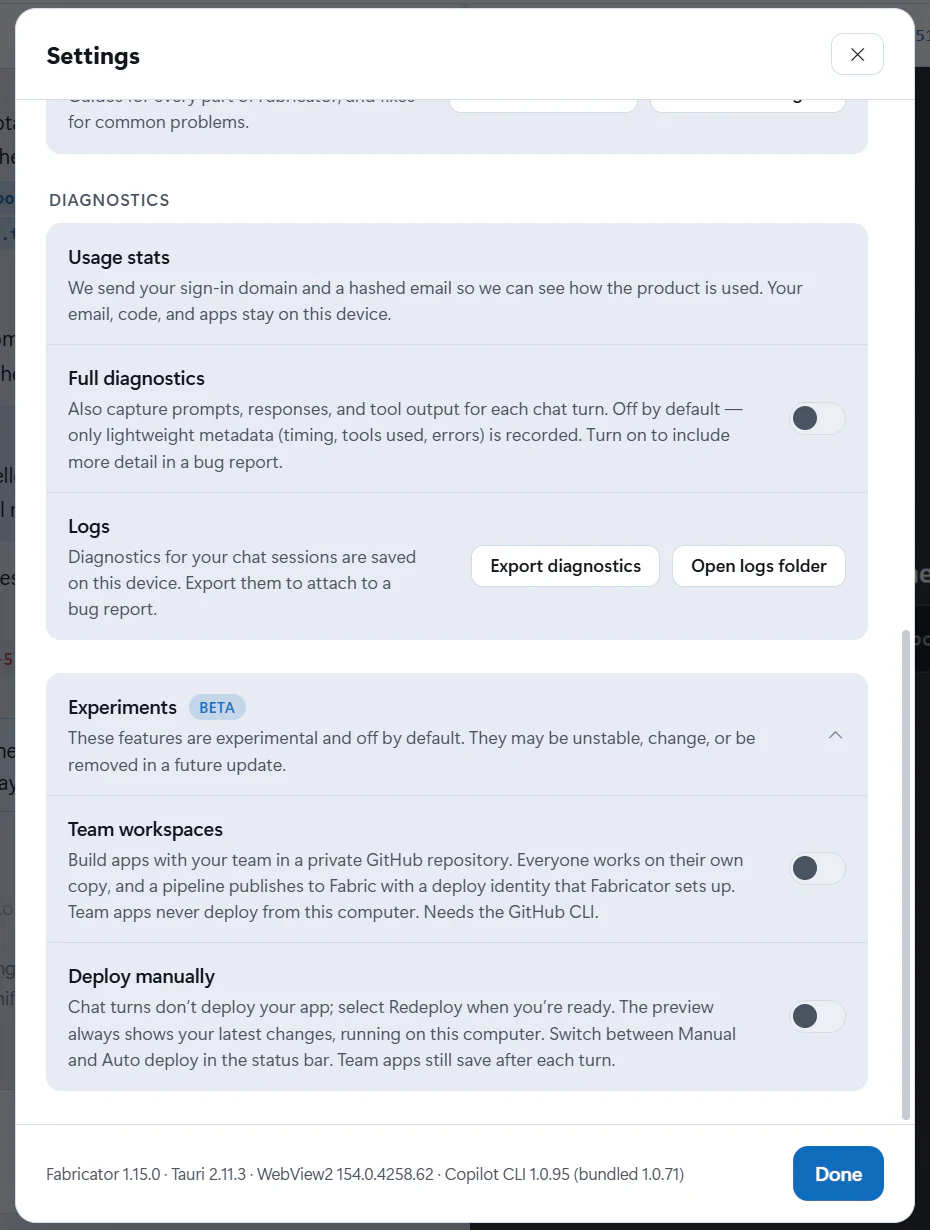
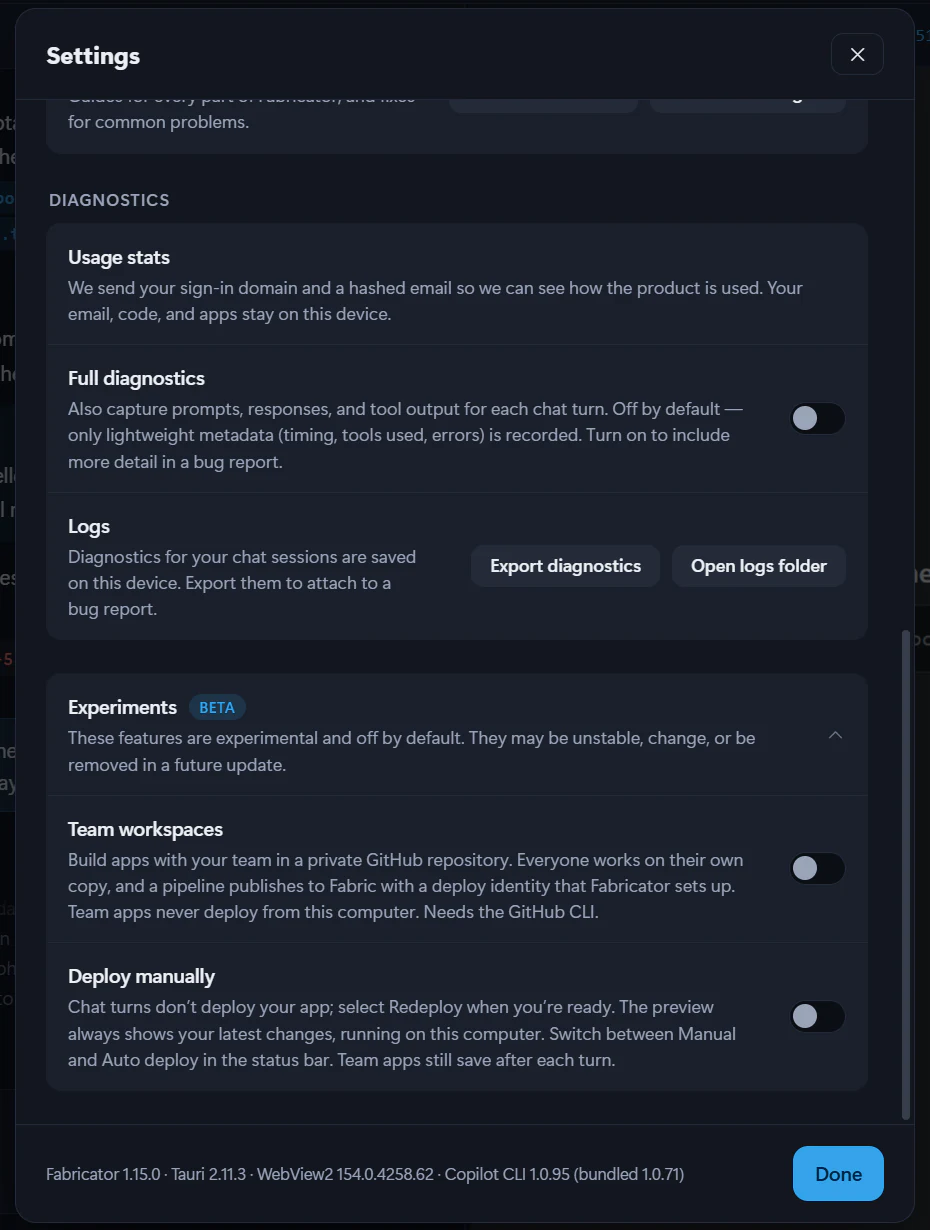
Home now has Migrate a Power BI report. Turning the experiment off hides it and the Migration card. It doesn't change the apps you migrated or delete their migration material.
Pick a report
- On Home, select Migrate a Power BI report.
- Find the report in one of these ways:
- Type at least two characters of its name in Find a report to search for it across your organization.
- Select a workspace in the list, then the report. The workspaces your apps deploy to come first, then My workspace and the rest.
- Copy the report's link from Power BI, paste it into Find a report and press Enter. Links to a report in a workspace, in My workspace or in a Power BI app all work.
- Select the report. Fabricator reads it and shows its workspace, the semantic model it gets its data from, its pages and three checks.
- When the report can be migrated, select Continue.
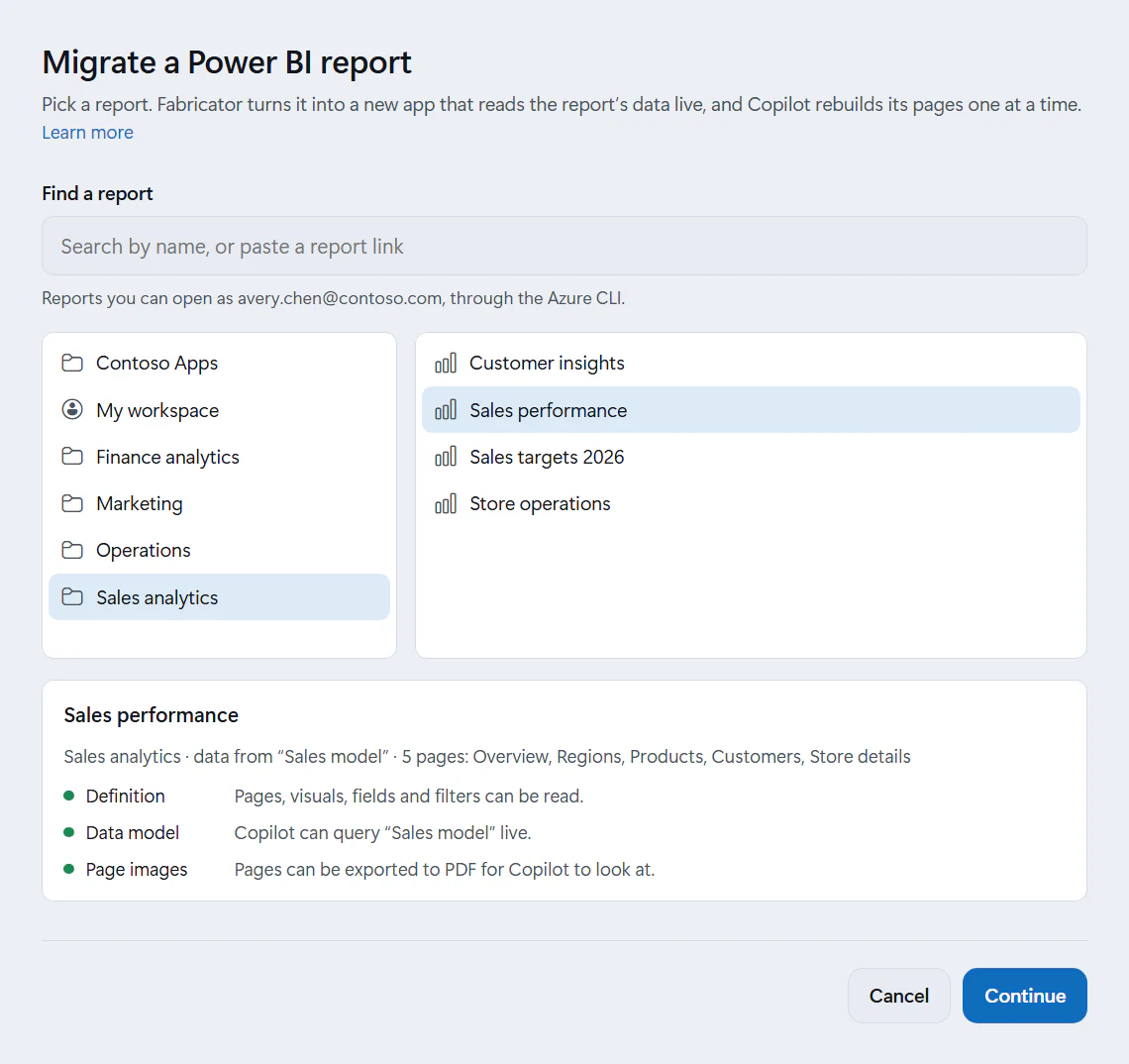
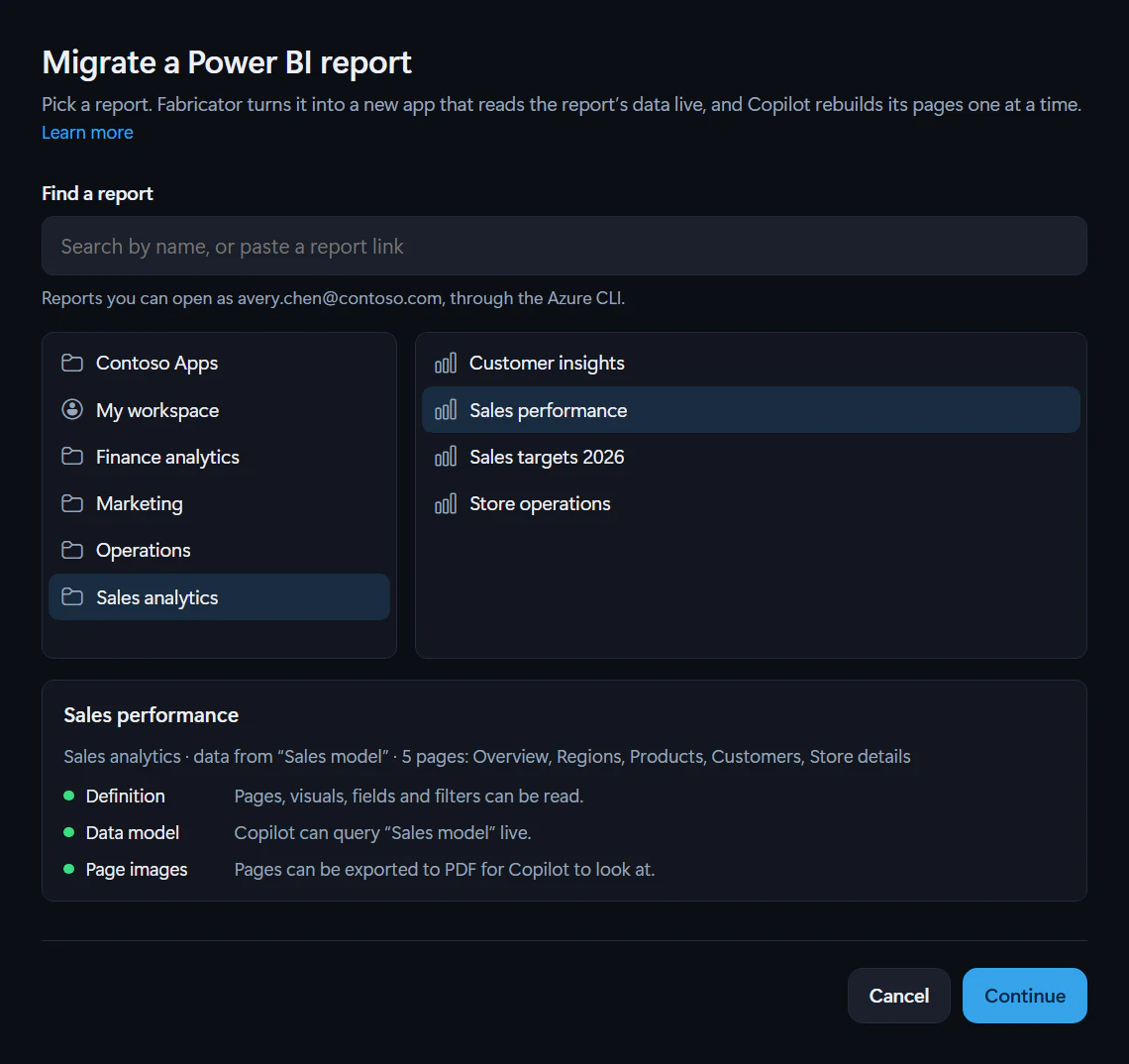
The hint under Find a report names the Azure CLI account that Fabricator reads with, for example "Reports you can open as avery.chen@contoso.com, through the Azure CLI." To use another account, see Use more than one Azure CLI account.
What the checks mean
Each check shows a dot and a message. A warning means the migration can go ahead with less to work from. An error means the report can't be migrated, and Continue stays off.
| Check | What Fabricator checks | If it can't |
|---|---|---|
| Definition | That you can edit the report, so it can read the report's definition: its pages, visuals, fields, filters, slicers and theme. | A warning. Copilot works from the page images and text, and finds the fields in the semantic model itself. |
| Data model | That you can query the report's semantic model. The app reads the model live, so this needs Build permission on it. | An error, such as "You can't query “Sales model”. Ask its owner for Build permission." |
| Page images | That the report's workspace is on a Fabric or Premium capacity, so the pages can be exported to PDF. Copilot looks at each page and checks its numbers against the page's text. | A warning. Copilot works from the definition only. |
A report also can't be migrated when Fabricator can read neither its definition nor images of its pages: "Fabricator can neither read this report's definition nor export its pages." For the other reasons, see A report can't be migrated.
Name and create the app
After Continue, the New app from Power BI screen opens.
- Check the Project name. It starts as the report's name, without characters that project names can't have, such as parentheses.
- Check From Power BI, which describes the report: its name, its workspace, how many pages it has and the semantic model it gets its data from.
- Under Copilot model, choose the model that rebuilds the report. Fabricator remembers it for your next migration, and you can change the model in the chat later, between pages.
- If you use team workspaces, choose Where the app goes: Just me, on this computer or a team workspace.
- Select Create project.
- In Deploy your app, choose a workspace and select Deploy app. When the report's workspace can host Rayfin apps, it's listed first, under Recent.
The app starts from the Universal App, the Rayfin CLI's default template, like any new project. See Create a new project. A team app skips the deploy step, because the team pipeline deploys your preview. See Work on a team app.
If you select Continue without deploying →, Fabricator still reads the report, but the first page waits until you deploy the app.
While Fabricator reads the report
While the app is created and deployed, Fabricator reads the report in the background. The Migration card above the chat composer, "Migrating “Sales performance” from Power BI", shows each stage:
| Stage | What Fabricator reads |
|---|---|
| Report definition | The pages, visuals, fields, filters, slicers, bookmarks and theme. |
| Data model | The semantic model's tables, columns, measures with their DAX, and relationships. |
| Page export | A PDF of the report's pages, exported by Power BI. It takes about 20 seconds a page, and the stage shows its progress as a percentage. |
| Page images | Each exported page, drawn as an image, and the text on it. |
Each stage shows Waiting until it starts, then Working… or a percentage while it runs. It ends with Done, with Skipped when you skipped it or there was nothing to read, or with Not available when Fabricator couldn't read it, with the reason below the stages. The migration goes ahead with whatever Fabricator could read.
- To go on without page images, select Skip page images while the pages export. Copilot then works from the definition.
- If Fabricator can't read the semantic model's definition, it reads the model's tables, columns and measures with queries instead. The measures' DAX isn't included then, so Copilot works from their names and checks its results against the page text.
The first page starts by itself
Once Fabricator has read the report and the app is deployed, the first chat turn starts by itself. Its message says "Migrate “Sales performance” from Power BI". It carries the first page's image, when Fabricator could export the pages, and a chip with the report's name and, for example, "Setup and page 1 of 5: Overview".
In this turn, Copilot:
- Turns on the capabilities the app needs for analytics, and adds Graphein, the charting library the app's visuals are built with.
- Connects the report's semantic model live, through a Rayfin semantic model connector. See Rayfin's semantic models docs.
- Adds a page for each report page, with the same names in the same order. Drillthrough and tooltip pages become detail views and tooltips instead of pages of their own.
- Applies the report-level filters to every page, and carries the report's colors into the app's theme and charts.
- Migrates the first page. For a report with only one page, it also builds the views the page's bookmarks show and wires its buttons.
- Starts
MIGRATION.md.
When the turn ends, Fabricator deploys the app, as it does after any chat turn, unless you turned off Deploy after each chat turn. See Redeploy changes.
A migration's turns start only while the project is open on Build and nothing else is running. Until then, the card says what it's waiting for, such as:
- "The first page starts once the app is deployed."
- "Waiting for the deploy to finish."
- "Waiting for Copilot to finish."
Migrate the other pages
Once Fabricator has read the report, the card lists its pages, with an image of each, in the order Copilot migrates them. It counts the pages done, such as "1 of 5 pages". Visible pages come first, in the report's order, then drillthrough pages, tooltip pages and any other hidden pages.
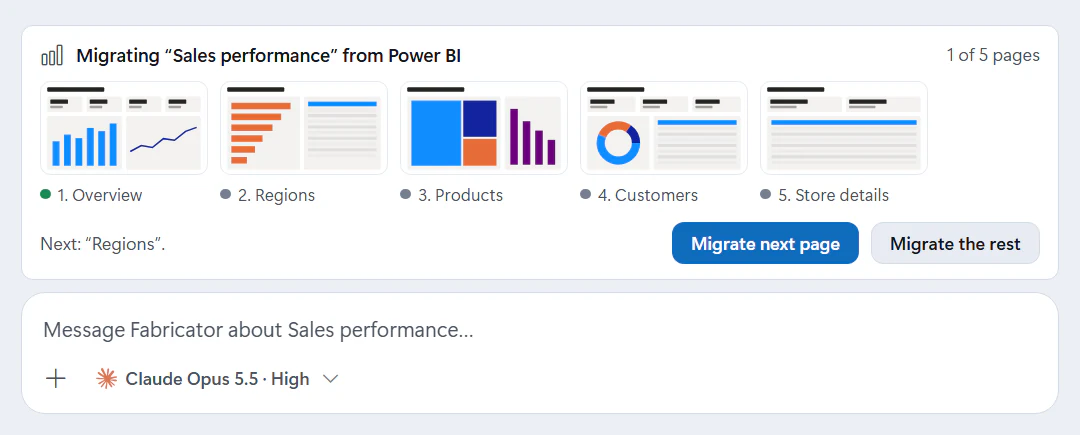
- Select Migrate next page to migrate the next page in one chat turn. Its message says, for example, "Migrate page 2 of 5: Regions", with an image of that page.
- Select Migrate the rest to migrate the remaining pages one after another, one page per turn. Each page waits until the deploy after the previous page has finished. To stop once the current page is done, select Stop after this page.
- Sending a message of your own pauses Migrate the rest. Select it again to carry on.
- If a page doesn't migrate, it shows Try again.
Each page is a normal chat turn: you can follow its work log, review its changed files and change the result in chat. See Chat with Copilot.
With the last page, Copilot also wires up the report's buttons, bookmarks and drillthroughs across
pages, and checks the app against MIGRATION.md. The card then says "Every page is migrated. MIGRATION.md lists what’s approximated."
Select Close (×) to close the card.
What carries over
Copilot aims for a faithful rebuild: every page, visual, filter and slicer, in the same order, arrangement and colors, on a layout that also fits smaller screens.
- Numbers. Copilot writes each visual's query with the same fields, aggregations and filters, runs it against the semantic model, and checks the result against the numbers on the exported page. The app shows live values from the model, not numbers copied from the report.
- Filters and slicers. Report, page and visual filters carry over. Slicers become filter controls that start from the slicer's saved selection. Changing one runs the page's queries again, so the model calculates every measure for the new selection, as in Power BI.
- Interactions. Where the report cross-filters, selecting part of a chart filters the page. Buttons and bookmarks become navigation or saved filter states, and a drillthrough becomes a link to its detail view.
Copilot rebuilds the visuals with Graphein, a charting library designed for coding agents: before Copilot builds on a chart, Graphein checks it for mistakes and for labels that overlap or don't fit, and renders an image Copilot compares with the report's page.
| In the report | In the app |
|---|---|
| Cards and KPIs | KPI cards, with the report's goals and trends |
| Multi-row cards | Groups of KPI cards |
| Gauges | Gauges |
| Bar, column, line, area, combo, ribbon, waterfall, funnel, pie, donut, scatter charts and treemaps | The same kind of chart, stacked or with a second axis where the report has one |
| Tables | Tables |
| Matrices | Matrices, with the report's row and column groups and totals |
| Slicers | Filter controls: dropdowns, lists, search boxes, ranges and date ranges |
| Text boxes, images, shapes and buttons | Text, images, layout and navigation |
| Maps | A filled or bubble map when the data has the regions or coordinates; otherwise a ranked bar chart by location |
| Custom visuals | The closest Graphein chart, such as a bullet chart for a bullet chart visual |
| R and Python visuals, Q&A, decomposition trees, key influencers, smart narratives, and Power Apps and Power Automate visuals | The closest chart that shows the same data, or a clearly labelled placeholder |
Compare each page with the report in the preview. To change something, describe it in chat.
MIGRATION.md
Copilot keeps MIGRATION.md at the root of the project and updates it with every page. It lists:
- the source report and semantic model,
- for each page, what each report visual became and which file it's in,
- under Approximations and gaps, everything that isn't an exact match, and why.
MIGRATION.md is committed with the app like any other project file, so Copilot keeps data values
out of it.
Where the report's material lives
Fabricator saves what Copilot works from in the project, in a folder named after the report under
.fabricator/migration/:
| File | What it holds |
|---|---|
README.md | The report, its semantic model, and each page's visuals with their fields and filters. Copilot reads it first. |
report.json | The report's definition: its pages, visuals with their positions and fields, filters, slicers, buttons, bookmarks and theme. |
model.md | The semantic model's tables, columns, measures with their DAX, and relationships. |
theme.json and resources/ | The report's colors, and the images it uses, such as logos. |
pages/ | An image of each page and the text on it. |
The folder also keeps the exported PDF, the definition's original files and Graphein's guide, which Copilot downloads for the version the app uses. Copilot keeps its own working files that show data there too, such as the chart images it renders to check its work.
This material stays on this computer:
- The page images and text show real data from the report, so Fabricator keeps
.fabricator/out of git. It lists the folder in the repository's.git/info/excludefile, so none of the app's own files change. The material isn't committed, so it doesn't go to GitHub with the app, team apps included. - The app itself doesn't use the material. Once every page is migrated, you can delete the
.fabricator/migrationfolder to remove the material from this computer. The Migration card goes with it. - Copilot reads the material during the migration's chat turns, and each page's message carries an image of the page, so they reach the model you chose like the rest of the conversation. A model on your own API key that can't read images gets the messages without the images. See Privacy and telemetry.
Share a migrated app
A migrated app reads the semantic model as each person who uses it, with their own identity. The model's row-level security applies, so each person sees only the data they're allowed to see. Blueprint shows which identity each of the app's connections uses; see Which identity a connection uses.
So everyone who uses the app needs Build permission on the semantic model. Share takes care of it: for each person you share the app with, it grants Build on the semantic models the app connects to through Rayfin connectors, when a model is in another workspace than the app. A model in the app's own workspace is covered by the Contributor role that sharing grants on that workspace. See Share your app.
If Fabricator closes during a migration
- Reading the report picks up where it stopped the next time you open the project.
- A page whose turn was cut off shows Try again.
- If the first page hadn't started yet, it starts by itself once the app is deployed and Fabricator has read the report.
Troubleshooting
Fabricator asks you to sign in to the Azure CLI
On the Migrate a Power BI report screen, you see this message, or one like it:
Sign in to the Azure CLI again (run az login), then try again.
Fabricator reads reports with the Azure CLI's sign-in, and that sign-in has expired or is missing.
- Sign in to the Azure CLI again: run
az loginin a terminal, or open Accounts and, under Azure CLI, select Add account. - Select Try again if the screen offers it, or pick the report again.
The report isn't listed
The report you want isn't in its workspace's list or in the search results.
Fabricator lists the reports that the Azure CLI's account can open, and that account may not be the one you use in Power BI.
- Check the account named under Find a report. If it's the wrong one, switch accounts. See Azure CLI is signed in to the wrong account.
- Open the report in Power BI, copy its link from the browser's address bar, paste it into Find a report and press Enter.
A report can't be migrated
Continue stays off, and Fabricator says why, in the Data model check or below the checks:
| Message | What to do |
|---|---|
| "You can't query “Sales model”. Ask its owner for Build permission." | Ask the semantic model's owner for Build permission, then pick the report again. |
| "Fabricator can neither read this report's definition nor export its pages." | Get edit access to the report, or put its workspace on a Fabric or Premium capacity. Then pick the report again. |
| "Its semantic model is in My workspace, and Rayfin apps connect to models in shared workspaces. Publish the report to a workspace first, then migrate it from there." | Publish the report and its semantic model to a shared workspace, then migrate the report from there. |
| "Paginated reports can't be migrated yet." | Build the app in chat instead, and connect the data it needs. See Connect Fabric data. |
| "This report is in an app. Open it from its workspace and paste that link, or ask the app's owner for access to the workspace." | Paste the report's link from its workspace, or ask the app's owner for access to that workspace. |
| "This report isn't connected to a semantic model." | Pick a report that gets its data from a semantic model. |
Fabricator can't read the report's definition
Definition says:
You can view this report but not edit it, so its definition can't be read. Copilot will work from the page images and text.
On the Migration card, Report definition can also show Not available, with the reason "You need edit access to this report to read its definition."
Reading a report's definition needs the Contributor, Member or Admin role in the report's workspace. Without the definition, Copilot works from the page images and text, which is less exact.
- Ask an admin of the report's workspace for the Contributor role.
- Pick the report again and check that Definition no longer shows a warning.
Fabricator reads a report once per migration. If you already started the migration, migrate the report again to use its definition.
The pages can't be exported
Page images says:
This workspace isn't on a Fabric or Premium capacity, so pages can't be exported. Copilot will work from the definition only.
Or, on the Migration card, Page export shows Not available, with Power BI's reason below the stages.
Power BI exports a report's pages only when:
- the report's workspace is on a Fabric or Premium capacity. Workspaces on a shared capacity, as with Power BI Pro, and Premium Per User workspaces can't export them.
- the tenant setting "Export reports as PowerPoint presentations or PDF documents" is on. It's on by default, and your Fabric administrator controls it.
Without page images, Copilot works from the definition, but it can't see what the pages look like or check its numbers against them.
- Move the report's workspace to a Fabric or Premium capacity, or publish the report to a workspace that's on one. If the tenant setting is off, ask your Fabric administrator to turn it on.
- Migrate the report again. Fabricator exports the pages once per migration.
A page needs another try
A page on the Migration card shows Try again.
The page's chat turn didn't finish, for example because of a Copilot error or because Fabricator closed during it. Migrate the rest stops at a page that doesn't finish.
- Read the message at the end of the turn in chat. For Copilot errors, see Chat and Copilot problems.
- Under the page on the card, select Try again.
People you share the app with don't see its data
People you shared the app with can open it, but its visuals don't load their data.
The app reads the semantic model as each person who uses it, so each of them needs Build permission on the model.
- Share the app from Fabricator with Share. It grants Build on the models the app reads from other workspaces, and the Contributor role on the app's workspace, which covers the models there.
- If people got access to the app another way, ask the semantic model's owner to give them Build permission.
Each person still sees only the rows that the model's row-level security lets them see.
If a problem isn't listed here or a fix doesn't work, report a problem.
Blueprint: architecture and data models
Use Blueprint to see what your app is made of, what it connects to and which identity each connection uses, plus its Rayfin data model and the Fabric data it reads.
Skills
Choose the skills Copilot follows while it builds your Rayfin app, see what each one teaches, and add custom skills for your own guidance.