
Use the workspace overview
Use the app-centered workspace overview to inspect apps, working copies, previews, published deployments, data, connections, and pipeline health.
Warning
Team workspaces are an experiment. Turn them on in Settings → Experiments. They may change or be removed in a future update.
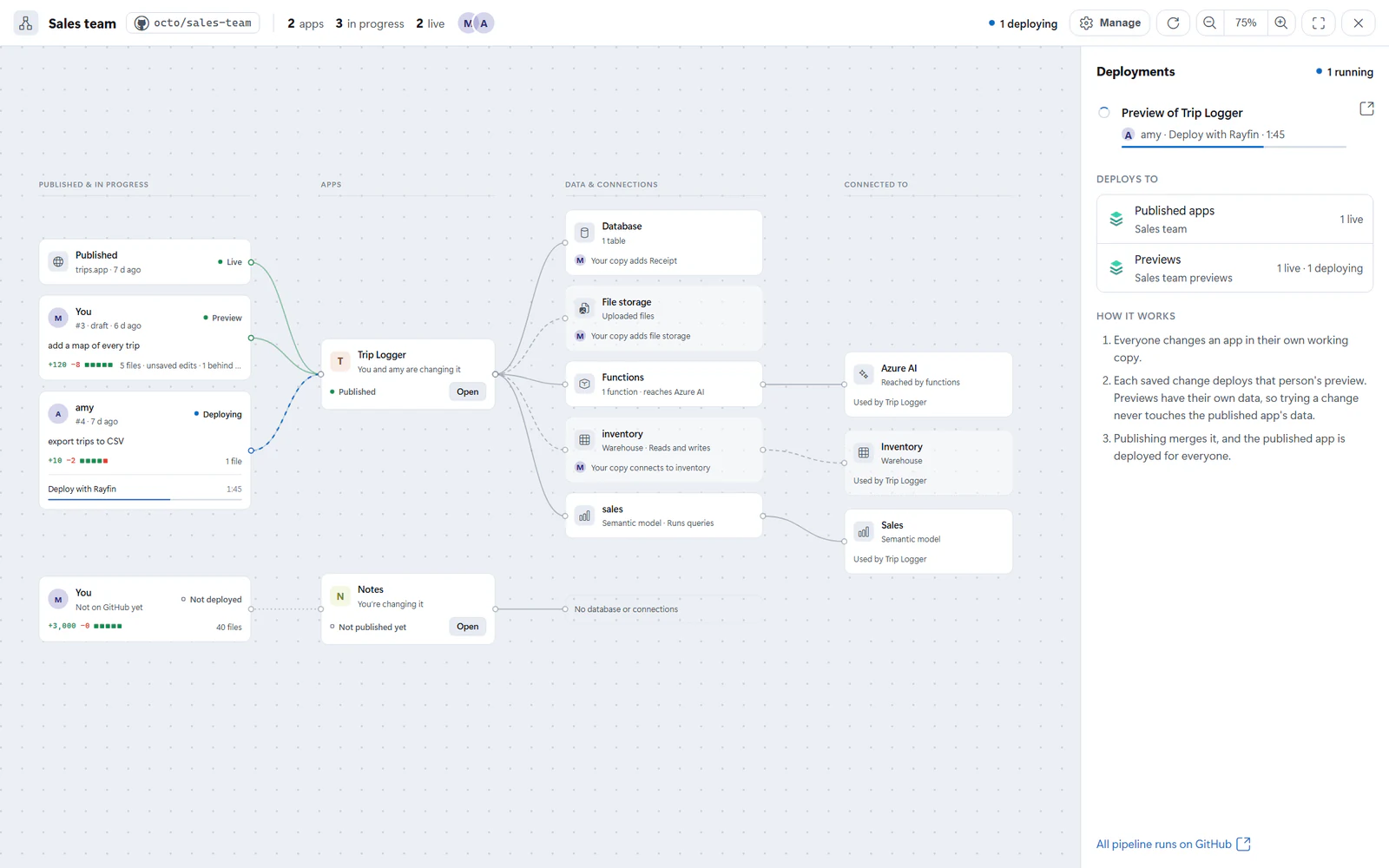
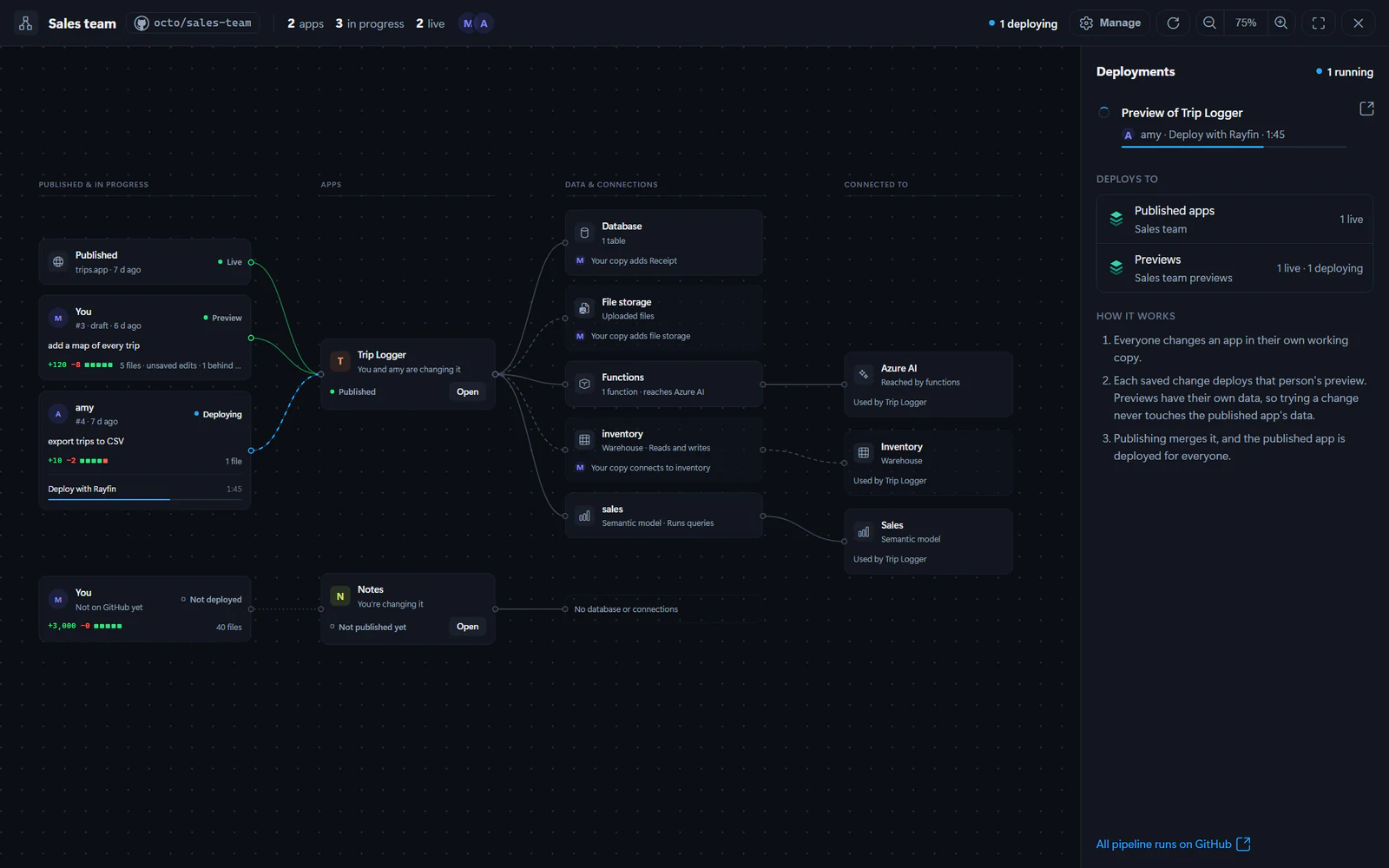
The workspace overview shows a team workspace as a map centered on apps. Use it to see who is changing what, what is deployed, and where app data and connections point.
Open the overview
You can open the overview from Home or from a team app:
- On Home, in Team workspaces, select Overview for a workspace.
- From a team app, open the team menu in the header and select Workspace overview.
- You can also select Overview in the app bar, next to Publish.
Read the app map
Each app appears in the middle of the map. To the left, the overview shows the app's published version and active working copies. To the right, it shows Data & connections and Connected to when Fabricator can read the app configuration.
For each app, the map can show:
- whether the app is Published or Not published yet
- each working copy, including You or the teammate's login
- the pull request number, draft state, saves, changed files, additions, and deletions
- whether a preview is live, failed, older than the latest save, or deploying
- current pipeline progress with links to GitHub runs
Select a working copy to open Changes. You can expand each file to read its diff. Large or binary files may show "No preview for this file (it’s binary or very large)."
Inspect data and connections
The redesigned overview still includes the data and connections view. Fabricator reads each app's rayfin/rayfin.yml, data model files, and functions source when available.
The map can show:
- the app database, tables, and relationships
- file storage
- functions and which services they reach
- connectors and what they do, such as "Runs queries"
- Fabric sources such as semantic models, warehouses, lakehouses, and other Fabric items
- external services reached by functions
A shared source appears once and lists the apps that use it. Working-copy changes are marked with the author's name, so you can see what a branch adds, changes, or removes.
Watch deployments
When nothing is selected, the side panel is Deployments. It shows recent pipeline activity, active deploys, and where apps deploy:
- Published apps
- Previews
Use All pipeline runs on GitHub to open the repository's Actions page.
Manage the workspace
Select Manage to open workspace settings. Owners, the people with the Maintain or Admin role on the workspace's repository, can use:
- Members to invite or remove teammates. GitHub only lets the repository's admins do this.
- App access to remove Fabric app access
- Settings to change the GitHub account Fabricator uses or Require a review, open Fabric workspaces, choose Where the pipeline runs, check pipeline health, or leave the workspace. Deleting the workspace also needs the Admin role.
See Who is an owner.
When Fabricator ships a newer pipeline template, Pipeline health can mark an item repairable. Select Repair to update the managed workflow, repository variables, merge settings, branch protection, and Fabric access as needed. If no repair is needed, the button says Check the pipeline.
Change the GitHub account
Fabricator works on each team workspace as the GitHub account it was created or joined with. Home shows that account on the workspace's card when it isn't the repository's owner. To use another account that you're signed in to in the GitHub CLI, for example after signing out of the old one:
- Open the workspace's Manage panel and select Settings.
- In GitHub account, select Change.
- Choose the account. If it isn't listed, select Add account.
- Select Use this account.
Fabricator first checks that the account can change the workspace's repository. Commits you make from then on are attributed to the new account.
Change where the pipeline runs
Owners choose which GitHub Actions runners run the workspace's pipeline. Change it when your organization turns off GitHub-hosted runners, or when it gives the team a runner group.
- Open the workspace's Manage panel and select Settings.
- In Where the pipeline runs, select Change.
- Choose GitHub-hosted runners, A runner group, or Runners with labels, and enter the runner group name or the labels.
- Select Save.
Pipeline runs that start after you save use the new runners. When the organization chose runners for every Fabricator workspace, the section shows them with "Your organization chose these runners.", and the GitHub-hosted runners choice becomes Your organization’s choice. See Where the workflow runs.
A workspace created with an earlier version of Fabricator also needs the newer pipeline. After you save, select Repair in Pipeline health. Repair updates the pipeline and checks that it runs on the chosen runners.
Remove an app
Workspace owners can select an app, then Remove from workspace…. Fabricator removes the app folder through a merged pull request. If you choose Also delete its published app and previews in Fabric, with their data, Fabricator also deletes the matching Fabric items it can find.
Publish changes
Publish a team app by saving work, checking the preview, waiting for review when required, merging, and deploying the published app.
Move an existing app into a team workspace
Copy a local Rayfin project into a team workspace as a new team app without changing the original local project.