
Create a team workspace
Create the private repository, Fabric workspaces, deploy identities, OIDC trust, pipeline, and first verification run.
Warning
Team workspaces are an experiment. Turn them on in Settings → Experiments. They may change or be removed in a future update.
Create a team workspace from Home when you want Fabricator to set up a shared repository and Fabric deployment pipeline for your team.
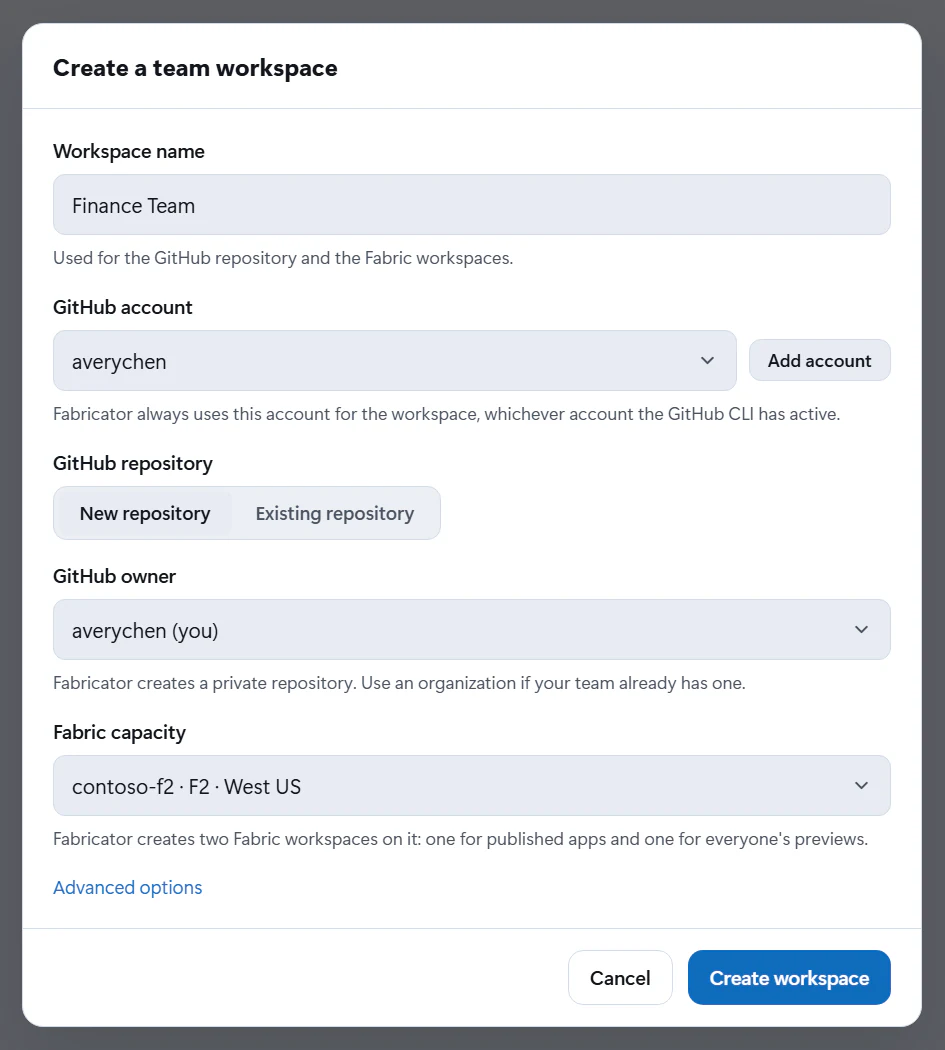
Create the workspace
- On Home, find Team workspaces.
- Select Create a team workspace. If you already have a team workspace, select New team workspace.
- Complete any GitHub or Azure sign-in checks.
- Enter a Workspace name.
- Choose the GitHub account to create it as. If the account you want isn't listed, select Add account. Fabricator always uses this account for the workspace. See More than one GitHub account.
- Under GitHub repository, choose where the workspace's apps live:
- New repository: choose the GitHub owner, either the account or one of its organizations. Fabricator creates a private repository there. Organizations that don't let you create repositories are marked "you can’t create repositories".
- Existing repository: choose or enter a repository you already have. See Use an existing repository.
- Choose a Fabric capacity.
- Optional: if your organization turned off GitHub-hosted runners, expand Advanced options and choose Where the pipeline runs. See Choose where the pipeline runs.
- Select Create workspace.
Use an existing repository
You can set the workspace up in a repository that already exists instead of a new one: one you created, or one an organization owner created for you. This is the way to go when your organization doesn't let you create repositories.
- Make sure the repository is private or internal and you have the Maintain or Admin role on it. An empty repository works best. One that already has commits works too if its default branch is
main. If you can't create the repository yourself, ask an owner of the organization to create it and give you the Maintain role. - In Create a team workspace, under GitHub repository, select Existing repository.
- In Repository, choose one of your repositories from the suggestions, or enter it as
owner/name, for examplecontoso/sales-apps. You can also paste its GitHub address. The suggestions are your private repositories where you have the Maintain or Admin role. - Finish creating the workspace.
Fabricator marks the repository as a team workspace: it sets the repository's description and adds the fabricator-workspace topic. It also applies the squash-merge settings that publishing uses, then adds the workspace's files. A README.md that's already there stays, and an existing .gitignore only gets the lines it's missing. Setup stops if the repository is public, already a team workspace, or archived, or if you don't have the Maintain or Admin role on it.
The Maintain role covers everything setup changes. GitHub only lets admins protect main, so with Maintain, Fabricator keeps everyone on the publish flow itself. Inviting teammates and deleting the workspace later also need an admin. See Who is an owner.
Some organizations lock a new repository until someone finishes setting it up in the organization's portal. Fabricator then shows Finish setting up the repository. See The organization locked the repository until it's set up.
Choose where the pipeline runs
The workspace's pipeline runs on GitHub Actions runners. By default, it uses GitHub-hosted ubuntu-latest runners. Some organizations turn those off and run Actions jobs on their own runners instead. If yours does, ask a GitHub organization owner which runner group or runner labels to use.
- In Create a team workspace, expand Advanced options.
- Under Where the pipeline runs, choose one of these:
- GitHub-hosted runners: GitHub's runners, or the runners your organization chose for Fabricator.
- A runner group: enter the Runner group name. You can also enter labels, separated by commas, when the group has different kinds of runners.
- Runners with labels: enter the labels a runner must have, separated by commas, such as
self-hosted, linux.
- Finish creating the workspace.
The runners need Linux with bash, curl, and git, and outbound access to GitHub, the npm registry, Microsoft Entra ID, and Microsoft Fabric. See Where the workflow runs.
If no runner picks up the pipeline, setup stops on Check that the pipeline can reach Fabric with "No runner picked up the pipeline's verification run in 6 minutes." or "GitHub didn't start the pipeline's verification run:" followed by GitHub's reason, such as "GitHub Actions hosted runners are disabled for this repository." Choose other runners under Where the pipeline runs in the same window, then select Retry. To ask an organization owner for help, select Copy instructions for your admin. See also No runner picks up the pipeline.
You can change the runners later in the workspace's settings. See Change where the pipeline runs.
What Fabricator creates
Fabricator runs these setup steps in order:
- Create the private GitHub repository.
- Create the production and preview Fabric workspaces.
- Create the deploy identities (service principals).
- Let the repository's pipeline sign in as those identities.
- Give the deploy identities access to Fabric.
- Add the deploy pipeline to the repository.
- Protect the main branch.
- Download the workspace to this computer.
- Check that the pipeline can reach Fabric.
The GitHub repository gets README.md, .gitignore, fabricator.workspace.json, and .github/workflows/fabricator.yml. It also gets GitHub Actions variables for the tenant ID, deploy identity client IDs, and Fabric workspace IDs, plus FABRICATOR_RUNS_ON when you choose where the pipeline runs. With an existing repository, the first step uses that repository instead of creating one.
If setup needs an administrator
Setup can stop when your organization does not allow your account to do a step. Common examples are:
- Microsoft Entra ID does not let you create or change app registrations.
- Fabric refuses service principal access to the Fabric API.
- Your GitHub organization doesn't let you create repositories. See Use an existing repository.
- Your GitHub organization blocks repository or workflow changes.
- Your GitHub organization turned off GitHub-hosted runners. See Choose where the pipeline runs.
- Microsoft Entra ID only accepts pipelines from your company's GitHub enterprise. See The pipeline's sign-in fails with AADSTS7002381.
When Fabricator has administrator instructions, it shows Copy instructions for your admin. Send that text to the right administrator, then come back to the same setup window and select Retry.
To find out which setting stopped setup and who can change it, select Diagnose with Copilot under the problem. Fabricator runs read-only checks with your GitHub and Azure sign-ins, and Copilot explains the most likely cause and drafts a message for the right administrator. See A team step failed and the message doesn't explain it.
If an administrator creates an app registration for you, expand Advanced options, paste its application client ID in Existing app registration (optional), and continue. An administrator-provided app registration is used for both previews and published apps.
Abandon an unfinished setup
If setup stopped and you don't want to finish it, you can delete what it created. On Home, a workspace whose setup didn't finish shows "Setup didn't finish. Pick up where it stopped; nothing is lost." with Finish setup and Abandon setup….
- On Home, under Team workspaces, find the workspace and select Abandon setup…. If the setup window is still open on a problem, you can select Abandon setup… there instead.
- Wait while Fabricator looks up what setup created. It lists each item it will delete: the deploy identities, the Fabric workspaces, the GitHub repository, and the workspace's folder on this computer. It also lists what it removes from what you provided.
- If Fabricator says that deleting the repository needs one more GitHub permission (
delete_repo), select Grant GitHub access and approve it. Fabricator opens a terminal that runsgh auth refresh --hostname github.com --scopes repo,read:org,workflow,delete_repo. - Select Delete and abandon.
Fabricator permanently deletes the deploy identities it created, both Fabric workspaces and anything in them, and the GitHub repository, then removes the workspace from this computer.
What you provided stays:
- An app registration you or an administrator provided isn't deleted. Fabricator only removes its federated credentials that let this workspace's repository sign in: the ones named
fabricator-main,fabricator-main-ids,fabricator-pull-requests, andfabricator-pull-requests-ids. If only an owner of the app registration can remove them, select Copy instructions for your admin and send the commands to them. - An existing repository isn't deleted. Fabricator removes what setup added:
fabricator.workspace.json, the pipeline, its Actions variables, and thefabricator-workspacetopic. It also removesREADME.mdand.gitignorewhile they're still exactly Fabricator's, and puts back the repository's description. The merge settings and branch protection stay. You can then use the repository for a new workspace.
To keep what setup created and only remove the workspace from Fabricator, select Remove from this computer instead.
If something can't be deleted
Fabricator deletes the GitHub repository last. If it can't delete a deploy identity or a Fabric workspace, or remove the federated credentials from your app registration, it stops before the repository, and the workspace stays on Home with whatever is left. The message explains what went wrong. Fix it, then select Try again: Fabricator picks up with what's left.
Organizations can limit deleting repositories to their owners. If GitHub doesn't let you delete the repository, ask an owner of the organization to delete it, then select Try again. To give up on the rest, select Remove from this computer. Fabricator lists what that keeps, so you can delete it yourself.