
Secrets
Add API keys, passwords and connection strings that your app's Rayfin functions read on the server, without putting their values in your code.
Secrets are values such as API keys, passwords and connection strings that your app needs on the server but must never send to the browser. In the Secrets tab, Fabricator stores them with your deployed app through the Rayfin CLI, and your app's Rayfin functions read them by name.
Important
Only Rayfin functions can read secrets. Functions are available from Rayfin 1.36, but not in every Fabric region or tenant. See Functions in Rayfin's docs.
Before you start
- Deploy your app. Secrets live on the deployed app, so until it's deployed, the tab shows Deploy your app first.
- Use Rayfin 1.36 or newer. With an older version, the tab shows Update Rayfin to use secrets: select Rayfin in the status bar and choose Update with Copilot.
- To add or change secrets, use an app outside a team workspace. For a team app, the tab lists secrets but can't change them. See Secrets in a team app.
Open the Secrets tab
- Open a project.
- In the app bar, select Code.
- In the code view's segmented control, select Secrets.
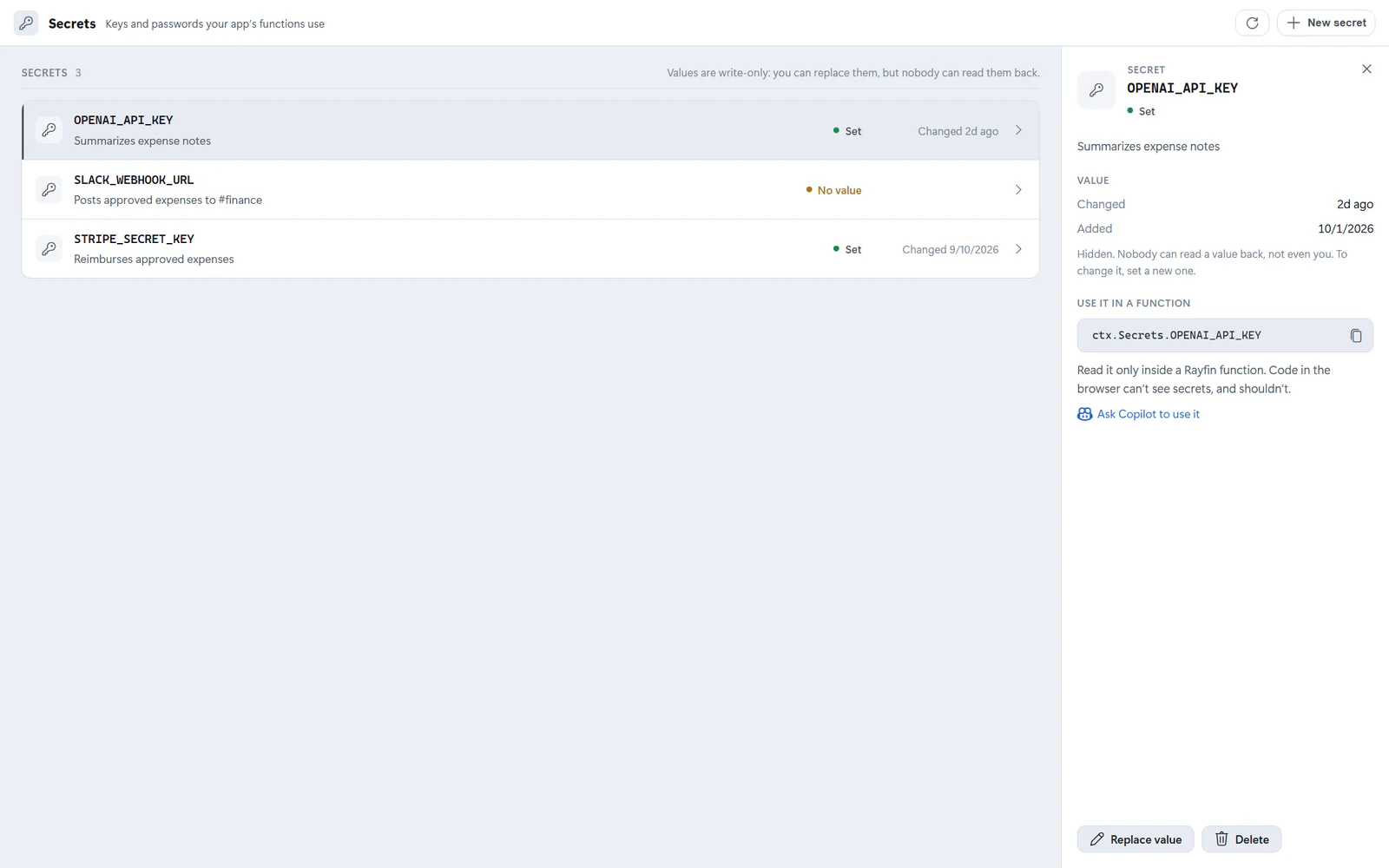
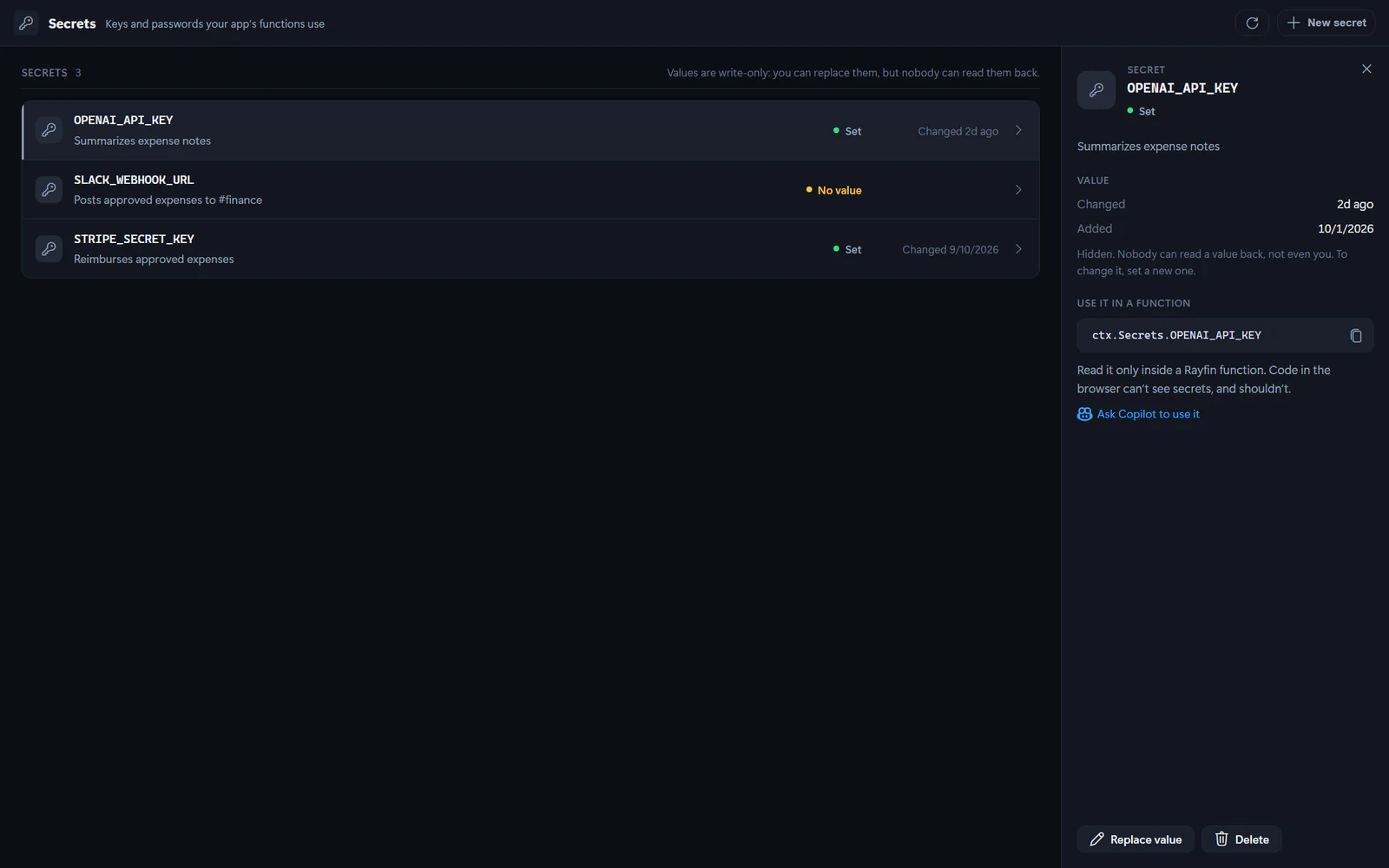
The tab lists each secret's name and description, whether the deployed app has a value for it, and when that value last changed. It never shows values: nobody can read a value back, not even you.
Add a secret
- Select New secret.
- Type a Name. Fabricator writes names in capital letters with underscores, such as
OPENAI_API_KEY. A name starts with a letter. - Paste the Value. To check what you pasted, select Show value (the eye button).
- Optionally, fill in What it’s for. Never put the value here.
- Select Add secret.
Fabricator runs rayfin secret set and hands it the value directly, so the value is stored with your deployed app and isn't saved in your project or in Fabricator. The Rayfin CLI adds the name and description to rayfin/rayfin.yml and updates the types that functions use, and Fabricator saves that change to git history as "Add secret: NAME".
Use a secret in a function
A function reads a secret by its name:
const apiKey = ctx.Secrets.OPENAI_API_KEYSelect a secret to see this line with a copy button. To have Copilot use the secret, select Ask Copilot to use it: Fabricator switches to Build and places a request about the secret in the chat composer, so you can add what the function should do before you send it. Copilot sees the secret's name, never its value.
Add a Rayfin function that summarizes an expense's notes with the OpenAI API, using the OPENAI_API_KEY secret. Show the summary on the expense details page, with a loading state while it runs.Read secrets only inside functions. Code that runs in the browser can't see secrets, and anything you put there is public. For how functions read secrets, see Secrets in functions in Rayfin's docs.
Replace a value
- Select the secret.
- Select Replace value.
- Paste the new value, then select Replace value.
Functions get the new value from their next run. Because nobody can read a value back, keep the original in a safe place, such as your password manager or the service that issued it.
Delete a secret
- Select the secret.
- Select Delete, then confirm Delete.
Fabricator removes the secret from your deployed app and from rayfin/rayfin.yml. Functions that read it stop working until you add it again.
Fix a secret that shows No value
A secret shows No value when rayfin/rayfin.yml lists it but the deployed app has no value for it, for example after you deploy the app to another Fabric workspace. Functions that read it fail.
- Select the secret.
- Select Set value.
- Paste its value, then select Set value.
A secret shows Not in rayfin.yml when the deployed app has a value for it but rayfin/rayfin.yml doesn't list it, so functions can't read it by name. To add it, set its value again.
Secrets in a team app
The pipeline of a team workspace deploys each app twice: the published app that everyone uses, and your preview. Each one keeps its own secrets, so your preview's functions read your preview's secrets, and the published app's functions read the published app's secrets.
For a team app, the Secrets tab lists the secrets of both under Published app and Your preview, but it can't add, replace or delete them yet. Until your preview deploys, Your preview shows "Not deployed yet. Your preview’s secrets show here once the pipeline deploys it." If a deploy fails, the tab still lists the secrets of the version that's live.
To add or change a team app's secret:
- In the Secrets tab, select Open in Fabric next to Published app or Your preview. The app opens in the Fabric portal.
- Add or change the secret there.
- In Fabricator, select Refresh at the top of the tab.
Ask Copilot to use it works the same as for other apps. When the secret shows Not in rayfin.yml, the request also asks Copilot to add it to rayfin/rayfin.yml, so functions can read it by name.
If the tab can't read your secrets
If the tab shows "Couldn’t read this app’s secrets", the message under it says why. When your Fabric sign-in has expired, open the account menu, select Refresh Fabric authentication, then select Try again. If it still fails, see Report a problem.
Skills
Choose the skills Copilot follows while it builds your Rayfin app, see what each one teaches, and add custom skills for your own guidance.
Deploy to Microsoft Fabric
Deploy your app to a Fabric workspace with one click, understand automatic redeploys after chat turns, and manage deployments across workspaces.