
Set up and sign in
Use Fabricator setup the first time you open it: check tools, sign in to GitHub Copilot and the Azure CLI, and enter the app.
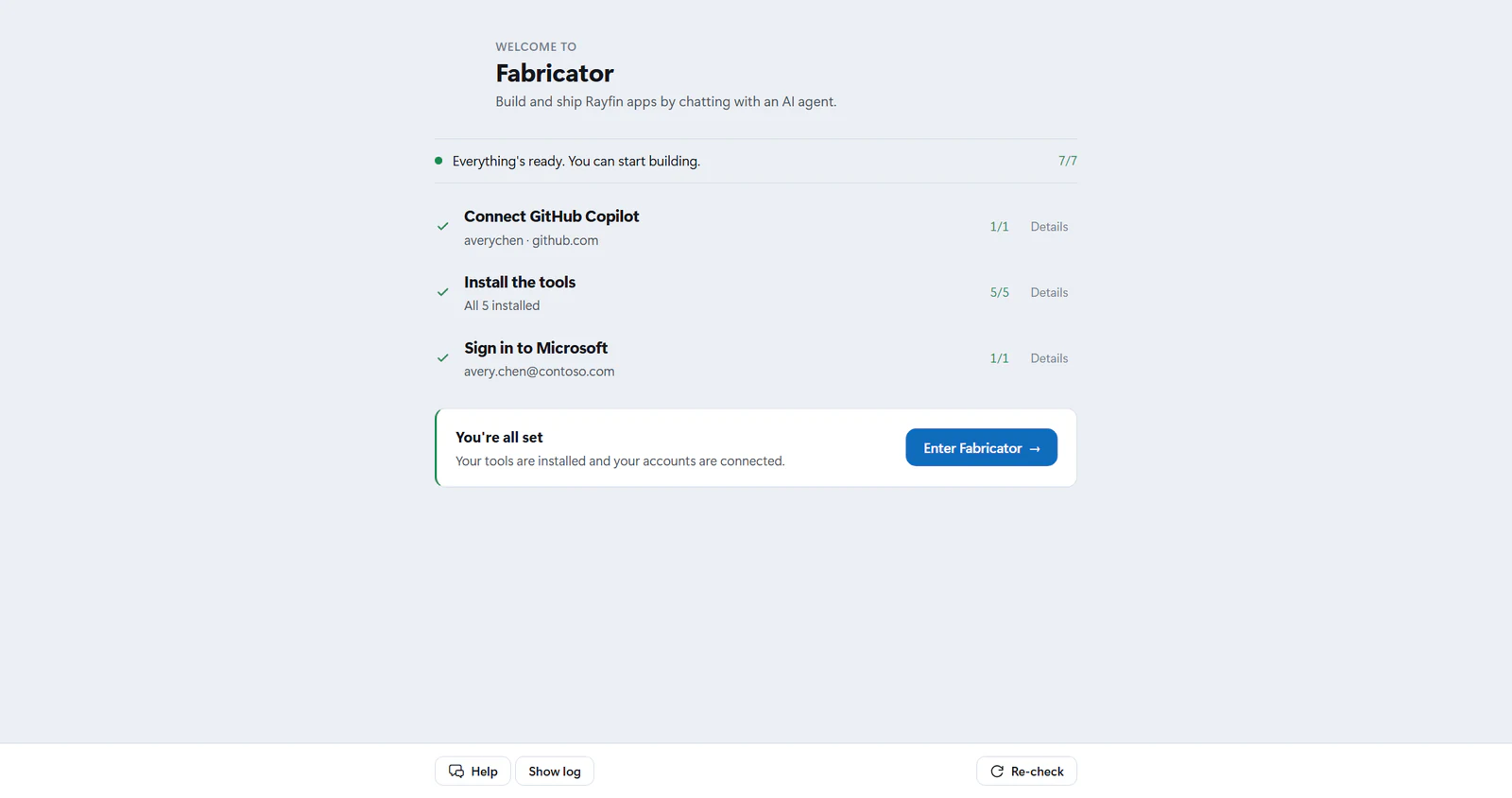
Setup prepares your computer for Fabricator the first time you open it. It has three steps: connect GitHub Copilot, install the tools, and sign in to Microsoft. Work down the page, then choose Enter Fabricator. If everything is already in place, Fabricator skips setup and opens straight to Home. After that, Fabricator opens on your work after a short welcome.
Step 1: Connect GitHub Copilot
GitHub Copilot is the AI agent that writes and edits your app. Fabricator uses its bundled Copilot engine, so nothing needs installing first — this is why it comes first.
Connecting Copilot also turns on Help, the assistant in the bar at the bottom of the screen. If anything in the next two steps goes wrong, Help reads what happened and explains it, so it's worth doing this before the rest.
For a standard GitHub account, leave GitHub host as github.com. For GitHub Enterprise Cloud with data residency, enter your Enterprise Cloud host, such as company.ghe.com or https://company.ghe.com. The field accepts github.com or a .ghe.com Enterprise Cloud host. GitHub Enterprise Server is not supported by this sign-in flow.
Choose Sign in, then finish the browser or device-code instructions shown by Fabricator.
Step 2: Install the tools
Fabricator uses a few free tools behind the scenes, and can install them for you.
| Tool | Required | Minimum | What it is used for |
|---|---|---|---|
| Node.js | Yes | 22.12 | Runs your app on this computer while you build it. |
| npm | Yes | Any installed version | Fetches the building blocks your app is made from. |
| Git | Yes | Any installed version | Keeps a history of your app so you can always go back. |
| Azure CLI | Yes | Any installed version | Signs you in to Microsoft so your app can be published. |
| GitHub CLI (gh) | No | Any installed version | Lets Fabricator work with your code on GitHub. |
For missing tools, choose Install on one row or Install all when it appears. On Windows, Fabricator tries winget. On macOS, it tries Homebrew. If that is not available or an install cannot run automatically, Fabricator opens the tool's official installer and shows Get it.
Installing downloads from the internet. If you are offline, the install buttons are disabled and setup says so; reconnect and choose Re-check.
After a tool install, setup can show:
"Almost there. Restart to finish setting up the tools that were just installed."
Choose Restart now, then return to setup. Use Re-check when you have installed or fixed a tool yourself.
When an install fails
Setup explains what went wrong in plain language instead of showing the installer's raw message — for example that another installation is already running, that Fabricator doesn't have permission, or that it couldn't reach the internet — along with what to do about it.
Choose Show details to see the original message, or Ask Help to have the assistant look into it. Help is available once step 1 is done.
Step 3: Sign in to Microsoft
Signing in to Microsoft lets Fabricator publish your app, find people when you share it, connect Fabric data, and set up team workspaces.
Choose Sign in, then complete az login in the browser. This row stays disabled until the Azure CLI is installed in step 2, and says so.
What each account is for
- GitHub Copilot writes code, edits files, answers chat prompts, and powers Help.
- The Azure CLI finds people to share with, connects Fabric data, and sets up team workspaces.
- Fabric sign-in is separate. Fabricator asks you to Sign in to Fabric later when it needs the project's Rayfin CLI to list workspaces, deploy, share, or refresh Fabric credentials.
You can see and change all of these later, including adding more Fabric and Azure CLI accounts. See Manage your accounts.
Sign out and re-check
When an account is signed in, its row offers Sign out. Copilot sign-out removes the current Copilot account from the bundled engine. Azure sign-out runs az logout for the account in use and verifies that it's gone. Any other accounts the Azure CLI is signed in to stay signed in, and one of them becomes the one in use.
After signing out, installing a tool, or changing account state, choose Re-check.
Enter Fabricator
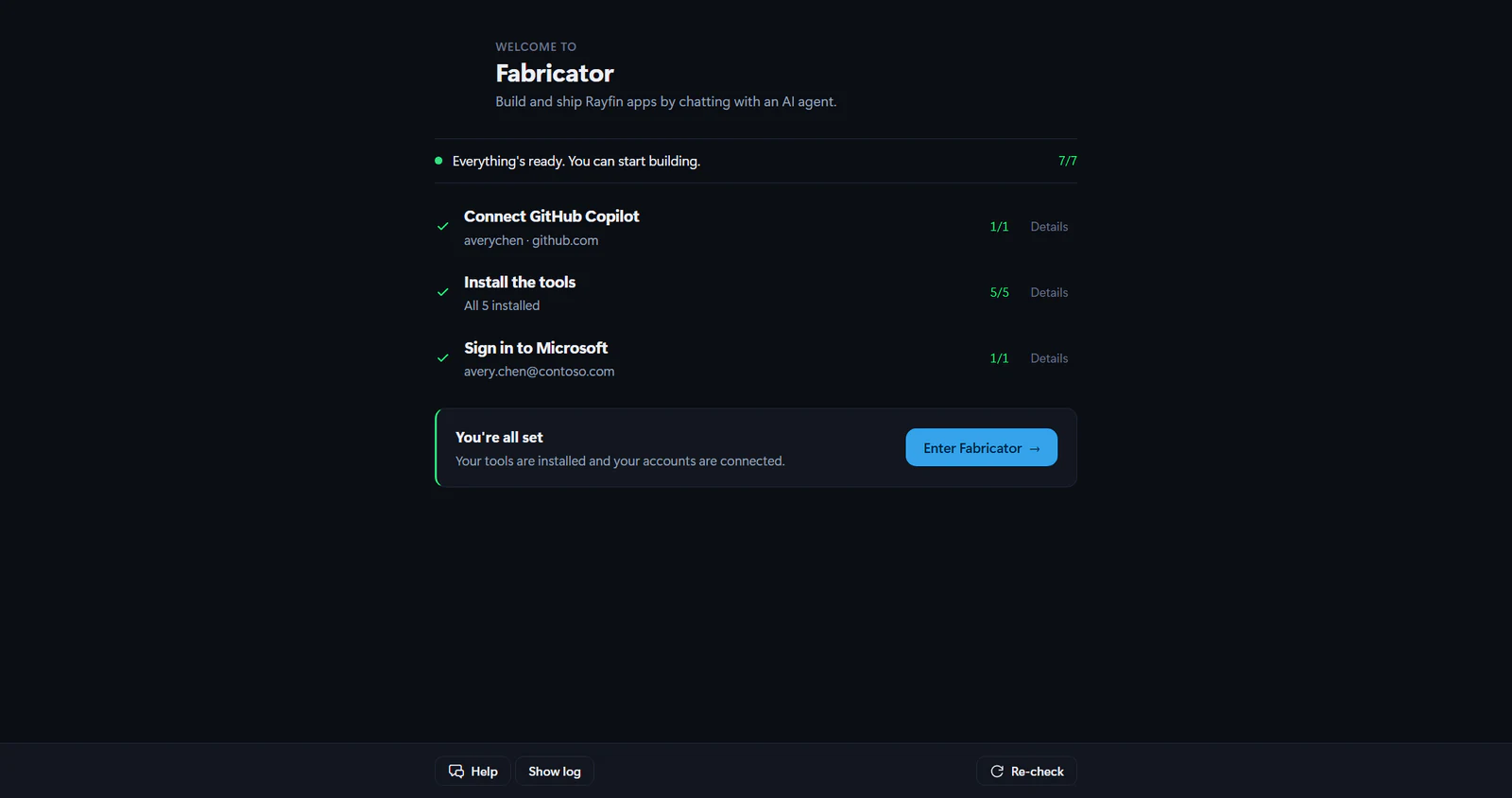
A step you have finished collapses to a single line with a check mark, so a completed setup is three short rows rather than a long list. Select Details on any of them to open it again.
When required tools are installed and both setup accounts are verified, a You're all set block appears at the end of the page with Enter Fabricator. Choose it to open Home.
Later launches
Once setup has passed, Fabricator skips setup. Each launch shows a short welcome screen while your work loads behind it: Ray swims in and welcomes you back, and the line under the Fabricator logo names the project that's opening. The welcome fades away once your project is ready, usually within a second or two, and you're back where you left off.
Meanwhile, Fabricator checks your tools and accounts in the background. Until the check finishes, the account control in the app bar shows a spinner instead of Sign in to Fabric.
If the check finds a problem, a bar under the app bar says what it is, for example "Not signed in to GitHub Copilot." Select Manage accounts to sign in, or Review setup to fix a missing tool. The bar doesn't stop you working; close it with its ✕ button.
To open setup yourself, open Settings and select Open setup. Until every check passes, setup offers Back to Fabricator to return without finishing.
If setup does not pass, see Setup and sign-in troubleshooting.