
Deploy to Microsoft Fabric
Deploy your app to a Fabric workspace with one click, understand automatic redeploys after chat turns, and manage deployments across workspaces.
Deploying publishes the app in your current project to Microsoft Fabric. Fabricator runs the project's own rayfin up, records the deployment that Rayfin creates, and then loads the app in the preview.
Rayfin apps deploy as Fabric apps in a Fabric workspace. For Rayfin's platform details, see Deploy Fabric apps. Deployment uses your Fabric capacity; see Rayfin pricing and capacity notes.
Sign in to Fabric
Fabricator uses the Rayfin CLI credentials for Fabric deployment. You can sign in from the account control in the top-right app bar:
- Select Sign in to Fabric.
- Finish the browser sign-in that Rayfin opens.
- Return to Fabricator and deploy again if needed.
The deployments picker also prompts you when Fabricator needs Fabric credentials to list workspaces. If credentials expire, it may show "Sign in to Microsoft Fabric to list your workspaces."
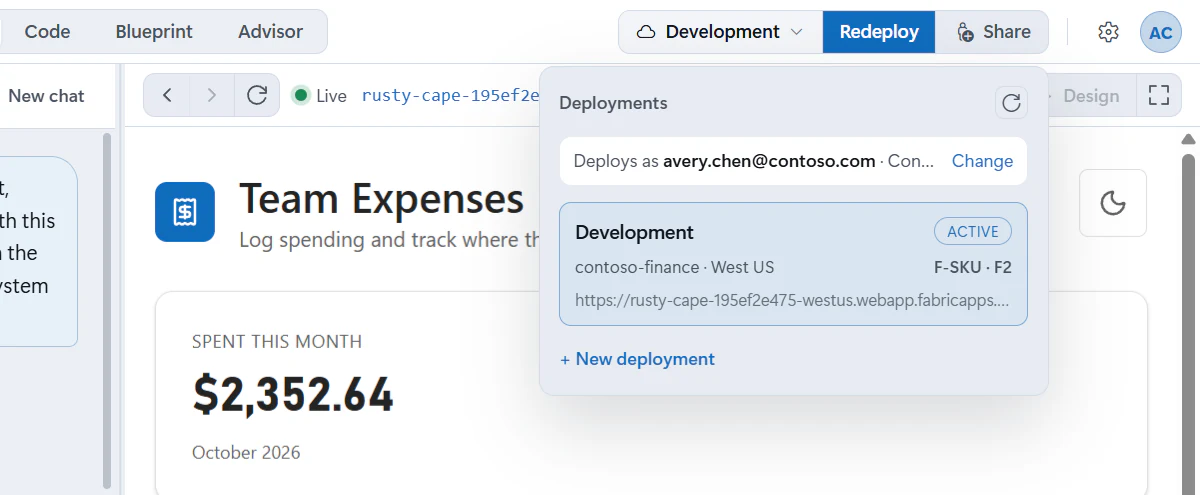
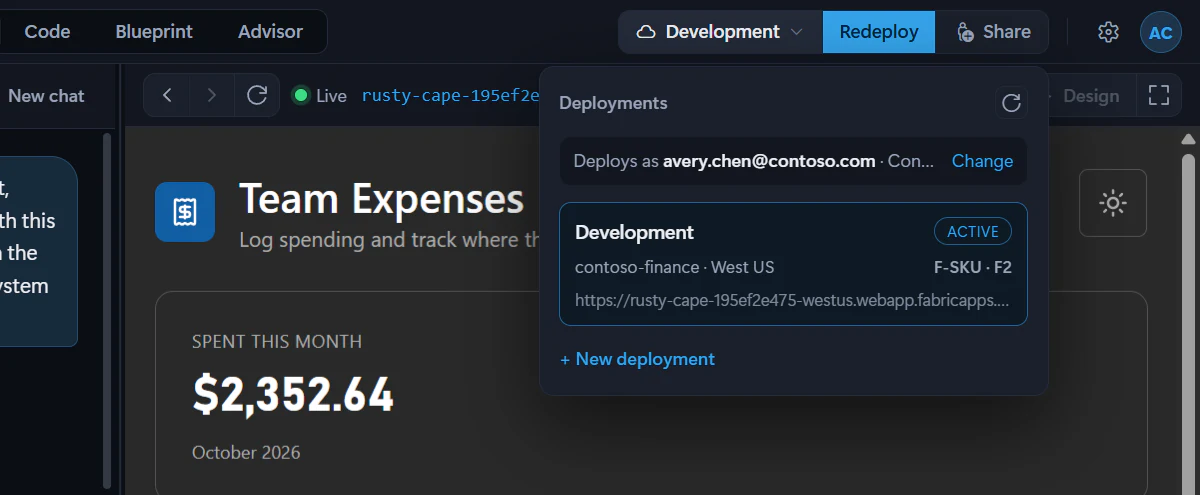
You can stay signed in to more than one Fabric account, for example one per organization, and choose which one deploys. The Deployments panel names the account that deploys, such as "Deploys as alice@contoso.com · Contoso". Select Change to switch accounts. See Manage your accounts.
Deploy for the first time
New projects ask for their first deployment right after you name them. In Deploy your app, pick a workspace and choose Deploy app; see Build your first app. Chat stays locked until the app has its first Fabric deployment.
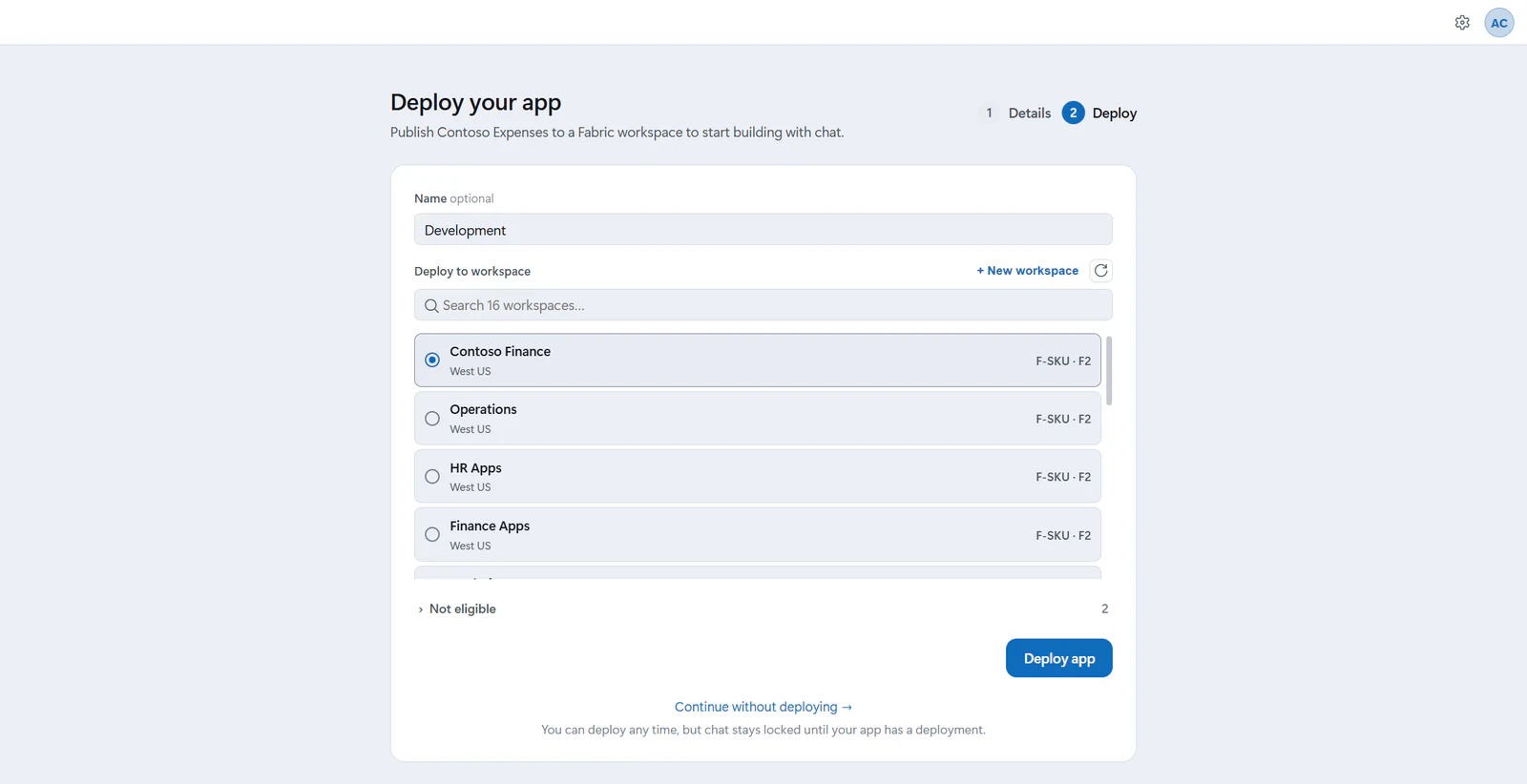
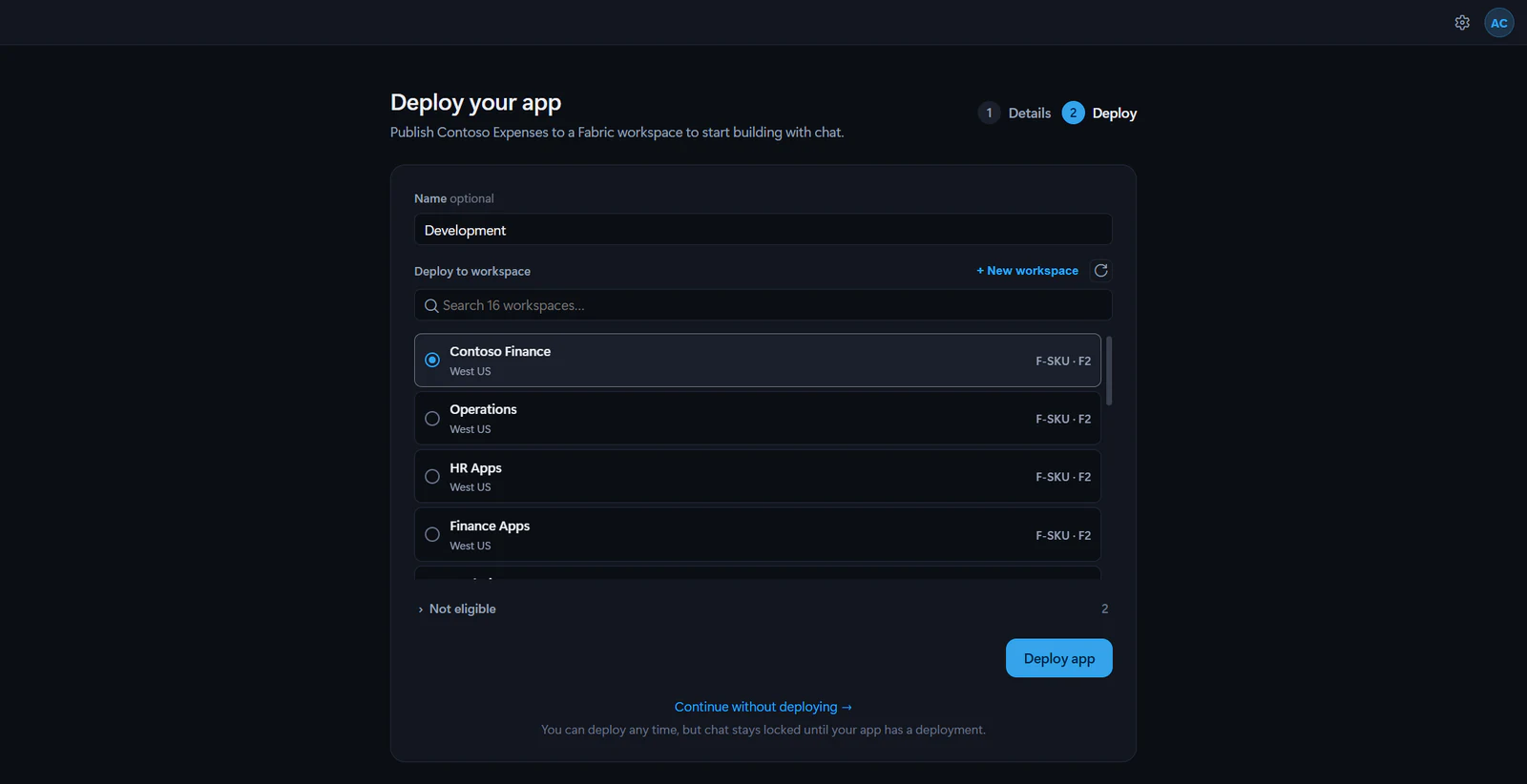
If you chose Continue without deploying →, or opened a project that has never been deployed, deploy it from the app bar:
- Open the project.
- In the app bar, select Deploy.
- In New deployment, enter a friendly Name if you want one, such as
Production. - Under Deploy to workspace, choose a Fabric workspace.
- Select Create & deploy.
Eligible workspaces are on a Fabric F-SKU capacity, a Power BI Premium P-SKU capacity, or a dedicated capacity whose SKU Fabricator cannot see. Workspaces without an eligible capacity are listed under Not eligible with the reason. If Fabricator cannot find an eligible workspace, it offers Start a free trial and Buy a capacity links.
When your apps already use some eligible workspaces, the list starts with up to five of them under Recent, the workspace of the app you deployed or opened most recently first. The rest follow under Other workspaces.
To create a workspace from Fabricator, select + New workspace, choose an active F-SKU or P-SKU capacity, enter a name, and select Create workspace. The new workspace uses the selected capacity's region.
Same-name warning
Before a first deploy into a workspace, Fabricator checks whether that workspace already has a Rayfin app with the same item name from rayfin/rayfin.yml.
If it finds one, you see a warning that deploying there would replace that app. Choose another workspace, or select Replace it anyway to confirm.
What happens during deploy
While a deploy runs, the preview shows the deploy screen. Ray talks you through it, and below him a list shows the steps the deploy has been through, the one in progress, and the steps still to come.
With Rayfin CLI 1.35 or newer, the steps come from the CLI's own progress reports, and the step in progress shows the CLI's words for what it's doing. A typical deploy goes through:
- Connecting to Fabric
- Finding your workspace
- Setting up your app in Fabric
- Applying settings
- Updating your database, for apps that store data
- Building and uploading your app
- Going live
Some deploys have other steps, such as Installing packages when the project's packages are missing, Getting Fabric capacity ready, Setting up file storage, Connecting your data sources or Deploying your functions. If the CLI reports a step Fabricator doesn't know, the list shows it in the CLI's own words.
Projects on Rayfin CLI 1.34 or older show Connecting to Fabric, Preparing deployment, Building your app, Packaging assets, Uploading to Fabric and Going live instead. To get the detailed steps, update the project's Rayfin. See Keep Rayfin up to date.
If Fabric asks you to sign in again, the deploy waits for you to finish in your browser. If you've sent Ray away, the Fabricator logo takes his place.
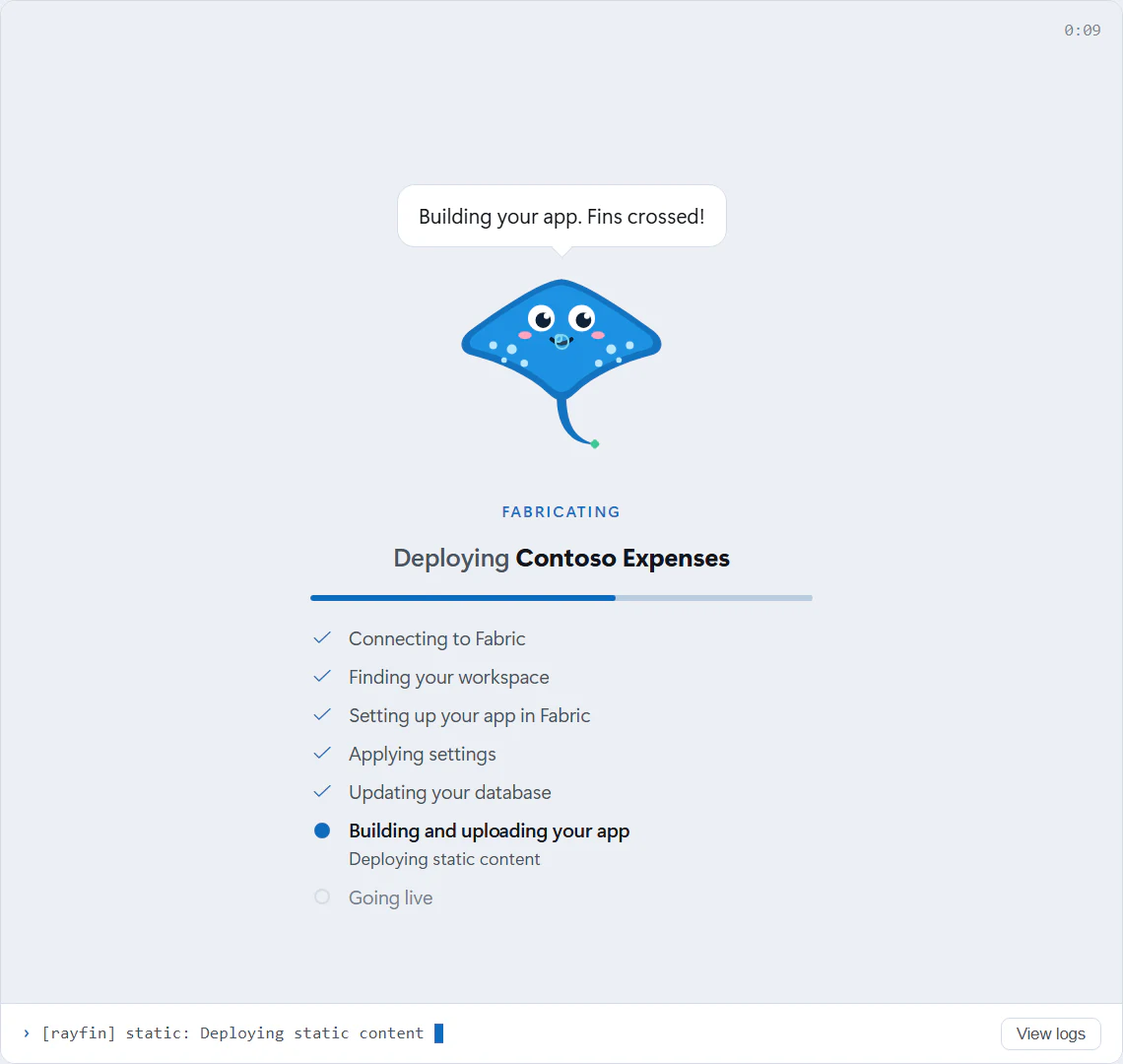
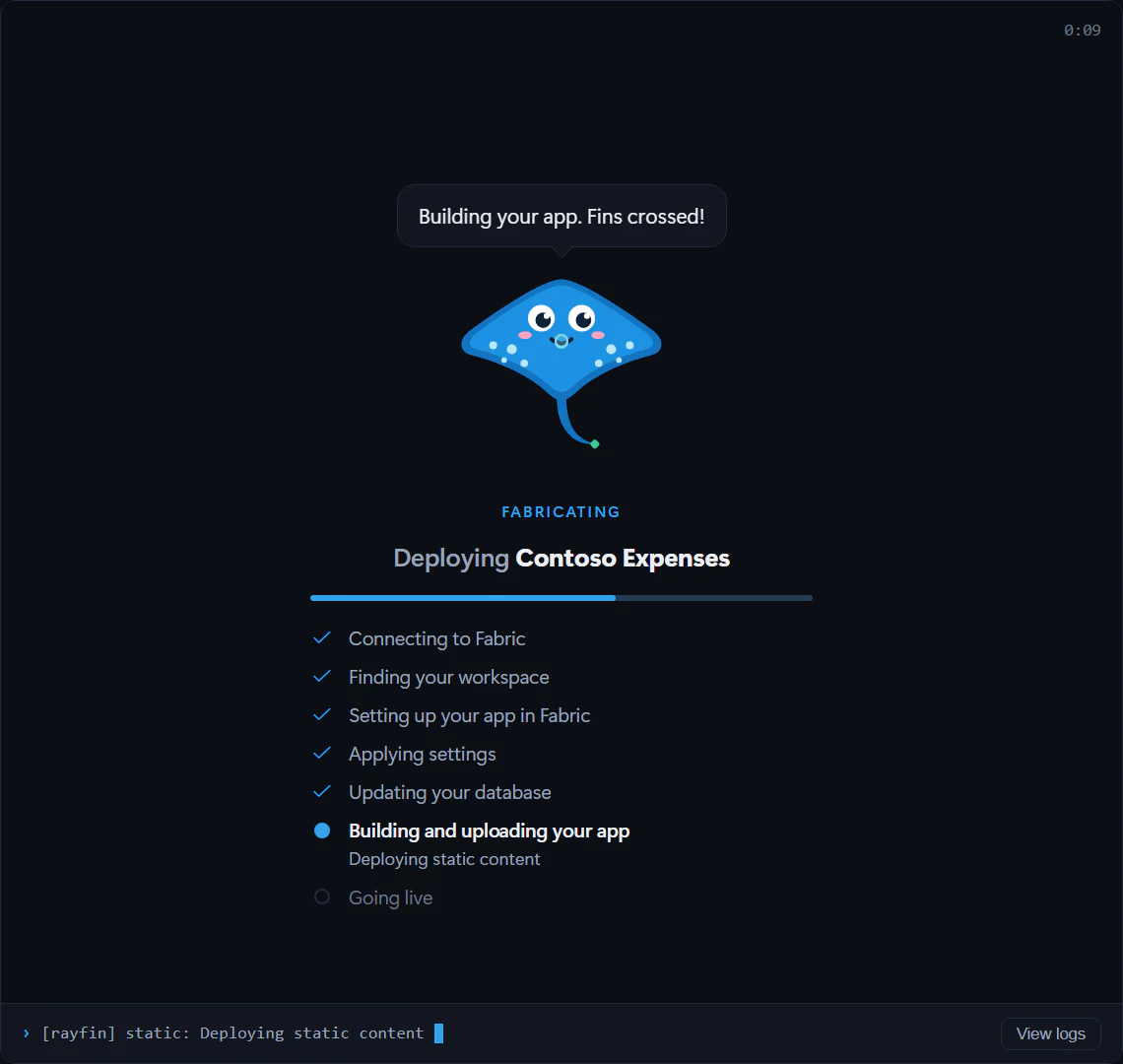
During the deploy you can select View logs in the deploy screen. If the deploy fails, Ray stays above the preview and offers Find out why, which opens Help to explain what went wrong, and View logs for the deploy's output. See A deploy failed.
Redeploy changes
After the first successful deployment, the primary button changes to Redeploy. Select it to run rayfin up again for the active deployment.
Fabricator also redeploys automatically after a successful Copilot turn when the project has undeployed changes. This includes edits that Copilot already committed to the project's git history. It does not redeploy when:
- the Copilot turn failed or was cancelled,
- the Deploy manually experiment is set to Manual deploy,
- there are no content changes since the last deployed revision,
- a team workspace pipeline owns the app's deployment,
- Fabricator cannot check whether changes are undeployed.
If change detection fails, Fabricator shows "Could not check for undeployed changes." followed by "Use Redeploy to publish your changes." Use Redeploy to publish explicitly.
When Fabricator switches to another deployment or cannot identify the deployed git baseline, the next successful turn deploys once to establish a new baseline.
Deploy manually
Warning
Deploy manually is an experiment. Turn it on in Settings → Experiments. It may change or be removed in a future update.
Turn on Deploy manually to make several changes in chat before you deploy. Chat turns no longer deploy your app: your changes stay on this computer until you select Redeploy. Because the deployed app falls behind your code, the preview shows your app from a local Vite server whenever the app is open, not only while Copilot is working.
- Open Settings, then expand Experiments.
- Turn on Deploy manually.
- Open your app. The status bar shows Manual deploy, and the preview shows your local app, marked Local.
- Keep chatting. Changes show in the preview as Copilot makes them.
- When you're ready, select Redeploy in the app bar. The preview shows the deploy's progress, then your local app again.
To go back to deploying after each turn for a while, choose Auto deploy in the status bar, and Manual deploy to switch back. The experiment stays on, so the switch stays in the status bar. Turning Deploy manually on again starts you in Manual deploy.
While the status bar shows Manual deploy:
- The local preview uses your deployed app's backend. Frontend changes show as Copilot makes them, but changes to data, permissions or functions work only after you select Redeploy. Fabricator asks Copilot to tell you when a change needs a deploy.
- Design works on the local preview between turns, so you can queue visual changes and send them to Copilot without deploying first. It turns off when a turn starts, because Copilot's changes show in the preview as it makes them. The Fabric view works on the deployed app, so it's unavailable.
- The local preview stops when you switch to another app or close Fabricator, and the app you open next gets its own. If you switch your app to another deployment, its local preview starts again with that deployment's settings.
- If the project has no local Vite installation, there's no local preview. The preview keeps showing the deployed app, without your latest changes, until you select Redeploy.
- Team apps aren't affected. They still save to GitHub after each turn, and the team pipeline deploys your preview.
Switching to Auto deploy, or turning Deploy manually off, closes the local preview and doesn't deploy anything. Your changes are still on this computer: the next successful chat turn deploys them, or you can select Redeploy.
Work with multiple deployments
In the app bar, select the deployment control, marked with a cloud icon, to open Deployments. From there you can:
- see the active deployment,
- see which Fabric account deploys, and select Change to use another,
- select + New deployment to deploy the same project to another workspace,
- select Switch on another recorded deployment,
- rename a deployment by selecting its name,
- select Refresh deployments to reload the list,
- select Share after a deployment exists.
Switching uses Rayfin's recorded deployments for the project. Each deployment points to a Fabric workspace and may show its workspace region and capacity SKU.
Fabricator does not show a per-deployment delete action in this panel.
Refresh Fabric authentication
If deployment repeatedly fails even though you recently signed in, use Refresh Fabric authentication from the account menu. When a deploy fails because Fabric wants you to sign in again, the notice above the preview offers it too. Fabricator runs the selected project's rayfin logout, then rayfin login, verifies the new Fabric credential, and does not redeploy automatically. After it succeeds, select Redeploy.
See setup and sign-in troubleshooting and deploy troubleshooting for recovery steps.
Redirect URIs for live preview
When a chat turn starts, Fabricator may run the project's local Vite preview on an allowed localhost port. If the normal sign-in-compatible ports are busy and you choose another port, Fabricator can add that origin to services.auth.allowedRedirectUris in rayfin/rayfin.yml and push the runtime settings to Fabric without uploading the app. This keeps Fabric sign-in working in the live preview. The next normal deploy publishes the app code.
Secrets
Add API keys, passwords and connection strings that your app's Rayfin functions read on the server, without putting their values in your code.
Share your app
Give people in your Microsoft Entra tenant access to a deployed app by email, including Build access to semantic models the app reads from other workspaces.