
Live preview
Use the preview pane to watch local changes during Copilot turns, check the deployed app, switch Fabric shell views, and handle busy preview ports.
The preview pane shows your Rayfin app while you build. During a Copilot turn, Fabricator may show a local Vite preview so frontend changes appear as they are made. After the turn finishes, the pane returns to the deployed app.
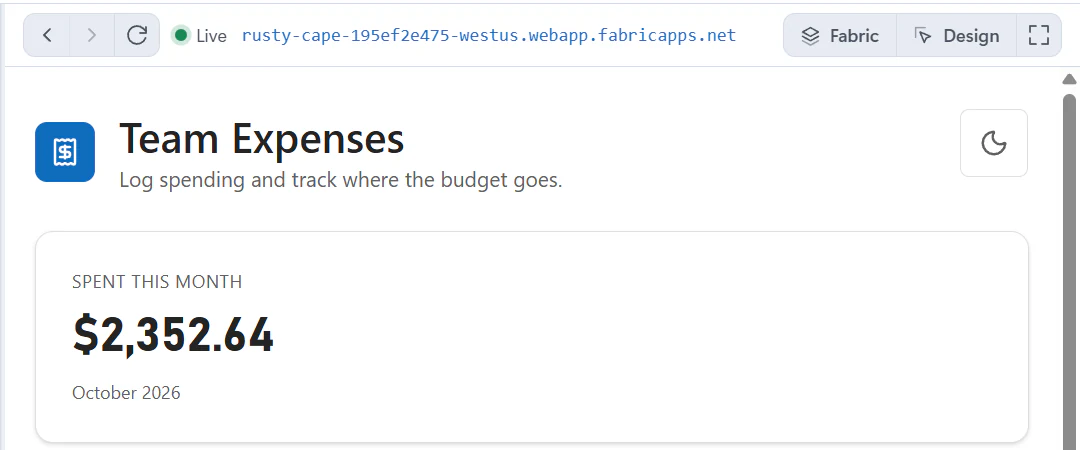
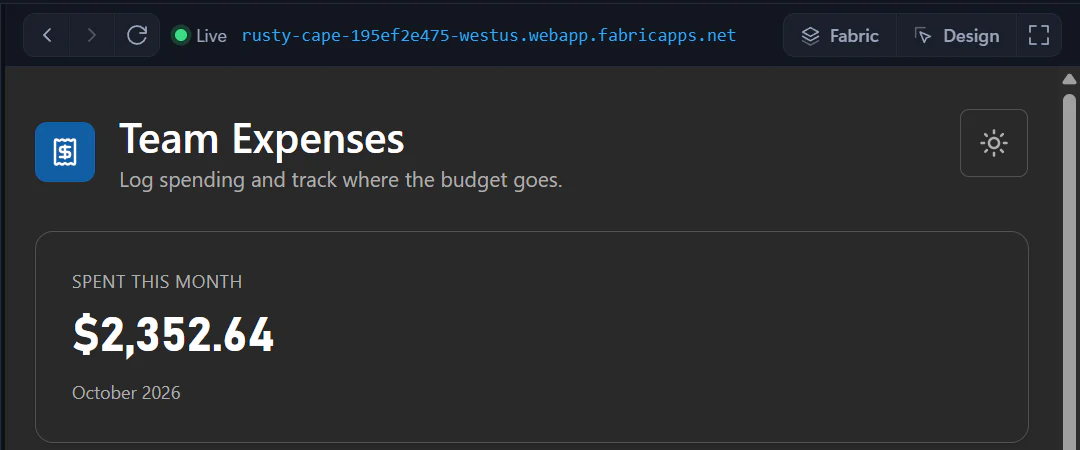
What the preview shows
Fabricator uses two preview sources:
- Local appears while Copilot is working, when the project has Vite installed under
node_modules. Fabricator starts the project's own local Vite server directly. It does not require annpm run devscript. - Live appears when the deployed app is loaded. After a successful turn, Fabricator redeploys eligible changes and reloads the deployed preview.
The local preview uses the existing Fabric deployment's VITE_* configuration. It does not start a local Fabric backend. If the project has no local Vite installation, Fabricator keeps showing the deployed preview instead.
With the Deploy manually experiment set to Manual deploy, the local preview runs whenever the app is open, not only during a turn.
Team app previews are handled by the team pipeline and local preview behavior. See Work on a team app.
Use the toolbar
The preview toolbar gives you browser-like controls and Fabricator-specific tools:
- Back, Forward and Reload navigate the preview history.
- The status label shows Live, Local, Deploying…, Deploy failed or Not deployed. For a team app it names the deployment you're looking at instead of Live: My preview or Published.
- The URL button opens the current preview URL in your default browser.
- Fabric switches between the direct app view and the app embedded in the Fabric portal shell, when the deployment has a portal link. If the Fabric shell is unavailable, the button is disabled.
- Design opens Design mode. On the local preview, it's available only between turns, with Manual deploy selected.
- Focus hides the chat and gives the preview more room. Exit focus shows the chat again.
When Design mode is on, the extra preview-width buttons are Desktop, Tablet and Phone. Desktop fills the pane, Tablet previews at 820 CSS pixels, and Phone previews at 390 CSS pixels.
Note
Browser devtools are available from the native preview's webview, not as a separate toolbar button in the current PreviewPane source.
Zoom and display scale
The preview tracks Fabricator's UI scale and the browser surface's pixel ratio. That matters when you move Fabricator between monitors or change display scaling: the native preview is resized and repositioned to stay aligned with its pane.
In Design mode, device widths account for Fabricator's UI scale, so Tablet and Phone still represent the app's CSS width instead of the physical monitor width.
Sign in inside the preview
Signing in to the deployed app is separate from Fabricator's Fabric CLI session. The app preview has its own browser session and cookies. If the app opens a Fabric or Microsoft Entra sign-in popup, Fabricator lets the preview browser handle that popup.
In apps created from the Universal App template, the local preview signs you in automatically when the app uses sign-in. It uses the Fabric account that Fabricator deploys with, so a chat turn doesn't stop at the app's sign-in page. The deployed app doesn't include this and still asks you to sign in. Rayfin describes how it works in Local automatic sign-in.
Older apps need Rayfin 1.36 or newer for this. See Rayfin versions. To add it to an older app, paste this prompt:
Make the local preview sign me in automatically with my Rayfin CLI account. Add @microsoft/rayfin-local-dev at the same version as the app's other Rayfin packages, register rayfinLocalDev({ autoLogin: true }) in vite.config.ts, and set externalEntraExchange: true under services.auth.fabric in rayfin/rayfin.yml. When the app starts in development without a saved session, get the local session token and sign in with signInWithBrokeredToken(). Keep that code behind import.meta.env.DEV with a dynamic import so production builds don't include it.Refreshing Fabricator's Fabric authentication affects Rayfin CLI deployment credentials. It does not sign the preview browser in or out.
When every preview port is busy
The live local preview must use a localhost port your app accepts for sign-in. Fabricator first tries the registered http://localhost:N ports from rayfin/rayfin.yml. If all registered ports are busy, you see a dialog titled like localhost:5173 is in use.
Depending on the situation, the dialog can offer:
- Use port N. Fabricator adds
http://localhost:Ntorayfin/rayfin.yml. If the app is already deployed, it also pushes the sign-in setting to Fabric without rebuilding the app. - a Stop node.exe-style button. Fabricator stops the specific process it identified, then uses the original port. The dialog warns that unsaved work in that process is lost.
- Skip live preview. Fabricator skips the local Vite preview for this turn. You can keep chatting, and the deployed preview takes over after the turn.
If switching ports would require a push while Copilot is already working, the dialog explains that it cannot happen during the turn and asks you to skip for now.
For recovery steps, see Preview problems, especially the "All preview ports are busy" section.
Prompt ideas
Copy prompts for starting Rayfin apps, adding data and access rules, building semantic-model dashboards, improving visuals, and fixing issues.
Design mode
Use Design mode to select elements in the preview, queue visual changes, preview themes, and send the changes to Copilot as one request.