
Use your own API keys
Use Claude, GPT, Grok and Gemini models with your own Anthropic, OpenAI, xAI or Google API key in chat, the Advisor and Design, next to your GitHub Copilot models.
With your own API keys, Fabricator's model pickers also offer models from other providers, next to the models in your GitHub Copilot plan:
| Provider | Models | Billed to |
|---|---|---|
| Anthropic | Claude models | Your Anthropic account |
| OpenAI | GPT models | Your OpenAI account |
| xAI | Grok models | Your xAI account |
| Gemini and Gemma models | The Google Cloud project your key belongs to |
You still sign in to GitHub Copilot. Copilot runs the conversation on your computer: it reads and edits your project the same way, and it calls the provider with your key whenever you choose one of its models.
Add a key
- Open Model providers in Accounts: in a model picker, select Manage API keys… at the bottom, or Add models with your API keys… in its list of models. You can also select Manage API keys in Settings.
- Find the provider and select Add key.
- Paste your key into the box. To create one, select Get a key, which opens the provider's key page in your browser.
- Select Save key.
Fabricator checks the key with the provider before it keeps it. If the provider turns it down, you see a message such as "OpenAI didn't accept this key. Check that you copied all of it." and nothing is saved.
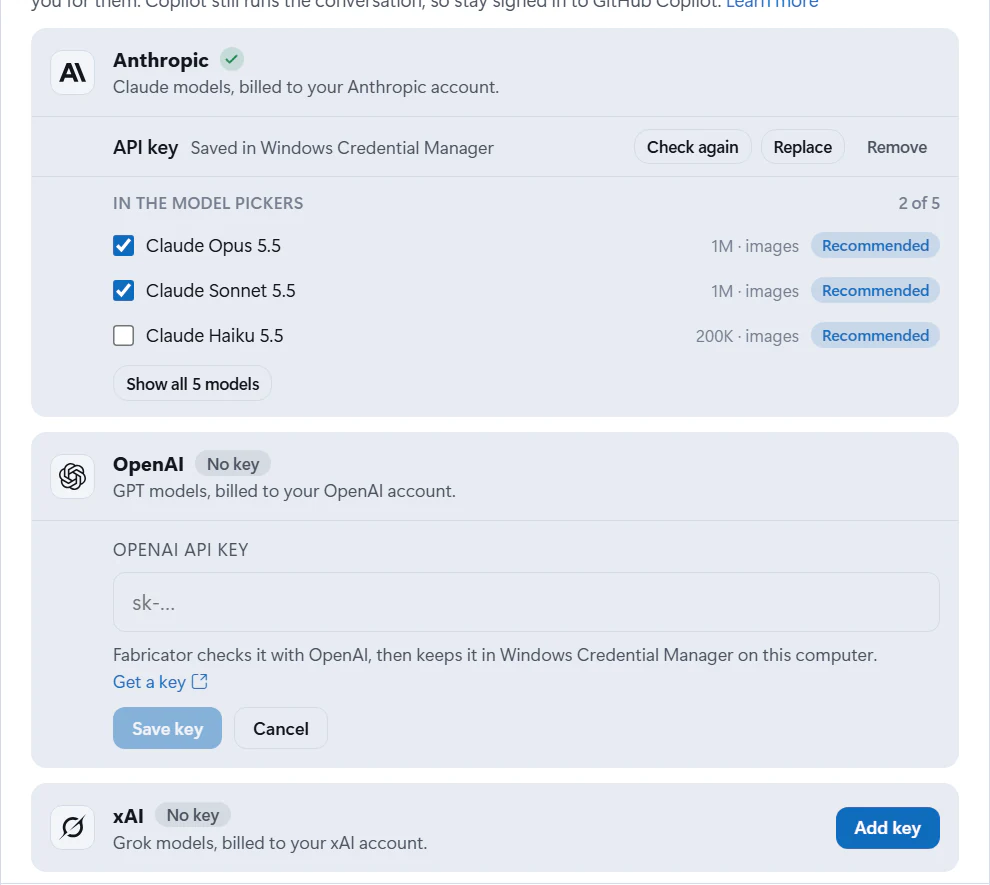
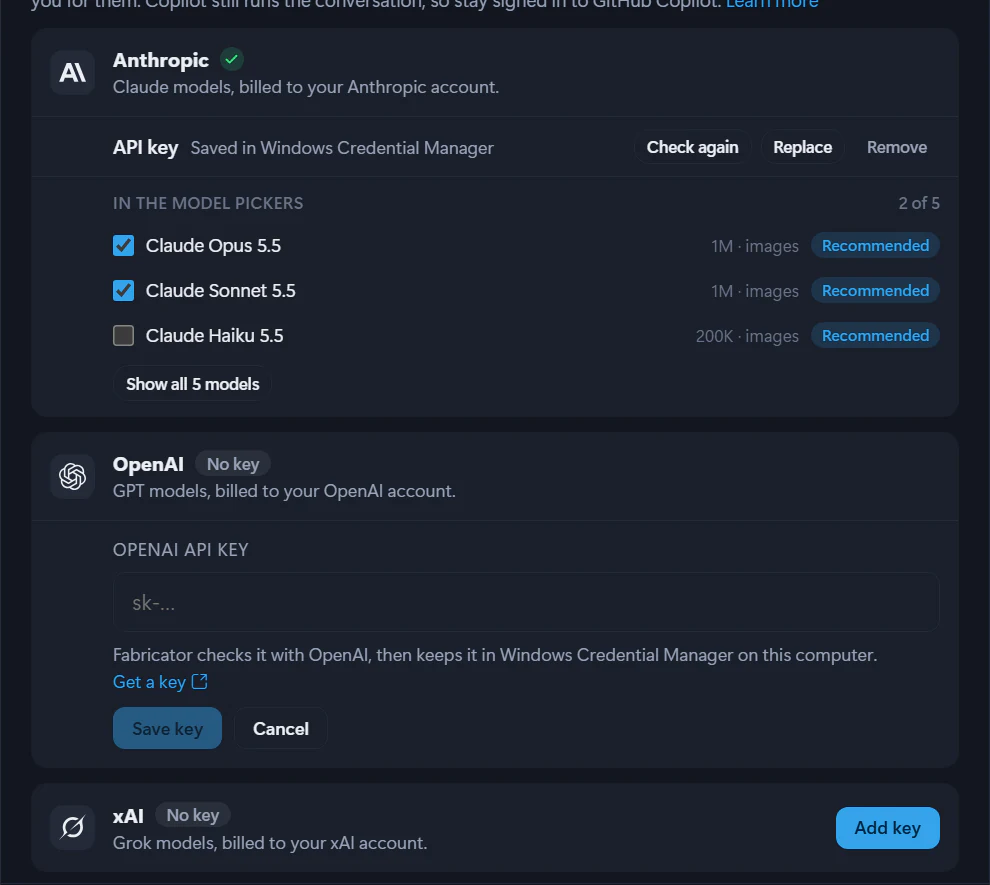
When the key works, the card shows API key and where it's kept, such as "Saved in Windows Credential Manager". On macOS, keys are kept in your Keychain.
Choose which models the pickers show
Under In the model pickers, each card lists the provider's models that your key can use,
with each model's context window, and images when it can read images. The models marked
Recommended are turned on when you add a key. A model marked Retiring is one the
provider is phasing out.
- Turn a model on or off with its checkbox. The pickers update right away.
- Select Show all to see every model your key can use.
- Select Check again to check the saved key with the provider and update its list of models.
Pick one of your models
- In the chat composer, open the model pill.
- Turn off Auto, then select Model.
- Choose a model under Your API keys. The provider's name is next to each one.
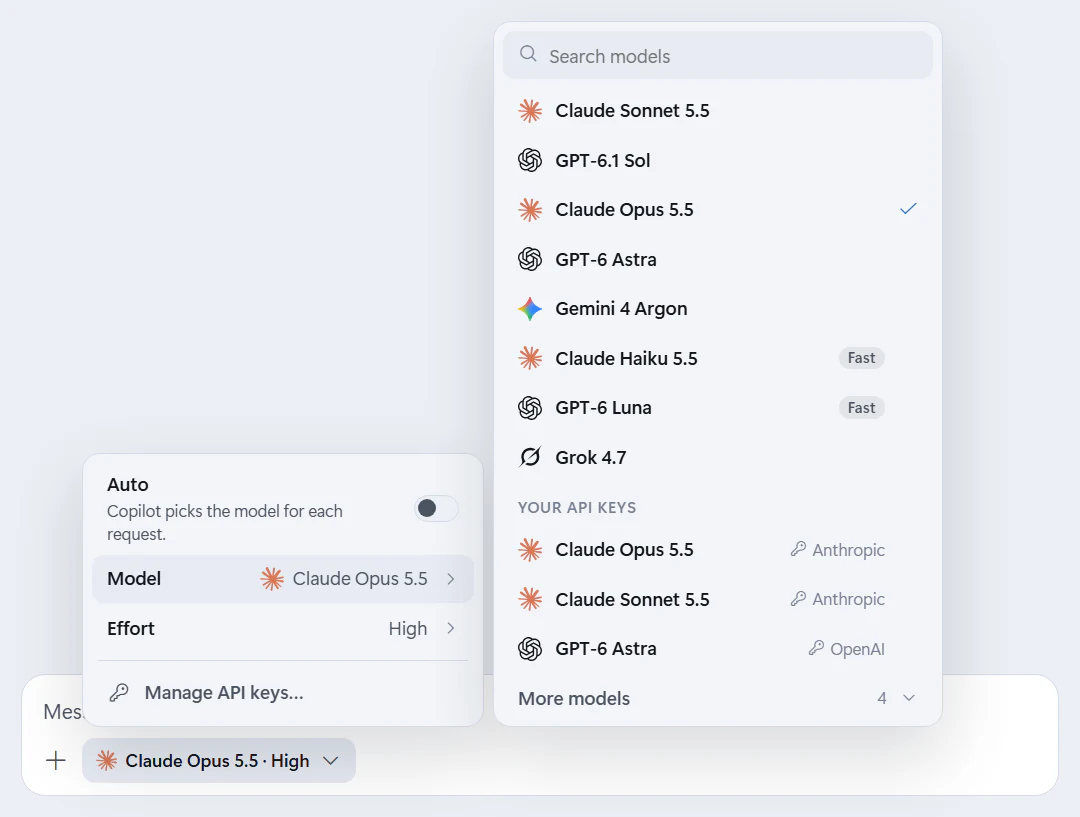
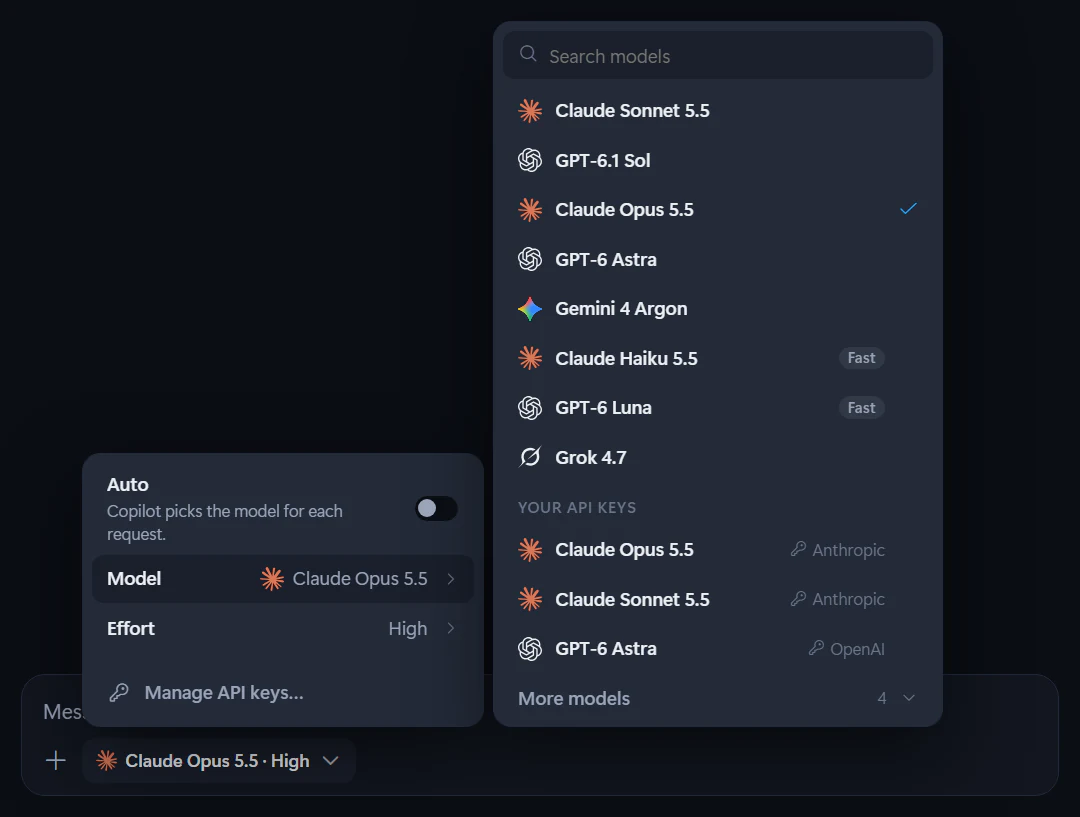
The pill shows a key next to a model that runs on your own key. To change keys or models, select Manage API keys… at the bottom of the picker.
The same picker is in the Advisor bar and the Design bar. In Design, Auto means Fabricator picks a fast Copilot model for Options and Polish; it never picks a model on your own key by itself. See Choose a model and reasoning effort.
You can switch models at any time, also in the middle of a conversation. The next message uses the model you chose.
Models that can't read images
Some models can't read images. While one of them is selected, Image in the composer's + menu says that the model can't read images. If you already attached images, Fabricator holds the message until you remove them or choose a model that can read images.
Replace or remove a key
- To use a different key, select Replace, paste the new key, and select Replace key. Fabricator keeps the old key if the provider doesn't accept the new one.
- To remove a key, select Remove, then select Remove again to confirm. Its models leave the pickers. A chat, Advisor or Design set to one of them asks you to choose another model.
Plans and limits
The provider bills your account for what its models use, and its plan sets your limits. Fabricator's requests are large: each one carries Fabricator's instructions, tools and parts of your app.
- Some plans cap the tokens a key can use a minute, so a smaller plan may turn these requests down. If that happens, Fabricator says, for example, "This request is bigger than your OpenAI plan allows per minute." Upgrade your plan with the provider, or choose another model.
- Google's free tier allows only a few requests a minute and a day. If Fabricator says "Google is limiting how often your key can be used", wait and try again, or turn on billing for your key's Google Cloud project.
For other errors from a provider, see A model on your own API key shows an error.
Your keys and privacy
- Fabricator keeps your keys in Windows Credential Manager, or in your Keychain on macOS. They never go into Fabricator's settings, logs or diagnostics, and Fabricator never shows a saved key.
- When you use one of your models, Copilot on your computer sends your request and the project context it needs straight to the provider, under the provider's terms for your account.
- Requests to OpenAI, xAI and Google pass through a relay on your computer that adapts them to what each provider's API accepts: for example, it leaves out a reasoning effort a model doesn't take. Nothing leaves your computer through it except the request to that provider. While Fabricator runs, the relay keeps the signatures Gemini adds to its tool calls in memory, to send them back with the conversation.
See Privacy.
Chat with Copilot
Use Fabricator's built-in GitHub Copilot agent to change your app, review its work log and diffs, steer a turn, and recover sign-in.
Prompt ideas
Copy prompts for starting Rayfin apps, adding data and access rules, building semantic-model dashboards, improving visuals, and fixing issues.