
Search Fabricator
Press Ctrl+K to find a project, an action, a docs page or a file in the open project, or to ask Help a question and read the answer right where you typed it.
Search finds anything in Fabricator from one box: your projects, the things you can do, the documentation, and the files in the open project. It also asks Help, and shows the answer right in the box.
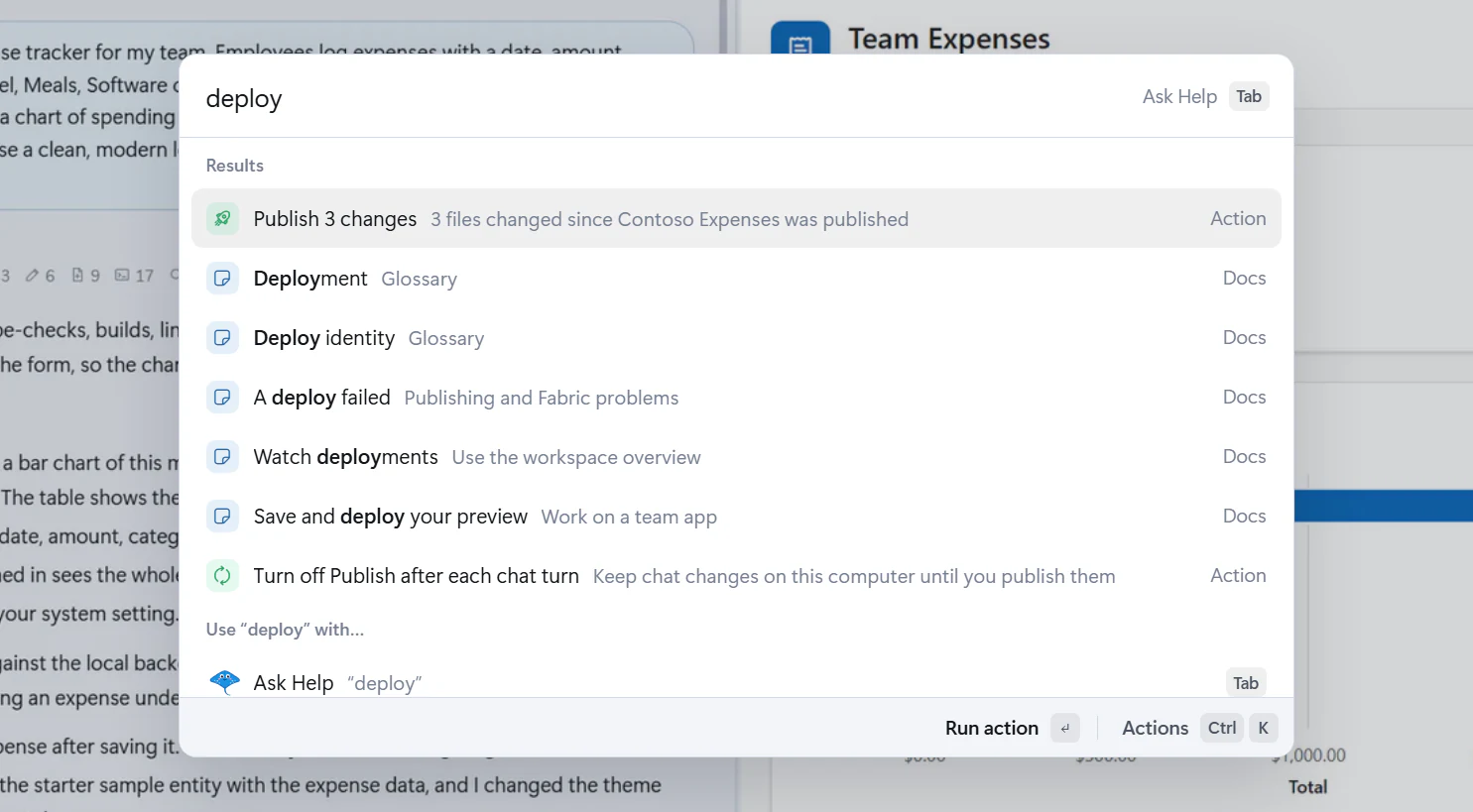
Open Search
- Press
Ctrl+K(Cmd+Kon macOS), or in the app bar, select Search. - Type what you're looking for.
- Press the arrow keys to choose a result, and press
Enterto open it.
The bar at the bottom of Search says what Enter does with the result you're on, such as Run action or Open in browser. To close Search, press Esc or select outside it.
Search opens on Home, in a project and in a workspace overview. It doesn't open over a dialog or Help, or while you create, clone or migrate a project.
Note
When you're working in your app in the preview, the preview receives your keys. Select anywhere else in Fabricator, then press Ctrl+K.
If you come back within a minute and a half, Search opens where you left it, with your last search selected so you can type over it. After that, it starts over.
What Search finds
| Results | What opening one does |
|---|---|
| Projects | Opens the project, as it would from Home. A project whose folder is missing opens its management dialog instead. |
| Fabric apps | Opens the app in your browser, or its page in Fabric until Fabricator knows its address. They're the apps the App gallery found with your Azure sign-in; Search reads them the first time you open it, when the gallery hasn't yet. |
| Team workspaces | Opens the workspace overview. They show when Team workspaces is turned on in Settings → Experiments. |
| Actions | Does what the matching control does: switch to Build, Code, Blueprint or Advisor, open History, Skills or Secrets, publish, Share, turn Publish after each chat turn on or off, change the theme or text size, open Settings, manage accounts or API keys, open setup, and more. |
| Documentation | Opens the page, or the section of it, in your browser. |
| Files | Opens the file in Code. Search lists the open project's files once its packages are ready, leaving out what git ignores. |
Search ranks everything in one list, best match first, and shows a few of each kind. The end of each row says what the result is: Project, Fabric app, Workspace, Action, Docs or File. Under the results, Use “…” with… offers to ask Help, or to search only projects, Fabric apps, actions, the docs or files, with how many of each match.
You don't have to type whole words. The start of a word works, and so do the first letters of several: np finds New project. Search also knows the names some actions used to have: once the open app is published, deploy finds the action that publishes it, such as Publish or Publish 3 changes, and deploy after each chat turn finds Turn on Publish after each chat turn or Turn off Publish after each chat turn. Search also remembers what you open, so the things you use most rise to the top.
Before you type
With nothing typed, Search offers:
- Suggestions for what's going on, such as Publish 3 changes when your published app doesn't have your latest changes yet, or Review 2 Advisor issues.
- Recent projects. A green dot marks the one that's open.
- Search: Search projects, Search Fabric apps, Search actions, Search the docs and Search files.
- Ask Help: questions to ask. After a publish fails, the first one is Find out why publishing failed.
Search one kind of thing
To search only projects, actions, the docs or files, select Search projects, Search actions, Search the docs or Search files, or press Ctrl+1 to Ctrl+4 (Cmd+1 to Cmd+4 on macOS). To search only Fabric apps, select Search Fabric apps or press Ctrl+6 (Cmd+6). What you typed comes along. To go back to everything, press Esc, select the back arrow, or press Backspace in the empty box.
Search files is available once a project is open and its packages are ready. Search Fabric apps is available once Fabricator has found your apps in Fabric.
Do more with a result
Press Ctrl+K (Cmd+K on macOS) in Search, or select Actions at the bottom, to see everything the result you're on can do. Type to narrow the list, then press Enter. Press Esc to put it away.
| Result | Actions |
|---|---|
| Projects | Open project, Open in VS Code, Copy path and Manage project |
| Fabric apps | Open app, Open in Fabric, Open in Fabricator for an app a project on this computer publishes, and Copy link. Until Fabricator knows an app's address, Open in Fabric takes the place of Open app. |
| Team workspaces | Open overview and Copy repository |
| Actions | Run action |
| Documentation | Open in browser and Copy link |
| Files | Open in Code and Copy path |
| Help's answer | Open in Help, Copy answer, Stop answering or New conversation, the steps Help suggests, and the pages it used |
Open in VS Code opens the project's folder in VS Code. If VS Code isn't installed, Fabricator opens the folder instead.
Ask Help from Search
Ask Help the way you would in Help itself, without leaving what you're doing.
- Type your question, such as "why did my last publish fail?".
- Press
Tab. When what you typed reads as a question, Ask Help is also the first result, soEnterasks too.Ctrl+Enter(Cmd+Enteron macOS) asks Help whatever you typed. - Read the answer as it arrives. Help shows what it checked, the answer, and buttons for the steps it suggests. To scroll it, press
↑and↓, orPage UpandPage Down. - To follow up, type your next question and press
Enter.
To carry on in the full-screen Help, select Open in Help or press Ctrl+J (Cmd+J on macOS). It's the same conversation, so nothing is lost, even while an answer is still arriving. To stop an answer, press Esc. Copy answer and New conversation are under Actions.
Search and Help share one conversation. With nothing typed, Continue your Help conversation picks up where it left off. See Ask Help.
Note
Help needs you to be signed in to GitHub Copilot, or models of your own. If you have neither, asking Help from Search opens the same dialog as Help does, which offers to sign you in, open the documentation, or start a bug report.
Keyboard shortcuts
| Key | What it does |
|---|---|
Ctrl+K | Open Search. In Search, show what the result can do |
↑ ↓ | Choose a result. Reading Help's answer, scroll it |
Enter | Do what the bar at the bottom says. In Help, ask the question |
Tab | Ask Help what you typed |
Ctrl+Enter | Ask Help what you typed, from anywhere in Search |
Ctrl+1 to Ctrl+5 | Search only projects, actions, the docs or files, or ask Help |
Ctrl+6 | Search only Fabric apps |
Ctrl+J | Carry on in the full-screen Help |
Esc | Put away actions, stop an answer, go back, clear the box, then close Search |
On macOS, press Cmd instead of Ctrl.
Tour the workbench
Find Home, Search, project tabs, chat, preview, code, Blueprint, Advisor, the publish control, accounts, settings, the status bar and Ray.
Create and manage projects
Start a new Rayfin app, open or clone an existing one, export a project for someone else or import one, switch between projects, and rename or remove them.