
Point & Edit
Point at parts of your app in the live preview, clip a screenshot or draw on one, and tell Copilot in chat what to change.
Point & Edit lets you show Copilot what you mean instead of describing where it is. Turn it on, click the parts of your app you want to change, and say in chat what should change. Clicking doesn't edit your app on the spot: Copilot makes the change once you say what it is. Each one you pick goes with your next message, numbered, with a picture of it and the details Copilot needs to find it in your code. Before Fabricator 1.49, it was called Touch Up.
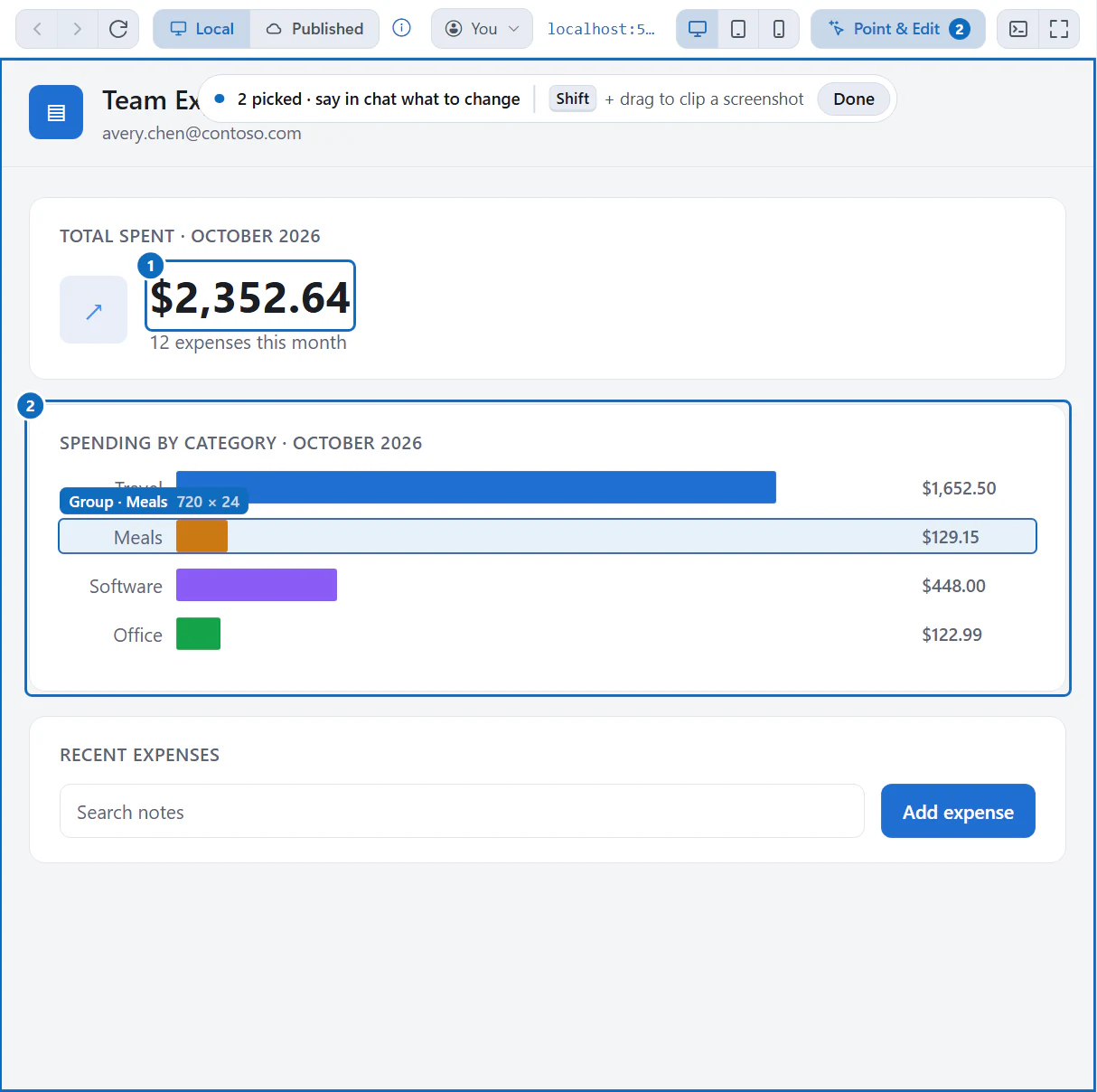
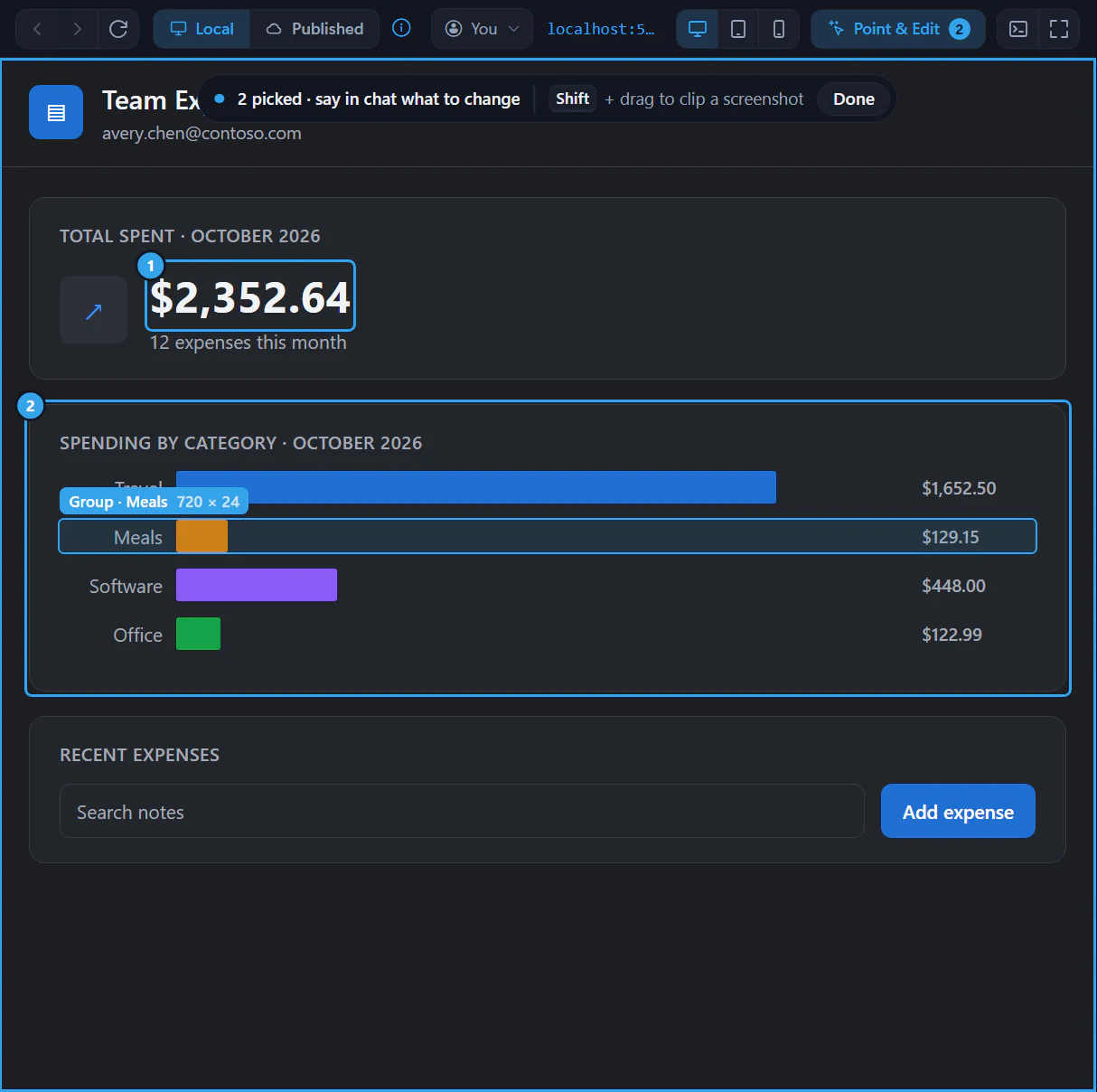
Turn on Point & Edit
- Open the Build view and wait for your app to appear in the preview.
- In the preview toolbar, select Point & Edit, or press Ctrl+Shift+C (⌘+Shift+C on macOS). The shortcut works while the preview or the rest of Fabricator has the keyboard.
A frame appears around the preview, and a hint at the top says what to do next. Rest the pointer on Point & Edit to see its shortcuts.
Point & Edit works on your app on this computer and on your published app, in the direct view and in the Fabric view. While your published app is publishing, it waits until publishing is done. Turning it on doesn't change your app: Copilot does, in the chat turn that follows.
Pick parts of your app
Move the pointer over your app. Point & Edit outlines the element under it and names it, such as Button · Add expense or Card · Spending by category, with its size.
- Click an element to pick it. It keeps its outline and gets a number, and it appears as a chip in the chat composer with a picture of it.
- Click a picked element again to drop it.
- Pick up to 8 elements at a time.
- Hold Alt to use your app as usual while Point & Edit is on, for example to open a menu before you pick something in it.
To finish, press Esc, select Done in the hint, select Point & Edit again or press the shortcut again. Your picks stay in the composer.
Clip a screenshot
Hold Shift and drag across any part of your app to clip it. The rest of the preview dims while you drag, and the clip's size shows beside it. When you let go, the clip flashes and goes into the chat composer as a screenshot for your next message. To let go of a clip while you drag, press Esc.
Clip when what you mean isn't one element: the space between two cards, how a whole section lines up, or something you want to circle.
Say what to change
Your picks wait as numbered chips in the chat composer, and the keyboard moves there, so you can type straight away. While picks wait, the composer glows, and a ripple runs around it each time you pick something, so the next step is easy to spot even when your app looks like Fabricator. Refer to picks by their numbers:
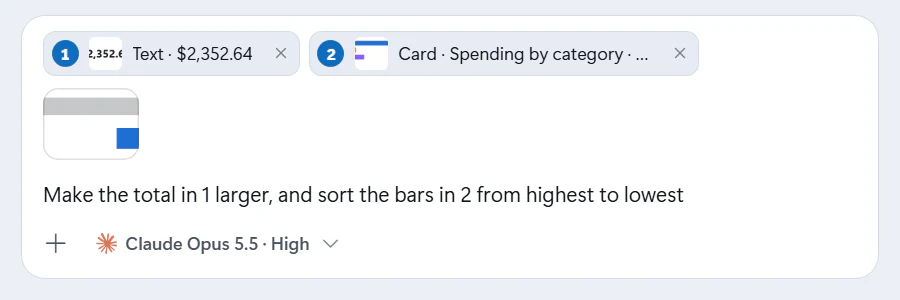
Make the total in 1 larger, and sort the bars in 2 from highest to lowest.- Rest the pointer on a chip to outline its element in the preview again.
- Select × on a chip to drop that pick.
- Press Enter without typing anything to have Copilot polish the picks on its own: it makes them look and work better, in keeping with the rest of your app.
When you send, Copilot gets your words and, for each pick, its picture, the page it's on, its text, size, classes and styles, a short copy of its HTML, and the files and lines most likely to render it. Your message shows the picks as chips instead of all that detail. Picking ends when the message goes.
While Copilot is working on another request, type what to change and press Enter: your picks go with your message straight away.
Draw on a screenshot
Click a picture in the chat composer to see it large and draw on it: a clip, an image you pasted or added, or the picture on a pick's chip.
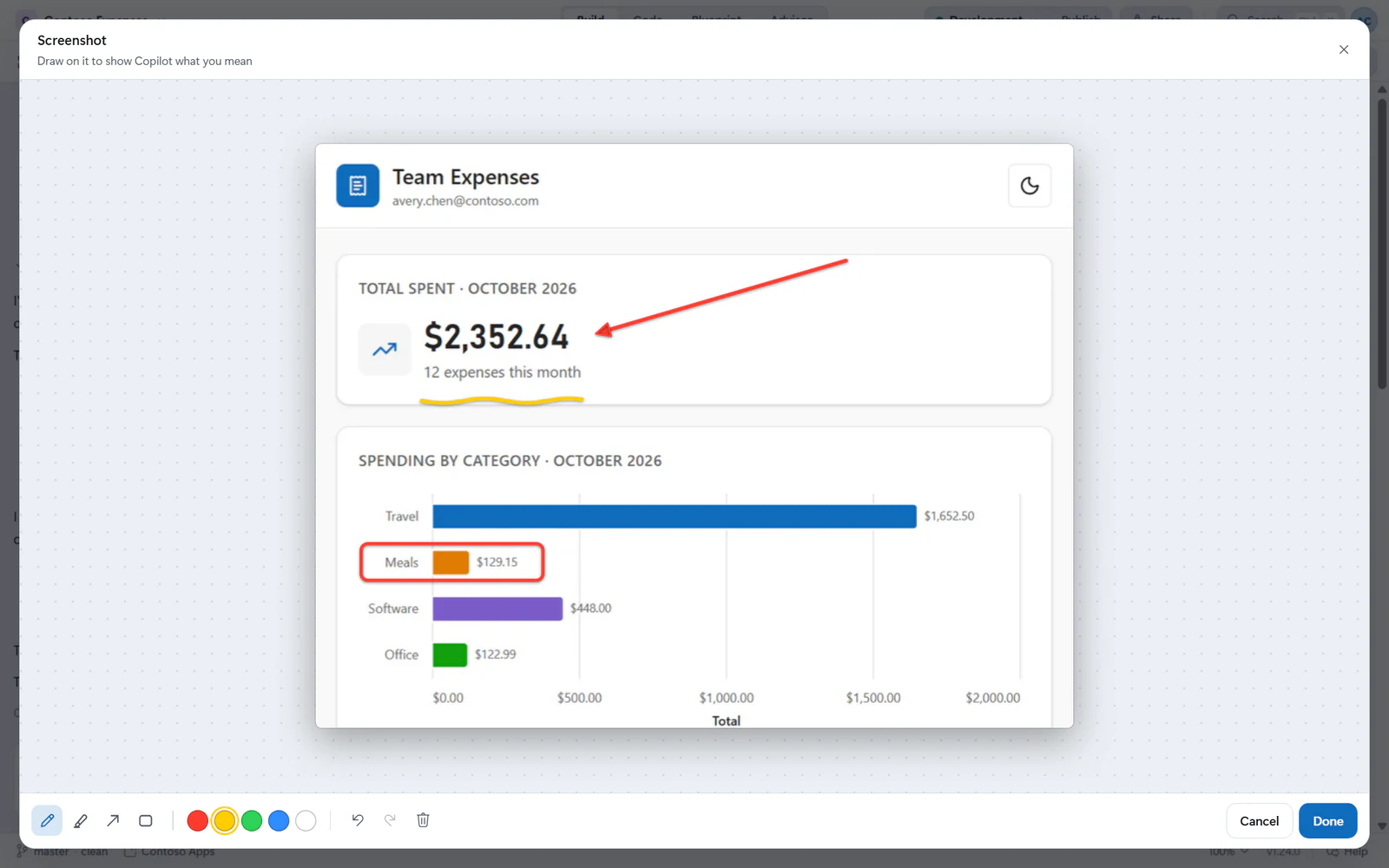
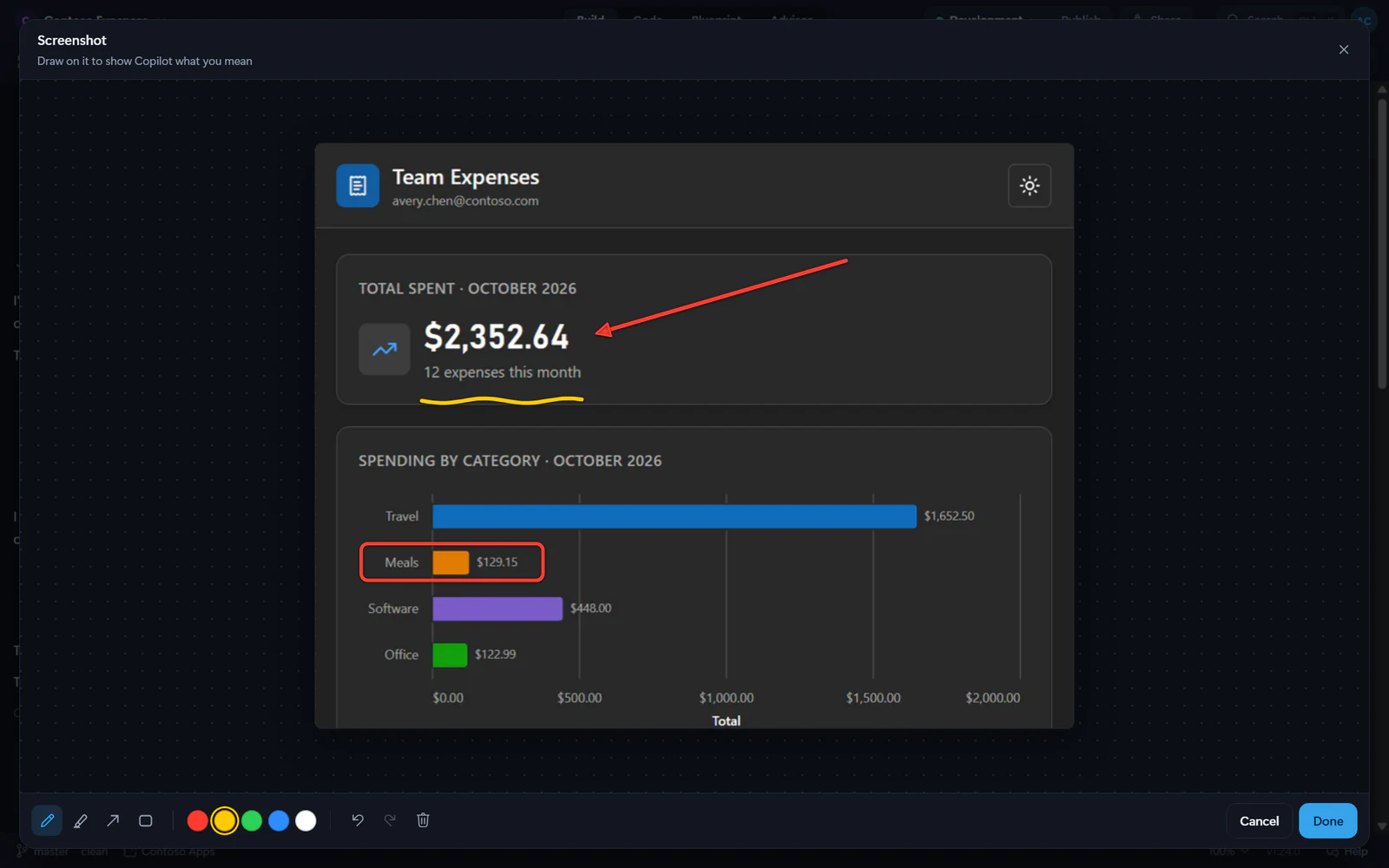
- Choose Pen (P), Highlighter (H), Arrow (A) or Box (B).
- Choose a color, or press 1 to 5.
- Hold Shift while you draw an arrow to keep it to 45-degree steps, or a box to keep it square.
- Use Undo (Ctrl+Z), Redo (Ctrl+Shift+Z) and Clear the drawing to change your mind. On macOS, use ⌘ instead of Ctrl.
- Select Done or press Enter to keep the drawing. The drawn picture takes the place of the original, at its full size.
- Select Cancel to close it without the drawing. With something drawn, Esc asks you to press it again before it throws the drawing away.
See sent pictures large
In the chat, click a picture a message sent to see it large. Use the arrow keys, or the arrows beside it, to step through that message's pictures, and click a picture that's bigger than the window to see it at full size. Press Esc to close it.
Change the preview width
Use the preview toolbar's width buttons to see how your app responds on other screens:
- Desktop fills the pane.
- Tablet previews at 820 CSS pixels.
- Phone previews at 390 by 844 CSS pixels, inside a phone outline. In a shorter pane, the phone's screen gets shorter so the whole phone fits.
Point & Edit works at every width.
Develop on this computer
Run your apps and their backend on this computer while you build, and publish them to Microsoft Fabric when you choose.
Code and history
Browse project files and preview images, open the folder in VS Code, inspect diffs, and restore earlier git snapshots from Fabricator's Code view.