
Research with Fabric IQ and Work IQ
Turn on chat plugins that look things up, read-only: Fabric IQ for Power BI reports and semantic models, and Work IQ, an experiment, for your Microsoft 365 email, meetings and files.
Plugins let chat look things up in your organization's data while it builds your app. There are two, both Microsoft services that AI agents connect to through the Model Context Protocol (MCP), and chat uses them only to read:
- Fabric IQ reads the Power BI reports and semantic models you can open.
- Work IQ reads your Microsoft 365 email, meetings, files, Teams messages and people. It's an experiment, so you add it to chat first. See Add Work IQ.
Use them when your app should match something that already exists: the measures in a Power BI report, the columns a team tracks in a spreadsheet, or what a meeting decided.
You can add other MCP servers to Plugins too. See Connect MCP servers.
Look at the Sales Analytics report in Power BI. Build a dashboard page with this quarter's total
sales, number of orders and average order value, and a chart of sales by region. Use the same
measure definitions as the report, so the numbers match it.
What each one can look up
| Fabric IQ | Work IQ | |
|---|---|---|
| What it reads | Power BI reports and semantic models: their pages, tables, measures and values, and the results of DAX queries | Your email, calendar and meetings, OneDrive and SharePoint files, Teams chats and channels, and people |
| What it can't do | Change anything: Fabric IQ only reads | Send, change or delete anything: Fabricator gives chat only the Work IQ tools that read |
| Whose access | The Azure CLI's account. It reads only what that account can open, and row-level security still applies | Yours. It reads only what your account can read |
| What you need | The Azure CLI, signed in with an account that can open the reports, in a Fabric tenant whose home region supports all Fabric workloads | The Work IQ experiment, a Microsoft 365 Copilot license, and your organization's approval of Work IQ |
Turn on a plugin
Each app's chat has its own plugins, off until you turn them on. To start every new app's chat with a plugin on, turn it on in your chat defaults.
- In the chat composer, select Plugins, the plug button next to +.
- Turn on Fabric IQ, or Work IQ once you've added it.
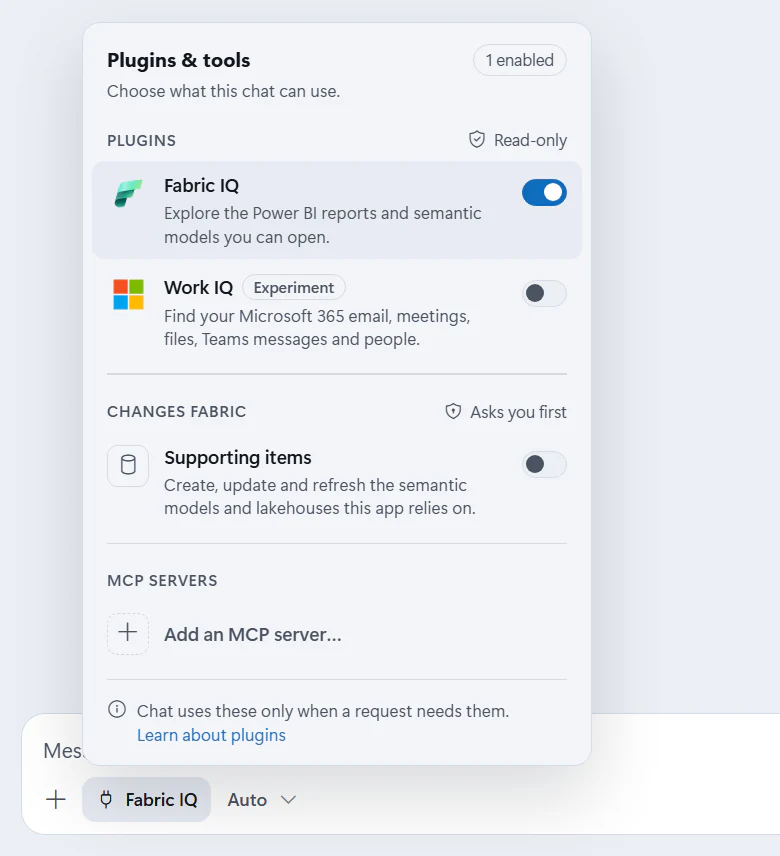
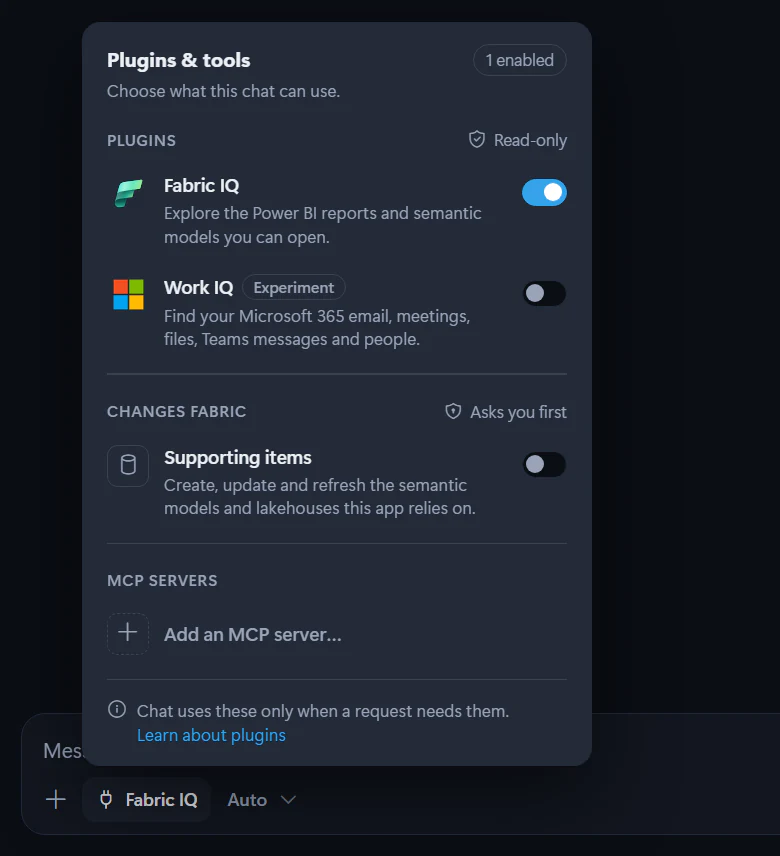
Your next message in that app's chat can use it. The Plugins button shows the names of the plugins that are on, such as Fabric IQ, and Fabricator remembers them for that app. You can't change plugins while Copilot is working on a message.
When chat needs Fabric IQ
When you ask for something that needs Power BI data, and Fabric IQ is off in that app's chat or needs you to sign in to Azure, chat asks you on a card in the conversation:
- When Fabric IQ is off, it asks, for example, "Copilot wants to look up the Hawaii sales data with Fabric IQ, which is off in this chat." Select Turn on Fabric IQ. When the Azure CLI isn't signed in either, the card adds "Turning it on also asks you to sign in to Azure in your browser."
- When Fabric IQ is on but the Azure CLI isn't signed in, it asks, for example, "Fabric IQ needs you to sign in to Azure before Copilot can look up the Hawaii sales data." Select Sign in to Azure.
If you sign in, chat says "Sign in to Azure in your browser…" while you finish signing in there. Then it says "Connecting Fabric IQ…" and "Fabric IQ is on.", and carries on with the same message. Fabric IQ stays on in that app's chat, as if you had turned it on in Plugins. Select Not now to carry on without it.
Add Work IQ
Warning
Work IQ is an experiment. Turn it on in Settings → Experiments. It may change or be removed in a future update.
- Open Settings.
- Open Experiments.
- Turn on Work IQ.
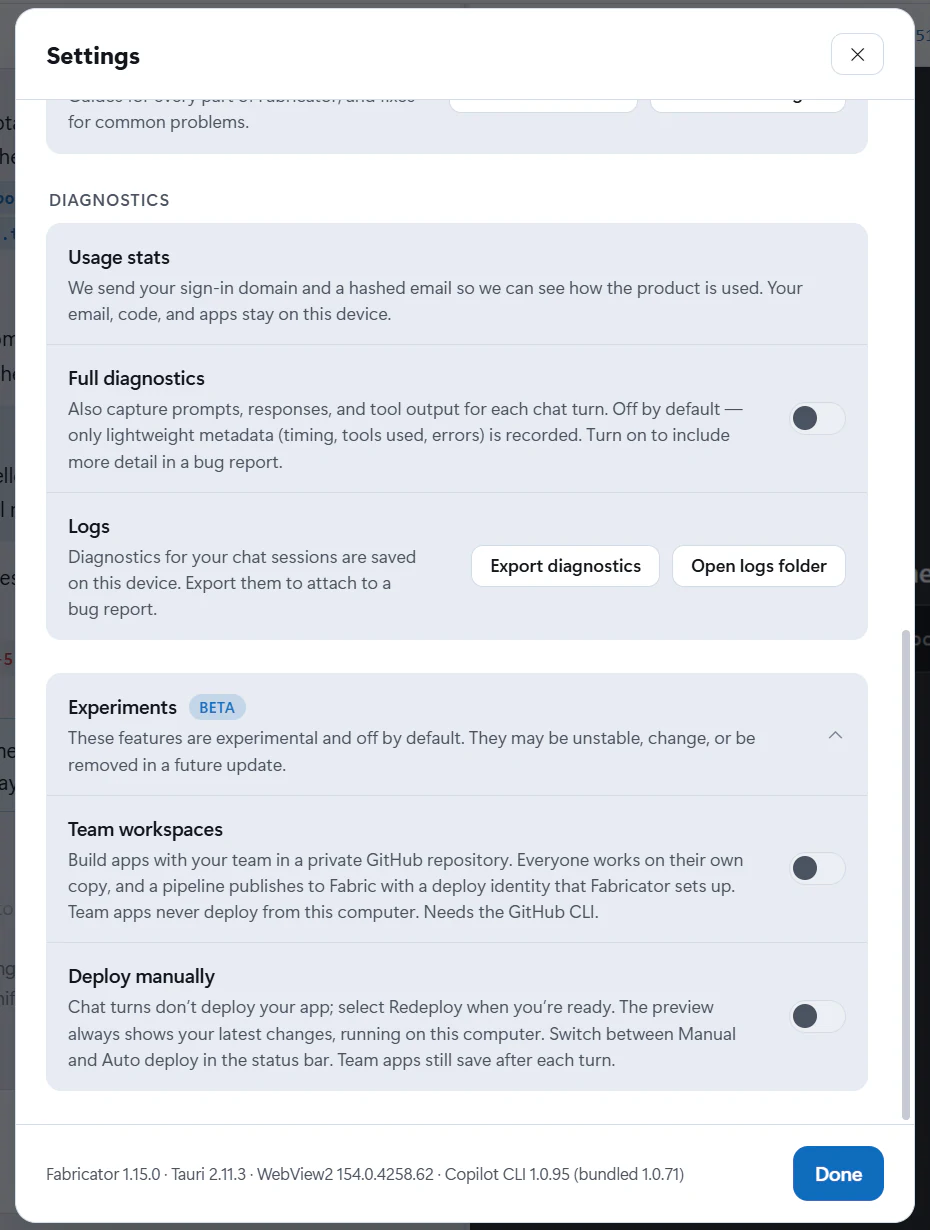
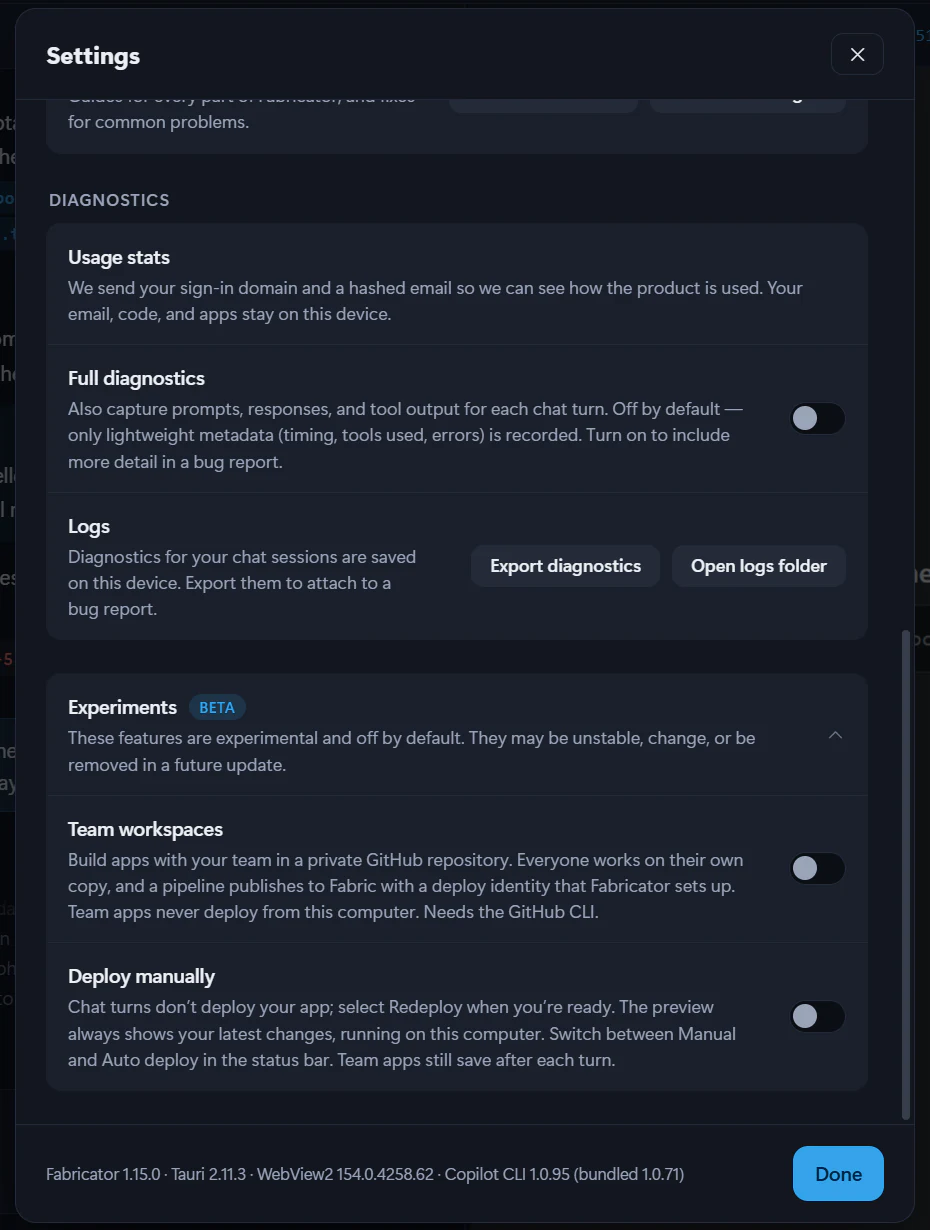
Work IQ now shows in Plugins, marked Experiment. It's off in each app's chat until you turn it on there. Turning the experiment off takes Work IQ out of every chat and signs you out of it.
Sign in
Fabric IQ uses the Azure CLI's sign-in, like Fabricator's other Fabric features. When a message needs Fabric IQ and the Azure CLI isn't signed in, chat asks you to Sign in to Azure. See When chat needs Fabric IQ. You can also sign in to Azure in Settings → Accounts. See Manage your accounts. Fabric IQ stays signed in for as long as the Azure CLI is: Fabricator gets a new token from it before the last one expires.
Work IQ asks you to sign in the first time a message can use it. Chat says "Sign in to Work IQ in your browser…", and your browser opens Microsoft's sign-in page.
- In your browser, choose your work or school account.
- Accept the permissions it asks for, if it asks.
- When the page says "You're signed in to Work IQ.", return to Fabricator. Chat says "Signed in to Work IQ." and sends your message.
Your message waits up to three minutes for you to sign in. After that, chat continues without Work IQ. Fabricator keeps the Work IQ sign-in until you quit it, so you sign in again after Fabricator restarts. It also signs you out of Work IQ when no app's chat has it on.
What chat does with what it finds
Chat uses Fabric IQ or Work IQ only when a request needs your organization's data. The work log shows each lookup, for example Looked up in Work IQ with the question chat asked.
- What they return goes into the conversation. Like the rest of the chat, it goes to GitHub Copilot, or to the provider of a model you chose on your own API key, and it's saved with the chat history on this computer.
- Chat doesn't put private data in your app's code, sample data or commits unless you ask it to. Check what it writes before you publish or share the app.
- Email, chats and documents can contain instructions written by other people. Fabricator tells chat to treat what it finds as information, never as instructions, but review what chat does after a lookup.
Turn a plugin off
In the chat composer, select Plugins and turn off Fabric IQ or Work IQ. Your next message in that app's chat can't use it. What chat already looked up stays in that conversation.
Fabric IQ or Work IQ isn't available
When Fabric IQ or Work IQ can't connect, your message goes without it. When you ask for something that needs it, chat offers to connect Fabric IQ, or tells you why it isn't available and how to fix it.
- The Azure CLI isn't signed in. Fabric IQ uses the Azure CLI's sign-in. When chat asks, select Sign in to Azure, or sign in to Azure in Settings → Accounts.
- The Azure CLI isn't installed. Open Settings, select Open setup, and install the Azure CLI under Sign in to Azure. Then send your message again.
- Work IQ sign-in didn't finish. Fabricator asks once, not with every message. In Plugins, turn Work IQ off and on, send a message, and finish signing in within three minutes.
- Work IQ needs approval. Before anyone in your organization can use Work IQ, an administrator has to approve it, and each user needs a Microsoft 365 Copilot license. If sign-in says you need an administrator's approval, ask your Microsoft 365 administrator. Microsoft's Work IQ administrator guide has the steps.
- Work IQ's sign-in port is in use. Work IQ's sign-in page comes back to Fabricator on port 12798. If another app is using it, such as Copilot CLI signing in to Work IQ, finish or close that sign-in, then try again.
- Fabric IQ isn't available in your tenant. Fabric IQ works when your tenant's home region supports all Fabric workloads. It isn't available in Power BI-only regions or sovereign clouds. See Microsoft's Fabric IQ documentation.
- A report isn't found. Fabric IQ finds the reports and semantic models the Azure CLI's account can open, by name. Check that it's the right account, and use the exact name, or paste the report's address from your browser. It doesn't read dashboards, paginated reports or Power BI apps.
If it still fails, Report a problem.
App gallery
Browse, search, pin and open every Rayfin app you can open in Fabric, see which need attention, take a quick look at one, and start a new app from an example.
Supporting items
Let Copilot create the semantic models and lakehouses your app relies on, in its Fabric workspace, and load your data files into them, after you approve each change.