
Supporting items
Let Copilot create the semantic models and lakehouses your app relies on, in its Fabric workspace, and load your data files into them, after you approve each change.
Your app sometimes needs data in a shape that doesn't exist in Microsoft Fabric yet: a Power BI semantic model over your Snowflake or SQL Server tables, or a place in Fabric for the CSV files you have on your computer. With supporting items, GitHub Copilot builds those for you in the same chat where it builds the app. Fabricator shows you what will be created or changed, and in which workspace, and changes nothing in Fabric until you approve.
You end up with the semantic models and lakehouses in your app's Fabric workspace, their definitions in your app's files, and an app that reads them.
What's Rayfin and what's supporting
A supporting item is a Fabric item your app relies on that isn't part of the Rayfin app. Supporting items are semantic models, and the lakehouses their data is staged in.
| Your Rayfin app | Supporting items | Other Fabric data | |
|---|---|---|---|
| What it is | The app and its backend | Semantic models and lakehouses Copilot defined for this app | Data that was already in Fabric, which your app reads |
| Defined in | rayfin/ | supporting-items/ | Only the app's connection to it |
| Changed by | Publish | Fabricator, after you approve each change in the chat | Nobody: chat only reads it |
Publish never creates or changes supporting items, and supporting items aren't part of your published app. If you publish the app to another workspace, its supporting items stay where they are.
Turn on supporting items
- In your app's chat, select Plugins in the composer.
- Under Changes Fabric, turn on Supporting items.
Each app has supporting items off until you turn them on in its chat. They aren't offered for team apps, and Chat defaults don't turn them on for new projects.
If you ask Copilot for a semantic model, or give it data files to build on, while supporting items are off in the app's chat, a card asks whether to turn them on. Select Turn on and continue, and Copilot carries on with your request in a new message.
Fabricator creates and changes supporting items as your Fabric account, the one you publish the app with, so they're in the organization where the app runs and the app can read them. That account needs the Contributor role or higher in the workspace. Two things also use your Azure CLI sign-in, which has to be in the same organization as your Fabric account:
- Uploading a lakehouse's files, which your Fabric account can't do.
- Refreshing a model. Without it, the card links you to the model in Fabric to refresh it there.
See Manage your accounts.
Build a report on your own files
Give Copilot your data files and say what the app should show:
- Drop the files on the chat composer, or select + and then Files and folders…. They wait as chips above your message.
- Describe the report you want, and send it.
Here's our sales data from the last two years: orders, customers and products. Build me a report
on it: revenue and margin by month, the top categories and products, and how sales split by
region and channel.
Copilot stages the files in a lakehouse:
- It copies them into the lakehouse's folder in
supporting-items/, and lists each table and its file there. Your own files stay as they are. When a file's first line has column names with spaces or symbols, such asOrder Date, Copilot loads a cleaned copy, such asOrderDate. - The copies stay out of git and out of the app's versions: once they're loaded, the lakehouse holds the data.
- Fabricator loads CSV and Parquet files. Copilot converts other files, such as an Excel sheet or JSON, into CSV first.
When you approve, Fabricator creates the lakehouse, uploads the files and loads each one as a table. Copilot then builds a Direct Lake semantic model on the tables, which reads them in place without importing a copy. When you approve the model, Fabricator also refreshes it once, so it reads the tables. Copilot then connects the app to the model and builds its pages on it.
To change the data later, replace a file and ask Copilot to load it again. Only the tables whose files changed load again, and each replaces what it held.
Ask for a semantic model
Describe the data and what the app should show with it:
Build a semantic model over our Snowflake database SALES_DB, schema PUBLIC, from the ORDERS,
CUSTOMERS and PRODUCTS tables. Add measures for total revenue, order count and average order
value. Then build a dashboard page with monthly revenue by product category.
Copilot writes the model's definition in your app's supporting-items folder and asks
Fabricator to apply it. It doesn't ask for your approval itself: Fabricator does, on a card in
the chat.
Review and approve a change
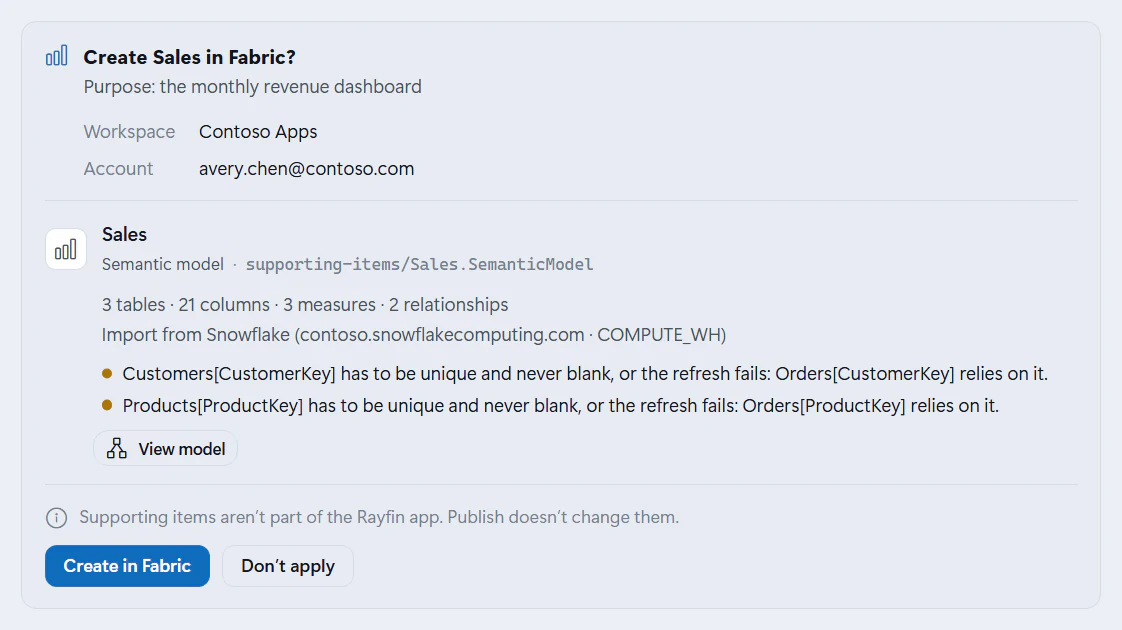
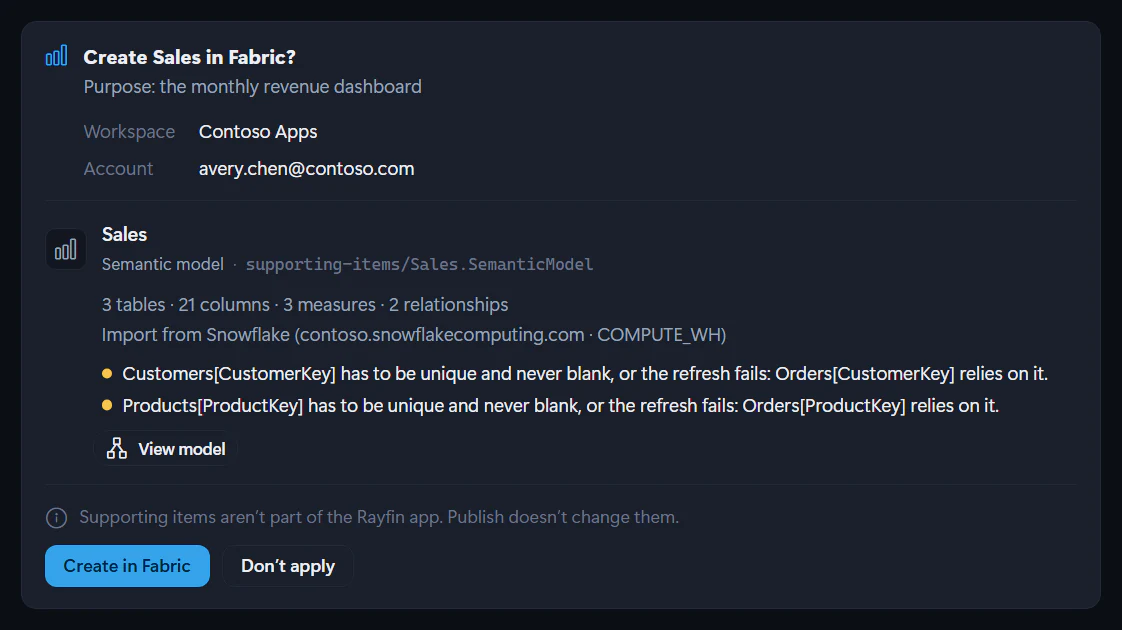
Before Fabricator changes anything in Fabric, a card in the chat asks you, such as "Create Sales in Fabric?". While it waits, the turn's status says "Waiting for your approval". The card shows:
- Purpose: what Copilot says the change is for.
- Workspace: where the item goes. It's the workspace your app is published to. If the app isn't published yet, choose a workspace on the card: it lists the shared workspaces your Fabric account can create items in, with the ones your apps are published to first. Fabricator remembers it for this app's supporting items.
- Account: the Fabric account Fabricator creates or changes the item as: the one you publish the app with. Uploads as names your Azure CLI account when a lakehouse's files are uploaded with a different one.
- Each item. A semantic model shows its tables, columns, measures and relationships, how it stores data, and where the data comes from. A lakehouse shows each table it loads, with its file, size, rows and columns.
- For an update, what changes, such as "Adds the table Returns" or "Changes the measure Sales[Total Revenue] (expression)". If someone changed the model in Fabric since Fabricator last applied it, the card says that applying replaces their changes.
- Warnings worth reading before you approve, such as a key column that has to be unique and never blank, or a data source on a computer that Fabric can refresh only through a gateway.
Select View model to see a model's diagram before it exists in Fabric. Then select Create in Fabric, Update in Fabric or Load data to approve, or Don't apply to leave Fabric as it is. When you don't apply, Copilot asks what you'd like to change. While Fabricator works, the card shows each step, such as each table as it uploads and loads.
If a change would discard the data a model has already loaded, Fabricator asks you again before it applies it.
Load the model's data
A new Import-mode semantic model has no data until it's refreshed. After Copilot creates or changes one, it asks to refresh it, and a card asks you first. Select Refresh to load the data. The card shows how long the refresh is taking, and how it went. A Direct Lake model reads its lakehouse's tables instead: Fabricator refreshes it once when you approve it, and Copilot asks to refresh it again after the tables load new data.
If the refresh fails, the card shows why, and Copilot fixes the model and tries again. Two common causes:
- Blank or repeated keys. A column on the "one" side of a relationship must hold unique, non-blank values. Copilot changes the model to leave those rows out, and asks you to approve the update and the refresh again.
- Missing credentials. Fabricator never puts passwords or keys in a model's definition. The first time, set the data source's credentials in Fabric: select Open its settings on the card, sign in to the data source under data source credentials, then ask Copilot to refresh the model again.
Supporting items in Blueprint
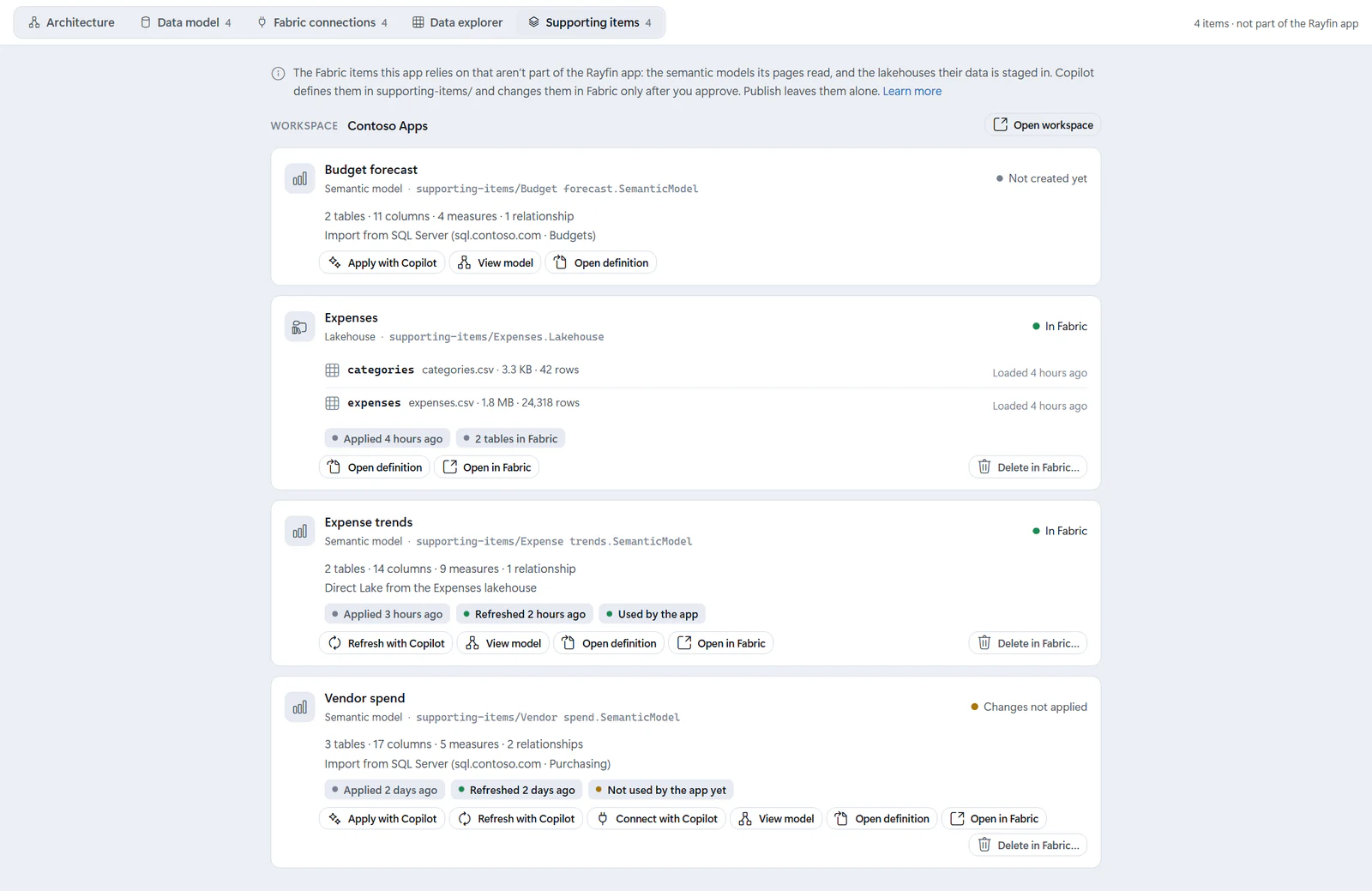
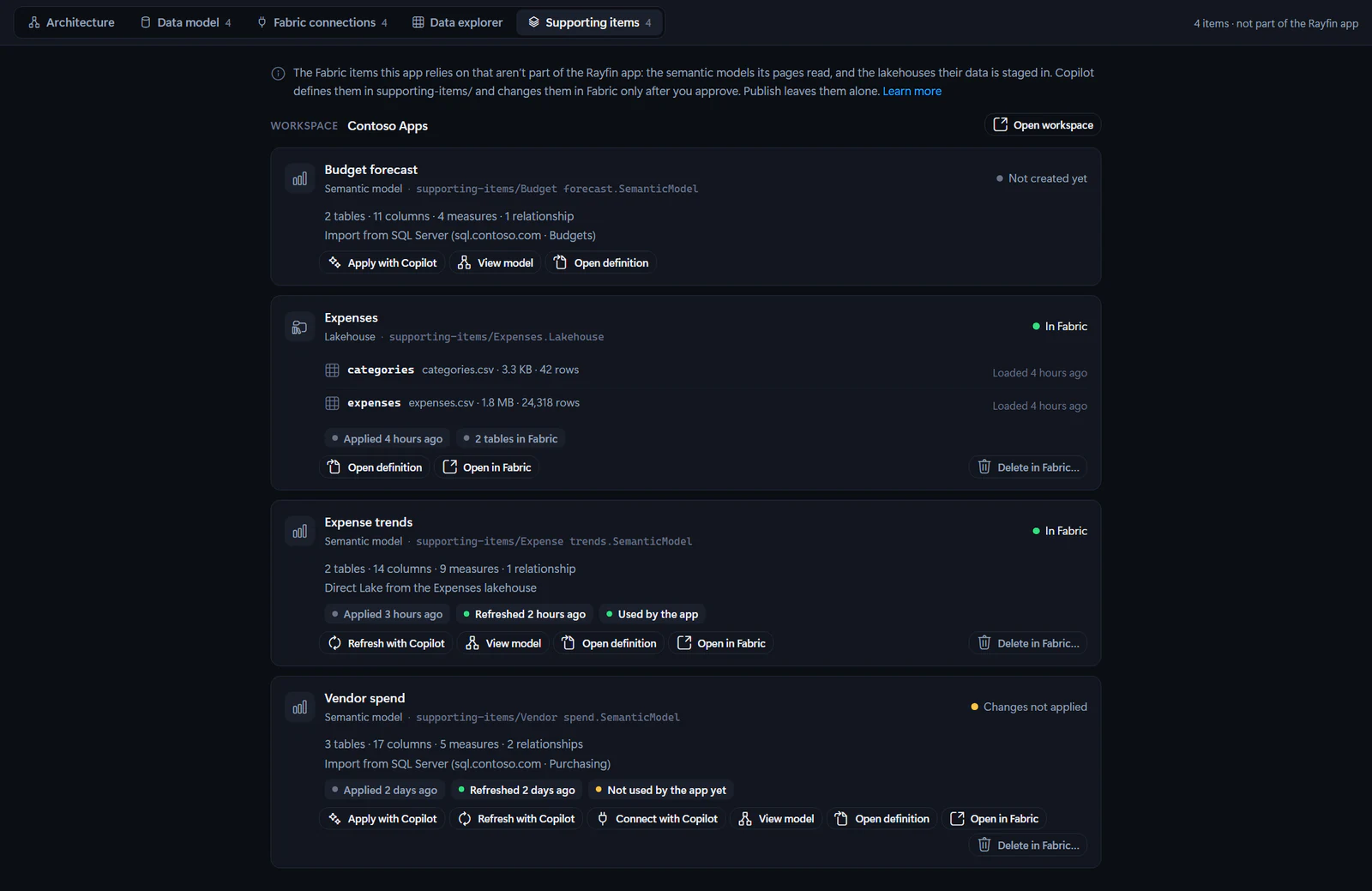
In Blueprint, the Supporting items view appears once the app's chat has supporting items on, or the app has some. It lists your app's supporting items under their workspace, with Open workspace to open it in Fabric. Each item shows where it stands, when it was applied and, for a model, how it stores data, its latest refresh and whether the app uses it yet. A lakehouse lists its tables, with each one's file and when it was loaded, or that its file changed since. A status says when an item is Not created yet, has Changes not applied, or was Changed in Fabric since Fabricator last applied it. If Fabricator can't check your items in Fabric, select Refresh Fabric authentication. If the app's chat has supporting items off, the view says so: select Turn on for this app.
From the view you can:
- Apply with Copilot or Refresh with Copilot, which asks Copilot in the chat. You still approve the change on a card.
- Connect with Copilot, for a model the app doesn't read yet.
- View model, Open definition and Open in Fabric.
- Delete in Fabric…, which deletes the item from Fabric after you confirm. Deleting a lakehouse deletes every file and table in it, and the models that read it stop working. You can also move the item's folder to the trash. Copilot never deletes supporting items.
When you move a project to the trash, its removal can delete its supporting items too: select Supporting items in Fabric in the dialog. They stay in Fabric unless you do. See Move a local project to trash.
In the Architecture view, a source that's one of your supporting items is marked Supporting. See Blueprint.
Limitations
- Supporting items can be semantic models, defined in TMDL, and lakehouses without schemas.
- Fabricator loads tables from CSV and Parquet files, each up to 2 GB. It doesn't delete tables: when Copilot stops loading one, it stays in the lakehouse.
- All of an app's supporting items are in one workspace.
- They aren't available for team apps.
- Fabricator doesn't set data source credentials or gateway connections: you set them in Fabric.
A supporting item isn't applied
You see "Not everything was applied", or a title such as "Couldn't create Sales", on the card, with what Fabric said under the item's name.
Fabric turned the definition down, or your account isn't allowed to change items in the workspace. Copilot reads the same error and usually fixes the definition and asks you to apply it again.
- Read the error under the item's name on the card.
- If it says you don't have permission, ask a workspace admin for the Contributor role or higher in the workspace, then ask Copilot to apply the item again.
- If it says an item with that name already exists, the workspace has an item the app didn't create. Fabricator never changes it. Ask Copilot to use another name, or to connect the existing model instead.
- If the card says "Stopped before it finished", the app closed or the turn stopped while Fabricator was working. Open Blueprint → Supporting items to see where each item stands, and select Apply with Copilot to finish.
If it still fails, see Report a problem.
Copilot can't upload your files
Copilot says "Fabricator can't upload the lakehouse's files", and no card appears.
Fabricator uploads a lakehouse's files with your Azure CLI sign-in, because your Fabric account can't upload them. The Azure CLI isn't signed in, or it's signed in to a different organization than your Fabric account.
- In Accounts, sign in to the Azure CLI with an account in the same organization as your Fabric account.
- Ask Copilot to apply the lakehouse again.
If it still fails, see Report a problem.
A table didn't load
You see a title such as "Not all of Sales's data loaded" on the card, and a table marked "Didn't load" with what Fabric said.
The lakehouse is in Fabric, but Fabric couldn't read one of its files as a table, for example
because its rows don't all have the same number of columns, or the delimiter isn't the one in
tables.json. Copilot reads the same error.
- Read the error under the table on the card.
- Let Copilot fix the file or how it's read, and approve loading it again. Only the tables that didn't load, or whose files changed, load again.
If it still fails, see Report a problem.
A refresh doesn't work
You see a title such as "Sales didn't refresh" on the card, with the errors Power BI reported.
The model's data couldn't be loaded: the data source has no credentials in Fabric yet, or the data breaks a rule of the model, such as a blank or repeated key.
- If the card says its data source needs credentials, select Open its settings, set the credentials under data source credentials, and ask Copilot to refresh the model again.
- If the card says Fabricator can't start a refresh with your sign-ins, select Open in Fabric, select Refresh now on the model's page, and tell Copilot when it's done. Power BI lets your Fabric account read a model but not refresh it, so Fabricator refreshes with your Azure CLI sign-in, which has to be in the same organization. To let Fabricator refresh it next time, sign in to the Azure CLI there in Accounts.
- For any other error, let Copilot read it: it changes the model, then asks you to approve the update and the refresh.
If it still fails, see Report a problem.
Research with Fabric IQ and Work IQ
Turn on chat plugins that look things up, read-only: Fabric IQ for Power BI reports and semantic models, and Work IQ, an experiment, for your Microsoft 365 email, meetings and files.
Connect MCP servers
Give chat more tools with MCP servers you add: a command that runs on this computer or a server's URL, turned on in each app's chat from Plugins.