
App gallery
Browse, search, pin and open every Rayfin app you can open in Fabric, see which need attention, take a quick look at one, and start a new app from an example.
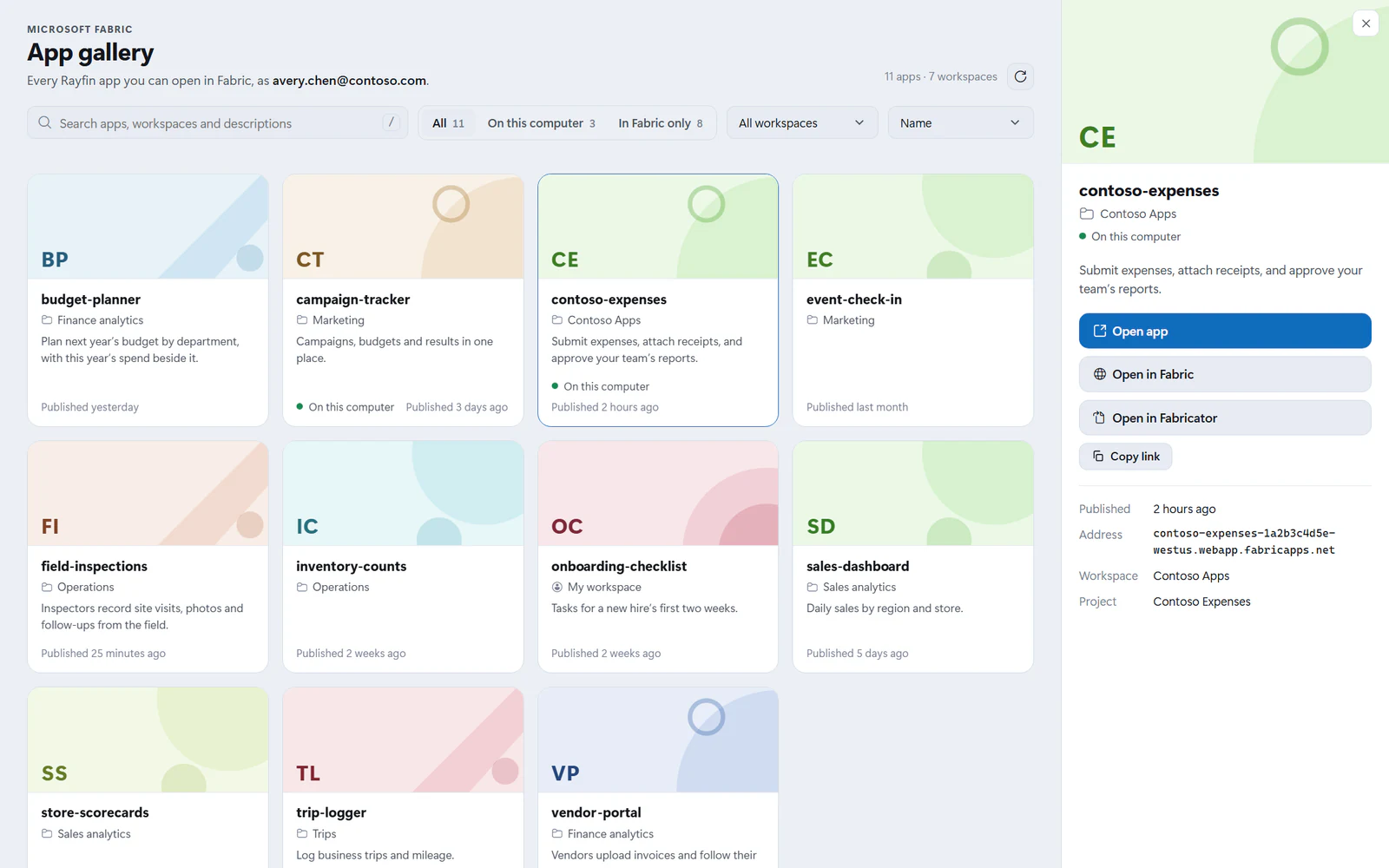
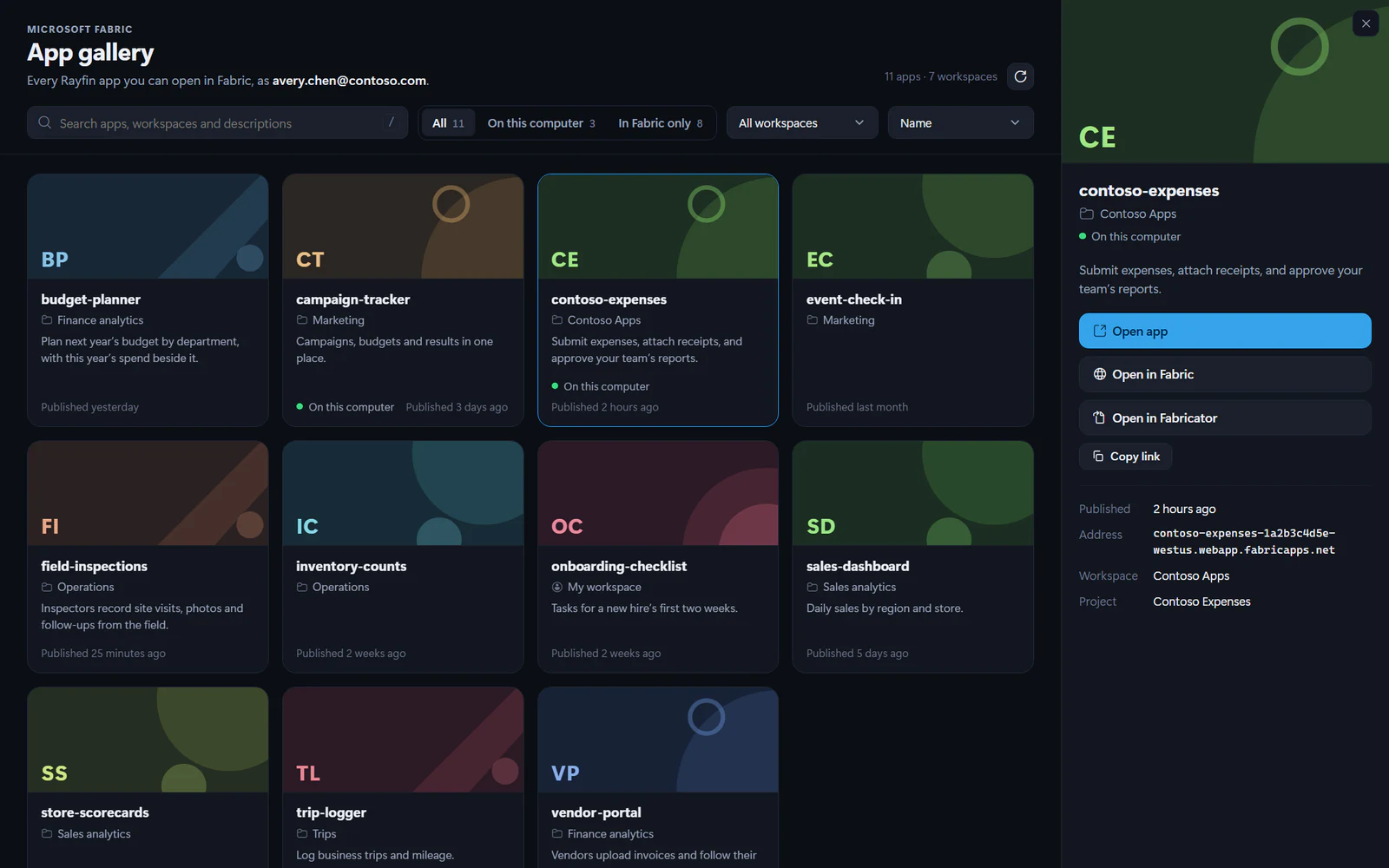
The app gallery shows every Rayfin app you can open in Microsoft Fabric: the apps you publish from this computer, the apps you published from another computer, and the apps other people share with you. Search them, see where each one lives, when it was last published and which need attention, take a quick look at one, and open them in your browser, in Fabric, or in Fabricator.
Open the app gallery
- On Your projects, select App gallery.
- Or press
Ctrl+K(⌘Kon macOS), typegallery, and select App gallery. You can open it this way while you work on an app, too.
To leave, select Back to projects in the app bar, or Back to your project's name when you
opened the gallery from a project. You can also press Esc.
Sign in to Azure
The gallery finds your apps with your Azure CLI sign-in. Signing in to Azure is optional at setup, so if you skipped it, the gallery shows Sign in to Azure and "Fabricator finds the apps you can open with your Azure sign-in. Sign in to Azure to see them."
- Select Sign in to Azure.
- Finish signing in in your browser. The gallery then lists your apps.
The gallery lists the apps the Azure CLI's account can open. Under the gallery's title, "Every Rayfin app you can open in Fabric, as" names that account. It can be a different account from the Fabric account you publish with. To use another account, see Use more than one Azure CLI account.
Find an app
Each app is a card with a picture of the app, its name, its workspace, and its description when it has one. Below them, small dots and words say more:
- What may need looking at: Publish failed, Changes not published when its project on this
computer changed since it was published, or
Rayfin <version> availablewhen a newer Rayfin is out for it. See Find the apps that need attention. - On this computer: a project in Fabricator publishes this app.
- A team workspace's name: the app is that team workspace's published app. A teammate's preview says Team preview. These show when Team workspaces is turned on in Settings → Experiments.
- When the app was last published, such as "Published 3 days ago", or "Not published yet".
To find an app:
- Type in the search box. It matches app names and descriptions, workspace and team workspace
names, and the names of your projects. Press
/to get to the search box from anywhere in the gallery. - Select All, On this computer or In Fabric only to see every app, only the apps a project on this computer publishes, or only the others. Each shows how many apps it has.
- Select Needs attention to see only the apps that need looking at, or Apps I can edit to see only the apps in workspaces where you're an Admin, Member or Contributor. Select it again to see every app.
- Pick a workspace in All workspaces to see only its apps. Its menu lists under Recent
the workspaces your apps on this computer use, most recently used first, with when you last
used each, and under Other workspaces the rest, each with how many apps it has. A
workspace a tool named, such as
replit-data-dashboard-2e377200-…, shows as a title, such as Replit data dashboard, with its name below. Type in Search workspaces to find one, and press Enter to pick the first match. - Sort by Name, Recently published, Recently opened or Workspace. Recently opened puts first the apps you opened last from the gallery or from Search, and the apps whose projects you opened last in Fabricator. Workspace groups the apps under their workspaces' names, with the workspaces your apps on this computer use first.
Select Table beside the number of apps to see the apps as a table, one row each with its workspace, when it was published, what needs looking at and where it is: handy when you can open many apps. Select Cards to go back.
Fabricator remembers your choices of filters, order and layout for the next time you open the gallery.
Pictures of your apps
A card shows a picture of the app when Fabricator has one. Fabricator draws it from the preview of an app on this computer, as it does for Your projects, and the gallery shows it on the app that project publishes.
When you publish an app from Fabricator, its picture goes out with the app's files as
fabricator-thumbnail.webp, so other people's galleries can show it too. Fabricator puts the file
in the app's public folder only while it publishes, and takes it out again before it saves a
version, so your project's files don't change. Other people's galleries show the picture when the
app's hosted files are public. See
Static content hosting in the Rayfin docs.
Until there's a picture, a card shows the app's first letters on its own color.
Find the apps that need attention
Needs attention shows the apps where something may need looking at, with how many there are:
| What it says | What it means |
|---|---|
| Publish failed | The app's last publish from this computer didn't finish, or Fabric says its latest publish failed. |
| Changes not published | Its project on this computer changed since it was last published. |
Rayfin <version> available | A newer Rayfin is out for its project on this computer. Open the project to update it. See Keep Rayfin up to date. |
| Not published yet | The app exists in Fabric, but hasn't published its pages. |
The gallery checks what Fabric says about each app's publishes as it shows it, so with Needs attention on, the count can grow for a moment while it checks every app.
Open an app
Select an app's card to see its details beside the gallery: when it was last published, its address, its workspace, whether you can change it (Your access), and its project and team workspace when it has them.
- Open app opens the app in your browser.
- Quick look shows the live app over the gallery. See Take a quick look at an app.
- Open in Fabric opens the app's page in the Fabric portal.
- Open in Fabricator opens the project that publishes the app. Only apps marked On this computer have it.
- Copy link copies the app's address, or the link to its page in Fabric when Fabricator doesn't know its address.
- Pin to the top keeps the app first in the gallery. See Pin the apps you use most.
An app that hasn't published its pages yet says "This app hasn’t published its pages yet." When Fabric doesn't say where an app is, its details say "Fabric didn’t share this app’s address. Open it in Fabric instead."
To close the details, select the close button or press Esc.
Fabric apps also show up in Search: press Ctrl+K (⌘K on macOS) and type an app's name to open
it. See Search.
Take a quick look at an app
A quick look shows an app's live page over the gallery, so you can try it without leaving Fabricator.
- Select an app's card, so it has the focus.
- Press
Space. Or select Quick look in the app's details.
The app's name and address are along the top, with Open app and Open in Fabric. Sign in to
the app there as you would in your browser. To put it away, press Space or Esc, or select the
close button.
An app has a quick look once Fabricator knows its address.
Give an app a description
Most apps have no description in Fabric, because Rayfin's publish doesn't set one. A description helps everyone who can open the app find it in the gallery and in Fabric.
When you publish an app from Fabricator and it has no description, Copilot writes a one-sentence description from the app's files and what you asked for in its chat, and Fabricator saves it in Fabric. It never replaces a description the app already has.
To write one for an app now:
- Select the app's card. It has to be an app a project on this computer publishes, in a workspace where you're an Admin, Member or Contributor.
- Under "No description yet", select Write a description.
Start from an example
Select Examples at the top of the gallery to see community apps to start from. Select Use this example on one to open New project with that example chosen. See Start from a community example.
Pin the apps you use most
Pin an app to keep it at the top of the gallery.
- Hover over the app's card.
- In the card's top-right corner, select Pin to the top.
You can also select Pin to the top in the app's details.
A pinned app keeps its pin in sight and comes first, whichever order you pick:
- Name, Recently published and Recently opened show the pinned apps first, in the same order, then the others.
- Workspace groups the pinned apps under Pinned, above the workspaces.
Search and the filters still apply, so a pinned app that doesn't match them isn't shown.
To unpin an app, select its pin again, or select Unpin in its details.
Fabricator remembers your pinned apps for the next time you open the gallery.
Keep the gallery up to date
When you open the gallery again, it shows the apps it found last time while it checks Fabric again, and says "Checking Fabric…" until it's done. To check now, select the Refresh button next to Cards and Table.
If checking again doesn't work, the gallery keeps showing the apps it found before, with what went wrong above them. When your Azure sign-in has expired, it says "Sign in to Azure to see your latest apps. These are from earlier." Select Sign in to Azure.
An app is missing from the gallery
The gallery shows only the Rayfin apps the Azure CLI's account can open.
- Under the gallery's title, check which account it reads with. If it's the wrong one, switch the Azure CLI to the right account in Accounts. See Azure CLI is signed in to the wrong account.
- Make sure the account can open the app in Fabric: someone has to share the app with you, or add you to its workspace. See Share your app.
- Select Refresh.
If you can open more apps than Fabricator reads at once, the gallery says "Fabric has more apps than Fabricator reads at once, so some apps you can open aren’t shown."
If the gallery says "Couldn’t list your apps", select Try again. If it still fails, Report a problem.
Migrate a Power BI report
Turn a Power BI report into a Rayfin app that reads its semantic model live, while Copilot rebuilds its pages, visuals and filters one page at a time. Experimental.
Research with Fabric IQ and Work IQ
Turn on chat plugins that look things up, read-only: Fabric IQ for Power BI reports and semantic models, and Work IQ, an experiment, for your Microsoft 365 email, meetings and files.