---
title: "What is Fabricator?"
description: "Fabricator is a desktop workbench for building Rayfin apps with Copilot, live preview, and Microsoft Fabric deploys."
url: https://spatney.github.io/rayfin-fabricator/docs
markdown_url: https://spatney.github.io/rayfin-fabricator/docs.md
app_version: "1.20.1"
section: docs
product: Fabricator
last_updated: 2026-10-14T23:50:01-07:00
source: index.mdx
---
# What is Fabricator?
> Fabricator is a desktop workbench for building Rayfin apps with Copilot, live preview, and Microsoft Fabric deploys.
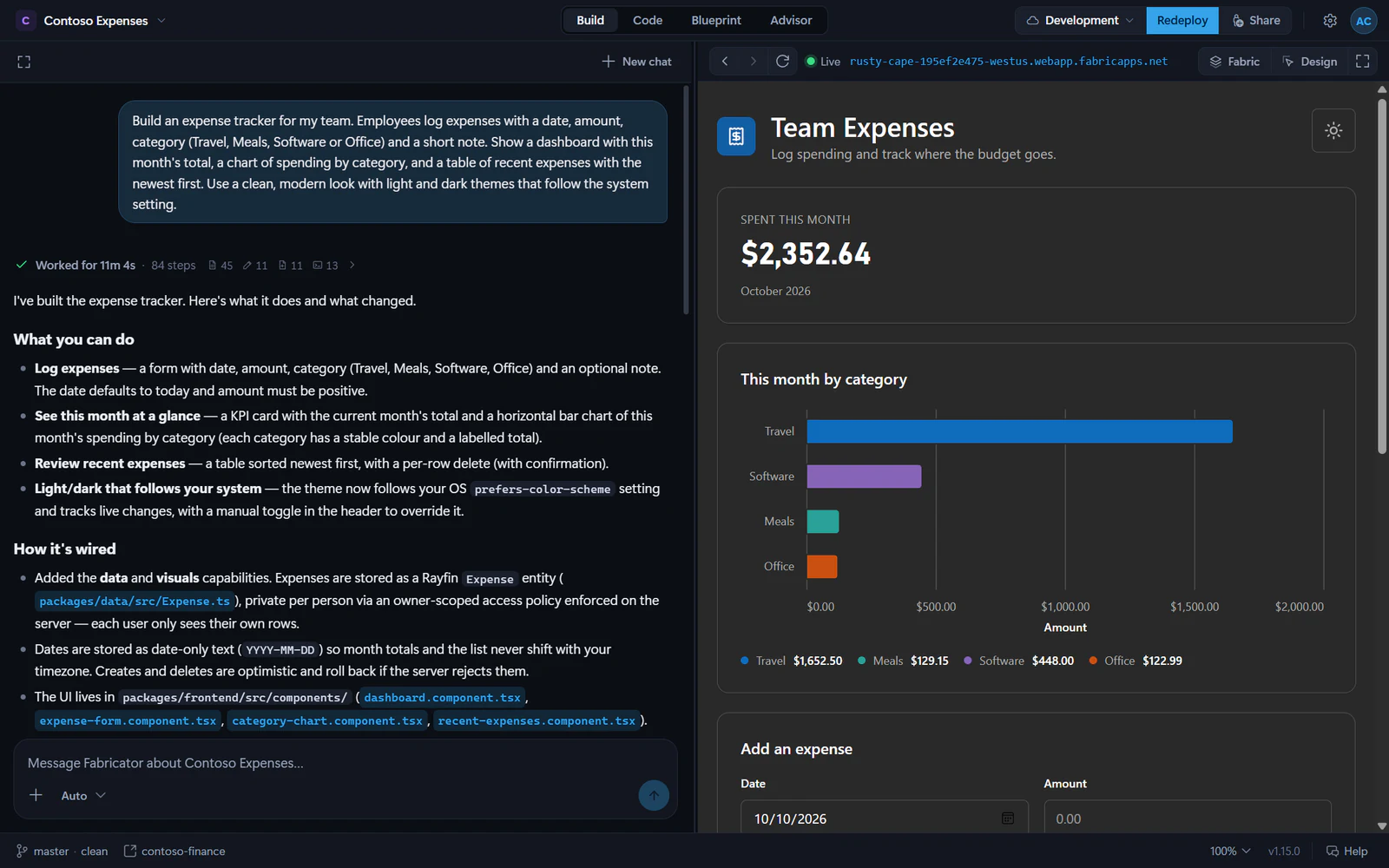
Fabricator helps you build [Rayfin](https://rayfin.ai/docs) apps in one desktop window. You describe the app you want, watch GitHub Copilot edit the project, preview the running app, deploy it to Microsoft Fabric, and keep refining from chat.
## The build loop
1. Create or open a project, then deploy it to a Fabric workspace if it is not deployed yet.
2. Describe the app in plain language.
3. Watch the work log while Copilot changes files and runs checks.
4. Preview the app in the same window. After each successful turn, Fabricator redeploys the changes to Fabric.
5. Refine the app with another prompt, a visual Design change, or an Advisor finding.
Rayfin is the app platform your project uses. Fabricator creates and edits Rayfin projects, then runs the project's Rayfin tooling for deploys. Microsoft Fabric is where the app is hosted and shared; see Rayfin's [Fabric app deploy docs](https://rayfin.ai/docs/deploy/fabric-apps) for the platform background.
## Who Fabricator is for
Fabricator is for people who want to make Rayfin apps without living in a terminal. It can help if you are:
- Trying Rayfin for the first time.
- Turning a business workflow into a small app.
- Iterating on a data model, UI, or deployment with Copilot.
- Reviewing generated code, history, and app health in one place.
You do not need to pick a template for a new app. **New project** asks for a name, creates the app from the Rayfin CLI's default Universal App template, then moves to the Deploy step. For local projects, chat stays locked until the app has a Fabric deployment.
> [!NOTE]
> Fabricator is a personal project by Sachin Patney. It is not a Microsoft product and is not affiliated with, endorsed by, sponsored by, or supported by Microsoft.
## What you need
Before you start, check the [system requirements](https://spatney.github.io/rayfin-fabricator/docs/reference/requirements). In short, you need:
- Windows 10/11, or macOS on Apple Silicon.
- Node.js 22.12 or newer, npm, Git, and the Azure CLI.
- A GitHub Copilot account.
- Microsoft Fabric access and an eligible Fabric or Power BI Premium capacity for deploys.
- Optional GitHub CLI (`gh`) for repository browsing and cloning.
## Next steps
Download the current desktop app for Windows or macOS.
Create a project, deploy it, and send your first prompt.
Learn where Home, chat, preview, code, model, Advisor, and settings live.
Find out why something failed, in plain language, without leaving the app.
Find fixes for setup, sign-in, chat, preview, deploy, and team workspace problems.
---
---
title: "Chat with Copilot"
description: "Use Fabricator's built-in GitHub Copilot agent to change your app, review its work log and diffs, steer a turn, and recover sign-in."
url: https://spatney.github.io/rayfin-fabricator/docs/build/chat
markdown_url: https://spatney.github.io/rayfin-fabricator/docs/build/chat.md
app_version: "1.20.1"
section: build
product: Fabricator
last_updated: 2026-10-10T17:36:58-07:00
source: build/chat.mdx
---
# Chat with Copilot
> Use Fabricator's built-in GitHub Copilot agent to change your app, review its work log and diffs, steer a turn, and recover sign-in.
Chat is where you describe what you want Fabricator to build. The built-in GitHub Copilot agent edits the project, Fabricator shows the work as it happens, and a successful turn is saved to history.
## Send a message
1. Open a project and stay on the **Build** tab.
2. Type in the message box, whose placeholder is `Message Fabricator about …`.
3. Press **Enter** or select **Send**.
Use `Shift+Enter` for a new line. If you type `@`, Fabricator opens **Reference a file** so you can point Copilot at a project file. You can also use **Add images, data, or files** to:
- **Add an image**. You can also paste or drop a screenshot into the box.
- **Connect a semantic model**. This adds Fabric semantic model details to the prompt. See [Blueprint](https://spatney.github.io/rayfin-fabricator/docs/build/data-model).
- **Reference a file**.
## Choose a model and reasoning effort
Open the model pill in the composer to choose the AI model and **Reasoning effort**.
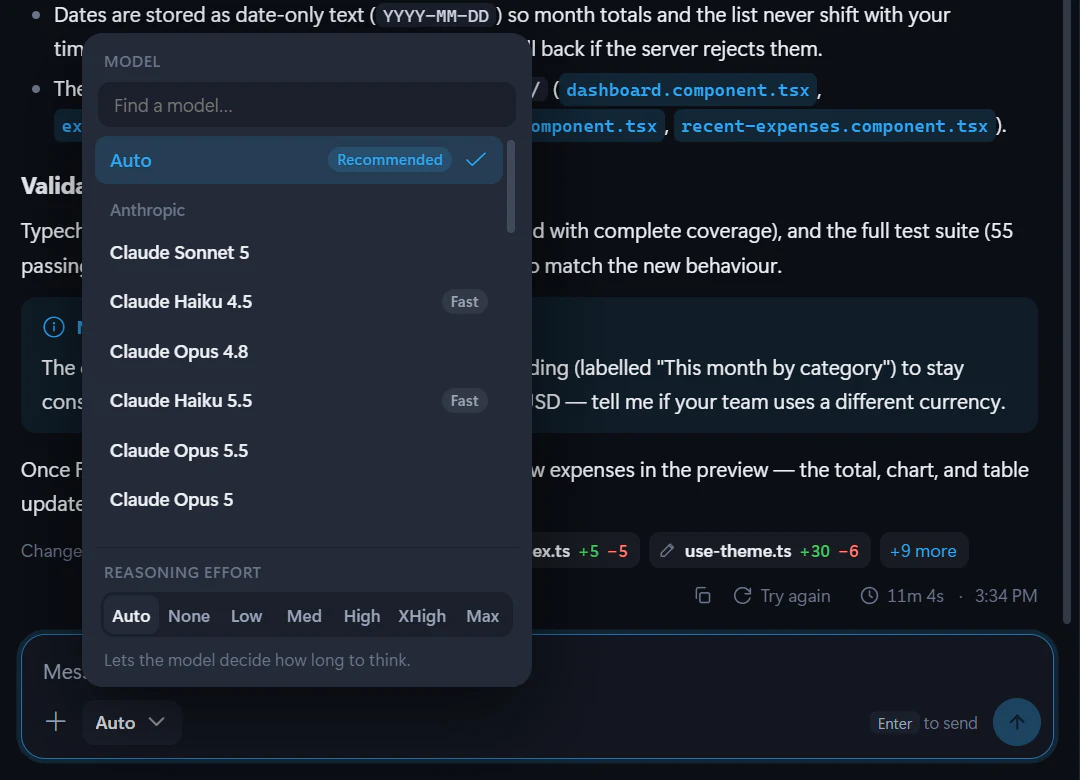
The model menu includes **Auto** as the recommended default. Reasoning effort can be **Auto**, **None**, **Low**, **Med**, **High**, **XHigh**, or **Max**, depending on the selected model. Higher effort can think longer, so use it for harder changes.
Fabricator uses the GitHub Copilot account you signed in with. The models shown come from that account's available Copilot models.
## What happens during a turn
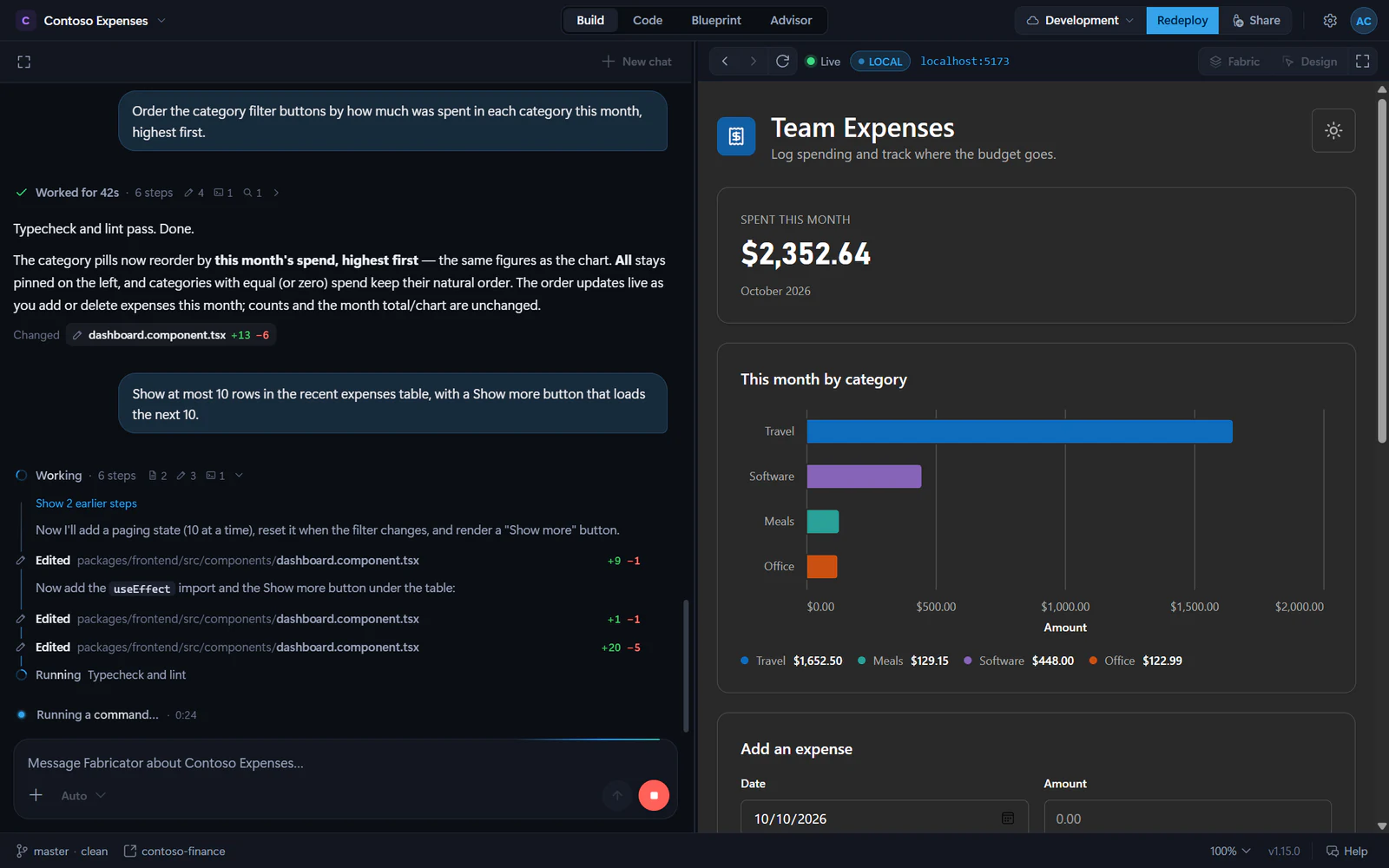
When a turn starts, Fabricator shows a live work log. It can include notes, reasoning when the model shares it, file reads, searches, commands, command output, and edits.
You may also see a status line such as `Thinking…`, `Working…`, or `Writing the answer…` with an elapsed timer.
While Copilot is working, the composer changes:
- Select **Interject this message** to send an extra instruction without waiting for the turn to finish.
- Select **Stop generating** to stop the current turn.
If Copilot asks a question, answer it in the card. The status changes to **Waiting for your answer** or **Waiting for your decision**.
## Review the work log
When the turn finishes, the live log folds into a summary such as **Worked for 2m · 23 steps**.
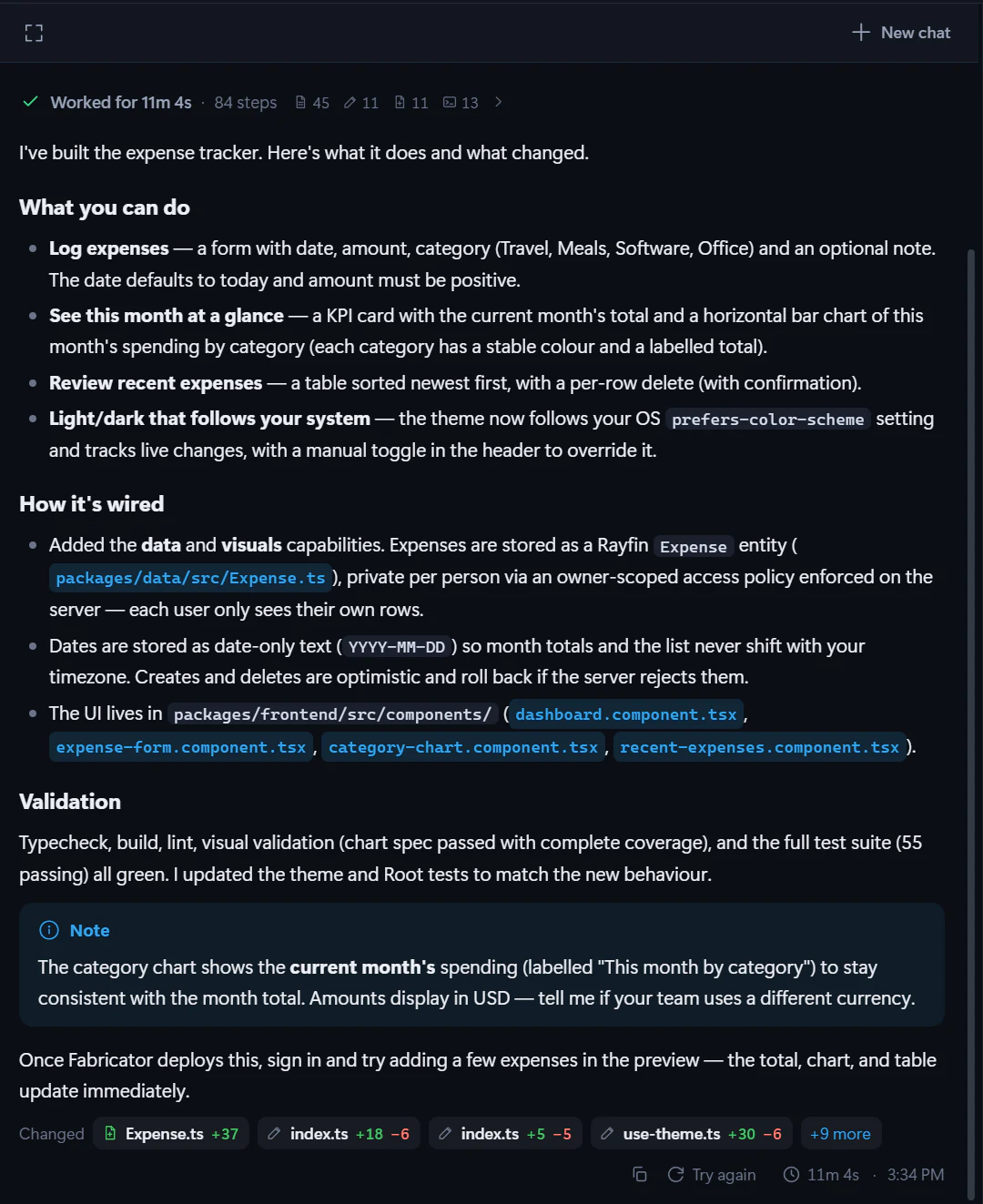
Expand it to review the steps. A step can show:
- the command Copilot ran, with **Copy command**;
- the latest output from a command;
- a diff for an edit;
- an **Open** action for a file.
Reasoning folds into a `Thought for …` row when it is available.
## Review changed files
Finished assistant turns end with **Changed** file chips. Select a chip to see what that turn changed in that file.
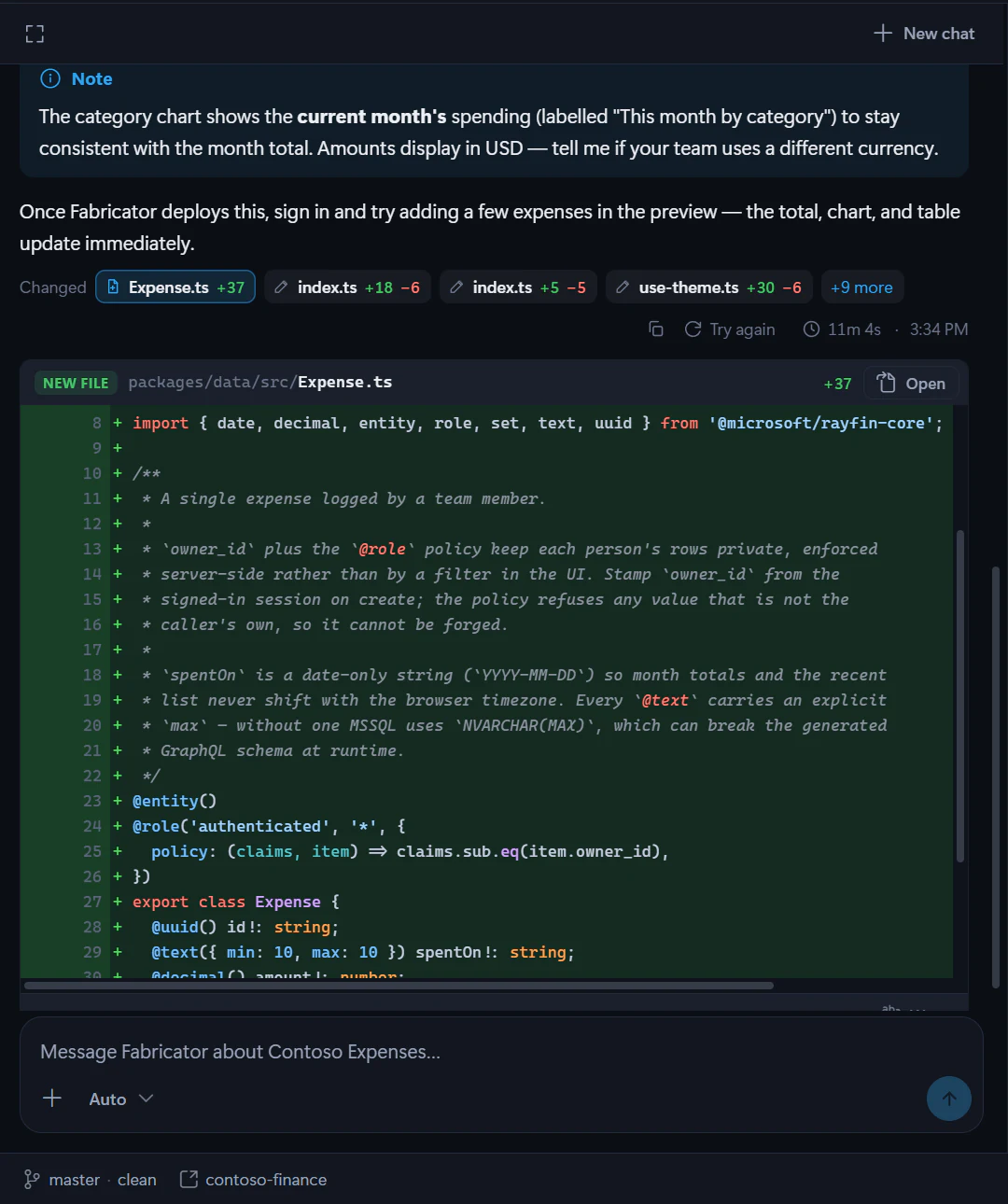
If a file was edited more than once in the same turn, Fabricator combines the turn's changes into one view when it can. Select **Open** to jump to the file in the **Code** tab. File paths in Copilot's answer are also clickable when they refer to project files.
## Copy, retry, or start over
Hover a message to see its time and copy action. On the latest successful assistant answer, use **Try again** to run your last message again as a fresh attempt.
Use **New chat** to clear the conversation. Fabricator asks **Start a new chat?** and explains: "This clears the conversation and starts Fabricator fresh. Your app and its files stay exactly as they are." Starting a new chat does not delete files.
If a turn failed, use **Retry**. If Fabricator closed during a response, use **Resume** when it appears.
## Plans and Autopilot
Plans can appear when Copilot proposes one. A plan card can show structured steps, progress, clarifying questions, and actions such as **Build plan**, **Run in Autopilot**, **Run with fleet**, or **Approve plan** when Copilot offers them.
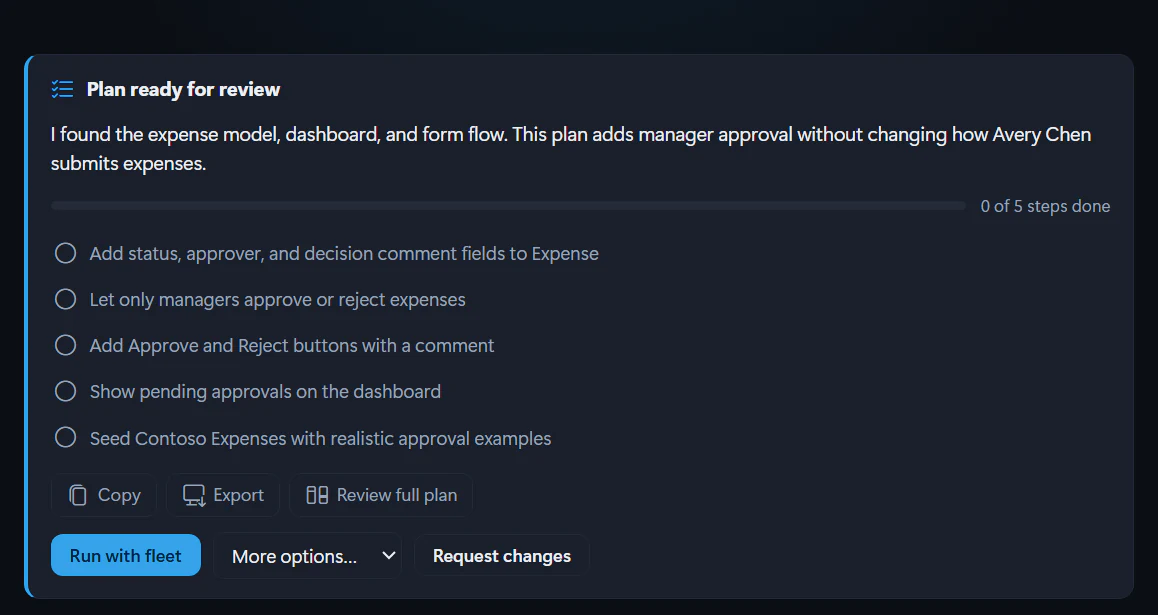
Use **Review full plan** to open the full plan. You can **Request changes**, edit the plan when editing is available, or approve one of the offered actions. **Autopilot** means Copilot continues through the approved plan more autonomously.
## Design and Advisor cards in chat
Design changes queued from the preview appear as a Design card instead of raw instructions. See [Design mode](https://spatney.github.io/rayfin-fabricator/docs/build/design).
Advisor fixes appear as a card when you send findings to Copilot. See [Check app health with the Advisor](https://spatney.github.io/rayfin-fabricator/docs/ship/advisor).
## After a successful turn
After a successful turn, Fabricator saves the chat history and checks whether Copilot changed files that are not deployed yet. If there are changes, Fabricator starts the normal automatic redeploy. See [Deploy to Microsoft Fabric](https://spatney.github.io/rayfin-fabricator/docs/ship/deploy#redeploy-changes).
For team apps, Fabricator saves the change to the working branch and the team pipeline deploys the preview. See [Work on an app](https://spatney.github.io/rayfin-fabricator/docs/team/work-on-an-app).
## If Copilot asks you to sign in again
If credentials expire, chat shows **Copilot needs your attention** and **Sign in to Copilot**. Complete the browser or device-code sign-in, then retry your message. For recovery steps, see [Copilot asks you to sign in again](https://spatney.github.io/rayfin-fabricator/docs/troubleshooting/setup-and-sign-in#copilot-asks-you-to-sign-in-again).
---
---
title: "Code and history"
description: "Browse project files, open the folder in VS Code, inspect diffs, and restore earlier git snapshots from Fabricator's Code view."
url: https://spatney.github.io/rayfin-fabricator/docs/build/code-and-history
markdown_url: https://spatney.github.io/rayfin-fabricator/docs/build/code-and-history.md
app_version: "1.20.1"
section: build
product: Fabricator
last_updated: 2026-10-10T17:36:58-07:00
source: build/code-and-history.mdx
---
# Code and history
> Browse project files, open the folder in VS Code, inspect diffs, and restore earlier git snapshots from Fabricator's Code view.
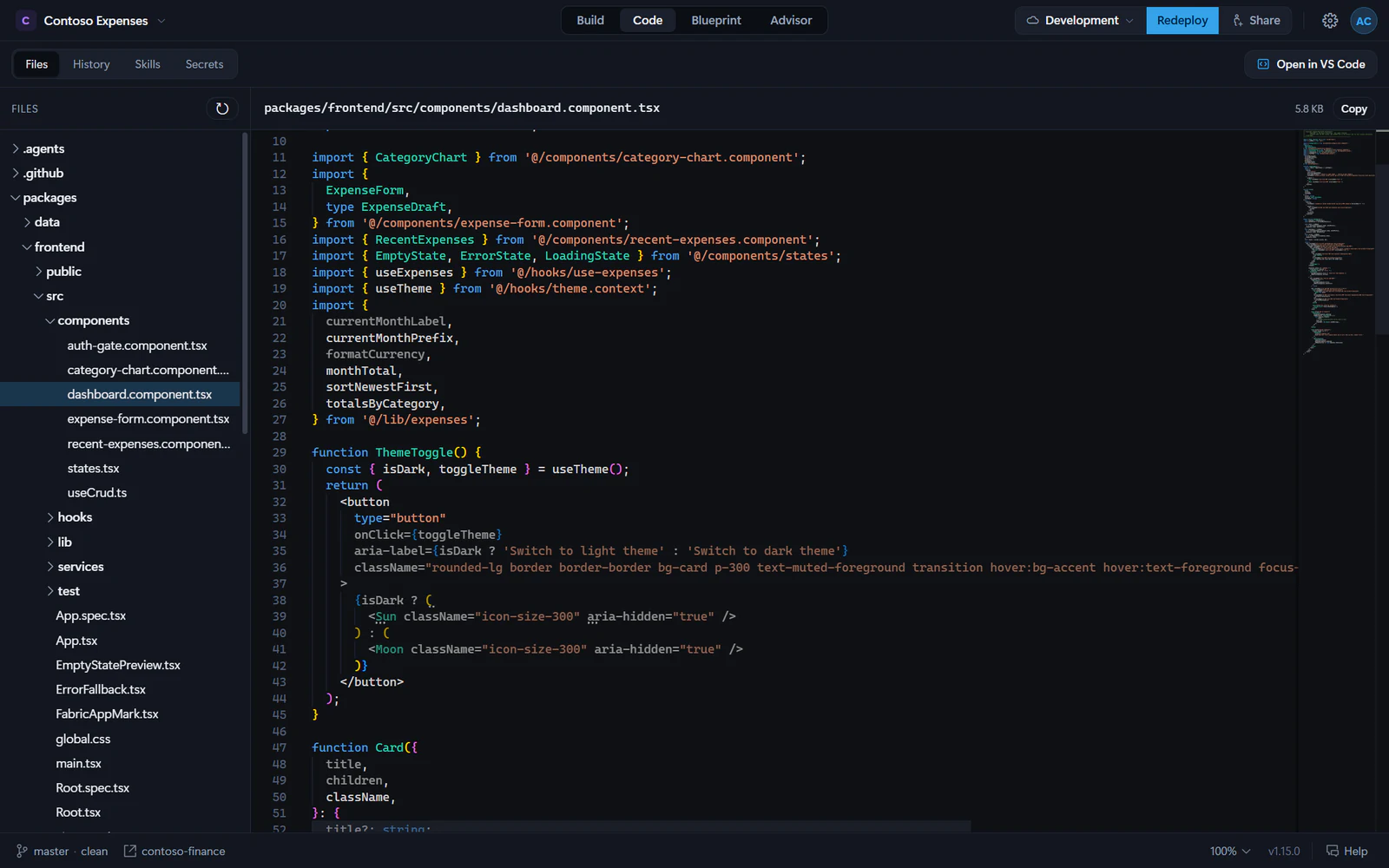
Use **Code** when you want to inspect the files behind your app or understand what changed over time. The current Code view is a viewer: it opens project files in a read-only Monaco editor and can open the project folder in VS Code for editing.
## Browse files
1. Select **Code** in the project tabs.
2. Select **Files**.
3. Choose a file in the tree.
Fabricator shows project files in a tree and opens text files in the editor. It skips large generated folders such as `node_modules`, `.git`, `dist`, `build`, `.next`, `.vite` and `coverage`.
The editor shows line numbers, syntax highlighting and a minimap. It does not save edits in the current app source. Use **Open in VS Code** when you need to edit a file by hand.
The file header can show:
- The project-relative path.
- The file size.
- **Copy**, which copies the displayed file contents.
If a file is binary, empty, missing or too large to preview, Fabricator shows that message instead of the editor.
## Open files from chat or other views
File chips and file references in chat can open the file in **Code**. The **Blueprint** and **Advisor** views also use the same behavior when they link to source files.
When a line number is provided, Fabricator opens the file and reveals that line in the editor.
## Open the project in VS Code
Select **Open in VS Code** in the Code toolbar. Fabricator runs `code `.
If the `code` command is not available, Fabricator opens the project folder in the operating system file manager instead and shows: "VS Code isn’t installed, so we opened the project folder instead." Use **Get VS Code** from that message if you want to install it.
## Use the git status pill
The project header can show a git pill with the branch and the number of uncommitted changes. When the repository has a remote, it can also show changes to get or push.
Open the pill to use:
- **Get latest** for remote changes waiting to be pulled.
- **Push** for local commits ready to push.
- **Commit all** after entering a **Commit message**.
For team apps, Fabricator saves changes through the team workflow instead of using these local push and pull actions.
## Review history
Select **History** inside **Code** to open the timeline.
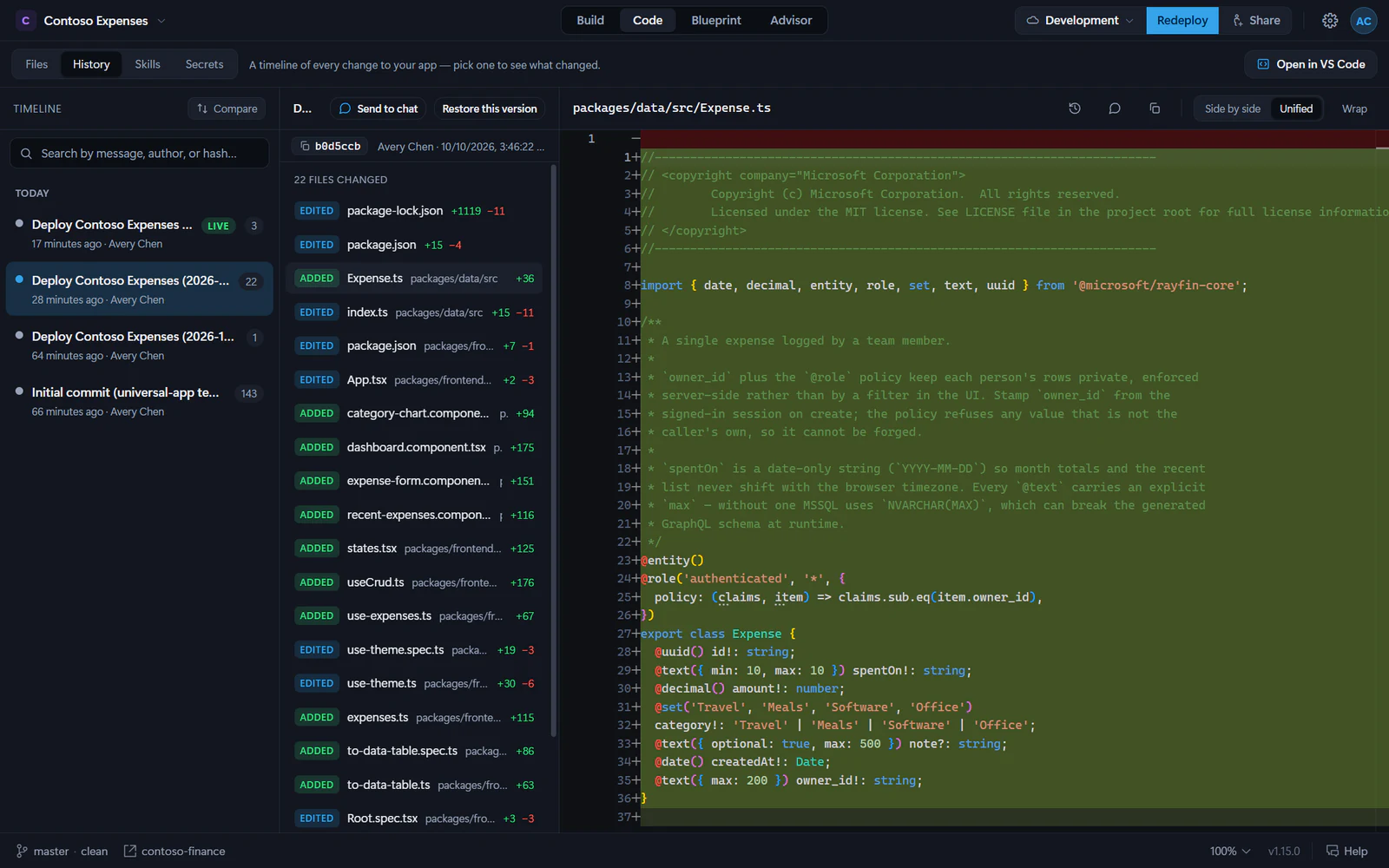
The timeline shows saved git snapshots. It also shows **Uncommitted changes** when the working tree has files changed since the last snapshot. Fabricator records snapshots as it works, so this view is the safest way to see what changed without using a terminal.
A project you open from a folder that git doesn't track yet gets a repository when it opens. Its timeline starts with a **Start version history** snapshot. See [Open an existing local project](https://spatney.github.io/rayfin-fabricator/docs/build/projects#open-an-existing-local-project).
Select a timeline entry to see:
- The changed files.
- Added, modified, deleted or renamed status.
- Insertions and deletions.
- A text diff for the selected file.
Use **Side by side** or **Unified** to change the diff layout. Use **Wrap** for long lines.
## Compare snapshots
Use **Compare** in the timeline to pick a **Base** snapshot and a **Target** snapshot. Fabricator lists the differences between them.
You can also use **History of this file** from the diff header to jump through the commits that touched the selected file.
## Send history to chat
The History view can stage context in the Build chat:
- **Send to chat** sends the selected snapshot or uncommitted changes.
- **Send comparison** sends the selected base-to-target comparison.
- The chat icon in the diff header sends the selected file's change.
Fabricator switches back to **Build** and places the context in the composer so you can add your own request before sending.
## Restore an earlier version
1. Select an older timeline entry.
2. Select **Restore this version**.
3. Confirm **Restore & redeploy**.
Fabricator saves your current work first if there are uncommitted changes, restores the project to the selected snapshot, records the restore as a new git commit, and then redeploys so the live app matches.
Your current version stays in the timeline, so you can restore it again later. For team apps, restore is scoped to that app's folder; other apps and shared files in the team workspace repository are not restored.
---
---
title: "Blueprint: architecture and data models"
description: "Use Blueprint to see what your app is made of, what it connects to and which identity each connection uses, plus its Rayfin data model and Fabric semantic models."
url: https://spatney.github.io/rayfin-fabricator/docs/build/data-model
markdown_url: https://spatney.github.io/rayfin-fabricator/docs/build/data-model.md
app_version: "1.20.1"
section: build
product: Fabricator
last_updated: 2026-10-13T22:32:13-07:00
source: build/data-model.mdx
---
# Blueprint: architecture and data models
> Use Blueprint to see what your app is made of, what it connects to and which identity each connection uses, plus its Rayfin data model and Fabric semantic models.
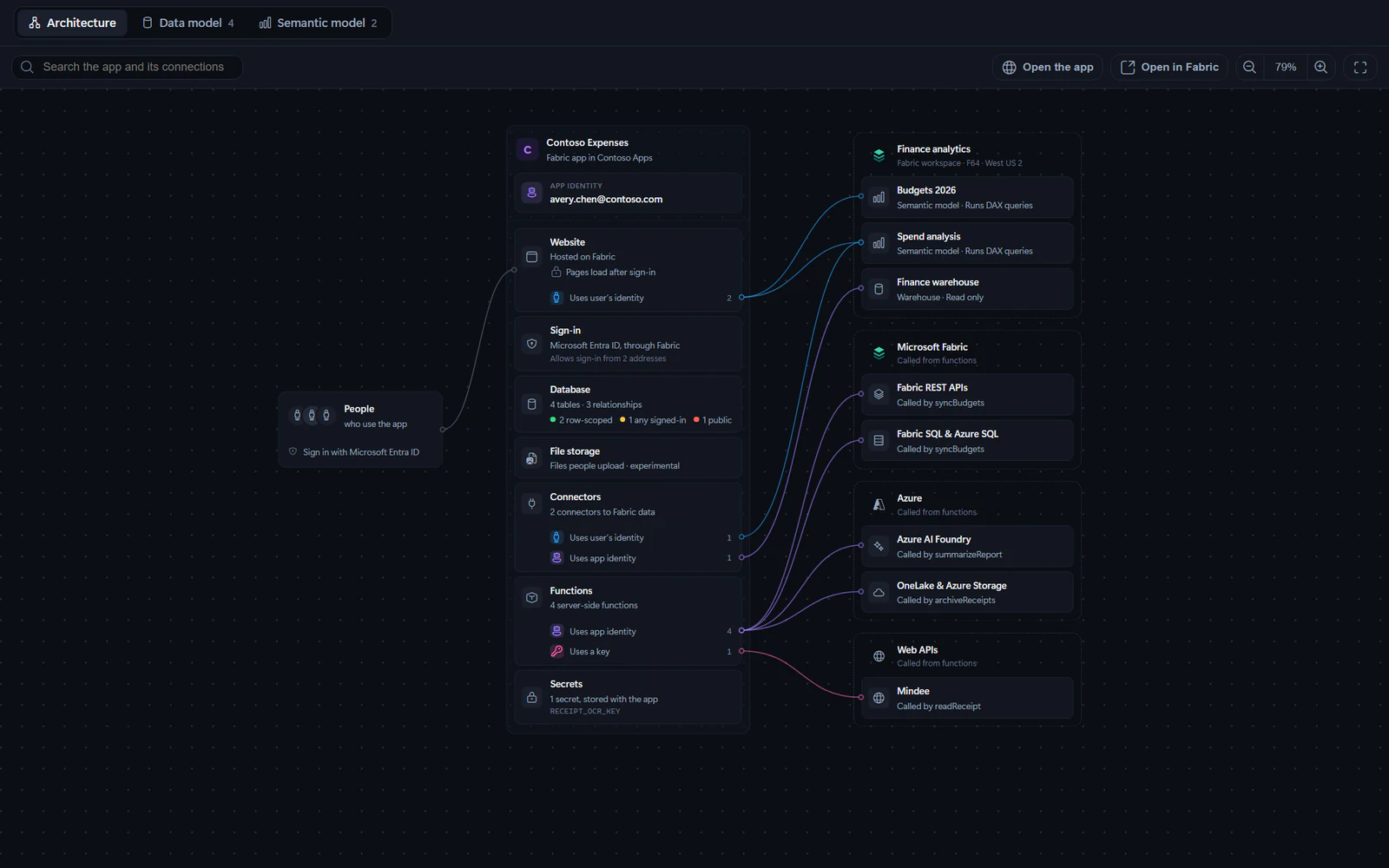
Use **Blueprint** to see how your app is put together. The **Architecture** view shows what the app is made of, what it connects to, and which identity each connection uses. The **Data model** view shows the Rayfin data model, and the **Semantic model** view shows the Fabric semantic models the app uses.
## Open Blueprint
1. Open a project.
2. Select **Blueprint** in the project tabs.
3. Choose **Architecture**, **Data model** or **Semantic model**. **Semantic model** appears when the app uses a semantic model.
Fabricator remembers the view you chose for the project.
## Read the architecture
The **Architecture** view reads the app's `rayfin/rayfin.yml`, `fabric.yaml`, data model and function code. From left to right it shows:
- **People**, the people who use the app, and how they sign in.
- The app, named with the workspace it's in. When any connection uses the app identity, **App identity** names whose credentials it uses. Below are the app's pieces: **Website**, **Sign-in**, **Database**, **File storage**, **Connectors**, **Functions** and **Secrets**, as the app has them.
- What the app connects to, grouped by where it lives: each Fabric workspace by name, with its capacity and region when Fabric returns them, then **Microsoft Fabric**, **Azure** and **Web APIs**.
A piece that connects to something outside the app lists how those connections sign in, with a count. Lines run from there to each source. Hover or select a piece, a source or one of those rows to highlight the connections it's part of.
Use **Search the app and its connections** to highlight matching pieces and sources. The toolbar also has **Open the app** and **Open in Fabric** once the app is deployed, plus zoom and fit-to-view.
If the app connects to nothing outside, the view says **No outside data yet** and offers **Connect data with Copilot**. If `rayfin/rayfin.yml` can't be read, it says "Couldn’t draw the app" and offers **Open rayfin.yml**.
## Which identity a connection uses
| Label | What it means | Used by |
| --- | --- | --- |
| **Uses user’s identity** | Delegated access. The connection runs as the signed-in person, so Fabric checks their own permissions and each person sees only what they can access. | Connectors with `auth.type: delegated`, and semantic models in `fabric.yaml` |
| **Uses app identity** | Application access. The connection runs as the app identity, so everyone sees the same data. | Connectors with `auth.type: application`, and function connections through `ctx.Tokens` |
| **Uses a key** | The function sends its own key or token. Anyone who has the key has the same access. | Web APIs that functions call directly |
The app's own database always uses the user's identity, and each table's access rules decide which rows a person can see. Learn more in the [Rayfin delegated access docs](https://rayfin.ai/docs/auth/delegated-access).
## Whose credentials the app identity uses
The app identity is the owner of the app's Fabric item:
- For your own apps, it's the Fabric account that first deployed the app. Fabricator shows the account it deploys with. Before the first deploy, it shows "Whoever deploys it first".
- For a team app, it's the team workspace's deploy identity. Previews are owned by the preview identity when the team has a separate one.
Select **App identity** to see which sources the app identity needs access to, and select **Ask Copilot what to grant** to ask which role to give it on each one.
## When the website's pages load
The **Website** piece shows when people can load the app's pages, set by `assetAccess` in `rayfin/rayfin.yml`:
- **Pages load after sign-in** (`protected`): the page files load only for people signed in to Fabric.
- **Pages load before sign-in** (`public`): anyone with the link can download the page files, the app's HTML, JavaScript and CSS. The app's data still needs sign-in, and its access rules still apply.
- **Page access not set**: choose `protected` or `public` before deploying.
## How people sign in
The **Sign-in** piece shows how people sign in to the app. **Microsoft Entra ID, through Fabric** means the app uses Fabric brokered auth, which Rayfin's docs also call Fabric SSO:
- People sign in with the Microsoft Entra account they already use for Fabric.
- Sign-in is part of the app, so there's no identity provider to run.
- The app needs no app registration of its own in Microsoft Entra ID, so there's nothing for a tenant admin to approve.
Select **Sign-in** to see its **Provider**, whether it accepts **Entra tokens from other apps**, and its **Sign-in addresses**. If the piece says **Off**, the app can't tell people apart. Learn more in the [Rayfin auth docs](https://rayfin.ai/docs/auth).
## Secrets
The **Secrets** piece lists the secrets the app's functions use: the ones declared in `rayfin/rayfin.yml` and the ones its code reads. Select it to see what each secret is for, which functions read it, and whether the deployed app has a value for it: **Set**, **No value** or **Not in rayfin.yml**. Values are never shown.
Fabricator flags a secret that functions read with `ctx.Secrets` but that `rayfin/rayfin.yml` doesn't declare, which is a TypeScript error, and reads that use the deprecated `ctx.getSecret()`.
Select **Manage secrets** to add or change values in **Code → Secrets**. If keys are written into the functions' code, select **Move keys into secrets** to ask Copilot to move them. See [Secrets](https://spatney.github.io/rayfin-fabricator/docs/build/secrets).
## Details and actions
Select any card to open its details: what it is, the settings it comes from, its IDs, and what it connects to. Press Esc or select the empty canvas to close them.
Depending on what you select, the details can include:
- **Use user’s identity** or **Use app identity**, to ask Copilot to change a connector's `auth.type`.
- **Fix with Copilot**, when a connector's `auth.type` or the functions' `services.functions.auth.type` would stop the app from deploying.
- **Use app identity** on a web API that Rayfin can also reach with the app identity, so the functions don't need a key for it.
- **View the model**, which opens a semantic model in the **Semantic model** view.
- **Open in Fabric**, which opens a source or its workspace in the Fabric portal.
- **Harden access** and **Open the data model** on **Database**.
These actions send a prompt to the Build chat. Fabricator doesn't deploy from them directly; the normal chat turn and redeploy apply.
## Read the data model diagram
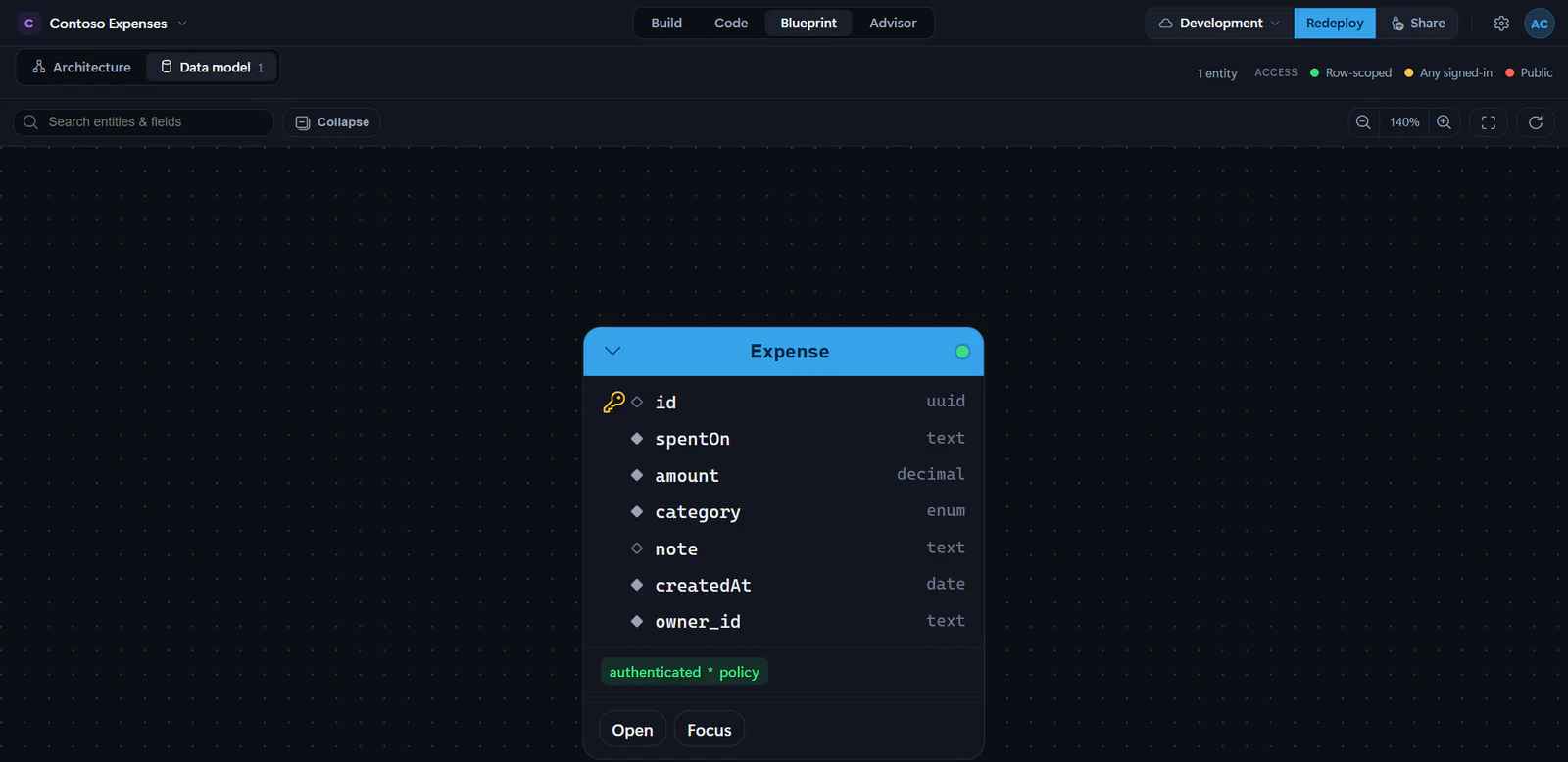
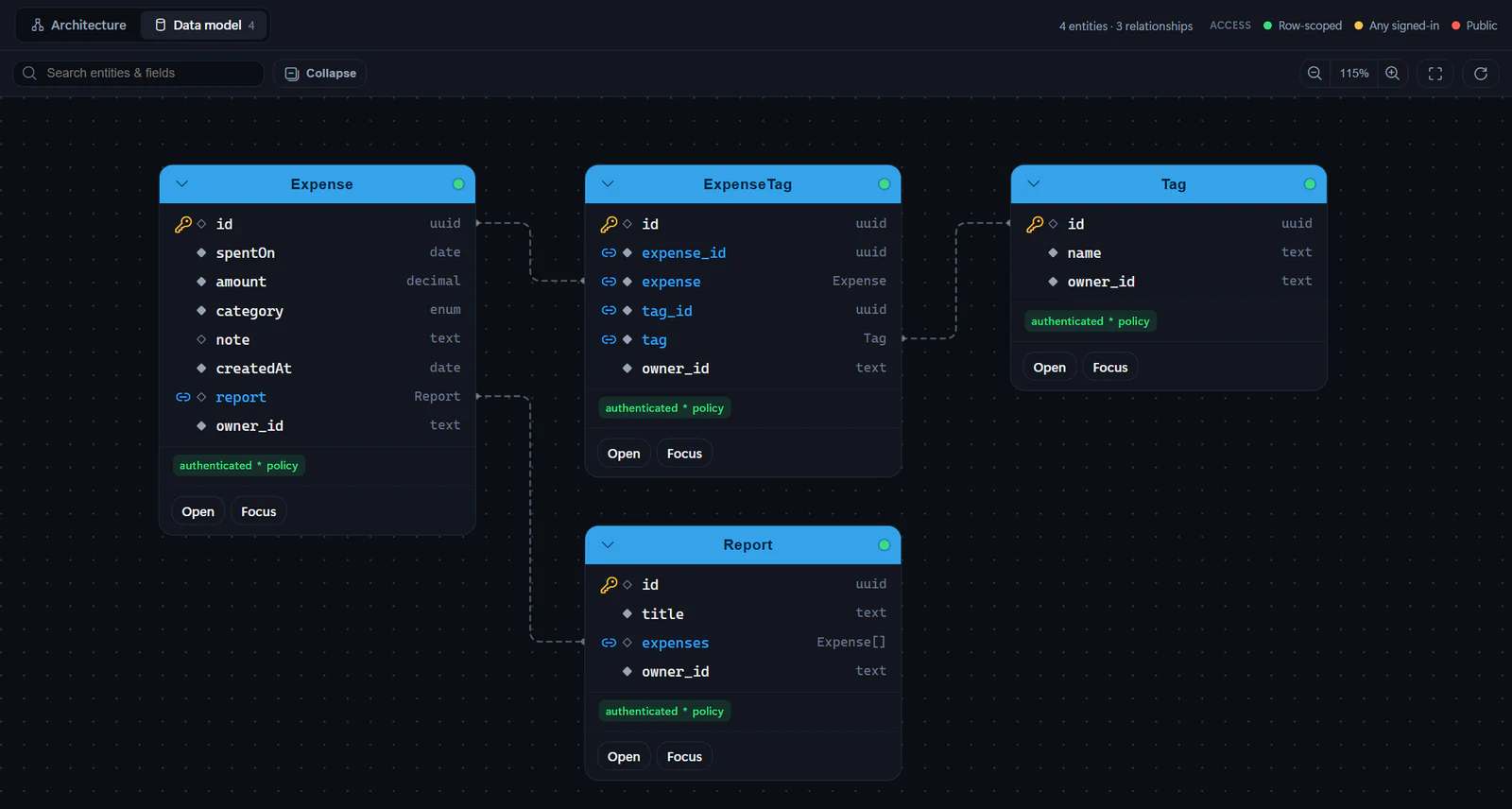
The **Data model** view parses the Rayfin schema and draws an entity-relationship diagram. Each entity card shows:
- The entity name.
- Each field and its type: `uuid`, `text`, `email`, `int`, `decimal`, `bool`, `date`, or `enum` for a `@set()` field. A relationship field shows the entity it points to, such as `Category`, with `[]` after it when it holds many, such as `Task[]`.
- A key on the primary key, and a link on a field that references another entity.
- A diamond before each field name: filled for a required field, hollow for an optional field and for the primary key, and in the accent color for a unique field. Hover over it to see **Required** or **Optional**.
- Access grants, including role names and whether a grant has a row-level **policy**.
- An access dot. The legend labels access as **Row-scoped**, **Any signed-in** or **Public**.
Relationships appear as lines between entity cards, and the header counts the entities and relationships, such as **4 entities · 3 relationships**. Hover an entity to highlight its related entities.
Learn the Rayfin modeling concepts in the [Rayfin data modeling docs](https://rayfin.ai/docs/data/modeling).
## Navigate and search the diagram
Use the toolbar to:
- Search with **Search entities & fields**.
- **Collapse** or **Expand** all entities.
- Zoom in or out.
- Fit the diagram to view.
- Reset the layout.
You can drag entity cards to rearrange the diagram. Fabricator stores the layout in the app for that project.
Each entity card also has:
- **Open**, which opens the entity source file in **Code**.
- **Focus**, which shows that entity and its neighbors. Use **Unfocus** to return to the full diagram.
## Harden loose access
Fabricator flags loose access on entities that are public, authenticated-only, default or mixed. Those cards show **Harden**.
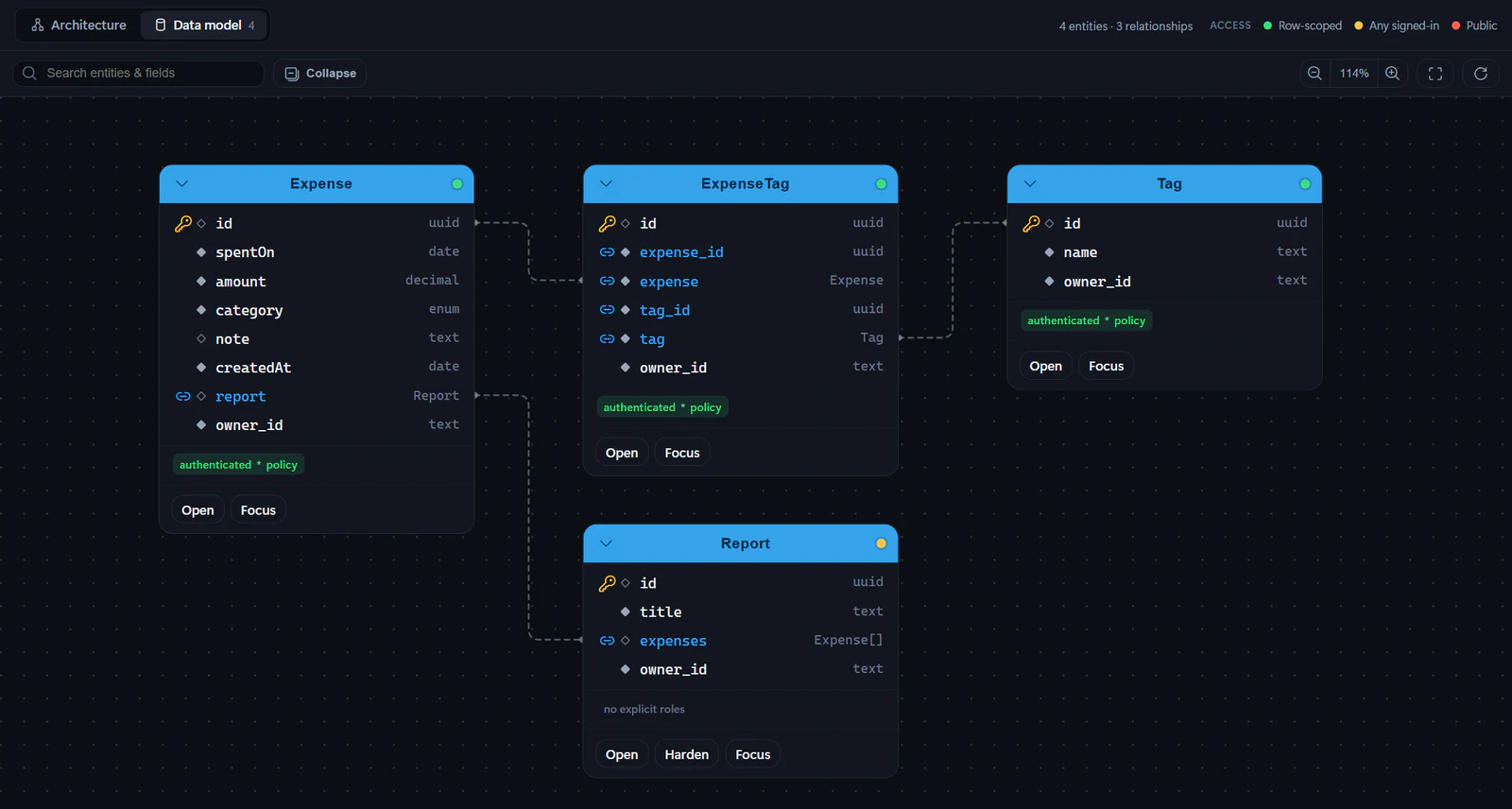
Select **Harden** to send a ready prompt to Copilot asking it to tighten the entity's access control with Rayfin decorators and row-level policy. Fabricator does not deploy from that prompt directly; the normal chat turn and redeploy flow applies.
```prompt title="Add row-level access"
Restrict the Customer and Order entities so each signed-in user only sees rows they own. Use Rayfin role or authenticated decorators with row-level policies, and keep the app building.
```
Learn more in the [Rayfin permissions docs](https://rayfin.ai/docs/data/permissions).
## Add a data model
The data model is where the app keeps its entities. New projects keep it in `packages/data/src/`, registered in `packages/data/src/index.ts`. Apps that keep everything in one package use `rayfin/data/`, registered in `rayfin/data/schema.ts`. Fabricator reads `rayfin/rayfin.yml` to find it.
If the app has no schema file yet, the **Data model** view says **No data model yet** and offers **Add a data model with Copilot**. If the schema file exists but lists no entities, as in a new project, it says **Your schema has no entities** and offers **Add an entity with Copilot**.
Those actions stage a prompt in the Build chat composer. New projects start without a database, so the prompt also asks Copilot to turn on the data service.
```prompt title="Add an entity and relationship"
Add Project and Task entities. A project has many tasks. Tasks have a title, due date, status and owner. Restrict access so users only see their own projects and tasks.
```
## View a semantic model
When the app uses semantic models, from `fabric.yaml` or a semantic model connector, the **Semantic model** view reads them live from Fabric and draws a diagram of:
- Tables.
- Columns and data types.
- Measures. Select a measure to show its DAX.
- Relationships, including one-to-many markers, inactive relationships and cross-filter direction.
- Hidden tables or columns.
- Storage mode and descriptions when Fabric returns them.
Use **Search tables, columns & measures**, **Collapse** or **Expand**, focus controls, zoom, fit-to-view and **Refresh from Fabric** to work with the diagram.
Learn about Rayfin semantic model connectors in the [Rayfin semantic models docs](https://rayfin.ai/docs/connectors/semantic-models).
## Connect a Fabric semantic model
You can start connecting a semantic model from the chat composer menu.
1. In the Build chat composer, open the add menu.
2. Select **Connect a semantic model**.
3. In **Connect a semantic model**, choose a model from the workspace this app deploys to.
4. Select **Add to chat**.
5. Send the prepared request to Copilot.
The dialog lists models in the app's deployment workspace. Models already declared in the project are marked **Connected**.
If the app is not deployed yet, the dialog says: "Deploy this app to a Fabric workspace first — then you can connect the semantic models in that workspace."
## Sign in and retry
Listing workspace models uses Fabric authentication. If Fabricator cannot list them silently, the dialog says: "Sign in to Fabric to list this workspace's models. The preview uses a separate sign-in." Select **Sign in & retry**.
Reading a semantic model schema can also require sign-in:
- **Sign in to Fabric** appears when the Fabric session is missing.
- **Sign in to Azure** appears when the schema query needs an Azure CLI session.
If the schema cannot be read, the **Semantic model** view shows "Couldn’t read the semantic model" and offers **Try again**. For Fabric deployment and authentication recovery, see [Deploy troubleshooting](https://spatney.github.io/rayfin-fabricator/docs/troubleshooting/deploy).
---
---
title: "Design mode"
description: "Use Design mode to select elements in the preview, queue visual changes, preview themes, and send the changes to Copilot as one request."
url: https://spatney.github.io/rayfin-fabricator/docs/build/design
markdown_url: https://spatney.github.io/rayfin-fabricator/docs/build/design.md
app_version: "1.20.1"
section: build
product: Fabricator
last_updated: 2026-10-11T02:55:16-07:00
source: build/design.mdx
---
# Design mode
> Use Design mode to select elements in the preview, queue visual changes, preview themes, and send the changes to Copilot as one request.
Design mode lets you point at the running app and describe visual changes. Fabricator previews the changes on the page, queues them as numbered items, and sends one structured request to Copilot.
## Start Design mode
1. Open the **Build** view.
2. Wait for your app to appear in the preview. On the local preview, marked **Local**, Design works only between turns, with [Deploy manually](https://spatney.github.io/rayfin-fabricator/docs/ship/deploy#deploy-manually) set to **Manual deploy**.
3. In the preview toolbar, select **Design**.
4. Click an element in the app.
Design works in the direct app view and in the **Fabric** portal shell view. When the app is embedded in the Fabric shell, Fabricator relays Design commands into the app frame.
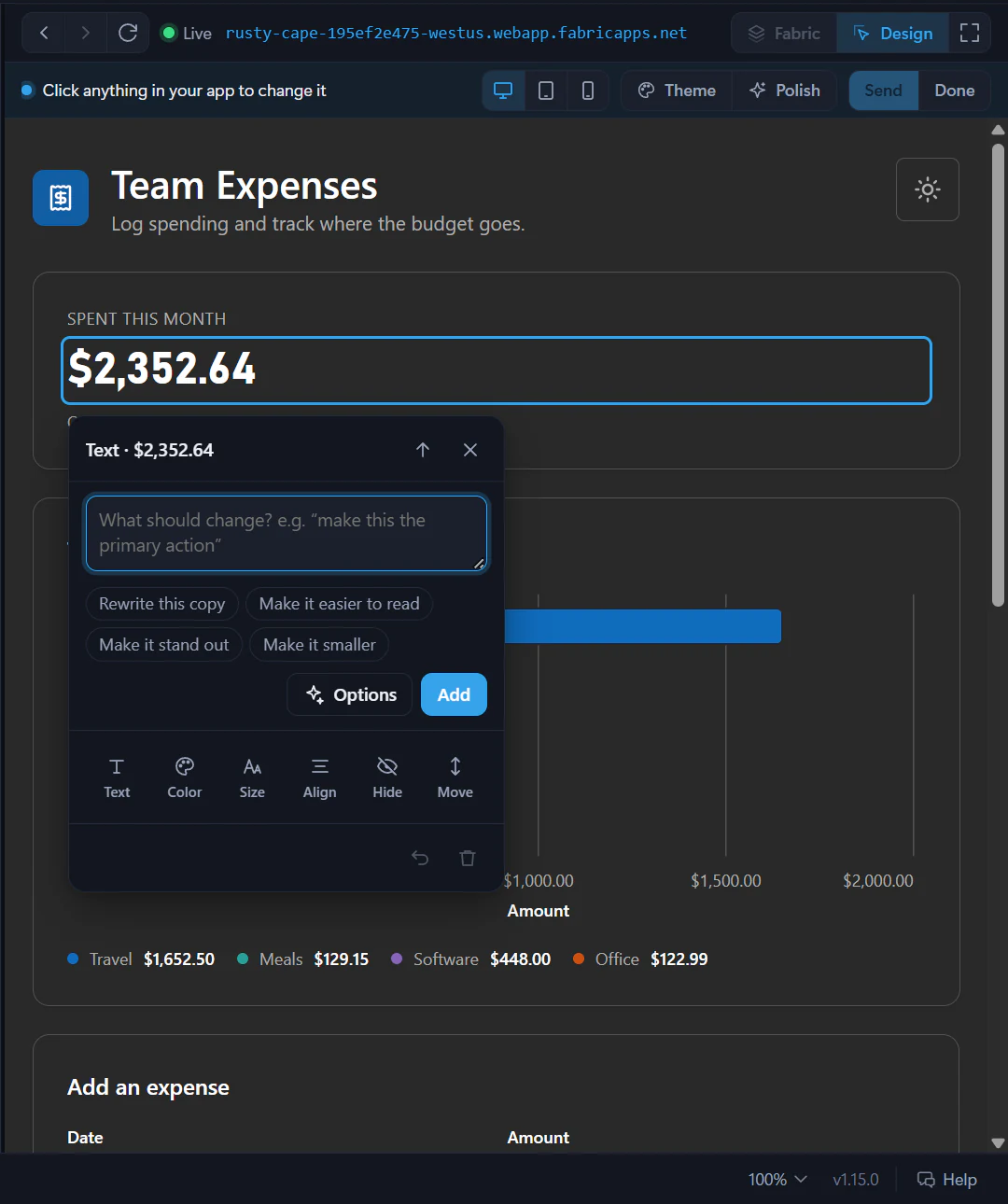
## Change one element
When you click an element, a change card opens beside it. The card is labelled with the kind of element, such as **Button**, **Heading**, **Card** or **Chart**.
Use the text box to type what should change, then select **Add**. The suggestions under the box are shortcuts such as **Make it the primary action**, **Make it bigger** or **Switch to a bar chart**, depending on what you selected.
```prompt title="Design note for a selected card"
Make this card feel more important than the others, but keep it consistent with the rest of the page.
```
The card records each selected element as one numbered change. Use **Update** to change the instruction, **Undo** to step back through that change, or **Remove this change** to drop it.
## Use quick tweaks
The tool row shows only the tweaks that make sense for the selected element:
- **Text** edits visible text in the preview.
- **Color** changes **Text color** or **Background**. When your app defines its own colors, such as `primary` or `card`, they come first under **Your colors**, followed by palettes detected from the app and other Tailwind color choices.
- **Size** steps text size and weight. It uses your app's own size scale when it has one, such as `text-300`, and otherwise Tailwind-style values such as `text-lg` and `font-semibold`.
- **Spacing** changes padding and, for flex or grid containers, gap. It steps along your app's own spacing tokens when it has them, such as `p-400`.
- **Corners** chooses rounded-corner values such as `rounded-md`, `rounded-xl` or `rounded-full`, or the nearest of your app's own radius tokens when it defines a custom scale.
- **Shadow** chooses values such as `shadow-sm`, `shadow-md` or `shadow-xl`.
- **Align** changes text alignment or distributes items in flex layouts.
- **Hide** queues **Remove it** for the selected element. **Show it again** removes that hide tweak.
- **Move** offers **Earlier** and **Later** for moving the element among its siblings.
Most choices preview on hover and apply on click. Fabricator records the intended Tailwind vocabulary and CSS preview, so Copilot can make the source change instead of copying temporary inline styles.
## Change charts
For Graphein charts, the card shows a **Chart** section. You can change:
- **Type**, including bar, line, area, scatter, pie, KPI, table and other supported visual types.
- **Palette**.
- **Legend**.
- **Sort**, when the chart type supports it.
- **Vertical** or **Horizontal** orientation for bar charts.
- **Values** formatting for charts with a `y` encoding.
- **Title**.
Chart changes keep the live data in the preview. The request sent to Copilot includes the chart spec changes but omits the data.
## Ask for Options
Select **Options** to ask a fast Copilot model for a few alternate looks for the selected element. Fabricator picks a quick, low-cost model from your Copilot plan, such as Claude Haiku or GPT Luna, and asks it to think briefly. When the model can read images, Fabricator also sends it a picture of the element.
The options follow your app's own design: its colors, text sizes, spacing and corners when it defines them, without gradients or glows unless you ask for them.
While it runs, the card names the model it's asking. Each option appears as soon as it's ready, under **Options — hover to preview, click to apply**, and **Designing more…** shows while the rest arrive. Select **Stop** to keep the options you already have.
Hover an option to preview it. Click one to keep it. Use **More options** to ask again or **Done** to close the options list.
If the options request fails, use **Try again** or describe the change yourself in the text box.
## Apply a change to similar elements
When Fabricator finds matching elements, the card shows an `Also 2 more like this`-style checkbox. Turn it on to apply the same queued change to the selected element and the similar elements Fabricator found.
This is useful for repeated cards, table rows or buttons. Copilot still receives the selected element's details and the scope note, so it can decide whether to change a shared component or repeated call sites.
## Adjust the theme
Select **Theme** in the Design bar to open the theme panel.
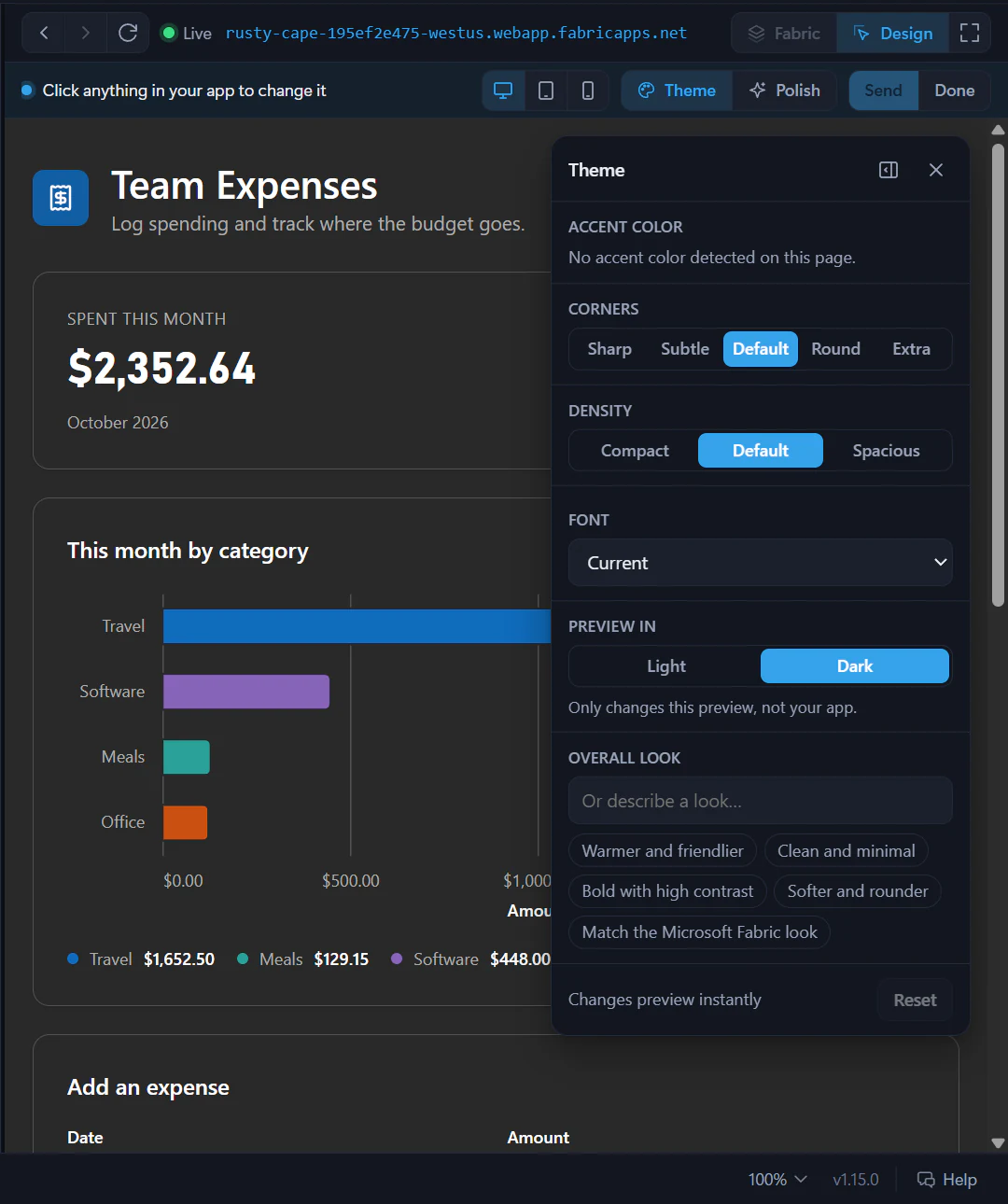
Depending on what Fabricator detects in the app, the panel can preview:
- **Accent color**. In apps that theme through a color token such as `primary`, the accent changes that token, with a lighter shade in dark mode.
- **Neutrals**.
- **Corners**.
- **Density**.
- **Font**.
- **Preview in** **Light** or **Dark**, when the app has dark-mode styles.
- **Overall look**, including preset chips such as **Warmer and friendlier** and **Match the Microsoft Fabric look**.
Theme changes are queued as one **Theme** change. **Reset** removes that queued theme change.
## Run a polish review
Select **Polish** in the Design bar to run a quick design review of the current page. Fabricator collects a page outline and a screenshot, then asks the same fast model for suggestions that fit your app's design.
The **Polish suggestions** panel can show **Preview**, **Add** and an `Add all 3`-style button. **Preview** applies a temporary visual preview. **Add** queues the suggestion as a design change.
## Change preview width
While Design mode is on, use the preview-width buttons:
- **Desktop** fills the pane.
- **Tablet** previews at 820 CSS pixels.
- **Phone** previews at 390 CSS pixels.
Use these widths to check responsive layouts before sending the changes.
## Send changes to Copilot
Queued Design changes appear as chips in the chat composer under a `1 design change · sent with your message`-style status. Click a chip to show it in the preview, remove one with its **Remove this change** button, or select **Clear** to drop the queue.
When you are ready, select **Send** in the composer or the **Send 1**-style button in the Design bar. Fabricator sends:
- Your note, if you typed one.
- A full screenshot of the previewed result, when capture succeeds.
- Crops of up to six changed elements.
- The selected element labels, text, classes, selectors and route.
- Chart spec changes, without chart data.
- Likely source locations from the project files.
Your message appears in chat as a Design card. Expand **Details sent to Copilot** to see the full structured prompt.
If the design turn fails, use **Retry** on the failed chat message. If it completes but you want a fresh attempt, use **Try again** on the latest answer.
---
---
title: "Live preview"
description: "Use the preview pane to watch local changes during Copilot turns, check the deployed app, switch Fabric shell views, and handle busy preview ports."
url: https://spatney.github.io/rayfin-fabricator/docs/build/preview
markdown_url: https://spatney.github.io/rayfin-fabricator/docs/build/preview.md
app_version: "1.20.1"
section: build
product: Fabricator
last_updated: 2026-10-11T00:47:05-07:00
source: build/preview.mdx
---
# Live preview
> Use the preview pane to watch local changes during Copilot turns, check the deployed app, switch Fabric shell views, and handle busy preview ports.
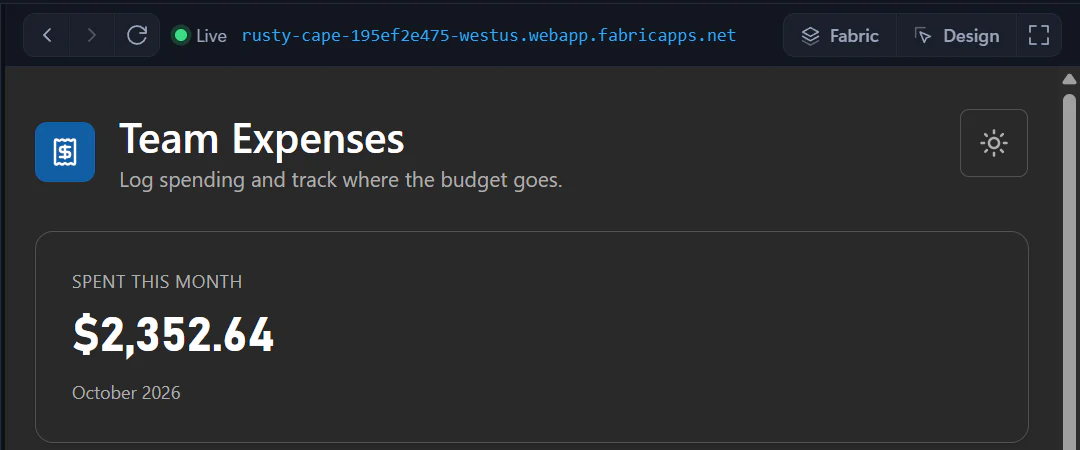
The preview pane shows your Rayfin app while you build. During a Copilot turn, Fabricator may show a local Vite preview so frontend changes appear as they are made. After the turn finishes, the pane returns to the deployed app.
## What the preview shows
Fabricator uses two preview sources:
1. **Local** appears while Copilot is working, when the project has Vite installed under `node_modules`. Fabricator starts the project's own local Vite server directly. It does not require an `npm run dev` script.
2. **Live** appears when the deployed app is loaded. After a successful turn, Fabricator redeploys eligible changes and reloads the deployed preview.
The local preview uses the existing Fabric deployment's `VITE_*` configuration. It does not start a local Fabric backend. If the project has no local Vite installation, Fabricator keeps showing the deployed preview instead.
With the [Deploy manually](https://spatney.github.io/rayfin-fabricator/docs/ship/deploy#deploy-manually) experiment set to **Manual deploy**, the local preview runs whenever the app is open, not only during a turn.
Team app previews are handled by the team pipeline and local preview behavior. See [Work on a team app](https://spatney.github.io/rayfin-fabricator/docs/team/work-on-an-app).
## Use the toolbar
The preview toolbar gives you browser-like controls and Fabricator-specific tools:
- **Back**, **Forward** and **Reload** navigate the preview history.
- The status label shows **Live**, **Local**, **Deploying…**, **Deploy failed** or **Not deployed**. For a team app it names the deployment you're looking at instead of **Live**: **My preview** or **Published**.
- The URL button opens the current preview URL in your default browser.
- **Fabric** switches between the direct app view and the app embedded in the Fabric portal shell, when the deployment has a portal link. If the Fabric shell is unavailable, the button is disabled.
- **Design** opens Design mode. On the local preview, it's available only between turns, with **Manual deploy** selected.
- **Focus** hides the chat and gives the preview more room. **Exit focus** shows the chat again.
When Design mode is on, the extra preview-width buttons are **Desktop**, **Tablet** and **Phone**. **Desktop** fills the pane, **Tablet** previews at 820 CSS pixels, and **Phone** previews at 390 CSS pixels.
> [!NOTE]
> Browser devtools are available from the native preview's webview, not as a separate toolbar button in the current PreviewPane source.
## Zoom and display scale
The preview tracks Fabricator's UI scale and the browser surface's pixel ratio. That matters when you move Fabricator between monitors or change display scaling: the native preview is resized and repositioned to stay aligned with its pane.
In Design mode, device widths account for Fabricator's UI scale, so **Tablet** and **Phone** still represent the app's CSS width instead of the physical monitor width.
## Sign in inside the preview
Signing in to the deployed app is separate from Fabricator's Fabric CLI session. The app preview has its own browser session and cookies. If the app opens a Fabric or Microsoft Entra sign-in popup, Fabricator lets the preview browser handle that popup.
In apps created from the Universal App template, the local preview signs you in automatically when the app uses sign-in. It uses the Fabric account that Fabricator deploys with, so a chat turn doesn't stop at the app's sign-in page. The deployed app doesn't include this and still asks you to sign in. Rayfin describes how it works in [Local automatic sign-in](https://rayfin.ai/docs/start/develop-locally#local-automatic-sign-in).
Older apps need Rayfin 1.36 or newer for this. See [Rayfin versions](https://spatney.github.io/rayfin-fabricator/docs/ship/rayfin-versions). To add it to an older app, paste this prompt:
```prompt title="Sign in automatically in the local preview"
Make the local preview sign me in automatically with my Rayfin CLI account. Add @microsoft/rayfin-local-dev at the same version as the app's other Rayfin packages, register rayfinLocalDev({ autoLogin: true }) in vite.config.ts, and set externalEntraExchange: true under services.auth.fabric in rayfin/rayfin.yml. When the app starts in development without a saved session, get the local session token and sign in with signInWithBrokeredToken(). Keep that code behind import.meta.env.DEV with a dynamic import so production builds don't include it.
```
Refreshing Fabricator's Fabric authentication affects Rayfin CLI deployment credentials. It does not sign the preview browser in or out.
## When every preview port is busy
The live local preview must use a `localhost` port your app accepts for sign-in. Fabricator first tries the registered `http://localhost:N` ports from `rayfin/rayfin.yml`. If all registered ports are busy, you see a dialog titled like `localhost:5173 is in use`.
Depending on the situation, the dialog can offer:
1. **Use port N**. Fabricator adds `http://localhost:N` to `rayfin/rayfin.yml`. If the app is already deployed, it also pushes the sign-in setting to Fabric without rebuilding the app.
2. a **Stop node.exe**-style button. Fabricator stops the specific process it identified, then uses the original port. The dialog warns that unsaved work in that process is lost.
3. **Skip live preview**. Fabricator skips the local Vite preview for this turn. You can keep chatting, and the deployed preview takes over after the turn.
If switching ports would require a push while Copilot is already working, the dialog explains that it cannot happen during the turn and asks you to skip for now.
For recovery steps, see [Preview problems](https://spatney.github.io/rayfin-fabricator/docs/troubleshooting/preview), especially the "All preview ports are busy" section.
---
---
title: "Create and manage projects"
description: "Start a new Rayfin app, open an existing project, clone from GitHub, switch between projects, and rename or remove projects from Fabricator."
url: https://spatney.github.io/rayfin-fabricator/docs/build/projects
markdown_url: https://spatney.github.io/rayfin-fabricator/docs/build/projects.md
app_version: "1.20.1"
section: build
product: Fabricator
last_updated: 2026-10-14T22:09:52-07:00
source: build/projects.mdx
---
# Create and manage projects
> Start a new Rayfin app, open an existing project, clone from GitHub, switch between projects, and rename or remove projects from Fabricator.
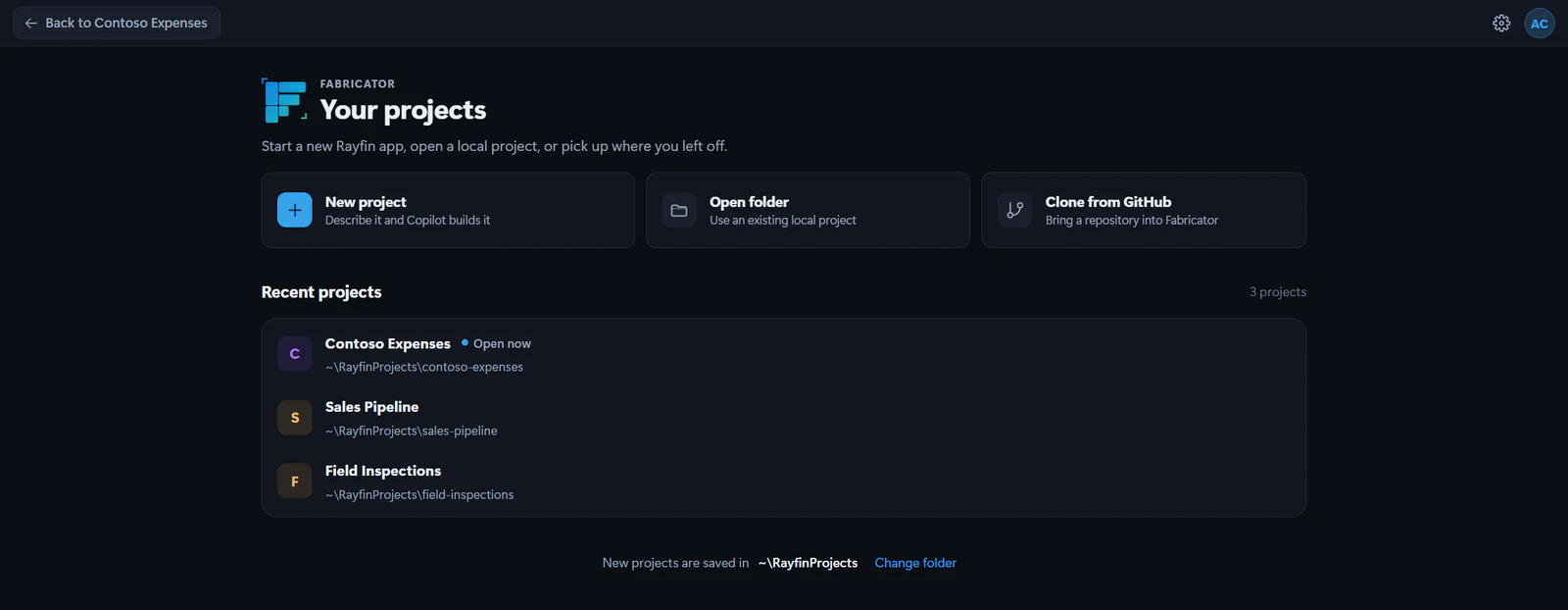
Projects are the Rayfin apps Fabricator can open. From **Your projects**, you can start a new app, open a local folder, clone a GitHub repository, or return to a recent project.
## Create a new project
A new Fabricator project starts from the Universal App, the default template that comes with the Rayfin CLI. You do not choose a template type up front. The app begins small, with Fabric sign-in and no database, and Copilot grows it into the app you describe in chat. It turns on a database only when the app needs to store its own records.
1. On **Your projects**, select **New project**.
2. Type a **Project name**.
3. Check the folder hint. Fabricator turns the name into a folder name and checks whether that folder already exists in your projects folder.
4. If team workspaces are enabled, choose **Just me, on this computer** unless you are creating a team app.
5. Select **Create project**.
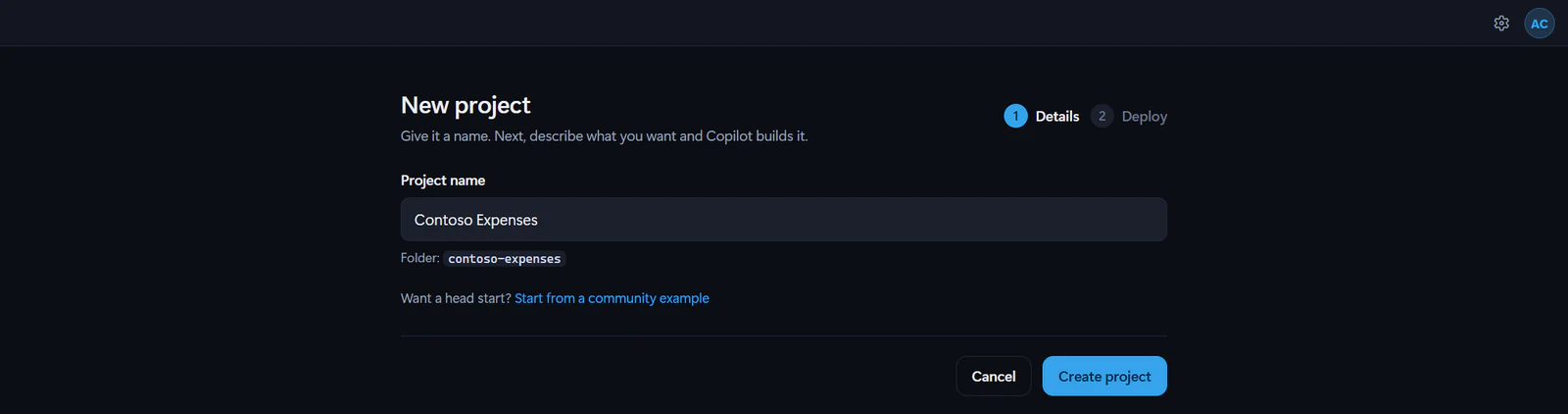
After the project is ready, Fabricator moves to **Deploy your app**. Select **Deploy app** to publish the first deployment, or **Continue without deploying →** to open the workbench with chat locked until you deploy. See [Deploy to Microsoft Fabric](https://spatney.github.io/rayfin-fabricator/docs/ship/deploy).
While the project installs its packages, Ray, Fabricator's stingray, keeps you company with facts about Rayfin and tips for Fabricator. He also turns up when a cloned or opened project takes a while to install. To find out what else he does, and how to send him away, see [Ray](https://spatney.github.io/rayfin-fabricator/docs/start/tour#ray).
> [!NOTE]
> New local projects are saved under the **Workspace folder** in **Settings**. You can also use **Change folder** on **Your projects**.
## Start from a community example
Community examples are Rayfin templates, such as the `awesome-rayfin` gallery. Use one when you want a working sample as your starting point.
1. Select **New project**.
2. Enter a **Project name**.
3. Select **Start from a community example**.
4. Choose an example from the gallery, or select **Use a custom URL**.
5. For a custom URL, paste an `https`, `git`, or `git+` template URL. If the repository has more than one template, enter the optional template name.
6. Select **Create project**.
Use **Start from scratch instead** to return to the Universal App template.
## Open an existing local project
Use **Open folder** for a Rayfin project that is already on your computer.
1. On **Your projects**, select **Open folder**.
2. Pick the project folder.
3. Fabricator opens the folder only if it contains `rayfin/rayfin.yml`.
When a project opens, Fabricator makes sure the project dependencies are ready before it enables preview, deploy, model, and chat features.
If the folder isn't in a git repository yet, Fabricator starts one when the project opens, so History, **Restore this version** and automatic redeploys work. It keeps dependencies, build output, Python environments, local settings and secrets out of the history, and leaves your `.gitignore` as it is. The first snapshot in History is **Start version history**.
## Clone from GitHub
**Clone from GitHub** uses the GitHub CLI, `gh`. It is separate from the bundled Copilot engine.
1. On **Your projects**, select **Clone from GitHub**.
2. If `gh` is missing, install it from the prompt or choose **Install manually**.
3. If you are not signed in to GitHub, select **Sign in with GitHub**. A terminal runs `gh auth login --web`.
4. Choose a repository from **Your repositories**, or paste `owner/name` or a `https://github.com/owner/name` link.
5. Select **Clone and open**.
Fabricator clones the repository into your workspace folder, verifies that it has `rayfin/rayfin.yml`, runs `npm install`, and opens it. If the repository is not a Rayfin project, Fabricator removes the fresh clone and reports the problem.
## Switch between projects
While a project is open, you can switch to another one from the app bar.
1. In the app bar, select the project name.
2. Under **Recent projects**, select the project you want to open.
The menu lists up to six of your most recently opened projects. A project whose folder is missing isn't listed there; it appears on **Your projects** marked **Missing**.
To see every project, select **All projects**. The project you had open keeps running behind **Your projects**, and the `Back to ` button returns you to it.
## Manage recent projects
Each recent project has a **Manage** button.
### Rename a project
1. Select **Manage** on the project card.
2. Under **Project details**, edit **Project name**.
3. Select **Save name**.
Renaming updates Fabricator's project list and the `name:` field in `rayfin/rayfin.yml`.
### Remove a project from the list
Use **Remove from recent projects** when you want Fabricator to forget the entry without changing files, deployments, or data. You can open the folder again later.
### Move a local project to trash
1. Select **Manage**.
2. Under **Remove project**, select **Review removal options...**.
3. Choose whether to also delete the deployed Fabric app, if the project has one.
4. Select **Move folder to trash** or **Move folder to trash and delete Fabric app**.
Moving the folder uses your system trash, so you can restore it there. If you also delete the Fabric app, Fabricator removes the app and its data from the Fabric workspace. The Fabric workspace itself is not deleted.
## Change where new projects are saved
The current projects folder appears at the bottom of **Your projects** and in **Settings** as **Workspace folder**.
1. Open **Settings**.
2. Find **Workspace folder**.
3. Select **Change…**.
4. Pick a folder.
Existing projects stay where they are. New projects and cloned repositories use the new folder.
## If a first deploy would replace an app
Before the first deploy, Fabricator checks the selected Fabric workspace for an app with the same name. If it finds one, you see a warning like "Sales apps already has an app named “Notes”. Deploying here would replace it, so pick another workspace."
Choose another workspace, or select **Replace it anyway** if you intend to deploy over that app. For details, see [Deploy to Microsoft Fabric](https://spatney.github.io/rayfin-fabricator/docs/ship/deploy).
---
---
title: "Prompt ideas"
description: "Copy prompts for starting Rayfin apps, adding data and access rules, building semantic-model dashboards, improving visuals, and fixing issues."
url: https://spatney.github.io/rayfin-fabricator/docs/build/prompt-ideas
markdown_url: https://spatney.github.io/rayfin-fabricator/docs/build/prompt-ideas.md
app_version: "1.20.1"
section: build
product: Fabricator
last_updated: 2026-10-04T02:17:09-07:00
source: build/prompt-ideas.mdx
---
# Prompt ideas
> Copy prompts for starting Rayfin apps, adding data and access rules, building semantic-model dashboards, improving visuals, and fixing issues.
Use these prompts as starting points in Fabricator chat. Replace the example names, roles, fields, and metrics with your own details.
## Tips for writing good prompts
- Describe the people who use the app and what each person should do.
- Name the records, fields, rules, and screens you want.
- Ask for one meaningful change at a time when you are refining an app.
- Describe the outcome, not the implementation. Copilot can choose the Rayfin code pattern.
- For data apps, say who can see or edit each kind of record.
- For analytics dashboards, name the Fabric semantic model, report, warehouse, or lakehouse you want to use, plus the business questions to answer.
## Start an app
```prompt title="Track customer visits"
Build a customer visit tracker for field sales. Reps record each visit with customer, date, location, notes, next step and follow-up date. Show a home page with overdue follow-ups, visits this week and a list of recent notes.
```
```prompt title="Manage equipment requests"
Build an equipment request app for an operations team. Employees request laptops, monitors and accessories. Managers approve or reject requests with a comment. Show request status, requester, needed-by date and a dashboard of open requests by category.
```
```prompt title="Coordinate nonprofit volunteers"
Build a volunteer scheduling app. Coordinators create events with a date, location, capacity and required skills. Volunteers sign up for events and can see their upcoming commitments. Coordinators see open spots and a weekly schedule.
```
```prompt title="Plan product launches"
Build a launch checklist app for product teams. Each launch has milestones, owners, due dates, risks and status notes. Show a dashboard of blocked items, upcoming due dates and launch readiness by product.
```
## Data and access rules
```prompt title="Add per-user customer notes"
Add customer notes to this app. Each note has customer, text, tags and created date. Users should only see and edit notes they created. Managers should be able to see all notes for their team.
```
```prompt title="Add approvals with history"
Add an approval workflow for budget requests. Store the request, amount, business reason, requester, current status and approval history. Approvers can approve or reject with a comment, and requesters can see the full history for their own requests.
```
```prompt title="Model projects and tasks"
Add Projects and Tasks. A project has name, sponsor, start date, target date and status. A task belongs to one project, has owner, due date, priority and status. Show each project's open tasks and overdue tasks.
```
## Sign-in and roles
```prompt title="Require sign-in"
Require users to sign in before using the app. Add a signed-in header with the current user's name and a sign-out action. Keep the public landing page simple and send signed-out users to the sign-in page before they can see app data.
```
```prompt title="Add manager and employee views"
Add two role-based views. Employees can create and update their own requests. Managers can see all requests for their team and approve or reject them. Make the navigation show only the actions available to the signed-in user.
```
## Dashboards on existing Fabric data
```prompt title="Dashboard from a semantic model"
Build an executive sales dashboard from the Fabric semantic model I connected. Show revenue, margin, orders and average order value. Include a monthly revenue trend, revenue by region, top products and a detail table. Use existing model measures where possible.
```
```prompt title="Operations dashboard with DAX"
Create an operations dashboard over our semantic model. I need on-time delivery %, average cycle time, backlog count and defects by plant. Add slicers for plant and month. Use DAX queries at the visual grain instead of pulling low-level rows into the app.
```
```prompt title="Warehouse KPI dashboard"
Use the connected Fabric warehouse or lakehouse data to build a warehouse KPI dashboard. Show inbound volume, outbound volume, inventory value and late shipments. Add charts by week, facility and product category, plus a table of late shipments.
```
## Charts and visuals
```prompt title="Add a KPI and trend chart"
Add a dashboard section with a KPI card for total open requests and a line chart of requests created by week. Format large numbers compactly and include loading, empty and error states.
```
```prompt title="Compare categories"
Add a bar chart that compares total spend by category, sorted highest to lowest. Use a clear title, formatted currency axis, accessible colors and a useful empty state when there is no spend yet.
```
```prompt title="Add filters"
Add filters for date range, region and status. The charts and detail table should all respond to the filters, and the selected filters should be easy to clear.
```
## Polish and accessibility
```prompt title="Polish the home page"
Polish the home page so it feels like a finished business app. Improve spacing, typography, empty states and primary actions. Keep the design accessible, responsive and usable in light and dark themes.
```
```prompt title="Improve mobile layout"
Make the main workflow work well on phone-sized screens. Stack multi-column sections, keep buttons easy to tap, avoid horizontal scrolling and preserve the most important actions near the top.
```
```prompt title="Accessibility pass"
Review the app for accessibility issues. Fix missing labels, weak contrast, keyboard traps, unclear focus states and icon-only buttons without names. Summarize what changed.
```
## Fix and improve
```prompt title="Act on Advisor findings"
Fix the Advisor findings I just sent. Keep the app behavior the same unless a finding requires a behavior change. After the fixes, explain what I should verify in the preview.
```
```prompt title="Improve performance"
Improve the dashboard performance. Look for unnecessary refetching, expensive re-renders and charts or tables that render too much at once. Keep the visible behavior the same.
```
```prompt title="Make an error easier to recover from"
The request form error is confusing. Make the error state clear and recoverable: keep the user's input, explain what failed in plain language and provide a retry action when that makes sense.
```
---
---
title: "Secrets"
description: "Add API keys, passwords and connection strings that your app's Rayfin functions read on the server, without putting their values in your code."
url: https://spatney.github.io/rayfin-fabricator/docs/build/secrets
markdown_url: https://spatney.github.io/rayfin-fabricator/docs/build/secrets.md
app_version: "1.20.1"
section: build
product: Fabricator
last_updated: 2026-10-04T23:05:47-07:00
source: build/secrets.mdx
---
# Secrets
> Add API keys, passwords and connection strings that your app's Rayfin functions read on the server, without putting their values in your code.
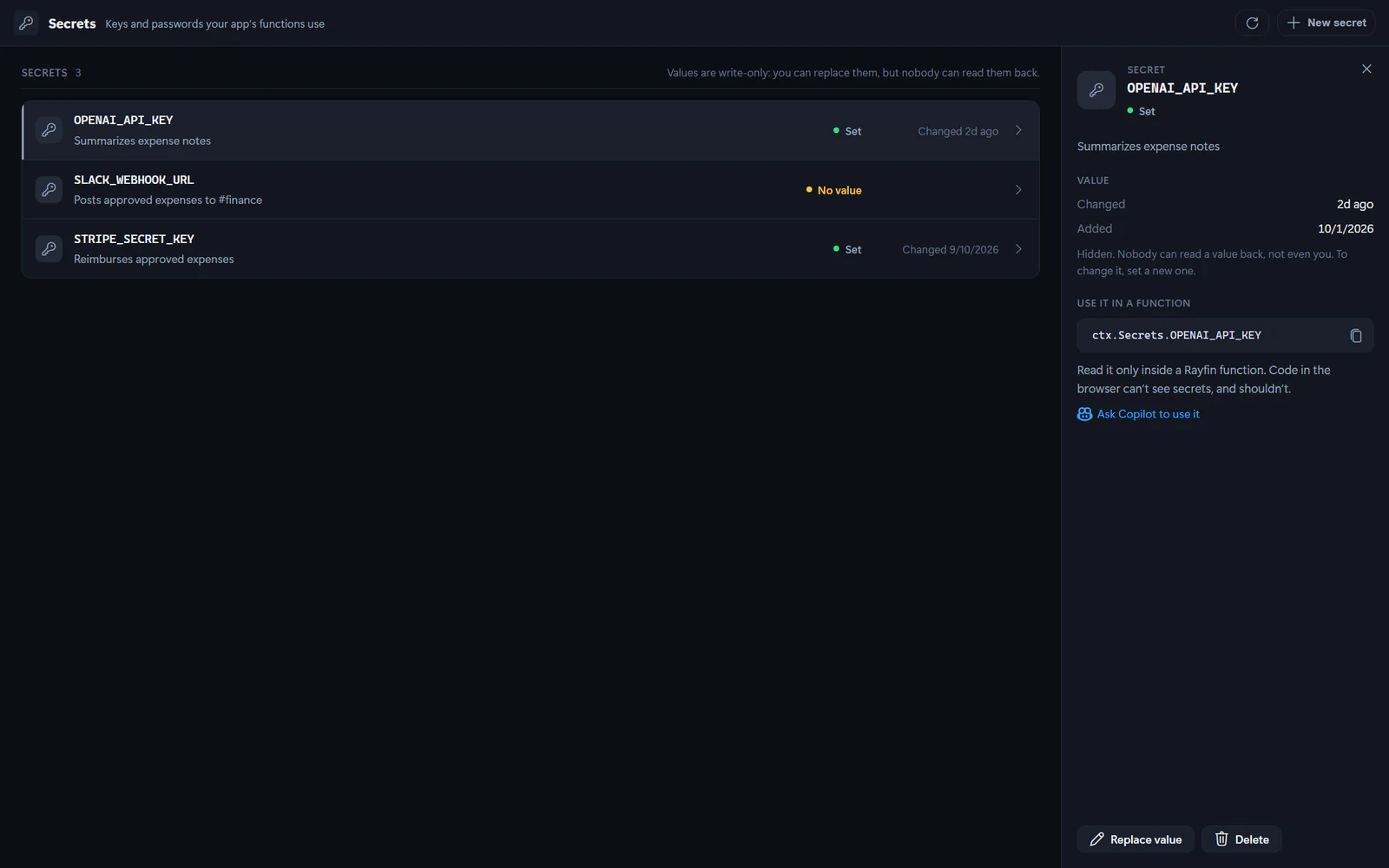
Secrets are values such as API keys, passwords and connection strings that your app needs on the server but must never send to the browser. In the **Secrets** tab, Fabricator stores them with your deployed app through the Rayfin CLI, and your app's Rayfin functions read them by name.
> [!IMPORTANT]
> Only Rayfin functions can read secrets. Functions are available from Rayfin 1.36, but not in every Fabric region or tenant. See [Functions](https://rayfin.ai/docs/functions) in Rayfin's docs.
## Before you start
- Deploy your app. Secrets live on the deployed app, so until it's deployed, the tab shows **Deploy your app first**.
- Use Rayfin 1.36 or newer. With an older version, the tab shows **Update Rayfin to use secrets**: select Rayfin in the status bar and choose **Update with Copilot**.
- To add or change secrets, use an app outside a team workspace. For a team app, the tab lists secrets but can't change them. See [Secrets in a team app](https://spatney.github.io/rayfin-fabricator/docs/build/secrets#secrets-in-a-team-app).
## Open the Secrets tab
1. Open a project.
2. In the app bar, select **Code**.
3. In the code view's segmented control, select **Secrets**.
The tab lists each secret's name and description, whether the deployed app has a value for it, and when that value last changed. It never shows values: nobody can read a value back, not even you.
## Add a secret
1. Select **New secret**.
2. Type a **Name**. Fabricator writes names in capital letters with underscores, such as `OPENAI_API_KEY`. A name starts with a letter.
3. Paste the **Value**. To check what you pasted, select **Show value** (the eye button).
4. Optionally, fill in **What it’s for**. Never put the value here.
5. Select **Add secret**.
Fabricator runs `rayfin secret set` and hands it the value directly, so the value is stored with your deployed app and isn't saved in your project or in Fabricator. The Rayfin CLI adds the name and description to `rayfin/rayfin.yml` and updates the types that functions use, and Fabricator saves that change to git history as "Add secret: NAME".
## Use a secret in a function
A function reads a secret by its name:
```ts
const apiKey = ctx.Secrets.OPENAI_API_KEY
```
Select a secret to see this line with a copy button. To have Copilot use the secret, select **Ask Copilot to use it**: Fabricator switches to **Build** and places a request about the secret in the chat composer, so you can add what the function should do before you send it. Copilot sees the secret's name, never its value.
```prompt title="Summarize expense notes with AI"
Add a Rayfin function that summarizes an expense's notes with the OpenAI API, using the OPENAI_API_KEY secret. Show the summary on the expense details page, with a loading state while it runs.
```
Read secrets only inside functions. Code that runs in the browser can't see secrets, and anything you put there is public. For how functions read secrets, see [Secrets in functions](https://rayfin.ai/docs/functions/secrets) in Rayfin's docs.
## Replace a value
1. Select the secret.
2. Select **Replace value**.
3. Paste the new value, then select **Replace value**.
Functions get the new value from their next run. Because nobody can read a value back, keep the original in a safe place, such as your password manager or the service that issued it.
## Delete a secret
1. Select the secret.
2. Select **Delete**, then confirm **Delete**.
Fabricator removes the secret from your deployed app and from `rayfin/rayfin.yml`. Functions that read it stop working until you add it again.
## Fix a secret that shows No value
A secret shows **No value** when `rayfin/rayfin.yml` lists it but the deployed app has no value for it, for example after you deploy the app to another Fabric workspace. Functions that read it fail.
1. Select the secret.
2. Select **Set value**.
3. Paste its value, then select **Set value**.
A secret shows **Not in rayfin.yml** when the deployed app has a value for it but `rayfin/rayfin.yml` doesn't list it, so functions can't read it by name. To add it, set its value again.
## Secrets in a team app
The pipeline of a [team workspace](https://spatney.github.io/rayfin-fabricator/docs/team) deploys each app twice: the published app that everyone uses, and your preview. Each one keeps its own secrets, so your preview's functions read your preview's secrets, and the published app's functions read the published app's secrets.
For a team app, the **Secrets** tab lists the secrets of both under **Published app** and **Your preview**, but it can't add, replace or delete them yet. Until your preview deploys, **Your preview** shows "Not deployed yet. Your preview’s secrets show here once the pipeline deploys it." If a deploy fails, the tab still lists the secrets of the version that's live.
To add or change a team app's secret:
1. In the **Secrets** tab, select **Open in Fabric** next to **Published app** or **Your preview**. The app opens in the Fabric portal.
2. Add or change the secret there.
3. In Fabricator, select **Refresh** at the top of the tab.
**Ask Copilot to use it** works the same as for other apps. When the secret shows **Not in rayfin.yml**, the request also asks Copilot to add it to `rayfin/rayfin.yml`, so functions can read it by name.
## If the tab can't read your secrets
If the tab shows "Couldn’t read this app’s secrets", the message under it says why. When your Fabric sign-in has expired, open the account menu, select **Refresh Fabric authentication**, then select **Try again**. If it still fails, see [Report a problem](https://spatney.github.io/rayfin-fabricator/docs/troubleshooting/report-a-problem).
---
---
title: "Skills"
description: "Choose the skills Copilot follows while it builds your Rayfin app, see what each one teaches, and add custom skills for your own guidance."
url: https://spatney.github.io/rayfin-fabricator/docs/build/skills
markdown_url: https://spatney.github.io/rayfin-fabricator/docs/build/skills.md
app_version: "1.20.1"
section: build
product: Fabricator
last_updated: 2026-10-09T19:32:57-07:00
source: build/skills.mdx
---
# Skills
> Choose the skills Copilot follows while it builds your Rayfin app, see what each one teaches, and add custom skills for your own guidance.
Skills are `SKILL.md` instructions GitHub Copilot can read while it builds your Rayfin app. They teach the agent app-building patterns, design preferences, data-model rules, analytics workflows, and your own team conventions.
Rayfin keeps its core skills always on. New Universal App projects also include app-building skills in the project. You can turn on Fabricator's built-in skills and your own custom skills from the **Skills** tab.
## Open the Skills tab
1. Open a project.
2. In the app bar, select **Code**.
3. In the code view's segmented control, select **Skills**.
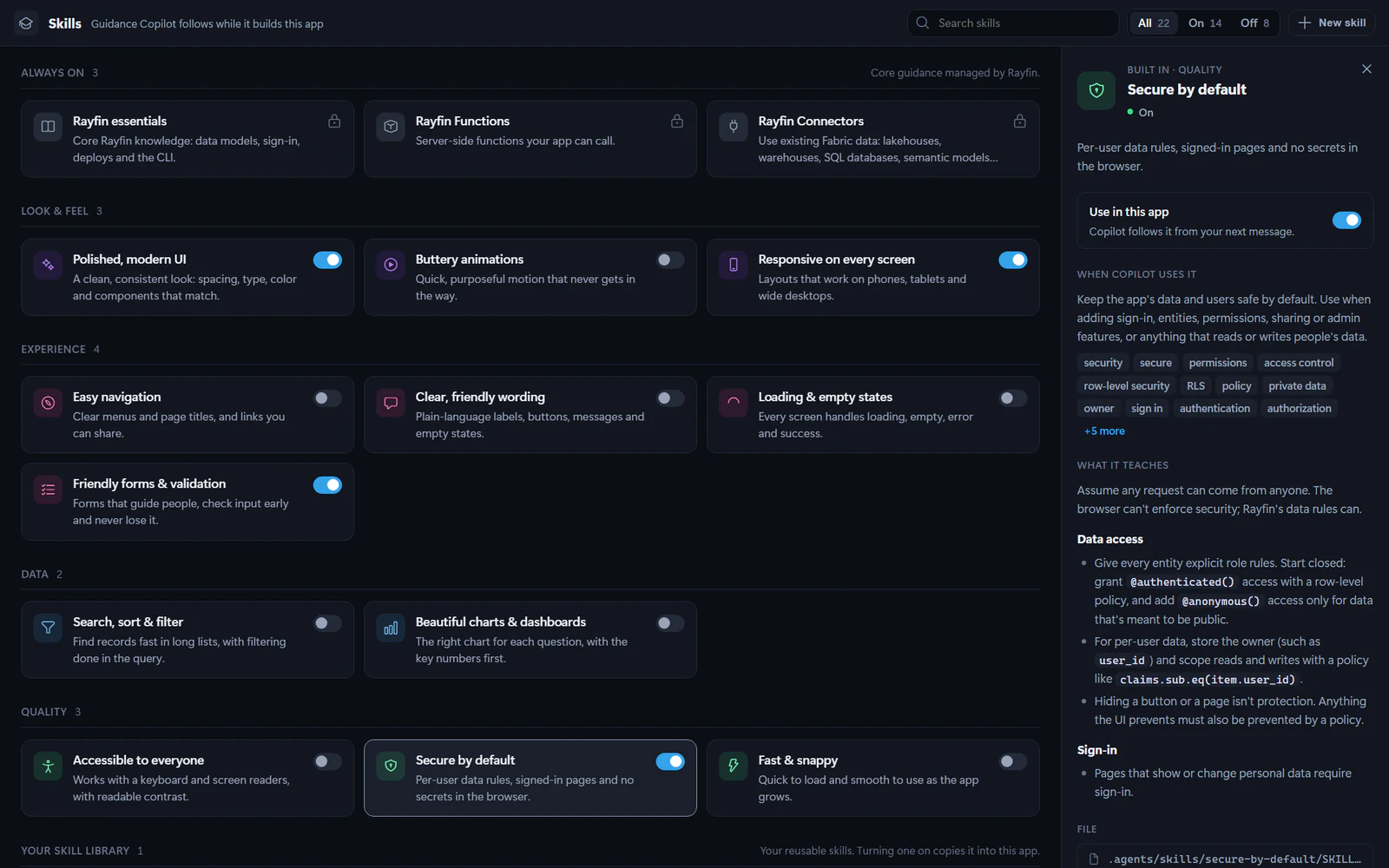
Skills are grouped into sections:
| Section | What's in it |
| --- | --- |
| **Always on** | Core guidance managed by Rayfin. The Rayfin CLI installs and updates these skills, and you can't turn them off. |
| **Look & feel**, **Experience**, **Data**, **Quality** | Fabricator's built-in skills. Turn on the ones you want for this app. |
| **Your skill library** | Custom skills you saved to reuse in any app. |
| **Added in this app** | Skills that live only in this app, such as the ones its template came with. |
To find a skill, type in **Search skills**. To see only the skills this app uses, or only the ones it doesn't, select **On** or **Off**.
## Turn a skill on or off
On a skill's card, select its switch. Fabricator adds the skill's `SKILL.md` to the app's `.agents/skills//` folder, or removes it, and saves the change to git history. Copilot follows the skill from your next message.
Skills in **Added in this app** don't have a switch, because removing one deletes it from the app. Select the skill, then select **Remove**. If you want to keep using it in other apps, select **Save to library** first, when the skill offers it.
## See what a skill teaches
Select a skill's card to open its details next to the grid:
- **When Copilot uses it** describes the requests the skill is meant for, and lists its trigger words.
- **What it teaches** shows the skill's guidance.
- **File** shows where the skill lives in the app.
- **View SKILL.md** opens the raw file, including its frontmatter.
When nothing is selected, the side panel explains **How skills work** and counts the skills in this app. To close a skill's details, press Esc or select the close button.
## Built-in skills
| Skill | What it helps Copilot do |
| --- | --- |
| **Polished, modern UI** | Keep spacing, type, color and components consistent, in light and dark themes. |
| **Buttery animations** | Add short, purposeful motion that respects reduced-motion settings. |
| **Responsive on every screen** | Build layouts that work from phones to wide desktops. |
| **Easy navigation** | Give the app clear menus, page titles and URLs you can share. |
| **Clear, friendly wording** | Write plain, consistent labels, buttons, messages and empty states. |
| **Loading & empty states** | Handle loading, empty, error and success states for every view that loads or saves data. |
| **Friendly forms & validation** | Build forms that check input early, explain how to fix it and never lose what people typed. |
| **Solid data modeling** | Shape Rayfin entities, relationships and queries, and page through long lists. |
| **Search, sort & filter** | Help people find records in long lists, with filtering done in the query. |
| **Beautiful charts & dashboards** | Pick the right chart for each question and lead with the key numbers. |
| **Accessible to everyone** | Make the app work with a keyboard and screen readers, with readable contrast. |
| **Secure by default** | Protect data with row-level rules, require sign-in for personal data and keep secrets out of the browser. |
| **Fast & snappy** | Keep the app quick to load and smooth to use as data grows. |
If the app or your skill library already has its own skill with the same name as a built-in skill, such as the Universal App's `data-modeling`, the Skills tab shows that skill instead of the built-in one. A skill in **Added in this app** that shares a built-in skill's name can't be saved to your library.
## Update a built-in skill
When a newer version of a built-in skill is available, its card shows **Update available**. To update it, select the skill, then select **Update**. To update every built-in skill that has a newer version, clear the selection and use the **Updates** section of the side panel.
Updating replaces the app's copy of the skill and saves the change to git history.
## Built-in project skills at a glance
New projects use the Rayfin CLI's Universal App template, which ships with skills that route common Rayfin app requests. The exact set depends on the Rayfin CLI version that created the app. Current versions include:
| Skill | What it helps Copilot do |
| --- | --- |
| `capability-router` | Start every build request here: settle the data source, then turn on only the capabilities the app needs. |
| `data-modeling` | Turn on the app's database and declare Rayfin entities, with row-level security for per-user data. |
| `crud-ui` | Build the list, form and edit screens for the app's own records, with loading and error states. |
| `connectors` | Connect existing Fabric data: a Warehouse, SQL database, Lakehouse SQL analytics endpoint or Power BI semantic model. |
| `analytics` | Build dashboards and reports over an existing Power BI semantic model. |
| `schema-discovery` | Explore a semantic model's tables, columns, measures and relationships. |
| `dax-authoring` | Write and test DAX queries against a semantic model. |
| `query-design` | Decide what to compute in DAX and what to compute in the app. |
| `fabric-sdk` | Query Fabric data from the running app through the Rayfin connectors client. |
| `visuals` | Add charts and data grids with Vega-Lite visuals and the data grid component. |
| `app-design` | Keep the layout and components consistent, accessible and polished. |
| `functions-capability` | Add server-side functions for secrets, external APIs and other trusted logic. |
| `external-api-workflows` | Call a third-party API or custom model endpoint through a server-side function. |
| `fabric-data-agent` | Call a published Fabric data agent from the app through a function. |
| `app-validation` | Check the app before calling it done. In Fabricator, Copilot runs the static checks and you try the deployed app in the preview. |
| `app-deployment` | Deploy from a terminal with the Rayfin CLI. In Fabricator, Copilot skips it because Fabricator deploys the app. |
Projects created by earlier Fabricator versions keep the skills their starter came with.
These skills are project files, so they travel with the app. They appear in **Added in this app**. Fabricator also injects Fabricator-specific operating instructions during chat. For example, Copilot doesn't run `rayfin up` or follow a template's own deployment steps, because Fabricator deploys after a turn.
## Add a custom skill
Use a custom skill for guidance that is specific to your organization, brand, data vocabulary, or review checklist.
1. Open **Skills**.
2. Select **New skill**.
3. Choose **Write** to author one in Fabricator, or **Upload** to bring in an existing skill.
4. Give it a **Title**, optional **Icon**, and **Short description**.
5. Write the **Skill instructions (SKILL.md)**. The file must start with YAML frontmatter that includes `name` and `description`.
6. Decide whether to turn on **Save to my skill library**.
7. Select **Add skill**.
A skill's frontmatter `description` tells Copilot when to use it. The body tells Copilot what to do.
## Upload a custom skill
The **Upload** tab accepts a folder, a Markdown file, or a `.zip` that contains `SKILL.md`. If the skill has `references/*.md` files, Fabricator brings those along too.
Fabricator previews the skill before adding it. Review the preview, then select **Add skill**.
## Project skills and the skill library
Custom skills have two scopes:
- The app copy lives in the project under `.agents/skills//`. Apps that already use a skill keep their copy.
- Reusable skills are listed under **Your skill library** and stored once in Fabricator's app data under `custom-skills//`. Turn a library skill on to copy it into the current app.
To make a skill from **Added in this app** reusable in other apps, select it, then select **Save to library**.
## Edit or delete a library skill
Select a library skill to see **Edit** and **Delete** in its details.
- **Edit** opens **Edit custom skill**, where you can change the card details and `SKILL.md`.
- **Delete** removes the skill from your reusable library.
Deleting a library skill does not remove copies that are already active in apps. Turn the skill off in each app's **Skills** tab if you no longer want Copilot to use it there.
---
---
title: "Check app health with the Advisor"
description: "Use the Advisor's grade, quick checks and read-only Copilot deep review to find security, data and quality issues, then fix, verify, dismiss or mute them."
url: https://spatney.github.io/rayfin-fabricator/docs/ship/advisor
markdown_url: https://spatney.github.io/rayfin-fabricator/docs/ship/advisor.md
app_version: "1.20.1"
section: ship
product: Fabricator
last_updated: 2026-10-14T22:09:33-07:00
source: ship/advisor.mdx
---
# Check app health with the Advisor
> Use the Advisor's grade, quick checks and read-only Copilot deep review to find security, data and quality issues, then fix, verify, dismiss or mute them.
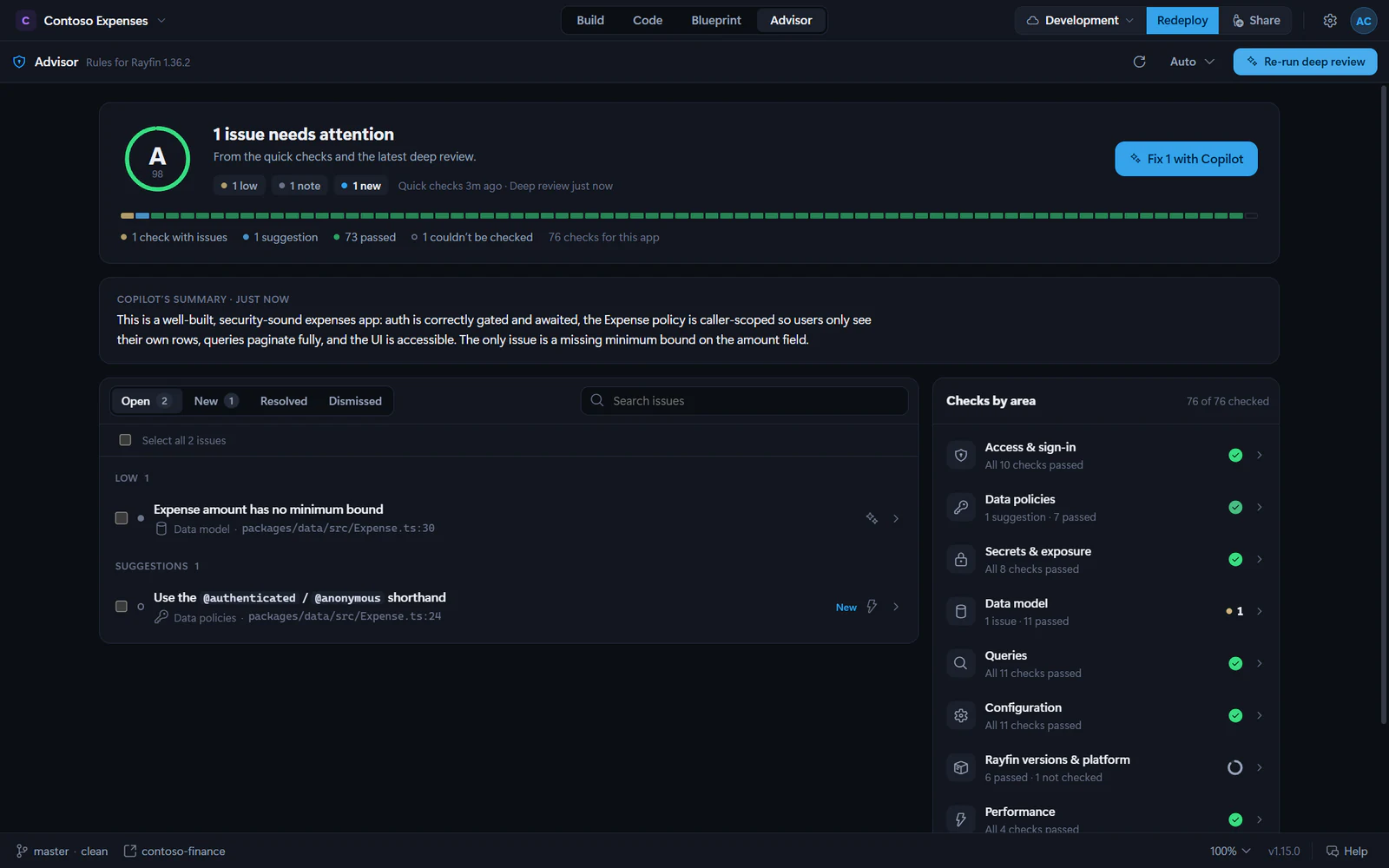
The Advisor is a health dashboard for the current app. It combines automatic quick checks with an optional read-only Copilot review, then helps you fix and verify findings.
## Read the summary
Open the **Advisor** tab. The top summary shows:
- a letter grade and score,
- counts for high, medium, low and note-level findings,
- whether the grade is provisional,
- when quick checks and the deep review last ran,
- a strip with one block for every check.
The grade is provisional until a current deep review exists. If a high-severity access, policy or secrets issue is open, the grade is capped at **C** or below.
The **Advisor** tab badge counts open high and medium issues. It does not count low issues, notes, dismissed findings or resolved findings.
## Review the areas
The right-side areas checklist uses the Advisor rule catalog. The areas are:
- **Access & sign-in**
- **Data policies**
- **Secrets & exposure**
- **Data model**
- **Queries**
- **Configuration**
- **Rayfin versions & platform**
- **Performance**
- **Accessibility**
Open an area to see its rules, status, and linked guidance from rayfin.ai or related docs.
## Quick checks
Quick checks run automatically when the project changes. They do not use Copilot. They inspect the project snapshot for deterministic issues such as missing permission decorators, outdated Rayfin packages, unsupported query methods, and configuration problems.
Use the refresh icon in the Advisor bar to re-run quick checks.
## Run a deep review
Select **Run deep review** to have Copilot review the app against rules that need judgment. If a review already exists, the button becomes **Re-run deep review**.
Deep reviews use Copilot requests. They run in a separate read-only session: Copilot can read the project and fetch rayfin.ai documentation, but Fabricator denies file edits, shell commands, deployment commands, non-read-only tools, and `.env` file reads.
While the review runs, the summary shows live progress such as what Copilot is reading. Findings appear as soon as Copilot confirms them.
> [!NOTE]
> A deep review can become outdated. If your code changes after the review, Fabricator says "Your code changed since the deep review" and asks you to re-run it.
## Open a finding
Select a row in **Open** or **New** to expand it.
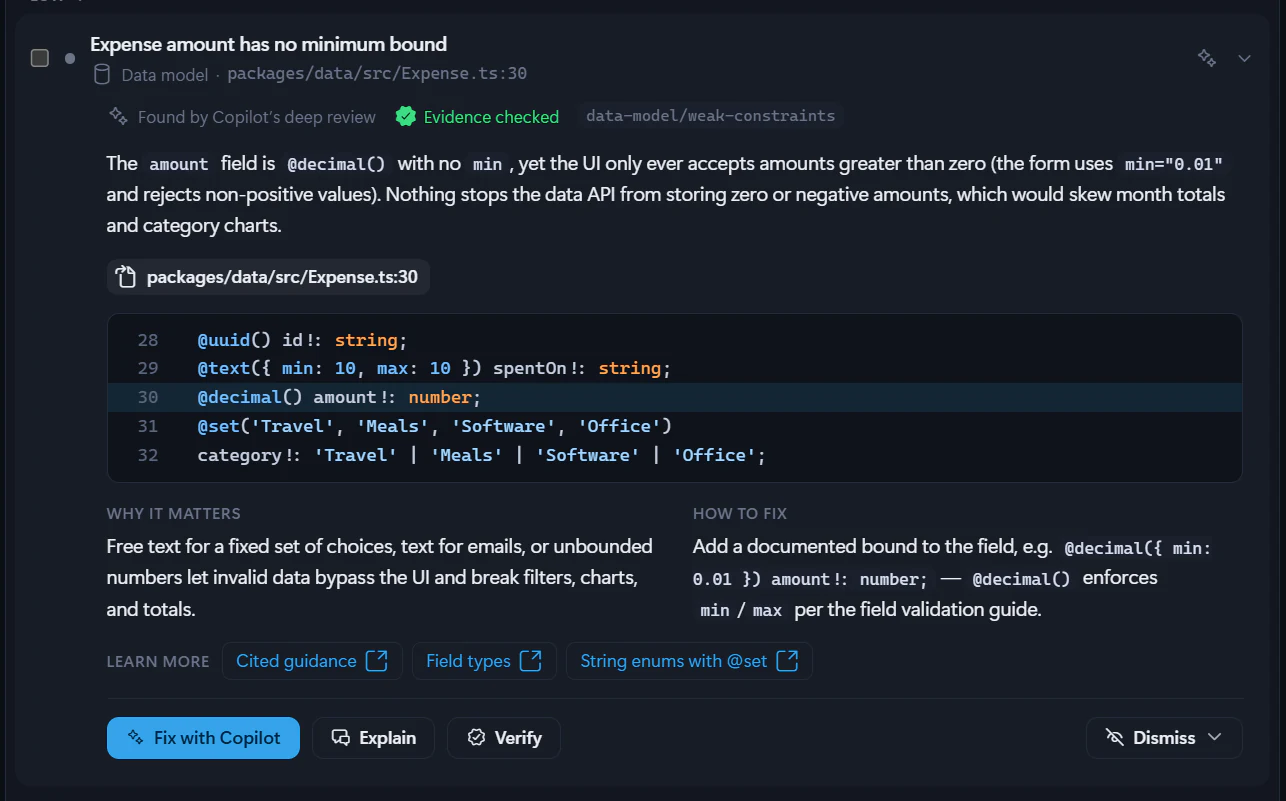
A finding can include:
- the source, either **Found by a quick check** or **Found by Copilot’s deep review**,
- a rule id,
- flagged file and line links,
- an evidence excerpt,
- **Why it matters**,
- **How to fix**,
- links to guidance.
Use file chips to open the flagged code in the **Code** tab.
## Fix findings with Copilot
Select **Fix with Copilot** on one finding, or use a summary action such as **Fix selected (1)** or **Fix 2 with Copilot**. Fabricator sends the finding details to the Build chat as an Advisor fix card.
These actions also apply to note-level findings under **Suggestions**. Suggestions do not lower your health score.
Copilot receives the issue, location, suggested fix, relevant code excerpt, and Rayfin guidance links. It is instructed not to run `rayfin up`; Fabricator handles redeploys.
```prompt title="Ask for a careful Advisor fix"
Fix the Advisor findings shown in the chat. Keep the app building, use the installed Rayfin docs before changing Rayfin APIs, and explain any finding you cannot safely fix.
```
## Verify deep-review fixes
Quick-check findings re-run when the code changes. For Copilot deep-review findings, select **Verify** after a fix. Advisor asks Copilot to re-check that specific finding against the current code.
If Copilot applied a fix, the finding can show **Fix applied** until you verify it. If the issue remains, it can show **Still detected**.
## Dismiss or mute
Use **Dismiss** on a finding when it should not block you:
- **False positive** means the finding is not actually a problem here.
- **Accepted risk** means the finding is real, but intentional for this app.
- **Mute this rule** stops reporting that rule for this app.
Dismissed findings and muted rules appear under **Dismissed**. You can restore a dismissed finding or unmute a muted rule from its detail view.
## Track changes over time
Use the issue tabs:
- **Open** shows current findings.
- **New** shows findings that are new since the last review baseline.
- **Resolved** shows findings that disappeared or were verified fixed.
- **Dismissed** shows dismissed findings and muted rules.
If the Advisor's rules changed since the saved deep review, Fabricator asks you to re-run the review so the current rule catalog is applied.
---
---
title: "Deploy to Microsoft Fabric"
description: "Deploy your app to a Fabric workspace with one click, understand automatic redeploys after chat turns, and manage deployments across workspaces."
url: https://spatney.github.io/rayfin-fabricator/docs/ship/deploy
markdown_url: https://spatney.github.io/rayfin-fabricator/docs/ship/deploy.md
app_version: "1.20.1"
section: ship
product: Fabricator
last_updated: 2026-10-14T22:09:52-07:00
source: ship/deploy.mdx
---
# Deploy to Microsoft Fabric
> Deploy your app to a Fabric workspace with one click, understand automatic redeploys after chat turns, and manage deployments across workspaces.
Deploying publishes the app in your current project to Microsoft Fabric. Fabricator runs the project's own `rayfin up`, records the deployment that Rayfin creates, and then loads the app in the preview.
Rayfin apps deploy as Fabric apps in a Fabric workspace. For Rayfin's platform details, see [Deploy Fabric apps](https://rayfin.ai/docs/deploy/fabric-apps). Deployment uses your Fabric capacity; see [Rayfin pricing and capacity notes](https://rayfin.ai/docs/deploy/pricing).
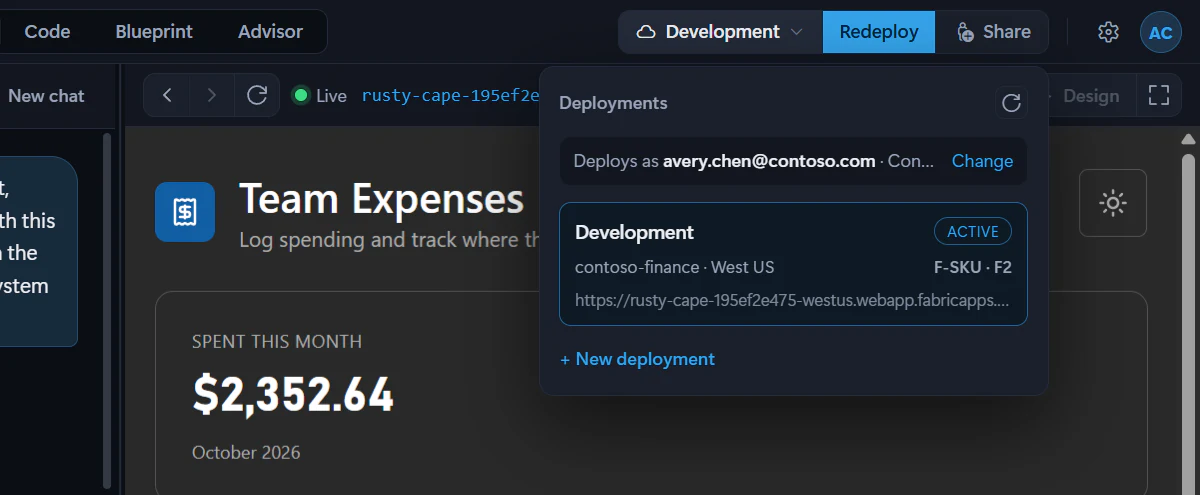
## Sign in to Fabric
Fabricator uses the Rayfin CLI credentials for Fabric deployment. You can sign in from the account control in the top-right app bar:
1. Select **Sign in to Fabric**.
2. Finish the browser sign-in that Rayfin opens.
3. Return to Fabricator and deploy again if needed.
The deployments picker also prompts you when Fabricator needs Fabric credentials to list workspaces. If credentials expire, it may show "Sign in to Microsoft Fabric to list your workspaces."
You can stay signed in to more than one Fabric account, for example one per organization, and choose which one deploys. The **Deployments** panel names the account that deploys, such as "Deploys as alice@contoso.com · Contoso". Select **Change** to switch accounts. See [Manage your accounts](https://spatney.github.io/rayfin-fabricator/docs/start/accounts).
## Deploy for the first time
New projects ask for their first deployment right after you name them. In **Deploy your app**, pick a workspace and choose **Deploy app**; see [Build your first app](https://spatney.github.io/rayfin-fabricator/docs/start/first-app#create-the-first-deployment). Chat stays locked until the app has its first Fabric deployment.
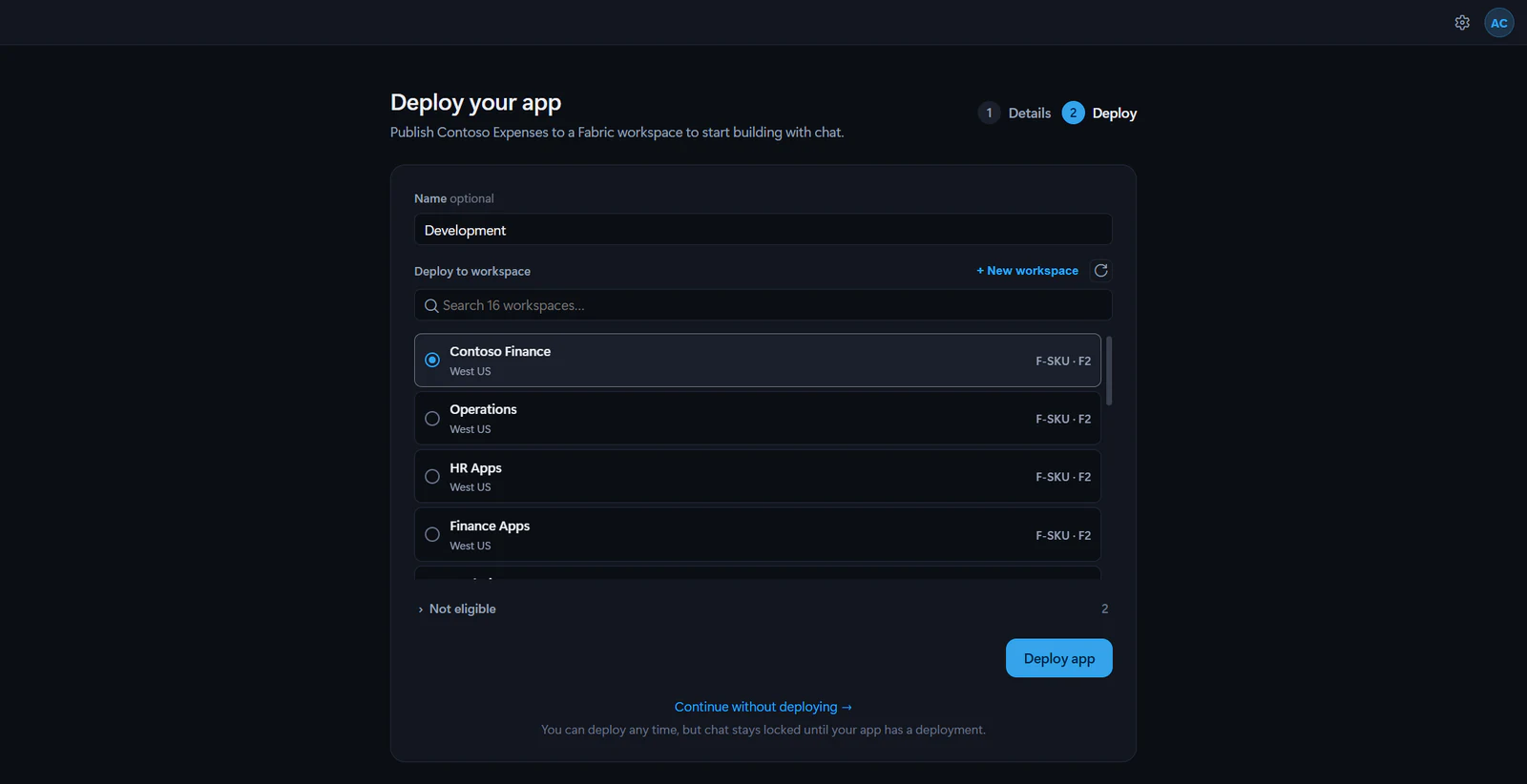
If you chose **Continue without deploying →**, or opened a project that has never been deployed, deploy it from the app bar:
1. Open the project.
2. In the app bar, select **Deploy**.
3. In **New deployment**, enter a friendly **Name** if you want one, such as `Production`.
4. Under **Deploy to workspace**, choose a Fabric workspace.
5. Select **Create & deploy**.
Eligible workspaces are on a Fabric **F-SKU** capacity, a Power BI Premium **P-SKU** capacity, or a dedicated capacity whose SKU Fabricator cannot see. Workspaces without an eligible capacity are listed under **Not eligible** with the reason. If Fabricator cannot find an eligible workspace, it offers **Start a free trial** and **Buy a capacity** links.
When your apps already use some eligible workspaces, the list starts with up to five of them under **Recent**, the workspace of the app you deployed or opened most recently first. The rest follow under **Other workspaces**.
To create a workspace from Fabricator, select **+ New workspace**, choose an active F-SKU or P-SKU capacity, enter a name, and select **Create workspace**. The new workspace uses the selected capacity's region.
## Same-name warning
Before a first deploy into a workspace, Fabricator checks whether that workspace already has a Rayfin app with the same item name from `rayfin/rayfin.yml`.
If it finds one, you see a warning that deploying there would replace that app. Choose another workspace, or select **Replace it anyway** to confirm.
## What happens during deploy
While a deploy runs, the preview shows the deploy screen. Ray talks you through it, and below him a list shows the steps the deploy has been through, the one in progress, and the steps still to come.
With Rayfin CLI 1.35 or newer, the steps come from the CLI's own progress reports, and the step in progress shows the CLI's words for what it's doing. A typical deploy goes through:
1. **Connecting to Fabric**
2. **Finding your workspace**
3. **Setting up your app in Fabric**
4. **Applying settings**
5. **Updating your database**, for apps that store data
6. **Building and uploading your app**
7. **Going live**
Some deploys have other steps, such as **Installing packages** when the project's packages are missing, **Getting Fabric capacity ready**, **Setting up file storage**, **Connecting your data sources** or **Deploying your functions**. If the CLI reports a step Fabricator doesn't know, the list shows it in the CLI's own words.
Projects on Rayfin CLI 1.34 or older show **Connecting to Fabric**, **Preparing deployment**, **Building your app**, **Packaging assets**, **Uploading to Fabric** and **Going live** instead. To get the detailed steps, update the project's Rayfin. See [Keep Rayfin up to date](https://spatney.github.io/rayfin-fabricator/docs/ship/rayfin-versions).
If Fabric asks you to sign in again, the deploy waits for you to finish in your browser. If you've [sent Ray away](https://spatney.github.io/rayfin-fabricator/docs/start/tour#ray), the Fabricator logo takes his place.
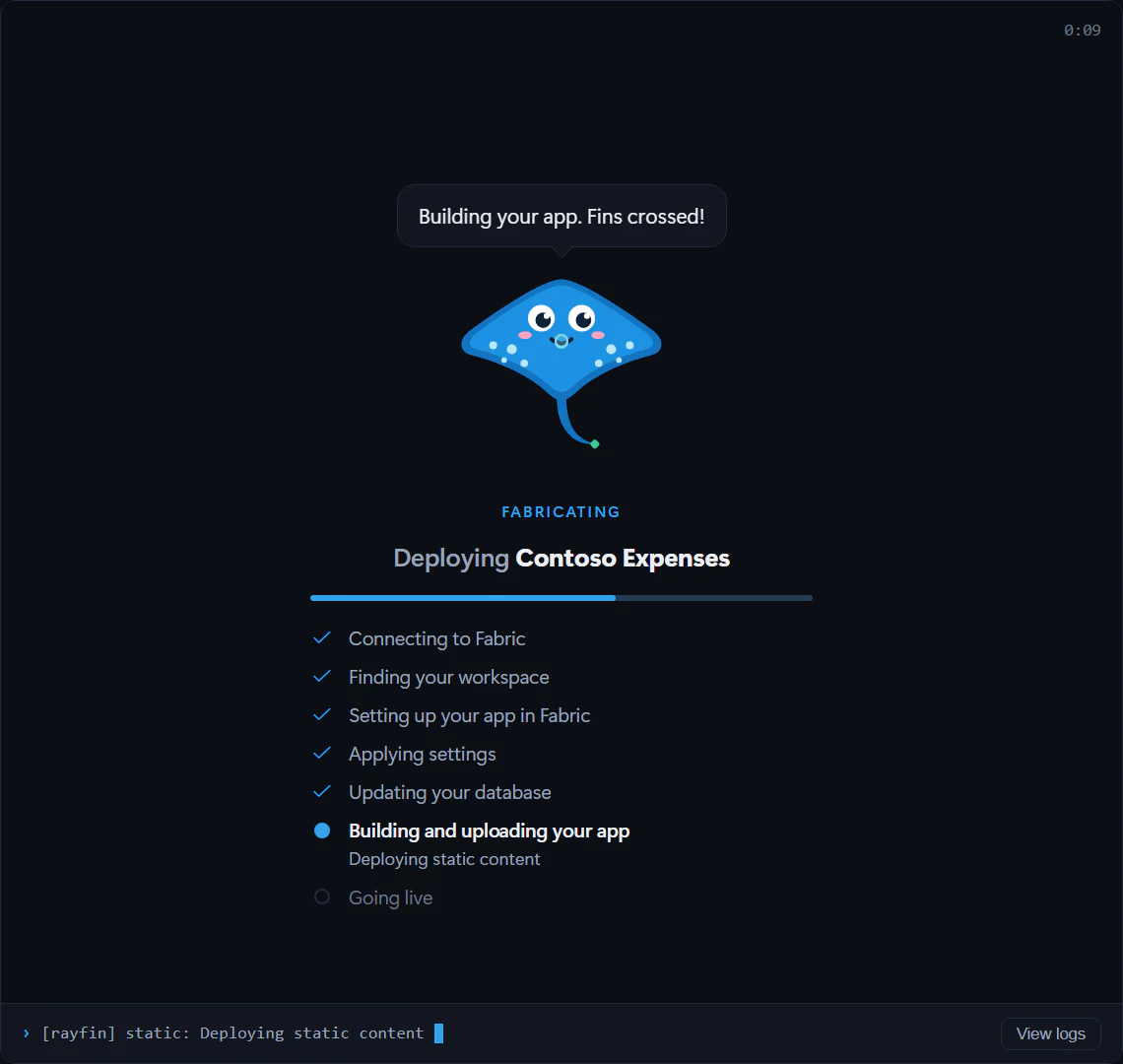
During the deploy you can select **View logs** in the deploy screen. If the deploy fails, Ray stays above the preview and offers **Find out why**, which opens Help to explain what went wrong, and **View logs** for the deploy's output. See [A deploy failed](https://spatney.github.io/rayfin-fabricator/docs/troubleshooting/deploy#a-deploy-failed).
## Redeploy changes
After the first successful deployment, the primary button changes to **Redeploy**. Select it to run `rayfin up` again for the active deployment.
Fabricator also redeploys automatically after a successful Copilot turn when the project has undeployed changes. This includes edits that Copilot already committed to the project's git history. It does not redeploy when:
- the Copilot turn failed or was cancelled,
- the [Deploy manually](https://spatney.github.io/rayfin-fabricator/docs/ship/deploy#deploy-manually) experiment is set to **Manual deploy**,
- there are no content changes since the last deployed revision,
- a team workspace pipeline owns the app's deployment,
- Fabricator cannot check whether changes are undeployed.
If change detection fails, Fabricator shows "Could not check for undeployed changes." followed by "Use Redeploy to publish your changes." Use **Redeploy** to publish explicitly.
When Fabricator switches to another deployment or cannot identify the deployed git baseline, the next successful turn deploys once to establish a new baseline.
## Deploy manually
> [!WARNING]
> Deploy manually is an experiment. Turn it on in **Settings → Experiments**. It may change or be removed in a future update.
Turn on **Deploy manually** to make several changes in chat before you deploy. Chat turns no longer deploy your app: your changes stay on this computer until you select **Redeploy**. Because the deployed app falls behind your code, the preview shows your app from a local Vite server whenever the app is open, not only while Copilot is working.
1. Open **Settings**, then expand **Experiments**.
2. Turn on **Deploy manually**.
3. Open your app. The status bar shows **Manual deploy**, and the preview shows your local app, marked **Local**.
4. Keep chatting. Changes show in the preview as Copilot makes them.
5. When you're ready, select **Redeploy** in the app bar. The preview shows the deploy's progress, then your local app again.
To go back to deploying after each turn for a while, choose **Auto deploy** in the status bar, and **Manual deploy** to switch back. The experiment stays on, so the switch stays in the status bar. Turning **Deploy manually** on again starts you in **Manual deploy**.
While the status bar shows **Manual deploy**:
- The local preview uses your deployed app's backend. Frontend changes show as Copilot makes them, but changes to data, permissions or functions work only after you select **Redeploy**. Fabricator asks Copilot to tell you when a change needs a deploy.
- **Design** works on the local preview between turns, so you can queue visual changes and send them to Copilot without deploying first. It turns off when a turn starts, because Copilot's changes show in the preview as it makes them. The **Fabric** view works on the deployed app, so it's unavailable.
- The local preview stops when you switch to another app or close Fabricator, and the app you open next gets its own. If you switch your app to another deployment, its local preview starts again with that deployment's settings.
- If the project has no local Vite installation, there's no local preview. The preview keeps showing the deployed app, without your latest changes, until you select **Redeploy**.
- Team apps aren't affected. They still save to GitHub after each turn, and the team pipeline deploys your preview.
Switching to **Auto deploy**, or turning **Deploy manually** off, closes the local preview and doesn't deploy anything. Your changes are still on this computer: the next successful chat turn deploys them, or you can select **Redeploy**.
## Work with multiple deployments
In the app bar, select the deployment control, marked with a cloud icon, to open **Deployments**. From there you can:
- see the active deployment,
- see which Fabric account deploys, and select **Change** to use another,
- select **+ New deployment** to deploy the same project to another workspace,
- select **Switch** on another recorded deployment,
- rename a deployment by selecting its name,
- select **Refresh deployments** to reload the list,
- select **Share** after a deployment exists.
Switching uses Rayfin's recorded deployments for the project. Each deployment points to a Fabric workspace and may show its workspace region and capacity SKU.
Fabricator does not show a per-deployment delete action in this panel.
## Refresh Fabric authentication
If deployment repeatedly fails even though you recently signed in, use **Refresh Fabric authentication** from the account menu. When a deploy fails because Fabric wants you to sign in again, the notice above the preview offers it too. Fabricator runs the selected project's `rayfin logout`, then `rayfin login`, verifies the new Fabric credential, and does not redeploy automatically. After it succeeds, select **Redeploy**.
See [setup and sign-in troubleshooting](https://spatney.github.io/rayfin-fabricator/docs/troubleshooting/setup-and-sign-in) and [deploy troubleshooting](https://spatney.github.io/rayfin-fabricator/docs/troubleshooting/deploy) for recovery steps.
## Redirect URIs for live preview
When a chat turn starts, Fabricator may run the project's local Vite preview on an allowed `localhost` port. If the normal sign-in-compatible ports are busy and you choose another port, Fabricator can add that origin to `services.auth.allowedRedirectUris` in `rayfin/rayfin.yml` and push the runtime settings to Fabric without uploading the app. This keeps Fabric sign-in working in the live preview. The next normal deploy publishes the app code.
---
---
title: "Keep Rayfin up to date"
description: "Know when a project's Rayfin CLI and SDK are out of date, and let Copilot upgrade them together while keeping the app building."
url: https://spatney.github.io/rayfin-fabricator/docs/ship/rayfin-versions
markdown_url: https://spatney.github.io/rayfin-fabricator/docs/ship/rayfin-versions.md
app_version: "1.20.1"
section: ship
product: Fabricator
last_updated: 2026-10-14T17:48:44-07:00
source: ship/rayfin-versions.mdx
---
# Keep Rayfin up to date
> Know when a project's Rayfin CLI and SDK are out of date, and let Copilot upgrade them together while keeping the app building.
Each Rayfin app pins its own Rayfin CLI and SDK packages. Fabricator reads those installed package versions and, when a newer Rayfin release is available, offers the update in the status bar.
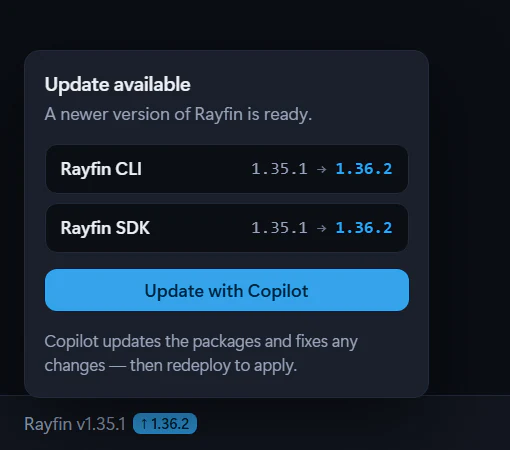
## Read the Rayfin status
When a newer Rayfin release is on npm, the status bar shows the project's version as `Rayfin v`, followed by the latest version, such as `↑ 1.36.2`. When the project is up to date, the status bar shows nothing for Rayfin.
Open it to see separate rows for:
- **Rayfin CLI**
- **Rayfin SDK**
The version checker reads `@microsoft/rayfin-cli` as the CLI package. Other `@microsoft/rayfin-*` packages are treated as SDK packages.
## Update with Copilot
When an update is available:
1. Select the Rayfin version in the status bar.
2. Review the version rows.
3. Select **Update with Copilot**.
Fabricator sends a prepared upgrade request to the Build chat. Copilot is asked to:
- set exact Rayfin package versions in `package.json`,
- run `npm install`,
- keep Rayfin SDK packages in lockstep,
- pin Rayfin connector packages to the new CLI version when the app uses them,
- check the installed Rayfin docs for deprecations and known limitations,
- update app code so it still builds and runs,
- avoid running `rayfin up`.
For local deployments, Fabricator redeploys automatically after a successful Copilot turn when there are undeployed changes. Team workspace apps are deployed by their pipeline instead.
## Why lockstep matters
Rayfin packages ship as a family. The Advisor rule catalog checks that the SDK packages are on one version because mixing `@microsoft/rayfin-core`, `-client`, `-data`, `-auth`, `-auth-provider-fabric`, `-lib`, `-functions`, `-storage`, `-embed-host`, and `-local-dev` versions is untested and can break at runtime.
The CLI and SDK version independently, but newer releases carry fixes and match the current docs. See the [Rayfin changelog](https://rayfin.ai/docs/reference/changelog).
## Minimum version for current Fabricator features
Team workspaces require Rayfin **1.36.2 or newer**. New projects start on the latest Rayfin release, because Fabricator creates them with the latest Rayfin CLI. Older existing projects keep their pinned dependencies until you update them.
If you move an app into a team workspace, update older apps first with **Update with Copilot**.
## If dependencies are missing
When you open a project, Fabricator checks that the project's Rayfin CLI and the rest of its packages are fully installed, and installs any that are missing or incomplete before enabling the project tools. The check usually takes a moment. If it takes longer, you see a `Preparing ` status and "Checking the project's Rayfin CLI and installing missing dependencies..." It checks again before it deploys or signs in to Fabric.
If installation fails, Fabricator shows **Couldn't install project dependencies** with **Retry installation** and **Switch projects**.
## Manual upgrade prompt
Use this if you want to start the upgrade yourself from the chat instead of the status-bar button:
```prompt title="Upgrade Rayfin packages"
Upgrade this app to the latest Rayfin release. Keep all Rayfin SDK packages on the same exact version, update the Rayfin CLI package too, run npm install, then check the installed Rayfin docs for deprecations or known limitations and update the app so it still builds.
```
---
---
title: "Share your app"
description: "Give people in your Microsoft Entra tenant access to a deployed app by email, including Build access to semantic models the app reads from other workspaces."
url: https://spatney.github.io/rayfin-fabricator/docs/ship/share
markdown_url: https://spatney.github.io/rayfin-fabricator/docs/ship/share.md
app_version: "1.20.1"
section: ship
product: Fabricator
last_updated: 2026-10-04T02:17:09-07:00
source: ship/share.mdx
---
# Share your app
> Give people in your Microsoft Entra tenant access to a deployed app by email, including Build access to semantic models the app reads from other workspaces.
After an app is deployed, you can share it with people or groups in your Microsoft Entra tenant. Fabricator grants access in Fabric and then lets you copy the app link.
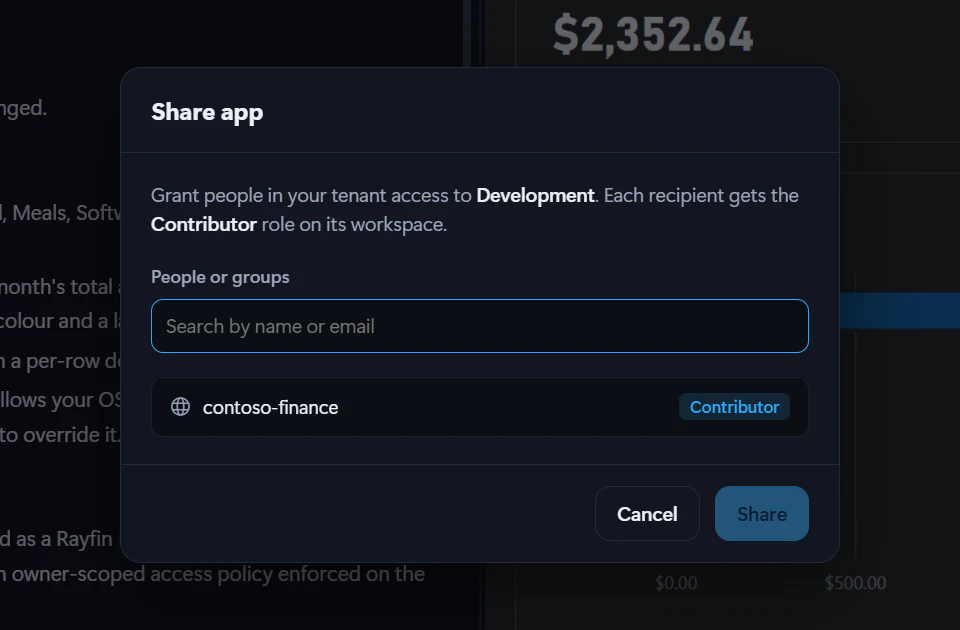
## What sharing grants
For each recipient, Fabricator grants:
- **Contributor** on the deployed app's Fabric workspace.
- **Build** access to each semantic model the app uses from a different workspace.
Semantic models in the same workspace are marked **Covered by workspace** because the workspace role already covers them.
> [!IMPORTANT]
> **Contributor** is broad workspace access. Share only with people who should be able to contribute to the app's Fabric workspace.
## Share a deployed app
1. Deploy the app first. See [Deploy to Microsoft Fabric](https://spatney.github.io/rayfin-fabricator/docs/ship/deploy).
2. In the app bar, select **Share**.
3. In **Share app**, use **People or groups** to search by name or email.
4. Add one or more recipients.
5. Review the access list. The app workspace is tagged **Contributor**. Semantic models from other workspaces are tagged **Build**.
6. Select **Share**.
7. When sharing succeeds, select **Copy link** and send the app URL to the recipients.
8. Select **Done**.
The result list shows **Shared**, **Already had access**, or an error for each app and model grant.
## What recipients need
Recipients need to be resolvable in your Microsoft Entra directory. Fabricator's autocomplete uses Azure CLI sign-in for Microsoft Graph directory search; if that sign-in is missing, you can still type an email address, but sharing may ask you to sign in to Azure.
To open the app, recipients need the app URL or they can find it in the Fabric portal if they know the workspace. If the app uses semantic models from other workspaces, Fabricator grants Build access so the app can read them.
## Same tenant only
Fabricator's share dialog is built around people and groups in your tenant. I could not verify guest-user support in the app source, so do not rely on it from Fabricator.
## Removing access
Fabricator's local deployment share dialog does not include a remove-access action. To remove access, manage the workspace role or semantic model permissions in Microsoft Fabric or Power BI.
Team workspace apps use the team workspace's app access flow instead of this local deployment share dialog. See [team workspace members](https://spatney.github.io/rayfin-fabricator/docs/team/members).
---
---
title: "Frequently asked questions"
description: "Answers to common questions about Fabricator: who makes it, what it costs, which accounts it needs, where your data goes, and which platforms it supports."
url: https://spatney.github.io/rayfin-fabricator/docs/reference/faq
markdown_url: https://spatney.github.io/rayfin-fabricator/docs/reference/faq.md
app_version: "1.20.1"
section: reference
product: Fabricator
last_updated: 2026-10-14T22:09:52-07:00
source: reference/faq.mdx
---
# Frequently asked questions
> Answers to common questions about Fabricator: who makes it, what it costs, which accounts it needs, where your data goes, and which platforms it supports.
## Is Fabricator a Microsoft product?
No. Fabricator is a personal project built by Sachin Patney in his own free time. The author works at Microsoft, but Fabricator is not a Microsoft product and is not affiliated with, endorsed by, sponsored by, or supported by Microsoft. Maintenance is best-effort.
## What does it cost?
Fabricator is free and released under the MIT License.
The app uses your GitHub Copilot plan for chat, deep Advisor reviews, and design options. Deployed apps run in Microsoft Fabric, so Fabric capacity costs are separate. See [Rayfin deployment pricing](https://rayfin.ai/docs/deploy/pricing) for Rayfin and Fabric cost details.
## Which accounts do I need?
You need a GitHub Copilot account for chat and a Microsoft account in a Fabric tenant to deploy apps. Team workspaces also use the GitHub CLI and Azure CLI. See [System requirements](https://spatney.github.io/rayfin-fabricator/docs/reference/requirements) for the full list.
## Does it work with GitHub Enterprise?
Fabricator supports GitHub Enterprise Cloud, including data-residency hosts, through the **GitHub host** field during Copilot sign-in. Enter a host such as `company.ghe.com` or `https://company.ghe.com` before signing in.
GitHub Enterprise Server is not supported by this Copilot login flow.
## Where is my code and data?
Your project files live in your local workspace folder. New projects are created there, and existing projects can be opened or cloned into it.
When you deploy, Rayfin deploys the app to your selected Fabric workspace. Chat content goes to GitHub Copilot because Copilot is the agent that reads and edits the project.
## What does Fabricator send to the developer?
Official builds may send coarse usage telemetry if a telemetry connection string is included in the build. Fabricator does not send your raw email, code, prompts, or apps as telemetry. See [Privacy and telemetry](https://spatney.github.io/rayfin-fabricator/docs/reference/privacy).
## Which platforms are supported?
Fabricator ships for Windows 10/11 and macOS on Apple Silicon. The release workflow builds a Windows `x86_64` installer and a macOS `darwin-aarch64` app. There are no Linux or Intel Mac release builds.
## Where did the Data app template go?
New projects start from the Universal App, the default template that comes with the Rayfin CLI. It grows into the app you describe in chat, so you do not choose a separate Data app template. To start from a ready-made app, use **Start from a community example**. See [Projects](https://spatney.github.io/rayfin-fabricator/docs/build/projects).
## Can I use an existing Rayfin project?
Yes. From Home, open an existing local project or choose **Clone from GitHub** to clone a repository into the workspace folder.
## Do I need to install the Rayfin CLI?
No global Rayfin CLI install is required for normal use. Fabricator runs the project-pinned Rayfin CLI through `npx rayfin`.
## Can I work offline?
Not for the normal build-and-ship loop. Chat needs GitHub Copilot, deployment and Fabric preview need Microsoft Fabric, clone and team workflows need GitHub, creating a project needs the npm registry, and update checks use GitHub Releases.
You can still inspect files that are already on your computer, but Fabricator is designed for connected work.
## How do I update or uninstall?
Fabricator checks for updates when it starts, every 4 hours while it's open, and as soon as your connection comes back after a check failed. To check right away, restart Fabricator. See [Install and updates](https://spatney.github.io/rayfin-fabricator/docs/troubleshooting/install-and-updates) if updates fail.
To uninstall, remove the installed **Rayfin Fabricator** app with your operating system's normal app removal flow. Your projects are in your workspace folder; app settings and logs are in the app data folder described in [Files and folders](https://spatney.github.io/rayfin-fabricator/docs/reference/files).
## How do I report a bug or contribute?
Use **Help** in the status bar to have Fabricator write up the problem for you, or file an issue in the [spatney/rayfin-fabricator repository](https://github.com/spatney/rayfin-fabricator/issues).
Contributions are welcome. Read [CONTRIBUTING.md](https://github.com/spatney/rayfin-fabricator/blob/master/CONTRIBUTING.md) before opening a pull request.
---
---
title: "Files and folders"
description: "Where Fabricator keeps your projects, app data, chat history, Advisor reports, logs and caches on Windows and macOS."
url: https://spatney.github.io/rayfin-fabricator/docs/reference/files
markdown_url: https://spatney.github.io/rayfin-fabricator/docs/reference/files.md
app_version: "1.20.1"
section: reference
product: Fabricator
last_updated: 2026-10-09T19:32:57-07:00
source: reference/files.mdx
---
# Files and folders
> Where Fabricator keeps your projects, app data, chat history, Advisor reports, logs and caches on Windows and macOS.
Fabricator keeps app state separate from your Rayfin project files. Project folders are the code you build. App data is Fabricator's local state, logs, cache, and saved UI data.
## App data folder
| OS | App data folder |
| --- | --- |
| Windows | `%APPDATA%\Rayfin Fabricator` |
| macOS | `~/Library/Application Support/Rayfin Fabricator` |
Fabricator creates this folder when it needs to save app-owned files.
## What is in app data
| Path | What it contains | Safe to delete? |
| --- | --- | --- |
| `studio.json` | Settings, the workspace folder path, recent projects, active project, and team workspace list. | Yes, but Fabricator forgets settings and project lists. It does not delete the project folders. |
| `chats/` | Saved chat history, one JSON file per project. | Yes, if you no longer need chat history. |
| `advisor/` | Saved Advisor reports and Advisor UI state for projects. | Yes, if you are comfortable losing saved findings, dismissals, and baselines. |
| `suggestions/` | Cached starter suggestion sets for projects. | Yes. Fabricator can recreate suggestions. |
| `logs/` | Diagnostics JSONL files, exported diagnostics bundles, and crash or hang logs. | Yes, if you no longer need them for bug reports. |
| `fabric-accounts.json`, `fabric-accounts/` | The Fabric accounts you added after the first, each in its own Rayfin CLI config folder, and which one is in use. | Only to sign out of those accounts. Use **Accounts** instead; see [Manage your accounts](https://spatney.github.io/rayfin-fabricator/docs/start/accounts). |
Diagnostics files older than the retention window are pruned at startup.
## Workspace folder
New Rayfin projects are created in the workspace folder. The default is `RayfinProjects` in your home directory.
Change it from **Settings → Workspace folder → Change…**. Changing the workspace folder affects new projects. It does not move existing project folders or delete anything.
Your workspace folder contains the actual app source code, git repository, Rayfin files, package files, and any app assets. Do not delete a project folder unless you mean to delete that app's local working copy.
## Temporary screenshots
Fabricator stores temporary screenshot attachments under the operating system temp folder in a `rayfin-fabricator-shots` directory. It deletes the screenshot files it owns after they are no longer needed.
## Credentials
Fabricator does not store Copilot, Azure, or Rayfin credentials in `studio.json`. Those credentials are owned by the tools and services that sign you in, such as the bundled Copilot engine, Azure CLI, GitHub CLI, Rayfin CLI, and platform credential stores.
## What to keep for bug reports
If you are reporting a problem, keep the `logs/` folder until after you export diagnostics or attach the requested files. If **Full diagnostics** was enabled, review the export before sharing it because it can include prompts, responses, and tool output.
---
---
title: "Glossary"
description: "Plain-language definitions of the terms used in Fabricator and these docs, from Rayfin and Fabric capacity to working copies and deploy identities."
url: https://spatney.github.io/rayfin-fabricator/docs/reference/glossary
markdown_url: https://spatney.github.io/rayfin-fabricator/docs/reference/glossary.md
app_version: "1.20.1"
section: reference
product: Fabricator
last_updated: 2026-10-12T22:45:08-07:00
source: reference/glossary.mdx
---
# Glossary
> Plain-language definitions of the terms used in Fabricator and these docs, from Rayfin and Fabric capacity to working copies and deploy identities.
## Advisor
The health dashboard for a Rayfin app. It runs quick checks locally and can run a read-only Copilot deep review. See [Advisor](https://spatney.github.io/rayfin-fabricator/docs/ship/advisor).
## App identity
The identity a Rayfin app's connections use when they're set to application access: the owner of the app's Fabric item. For your own apps, that's the Fabric account that first deployed the app; for team apps, the team's deploy identity. Blueprint shows which connections use it. See [Blueprint](https://spatney.github.io/rayfin-fabricator/docs/build/data-model#whose-credentials-the-app-identity-uses).
## App item
A Fabric item created by a deployed Rayfin app. Fabricator may also call this a Fabric app or App item when describing deployed apps. See [Deploy to Fabric](https://spatney.github.io/rayfin-fabricator/docs/ship/deploy).
## Autopilot
A chat route used after an approved plan when Copilot continues autonomously end to end. See [Chat](https://spatney.github.io/rayfin-fabricator/docs/build/chat).
## Azure CLI
Microsoft's command-line tool for Azure. Fabricator uses it for some team workspace setup and administrator flows. See [Team prerequisites](https://spatney.github.io/rayfin-fabricator/docs/team/prerequisites).
## Capacity
Fabric capacity is the compute capacity assigned to Fabric workspaces. Team workspace setup asks you to choose a capacity. See [Team prerequisites](https://spatney.github.io/rayfin-fabricator/docs/team/prerequisites).
## Community example
A ready-made Rayfin app template from the awesome-rayfin gallery or another template URL. Use **Start from a community example** when creating a project. See [Projects](https://spatney.github.io/rayfin-fabricator/docs/build/projects).
## Deep review
A read-only Copilot review started from the Advisor with **Run deep review**. It checks issues that need judgment and cannot edit files or run commands. See [Advisor](https://spatney.github.io/rayfin-fabricator/docs/ship/advisor).
## Deploy identity
A Microsoft Entra ID service principal used by a team workspace pipeline to deploy apps to Fabric. Team apps never deploy from a member's computer. See [Team workspaces](https://spatney.github.io/rayfin-fabricator/docs/team).
## Deployment
A Rayfin app deployed to a Fabric workspace with `rayfin up`. Fabricator manages deployments from the deployments panel. See [Deploy to Fabric](https://spatney.github.io/rayfin-fabricator/docs/ship/deploy).
## Design mode
A preview mode where you select elements in the app, describe visual changes, and send those changes to Copilot. See [Design mode](https://spatney.github.io/rayfin-fabricator/docs/build/design).
## Fabric app
A Rayfin app hosted in Microsoft Fabric. In Fabric, the deployed app is represented by Fabric items in a workspace. See [Deploy to Fabric](https://spatney.github.io/rayfin-fabricator/docs/ship/deploy).
## Fabric brokered auth
How Rayfin apps sign people in: Fabric signs them in with the Microsoft Entra account they use for Fabric. The app needs no identity provider to run and no app registration of its own in Microsoft Entra ID, so there's nothing for a tenant admin to approve. Rayfin's docs also call it Fabric SSO. See [Blueprint](https://spatney.github.io/rayfin-fabricator/docs/build/data-model#how-people-sign-in) and [Rayfin's auth docs](https://rayfin.ai/docs/auth).
## Fabric workspace
A Microsoft Fabric container for app items, data, semantic models, and other Fabric resources. See [Deploy to Fabric](https://spatney.github.io/rayfin-fabricator/docs/ship/deploy).
## Finding
An Advisor issue. A finding includes what was flagged, why it matters, where it appears, and how to fix it. See [Advisor](https://spatney.github.io/rayfin-fabricator/docs/ship/advisor).
## GitHub CLI
GitHub's `gh` command-line tool. Fabricator uses it for cloning and team workspace repository operations. See [System requirements](https://spatney.github.io/rayfin-fabricator/docs/reference/requirements).
## Microsoft Entra ID
Microsoft's identity platform. People sign in to Rayfin apps with their Microsoft Entra account, through [Fabric brokered auth](https://spatney.github.io/rayfin-fabricator/docs/reference/glossary#fabric-brokered-auth). Team workspace deploy identities are service principals in Microsoft Entra ID. See [Team prerequisites](https://spatney.github.io/rayfin-fabricator/docs/team/prerequisites).
## Microsoft Fabric
Microsoft's data and analytics platform where Rayfin apps are deployed and hosted. See [Deploy to Fabric](https://spatney.github.io/rayfin-fabricator/docs/ship/deploy).
## Personal preview
A team workspace preview deployed for one member's working branch. See [Work on an app](https://spatney.github.io/rayfin-fabricator/docs/team/work-on-an-app).
## Pipeline
The GitHub workflow in a team workspace repository that deploys previews and published apps to Fabric. See [Team workspaces](https://spatney.github.io/rayfin-fabricator/docs/team).
## Preview
The pane that shows your app inside Fabricator. It can show a local Vite frontend during chat, a deployed app, or the Fabric portal shell. See [Preview your app](https://spatney.github.io/rayfin-fabricator/docs/build/preview).
## Published app
The shared version of a team app deployed from the repository's main branch. See [Publish an app](https://spatney.github.io/rayfin-fabricator/docs/team/publish).
## Quick check
An Advisor rule that runs locally without Copilot. Quick checks re-run as the project changes. See [Advisor](https://spatney.github.io/rayfin-fabricator/docs/ship/advisor).
## Rayfin
Microsoft's platform for building apps that deploy to Microsoft Fabric. Fabricator builds Rayfin apps. See [Rayfin's docs](https://rayfin.ai).
## Rayfin CLI
The command-line tool Fabricator runs through `npx rayfin` from each project. It deploys apps and manages Fabric sign-in. See [Rayfin versions](https://spatney.github.io/rayfin-fabricator/docs/ship/rayfin-versions).
## Secret
A value such as an API key or password that your app's Rayfin functions read on the server. Secrets are stored with the deployed app and are never shown again. See [Secrets](https://spatney.github.io/rayfin-fabricator/docs/build/secrets).
## Semantic model
A Fabric or Power BI model that describes tables, columns, measures, and relationships for analytical data. Fabricator can help connect an app to a semantic model. See [Blueprint](https://spatney.github.io/rayfin-fabricator/docs/build/data-model).
## Skill
Reusable instructions or tools that guide the Copilot agent for a specific kind of Rayfin work. See [Skills](https://spatney.github.io/rayfin-fabricator/docs/build/skills).
## Team workspace
An experimental shared workspace backed by a private GitHub repository, Fabric workspaces, deploy identities, and a pipeline. See [Team workspaces](https://spatney.github.io/rayfin-fabricator/docs/team).
## Turn
One request-and-response cycle in chat. A turn can include tool calls, file edits, diffs, and a work log. See [Chat](https://spatney.github.io/rayfin-fabricator/docs/build/chat).
## Universal App
The default template that comes with the Rayfin CLI, used for new projects. It starts small, with no database, and grows into the app you describe in chat. See [Projects](https://spatney.github.io/rayfin-fabricator/docs/build/projects).
## Work log
The live list of files read, searches, commands, output, and edits during a chat turn. See [Chat](https://spatney.github.io/rayfin-fabricator/docs/build/chat).
## Working branch
The git branch Fabricator creates for your copy of a team app. It is where your changes live before publishing. See [Work on an app](https://spatney.github.io/rayfin-fabricator/docs/team/work-on-an-app).
## Working copy
Your local or team-specific copy of an app while you work on changes. In team workspaces, each member works on their own copy before publishing. See [Work on an app](https://spatney.github.io/rayfin-fabricator/docs/team/work-on-an-app).
---
---
title: "How Fabricator works"
description: "How Fabricator connects the GitHub Copilot agent, the Rayfin CLI, git and Microsoft Fabric into a single build, preview and ship loop."
url: https://spatney.github.io/rayfin-fabricator/docs/reference/how-it-works
markdown_url: https://spatney.github.io/rayfin-fabricator/docs/reference/how-it-works.md
app_version: "1.20.1"
section: reference
product: Fabricator
last_updated: 2026-10-09T19:32:57-07:00
source: reference/how-it-works.mdx
---
# How Fabricator works
> How Fabricator connects the GitHub Copilot agent, the Rayfin CLI, git and Microsoft Fabric into a single build, preview and ship loop.
Fabricator wraps the tools you would otherwise run by hand. You describe the app, the built-in GitHub Copilot agent edits a local Rayfin project, Fabricator previews the result, and Rayfin deploys it to Microsoft Fabric.
## The loop
1. You create, open, or clone a Rayfin project.
2. You type a request in chat.
3. The bundled Copilot engine reads and edits files in the project folder.
4. Fabricator records changes with git so you can inspect diffs and history.
5. Fabricator starts the project's local Vite frontend during chat turns when the project has Vite installed.
6. Fabricator runs the project-pinned Rayfin CLI for deploys.
7. The preview shows the deployed app, the Fabric portal shell, or the local frontend while Copilot is working.
8. The Advisor runs quick checks locally and can start a read-only Copilot review.
## Main pieces
| Piece | Where it runs | What it does |
| --- | --- | --- |
| Desktop UI | Your computer | The React workbench, chat, editor, preview, settings, history, skills, deployments, and Advisor views. |
| Tauri core | Your computer | The Rust layer that runs commands, stores app state, manages paths, handles diagnostics, hosts previews, and talks to native plugins. |
| GitHub Copilot engine | Bundled with Fabricator, connected to GitHub Copilot | The agent that reads and edits your app when you chat. |
| Project Rayfin CLI | Your project, through `npx rayfin` | Deploys the app and manages Fabric sign-in through the project's pinned Rayfin version. |
| git | Your project folder | Tracks local history, diffs, restores, and team workspace branches. |
| GitHub CLI | Your computer, through `gh` | Team workspace repositories, pull requests and pipeline runs. Each team workspace's `gh` calls and git pushes and fetches use the stored token of the workspace's own GitHub account (`gh auth token --user`), so the CLI's active account doesn't matter. |
| Local Vite preview | Your computer | Shows frontend edits during chat turns when the project has Vite installed. It uses the existing Fabric backend configuration. |
| Microsoft Fabric | Your tenant | Hosts deployed app runtimes, data, Fabric workspaces, capacities, and Fabric app items. |
## Architecture diagram
```mermaid
flowchart TD
User["You"]
subgraph Desktop["Fabricator desktop app"]
UI["React workbench"]
Core["Tauri Rust core"]
Preview["Embedded preview"]
Advisor["Advisor"]
end
subgraph Local["Local workspace"]
Files["Project files"]
Git["git history"]
Vite["Local Vite frontend"]
RayfinCli["Project Rayfin CLI"]
end
Copilot["GitHub Copilot service"]
Npm["npm registry"]
GitHub["GitHub"]
subgraph Fabric["Microsoft Fabric"]
Runtime["Deployed app runtime"]
Data["Fabric data and platform services"]
Portal["Fabric portal shell"]
end
User --> UI
UI <--> Core
UI --> Preview
UI --> Advisor
Core <--> Files
Core --> Git
Core --> Vite
Core --> RayfinCli
Core <--> Copilot
Core <--> GitHub
Core <--> Npm
RayfinCli --> Runtime
Runtime <--> Data
Preview --> Vite
Preview --> Runtime
Preview --> Portal
Advisor --> Files
Advisor -. "read-only deep review" .-> Copilot
class User actor
class UI,Core,Preview,Advisor service
class Files,Git,Vite,RayfinCli store
class Copilot,Npm,GitHub external
class Runtime,Data,Portal external
```
## What runs on your computer
Fabricator stores settings, project lists, chat history, Advisor state, logs, and diagnostics exports under the app data folder. Your Rayfin apps live in the workspace folder, which defaults to `RayfinProjects` in your home directory. See [Files and folders](https://spatney.github.io/rayfin-fabricator/docs/reference/files).
The desktop app uses Tauri v2: a Rust core with a React renderer. On Windows, the embedded preview uses WebView2. On macOS, it uses the system web view.
## Accounts
Fabricator doesn't keep credentials itself; each tool keeps its own.
- **GitHub Copilot**: the bundled Copilot engine stores the sign-in.
- **Microsoft Fabric**: the Rayfin CLI keeps one signed-in account per config folder, `~/.rayfin` by default. Fabricator gives each Fabric account added after the first its own folder under the app data folder, and points every Rayfin CLI and helper process it starts at the account in use with `RAYFIN_CONFIG_DIR`. Sign-in, sign-out and sign-in checks run the project's pinned Rayfin CLI outside the project folder, because the CLI reads the project's `rayfin.yml` at startup. The project's Fabric environment overrides in `rayfin/.env` still apply.
- **Azure CLI**: the Azure CLI keeps every account you sign in to. Fabricator lists them with `az account list`, switches with `az account set`, signs one out with `az logout --username`, and signs in with `az login --allow-no-subscriptions`, so accounts without an Azure subscription work.
- **GitHub**: the GitHub CLI keeps every account you sign in to. **Add account** runs `gh auth login` in a terminal and then switches back to your default account.
When you open Fabricator after setup has passed, it shows your work at once and checks tools and accounts in the background. Each check runs separately, so a slow one, such as Fabric's, doesn't delay the others.
## What goes over the network
Fabricator and the tools it runs can contact these services:
- GitHub Copilot for chat, model access, design options, deep Advisor reviews, and team workspace diagnoses.
- Microsoft Fabric and Rayfin services when you sign in, deploy, preview deployed apps, share apps, or inspect Fabric items.
- GitHub for update checks, release downloads, cloning repositories, issue reporting, and team workspace repositories.
- The npm registry when creating a project from the Rayfin CLI's template or installing project dependencies.
- Azure and GitHub APIs for team workspace setup and **Diagnose with Copilot** when the **Team workspaces** experiment is enabled.
## What the Advisor can read
Quick checks run locally against the project snapshot. **Run deep review** starts a read-only Copilot review. That review can read your project and rayfin.ai documentation, but it is not allowed to edit files, run commands, or open `.env` files.
---
---
title: "Privacy and telemetry"
description: "What usage data Fabricator sends, what it never sends, and what stays on your device."
url: https://spatney.github.io/rayfin-fabricator/docs/reference/privacy
markdown_url: https://spatney.github.io/rayfin-fabricator/docs/reference/privacy.md
app_version: "1.20.1"
section: reference
product: Fabricator
last_updated: 2026-10-05T10:22:13-07:00
source: reference/privacy.mdx
---
# Privacy and telemetry
> What usage data Fabricator sends, what it never sends, and what stays on your device.
Fabricator is designed to keep product telemetry coarse. Code, prompts, responses, and app files are not sent to the developer as telemetry.
## Telemetry is off unless configured
Telemetry is a no-op unless the app starts with a bundled Application Insights connection string. Local development builds send nothing by default. Official release builds may include `resources/telemetry.json` with a connection string.
If telemetry is configured, Fabricator sends fire-and-forget events to Azure Application Insights. Telemetry must not slow down or break user actions.
## What usage stats says
In **Settings**, **Usage stats** says:
> We send your sign-in domain and a hashed email so we can see how the product is used. Your email, code, and apps stay on this device.
That matches the current code: the email address is hashed before it leaves the device, and the sign-in domain is sent as the `tenantDomain` property.
## Events Fabricator can send
All telemetry events include these common fields:
| Field | Meaning |
| --- | --- |
| `appVersion` | The Fabricator app version. |
| `os` | The operating system constant reported by the app runtime. |
| `tenantDomain` | The domain part of the signed-in email, normalized to lowercase. |
| `ai.user.id` | A salted SHA-256 hash of the normalized email address. |
| `ai.session.id` | A random session id for this app run. |
| `ai.cloud.role` | `rayfin-fabricator`. |
| `ai.device.osVersion` | The operating system constant reported by the runtime. |
Fabricator can send these custom events:
| Event | Extra fields |
| --- | --- |
| `signin` | `trigger`, currently `startup` or `login`. |
| `deploy` | `success`, either `true` or `false`. |
| `team` | `action`, currently `create`, `join`, `publish`, `diagnose`, or `abandon`, plus `success`. |
Team telemetry does not include repository names, workspace names, or app names.
## How identifiers are hashed
The telemetry user id is a SHA-256 hash of the normalized email address plus a Fabricator-specific salt. The salt ships in the binary and is not treated as a secret. It makes the hash stable for Fabricator without sending the raw email address.
## What telemetry never sends
Fabricator telemetry does not send:
- Raw email addresses.
- Source code.
- Chat prompts or responses.
- App names or app contents.
- Repository names.
- Fabric workspace names.
- Credentials or tokens.
## Diagnostics stay on your device
Diagnostics are local files until you choose to share them. **Export diagnostics** creates a Markdown bundle in the local logs folder. You decide whether to attach that file to a bug report.
By default, chat diagnostics contain metadata only. If you turn on **Full diagnostics**, Fabricator also saves prompts, responses, and tool output locally for each chat turn. Text fields are truncated. Full diagnostics are meant for bug reports where metadata is not enough.
## Chat content goes to GitHub Copilot
When you chat, Fabricator sends your request and relevant project context to GitHub Copilot because Copilot is the agent doing the work. That traffic is governed by GitHub's Copilot terms and policies for your account.
The Advisor's **Run deep review** also uses Copilot in a read-only mode.
**Diagnose with Copilot** for team workspaces also uses Copilot in a read-only mode. It sends what failed, the IDs and names of the workspace's repository, deploy identities, tenant, and Fabric workspaces, your sign-in names, and the results of read-only checks, including the end of a failed pipeline log. Values that look like secrets or tokens are masked. Select **Details sent to Copilot** to see what was sent.
## Deploys go to your Fabric tenant
When you deploy, Fabricator runs the project-pinned Rayfin CLI. The app and its platform configuration are sent to the Microsoft Fabric workspace you choose. Fabric sign-in and deployment are handled by Rayfin and Microsoft Fabric.
---
---
title: "System requirements"
description: "Operating systems, tools, accounts, Fabric access, and network access required by Fabricator."
url: https://spatney.github.io/rayfin-fabricator/docs/reference/requirements
markdown_url: https://spatney.github.io/rayfin-fabricator/docs/reference/requirements.md
app_version: "1.20.1"
section: reference
product: Fabricator
last_updated: 2026-10-14T23:50:01-07:00
source: reference/requirements.mdx
---
# System requirements
> Operating systems, tools, accounts, Fabric access, and network access required by Fabricator.
Use this page to check whether your computer and accounts can run Fabricator and deploy Rayfin apps.
## Operating systems
Fabricator supports:
- Windows 10 or Windows 11. The app uses WebView2 for its embedded browser surfaces.
- macOS on Apple Silicon. The bundle targets macOS 11.0 or newer.
The published macOS build is Apple Silicon (`aarch64`/arm64). The release workflow does not publish an Intel macOS installer.
## Required tools
Setup checks these tools:
| Tool | Required | Minimum | Setup behavior |
| --- | --- | --- | --- |
| Node.js | Yes | 22.12 | Can install with `winget` on Windows or Homebrew on macOS, or open the Node.js download page. |
| npm | Yes | Any installed version | Installed with Node.js. |
| Git | Yes | Any installed version | Can install with `winget` or Homebrew, or open the Git download page. |
| Azure CLI | Yes | Any installed version | Can install with `winget` or Homebrew, or open the Azure CLI install page. |
| GitHub CLI (`gh`) | No | Any installed version | Optional repository browsing and cloning. |
Fabricator bundles the Copilot engine it uses for chat. You do not need to install a separate Copilot CLI.
Fabricator does not require a global Rayfin CLI for ordinary projects. It uses each project's locally installed Rayfin CLI and SDK. Learn more about Rayfin at [rayfin.ai/docs](https://rayfin.ai/docs).
## Accounts
You need:
- A GitHub account with GitHub Copilot access.
- For GitHub Enterprise Cloud with data residency, a `.ghe.com` Enterprise Cloud host. GitHub Enterprise Server is not supported by Fabricator's Copilot sign-in flow.
- Azure CLI sign-in for setup.
- Microsoft Fabric access for deploys.
Fabric sign-in happens when Fabricator needs the project's Rayfin CLI to access Fabric, such as listing workspaces, deploying, sharing, or refreshing Fabric credentials. The app bar and deployment picker show **Sign in to Fabric** when needed.
## Fabric capacity for deploys
To deploy a Rayfin app, you need a Fabric workspace on an eligible capacity:
- Fabric capacity, shown as **F-SKU**.
- Power BI Premium capacity, shown as **P-SKU**.
Workspaces without an eligible capacity are listed as not eligible. If no eligible workspace is available, Fabricator offers **Start a free trial** and **Buy a capacity** links from the deployment picker.
## Network access
Fabricator needs network access to the services it calls in the app:
- GitHub Releases for downloading and updating Fabricator.
- GitHub sign-in for Copilot, and GitHub APIs when using repository features.
- Tool download sites when setup opens an installer page.
- npm package feeds when creating or installing app projects.
- Azure CLI sign-in.
- Microsoft Fabric and Rayfin deploy endpoints used by the project's Rayfin CLI.
- `https://rayfin.ai` when Advisor or Copilot follows Rayfin documentation links.
If your organization filters network traffic, allow the domains required by GitHub, npm, Azure CLI, Microsoft Fabric, and Rayfin for your tenant.
## Optional tools
GitHub CLI (`gh`) is optional. Install it if you want Fabricator to browse or clone GitHub repositories from the app. It is separate from the bundled Copilot engine.
VS Code is optional. In the **Code** view, **Open in VS Code** opens the project folder when the `code` command is available. If it is not, Fabricator opens the folder in the operating system file manager instead.
---
---
title: "Settings"
description: "Every option in Fabricator's Settings: accounts, setup, workspace folder, theme, text size, diagnostics, experiments and the About section."
url: https://spatney.github.io/rayfin-fabricator/docs/reference/settings
markdown_url: https://spatney.github.io/rayfin-fabricator/docs/reference/settings.md
app_version: "1.20.1"
section: reference
product: Fabricator
last_updated: 2026-10-14T22:09:52-07:00
source: reference/settings.mdx
---
# Settings
> Every option in Fabricator's Settings: accounts, setup, workspace folder, theme, text size, diagnostics, experiments and the About section.
Open **Settings** to manage your accounts, change how Fabricator looks, where new projects are created, how diagnostics are captured, and whether experimental features are visible.
Settings groups its options into **General**, **Appearance**, **Diagnostics**, **Experiments**, and **About**. Each option shows its name and what it does, with its control on the right.
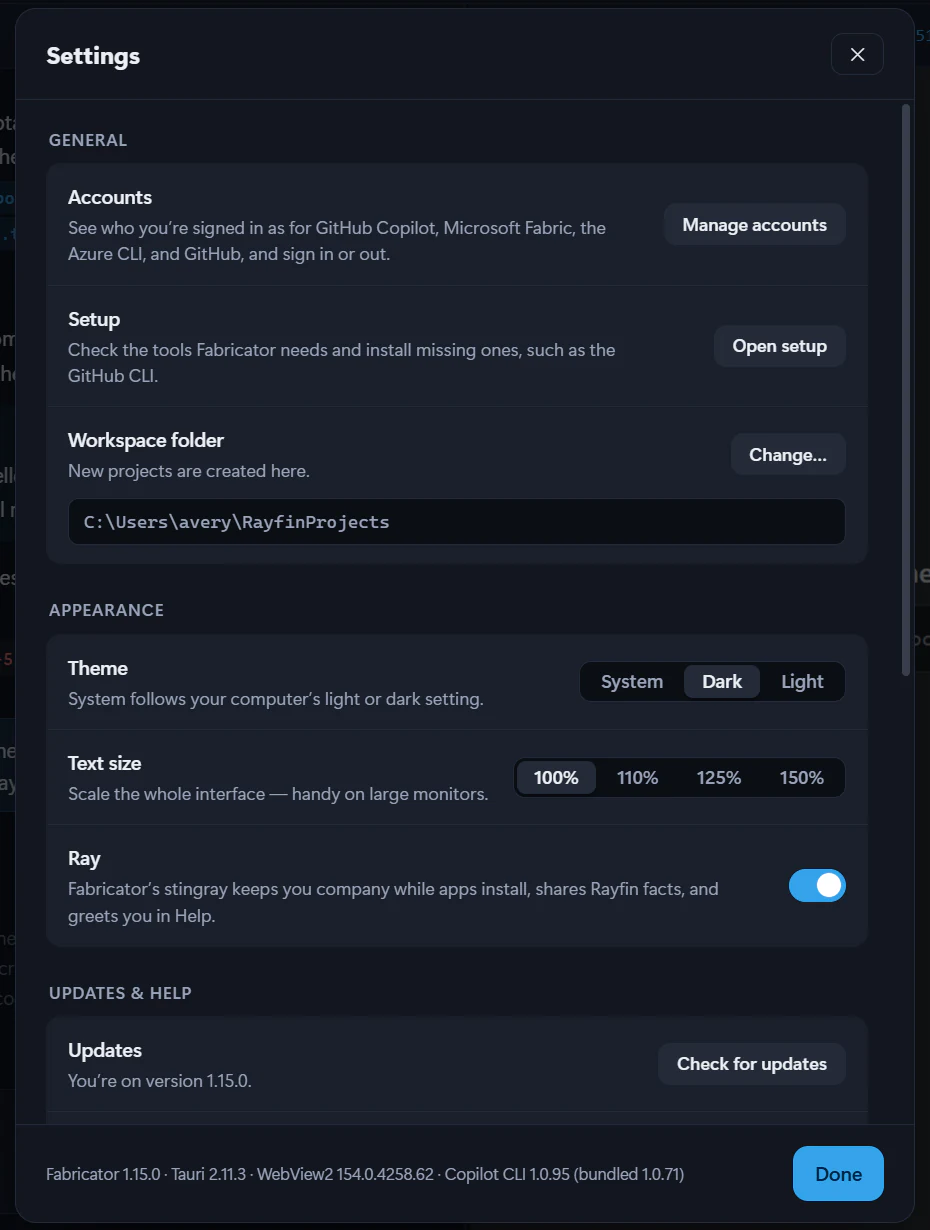
## Accounts
**Accounts** lists the services Fabricator signs in to: GitHub Copilot, Microsoft Fabric, the Azure CLI, and GitHub. Select **Manage accounts** to see who you're signed in as, sign in or out, and add or switch between Fabric, Azure CLI and GitHub accounts. See [Manage your accounts](https://spatney.github.io/rayfin-fabricator/docs/start/accounts).
## Theme
**Theme** controls the app's color theme.
| Option | What it does |
| --- | --- |
| **System** | Follows your operating system light or dark setting. This is the default. |
| **Dark** | Uses Fabricator's dark theme. |
| **Light** | Uses Fabricator's light theme. |
## Text size
**Text size** scales the whole interface. The choices are 100%, 110%, 125%, and 150%. The default is 100%.
Use this when Fabricator is hard to read on a large or high-DPI monitor. The setting is saved as the UI scale and is clamped by the app between `80%` and `200%` when stored.
## Interface zoom in the status bar
The status bar has an **Interface zoom** menu with the same values as **Text size**. Changing it updates the same setting and also scales the design tools.
## Workspace folder
**Workspace folder** shows where Fabricator creates new projects. The default is a `RayfinProjects` folder in your home directory.
Select **Change…** to pick a different folder. This changes where new projects are created; it does not move existing project folders.
## Usage stats
**Usage stats** is an informational note under **Diagnostics**. In the app, it says:
> We send your sign-in domain and a hashed email so we can see how the product is used. Your email, code, and apps stay on this device.
Telemetry is only active when a build includes a telemetry connection string. See [Privacy and telemetry](https://spatney.github.io/rayfin-fabricator/docs/reference/privacy).
## Setup
**Setup** reopens the setup screen, which checks the tools Fabricator needs and can install missing ones, such as the optional GitHub CLI. Select **Open setup**. Until every check passes, setup offers **Back to Fabricator**. See [Set up and sign in](https://spatney.github.io/rayfin-fabricator/docs/start/setup).
## Diagnostics
Diagnostics are saved on this device under the logs folder. **Diagnostics** also holds **Usage stats**, and its **Logs** row has **Export diagnostics** and **Open logs folder**.
### Full diagnostics
**Full diagnostics** is off by default. When it is off, Fabricator records lightweight chat-turn metadata such as timing, model, mode, tool names, outcomes, errors, attachment count, files modified, and whether deploy ran.
When **Full diagnostics** is on, Fabricator also captures prompts, responses, and tool output for each chat turn. Text fields are truncated before they are saved. Turn this on only when you need a more detailed bug report.
### Export diagnostics
**Export diagnostics** creates a Markdown diagnostics bundle in the logs folder and opens that folder. The bundle includes environment details, recent chat-turn diagnostics, and recent crash or hang log entries. You decide whether to attach it to a bug report.
### Open logs folder
**Open logs folder** opens the local logs folder without creating a new export.
## Experiments
**Experiments** is collapsed by default. It includes features that are off by default and may change or be removed.
### Team workspaces
**Team workspaces** lets you build apps with a team in a private GitHub repository. Everyone works on their own copy, and a pipeline publishes to Fabric with a deploy identity that Fabricator sets up. Team apps never deploy from this computer. This experiment needs the GitHub CLI.
> [!WARNING]
> Team workspaces are an experiment. Turn them on in **Settings → Experiments**. They may change or be removed in a future update.
### Deploy manually
**Deploy manually** stops chat turns from deploying your app. Your changes stay on this computer until you select **Redeploy**, and the preview shows them from a local Vite server whenever the app is open. While it's on, the status bar switches between **Manual deploy** and **Auto deploy**. Team apps aren't affected: they still save after each turn. See [Deploy manually](https://spatney.github.io/rayfin-fabricator/docs/ship/deploy#deploy-manually).
> [!WARNING]
> Deploy manually is an experiment. Turn it on in **Settings → Experiments**. It may change or be removed in a future update.
## About
**About** is the last section in Settings. It shows the installed Fabricator version and the Tauri, WebView2, and Copilot CLI versions it runs with. When the Copilot CLI has updated itself past the version that came with Fabricator, both are shown, for example `1.0.98 (bundled 1.0.96)`.
Select **Copy** to copy the versions for a bug report, one per line:
```text
Fabricator
Tauri
WebView2
Copilot CLI
```
The exact Tauri, WebView2, and Copilot CLI values depend on the build and your computer.
**Help** has **Documentation** and **Troubleshooting**, which open these docs in your browser.
You don't need to check for updates yourself. Fabricator checks when it starts, every 4 hours while it's open, and as soon as your connection comes back after a check failed. See [Updates](https://spatney.github.io/rayfin-fabricator/docs/start/install#updates).
---
---
title: "Manage your accounts"
description: "See which GitHub Copilot, Microsoft Fabric, Azure CLI and GitHub accounts Fabricator uses, and add, switch between or sign out of them."
url: https://spatney.github.io/rayfin-fabricator/docs/start/accounts
markdown_url: https://spatney.github.io/rayfin-fabricator/docs/start/accounts.md
app_version: "1.20.1"
section: start
product: Fabricator
last_updated: 2026-10-14T22:39:22-07:00
source: start/accounts.mdx
---
# Manage your accounts
> See which GitHub Copilot, Microsoft Fabric, Azure CLI and GitHub accounts Fabricator uses, and add, switch between or sign out of them.
Fabricator signs in to a few services for you. **Accounts** shows who you're signed in as for each one, and which organization (Microsoft Entra ID tenant) the account belongs to. From there you can sign in, add more accounts, choose the one to use, and sign out without leaving your project.
{/* screenshot: accounts */}
## Open Accounts
Open **Accounts** in any of these ways:
- In the app bar, select your account avatar, then select **Manage accounts…**. When you're not signed in to Microsoft Fabric, select the arrow next to **Sign in to Fabric**, then select **Manage accounts…**.
- Open **Settings** and select **Manage accounts**.
- When a bar under the app bar says you're not signed in to an account, select **Manage accounts** in that bar.
Changes apply to every project on this computer. Select **Re-check** to verify every account again, and **Done** to close **Accounts**.
## What each account is for
| Account | What Fabricator uses it for | Several accounts |
| --- | --- | --- |
| **GitHub Copilot** | Writes and edits your app's code when you chat. | One at a time |
| **Microsoft Fabric** | Deploys, hosts and shares your apps, lists your Fabric workspaces, and manages secrets. | Yes |
| **Azure CLI** | Finds people when you share an app, connects Fabric data, and sets up team workspaces. | Yes |
| **GitHub** | Clones repositories and runs team workspaces. It's optional and uses the GitHub CLI. | Yes |
A check mark next to a service's name means you're signed in. Otherwise the service says **Not signed in**, **Checking…** or **Needs attention**. **Needs attention** means Fabricator couldn't verify the sign-in; the message in that service's card says why.
If Fabric and the Azure CLI are signed in to different organizations, **Accounts** warns you: sharing an app and connecting data look people up through the Azure CLI, so use one organization for both. The warning offers the fix. If the Azure CLI already has an account in Fabric's organization, select `Use in the Azure CLI`. Otherwise select `Sign in to in the Azure CLI`, which opens **Add account** for the Azure CLI with Fabric's organization filled in.
## Use more than one Fabric account
You can stay signed in to several Fabric accounts, for example your work account and an account in a client's organization. Fabricator uses one of them at a time, marked **In use**. Deploying, listing workspaces, sharing and secrets all use that account.
To add a Fabric account:
1. In **Microsoft Fabric**, select **Add account**.
2. Optionally, in **Organization (optional)**, enter the organization to sign in to, as a domain such as `contoso.onmicrosoft.com` or as a tenant ID. Use it for an organization you're a guest in. Leave it empty to use your account's own organization.
3. Select **Continue**, then finish signing in in the browser window that opens.
The account you added is in use as soon as you're signed in.
To switch accounts, select **Use** next to the account. To sign out of an account you aren't using, select **Sign out** next to it, then select **Sign out** again to confirm. To sign out of the account in use, select **Sign out** next to it. Fabricator then uses another signed-in Fabric account, if you have one.
The first Fabric account you sign in to is the Rayfin CLI's own sign-in, so `rayfin` in a terminal uses it too. Fabricator keeps the accounts you add after it to itself.
> [!NOTE]
> On macOS, the Rayfin CLI keeps every Fabric account's sign-in in one keychain item. Signing out of one Fabric account signs all of them out until you sign in again.
## See which account deploys
In the app bar, select the deployment control, marked with a cloud icon. Below **Deployments**, a line names the account that deploys, for example "Deploys as alice@contoso.com · Contoso". Select **Change** to open **Accounts**.
## Use more than one Azure CLI account
The Azure CLI can stay signed in to several accounts, for example the same person in two organizations. The account marked **In use** is the one the Azure CLI uses now.
- To add an account, under **Azure CLI**, select **Add account**. Optionally enter an organization, select **Continue**, and finish signing in in your browser. The account you added becomes the one in use.
- To switch accounts, select **Use** next to the account.
- To sign out of an account, select **Sign out** next to it. Your other Azure CLI accounts stay signed in.
The Azure CLI's accounts are shared with your terminal, so these changes apply there too.
## Use more than one GitHub account
**GitHub** lists every account the GitHub CLI is signed in to. The account marked **Default** is the one **Clone from GitHub** and your terminal use. Team workspaces remember their own account.
- To add an account, select **Add account** and finish signing in in the terminal window that opens. Your default account stays the same. Fabricator lists the new account when you're done; select **Stop waiting** if you change your mind.
- To use another account for cloning, select **Make default** next to it.
- To sign out of an account, select **Sign out** next to it, then select **Sign out** again to confirm. This also signs the account out of the GitHub CLI in your terminal.
If the GitHub CLI isn't installed, select **Install from setup**.
## Switch your GitHub Copilot account
Copilot uses one GitHub account at a time. To use a different one:
1. In **GitHub Copilot**, select **Sign out**.
2. For GitHub Enterprise Cloud with data residency, enter your enterprise host in **GitHub host**, such as `company.ghe.com`. Otherwise leave `github.com`.
3. Select **Sign in**.
4. On the GitHub page that opens, enter the code that **Accounts** shows. Select **Copy** to copy the code, or **Open GitHub** to open the page.
If sign-in doesn't work, see [Setup and sign-in problems](https://spatney.github.io/rayfin-fabricator/docs/troubleshooting/setup-and-sign-in).
---
---
title: "Build your first app"
description: "Create a project, deploy it to Fabric, prompt Copilot, preview the result, and iterate."
url: https://spatney.github.io/rayfin-fabricator/docs/start/first-app
markdown_url: https://spatney.github.io/rayfin-fabricator/docs/start/first-app.md
app_version: "1.20.1"
section: start
product: Fabricator
last_updated: 2026-10-10T17:36:58-07:00
source: start/first-app.mdx
---
# Build your first app
> Create a project, deploy it to Fabric, prompt Copilot, preview the result, and iterate.
This quickstart takes you from an empty Fabricator install to a deployed Rayfin app that you can refine in chat.
## Create a project
1. On Home, choose **New project**.
2. In **Project name**, enter a name for the app.
3. Keep the default start option. New projects use the Rayfin CLI's default Universal App template; there is no template picker for the normal flow.
4. Choose **Create project**.

Fabricator creates the project, installs dependencies, initializes Git, and moves to **Deploy your app**.
## Create the first deployment
A normal local project needs a first Fabric deployment before chat can build against it.
1. If prompted, choose **Sign in to Fabric** and complete the browser sign-in.
2. In **Name**, enter a friendly deployment name such as `Development`, or leave it blank.
3. Under **Deploy to workspace**, pick an eligible workspace. Rayfin apps need a workspace on a Fabric **F-SKU** or Power BI Premium **P-SKU** capacity.
4. If you need a new workspace, choose **+ New workspace**, enter **New workspace name**, pick a capacity, and choose **Create workspace**.
5. Choose **Deploy app**.

You can choose **Continue without deploying →** and deploy later with **Deploy** in the app bar, but chat stays locked until the app has a deployment.
If no eligible workspaces are listed, Fabricator can show **Start a free trial** and **Buy a capacity** links. If the selected workspace already has an app with the same name, choose another workspace or explicitly choose **Replace it anyway**.
## Describe the app
When the Build view opens, type a prompt in chat. Start with the outcome, the people using the app, and the data they need to track.
```prompt title="Track equipment requests"
Build an equipment request app for an operations team. Employees request a laptop, monitor, phone, or accessory with a reason and needed-by date. Managers review requests, approve or reject them with a comment, and see a dashboard of open requests by type and priority.
```
For a smaller first pass, try:
```prompt title="Simple team tracker"
Build a simple team task tracker. Each task has a title, owner, due date, status, and notes. Show a board grouped by status and a summary of overdue tasks.
```
## Watch Copilot work

While a turn runs, the chat shows a live work log with steps such as file reads, searches, commands, and edits. The preview pane can switch to a local preview during the turn so frontend changes appear as Copilot makes them.
When the turn finishes, Fabricator saves chat history, refreshes project state, checks the Rayfin version, and deploys changed local projects automatically when there are undeployed changes. Failed or cancelled turns do not auto-deploy. If the automatic check fails, use **Redeploy**.
## Preview, open, and share

The right side of the Build view shows your app preview. Use **Reload** to refresh it, the URL button to open it in your browser, **Fabric** to switch between the direct app and Fabric portal shell when available, and **Design** to make visual changes by clicking the running app.
After a successful deploy, use **Share** in the deployment control to share with people in your tenant. See [Share your app](https://spatney.github.io/rayfin-fabricator/docs/ship/share).
## Iterate
Continue with another prompt. You can ask for a feature, attach a screenshot, mention files with `@`, or use **Design** to queue visual changes and send them to Copilot.
Good next prompts are specific:
```prompt title="Add reporting"
Add a reporting page that shows requests by status, requests by equipment type, and average approval time. Keep the dashboard readable on a laptop screen.
```
## Next steps
- Learn the layout in [Tour the workbench](https://spatney.github.io/rayfin-fabricator/docs/start/tour).
- Learn more about [Chat with Copilot](https://spatney.github.io/rayfin-fabricator/docs/build/chat).
- Use [Design mode](https://spatney.github.io/rayfin-fabricator/docs/build/design) for visual changes.
- Check app health with [Advisor](https://spatney.github.io/rayfin-fabricator/docs/ship/advisor).
---
---
title: "Install Fabricator"
description: "Download Fabricator for Windows or macOS, handle platform prompts, and understand app updates."
url: https://spatney.github.io/rayfin-fabricator/docs/start/install
markdown_url: https://spatney.github.io/rayfin-fabricator/docs/start/install.md
app_version: "1.20.1"
section: start
product: Fabricator
last_updated: 2026-10-14T22:09:52-07:00
source: start/install.mdx
---
# Install Fabricator
> Download Fabricator for Windows or macOS, handle platform prompts, and understand app updates.
Download Fabricator from the latest GitHub release, then launch it and complete setup.
## Windows
Fabricator ships a Windows NSIS installer. The installer mode is current-user, so it installs for your Windows account instead of requiring a machine-wide install.
1. Open the [latest Fabricator release](https://github.com/spatney/rayfin-fabricator/releases/latest).
2. Download `Rayfin Fabricator__x64-setup.exe`.
3. Run the installer.
4. If Windows SmartScreen appears, choose **More info → Run anyway**.
5. Launch **Rayfin Fabricator**.
The Windows release workflow signs the installer when the signing configuration is available. The expected publisher is Sachin Patney. SmartScreen can still warn for new or low-reputation downloads.
## macOS
Fabricator's macOS build is for Apple Silicon.
1. Open the [latest Fabricator release](https://github.com/spatney/rayfin-fabricator/releases/latest).
2. Download `Rayfin Fabricator__aarch64.dmg`.
3. Open the DMG and drag **Rayfin Fabricator.app** to **Applications**.
4. If macOS says the app is damaged or cannot be opened, clear the download quarantine flag once:
```bash
xattr -dr com.apple.quarantine "/Applications/Rayfin Fabricator.app"
```
The release workflow builds an Apple Silicon DMG. When Apple notarization is not configured, macOS can quarantine the downloaded app even though it is the expected release artifact. Removing the quarantine flag lets macOS open the app.
## First launch
On first launch, Fabricator opens setup. Setup checks local tools, then asks you to sign in to GitHub Copilot and the Azure CLI. Continue with [Set up and sign in](https://spatney.github.io/rayfin-fabricator/docs/start/setup).
## Updates
Fabricator checks GitHub Releases for signed updater artifacts when the app starts, every 4 hours while it's open, and as soon as your internet connection comes back after a check failed. If a newer signed release exists, Fabricator downloads it in the background. To check right away, restart Fabricator.
When the check at startup finds an update, Fabricator shows **Update available** with **Update now** and **Later**. If you choose **Later**, Fabricator opens normally and keeps the ready-update banner visible. An update found while you work goes straight to the banner.
While an update is downloading or ready to install, the banner can show a `Downloading update …` status, an `Update is ready to install` status, **Later**, and **Restart & update**. Installing an update restarts Fabricator. Selecting **Later** on the banner puts the update off until Fabricator starts again.
A required-update screen exists in the app, but the normal startup check is optional.
## Uninstall
Uninstall **Rayfin Fabricator** with your operating system's app removal flow:
- On Windows, use **Installed apps** or **Apps & features**.
- On macOS, remove **Rayfin Fabricator.app** from **Applications**.
Uninstalling the app does not necessarily remove projects, settings, logs, or CLI credentials. See [Files and folders](https://spatney.github.io/rayfin-fabricator/docs/reference/files) for leftover data locations.
---
---
title: "Set up and sign in"
description: "Use Fabricator setup the first time you open it: check tools, sign in to GitHub Copilot and the Azure CLI, and enter the app."
url: https://spatney.github.io/rayfin-fabricator/docs/start/setup
markdown_url: https://spatney.github.io/rayfin-fabricator/docs/start/setup.md
app_version: "1.20.1"
section: start
product: Fabricator
last_updated: 2026-10-14T23:50:01-07:00
source: start/setup.mdx
---
# Set up and sign in
> Use Fabricator setup the first time you open it: check tools, sign in to GitHub Copilot and the Azure CLI, and enter the app.
Setup prepares your computer for Fabricator the first time you open it. It has three steps: connect GitHub Copilot, install the tools, and sign in to Microsoft. Work down the page, then choose **Enter Fabricator**. If everything is already in place, Fabricator skips setup and opens straight to Home. After that, Fabricator opens on your work after a short welcome.
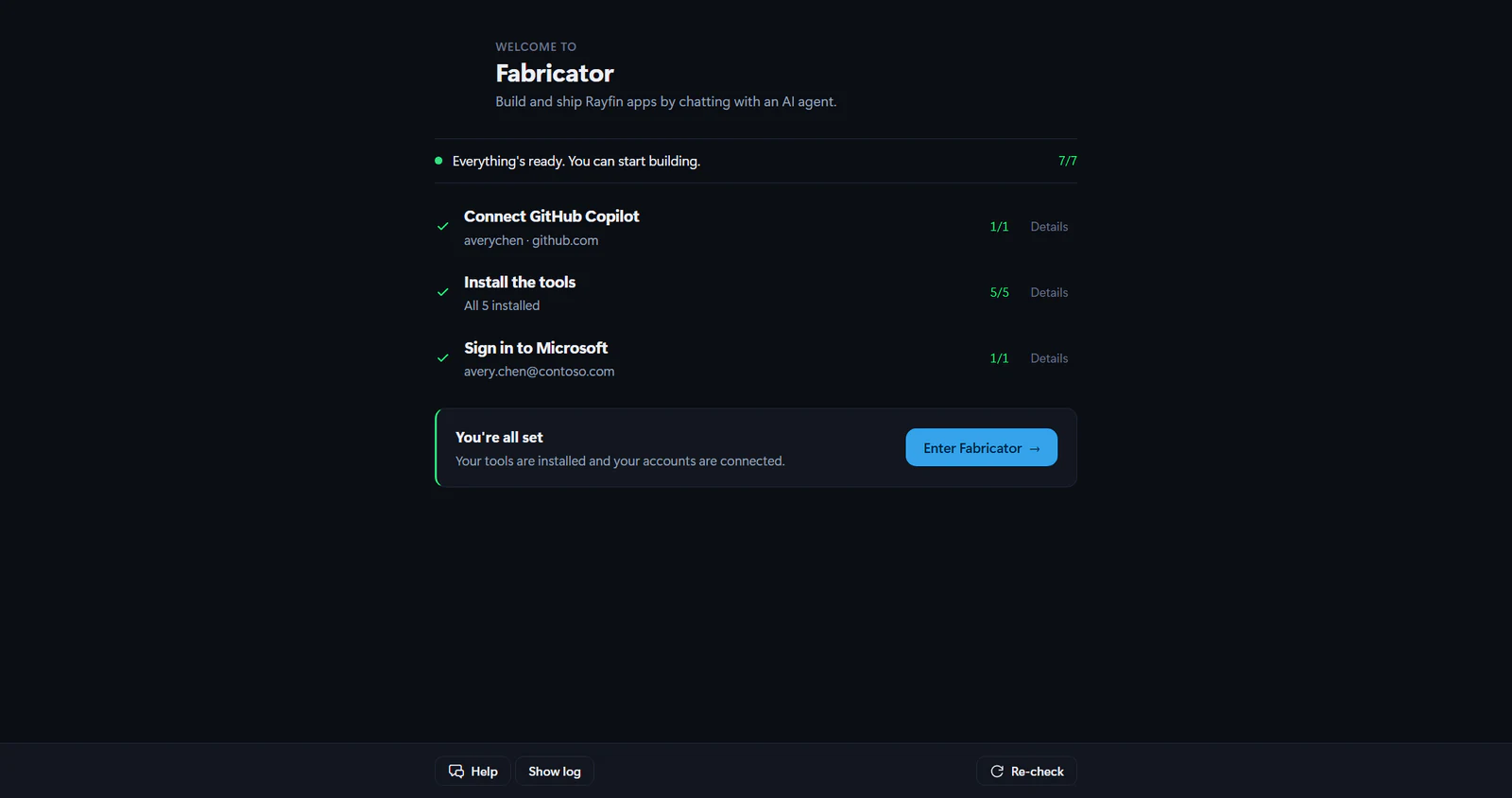
## Step 1: Connect GitHub Copilot
GitHub Copilot is the AI agent that writes and edits your app. Fabricator uses its bundled Copilot engine, so nothing needs installing first — this is why it comes first.
Connecting Copilot also turns on **Help**, the assistant in the bar at the bottom of the screen. If anything in the next two steps goes wrong, Help reads what happened and explains it, so it's worth doing this before the rest.
For a standard GitHub account, leave **GitHub host** as `github.com`. For GitHub Enterprise Cloud with data residency, enter your Enterprise Cloud host, such as `company.ghe.com` or `https://company.ghe.com`. The field accepts `github.com` or a `.ghe.com` Enterprise Cloud host. GitHub Enterprise Server is not supported by this sign-in flow.
Choose **Sign in**, then finish the browser or device-code instructions shown by Fabricator.
## Step 2: Install the tools
Fabricator uses a few free tools behind the scenes, and can install them for you.
| Tool | Required | Minimum | What it is used for |
| --- | --- | --- | --- |
| Node.js | Yes | 22.12 | Runs your app on this computer while you build it. |
| npm | Yes | Any installed version | Fetches the building blocks your app is made from. |
| Git | Yes | Any installed version | Keeps a history of your app so you can always go back. |
| Azure CLI | Yes | Any installed version | Signs you in to Microsoft so your app can be published. |
| GitHub CLI (gh) | No | Any installed version | Lets Fabricator work with your code on GitHub. |
For missing tools, choose **Install** on one row or **Install all** when it appears. On Windows, Fabricator tries `winget`. On macOS, it tries Homebrew. If that is not available or an install cannot run automatically, Fabricator opens the tool's official installer and shows **Get it**.
Installing downloads from the internet. If you are offline, the install buttons are disabled and setup says so; reconnect and choose **Re-check**.
After a tool install, setup can show:
> "Almost there. Restart to finish setting up the tools that were just installed."
Choose **Restart now**, then return to setup. Use **Re-check** when you have installed or fixed a tool yourself.
### When an install fails
Setup explains what went wrong in plain language instead of showing the installer's raw message — for example that another installation is already running, that Fabricator doesn't have permission, or that it couldn't reach the internet — along with what to do about it.
Choose **Show details** to see the original message, or **Ask Help** to have the assistant look into it. Help is available once step 1 is done.
## Step 3: Sign in to Microsoft
Signing in to Microsoft lets Fabricator publish your app, find people when you share it, connect Fabric data, and set up team workspaces.
Choose **Sign in**, then complete `az login` in the browser. This row stays disabled until the Azure CLI is installed in step 2, and says so.
## What each account is for
- GitHub Copilot writes code, edits files, answers chat prompts, and powers **Help**.
- The Azure CLI finds people to share with, connects Fabric data, and sets up team workspaces.
- Fabric sign-in is separate. Fabricator asks you to **Sign in to Fabric** later when it needs the project's Rayfin CLI to list workspaces, deploy, share, or refresh Fabric credentials.
You can see and change all of these later, including adding more Fabric and Azure CLI accounts. See [Manage your accounts](https://spatney.github.io/rayfin-fabricator/docs/start/accounts).
## Sign out and re-check
When an account is signed in, its row offers **Sign out**. Copilot sign-out removes the current Copilot account from the bundled engine. Azure sign-out runs `az logout` for the account in use and verifies that it's gone. Any other accounts the Azure CLI is signed in to stay signed in, and one of them becomes the one in use.
After signing out, installing a tool, or changing account state, choose **Re-check**.
## Enter Fabricator
A step you have finished collapses to a single line with a check mark, so a completed setup is three short rows rather than a long list. Select **Details** on any of them to open it again.
When required tools are installed and both setup accounts are verified, a **You're all set** block appears at the end of the page with **Enter Fabricator**. Choose it to open Home.
## Later launches
Once setup has passed, Fabricator skips setup. Each launch shows a short welcome screen while your work loads behind it: Ray swims in and welcomes you back, and the line under the Fabricator logo names the project that's opening. The welcome fades away once your project is ready, usually within a second or two, and you're back where you left off.
Meanwhile, Fabricator checks your tools and accounts in the background. Until the check finishes, the account control in the app bar shows a spinner instead of **Sign in to Fabric**.
If the check finds a problem, a bar under the app bar says what it is, for example "Not signed in to GitHub Copilot." Select **Manage accounts** to sign in, or **Review setup** to fix a missing tool. The bar doesn't stop you working; close it with its ✕ button.
To open setup yourself, open **Settings** and select **Open setup**. Until every check passes, setup offers **Back to Fabricator** to return without finishing.
If setup does not pass, see [Setup and sign-in troubleshooting](https://spatney.github.io/rayfin-fabricator/docs/troubleshooting/setup-and-sign-in).
---
---
title: "Tour the workbench"
description: "Find Home, project tabs, chat, preview, code, model, Advisor, accounts, settings, the status bar and Ray."
url: https://spatney.github.io/rayfin-fabricator/docs/start/tour
markdown_url: https://spatney.github.io/rayfin-fabricator/docs/start/tour.md
app_version: "1.20.1"
section: start
product: Fabricator
last_updated: 2026-10-14T22:09:52-07:00
source: start/tour.mdx
---
# Tour the workbench
> Find Home, project tabs, chat, preview, code, model, Advisor, accounts, settings, the status bar and Ray.
Fabricator has two main places: Home, where you choose a project, and the project workbench, where you build, inspect, preview, and deploy one app.
## Home

Home is titled **Your projects**. Use it to start or open work:
- **New project** creates a Rayfin app and starts the deploy flow.
- **Open folder** opens an existing local project.
- **Clone from GitHub** brings a repository into Fabricator.
- **Recent projects** lists projects you have opened before. A project can show **Open now** or **Missing**.
- **Change folder** changes where new local projects are saved.
If **Team workspaces** is turned on in **Settings → Experiments**, Home also shows the team workspace section.
## Project app bar

When a project is open, the app bar starts with the project switcher. Choose the project name to open a menu of your recent projects, then choose one to switch to it. Choose **All projects** to see every project on Home while the current project keeps running, and choose the `Back to ` button to return to it.
The center of the app bar has project tabs:
- **Build**: chat and live preview.
- **Code**: files, history, and skills.
- **Blueprint**: how the app is put together: its architecture, data model and semantic models.
- **Advisor**: app health checks and fixes.
The right side can include deployment controls:
- The deployment control, marked with a cloud icon, shows the active deployment's name or **Not deployed**.
- **Deploy** creates the first deployment.
- **Redeploy** publishes to the active deployment again.
- **Share** opens sharing for the active deployment.
The app bar also has **Settings** and the account menu, set apart from the project's controls.
## Build view
**Build** is where you spend most of your time. Chat is on the left. The preview is on the right. During a turn, the chat work log shows what Copilot is doing. The preview can show a live local app while Copilot edits, then return to the deployed app after the turn.
The preview toolbar includes **Reload**, a URL button, **Fabric**, **Design**, and **Focus**. **Design** lets you click your app, queue visual changes, and send them to Copilot. See [Live preview](https://spatney.github.io/rayfin-fabricator/docs/build/preview) and [Design mode](https://spatney.github.io/rayfin-fabricator/docs/build/design).
## Code, Blueprint, and Advisor
**Code** has three sub-tabs: **Files**, **History**, and **Skills**. **Files** opens a read-only code viewer. **History** shows a timeline of changes. **Skills** manages reusable Copilot instructions. See [Code and history](https://spatney.github.io/rayfin-fabricator/docs/build/code-and-history) and [Skills](https://spatney.github.io/rayfin-fabricator/docs/build/skills).
**Blueprint** shows what the app is made of, what it connects to and which identity each connection uses, along with its Rayfin data model and semantic models. See [Blueprint](https://spatney.github.io/rayfin-fabricator/docs/build/data-model).
**Advisor** checks app health. The tab can show a badge for open high or medium issues. See [Check app health with the Advisor](https://spatney.github.io/rayfin-fabricator/docs/ship/advisor).
## Account menu and Settings
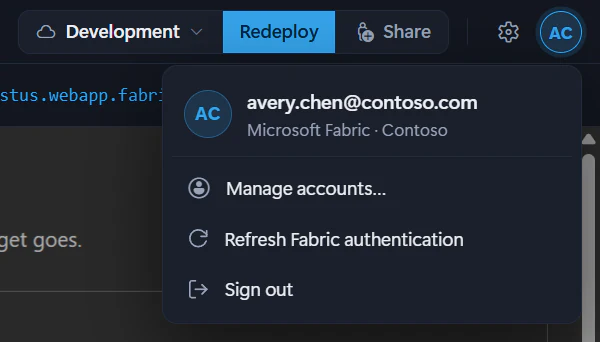
When you are signed in to Fabric, the account menu shows your account initials, and opening it shows your account and its organization. It has **Manage accounts…**, which opens **Accounts** for every account Fabricator uses, plus **Refresh Fabric authentication** and **Sign out**. When you are not signed in, it shows **Sign in to Fabric**, with **Manage accounts…** behind the arrow next to it. See [Manage your accounts](https://spatney.github.io/rayfin-fabricator/docs/start/accounts).
Open **Settings** from the gear button. Settings groups its options into **General** (**Accounts**, **Setup**, and **Workspace folder**), **Appearance** (**Theme** and **Text size**), **Diagnostics** (including **Usage stats**), experiments such as **Team workspaces**, and **About** (the versions Fabricator runs on, and links to these docs).
## Status bar
The footer shows project and app status:
- Git status for local projects, or team workspace and branch for team apps.
- The project's Rayfin version, when a newer Rayfin release is available. See [Keep Rayfin up to date](https://spatney.github.io/rayfin-fabricator/docs/ship/rayfin-versions).
- The active Fabric workspace, when known.
- **Manual deploy** or **Auto deploy** for local projects, while the **Deploy manually** experiment is on. See [Deploy manually](https://spatney.github.io/rayfin-fabricator/docs/ship/deploy#deploy-manually).
- Interface zoom.
- Fabricator app version, such as `v1.7.2`.
- **Help**, which opens the Help assistant. It answers questions about what went wrong, and writes up a bug report when the problem is Fabricator's fault.
## Ray
Ray is Fabricator's stingray. He keeps you company while an app installs its packages: when you create a project, clone one, or open one whose packages are missing. He shares facts about Rayfin and tips for Fabricator, and greets you in Help. The first time Fabricator starts on a computer, he's on the loading screen too, telling you in his own words how it's going. After that, he welcomes you back each time Fabricator opens, and he talks you through every deploy.
While Ray is on screen, you can:
- Select him to pet him.
- Drag him somewhere else.
- Select a speech bubble to hear the next fact.
- Point at him and select the **×** next to him to send him away. Until you restart Fabricator, he only appears in Help.
If your computer is set to reduce motion, Ray stays in one place and his speech appears without animation.
---
---
title: "Information for administrators"
description: "Review the Entra ID, Fabric, GitHub, and GitHub Actions resources that Fabricator creates for team workspaces."
url: https://spatney.github.io/rayfin-fabricator/docs/team/administrators
markdown_url: https://spatney.github.io/rayfin-fabricator/docs/team/administrators.md
app_version: "1.20.1"
section: team
product: Fabricator
last_updated: 2026-10-05T22:02:01-07:00
source: team/administrators.mdx
---
# Information for administrators
> Review the Entra ID, Fabric, GitHub, and GitHub Actions resources that Fabricator creates for team workspaces.
> [!WARNING]
> Team workspaces are an experiment. Turn them on in **Settings → Experiments**. They may change or be removed in a future update.
This page is for administrators who need to approve or help repair a Fabricator team workspace. Fabricator is a personal project by Sachin Patney, not a Microsoft product.
## What Fabricator creates in GitHub
Fabricator creates one private repository on `github.com`. The repository description starts with `Fabricator team workspace:` and Fabricator tries to add the `fabricator-workspace` topic.
Repository settings are configured for squash merges:
- squash merge enabled
- merge commits disabled
- rebase merges disabled
- delete branch on merge enabled
- auto-merge enabled
- squash title from the pull request title
- squash message from the pull request body
Fabricator writes these files:
- `README.md`
- `.gitignore`
- `fabricator.workspace.json`
- `.github/workflows/fabricator.yml`
It creates or updates these GitHub Actions variables:
- `AZURE_CLIENT_ID`
- `AZURE_PREVIEW_CLIENT_ID`
- `AZURE_TENANT_ID`
- `FABRIC_WORKSPACE_ID`
- `FABRIC_PREVIEW_WORKSPACE_ID`
When an owner chooses where the pipeline runs, Fabricator also sets `FABRICATOR_RUNS_ON`, or deletes it when the owner goes back to GitHub-hosted runners. See [Where the workflow runs](#where-the-workflow-runs).
Fabricator does not create GitHub Actions secrets. The workflow records deployments in GitHub environments named `preview//` and `production/`.
It asks GitHub to protect `main` with force pushes and deletions disabled, no status-check requirement, no push restrictions, and pull request reviews configured with zero required approvals by default. When the workspace setting **Require a review** is on, Fabricator asks for one approving review. If GitHub says the plan does not support branch protection for the private repository, Fabricator records that only the app enforces the publish flow. GitHub only lets repository admins protect a branch, so Fabricator does the same when the person setting up has the **Maintain** role.
### A repository an organization owner creates
When members of your organization can't create repositories, the person setting up the workspace can use one you create. Create an empty private or internal repository, and give that person the **Maintain** role on it (**Admin** works too). A repository with commits also works when its default branch is `main`. They select **Existing repository** under **GitHub repository** and enter it.
The **Maintain** role covers what setup changes: Actions variables, files on `main`, the description, topics, and merge settings. GitHub keeps adding and removing people, protecting `main`, and archiving the repository for admins. So an owner with **Maintain** asks an admin to add teammates (with the **Write** role) or to delete the workspace.
Fabricator then changes the repository in the same ways as one it creates. It sets the description to `Fabricator team workspace: `, adds the `fabricator-workspace` topic, and applies the squash-merge settings above, plus the branch protection when the person has the **Admin** role. It adds the files above, but keeps a `README.md` that's already there and only adds missing lines to an existing `.gitignore`. Setup refuses a repository that's public, archived, or already a team workspace.
If the setup is abandoned, Fabricator doesn't delete a repository it didn't create. It removes `fabricator.workspace.json`, the pipeline, the Actions variables above, and the topic. It also removes `README.md` and `.gitignore` while they're still exactly Fabricator's, and puts back the previous description. The merge settings and branch protection stay.
### Organizations in a GitHub enterprise
GitHub's OIDC token names the repository's enterprise (the `enterprise` claim) only when an organization in a GitHub enterprise owns the repository. Repositories owned by personal accounts, including enterprise managed users' own repositories, have no enterprise. Some Microsoft Entra ID tenants only accept GitHub tokens from certain enterprises. Microsoft's own tenant accepts only `microsoft`, `github`, and `microsoftopensource`, and refuses other tokens with `AADSTS7002381`. In such a tenant, the workspace's repository must belong to an organization in one of those enterprises.
## What Fabricator creates in Microsoft Fabric
Fabricator creates two Fabric workspaces on the selected capacity. It starts with these names, and Fabric may add a numeric suffix if a name is already taken:
- `` for published apps
- ` previews` for personal previews
It grants Contributor on the published workspace to the deploy service principal. It grants Contributor on the previews workspace to the preview service principal. If an administrator-provided app registration is used, the same service principal is granted Contributor on both workspaces.
When owners invite teammates with a work email, Fabricator grants that user Contributor on both Fabric workspaces. Removing a member removes the Fabric access that this Fabricator installation recorded for that GitHub login.
## What Fabricator creates in Microsoft Entra ID
When the user can create app registrations, Fabricator creates these app registrations and service principals:
- `Fabricator deploy - ` for published apps
- `Fabricator previews - ` for previews
Each app registration gets GitHub Actions federated identity credentials. Fabricator uses issuer `https://token.actions.githubusercontent.com` and audience `api://AzureADTokenExchange`.
The deploy identity trusts `main` subjects:
- `repo:/:ref:refs/heads/main`
- `repo:@/@:ref:refs/heads/main`
The preview identity trusts pull-request subjects and `main` subjects, so setup can run verification:
- `repo:/:pull_request`
- `repo:@/@:pull_request`
- `repo:/:ref:refs/heads/main`
- `repo:@/@:ref:refs/heads/main`
If one administrator-provided app registration is used, that one app registration trusts both pull-request and `main` subjects and is used for both previews and published apps.
## What the workflow does
The managed workflow is named `Fabricator`. It runs on pushes to `main`, pull requests into `main`, and manual `workflow_dispatch` runs.
The workflow permissions are:
- `contents: read`
- `id-token: write`
- `deployments: write`
It checks out code, installs Node.js 22, installs app dependencies with `npm ci` when `package-lock.json` exists or `npm install` otherwise, and checks that `npx --no-install rayfin up --help` supports `--item-name`. It then signs in and runs `npx rayfin up --workspace-id "$WORKSPACE" --item-name "$ITEM" --yes` with a Fabric API token.
To sign in, a job requests its GitHub OIDC token with audience `api://AzureADTokenExchange` and exchanges it at `https://login.microsoftonline.com//oauth2/v2.0/token` for a token with scope `https://api.fabric.microsoft.com/.default`. This is the client credentials flow with the OIDC token as the client assertion. It uses bash and curl, not the Azure CLI or `azure/login`, and it needs no Azure subscription. Sign-in failures in the run log quote Microsoft Entra ID's error, including its `AADSTS` code.
The workflow uses only actions made by GitHub: `actions/checkout@v7`, `actions/setup-node@v7`, and `actions/github-script@v9`. An Actions policy that allows only GitHub-made actions lets it run. A policy that requires actions pinned to a full commit SHA does not, because the workflow uses version tags.
Pull requests deploy to the previews workspace with item names like `-pv-` and use the preview identity. Pushes to `main` deploy to the published apps workspace with item name `` and use the deploy identity.
If Rayfin is too old, the workflow emits:
> "`` uses Rayfin CLI ``. Team workspaces need Rayfin 1.36.2 or newer: open the app in Fabricator, select Rayfin in the status bar and choose Update with Copilot."
If a published deploy would delete data, it emits:
> "This change would delete data in the published app. Publish it again from Fabricator and confirm to allow it."
## Where the workflow runs
Every job runs on GitHub-hosted `ubuntu-latest` runners unless the `FABRICATOR_RUNS_ON` Actions variable names other runners. Its value is JSON in a form that `runs-on` accepts:
- `{"group":""}` for a runner group
- `{"group":"","labels":["linux"]}` for runners in a group that have every label
- `["self-hosted","linux"]` for runners that have every label
Workspace owners set the repository variable in Fabricator under **Where the pipeline runs**. A GitHub organization owner can instead set an organization variable named `FABRICATOR_RUNS_ON` and share it with the workspace repositories. Then every team workspace in the organization uses those runners without any setup. A repository variable overrides the organization's.
An organization on a GitHub Team or Enterprise plan, or an enterprise, can turn off standard GitHub-hosted runners. GitHub then fails jobs that ask for `ubuntu-latest` before they start, with an annotation such as "GitHub Actions hosted runners are disabled for this repository." To use a runner group, the group must allow the workspace's repository, under the organization's **Settings → Actions → Runner groups**. A repository owned by a personal account can't use runner groups, but its owner can add a repository-level self-hosted runner when the enterprise allows it.
The runners need:
- Linux with bash, curl, and git
- outbound access to GitHub, the npm registry, Microsoft Entra ID (`login.microsoftonline.com`), and Microsoft Fabric (`api.fabric.microsoft.com`)
`actions/setup-node` installs Node.js 22, so the runners don't need it preinstalled. They also don't need the Azure CLI.
When GitHub fails setup's verification run before it starts, Fabricator shows GitHub's reason. When no runner picks the run up within 6 minutes, Fabricator cancels it and says "No runner picked up the pipeline's verification run in 6 minutes." Either way, the user can choose other runners and retry. **Copy instructions for your admin** gives the user a message for a GitHub organization owner. It names the repository, asks which runner group or labels to use, and lists the runner requirements.
## Permissions and settings needed
The person setting up the workspace needs the GitHub CLI signed in to `github.com` with `repo`, `read:org`, and `workflow`. Fabricator uses those scopes to create and use the repository and its workflow. Abandoning an unfinished setup also needs `delete_repo` to delete the repository; Fabricator asks for it only then. When the GitHub CLI is signed in to several accounts, each workspace uses the account chosen when it was created or joined, with that account's stored sign-in.
The Azure CLI sign-in must be in the target tenant. To create identities, the user must be allowed to create and update app registrations and service principals, or must have an administrator-provided app registration.
Fabric must allow the deploy identities to call Fabric APIs. Fabricator's admin note says:
> "In the Fabric admin portal, open Tenant settings → Developer settings and turn on \"Service principals can call Fabric public APIs\" (for the organization, or for a security group that includes the workspace's deploy identity)."
## What users may send to an administrator
When app registration creation is blocked, Fabricator says:
> "Your organization doesn't let you create or change app registrations in Microsoft Entra ID."
It asks the user to send instructions that start with:
> "Please create a deploy identity for the Fabricator team workspace \"``/``\":"
The instructions include `az ad app create --display-name "Fabricator deploy - " --sign-in-audience AzureADMyOrg`, `az ad sp create --id `, and one `az ad app federated-credential create` command for each required GitHub OIDC subject. They end with:
> "Then send me the application (client) ID so I can finish setup in Fabricator."
## What Diagnose with Copilot reads
When setup, Repair, joining, or a pipeline run fails, users can select **Diagnose with Copilot**. Fabricator then runs read-only checks with the user's own GitHub CLI and Azure CLI sign-ins and sends the results to GitHub Copilot, which explains the likely cause and drafts a message for the right administrator. The checks don't change anything. Depending on what failed, they read:
- **GitHub:** the signed-in account and its token scopes, the repository and the user's permission, the user's organization membership and the organization settings the user can see, the repository's Actions permissions and allowed actions, rulesets and branch protection on `main`, OIDC subject claim customization for the repository and organization, the five Actions variables and `FABRICATOR_RUNS_ON` (the repository's, and the organization's when it shares one), the workflow file, recent runs, and the end of a failed run's log.
- **Microsoft Entra ID**, through Microsoft Graph: whether users can register applications, the user's user type and active directory roles, and, for the workspace's own deploy identities only, the app registration, its owners, its service principal and that service principal's groups, and its federated identity credentials.
- **Fabric:** the capacities the user can see, the workspace's two Fabric workspaces and their role assignments, and tenant settings about service principals and workspace creation. Only Fabric administrators can read tenant settings, so for other users that check reports that the settings aren't visible.
Values that look like secrets or tokens are masked before they're sent. Users can see everything that was sent under **Details sent to Copilot**.
## Cleanup
Owners with the **Admin** role on the repository can select **Delete workspace…** in **Manage → Settings**. Fabricator deletes deploy identities it created, archives the GitHub repository, removes the workspace from this computer, and can also delete both Fabric workspaces and every app in them if the owner selects **Also delete both Fabric workspaces and every app in them, with their data**.
Fabricator does not delete an administrator-provided app registration. It only deletes managed identities whose display names start with `Fabricator deploy - ` or `Fabricator previews - `.
If setup didn't finish, the person who started it can select **Abandon setup…** on Home instead. Fabricator deletes the deploy identities it created, both Fabric workspaces, and the GitHub repository (rather than archiving it), then removes the workspace from that computer. See [Abandon an unfinished setup](https://spatney.github.io/rayfin-fabricator/docs/team/create#abandon-an-unfinished-setup).
Abandoning keeps what someone provided:
- An administrator-provided app registration stays. Fabricator removes its federated credentials named `fabricator-main`, `fabricator-main-ids`, `fabricator-pull-requests`, and `fabricator-pull-requests-ids` whose subjects trust the workspace's repository. A credential with one of those names that trusts another repository stays. Removing them takes the same rights as adding them: an owner of the app registration, or a role that manages app registrations. Without those rights, Fabricator shows **Copy instructions for your admin** with one `az ad app federated-credential delete` command per credential.
- A repository an organization owner created stays, without what setup added. See [A repository an organization owner creates](#a-repository-an-organization-owner-creates).
---
---
title: "Create a team workspace"
description: "Create the private repository, Fabric workspaces, deploy identities, OIDC trust, pipeline, and first verification run."
url: https://spatney.github.io/rayfin-fabricator/docs/team/create
markdown_url: https://spatney.github.io/rayfin-fabricator/docs/team/create.md
app_version: "1.20.1"
section: team
product: Fabricator
last_updated: 2026-10-05T22:02:01-07:00
source: team/create.mdx
---
# Create a team workspace
> Create the private repository, Fabric workspaces, deploy identities, OIDC trust, pipeline, and first verification run.
> [!WARNING]
> Team workspaces are an experiment. Turn them on in **Settings → Experiments**. They may change or be removed in a future update.
Create a team workspace from Home when you want Fabricator to set up a shared repository and Fabric deployment pipeline for your team.
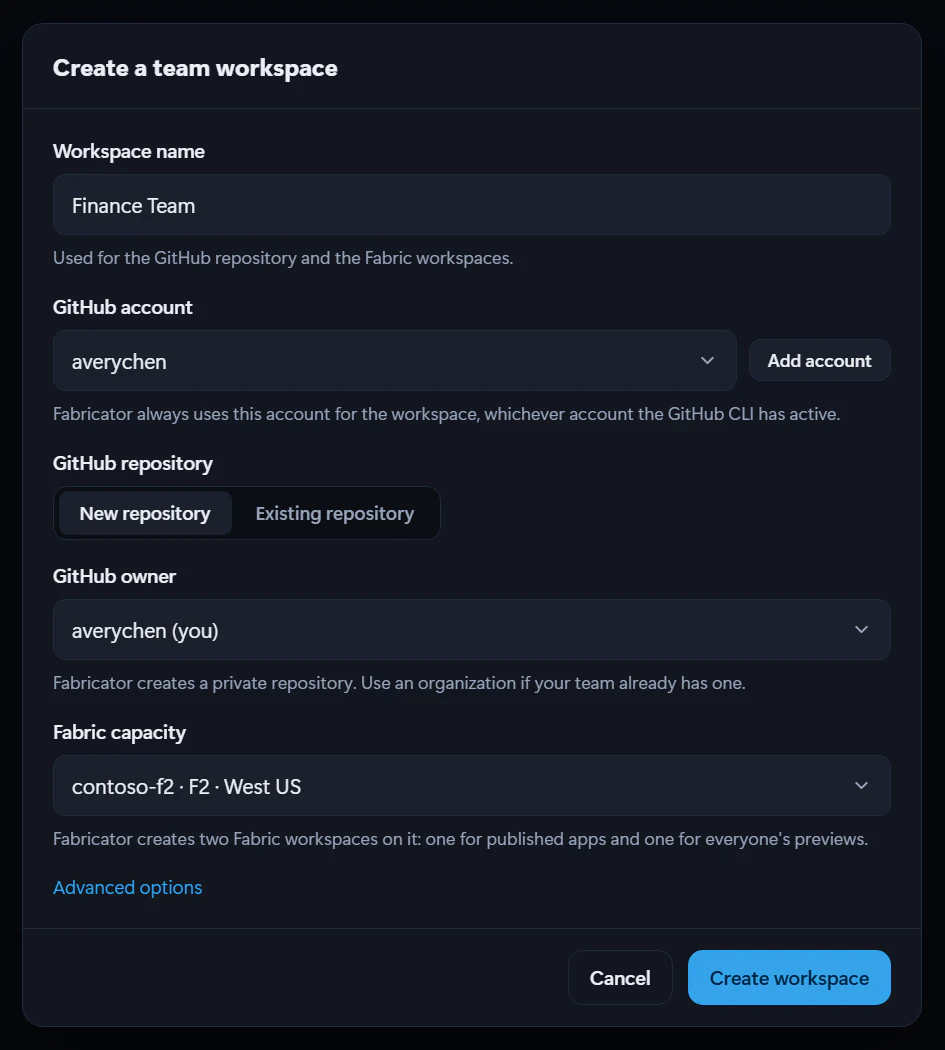
## Create the workspace
1. On Home, find **Team workspaces**.
2. Select **Create a team workspace**. If you already have a team workspace, select **New team workspace**.
3. Complete any GitHub or Azure sign-in checks.
4. Enter a **Workspace name**.
5. Choose the **GitHub account** to create it as. If the account you want isn't listed, select **Add account**. Fabricator always uses this account for the workspace. See [More than one GitHub account](https://spatney.github.io/rayfin-fabricator/docs/team/prerequisites#more-than-one-github-account).
6. Under **GitHub repository**, choose where the workspace's apps live:
- **New repository**: choose the **GitHub owner**, either the account or one of its organizations. Fabricator creates a private repository there. Organizations that don't let you create repositories are marked "you can’t create repositories".
- **Existing repository**: choose or enter a repository you already have. See [Use an existing repository](#use-an-existing-repository).
7. Choose a **Fabric capacity**.
8. Optional: if your organization turned off GitHub-hosted runners, expand **Advanced options** and choose **Where the pipeline runs**. See [Choose where the pipeline runs](#choose-where-the-pipeline-runs).
9. Select **Create workspace**.
## Use an existing repository
You can set the workspace up in a repository that already exists instead of a new one: one you created, or one an organization owner created for you. This is the way to go when your organization doesn't let you create repositories.
1. Make sure the repository is private or internal and you have the **Maintain** or **Admin** role on it. An empty repository works best. One that already has commits works too if its default branch is `main`. If you can't create the repository yourself, ask an owner of the organization to create it and give you the **Maintain** role.
2. In **Create a team workspace**, under **GitHub repository**, select **Existing repository**.
3. In **Repository**, choose one of your repositories from the suggestions, or enter it as `owner/name`, for example `contoso/sales-apps`. You can also paste its GitHub address. The suggestions are your private repositories where you have the **Maintain** or **Admin** role.
4. Finish creating the workspace.
Fabricator marks the repository as a team workspace: it sets the repository's description and adds the `fabricator-workspace` topic. It also applies the squash-merge settings that publishing uses, then adds the workspace's files. A `README.md` that's already there stays, and an existing `.gitignore` only gets the lines it's missing. Setup stops if the repository is public, already a team workspace, or archived, or if you don't have the **Maintain** or **Admin** role on it.
The **Maintain** role covers everything setup changes. GitHub only lets admins protect `main`, so with **Maintain**, Fabricator keeps everyone on the publish flow itself. Inviting teammates and deleting the workspace later also need an admin. See [Who is an owner](https://spatney.github.io/rayfin-fabricator/docs/team/members#who-is-an-owner).
Some organizations lock a new repository until someone finishes setting it up in the organization's portal. Fabricator then shows **Finish setting up the repository**. See [The organization locked the repository until it's set up](https://spatney.github.io/rayfin-fabricator/docs/troubleshooting/team#the-organization-locked-the-repository-until-its-set-up).
## Choose where the pipeline runs
The workspace's pipeline runs on GitHub Actions runners. By default, it uses GitHub-hosted `ubuntu-latest` runners. Some organizations turn those off and run Actions jobs on their own runners instead. If yours does, ask a GitHub organization owner which runner group or runner labels to use.
1. In **Create a team workspace**, expand **Advanced options**.
2. Under **Where the pipeline runs**, choose one of these:
- **GitHub-hosted runners**: GitHub's runners, or the runners your organization chose for Fabricator.
- **A runner group**: enter the **Runner group name**. You can also enter labels, separated by commas, when the group has different kinds of runners.
- **Runners with labels**: enter the labels a runner must have, separated by commas, such as `self-hosted, linux`.
3. Finish creating the workspace.
The runners need Linux with bash, curl, and git, and outbound access to GitHub, the npm registry, Microsoft Entra ID, and Microsoft Fabric. See [Where the workflow runs](https://spatney.github.io/rayfin-fabricator/docs/team/administrators#where-the-workflow-runs).
If no runner picks up the pipeline, setup stops on **Check that the pipeline can reach Fabric** with "No runner picked up the pipeline's verification run in 6 minutes." or "GitHub didn't start the pipeline's verification run:" followed by GitHub's reason, such as "GitHub Actions hosted runners are disabled for this repository." Choose other runners under **Where the pipeline runs** in the same window, then select **Retry**. To ask an organization owner for help, select **Copy instructions for your admin**. See also [No runner picks up the pipeline](https://spatney.github.io/rayfin-fabricator/docs/troubleshooting/team#no-runner-picks-up-the-pipeline).
You can change the runners later in the workspace's settings. See [Change where the pipeline runs](https://spatney.github.io/rayfin-fabricator/docs/team/overview#change-where-the-pipeline-runs).
## What Fabricator creates
Fabricator runs these setup steps in order:
1. **Create the private GitHub repository**.
2. **Create the production and preview Fabric workspaces**.
3. **Create the deploy identities (service principals)**.
4. **Let the repository's pipeline sign in as those identities**.
5. **Give the deploy identities access to Fabric**.
6. **Add the deploy pipeline to the repository**.
7. **Protect the main branch**.
8. **Download the workspace to this computer**.
9. **Check that the pipeline can reach Fabric**.
The GitHub repository gets `README.md`, `.gitignore`, `fabricator.workspace.json`, and `.github/workflows/fabricator.yml`. It also gets GitHub Actions variables for the tenant ID, deploy identity client IDs, and Fabric workspace IDs, plus `FABRICATOR_RUNS_ON` when you choose where the pipeline runs. With an existing repository, the first step uses that repository instead of creating one.
## If setup needs an administrator
Setup can stop when your organization does not allow your account to do a step. Common examples are:
- Microsoft Entra ID does not let you create or change app registrations.
- Fabric refuses service principal access to the Fabric API.
- Your GitHub organization doesn't let you create repositories. See [Use an existing repository](#use-an-existing-repository).
- Your GitHub organization blocks repository or workflow changes.
- Your GitHub organization turned off GitHub-hosted runners. See [Choose where the pipeline runs](#choose-where-the-pipeline-runs).
- Microsoft Entra ID only accepts pipelines from your company's GitHub enterprise. See [The pipeline's sign-in fails with AADSTS7002381](https://spatney.github.io/rayfin-fabricator/docs/troubleshooting/team#the-pipelines-sign-in-fails-with-aadsts7002381).
When Fabricator has administrator instructions, it shows **Copy instructions for your admin**. Send that text to the right administrator, then come back to the same setup window and select **Retry**.
To find out which setting stopped setup and who can change it, select **Diagnose with Copilot** under the problem. Fabricator runs read-only checks with your GitHub and Azure sign-ins, and Copilot explains the most likely cause and drafts a message for the right administrator. See [A team step failed and the message doesn't explain it](https://spatney.github.io/rayfin-fabricator/docs/troubleshooting/team#a-team-step-failed-and-the-message-doesnt-explain-it).
If an administrator creates an app registration for you, expand **Advanced options**, paste its application client ID in **Existing app registration (optional)**, and continue. An administrator-provided app registration is used for both previews and published apps.
## Abandon an unfinished setup
If setup stopped and you don't want to finish it, you can delete what it created. On Home, a workspace whose setup didn't finish shows "Setup didn't finish. Pick up where it stopped; nothing is lost." with **Finish setup** and **Abandon setup…**.
1. On Home, under **Team workspaces**, find the workspace and select **Abandon setup…**. If the setup window is still open on a problem, you can select **Abandon setup…** there instead.
2. Wait while Fabricator looks up what setup created. It lists each item it will delete: the deploy identities, the Fabric workspaces, the GitHub repository, and the workspace's folder on this computer. It also lists what it removes from what you provided.
3. If Fabricator says that deleting the repository needs one more GitHub permission (`delete_repo`), select **Grant GitHub access** and approve it. Fabricator opens a terminal that runs `gh auth refresh --hostname github.com --scopes repo,read:org,workflow,delete_repo`.
4. Select **Delete and abandon**.
Fabricator permanently deletes the deploy identities it created, both Fabric workspaces and anything in them, and the GitHub repository, then removes the workspace from this computer.
What you provided stays:
- **An app registration you or an administrator provided** isn't deleted. Fabricator only removes its federated credentials that let this workspace's repository sign in: the ones named `fabricator-main`, `fabricator-main-ids`, `fabricator-pull-requests`, and `fabricator-pull-requests-ids`. If only an owner of the app registration can remove them, select **Copy instructions for your admin** and send the commands to them.
- **An existing repository** isn't deleted. Fabricator removes what setup added: `fabricator.workspace.json`, the pipeline, its Actions variables, and the `fabricator-workspace` topic. It also removes `README.md` and `.gitignore` while they're still exactly Fabricator's, and puts back the repository's description. The merge settings and branch protection stay. You can then use the repository for a new workspace.
To keep what setup created and only remove the workspace from Fabricator, select **Remove from this computer** instead.
### If something can't be deleted
Fabricator deletes the GitHub repository last. If it can't delete a deploy identity or a Fabric workspace, or remove the federated credentials from your app registration, it stops before the repository, and the workspace stays on Home with whatever is left. The message explains what went wrong. Fix it, then select **Try again**: Fabricator picks up with what's left.
Organizations can limit deleting repositories to their owners. If GitHub doesn't let you delete the repository, ask an owner of the organization to delete it, then select **Try again**. To give up on the rest, select **Remove from this computer**. Fabricator lists what that keeps, so you can delete it yourself.
---
---
title: "What are team workspaces?"
description: "Build Rayfin apps with teammates in a private GitHub repository, with personal previews and a pipeline that publishes to Fabric."
url: https://spatney.github.io/rayfin-fabricator/docs/team
markdown_url: https://spatney.github.io/rayfin-fabricator/docs/team.md
app_version: "1.20.1"
section: team
product: Fabricator
last_updated: 2026-10-10T17:36:58-07:00
source: team/index.mdx
---
# What are team workspaces?
> Build Rayfin apps with teammates in a private GitHub repository, with personal previews and a pipeline that publishes to Fabric.
> [!WARNING]
> Team workspaces are an experiment. Turn them on in **Settings → Experiments**. They may change or be removed in a future update.
Team workspaces let several people build Rayfin apps together without sharing one laptop or one deployment. Fabricator keeps the team's apps in GitHub, gives each person a working copy and a personal preview, and publishes the shared app through a GitHub Actions pipeline.
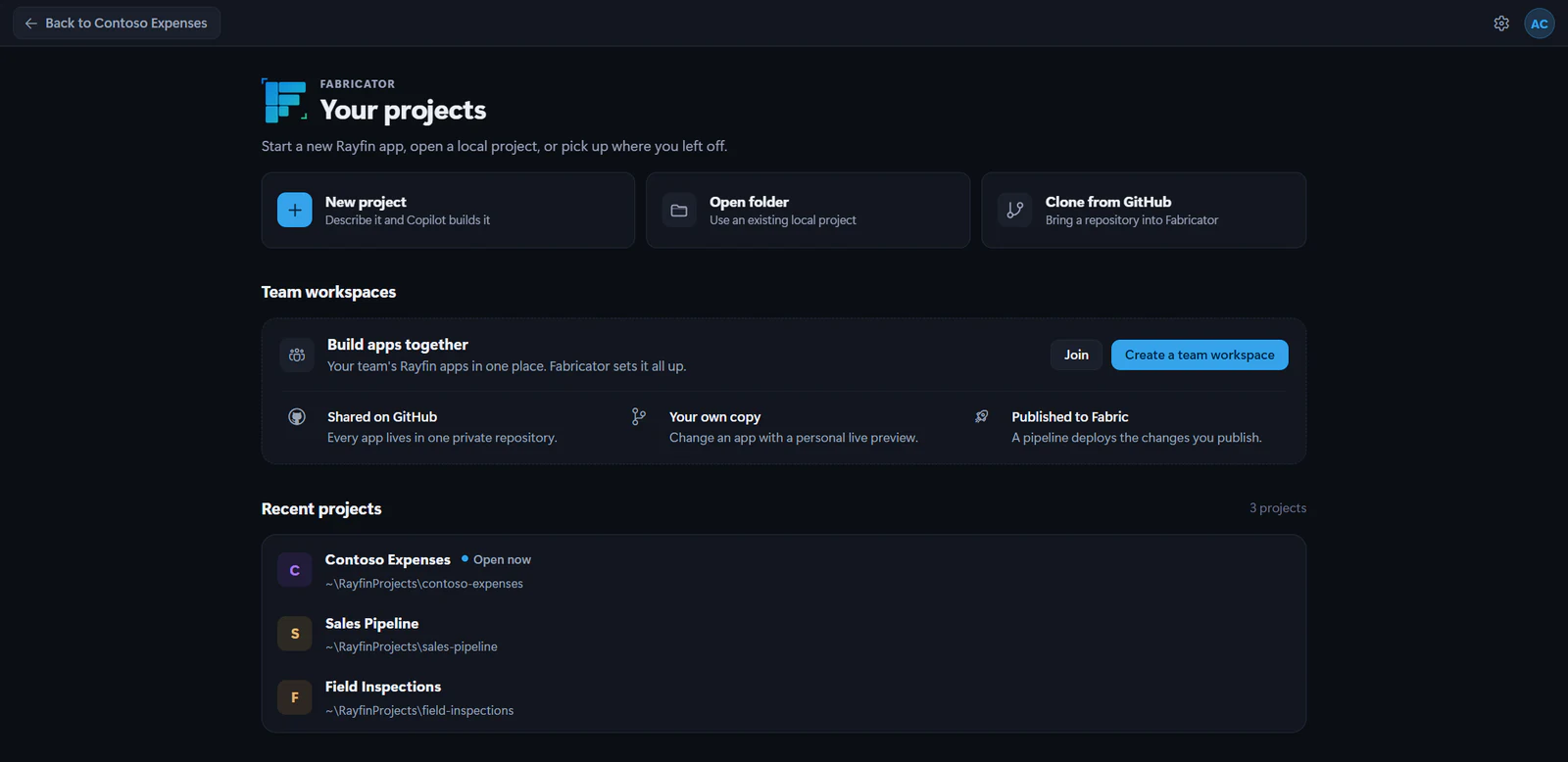
## How a team workspace works
A team workspace is one private GitHub repository. Each top-level folder that contains `rayfin/rayfin.yml` is one Rayfin app.
Fabricator also creates two Microsoft Fabric workspaces:
- one workspace for published apps that everyone uses
- one workspace for everyone's personal previews
The repository pipeline signs in to Microsoft Fabric with Microsoft Entra ID service principals called deploy identities. It uses GitHub OIDC, so Fabricator stores IDs as GitHub Actions variables but stores no client secrets.
Pull requests can only use the preview identity. Pushes to `main` use the deploy identity for published apps. That means a pipeline change in a pull request cannot touch the published apps workspace.
```mermaid
flowchart LR
You["You"] --> Branch["Your working branch"]
Branch --> PullRequest["Pull request into main"]
PullRequest --> PreviewWorkflow["Preview workflow"]
PreviewWorkflow --> PreviewWorkspace["Previews Fabric workspace"]
PullRequest --> Publish["Publish merges the pull request"]
Publish --> Main["main branch"]
Main --> PublishWorkflow["Published workflow"]
PublishWorkflow --> PublishedWorkspace["Published apps Fabric workspace"]
class You actor
class Branch,PullRequest,Main store
class PreviewWorkflow,Publish,PublishWorkflow service
class PreviewWorkspace,PublishedWorkspace external
```
## Turn on the experiment
1. Open **Settings**.
2. Open **Experiments**.
3. Turn on **Team workspaces**.
4. Make sure the GitHub CLI `gh` is installed. Fabricator uses it for team repositories.
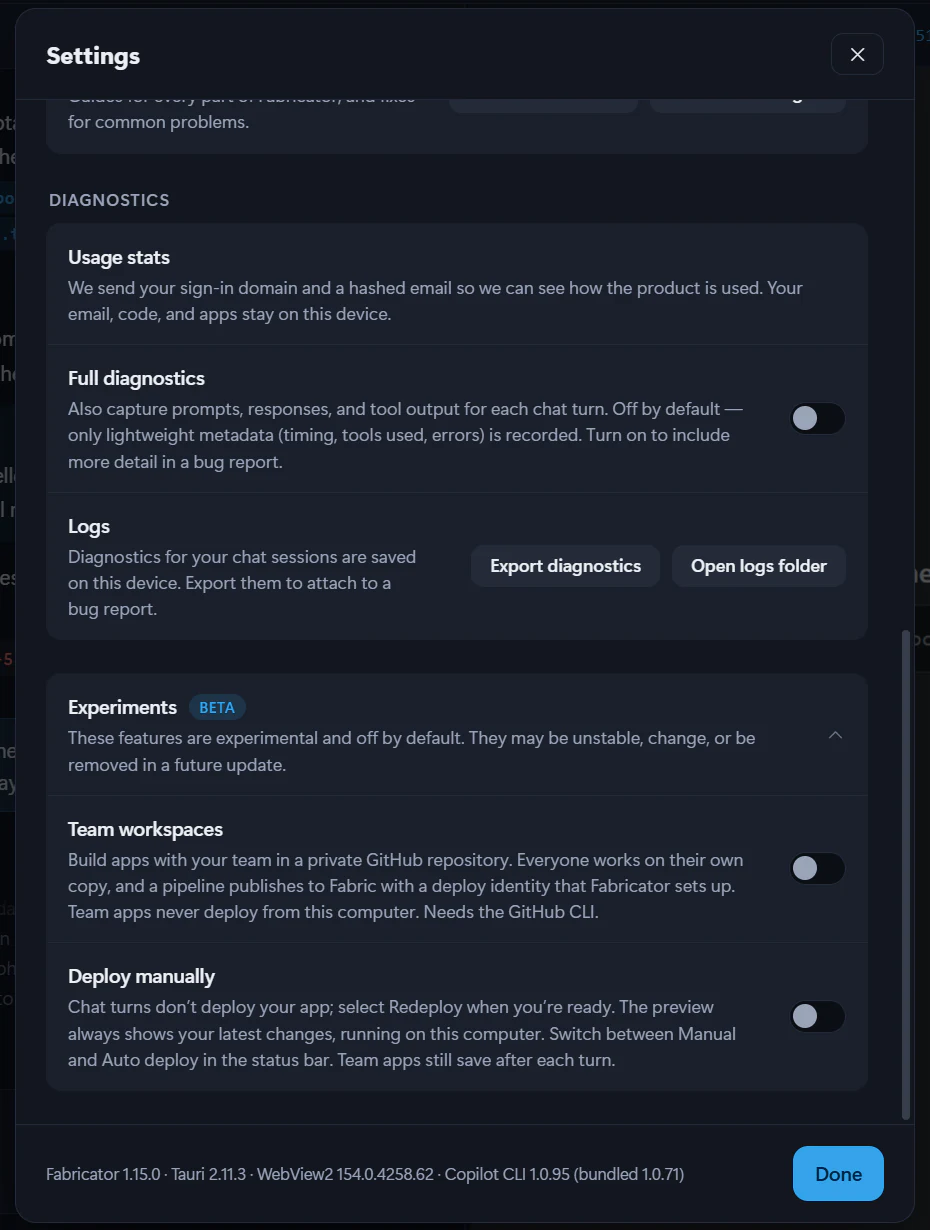
Turning the experiment off hides team workspaces and team apps in Fabricator. It does not delete the GitHub repository, Fabric workspaces, apps, deploy identities, or local files.
## What to read next
Check GitHub, Azure, Fabric, and Rayfin requirements.
Set up the repository, Fabric workspaces, identities, and pipeline.
Invite teammates and give them Fabric app access.
Open an app, preview changes, and bring in teammates' work.
Merge your work and deploy the published app.
See apps, previews, published deployments, data, and pipeline activity.
Copy a local project into a team workspace.
Review the Entra, Fabric, GitHub, and workflow details.
Understand current limits before relying on the experiment.
---
---
title: "Team workspace limitations"
description: "Understand current team workspace limits for GitHub plans, github.com, Rayfin versions, secrets, and the experiment toggle."
url: https://spatney.github.io/rayfin-fabricator/docs/team/limitations
markdown_url: https://spatney.github.io/rayfin-fabricator/docs/team/limitations.md
app_version: "1.20.1"
section: team
product: Fabricator
last_updated: 2026-10-04T23:05:47-07:00
source: team/limitations.mdx
---
# Team workspace limitations
> Understand current team workspace limits for GitHub plans, github.com, Rayfin versions, secrets, and the experiment toggle.
> [!WARNING]
> Team workspaces are an experiment. Turn them on in **Settings → Experiments**. They may change or be removed in a future update.
Team workspaces are useful for collaboration, but they are still experimental and have important limits.
## GitHub Free cannot enforce branch protection on private repositories
Fabricator asks GitHub to protect `main`. On GitHub Free private repositories, GitHub does not offer that branch protection feature.
In that case, Fabricator still follows the publish flow itself: each person works on a branch, opens a pull request, checks the preview, and publishes by merging. However, a member with write access to the repository could push to `main` directly outside Fabricator. A paid GitHub plan lets GitHub enforce the flow and required reviews.
## Team workspaces use github.com only
The team workspace GitHub code forces `gh` API calls and git credential use to `github.com`. GitHub Enterprise Server is not supported for team workspaces. GitHub Enterprise Cloud with data residency hosts are not used by the team workspace repository operations.
## Apps need Rayfin 1.36.2 or newer
The team pipeline deploys by item name with `rayfin up --item-name`. Apps using older Rayfin versions must be updated with **Update with Copilot** before they can move into or deploy reliably from a team workspace.
## Turning off the experiment hides team workspaces
Turning off **Settings → Experiments → Team workspaces** hides team workspaces and team apps in Fabricator. It does not delete repositories, Fabric workspaces, deploy identities, previews, published apps, or local files.
## Previews are deployed by GitHub Actions
Team apps do not deploy from your computer. Your local preview is temporary while Copilot works and while the pipeline catches up. The deployed preview appears only after the GitHub Actions workflow finishes.
## Fabricator can't change a team app's secrets yet
For a team app, the **Secrets** tab lists the secrets of the published app and of your preview, but it can't add, replace or delete them, because the team pipeline, not your computer, deploys team apps. Change them in the Fabric portal: select **Open in Fabric** next to each deployment. See [Secrets in a team app](https://spatney.github.io/rayfin-fabricator/docs/build/secrets#secrets-in-a-team-app).
## One repository holds all apps in the workspace
Every app is a top-level folder in one private repository. Folder names must be safe path segments and cannot use reserved names such as `node-modules`, `dist`, `build`, `out`, `github`, `repo`, or `fabricator`.
## Administrator-created identity is shared
When setup uses an app registration supplied by an administrator, Fabricator uses that same identity for previews and published apps. Separate preview and deploy identities are created only when Fabricator is allowed to create the app registrations itself.
---
---
title: "Invite your team"
description: "Invite teammates by GitHub username, grant Fabric app access with work email, and manage member and app access lists."
url: https://spatney.github.io/rayfin-fabricator/docs/team/members
markdown_url: https://spatney.github.io/rayfin-fabricator/docs/team/members.md
app_version: "1.20.1"
section: team
product: Fabricator
last_updated: 2026-10-05T22:02:01-07:00
source: team/members.mdx
---
# Invite your team
> Invite teammates by GitHub username, grant Fabric app access with work email, and manage member and app access lists.
> [!WARNING]
> Team workspaces are an experiment. Turn them on in **Settings → Experiments**. They may change or be removed in a future update.
Invite teammates after the workspace setup finishes. GitHub access lets them change apps. Fabric access lets them open previews and published apps.
## Open member settings
You can open member settings from either place:
1. From Home, in **Team workspaces**, select the workspace's **Overview** button or the gear button titled **Members and settings**.
2. From a team app, open the team menu in the header and select **Workspace overview**, then select **Manage**.
3. In the workspace panel, select **Members**.
## Invite someone
1. In **Members**, find **Invite a teammate**.
2. Enter their **GitHub username**.
3. Enter their **Work email** if they should open Fabric previews and published apps.
4. Turn on **Owner** only if they should manage members and settings.
5. Select **Send invitation**.
Fabricator invites the GitHub user as a repository collaborator: owners get the **Admin** role on the repository, and members the **Write** role. If you entered a work email, it looks up that person in Microsoft Entra ID and grants Contributor on both Fabric workspaces.
GitHub only lets a repository's admins add people. If you're an owner with the **Maintain** role, **Invite a teammate** says so instead: ask one of the repository's admins to add your teammates on GitHub with the **Write** role. See [Who is an owner](#who-is-an-owner).
## Who is an owner
Fabricator treats people with the **Maintain** or **Admin** role on the workspace's GitHub repository as its owners, and people with the **Write** role as members. Owners change the workspace's settings, choose where the pipeline runs, run **Repair**, manage app access, and remove apps.
GitHub keeps a few things for the repository's admins. An owner with the **Maintain** role can't:
- Invite or remove people.
- Delete the workspace, which archives its repository.
- Protect `main` on GitHub. Fabricator keeps everyone on the publish flow itself instead.
## Accept an invitation
Invitees accept from Home:
1. Turn on **Settings → Experiments → Team workspaces**.
2. In **Team workspaces**, select **Join** or **Review invitations**.
3. In **GitHub account**, choose the account you were invited as. **Review invitations** starts with the account the invitation is for.
4. In **Invitations**, select **Accept and join**.
Fabricator lists team workspace invitations for the chosen account. Other repository invitations are not shown there. Fabricator always uses that account for the workspace, whichever account the GitHub CLI has active.
## Manage app access
Workspace owners can select **App access** to see **Who can open the apps**. This list shows users and groups with access to the workspace's Fabric workspaces. Use the remove button to remove a person's Fabric app access.
## Remove a member
In **Members**, owners with the **Admin** role on the repository can remove a member or cancel a pending invitation. Removing a member removes their repository access. If Fabricator gave that GitHub login Fabric access from this computer, it also removes that Fabric access. Their unpublished changes stay on GitHub.
---
---
title: "Move an existing app into a team workspace"
description: "Copy a local Rayfin project into a team workspace as a new team app without changing the original local project."
url: https://spatney.github.io/rayfin-fabricator/docs/team/move-an-app
markdown_url: https://spatney.github.io/rayfin-fabricator/docs/team/move-an-app.md
app_version: "1.20.1"
section: team
product: Fabricator
last_updated: 2026-10-04T02:17:09-07:00
source: team/move-an-app.mdx
---
# Move an existing app into a team workspace
> Copy a local Rayfin project into a team workspace as a new team app without changing the original local project.
> [!WARNING]
> Team workspaces are an experiment. Turn them on in **Settings → Experiments**. They may change or be removed in a future update.
Move a local project into a team workspace when you want teammates to work on a copy of it. Fabricator keeps the original local project where it is.
## Before you move
The app must use Rayfin 1.36.2 or newer. If it is older, Fabricator stops with a message like:
> "`` uses Rayfin ``, and team workspaces need Rayfin 1.36.2 or newer. Open the app, select Rayfin in the status bar, choose Update with Copilot, then move it again."
Open the app, select Rayfin in the status bar, and choose **Update with Copilot**. Then try the move again.
## Move the app
1. On Home, find the local project.
2. Select **Manage**.
3. In **Manage project**, find **Move to a team workspace**.
4. Choose the workspace.
5. Select **Move**.
Fabricator copies the project into the team repository, copies the chat history to the new team app, creates your working branch, saves the app to GitHub, and opens a pull request so the preview pipeline can deploy it.
## What changes
The team copy deploys as a new Fabric app. Data in the old deployment is not copied.
The original local project stays as it is. You can keep it in Fabricator, remove it from recent projects, or remove it later with the normal local project controls.
---
---
title: "Use the workspace overview"
description: "Use the app-centered workspace overview to inspect apps, working copies, previews, published deployments, data, connections, and pipeline health."
url: https://spatney.github.io/rayfin-fabricator/docs/team/overview
markdown_url: https://spatney.github.io/rayfin-fabricator/docs/team/overview.md
app_version: "1.20.1"
section: team
product: Fabricator
last_updated: 2026-10-06T18:27:57-07:00
source: team/overview.mdx
---
# Use the workspace overview
> Use the app-centered workspace overview to inspect apps, working copies, previews, published deployments, data, connections, and pipeline health.
> [!WARNING]
> Team workspaces are an experiment. Turn them on in **Settings → Experiments**. They may change or be removed in a future update.
The workspace overview shows a team workspace as a map centered on apps. Use it to see who is changing what, what is deployed, and where app data and connections point.
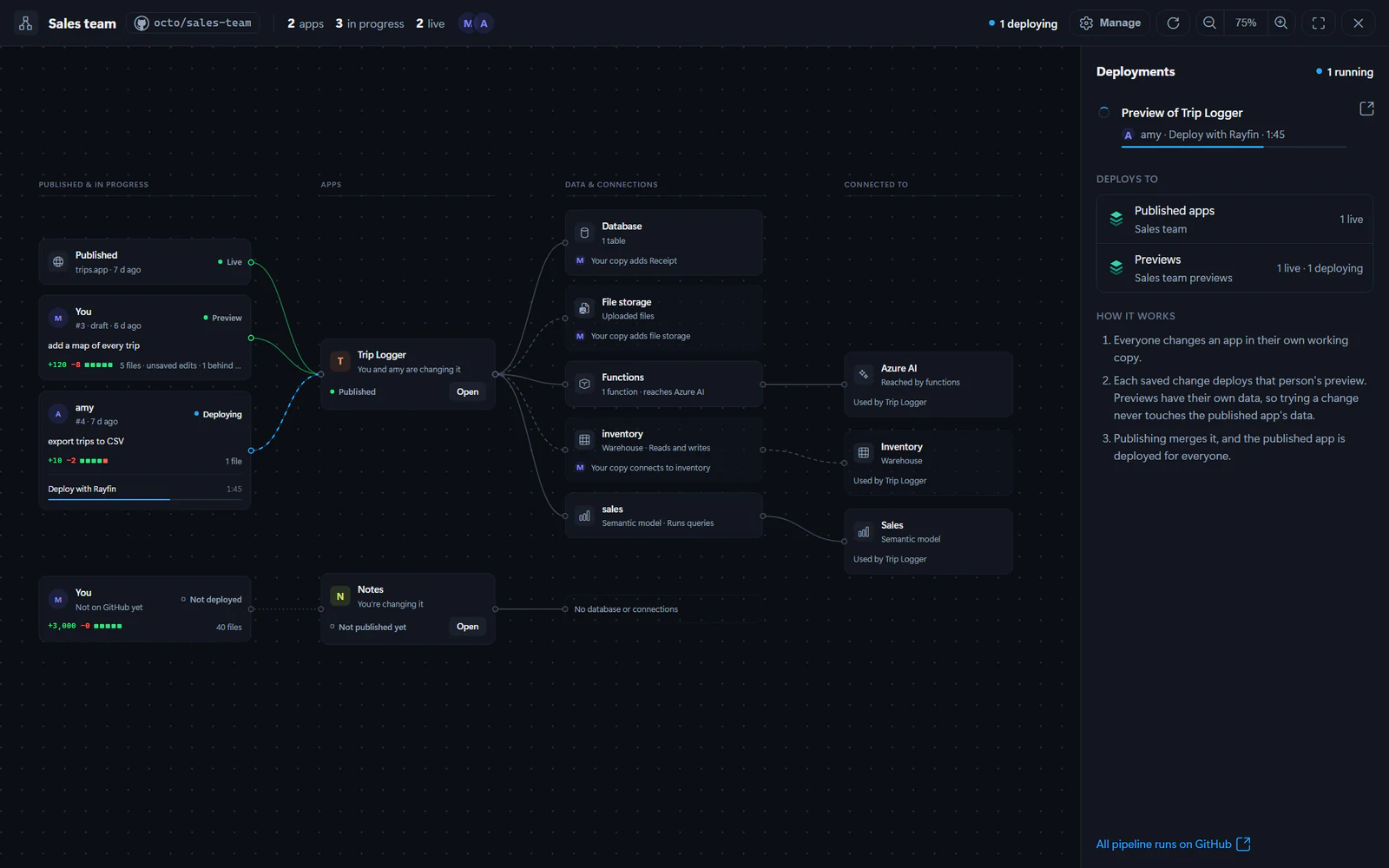
## Open the overview
You can open the overview from Home or from a team app:
1. On Home, in **Team workspaces**, select **Overview** for a workspace.
2. From a team app, open the team menu in the header and select **Workspace overview**.
3. You can also select **Overview** in the app bar, next to **Publish**.
## Read the app map
Each app appears in the middle of the map. To the left, the overview shows the app's published version and active working copies. To the right, it shows **Data & connections** and **Connected to** when Fabricator can read the app configuration.
For each app, the map can show:
- whether the app is **Published** or **Not published yet**
- each working copy, including **You** or the teammate's login
- the pull request number, draft state, saves, changed files, additions, and deletions
- whether a preview is live, failed, older than the latest save, or deploying
- current pipeline progress with links to GitHub runs
Select a working copy to open **Changes**. You can expand each file to read its diff. Large or binary files may show "No preview for this file (it’s binary or very large)."
## Inspect data and connections
The redesigned overview still includes the data and connections view. Fabricator reads each app's `rayfin/rayfin.yml`, data model files, and functions source when available.
The map can show:
- the app database, tables, and relationships
- file storage
- functions and which services they reach
- connectors and what they do, such as "Runs queries"
- Fabric sources such as semantic models, warehouses, lakehouses, and other Fabric items
- external services reached by functions
A shared source appears once and lists the apps that use it. Working-copy changes are marked with the author's name, so you can see what a branch adds, changes, or removes.
## Watch deployments
When nothing is selected, the side panel is **Deployments**. It shows recent pipeline activity, active deploys, and where apps deploy:
- **Published apps**
- **Previews**
Use **All pipeline runs on GitHub** to open the repository's Actions page.
## Manage the workspace
Select **Manage** to open workspace settings. Owners, the people with the **Maintain** or **Admin** role on the workspace's repository, can use:
- **Members** to invite or remove teammates. GitHub only lets the repository's admins do this.
- **App access** to remove Fabric app access
- **Settings** to change the **GitHub account** Fabricator uses or **Require a review**, open Fabric workspaces, choose **Where the pipeline runs**, check pipeline health, or leave the workspace. Deleting the workspace also needs the **Admin** role.
See [Who is an owner](https://spatney.github.io/rayfin-fabricator/docs/team/members#who-is-an-owner).
When Fabricator ships a newer pipeline template, **Pipeline health** can mark an item repairable. Select **Repair** to update the managed workflow, repository variables, merge settings, branch protection, and Fabric access as needed. If no repair is needed, the button says **Check the pipeline**.
## Change the GitHub account
Fabricator works on each team workspace as the GitHub account it was created or joined with. Home shows that account on the workspace's card when it isn't the repository's owner. To use another account that you're signed in to in the GitHub CLI, for example after signing out of the old one:
1. Open the workspace's **Manage** panel and select **Settings**.
2. In **GitHub account**, select **Change**.
3. Choose the account. If it isn't listed, select **Add account**.
4. Select **Use this account**.
Fabricator first checks that the account can change the workspace's repository. Commits you make from then on are attributed to the new account.
## Change where the pipeline runs
Owners choose which GitHub Actions runners run the workspace's pipeline. Change it when your organization turns off GitHub-hosted runners, or when it gives the team a runner group.
1. Open the workspace's **Manage** panel and select **Settings**.
2. In **Where the pipeline runs**, select **Change**.
3. Choose **GitHub-hosted runners**, **A runner group**, or **Runners with labels**, and enter the runner group name or the labels.
4. Select **Save**.
Pipeline runs that start after you save use the new runners. When the organization chose runners for every Fabricator workspace, the section shows them with "Your organization chose these runners.", and the **GitHub-hosted runners** choice becomes **Your organization’s choice**. See [Where the workflow runs](https://spatney.github.io/rayfin-fabricator/docs/team/administrators#where-the-workflow-runs).
A workspace created with an earlier version of Fabricator also needs the newer pipeline. After you save, select **Repair** in **Pipeline health**. Repair updates the pipeline and checks that it runs on the chosen runners.
## Remove an app
Workspace owners can select an app, then **Remove from workspace…**. Fabricator removes the app folder through a merged pull request. If you choose **Also delete its published app and previews in Fabric, with their data**, Fabricator also deletes the matching Fabric items it can find.
---
---
title: "Before you start"
description: "Check the GitHub, Azure, Fabric, and Rayfin requirements before creating or joining a team workspace."
url: https://spatney.github.io/rayfin-fabricator/docs/team/prerequisites
markdown_url: https://spatney.github.io/rayfin-fabricator/docs/team/prerequisites.md
app_version: "1.20.1"
section: team
product: Fabricator
last_updated: 2026-10-05T22:02:01-07:00
source: team/prerequisites.mdx
---
# Before you start
> Check the GitHub, Azure, Fabric, and Rayfin requirements before creating or joining a team workspace.
> [!WARNING]
> Team workspaces are an experiment. Turn them on in **Settings → Experiments**. They may change or be removed in a future update.
Team workspace setup creates real GitHub, Microsoft Entra ID, and Microsoft Fabric resources. Check these requirements before you start.
## GitHub CLI on github.com
Fabricator uses the GitHub CLI, `gh`, for team repositories. Team workspaces use `github.com` only.
You need to be signed in with these classic OAuth scopes:
- `repo`
- `read:org`
- `workflow`
When the scopes are missing, Fabricator shows **Grant GitHub access** and opens a terminal that runs `gh auth refresh --hostname github.com --scopes repo,read:org,workflow`. If you are not signed in, **Sign in to GitHub** runs `gh auth login --web --git-protocol https --hostname github.com --scopes repo,read:org,workflow`.
Abandoning an unfinished setup also needs the `delete_repo` scope to delete the workspace's repository. Fabricator asks for it only then, with the same **Grant GitHub access** button. See [Abandon an unfinished setup](https://spatney.github.io/rayfin-fabricator/docs/team/create#abandon-an-unfinished-setup).
In organizations that use SAML single sign-on, GitHub lets the GitHub CLI into the organization only when you sign it in during a single sign-on session. When that's missing, Fabricator shows **Open single sign-on** and **Sign in to GitHub again**. See [GitHub says the organization requires single sign-on](https://spatney.github.io/rayfin-fabricator/docs/troubleshooting/team#github-says-the-organization-requires-single-sign-on).
### More than one GitHub account
The GitHub CLI can be signed in to several GitHub accounts, for example a personal account and a work account. When you create or join a team workspace, choose the **GitHub account** to use. Fabricator remembers it and always uses that account for the workspace, whichever account the GitHub CLI has active. Workspaces under different accounts work side by side.
- To add an account, select **Add account** next to **GitHub account**. Fabricator opens a terminal that runs `gh auth login`, then makes the account that was active before active again.
- If the chosen account is missing scopes, **Grant GitHub access** refreshes that account's sign-in, then makes the previously active account active again.
- To change the account an existing workspace uses, see [Change the GitHub account](https://spatney.github.io/rayfin-fabricator/docs/team/overview#change-the-github-account).
## Azure CLI sign-in for Microsoft Entra ID
Fabricator checks the Azure CLI sign-in before setup. You need an account in the tenant where the Fabric workspaces will live.
To create the deploy identities yourself, your account must be allowed to create and update app registrations and service principals. That is commonly allowed for tenant users, but some organizations turn it off. If it is off, you need the Application Developer role or an administrator-provided app registration.
## Fabric capacity and tenant setting
You need access to an active Fabric or Premium capacity. Fabricator lists capacities it can use and creates the workspace on the one you choose.
A Fabric administrator may also need to allow service principal API access. Fabricator's admin instructions use this exact setting name: *Service principals can call Fabric public APIs*.
## Rayfin version in each app
Team workspace deploys need Rayfin 1.36.2 or newer because the pipeline deploys apps by item name. New apps start with a supported version. For older apps, open the app, select Rayfin in the status bar, and choose **Update with Copilot** before moving it.
## GitHub plan
GitHub Free private repositories do not support branch protection. Fabricator still follows the publish flow in the app, but GitHub cannot enforce it for direct pushes to `main`. See [Team workspace limitations](https://spatney.github.io/rayfin-fabricator/docs/team/limitations).
## GitHub Actions runners
The workspace's pipeline runs on GitHub-hosted runners by default. If your GitHub organization turned those off, ask an organization owner which runner group or runner labels Actions jobs should use, and choose them when you create the workspace. See [Choose where the pipeline runs](https://spatney.github.io/rayfin-fabricator/docs/team/create#choose-where-the-pipeline-runs).
## Where the repository can live
The workspace's apps live in one private GitHub repository. Setup can create a new one under the **GitHub owner** you choose, if you're allowed to create repositories there. It can also use a repository that already exists, with you in the **Maintain** or **Admin** role. Many organizations don't let their members create repositories. Then an owner of the organization can create an empty private repository for you. See [Use an existing repository](https://spatney.github.io/rayfin-fabricator/docs/team/create#use-an-existing-repository).
Some companies' Microsoft Entra ID only accepts pipeline sign-ins from repositories owned by organizations in their GitHub enterprise. Microsoft's own tenant works this way. In such a tenant, choose one of those organizations, not your personal account. A personal account's repository fails setup's last step with AADSTS7002381. See [The pipeline's sign-in fails with AADSTS7002381](https://spatney.github.io/rayfin-fabricator/docs/troubleshooting/team#the-pipelines-sign-in-fails-with-aadsts7002381).
---
---
title: "Publish changes"
description: "Publish a team app by saving work, checking the preview, waiting for review when required, merging, and deploying the published app."
url: https://spatney.github.io/rayfin-fabricator/docs/team/publish
markdown_url: https://spatney.github.io/rayfin-fabricator/docs/team/publish.md
app_version: "1.20.1"
section: team
product: Fabricator
last_updated: 2026-10-04T02:17:09-07:00
source: team/publish.mdx
---
# Publish changes
> Publish a team app by saving work, checking the preview, waiting for review when required, merging, and deploying the published app.
> [!WARNING]
> Team workspaces are an experiment. Turn them on in **Settings → Experiments**. They may change or be removed in a future update.
Use **Publish** when your preview is ready for everyone. Publishing merges your working branch and lets the team pipeline deploy the published app.
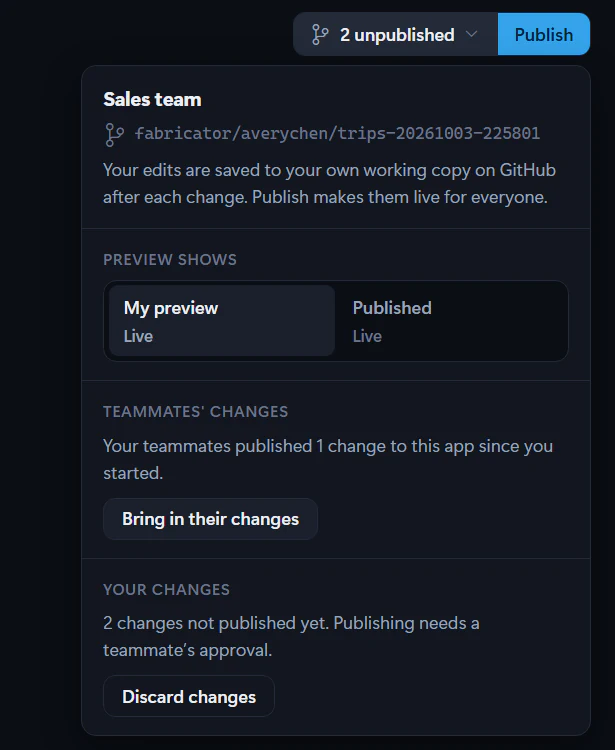
## Publish your changes
1. Open the team app.
2. Make sure your latest preview is working.
3. Select **Publish** in the app bar.
4. Keep the **Publish** window open while Fabricator works, or select **Stop waiting** if you only want to stop watching.
Fabricator runs these steps:
1. **Save your latest changes**.
2. **Bring in your teammates' changes**.
3. **Check that your preview deploys**.
4. **Get a teammate's approval**, when the workspace requires reviews.
5. **Publish your changes**.
6. **Deploy the published app**.
If review is required, Fabricator shows "Waiting for a teammate to approve your changes. They see your request on Fabricator's Home. Publish again once they've approved." Teammates approve from Home with **View changes** and **Approve**.
## If publishing would delete data
The pipeline stops when the Rayfin CLI reports a destructive data or storage change. The GitHub workflow emits this message:
> "This change would delete data in the published app. Publish it again from Fabricator and confirm to allow it."
Fabricator then shows:
> "Your changes are published, but the pipeline stopped before deploying because they would delete data in the published app. Confirm to deploy anyway."
If you understand the impact, select **Deploy anyway (deletes data)**. Fabricator dispatches the workflow again with the `force` input for that app.
## If publish stops
Open the team menu in the header. Under **Last publish**, use **View on GitHub** when it is available. In the **Publish** window, use **View logs on GitHub** when shown.
If your preview did not deploy, Fabricator shows "Your preview didn't deploy, so Fabricator didn't publish. Open the preview's logs, fix the problem with Copilot, then publish again."
If teammates changed the same files, Fabricator shows "Your teammates changed some of the same files as you. Bring in their changes and resolve the conflicts first." Use **Let Copilot combine them** when it appears.
---
---
title: "Work on a team app"
description: "Open a team app, work on your own branch, preview changes locally and in Fabric, and bring in teammates' published changes."
url: https://spatney.github.io/rayfin-fabricator/docs/team/work-on-an-app
markdown_url: https://spatney.github.io/rayfin-fabricator/docs/team/work-on-an-app.md
app_version: "1.20.1"
section: team
product: Fabricator
last_updated: 2026-10-06T18:27:57-07:00
source: team/work-on-an-app.mdx
---
# Work on a team app
> Open a team app, work on your own branch, preview changes locally and in Fabric, and bring in teammates' published changes.
> [!WARNING]
> Team workspaces are an experiment. Turn them on in **Settings → Experiments**. They may change or be removed in a future update.
When you open a team app, Fabricator gives you your own working branch. Your edits are saved to GitHub after each change, and the team pipeline deploys your personal preview.
## Open a team app
1. On Home, find **Team workspaces**.
2. Open the workspace.
3. Select **Open** on the app you want to change.
Fabricator opens a working branch named like `fabricator//-`. Your local files live in a worktree for that app.
## Preview while Copilot works
While Copilot is changing files, Fabricator starts a local Vite preview so frontend changes appear as they are made. See [Preview your app](https://spatney.github.io/rayfin-fabricator/docs/build/preview) for the general preview controls.
For a team app, the local preview uses your preview deployment's data when one exists. Until your first preview has deployed, the badge says **Local · published data**. Changes you make in that state use the published app's data. If nothing is deployed yet, the badge says **Local · no data yet**.
If the local preview stops responding after a package install or another change, Fabricator starts it again.
## Save and deploy your preview
After each chat turn, Fabricator saves your changes to GitHub and opens or updates your pull request. The pipeline deploys your personal preview.
You can see progress in two places:
- the team app control in the app bar, which shows **Deploying preview…**
- the preview pane, which shows **Deploying your first preview** for the first deploy or a progress bar above the existing preview later
When the pipeline finishes, the preview switches to the deployed version.
## Switch between your preview and the published app
1. Open the team menu in the header.
2. Under **Preview shows**, choose **My preview** or **Published**.
The preview toolbar's status label shows which one you're looking at: **My preview** or **Published**.
## Bring in teammates' changes
If teammates publish changes after you started, the team menu shows **Teammates' changes** and the button **Bring in their changes**.
Select **Bring in their changes** to merge the published app into your working branch. If you both changed the same files, Fabricator reports the conflict. Select **Ask Copilot to finish** or **Let Copilot combine them** when offered so Copilot can combine the changes.
---
---
title: "Chat and Copilot problems"
description: "Fix Copilot chat errors, stuck turns, new engine sessions, Copilot credit use, and Rayfin dependency failures."
url: https://spatney.github.io/rayfin-fabricator/docs/troubleshooting/chat
markdown_url: https://spatney.github.io/rayfin-fabricator/docs/troubleshooting/chat.md
app_version: "1.20.1"
section: troubleshooting
product: Fabricator
last_updated: 2026-10-11T23:30:59-07:00
source: troubleshooting/chat.mdx
---
# Chat and Copilot problems
> Fix Copilot chat errors, stuck turns, new engine sessions, Copilot credit use, and Rayfin dependency failures.
Use this page when the chat panel shows an error, a turn does not finish, or Copilot seems to lose context.
## Chat shows a Copilot error
You see an error bubble in chat, **Copilot needs your attention**, or a message such as "GitHub Copilot is not signed in. Sign in to Copilot in Fabricator, then retry your message.", "Session not found", "Execution failed: Error: Session was not created with authentication info or custom provider", "rate limit exceeded", or a model access error.
Fabricator sends your prompt to the bundled GitHub Copilot engine. Authentication, model access, policy, rate-limit, and session errors come from that engine.
1. If the error asks you to sign in, select **Sign in to Copilot** in chat and complete the browser or device-code flow.
2. Retry the message yourself. Fabricator keeps your displayed conversation and draft, but does not automatically replay work after a failed or partially started turn.
3. If the model was marked **Unavailable** in the **Model** menu, open the model picker and choose **Auto** or another listed model.
4. If models do not load, sign out and back in to Copilot from setup or the chat notice.
5. If the error mentions rate limits or unavailable service, wait a few minutes, choose **Auto** or a fast model, and retry.
6. If repeated "Session not found" errors continue on the latest version, start **New chat**. This clears the conversation view, not your app files.
If the same error repeats, [Report a problem](https://spatney.github.io/rayfin-fabricator/docs/troubleshooting/report-a-problem).
## A chat turn seems stuck
The assistant appears to keep working, the work log stops changing, or you cannot tell whether a turn is still active.
Long turns can run for many minutes. Fabricator streams the work log, command output, file edits, and the final "Worked for …" summary when the engine reports the turn is idle.
1. Expand the work log and check the latest step or command output.
2. If you know what should happen next, type a short steering message while the turn is running. Fabricator queues it for the active session.
3. If the turn is clearly wrong or waiting forever, select **Stop**.
4. After stopping, send a smaller follow-up prompt that names the file or problem to continue from the current project state.
5. If the preview or deploy is also running, wait for it to finish before starting another large request.
6. If Fabricator stops responding, restart it. Your project files and saved chat history are stored on disk.
If stuck turns happen repeatedly, turn on **Settings → Diagnostics → Full diagnostics**, reproduce once, then [Report a problem](https://spatney.github.io/rayfin-fabricator/docs/troubleshooting/report-a-problem).
## The conversation disappeared or a new session started
You see an explanation that Fabricator started a new Copilot session, or chat history looks different after sign-in, restart, or **New chat**.
Fabricator keeps displayed chat history separately from the Copilot engine session. When the saved engine session is unavailable, Fabricator creates a new one so you can continue. **New chat** intentionally clears the visible conversation after confirmation and does not change your app files.
1. Update to the latest Fabricator version if this followed a "Session not found" error.
2. Continue in the visible chat if the history is still shown. Copilot can read the project files even if the engine session changed.
3. If history was cleared by **New chat**, describe the current task again or refer to the files that already changed.
4. Use the Code and History views to inspect or restore app file changes.
If history disappears without using **New chat**, [Report a problem](https://spatney.github.io/rayfin-fabricator/docs/troubleshooting/report-a-problem).
## Copilot credits run out quickly
Your GitHub Copilot plan shows included credits or premium requests being used faster than expected during Fabricator work.
Fabricator uses your own GitHub Copilot entitlement. Each chat turn, deep review, design option, model selection, image attachment, and retry can use Copilot capacity. Fabricator cannot increase your plan limits.
1. Use the **Model** menu and choose **Auto** or a model marked **Fast** when you do not need a deep implementation pass.
2. Leave **Reasoning effort** on **Auto** or a lower effort for small edits.
3. Break broad requests into smaller prompts with clear acceptance criteria.
4. Avoid repeated **Try again** or **Retry** on the same large prompt; steer with a shorter correction instead.
5. Use quick checks and local inspection before running deep Copilot reviews.
6. Attach screenshots only when visual context is necessary.
If usage looks unrelated to your prompts, collect diagnostics and [Report a problem](https://spatney.github.io/rayfin-fabricator/docs/troubleshooting/report-a-problem). Diagnostics do not include your Copilot billing data.
## Rayfin CLI reports missing dependencies
Fabric sign-in, a deploy, the preview, or a workspace list fails with a Node error such as "Cannot find package" or "Cannot find module" that names a package like `rxjs`, `commander`, or `jsonwebtoken`.
The project's `node_modules` folder is incomplete. A package install that stops part way, for example when creating a project times out, leaves package folders empty, and a sync or antivirus tool can remove files from the folder.
Fabricator checks for missing or incomplete packages when you open a project and before it deploys or signs in to Fabric, and reinstalls them. When a Rayfin CLI command fails because a package is missing a file, the log says "Some of this project's packages didn't install completely", and Fabricator reinstalls that package at its next check.
1. Select **Redeploy**, or **Sign in to Fabric** again. Fabricator reinstalls the incomplete packages first.
2. If the error comes back, close Fabricator and delete the project's `node_modules` folder. Then open Fabricator and the project again, and Fabricator installs all of the project's packages.
If the error keeps coming back, [Report a problem](https://spatney.github.io/rayfin-fabricator/docs/troubleshooting/report-a-problem) and include the exact error.
---
---
title: "Deploy and Fabric problems"
description: "Fix failed deploys, stopped automatic redeploys, Fabric authentication, semantic model reads, Rayfin CLI errors, and sharing access."
url: https://spatney.github.io/rayfin-fabricator/docs/troubleshooting/deploy
markdown_url: https://spatney.github.io/rayfin-fabricator/docs/troubleshooting/deploy.md
app_version: "1.20.1"
section: troubleshooting
product: Fabricator
last_updated: 2026-10-14T22:09:52-07:00
source: troubleshooting/deploy.mdx
---
# Deploy and Fabric problems
> Fix failed deploys, stopped automatic redeploys, Fabric authentication, semantic model reads, Rayfin CLI errors, and sharing access.
Use this page when Fabricator cannot publish your app to Microsoft Fabric or the deployed app is not the version you expect.
## A deploy failed
You see **Deploy failed** in the preview status or a deploy toast, and Ray swims in above the preview to say "That deploy didn’t make it to Fabric. Want me to find out why?" If you've sent Ray away, the notice says "The deploy didn’t finish. Help can find out why." A build failure's log can say "❌ Deployment failed: Static build command failed. Fix the build errors and re-run, or use 'rayfin up staticapp deploy --skip-build' to deploy existing content."

Fabricator runs the project's pinned Rayfin CLI with `rayfin up -y --force`. The log is the source of truth: it includes Rayfin CLI output, dependency recovery, build errors, Fabric authentication failures, workspace targeting errors, and Fabric API failures.
1. Select **Find out why**, or select Ray. Help opens and asks "Why did my last deploy fail?" for you. It reads the end of the deploy's log, explains the cause in plain language, and offers the fix as a button when there is one.
2. To read the log yourself, select **View logs**. Read the first real error near the end. Ignore a final generic "Deploy failed" line if a more specific line appears above it. The `Details:` line under the error usually says why, such as "Details: The PostgreSQLDatabase feature is not enabled."
3. If the log says the project has no workspace or asks for a workspace, choose a deployment workspace and deploy again.
4. If the log mentions authentication, expired credentials, a token-cache lock, `HTTP 401`, or `unauthorized`, use **Refresh Fabric authentication**, then select **Redeploy**.
5. If the log mentions a build or TypeScript error, ask Copilot to fix that error, then deploy again.
6. If the log says "Environment variable '…' referenced in rayfin.yml (…) is not defined.", your app's `rayfin/rayfin.yml` uses a setting that isn't set on this computer. Add that variable to the project's `rayfin/.env`, then select **Redeploy**.
7. If the log mentions Fabric capacity, permissions, a workspace conflict, or a Fabric API failure, fix that Fabric workspace issue and select **Redeploy**.
8. If the log mentions destructive data-model changes, note that Fabricator already runs deploy with `--force`; the failure is coming from the CLI or Fabric after that forced deploy attempt.
To put the notice away, select the **×** beside it. It comes back if the next deploy fails.
If the log is unclear, [Report a problem](https://spatney.github.io/rayfin-fabricator/docs/troubleshooting/report-a-problem) and attach diagnostics.
## Automatic redeploy stopped
After a successful chat turn, the app no longer redeploys automatically and you have to select **Redeploy**.
Fabricator auto-deploys only after a successful, non-team chat turn when it can confirm there are changes since the last deployed revision. It does not auto-deploy failed or cancelled turns. If the last deployed revision is unknown, the next successful turn deploys once to establish a baseline. If the change check fails, Fabricator shows "Auto-deploy check failed" and tells you to use **Redeploy**.
1. Confirm the chat turn finished successfully. Failed, stopped, or cancelled turns do not auto-deploy.
2. Look for a toast saying "Auto-deploy check failed" or "Could not check for undeployed changes." If you see it, select **Redeploy**.
3. If you switched deployments or workspaces, select **Redeploy** once to establish the deployed revision for that target.
4. If a deploy is already running, wait for it to finish before sending another turn.
5. If manual **Redeploy** works but automatic redeploy keeps stopping, keep using **Redeploy** as a workaround and [Report a problem](https://spatney.github.io/rayfin-fabricator/docs/troubleshooting/report-a-problem).
This is an open reliability issue for some long sessions.
## Fabric authentication blocks deploy
A deploy repeatedly fails even though setup shows you signed in, or the notice above the preview says Fabric wants you to sign in again and offers **Refresh Fabric authentication**.

Fabricator deploys with the Rayfin CLI credentials for the project. **Refresh Fabric authentication** runs the selected project's `rayfin logout`, then `rayfin login`, and verifies the refreshed credential against Fabric. It does not clear Copilot, Azure CLI, or preview-browser sessions.
1. Select **Refresh Fabric authentication** in the notice above the preview, or open the account menu in the app bar and select it there.
2. In the dialog, select **Clear credentials and sign in**.
3. Complete the browser sign-in.
4. Wait for Fabricator to show that authentication is verified.
5. Select **Redeploy**. Authentication refresh does not redeploy automatically.
If refresh fails, update the app's Rayfin packages to Rayfin 1.35.1 or newer from the Rayfin version control, then try again. If it still fails, [Report a problem](https://spatney.github.io/rayfin-fabricator/docs/troubleshooting/report-a-problem).
## Couldn't read the semantic model
In the Model view or semantic-model connection flow, you see "Couldn’t read the semantic model" or "The API returned a URL outside the authenticated service."
Fabricator reads semantic model metadata live from Fabric and Power BI APIs. The URL validation error was fixed after earlier releases by allowing Fabric, Power BI, and regional `analysis.windows.net` continuation hosts while still rejecting unrelated URLs.
1. Update to the latest Fabricator version.
2. Use **Refresh Fabric authentication** for the project.
3. If the dialog offers **Sign in & retry**, select it and complete sign-in.
4. Confirm you have access to the workspace and edit or write access when the semantic model definition requires it.
5. Retry the Model view or semantic-model connection.
If the same exact message appears on the latest version, [Report a problem](https://spatney.github.io/rayfin-fabricator/docs/troubleshooting/report-a-problem).
## The workspace or capacity blocks deploy
The workspace picker or deploy log indicates that a workspace has no eligible Fabric capacity, the capacity is unavailable, or you do not have permission.
Rayfin apps deploy to a Fabric workspace backed by an eligible Fabric capacity. Fabricator can list workspaces and capacity metadata, but the deploy still depends on your tenant permissions and Fabric capacity state.
1. Choose a workspace backed by an active Fabric capacity.
2. If the capacity is paused or unavailable, resume it in Fabric or choose another workspace.
3. Confirm your account can deploy to the workspace.
4. If you are in a client tenant, make sure you completed Fabric sign-in for that tenant.
5. Select **Redeploy**.
If you cannot see the right workspace or capacity, contact your Fabric administrator or [Report a problem](https://spatney.github.io/rayfin-fabricator/docs/troubleshooting/report-a-problem) with the deploy log.
## Rayfin CLI or npm package resolution failed
The deploy log says the Rayfin CLI could not be found, npm reports `ETARGET`, or project dependency installation fails before `rayfin up` starts.
Current Fabricator versions use the Rayfin CLI pinned in each project, and refresh npm's package information when they create a project. Older releases had global Rayfin CLI checks and a stale npm metadata problem that could produce `ETARGET` even when the package existed.
1. Update to the latest Fabricator version.
2. Open the project and let dependency installation finish.
3. Select **Redeploy**.
4. If npm still reports missing or unresolved packages, repair project dependencies with `npm ci` when `package-lock.json` exists, or `npm install` otherwise.
5. Do not install a global Rayfin CLI as the primary fix; Fabricator deploys through the project-pinned CLI.
If package resolution keeps failing, [Report a problem](https://spatney.github.io/rayfin-fabricator/docs/troubleshooting/report-a-problem) and include the npm error.
## Recipients can't open the shared app
You shared a deployed app, but another person cannot open it.
Deploying and sharing are separate. Fabricator's share flow grants app access in the target tenant, and for semantic models in other workspaces it grants Build access to those models.
1. Confirm the app is deployed and live.
2. Use the share flow again for the recipient's work email.
3. Confirm the recipient belongs to the same Microsoft Entra tenant or has the required guest access.
4. For semantic-model apps, confirm they also have access to the model's workspace or Build permission on the model.
5. See [Share a deployed app](https://spatney.github.io/rayfin-fabricator/docs/ship/share) for the normal flow.
If sharing still fails, [Report a problem](https://spatney.github.io/rayfin-fabricator/docs/troubleshooting/report-a-problem).
---
---
title: "Ask Help"
description: "Open the built-in Help assistant to find out why something failed, using your own activity history, the documentation, and the version of Fabricator you are running."
url: https://spatney.github.io/rayfin-fabricator/docs/troubleshooting/help
markdown_url: https://spatney.github.io/rayfin-fabricator/docs/troubleshooting/help.md
app_version: "1.20.1"
section: troubleshooting
product: Fabricator
last_updated: 2026-10-10T11:36:53-07:00
source: troubleshooting/help.mdx
---
# Ask Help
> Open the built-in Help assistant to find out why something failed, using your own activity history, the documentation, and the version of Fabricator you are running.
Use Help when something went wrong and you want to know why. Help reads what Fabricator recorded on your computer, checks it against the documentation, and tells you what to do next in plain language.
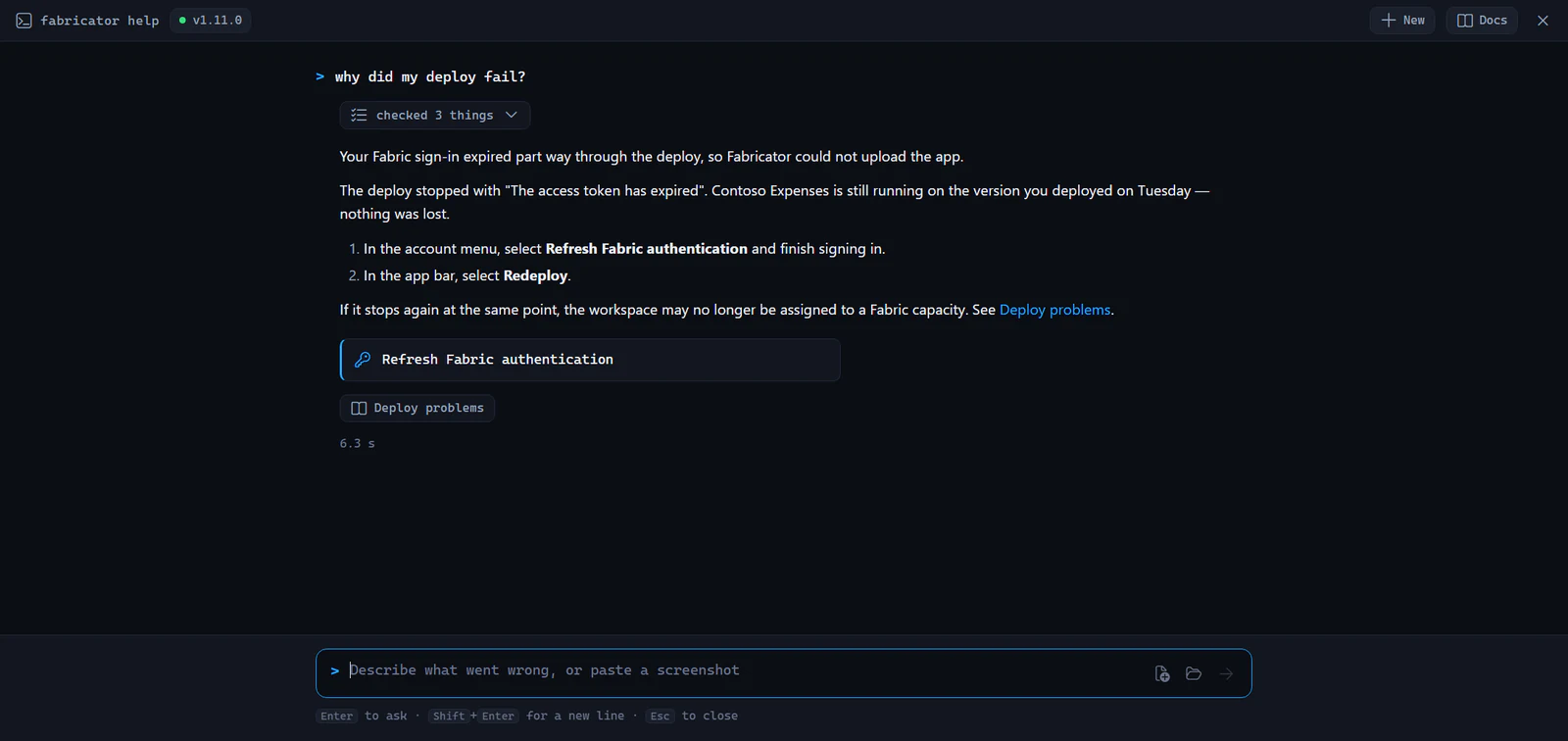
## Open Help
1. In the status bar, select **Help**. You can also press `Ctrl+J` (`Cmd+J` on macOS).
2. Type what went wrong and press `Enter`.
3. Press `Esc` to close Help, or to stop an answer that is still being written.
Help opens full screen over the app. Your project and chat stay exactly as you left them. Ray, Fabricator's stingray, greets you and offers a few questions to start with. He reads along while Help works on an answer.
Help is also available during setup: connect GitHub Copilot in step 1 and a **Help** button appears at the bottom of the setup screen. It answers the same way, but only offers the actions setup can actually carry out — re-checking your tools, signing in to Copilot, opening the logs or the documentation — because the rest of the app isn't running yet.
When a deploy fails, you don't have to open Help yourself. Ray swims in above the preview and offers **Find out why**. Select it, or select Ray, and Help opens and asks "Why did my last deploy fail?" for you. It reads the end of the deploy's log, so it can quote the line that explains the failure.
Describe the problem the way you would to a colleague. These all work:
- "Why did my last deploy fail?"
- "What went wrong most recently?"
- "The preview won't start"
- "Find me my expenses app"
- "Share my app with someone"
## Find out what's new
Ask "What's new in this release?" to hear what changed in the version of Fabricator you're running, in plain language, with a link to its release notes. It is one of the questions Help offers when you open it. You can also ask about an earlier version, or about everything that changed since the version you used before, such as "What changed since 1.12?"
## Your conversation is kept
Help remembers the thread, so you can try a fix and come back. Closing Help, taking one of its buttons, and restarting Fabricator all leave the conversation intact — which matters, because restarting is itself a common fix.
When you reopen Help, it shows "Picking up where you left off" above the earlier part, so a resumed thread never looks like a mistake. Follow up with "that didn't work" and Help answers with the earlier turns in mind.
A conversation you haven't touched for a day is dropped, so an unrelated problem next week starts clean. To start over sooner, select **New** in the top-right.
## What Help can see
Help reads five things, and nothing else:
| Source | What it is used for |
| --- | --- |
| Your activity history | What Fabricator has done recently, and how each of those went |
| The documentation | How a feature is meant to work, and the steps to fix it |
| The release notes | What changed in each version of Fabricator |
| Your open project | Your app's files, when the question is about your app |
| Fabricator's own code | Tracing an error message back to the condition that caused it |
Fabricator keeps a record of what happens as you work: setup finishing, signing in, installing a tool, creating or opening an app, starting a preview, deploying, and every message it shows you. Successes are recorded as well as failures, which is what lets Help tell the difference between a problem you are having now and one you already got past. That history is kept for seven days and never leaves your computer unless you attach it to a bug report yourself.
Help is also told what is true at the moment you ask: which accounts are connected, whether your tools are ready, and which app is open. So "how did setup go?" is answered from how setup actually stands, not from the last thing that went wrong on the way there.
The badge next to **fabricator help** at the top shows what Help has available. When it shows a version such as `v1.9.5`, Help is reading the exact code your copy of Fabricator is built from, so its answers match the app in front of you. Select the badge to download a fresh copy.
> [!NOTE]
> Help downloads the documentation, the release notes and Fabricator's code once, then works offline. The first question after an update takes a few seconds longer while it refreshes.
## What Help can and can't do
Help is read-only. It can't change your project, your settings, or your app, and it won't write code for you. Use the **Build** chat for that.
What it does instead is explain and take you places. When something is a step you could take yourself, Help offers it as a button under its answer rather than describing where to click. Selecting the button does exactly what finding that control yourself would do. It can:
- Open one of your projects by name, or show you all of them when you're not sure.
- Open the dialog for sharing your deployed app. For a team app it opens the workspace overview instead, because a team app's access is granted there by an owner.
- Open the Advisor, your project's files, Settings, the Accounts dialog, or the logs folder.
- Re-check your setup, or refresh a Fabric or GitHub Copilot sign-in.
- Open the documentation page the answer came from.
## Let Help write the bug report
When a problem turns out to be a fault in Fabricator rather than something you can fix, Help writes the bug report for you.
1. Ask Help about the problem, or say "report this for me".
2. Help shows **Bug report ready** with a one-line title.
3. Select **Review it first** to read the whole report before anything leaves your machine.
4. Select **Report this on GitHub** to open it, prefilled, in your browser.
Help fills in what happened, the steps that led to it, and what you already tried, using the history it found on your computer, so you don't have to remember any of it. Your Fabricator version and system details are added automatically, and a diagnostics file is saved for you to attach. Nothing is submitted until you select the submit button on GitHub yourself.
Ask for something that doesn't exist yet — "it should let me rename a deployment" — and Help writes it up as a feature request instead. It shows **Feature request ready** and **Suggest this on GitHub**, with no diagnostics file, because a suggestion isn't a fault to investigate.
> [!NOTE]
> Review the report before submitting. It quotes your own error messages, which can include workspace or file names. Secret-looking values are masked, but the rest is yours to check.
## Show Help a file, folder or screenshot
Some problems are easier to show than to describe.
1. Select the file icon to attach files, or the folder icon to attach a folder.
2. Or paste a screenshot straight into the box. Copy an image, select the box, and press `Ctrl+V`.
3. Ask your question. Remove anything you attached by mistake with the **×** on its chip.
Help can only read what you attach for that question. It can't browse the rest of your computer.
## See what Help checked
Above each answer, Help shows a line such as "checked 3 things". Select it to see exactly which logs and pages it read. Use it when you want to confirm an answer came from what actually happened on your computer rather than a guess.
## When the assistant isn't available
Help needs you to be signed in to GitHub Copilot, the same as the **Build** chat. If you are signed out, selecting **Help** opens a short dialog instead of the assistant, offering to sign you in, open the documentation, or start a bug report with your version details and a diagnostics file attached.
## When Help can't answer
If Help doesn't know, it says so rather than guessing, and offers to write the problem up so a human can look at it.
Help uses your Copilot allowance in the same way chat does. See [Copilot credits run out quickly](https://spatney.github.io/rayfin-fabricator/docs/troubleshooting/chat#copilot-credits-run-out-quickly).
---
---
title: "Troubleshooting overview"
description: "Start here when Fabricator is not working, then jump to the symptom that matches what you see."
url: https://spatney.github.io/rayfin-fabricator/docs/troubleshooting
markdown_url: https://spatney.github.io/rayfin-fabricator/docs/troubleshooting.md
app_version: "1.20.1"
section: troubleshooting
product: Fabricator
last_updated: 2026-10-14T22:09:52-07:00
source: troubleshooting/index.mdx
---
# Troubleshooting overview
> Start here when Fabricator is not working, then jump to the symptom that matches what you see.
Use this page when Fabricator gets stuck, a sign-in fails, a preview is blank, or a deploy does not finish. Start with the checks below, then use the symptom index.
## Ask Help first
Fabricator has a built-in assistant that reads the errors it recorded on your computer and explains what went wrong.
1. In the status bar, select **Help**, or press `Ctrl+J` (`Cmd+J` on macOS).
2. Describe the problem, such as "why did my last deploy fail?".
Help often identifies the cause faster than working through the index below, because it can see the exact error you hit. See [Ask Help](https://spatney.github.io/rayfin-fabricator/docs/troubleshooting/help).
## First steps for any problem
1. Update to the latest version. Restart Fabricator so it checks for an update, and install the update if Fabricator offers one. If you installed an old build from before auto-update existed, download and install the latest release once from [GitHub Releases](https://github.com/spatney/rayfin-fabricator/releases/latest). Future updates are in-app.
2. Restart Fabricator. This refreshes the bundled Copilot engine, PATH discovery, the preview surface, and any setup checks that depend on tools installed while the app was open.
3. Re-check setup. On the setup screen, select **Re-check** after installing Node.js, Git, Azure CLI, GitHub CLI, or after signing in.
4. Check the status bar version. The lower-right status bar shows the Fabricator app version. Include that version in reports.
5. Read the exact message. The fastest fix usually depends on the exact quoted error in the banner, modal, chat card, or setup row.
## Symptom index
| If you see this | Go here |
| --- | --- |
| Windows SmartScreen warns about the installer | [Windows says the installer is uncommon](https://spatney.github.io/rayfin-fabricator/docs/troubleshooting/install-and-updates#windows-says-the-installer-is-uncommon) |
| macOS says the app is damaged | [macOS says Fabricator is damaged and can't be opened](https://spatney.github.io/rayfin-fabricator/docs/troubleshooting/install-and-updates#macos-says-fabricator-is-damaged-and-cant-be-opened) |
| An update prompt, banner, or manual update problem | [An update won't install or keeps prompting](https://spatney.github.io/rayfin-fabricator/docs/troubleshooting/install-and-updates#an-update-wont-install-or-keeps-prompting) |
| A setup tool is missing, outdated, or failed its version check | [A tool shows as missing or failed](https://spatney.github.io/rayfin-fabricator/docs/troubleshooting/setup-and-sign-in#a-tool-shows-as-missing-or-failed) |
| GitHub Copilot sign-in fails | [GitHub Copilot sign-in doesn't work](https://spatney.github.io/rayfin-fabricator/docs/troubleshooting/setup-and-sign-in#github-copilot-sign-in-doesnt-work) |
| Chat asks you to sign in again | [Copilot asks you to sign in again](https://spatney.github.io/rayfin-fabricator/docs/troubleshooting/setup-and-sign-in#copilot-asks-you-to-sign-in-again) |
| Azure CLI is using the wrong tenant or account | [Azure CLI is signed in to the wrong account](https://spatney.github.io/rayfin-fabricator/docs/troubleshooting/setup-and-sign-in#azure-cli-is-signed-in-to-the-wrong-account) |
| Fabric sign-in does nothing or does not finish | [Fabric sign-in doesn't complete](https://spatney.github.io/rayfin-fabricator/docs/troubleshooting/setup-and-sign-in#fabric-sign-in-doesnt-complete) |
| Chat shows a Copilot error | [Chat shows a Copilot error](https://spatney.github.io/rayfin-fabricator/docs/troubleshooting/chat#chat-shows-a-copilot-error) |
| A chat turn looks stuck | [A chat turn seems stuck](https://spatney.github.io/rayfin-fabricator/docs/troubleshooting/chat#a-chat-turn-seems-stuck) |
| The chat history changed or a new Copilot session started | [The conversation disappeared or a new session started](https://spatney.github.io/rayfin-fabricator/docs/troubleshooting/chat#the-conversation-disappeared-or-a-new-session-started) |
| Copilot credits or premium requests run out | [Copilot credits run out quickly](https://spatney.github.io/rayfin-fabricator/docs/troubleshooting/chat#copilot-credits-run-out-quickly) |
| Rayfin CLI reports missing packages such as `rxjs`, `commander`, or `jsonwebtoken` | [Rayfin CLI reports missing dependencies](https://spatney.github.io/rayfin-fabricator/docs/troubleshooting/chat#rayfin-cli-reports-missing-dependencies) |
| Preview is blank, stale, or stuck opening | [The preview is blank or stuck](https://spatney.github.io/rayfin-fabricator/docs/troubleshooting/preview#the-preview-is-blank-or-stuck) |
| Every preview port is taken | [All preview ports are busy](https://spatney.github.io/rayfin-fabricator/docs/troubleshooting/preview#all-preview-ports-are-busy) |
| Preview shows an older app | [The preview shows an old version](https://spatney.github.io/rayfin-fabricator/docs/troubleshooting/preview#the-preview-shows-an-old-version) |
| The app inside the preview asks you to sign in | [The preview asks you to sign in](https://spatney.github.io/rayfin-fabricator/docs/troubleshooting/preview#the-preview-asks-you-to-sign-in) |
| The local preview says "Automatic local sign-in failed." | [The local preview says automatic sign-in failed](https://spatney.github.io/rayfin-fabricator/docs/troubleshooting/preview#the-local-preview-says-automatic-sign-in-failed) |
| Preview covers chat or other UI | [The preview covers other Fabricator controls](https://spatney.github.io/rayfin-fabricator/docs/troubleshooting/preview#the-preview-covers-other-fabricator-controls) |
| Team app local preview restarts | [A team app local preview restarts](https://spatney.github.io/rayfin-fabricator/docs/troubleshooting/preview#a-team-app-local-preview-restarts) |
| The preview says **Deploy failed** | [A deploy failed](https://spatney.github.io/rayfin-fabricator/docs/troubleshooting/deploy#a-deploy-failed) |
| Automatic redeploy no longer runs after chat | [Automatic redeploy stopped](https://spatney.github.io/rayfin-fabricator/docs/troubleshooting/deploy#automatic-redeploy-stopped) |
| Deploy keeps failing after Fabric sign-in | [Fabric authentication blocks deploy](https://spatney.github.io/rayfin-fabricator/docs/troubleshooting/deploy#fabric-authentication-blocks-deploy) |
| Semantic model reads fail | [Couldn't read the semantic model](https://spatney.github.io/rayfin-fabricator/docs/troubleshooting/deploy#couldnt-read-the-semantic-model) |
| Workspace or Fabric capacity blocks deployment | [The workspace or capacity blocks deploy](https://spatney.github.io/rayfin-fabricator/docs/troubleshooting/deploy#the-workspace-or-capacity-blocks-deploy) |
| Rayfin CLI is missing or npm reports `ETARGET` | [Rayfin CLI or npm package resolution failed](https://spatney.github.io/rayfin-fabricator/docs/troubleshooting/deploy#rayfin-cli-or-npm-package-resolution-failed) |
| Someone else cannot open the shared app | [Recipients can't open the shared app](https://spatney.github.io/rayfin-fabricator/docs/troubleshooting/deploy#recipients-cant-open-the-shared-app) |
| A team workspace step failed and its message doesn't explain why | [A team step failed and the message doesn't explain it](https://spatney.github.io/rayfin-fabricator/docs/troubleshooting/team#a-team-step-failed-and-the-message-doesnt-explain-it) |
| A team workspace setup step needs admin help | [Setup needs an administrator](https://spatney.github.io/rayfin-fabricator/docs/troubleshooting/team#setup-needs-an-administrator) |
| Team workspace setup can't create the GitHub repository in your organization | [Setup can't create the GitHub repository](https://spatney.github.io/rayfin-fabricator/docs/troubleshooting/team#setup-cant-create-the-github-repository) |
| Team workspace setup says the organization locked the repository until it's set up | [The organization locked the repository until it's set up](https://spatney.github.io/rayfin-fabricator/docs/troubleshooting/team#the-organization-locked-the-repository-until-its-set-up) |
| A team workspace pipeline's sign-in fails with AADSTS7002381 | [The pipeline's sign-in fails with AADSTS7002381](https://spatney.github.io/rayfin-fabricator/docs/troubleshooting/team#the-pipelines-sign-in-fails-with-aadsts7002381) |
| GitHub CLI is missing, signed out, or missing scopes for a team workspace | [GitHub CLI is missing, signed out, or missing scopes](https://spatney.github.io/rayfin-fabricator/docs/troubleshooting/team#github-cli-is-missing-signed-out-or-missing-scopes) |
| GitHub says an organization requires single sign-on for a team workspace | [GitHub says the organization requires single sign-on](https://spatney.github.io/rayfin-fabricator/docs/troubleshooting/team#github-says-the-organization-requires-single-sign-on) |
| A team workspace pipeline or publish run failed | [A pipeline failed](https://spatney.github.io/rayfin-fabricator/docs/troubleshooting/team#a-pipeline-failed) |
| A team workspace pipeline never starts, or setup says no runner picked it up | [No runner picks up the pipeline](https://spatney.github.io/rayfin-fabricator/docs/troubleshooting/team#no-runner-picks-up-the-pipeline) |
| Team publish is blocked by conflicts | [Publish is blocked or has conflicts](https://spatney.github.io/rayfin-fabricator/docs/troubleshooting/team#publish-is-blocked-or-has-conflicts) |
| Team previews are missing, failed, or old | [Previews are not deploying](https://spatney.github.io/rayfin-fabricator/docs/troubleshooting/team#previews-are-not-deploying) |
| A team workspace invitation is missing | [Invitations are not showing](https://spatney.github.io/rayfin-fabricator/docs/troubleshooting/team#invitations-are-not-showing) |
| Team workspace pipeline health says Repair is needed | [Repair is needed after updates](https://spatney.github.io/rayfin-fabricator/docs/troubleshooting/team#repair-is-needed-after-updates) |
| Any team workspace problem | [Team workspace problems](https://spatney.github.io/rayfin-fabricator/docs/troubleshooting/team) |
## Get help
If the fix for your symptom does not work, collect diagnostics and open a report:
1. In the status bar, select **Help**.
2. Describe the problem, or ask Help to report it for you.
3. Select **Report this on GitHub**, then drag the diagnostics file that Fabricator created onto the issue.
See [Report a problem](https://spatney.github.io/rayfin-fabricator/docs/troubleshooting/report-a-problem) for what Fabricator includes and what to remove before posting publicly.
---
---
title: "Install and update problems"
description: "Fix Windows SmartScreen warnings, macOS quarantine errors, and in-app update prompts or failures."
url: https://spatney.github.io/rayfin-fabricator/docs/troubleshooting/install-and-updates
markdown_url: https://spatney.github.io/rayfin-fabricator/docs/troubleshooting/install-and-updates.md
app_version: "1.20.1"
section: troubleshooting
product: Fabricator
last_updated: 2026-10-14T22:09:52-07:00
source: troubleshooting/install-and-updates.mdx
---
# Install and update problems
> Fix Windows SmartScreen warnings, macOS quarantine errors, and in-app update prompts or failures.
Use this page when Fabricator will not open, the installer is blocked, or an update cannot be applied.
## Windows says the installer is uncommon
You see a Windows SmartScreen warning when you run `Rayfin Fabricator__x64-setup.exe`.
Fabricator's Windows installer is Authenticode code-signed and shows the verified publisher as Sachin Patney. SmartScreen reputation is still built per certificate and download, so early or uncommon downloads can warn even when the installer is signed.
1. Confirm you downloaded the installer from [the latest GitHub release](https://github.com/spatney/rayfin-fabricator/releases/latest).
2. In the SmartScreen dialog, select **More info**.
3. Confirm the publisher is Sachin Patney.
4. Select **Run anyway**.
5. If Windows still blocks the installer, download the asset again from GitHub Releases.
If the warning looks different or the publisher is not shown as expected, stop and [Report a problem](https://spatney.github.io/rayfin-fabricator/docs/troubleshooting/report-a-problem).
## macOS says Fabricator is damaged and can't be opened
You see "Rayfin Fabricator" is damaged and can't be opened, or macOS refuses to launch the app after you drag it into **Applications**.
The macOS Apple Silicon build is ad-hoc signed but not notarized. macOS can quarantine the app on download and describe that quarantine as damage.
1. Confirm you downloaded the `Rayfin Fabricator__aarch64.dmg` asset from [the latest GitHub release](https://github.com/spatney/rayfin-fabricator/releases/latest).
2. Drag **Rayfin Fabricator** into **Applications**.
3. Open Terminal.
4. Run:
```bash
xattr -dr com.apple.quarantine "/Applications/Rayfin Fabricator.app"
```
5. Open Fabricator again from **Applications**.
As an alternative, Control-click the app and choose **Open**. The `xattr` command is the most reliable fix.
If the app still will not open, [Report a problem](https://spatney.github.io/rayfin-fabricator/docs/troubleshooting/report-a-problem).
## An update won't install or keeps prompting
You may see **Update available**, a `Fabricator is ready to install.` prompt, an `Update is ready to install` banner, a `Downloading update …` banner, or "Installing update…".
Fabricator checks GitHub Releases when it starts, every 4 hours while it's open, and as soon as your connection comes back after a check failed. It downloads a signed update in the background. An update found at startup offers **Update now** or **Later**. Choosing **Later** keeps the app open and leaves the banner available with **Restart & update**. An update found while you work goes straight to the banner.
1. If you see **Update available**, select **Update now**. Fabricator restarts to apply the update.
2. If you chose **Later**, use the update banner and select **Restart & update** when you are ready.
3. If no update shows up when you expect one, check your network. Fabricator checks again once your connection is back. To check right away, restart Fabricator.
4. If the banner stays on `Downloading update …` or "Installing update…" for a long time, restart Fabricator. It checks for the update again when it starts.
5. If your installed build predates auto-update support, install the latest release manually once from [GitHub Releases](https://github.com/spatney/rayfin-fabricator/releases/latest). After that, in-app updates work.
6. If you see "A required update must be installed to continue.", leave Fabricator open until it restarts. If it fails, install the latest release manually.
If updates keep failing after a manual reinstall, [Report a problem](https://spatney.github.io/rayfin-fabricator/docs/troubleshooting/report-a-problem).
---
---
title: "Preview problems"
description: "Fix blank, stale, or stuck previews, busy live-preview ports, preview sign-in prompts, and old preview surfaces."
url: https://spatney.github.io/rayfin-fabricator/docs/troubleshooting/preview
markdown_url: https://spatney.github.io/rayfin-fabricator/docs/troubleshooting/preview.md
app_version: "1.20.1"
section: troubleshooting
product: Fabricator
last_updated: 2026-10-10T11:36:53-07:00
source: troubleshooting/preview.mdx
---
# Preview problems
> Fix blank, stale, or stuck previews, busy live-preview ports, preview sign-in prompts, and old preview surfaces.
Use this page when the inline preview does not show the app you expect.
## The preview is blank or stuck
You see an empty preview, **Loading…** for a long time, a local browser error, or chat appears to hang while opening a preview.
Fabricator shows either the deployed app or, during a chat turn, a local Vite preview. The local preview uses the existing Fabric deployment's configuration and can be interrupted by dependency installs, port conflicts, or a dev server that stops answering.
1. Select **Reload** in the preview toolbar.
2. Select **Focus** to hide chat, then **Exit focus** to return. This forces the preview bounds to be recalculated.
3. If the preview is local and the turn is still running, wait for the turn to finish. The normal deployed preview returns after the turn and deploy. With [Deploy manually](https://spatney.github.io/rayfin-fabricator/docs/ship/deploy#deploy-manually) set to **Manual deploy**, the preview stays local while the app is open.
4. If the app is deployed but the preview is blank, select **Redeploy**.
5. If a local preview log says "Local preview didn't become ready in time." or "Timed out waiting for Vite to start.", retry the chat turn after dependencies finish installing.
6. If the same project repeatedly hangs while opening preview, restart Fabricator.
If the preview still hangs, [Report a problem](https://spatney.github.io/rayfin-fabricator/docs/troubleshooting/report-a-problem).
## All preview ports are busy
You see a dialog titled "localhost:5173 is in use" or a similar localhost port. The message may say "The live preview has to run on a port your app's sign-in accepts."
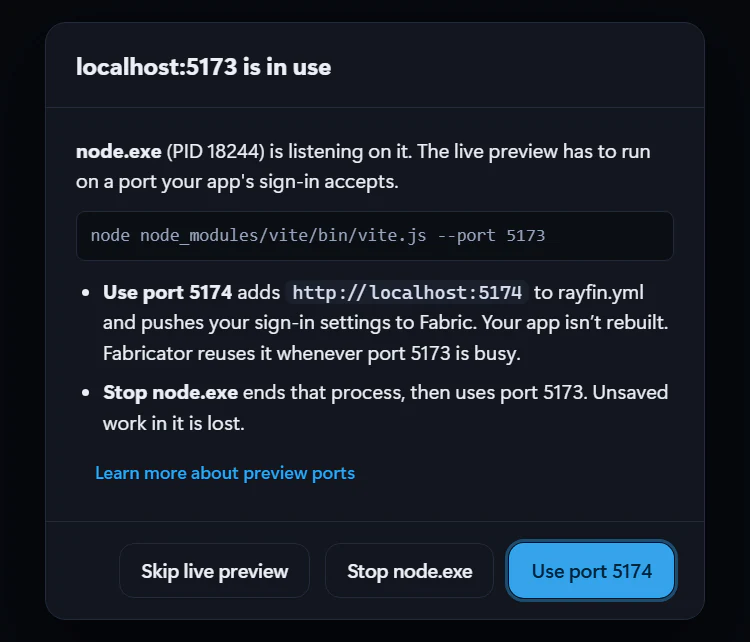
During a chat turn, Fabricator runs the project's local Vite server on a localhost port that the app's sign-in accepts. If every registered port is busy, Fabricator asks what to do instead of stopping an unrelated process without permission.
1. If the dialog offers **Use port 5174** or another port, select it. Fabricator adds `http://localhost:` to `rayfin/rayfin.yml`. If the app already has a Fabric backend, it pushes sign-in settings to Fabric without rebuilding the app.
2. If the dialog identifies a process and offers a **Stop** button named for that process, such as **Stop node.exe**, use it only if you are sure that process can be closed. Unsaved work in that process is lost.
3. Select **Skip live preview** to keep the chat turn moving without a local preview. You can use the deployed preview after the turn finishes.
4. If Fabricator says switching ports cannot happen while Copilot is working, skip for now and send the next message after the turn ends.
5. If the port becomes busy again, close the other app or choose another port when prompted.
If Fabricator cannot identify or stop the process, [Report a problem](https://spatney.github.io/rayfin-fabricator/docs/troubleshooting/report-a-problem) with the port number and dialog text.
## The preview shows an old version
The preview is live, but it does not include the changes Copilot just made.
During a turn, the local preview shows frontend edits from Vite. After a successful turn, Fabricator checks for undeployed changes and runs **Redeploy** automatically. Failed or cancelled turns, deploy failures, and change-check errors can leave the preview on the previous deployment. With [Deploy manually](https://spatney.github.io/rayfin-fabricator/docs/ship/deploy#deploy-manually) set to **Manual deploy**, nothing deploys after a turn, so the deployed app stays on the previous version until you select **Redeploy**.
1. Select **Reload** in the preview toolbar.
2. Check whether the preview badge says **Local**. If it does, wait for the current turn to finish.
3. If the deploy status says **Deploy failed**, select **Find out why** above the preview and fix the deploy first. See [A deploy failed](https://spatney.github.io/rayfin-fabricator/docs/troubleshooting/deploy#a-deploy-failed).
4. Select **Redeploy** to publish the current project files.
5. If Code or History says the live app is showing an earlier version, use the offered publish action or **Redeploy**.
If the preview remains stale after a successful deploy, [Report a problem](https://spatney.github.io/rayfin-fabricator/docs/troubleshooting/report-a-problem).
## The preview asks you to sign in
The app inside the preview opens a Microsoft sign-in prompt, asks again after Fabricator is signed in, or a semantic-model dialog offers **Sign in & retry**.
The deployed app's browser session is separate from Fabricator's Rayfin CLI session. Fabricator can be signed in to Fabric for deploy while the embedded app still needs an interactive browser token. On Windows, Fabricator's WebView2 preview supports compliant-device Conditional Access through the OS primary account. The local preview of a Universal App signs you in automatically; if that fails, see [The local preview says automatic sign-in failed](https://spatney.github.io/rayfin-fabricator/docs/troubleshooting/preview#the-local-preview-says-automatic-sign-in-failed).
1. Complete the sign-in inside the preview when the app asks.
2. If a semantic-model dialog shows **Sign in & retry**, select it and complete the browser flow.
3. If your organization requires a compliant or managed Windows device, make sure Microsoft Edge can sign in to the same app on this computer.
4. On macOS, passwordless SSO for some tenants may still require opening the app externally or using a Windows compliant device.
5. If Fabricator deploys fail too, use **Refresh Fabric authentication** separately. That does not clear the preview browser session.
If the preview sign-in loops, [Report a problem](https://spatney.github.io/rayfin-fabricator/docs/troubleshooting/report-a-problem).
## The local preview says automatic sign-in failed
The local preview shows the app's sign-in page with a message that starts with "Automatic local sign-in failed."
Universal Apps sign in to the local preview with the Fabric account Fabricator deploys with. Fabric has to accept that account for this app, and the rest of the message says why it didn't.
1. If the message says "External Entra exchange is not enabled.", check that `rayfin/rayfin.yml` sets `externalEntraExchange: true` under `services.auth.fabric`. Then select **Redeploy** so the setting reaches Fabric.
2. If it says "Could not sign you in automatically for local development." or "Entra authentication failed.", open the account menu and select **Refresh Fabric authentication**. Then select **Reload** in the preview.
3. If it says "Item Execute permission is required.", your Fabric account can't open this app. Use an account that has access to the app's workspace.
4. To keep working in the meantime, select the app's sign-in button and complete the sign-in popup.
If automatic sign-in still fails, [Report a problem](https://spatney.github.io/rayfin-fabricator/docs/troubleshooting/report-a-problem) with the full message.
## The preview covers other Fabricator controls
The native preview appears on top of chat, settings, menus, or other UI after zooming, moving windows, or switching monitors.
This was fixed in Fabricator 1.3.2. Current versions position the native preview using the renderer's actual display scale and browser zoom.
1. Update to the latest Fabricator version.
2. Restart Fabricator.
3. If it happens again on the latest version, note your display scale, browser zoom, and monitor arrangement.
Then [Report a problem](https://spatney.github.io/rayfin-fabricator/docs/troubleshooting/report-a-problem).
## A team app local preview restarts
A team app's local preview briefly disconnects and comes back while Copilot edits files or dependencies install.
Fabricator health-checks team local previews and starts Vite again when it stops answering. If it keeps stopping, use the team troubleshooting page.
1. Wait for the preview to come back.
2. If it keeps restarting, open [Team workspace problems](https://spatney.github.io/rayfin-fabricator/docs/troubleshooting/team).
---
---
title: "Report a problem"
description: "Create a useful Fabricator bug report with diagnostics, logs, version details, and privacy checks."
url: https://spatney.github.io/rayfin-fabricator/docs/troubleshooting/report-a-problem
markdown_url: https://spatney.github.io/rayfin-fabricator/docs/troubleshooting/report-a-problem.md
app_version: "1.20.1"
section: troubleshooting
product: Fabricator
last_updated: 2026-10-06T23:07:33-07:00
source: troubleshooting/report-a-problem.mdx
---
# Report a problem
> Create a useful Fabricator bug report with diagnostics, logs, version details, and privacy checks.
Use this page when the troubleshooting fix did not work or Fabricator shows an error that is not covered.
## Ask Help before reporting
In the status bar, select **Help** and describe the problem. Help reads the same activity history that goes into a diagnostics export and often explains the cause directly.
If it turns out to be a fault in Fabricator, Help writes the bug report for you from what it found, so you don't have to reconstruct it. See [Ask Help](https://spatney.github.io/rayfin-fabricator/docs/troubleshooting/help).
## Let Help report it
The fastest report starts in Fabricator, and Help writes most of it for you.
1. In the status bar, select **Help**.
2. Describe the problem, or say "report this for me".
3. Help reads your activity history and shows **Bug report ready** with the problem written up.
4. Select **Review it first** to read it, then **Report this on GitHub**.
5. The issue opens prefilled, with app, Tauri, WebView2, Copilot CLI, and user-agent versions added.
6. Drag the diagnostics file from the opened logs folder onto the GitHub issue before submitting.
Nothing is submitted until you select the submit button on GitHub yourself.
If you aren't signed in to GitHub Copilot, **Help** offers **Report an issue** instead, which opens the same prefilled issue with an empty description for you to fill in.
The public issue tracker is [https://github.com/spatney/rayfin-fabricator/issues](https://github.com/spatney/rayfin-fabricator/issues).
## Export diagnostics from Settings
Use settings when you want to export diagnostics without opening a GitHub issue.
1. Open **Settings**.
2. Go to **Diagnostics**.
3. Select **Export diagnostics** to create a bundle and open the logs folder.
4. Select **Open logs folder** if you need to browse existing logs.
5. Use **Full diagnostics** only when you need more detail for a bug. It is off by default.
**Full diagnostics** also captures prompts, responses, and tool output for each chat turn. Leave it off unless you are comfortable sharing that extra content with the maintainer.
## What diagnostics include
A diagnostics export is a Markdown file named like `fabricator-diagnostics-20261004-010507.md` in the logs folder. It contains:
- Fabricator version.
- Operating system and architecture.
- Tauri version.
- WebView2 version when available.
- Copilot CLI version.
- Recent activity as JSON lines.
- Recent chat-turn diagnostics as JSON lines.
- Recent crash or hang log entries.
Recent activity covers both what worked and what didn't: setup finishing, signing in, installing a tool, creating or opening an app, starting a preview, deploying, and every message the app showed you. Each entry includes the time, whether it was a success or a failure, the part of the app it came from, and the message. Credentials and token-like values are masked before anything is written.
By default, chat-turn diagnostics are lightweight metadata: timing, model or mode when present, attachment count, files modified count, tool names and success, deploy involvement, outcome, and errors.
## What diagnostics do not include
Diagnostics are local files. Fabricator does not send them automatically.
The export says "Attach this file to your bug report. It contains no credentials." Fabricator also redacts bearer tokens and JWT-looking strings from Fabric helper errors before they can cross into diagnostics.
Still review the file before posting publicly. With **Full diagnostics** on, prompts, assistant responses, and tool output can include app details, file paths, data names, or text you typed.
## Where logs are stored
Logs live in Fabricator's per-user data folder under `logs`.
- Windows: `%APPDATA%\Rayfin Fabricator\logs`
- macOS: `~/Library/Application Support/Rayfin Fabricator/logs`
Use **Settings → Diagnostics → Open logs folder** instead of browsing manually when possible. See [Files and folders](https://spatney.github.io/rayfin-fabricator/docs/reference/files) for the rest of Fabricator's stored data.
## What to include in a report
A useful report includes:
1. The exact quoted message from Fabricator, chat, the preview, or the deploy log.
2. Numbered steps from a fresh launch to the problem.
3. Whether the issue happens after **Restart**, **Re-check**, **Refresh Fabric authentication**, or **Redeploy**.
4. The Fabricator version from the status bar.
5. The diagnostics bundle.
6. Screenshots or screen recordings with names, emails, tenant names, workspace names, URLs, and app data hidden.
7. Whether you are on Windows 10/11 or macOS Apple Silicon.
## Report security issues privately
Do not open a public GitHub issue for a security vulnerability or sensitive credential exposure.
Use the repository security policy instead: [SECURITY.md](https://github.com/spatney/rayfin-fabricator/blob/master/SECURITY.md).
---
---
title: "Setup and sign-in problems"
description: "Fix setup tool checks, GitHub Copilot sign-in, account switching, Azure CLI sign-in, and Fabric sign-in."
url: https://spatney.github.io/rayfin-fabricator/docs/troubleshooting/setup-and-sign-in
markdown_url: https://spatney.github.io/rayfin-fabricator/docs/troubleshooting/setup-and-sign-in.md
app_version: "1.20.1"
section: troubleshooting
product: Fabricator
last_updated: 2026-10-14T23:50:01-07:00
source: troubleshooting/setup-and-sign-in.mdx
---
# Setup and sign-in problems
> Fix setup tool checks, GitHub Copilot sign-in, account switching, Azure CLI sign-in, and Fabric sign-in.
Use this page for the first-run setup screen and account problems. Fabricator verifies the tools and sign-ins it actually uses; a remembered account is not enough if the underlying CLI token has expired.
## A tool shows as missing or failed
You see **Getting your environment ready**, a tool row such as **Node.js**, **npm**, **Git**, **Azure CLI**, or **GitHub CLI (gh)** is not **Installed**, or the row has a **Re-check** button. A failed version check can say a tool "was found, but its version check failed".
Fabricator needs Node.js 22.12 or newer, npm, Git, and Azure CLI. **GitHub CLI (gh)** is optional repository tooling. It is separate from the bundled GitHub Copilot engine, so installing Copilot with pnpm does not satisfy the **GitHub CLI (gh)** check.
A row that says **Needs updating** found an older version than Fabricator supports, for example "Version 20.10.0 — Fabricator needs 22.12 or newer". On macOS, when an older Node.js comes first on your PATH, such as the default version of a version manager like nvm, Fabricator uses a newer Node.js it finds further along your PATH, such as one installed by Homebrew. The **Node.js** row then shows that newer version.
1. If Fabricator offers **Install** or **Install all**, use it.
2. If setup says **Almost there.** and shows **Restart now**, select **Restart now**. Installed tools are often not visible to the running app until restart.
3. If a tool was installed outside Fabricator, restart Fabricator and select **Re-check**.
4. On Windows, use **Re-check** before installing a second copy. Fabricator refreshes PATH from the saved user and machine PATH and common Scoop, pnpm, and Azure CLI locations.
5. If a found tool's version check fails, open a terminal and run the command shown in the setup row, such as `az version`, to repair that existing installation.
6. Do not install a global Rayfin CLI just to satisfy setup. Fabric sign-in and deploy use the Rayfin CLI pinned by each project.
If a required tool still cannot be verified, [Report a problem](https://spatney.github.io/rayfin-fabricator/docs/troubleshooting/report-a-problem) and include the setup row text.
## GitHub Copilot sign-in doesn't work
You select **Sign in** for **GitHub Copilot**, but the browser or device-code flow fails, the code is not accepted, or setup stays unsigned in.
Fabricator signs in through its bundled Copilot engine. For GitHub Enterprise Cloud with data residency, the device code must be requested from the same enterprise host where you redeem it.
1. Leave **GitHub host** as `github.com` for a normal GitHub account.
2. For GitHub Enterprise Cloud with data residency, enter the enterprise host in **GitHub host**, such as `company.ghe.com` or `https://company.ghe.com`.
3. Select **Sign in**.
4. Complete the browser or device-code instructions shown by that exact sign-in attempt. A code from `github.com` cannot be redeemed on an enterprise host.
5. If Fabricator reports "Enter github.com or a GitHub Enterprise Cloud hostname such as company.ghe.com (optionally with https://). Do not include a path, credentials, or a non-HTTPS port.", remove paths such as `/login/device`, ports, query strings, and credentials from the host.
6. If Fabricator says the chat engine is using a different host or mentions `COPILOT_GITHUB_TOKEN`, `GH_TOKEN`, or `GITHUB_TOKEN`, remove those environment variables at their source and restart Fabricator.
7. If Fabricator says Copilot is authenticated through GitHub CLI, run `gh auth logout` for the unintended account, then restart Fabricator.
GitHub Enterprise Server is not supported by this Copilot sign-in flow. If a supported sign-in still fails, [Report a problem](https://spatney.github.io/rayfin-fabricator/docs/troubleshooting/report-a-problem).
## Copilot asks you to sign in again
In chat, you see **Copilot needs your attention**, **Sign in to Copilot**, or the exact message "GitHub Copilot is not signed in. Sign in to Copilot in Fabricator, then retry your message." You may also see errors such as "Execution failed: Error: Session was not created with authentication info or custom provider" or "Session not found".
Copilot credentials can expire or the engine can lose a saved session handle. Current Fabricator versions reconnect when possible. If the saved engine session is gone, Fabricator starts a new engine session but keeps the displayed chat history and your draft.
1. Select **Sign in to Copilot** in the chat notice.
2. Complete the browser or device-code flow.
3. Retry your message. Fabricator does not automatically replay prompts after work has started.
4. If you are on an older Fabricator version and see repeated "Session not found" errors, update to the latest version.
5. If you were switching accounts, open **Accounts** (your account avatar, then **Manage accounts…**), select **Sign out** under **GitHub Copilot**, then sign in again. Credentials supplied by environment variables or GitHub CLI must be removed outside Fabricator.
If the notice returns immediately after sign-in, [Report a problem](https://spatney.github.io/rayfin-fabricator/docs/troubleshooting/report-a-problem).
## Azure CLI is signed in to the wrong account
**Accounts** or setup shows **Azure CLI** signed in as the wrong user or tenant, or Azure sign-in works but sharing or connecting data looks in the wrong organization. **Accounts** may also warn that Microsoft Fabric and the Azure CLI are signed in to different organizations.
The Azure CLI can be signed in to several accounts and uses one of them at a time. Its accounts are shared with your terminal and are separate from Fabric/Rayfin credentials and the preview browser.
1. Open **Accounts**: select your account avatar in the app bar, then select **Manage accounts…**.
2. If **Accounts** warns that Fabric and the Azure CLI are in different organizations, select the button in the warning. It switches the Azure CLI to Fabric's organization.
3. Otherwise, if the account you need is listed under **Azure CLI**, select **Use** next to it.
4. If it isn't listed, under **Azure CLI**, select **Add account**. In **Organization (optional)**, enter the organization you need, such as `contoso.onmicrosoft.com`, select **Continue**, and complete the browser sign-in.
5. To remove an account you don't need, select **Sign out** next to it.
6. If you also need a different Fabric account for deploying, change it under **Microsoft Fabric** the same way. See [Manage your accounts](https://spatney.github.io/rayfin-fabricator/docs/start/accounts).
If Azure still reports the wrong account, [Report a problem](https://spatney.github.io/rayfin-fabricator/docs/troubleshooting/report-a-problem).
## Fabric sign-in doesn't complete
You select **Sign in to Fabric**, **Refresh Fabric authentication**, or a deploy triggers sign-in, but no browser appears, the button returns to normal, or workspace listing does not continue. You may see a Rayfin CLI line such as "❌ Login failed: OS keychain is not available and plaintext token storage is not enabled."
Fabricator runs the project's Rayfin CLI with `rayfin login --select` outside the project folder, then verifies the credential against Fabric. Running outside the project means a setting your app's `rayfin.yml` can't resolve doesn't stop you signing in. On locked-down machines the OS keychain can block token storage; current Fabricator versions allow Rayfin's plaintext fallback so sign-in can finish. On macOS, some passwordless SSO flows can still be limited by the embedded browser and system account setup.
1. Update to the latest Fabricator version.
2. Look for a browser sign-in window behind Fabricator or minimized on the taskbar or Dock.
3. Complete the sign-in for the tenant that owns the Fabric workspace.
4. If the sign-in button returns with an error, copy the exact message.
5. In the project folder, run `npx rayfin login` only to reveal the full Rayfin CLI error. Return to Fabricator after sign-in succeeds.
6. In Fabricator, open the account menu and choose **Refresh Fabric authentication**. The dialog runs `rayfin logout`, then `rayfin login`, and verifies the credential. It does not clear Copilot, Azure CLI, or preview-browser sessions.
7. After a successful refresh, select **Redeploy**. Fabricator does not redeploy automatically after a credential refresh.
If you are using a client tenant, confirm that your account can access the target Fabric workspace and capacity. If sign-in still does nothing, [Report a problem](https://spatney.github.io/rayfin-fabricator/docs/troubleshooting/report-a-problem) with diagnostics.
---
---
title: "Team workspace problems"
description: "Fix team workspace setup, GitHub CLI, pipeline, publish, preview, invitation, and Repair problems."
url: https://spatney.github.io/rayfin-fabricator/docs/troubleshooting/team
markdown_url: https://spatney.github.io/rayfin-fabricator/docs/troubleshooting/team.md
app_version: "1.20.1"
section: troubleshooting
product: Fabricator
last_updated: 2026-10-05T22:02:01-07:00
source: troubleshooting/team.mdx
---
# Team workspace problems
> Fix team workspace setup, GitHub CLI, pipeline, publish, preview, invitation, and Repair problems.
> [!WARNING]
> Team workspaces are an experiment. Turn them on in **Settings → Experiments**. They may change or be removed in a future update.
Use this page when a team workspace setup, preview deploy, publish, invitation, or pipeline repair does not finish.
## A team step failed and the message doesn't explain it
You see setup stop on a step, **Pipeline health** shows a problem, joining a workspace fails, or a preview or publish run fails, and Fabricator's message doesn't say what to change.
Team workspaces depend on Microsoft Entra ID, Fabric, and GitHub settings that your organization controls, so the same step can fail for different reasons. **Diagnose with Copilot** checks those settings and explains the most likely cause.
1. Select **Diagnose with Copilot** where the problem is shown:
- in the setup window, under the problem
- in **Join a team workspace**, under the error
- in the workspace overview, in **Manage** → **Settings** → **Pipeline health**
- in the app's team menu next to **View logs**, in the **Publish** window, or in **Pipeline log**
- in the workspace overview, on a failed preview or published app, or next to a failed run under **Deployments**
2. Wait while Fabricator runs read-only checks with your GitHub and Azure sign-ins and Copilot reviews what they found. Select **Stop** to cancel.
3. Read **Most likely cause**, then follow **What you can do**.
4. If an administrator has to change a setting, copy the message under **What to ask your administrator** and send it to them.
5. When the change is made, select **Retry** or **Repair**, or publish again.
The diagnosis doesn't change anything in Microsoft Entra ID, Fabric, GitHub, or your files, and each one uses Copilot requests. Copilot can be wrong, so check its answer before you change settings. Select **Details sent to Copilot** to see everything it received.
If it still fails, include the diagnosis when you [report a problem](https://spatney.github.io/rayfin-fabricator/docs/troubleshooting/report-a-problem).
## Setup needs an administrator
You see setup stop on an identity, trust, access, or verification step. Fabricator may show "Your organization doesn't let you create or change app registrations in Microsoft Entra ID." It may also say "The pipeline signed in, but Fabric refused it."
This happens when your organization blocks app registration changes, or when Fabric service principal API access is not enabled.
1. Select **Diagnose with Copilot** to find out which setting stopped the step and which administrator can change it.
2. Select **Copy instructions for your admin** if Fabricator shows it.
3. Send the copied text, or the message from the diagnosis, to the right Microsoft Entra ID or Fabric administrator.
4. If the administrator gives you an application client ID, paste it into **App registration from your administrator** or **Existing app registration (optional)**.
5. Select **Retry**.
If it still fails, include the setup step and copied instructions when you [report a problem](https://spatney.github.io/rayfin-fabricator/docs/troubleshooting/report-a-problem).
## Setup can't create the GitHub repository
In **Create a team workspace**, the organization you chose as **GitHub owner** says "doesn’t let you create repositories". Or setup stops on **Create the private GitHub repository** with a GitHub error, such as "You need admin access to the organization before adding a repository to it."
Many organizations don't let their members create repositories. Setup needs to create the workspace's repository, or to use one that someone created for it.
1. Ask an owner of the organization to create an empty private (or internal) repository for the workspace and give you the **Maintain** role on it. **Admin** works too.
2. In **Create a team workspace**, under **GitHub repository**, select **Existing repository**.
3. In **Repository**, choose it from the suggestions or enter it as `owner/name`. You can also paste its GitHub address.
4. Select **Create workspace**.
See [Use an existing repository](https://spatney.github.io/rayfin-fabricator/docs/team/create#use-an-existing-repository). If it still fails, select **Diagnose with Copilot**, then [report a problem](https://spatney.github.io/rayfin-fabricator/docs/troubleshooting/report-a-problem).
## The organization locked the repository until it's set up
You see "`` locked `` until it's set up in the organization's portal, so `` can't change it yet." when you create a workspace. On GitHub, the repository's description says "To gain access, please finish setting up this repository now at:".
Some organizations lock every new repository until someone finishes setting it up in the organization's portal. Microsoft's `microsoft` organization does this. Until then, even the person who created the repository can only read it. That's true of a repository you created on github.com, and of one setup just created, in which case setup stops on **Add the deploy pipeline to the repository**.
1. In Fabricator, select **Finish setting up the repository**. The portal opens in your browser.
2. Complete the portal's steps. Make sure your GitHub account ends up with the **Maintain** or **Admin** role on the repository.
3. Return to Fabricator and select **Create workspace** or **Retry**.
If Fabricator doesn't show **Finish setting up the repository**, open the repository on GitHub and follow the link in its description or website. If it still fails, select **Diagnose with Copilot**, then [report a problem](https://spatney.github.io/rayfin-fabricator/docs/troubleshooting/report-a-problem).
## The pipeline's sign-in fails with AADSTS7002381
Setup stops on **Check that the pipeline can reach Fabric** with "Your Microsoft Entra ID only accepts the pipeline's sign-in from repositories owned by organizations in the GitHub enterprises …". Or the pipeline's log shows `AADSTS7002381` and says the token "must contain the enterprise claim".
Some companies' Microsoft Entra ID only trusts GitHub Actions in their own GitHub enterprise. Microsoft's own tenant, for example, only accepts the `microsoft`, `github`, and `microsoftopensource` enterprises. GitHub only says which enterprise a repository belongs to when an organization in that enterprise owns it. A repository owned by a personal account, including a managed user's own repository, can't sign in. No setting in the pipeline or the app registration changes that.
1. In the setup window, select **Abandon setup…**, then select **Delete and abandon**. See [Abandon an unfinished setup](https://spatney.github.io/rayfin-fabricator/docs/team/create#abandon-an-unfinished-setup).
2. Create the workspace again, and choose an organization in one of those enterprises as the **GitHub owner**.
3. Or, under **GitHub repository**, select **Existing repository** and enter one of that organization's repositories where you have the **Maintain** or **Admin** role. An owner of the organization can create one for you. See [Setup can't create the GitHub repository](#setup-cant-create-the-github-repository).
If it still fails, select **Diagnose with Copilot**, then [report a problem](https://spatney.github.io/rayfin-fabricator/docs/troubleshooting/report-a-problem).
## GitHub says the organization requires single sign-on
You see a message such as "The microsoft organization requires single sign-on (through the microsoftopensource enterprise), and the GitHub CLI's sign-in for `` isn't authorized for it yet." when you create or join a workspace.
The organization uses SAML single sign-on. GitHub lets the GitHub CLI into the organization only when you sign the GitHub CLI in to GitHub while you have a single sign-on session in your browser. Seeing **GitHub CLI** under your account's authorized applications on github.com isn't enough. The authorization link in GitHub's error message is for personal access tokens, so it doesn't help the GitHub CLI.
When the organization belongs to a GitHub enterprise that runs single sign-on for all its organizations, its single sign-on page is the enterprise's. For example, the `microsoft` organization's page belongs to the `microsoftopensource` enterprise. A session there covers the organization.
1. In your browser, make sure you're signed in to github.com as the GitHub account the workspace uses, the one the message names.
2. In Fabricator, select **Open single sign-on**. Continue with your work account in your browser.
3. In Fabricator, select **Sign in to GitHub again**. Finish signing in in the terminal window and your browser.
4. Return to Fabricator and try again: select **Create workspace**, **Retry**, or **Join**.
If Fabricator doesn't show **Open single sign-on**, open `https://github.com/orgs//sso` in your browser instead.
If it still fails, sign the GitHub CLI out of that account everywhere and sign in again, as GitHub recommends:
1. On github.com, open **Settings** → **Applications** → **Authorized OAuth Apps**, and revoke **GitHub CLI**.
2. Open the organization's single sign-on page again, then select **Sign in to GitHub again** in Fabricator.
If that doesn't work either, [report a problem](https://spatney.github.io/rayfin-fabricator/docs/troubleshooting/report-a-problem).
## GitHub CLI is missing, signed out, or missing scopes
You see "The GitHub CLI (gh) isn't installed. Install it from setup, then try again." You may also see **Sign in to GitHub** or **Grant GitHub access**, or a message such as "the GitHub CLI's sign-in for `` has expired or was removed. Sign in to GitHub as `` again."
Fabricator needs `gh` on PATH, signed in to `github.com` with `repo`, `read:org`, and `workflow`. Each team workspace uses the GitHub account it was created or joined with, so that account must stay signed in to the GitHub CLI even when another account is active.
1. Install the GitHub CLI from setup if it is missing.
2. Select **Sign in to GitHub** if you are signed out.
3. Select **Grant GitHub access** if Fabricator lists missing scopes.
4. If the message names an account, sign in to GitHub as that account again: next to **GitHub account**, select **Add account**, or run `gh auth login` and sign in as it. To use another account instead, see [Change the GitHub account](https://spatney.github.io/rayfin-fabricator/docs/team/overview#change-the-github-account).
5. Finish the terminal sign-in or refresh flow.
6. Return to Fabricator and select **Check again**.
If the terminal cannot open, run the command Fabricator shows, then [report a problem](https://spatney.github.io/rayfin-fabricator/docs/troubleshooting/report-a-problem) if the check still fails.
## A pipeline failed
You see **Deploying your preview** or **Publishing for everyone** fail, or the team menu shows **Last publish** with **View on GitHub**.
The GitHub Actions workflow builds and deploys team apps. Common verified causes include an old Rayfin version and destructive data changes.
1. Open the team menu and select **View logs**, **View on GitHub**, or **View logs on GitHub**.
2. Select **Diagnose with Copilot** next to **View logs**, or in the **Publish** window, to find the likely cause. If the cause is in the app's code, select **Fix with Copilot** to hand the diagnosis to the app's chat.
3. If the log says "Team workspaces need Rayfin 1.36.2 or newer", open the app, select Rayfin in the status bar, choose **Update with Copilot**, then save another change.
4. If the log says "This change would delete data in the published app. Publish it again from Fabricator and confirm to allow it.", return to the app and publish again.
5. If Fabricator offers **Deploy anyway (deletes data)**, select it only if you accept the data deletion.
If the log does not explain the failure, attach the GitHub run URL when you [report a problem](https://spatney.github.io/rayfin-fabricator/docs/troubleshooting/report-a-problem).
## No runner picks up the pipeline
You see one of these:
- Setup stops on **Check that the pipeline can reach Fabric** with "No runner picked up the pipeline's verification run in 6 minutes." or "GitHub didn't start the pipeline's verification run:" followed by GitHub's reason, such as "GitHub Actions hosted runners are disabled for this repository." or "Required runner group '…' not found".
- Setup says "GitHub can't use the pipeline's runner setting: FABRICATOR_RUNS_ON is …", because someone set the variable by hand to a value GitHub can't use.
- Publishing says "Fabricator didn't publish because GitHub didn't start the team pipeline for your preview" or "Your changes are published, but GitHub didn't start the pipeline that deploys them".
- A preview or publish shows "Still waiting for a runner".
GitHub Actions runs the pipeline on runners. Your GitHub organization or enterprise may have turned off GitHub-hosted runners, or the runners the pipeline asks for are busy, offline, or not available to the workspace's repository.
1. Find out which runners your organization uses for GitHub Actions. Select **Copy instructions for your admin** if Fabricator shows it, and send the text to a GitHub organization owner.
2. Choose those runners:
- During setup, choose them under **Where the pipeline runs** in the setup window, then select **Retry**.
- For an existing workspace, an owner opens the workspace overview, selects **Manage** → **Settings**, and in **Where the pipeline runs** selects **Change**, chooses the runners, and selects **Save**. Then, in **Pipeline health**, select **Repair** or **Check the pipeline**.
3. If Fabricator says "The pipeline's runner couldn't reach GitHub's sign-in, Microsoft Entra ID or Fabric.", ask whoever manages the runners to allow outbound access to GitHub, `login.microsoftonline.com`, and `api.fabric.microsoft.com`.
A repository that belongs to your personal account has no runner groups. If your enterprise allows it, you can add a self-hosted runner to the repository on GitHub, in the repository's **Settings → Actions → Runners**, on a Linux computer. Then choose **Runners with labels** with `self-hosted, linux`.
Runs that were already waiting keep their old runners. Start them again by saving another change or publishing again. See [Where the workflow runs](https://spatney.github.io/rayfin-fabricator/docs/team/administrators#where-the-workflow-runs) for what the runners need. If it still fails, select **Diagnose with Copilot**, then [report a problem](https://spatney.github.io/rayfin-fabricator/docs/troubleshooting/report-a-problem).
## Publish is blocked or has conflicts
You see "Your teammates changed some of the same files as you. Bring in their changes and resolve the conflicts first." You may also see **Let Copilot combine them** or **Ask Copilot to finish**.
This happens when your branch cannot merge the published app cleanly.
1. Open the team menu.
2. Select **Bring in their changes** if it is available.
3. If conflicts remain, select **Let Copilot combine them** or **Ask Copilot to finish**.
4. Review the result in your preview.
5. Select **Publish** again.
If Copilot cannot resolve the conflict, include the conflicted file names when you [report a problem](https://spatney.github.io/rayfin-fabricator/docs/troubleshooting/report-a-problem).
## Previews are not deploying
You see your local preview, but **My preview** stays missing, failed, or older than your latest save. The preview pane may keep showing **Deploying your first preview**.
Team previews are deployed by the repository's GitHub Actions workflow. They do not deploy from your computer.
1. Open the workspace overview.
2. Select your working copy.
3. In **Preview**, use **Watch on GitHub**, **See why it failed**, or **Diagnose with Copilot** if shown.
4. Open **Manage → Settings** and check **Pipeline health** if runs are not starting. If they wait for a runner, see [No runner picks up the pipeline](#no-runner-picks-up-the-pipeline).
5. Select **Repair** if Fabricator says the pipeline needs repair.
If the workflow did not start, check that GitHub Actions is enabled for the repository, then [report a problem](https://spatney.github.io/rayfin-fabricator/docs/troubleshooting/report-a-problem).
## Invitations are not showing
You expect an invitation, but **Invitations** says "No pending invitations. Ask the workspace’s owner to invite your GitHub username."
Fabricator lists pending invitations only for repositories that look like Fabricator team workspaces.
1. Ask the owner to verify the GitHub username.
2. Ask the owner to resend the invitation from **Members** with **Send invitation**.
3. Make sure you are signed in to `gh` as that GitHub user on `github.com`.
4. In **Join a team workspace**, use **Or enter its GitHub repository** and enter `owner/repository` if you already have access.
5. If joining shows an error, select **Diagnose with Copilot** under it.
If you still cannot join, include the repository name when you [report a problem](https://spatney.github.io/rayfin-fabricator/docs/troubleshooting/report-a-problem).
## Repair is needed after updates
You see **Repair** in **Manage → Settings → Pipeline health**, or a local preview error starts with "Couldn't read the deployment's settings:" and tells you to sign in to Fabric or repair the pipeline.
Fabricator updates the managed workflow over time. Existing workspaces can need the newer template or refreshed settings.
1. Open the workspace overview.
2. Select **Manage**.
3. Select **Settings**.
4. In **Pipeline health**, select **Repair**.
5. Wait for the repair checklist to finish.
6. Save a change or publish again.
If repair fails, select **Diagnose with Copilot** in **Pipeline health**. If it still fails, copy the shown problem and [report a problem](https://spatney.github.io/rayfin-fabricator/docs/troubleshooting/report-a-problem).